Harmony Addon Settings
Last updated Over 1 year ago
OCIO config
Setting Location:
ayon+settings://harmony/imageio
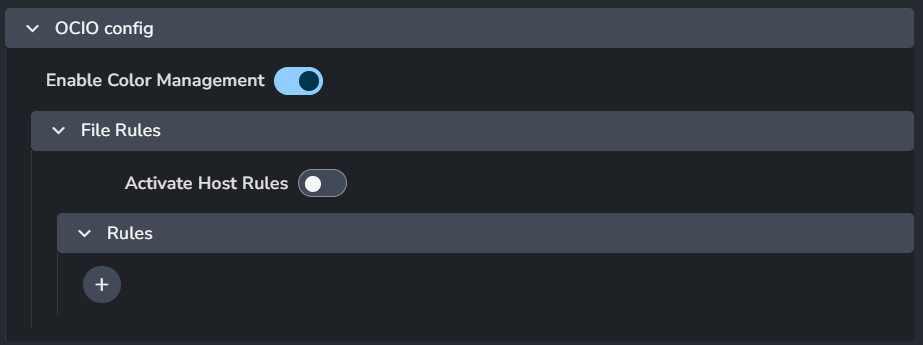
Enable Color Management: This toggle enables AYON's global color management. This toggle is a master switch that enables and disables the whole section.
File Rules
Activate Host Rules
Rules
+: Add more rules
Each rule consists of
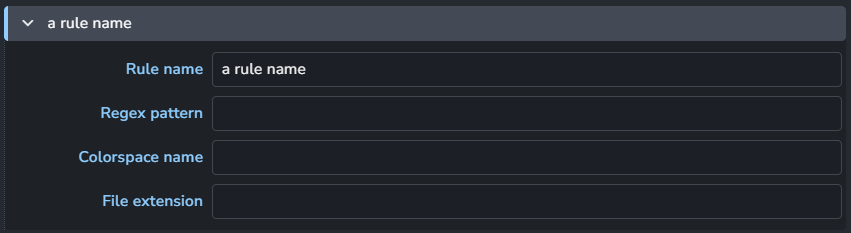
Rule name
Regex pattern
Colorspace name
File extension
Creator plugins
Render & Render on Farm
Settings’ Locations:
ayon+settings://harmony/create/CreateRender
ayon+settings://harmony/create/CreateFarmRender
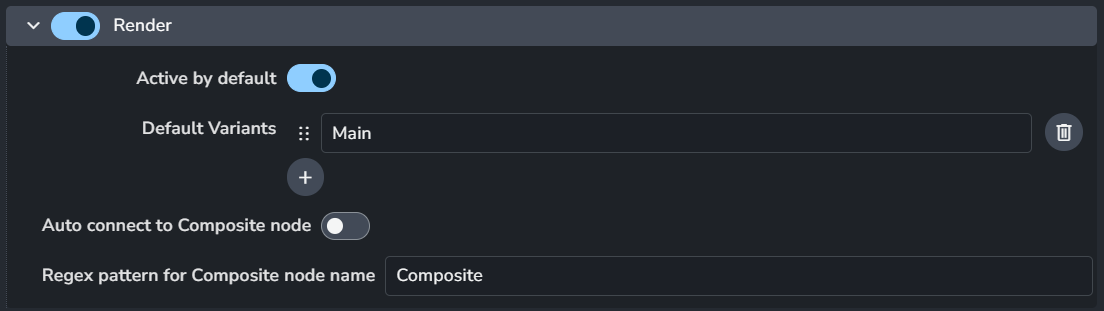
Enable: The default state of the plugin.
Active by default: Activate the plugin during the export process.
Default Variants
Auto connect to Composite node: Enable connecting to the Composite node automatically.
Regex pattern for Composite node name: Provide regex pattern to find Composite node to connect newly Write node to.
Publish plugins
Collect Palettes
Setting Location:
ayon+settings://harmony/publish/CollectPalettes

Allowed tasks: Set regex pattern(s) only for task names when publishing of Palettes should occur.
Use ".*" to publish Palettes for ALL tasks.
+ : Add a regex pattern.
Validate Audio

Ensures that there is an audio file in the scene.
If you are sure that you want to send render without audio, you can disable this plugin by toggle next to plugin name.
Enable: The default state of the plugin.
Optional: Allows the user to toggle this setting in the publisher UI.
Active: The default value of the toggle in the publisher UI.
If enabled, artist might decide to disable validation for each publish (for special use cases). Limit this optionality by toggling Optional. Active toggle denotes that by default artists sees that optional validation as enabled. (Eg. admin allows artist disabling(Optional) validation, but it is enabled(Active) by default.)
Validate Scene Settings
Setting Location:
ayon+settings://harmony/publish/ValidateSceneSettings
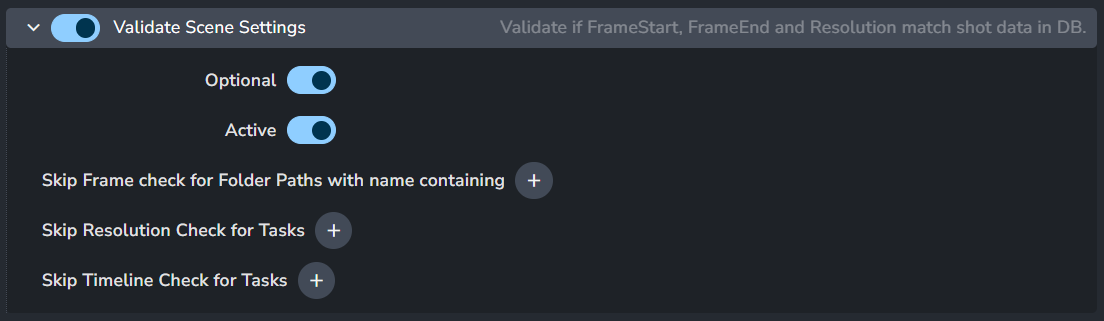
Validate if FrameStart, FrameEnd and Resolution match shot data in DB. Use regular expressions to limit validations only on particular folder or task names.
Enable: The default state of the plugin.
Optional: Allows the user to toggle this setting in the publisher UI.
Active: The default value of the toggle in the publisher UI.
Skip Frame check for Assets with: Set regex pattern(s) for filtering Asset name that should skip validation of
frameEndvalue from DB.Skip Resolution Check for Tasks: Set regex pattern(s) for filtering Task name that should skip validation or
Resolutionvalue from DB.Skip Timeline Check for Tasks: Set regex pattern(s) for filtering Task name that should skip validation
frameStart,frameEndcheck against values from DB.
Render farm settings
For setting up Deadline, see Configure Deadline Addon