Managing Projects
This guide provides a comprehensive walkthrough for managing projects on AYON Server. It covers creating new projects, configuring project attributes, and organizing your projects view using folders, pins, and search filters. You will also learn how to deactivate projects and execute project-level web actions.
Last updated 1 day ago
Overview
Projects are fundamental to AYON, serving as the core framework for your work's settings and configurations. All work in AYON must be conducted within a project, so your first step is to create one.
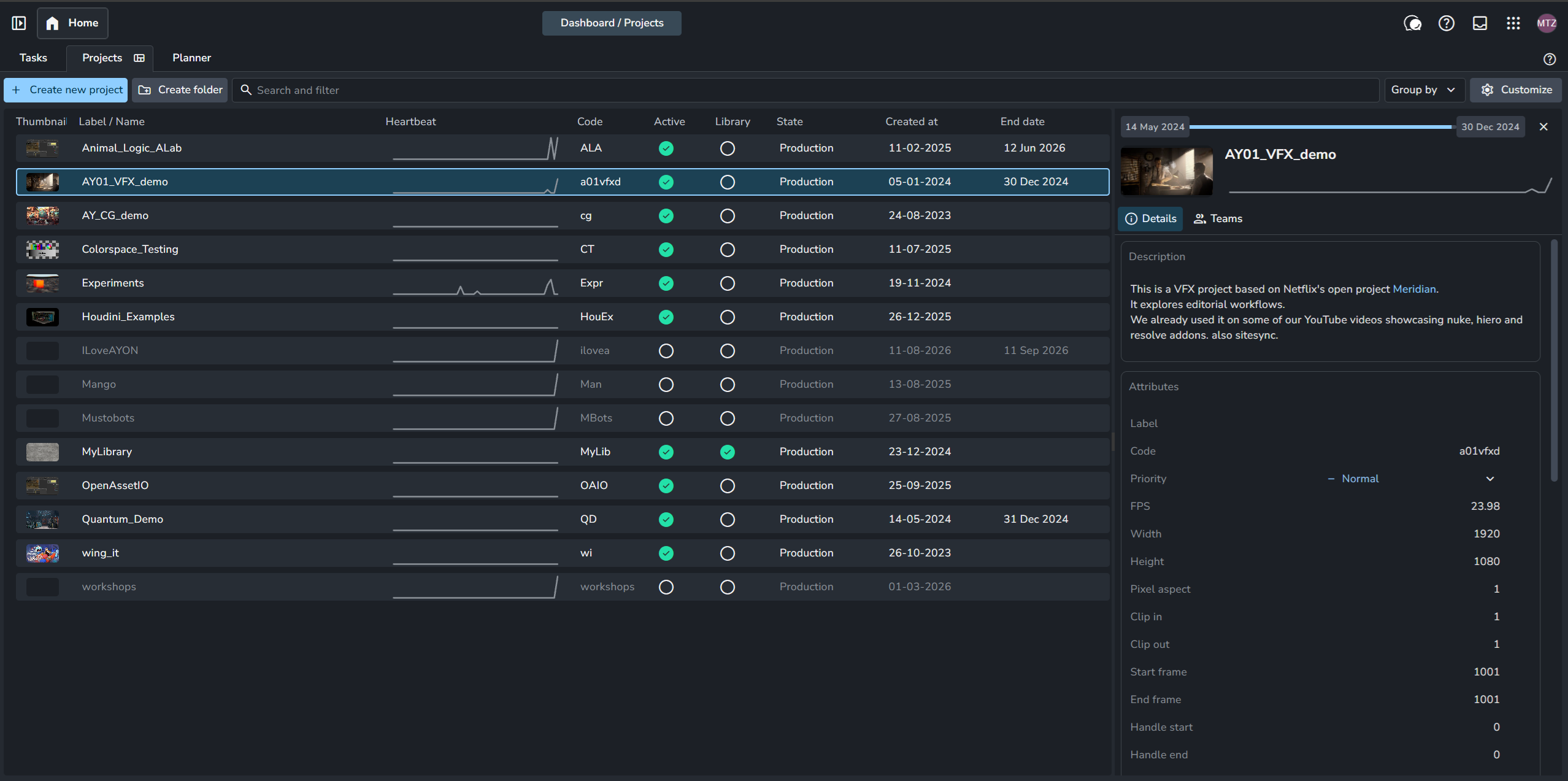
Projects Dashboard
The Projects Dashboard is your central hub for project oversight and administration. From here, you can create, deactivate, or delete projects, inspect and update project attributes, and review high-level statistics, assigned team members, and recent activity.
To navigate to the Projects Dashboard page, press H twice to navigate to the Home panel, then select the Projects tab.
Create New Projects
You can create as many projects as needed, as AYON is designed to handle hundreds of projects with ease.
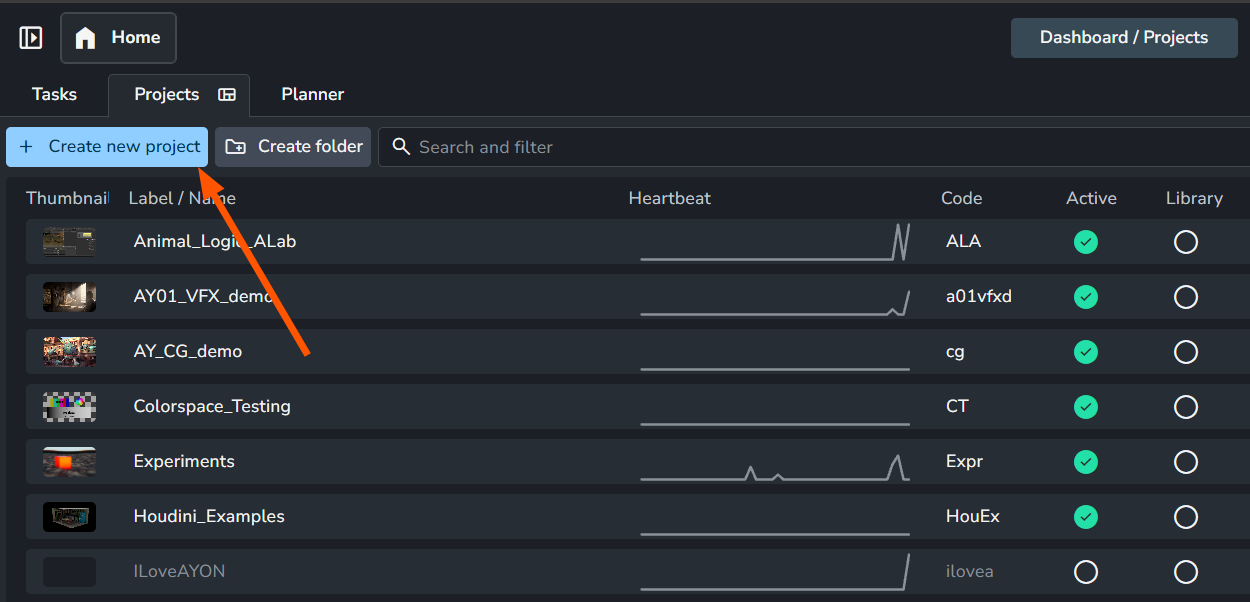
To create a new project, navigate to the Projects tab and click the Create New Project button.
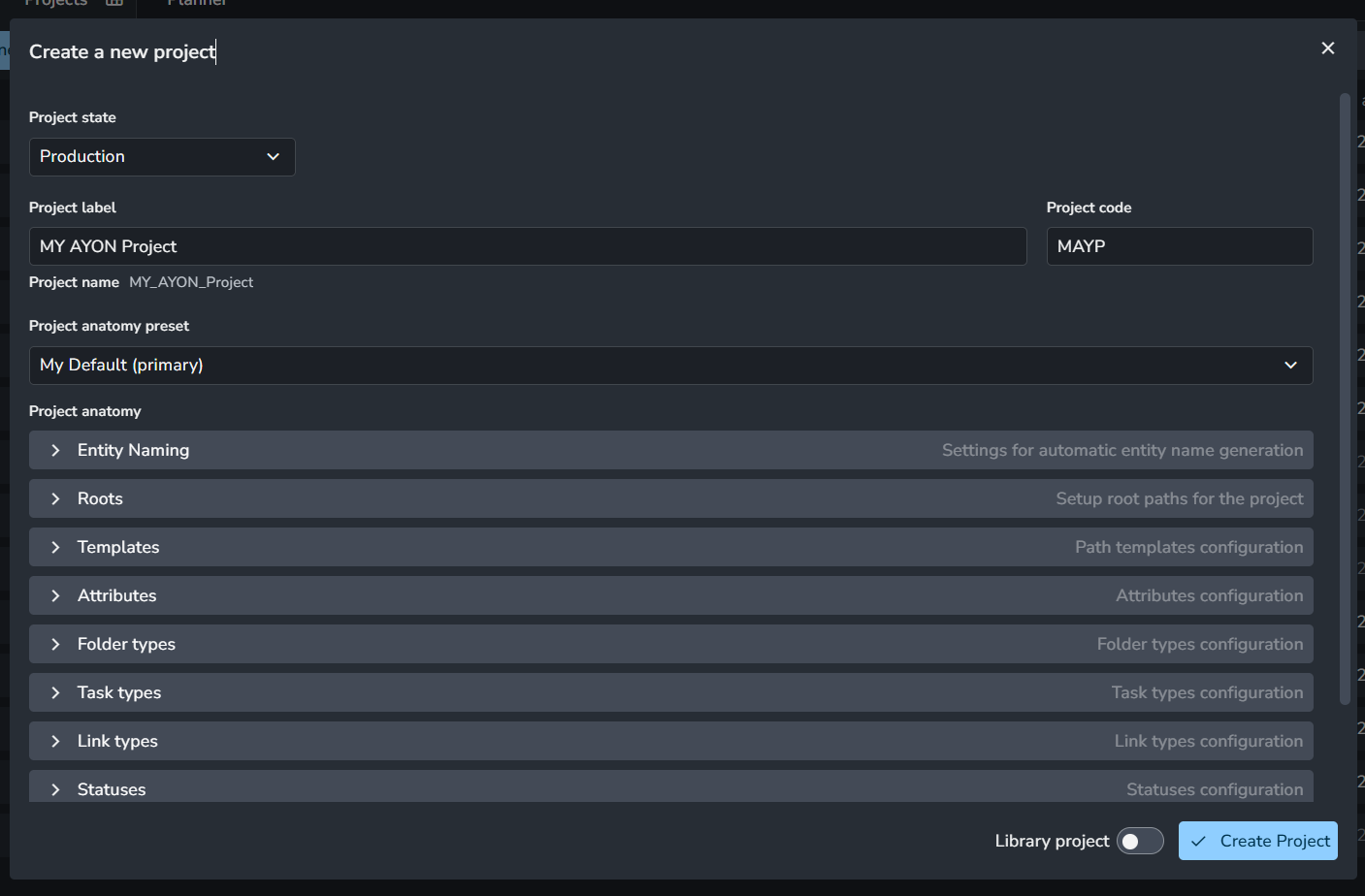
In the pop-up window, enter your project label and code, select the initial project state, and choose an anatomy preset. If you are setting up a library project, enable the Library project toggle. Once configured, click Create Project.
Project anatomy configures your project's setup, including root storage directories and entity naming patterns. For more information, see Project Anatomy.
Deactivating and Deleting Projects
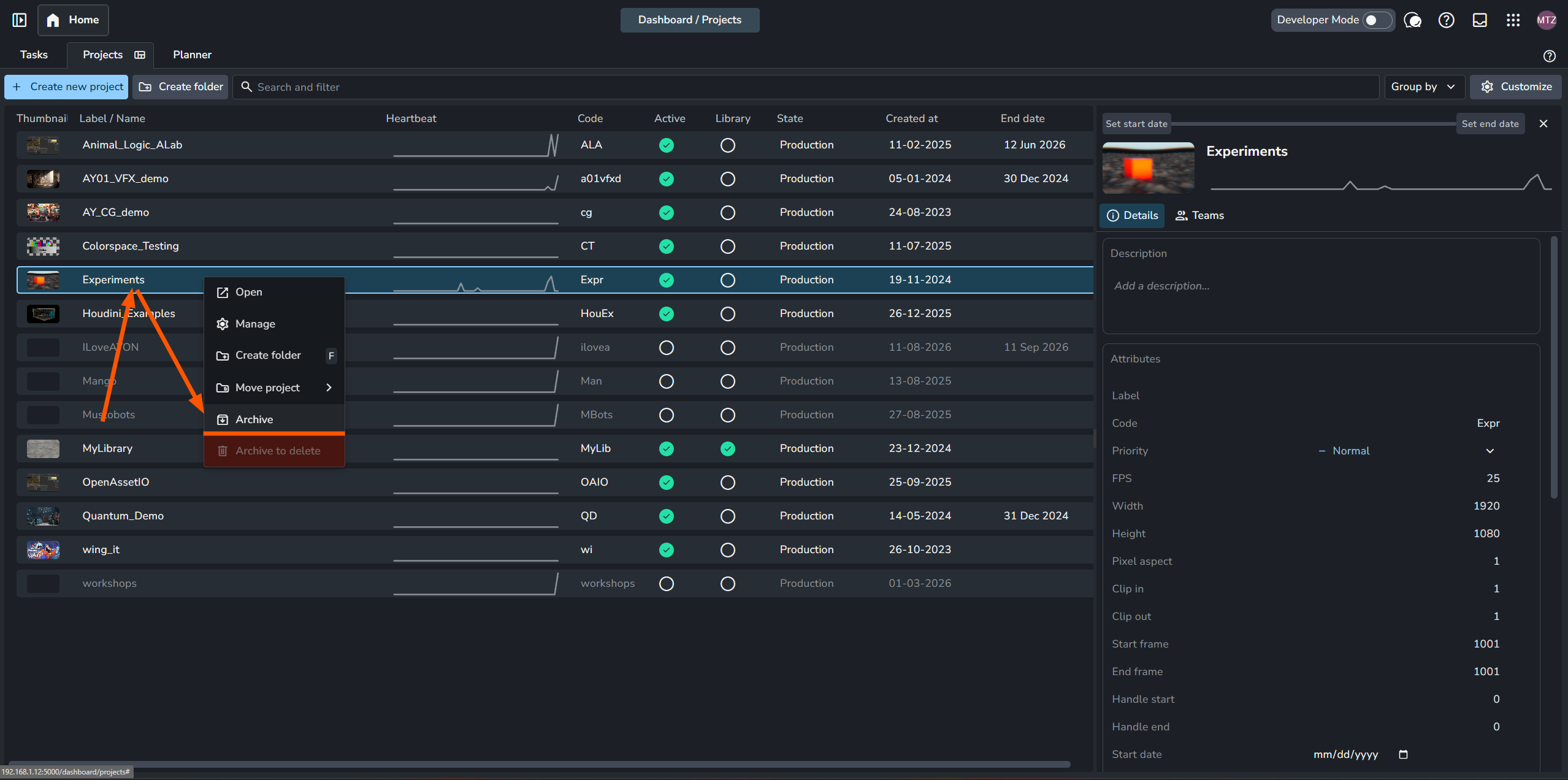
To deactivate a project, go to the Projects tab, right-click the project, and select Archive. The project will become greyed out, and its Active column toggle will uncheck. To activate it again, right-click the project and select Activate.
Archiving a project in the Projects tab simply deactivates it to prevent further production work. This is separate from performing a server/database backup or cleaning up the pipeline files via the project archival tool.
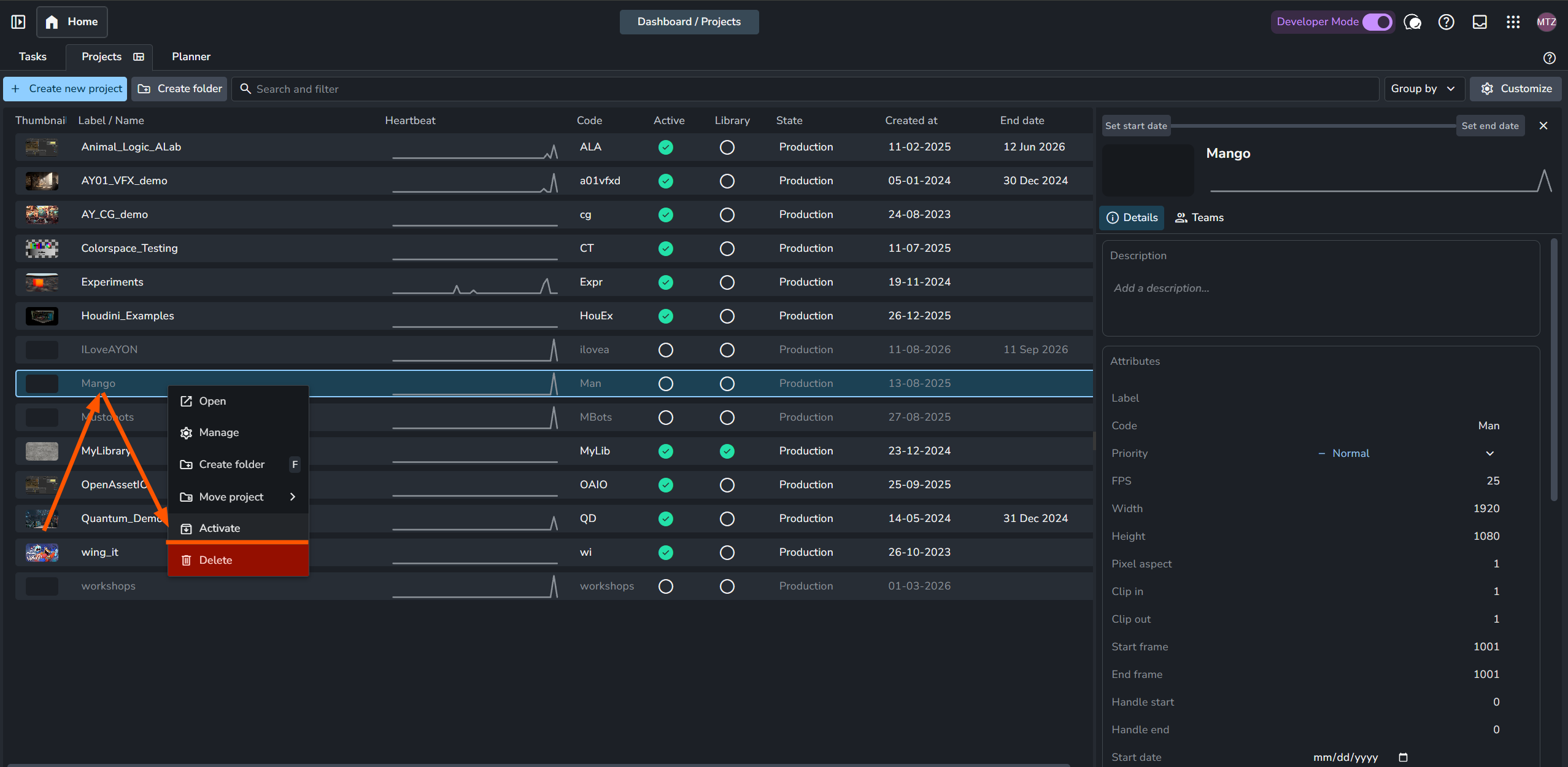
To delete a project, you must deactivate it first to unlock the deletion option. Once deactivated, right-click the project again and select Delete.
It is highly recommended to deactivate production projects rather than deleting them, especially if they contain published work. Deletion should be reserved for temporary test projects.
Project deletion is permanent and cannot be undone. Always back up your project data prior to deletion. Note that deleting a project removes its entries from the database and cleans up its associated server files, but it does not delete your published production files on local or network storage.
Projects Tab View
By default, the Projects tab displays all projects, including both active and archived projects. You can customize, filter, and structure this list to fit your workflow using the view tools at the top of the tab:
Search & Filters: Search by project name or filter your view by specific criteria (e.g., hiding archived projects to show active ones only).
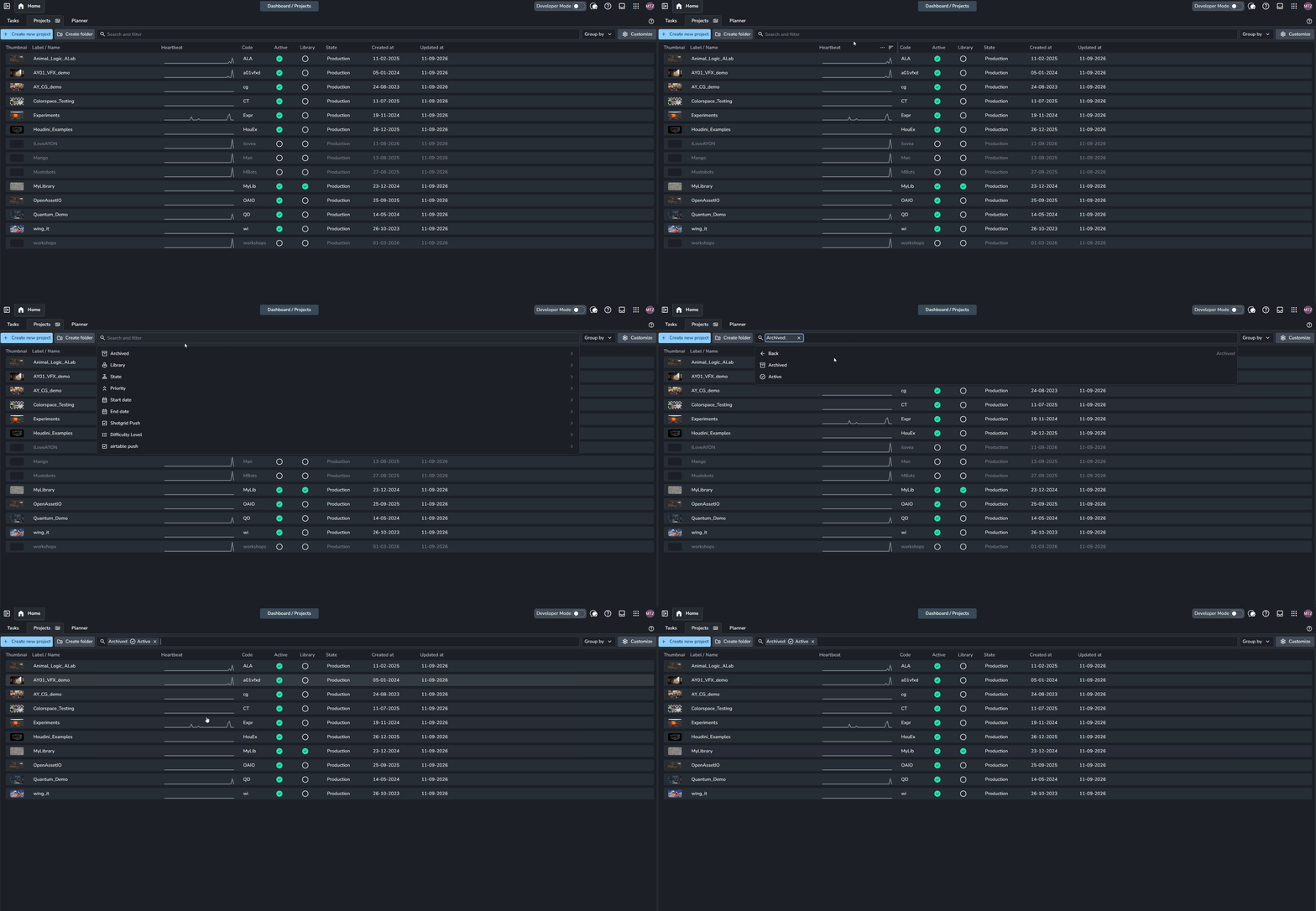
Show only active projects in projects tab Group By: Categorize and group your projects based on attributes (e.g., grouping projects by Priority, Status, or Client).
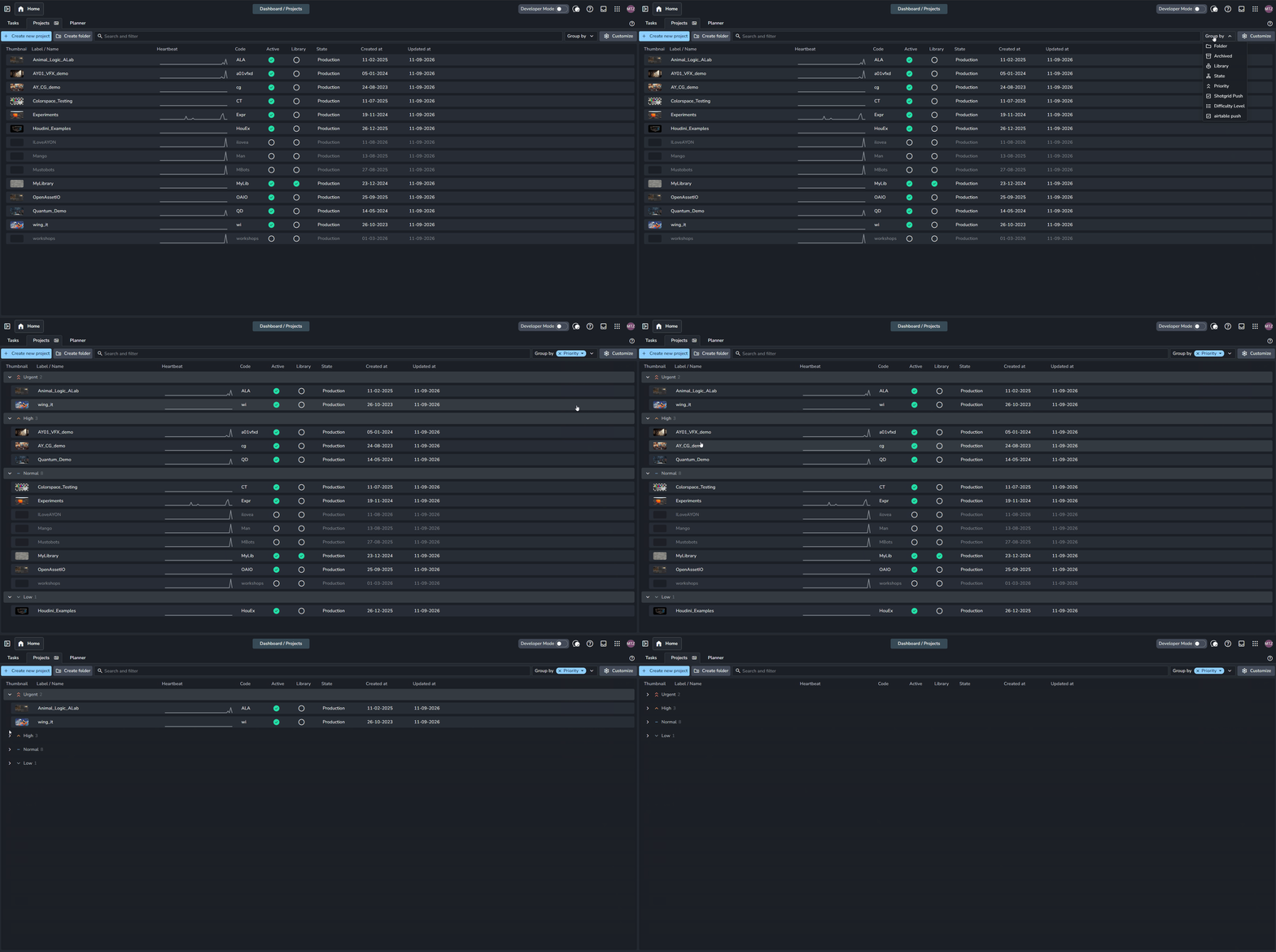
group project by attributes in the projects tab Customize Button: Fine-tune your layout by sorting projects or toggling column visibility on and off.
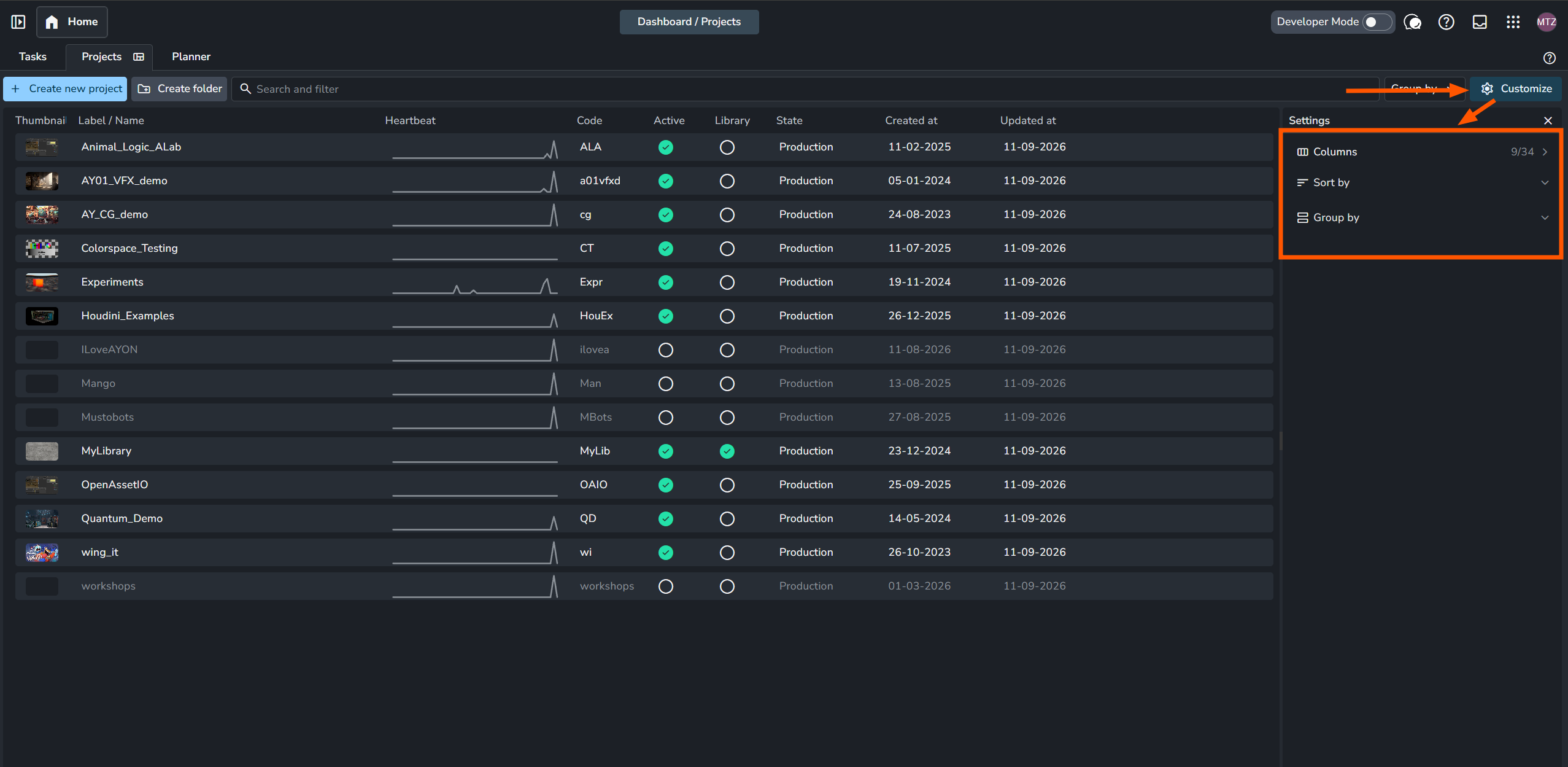
Customize Button in projects tab Column Drag-and-Drop: Reorder columns directly in the table by dragging and dropping them into your preferred layout.
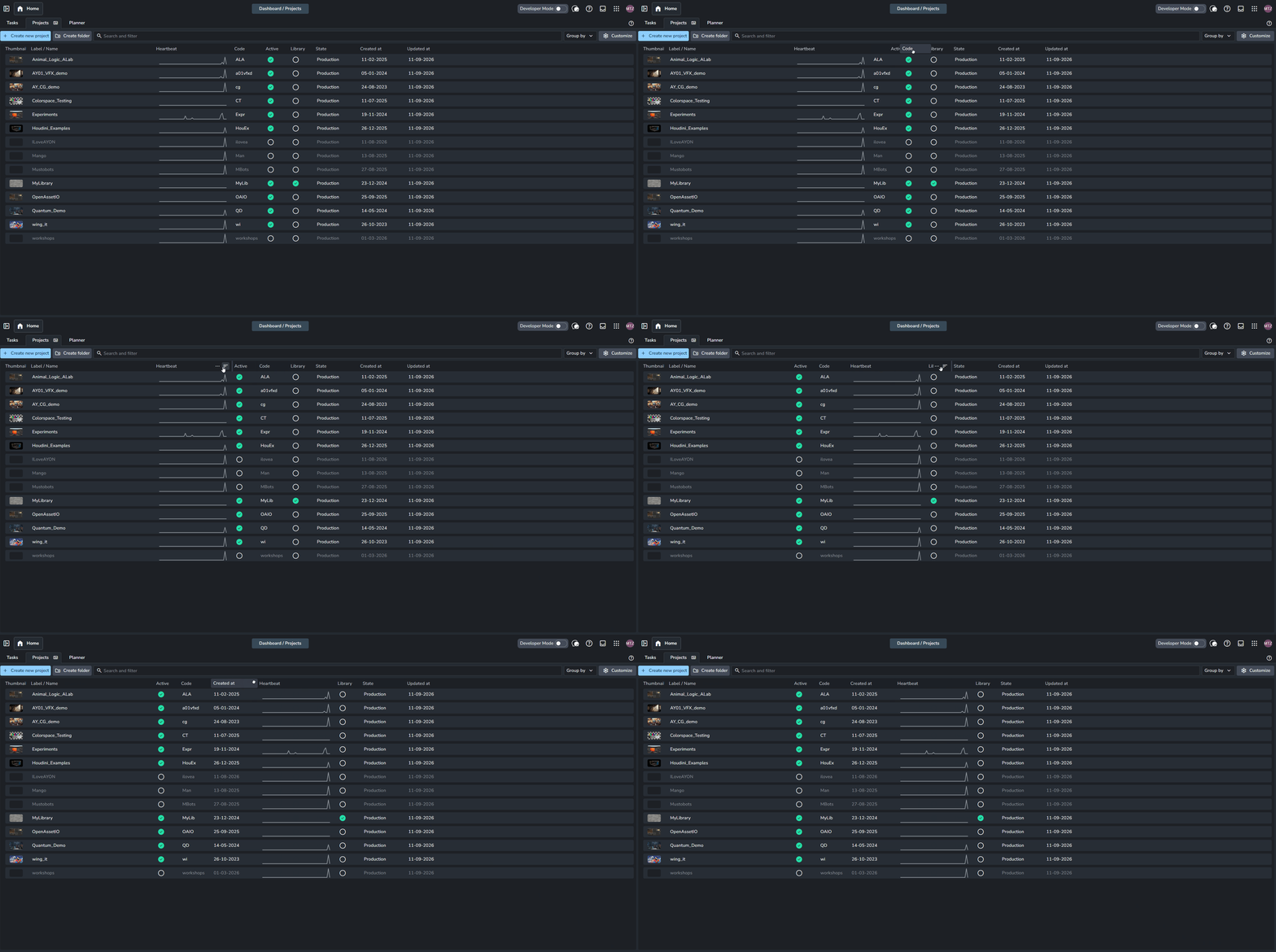
Reorder columns by dragging and droping Save Views (⚡ Pro Feature): Save your customized layout via the Views menu to quickly toggle between different project arrangements. For more details, see Views.
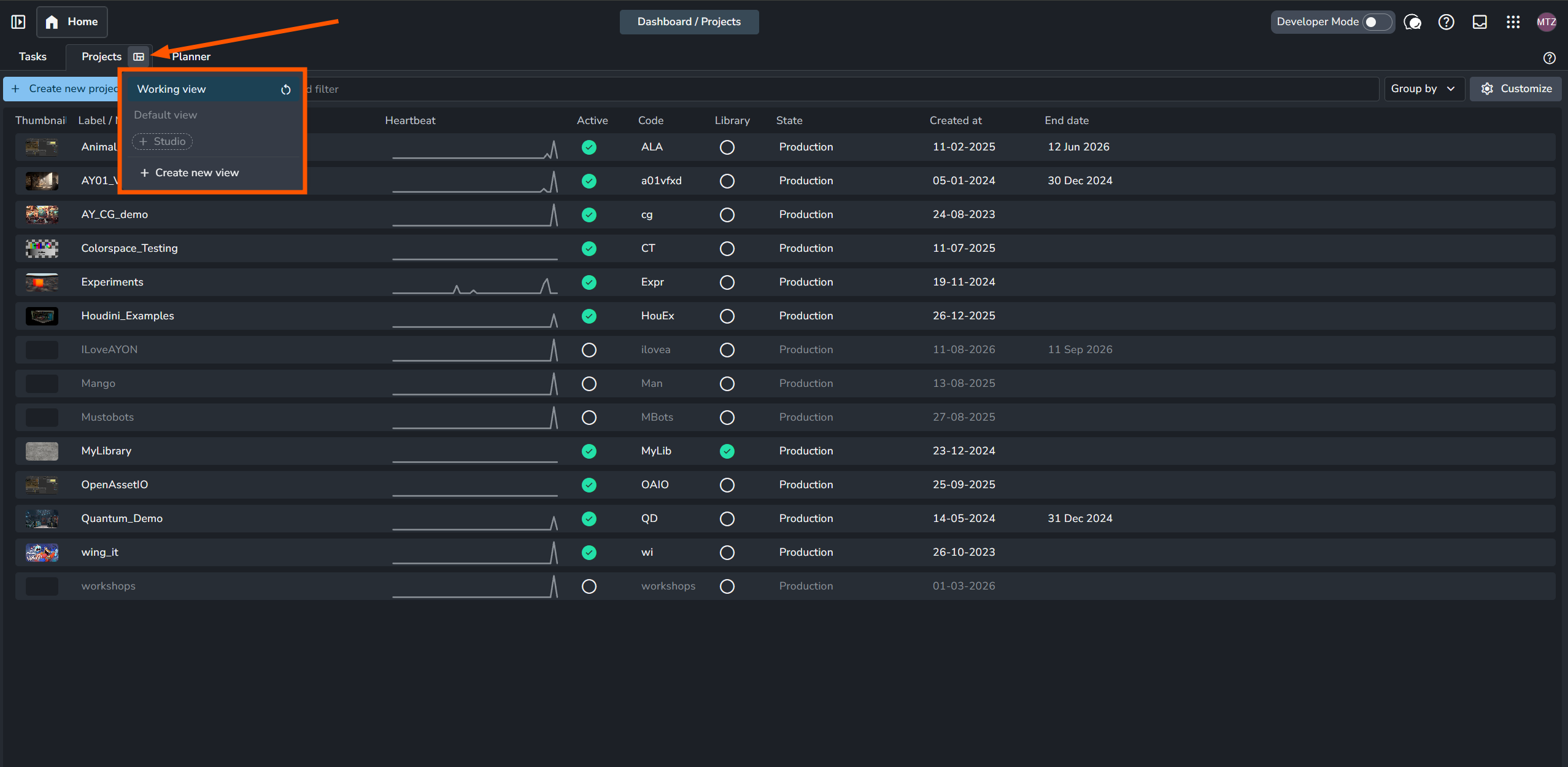
save views in projects tab
Organizing Projects with Folders
⚡Pro Feature: Project Folders require a Pro or Studio subscription.
Project Folders help production teams group projects into a customizable hierarchy (such as by client, project type, or status). Folder organization is purely organizational and shown in projects list through out your AYON server and does not affect your production or pipeline.
Show Folders in Project Tab
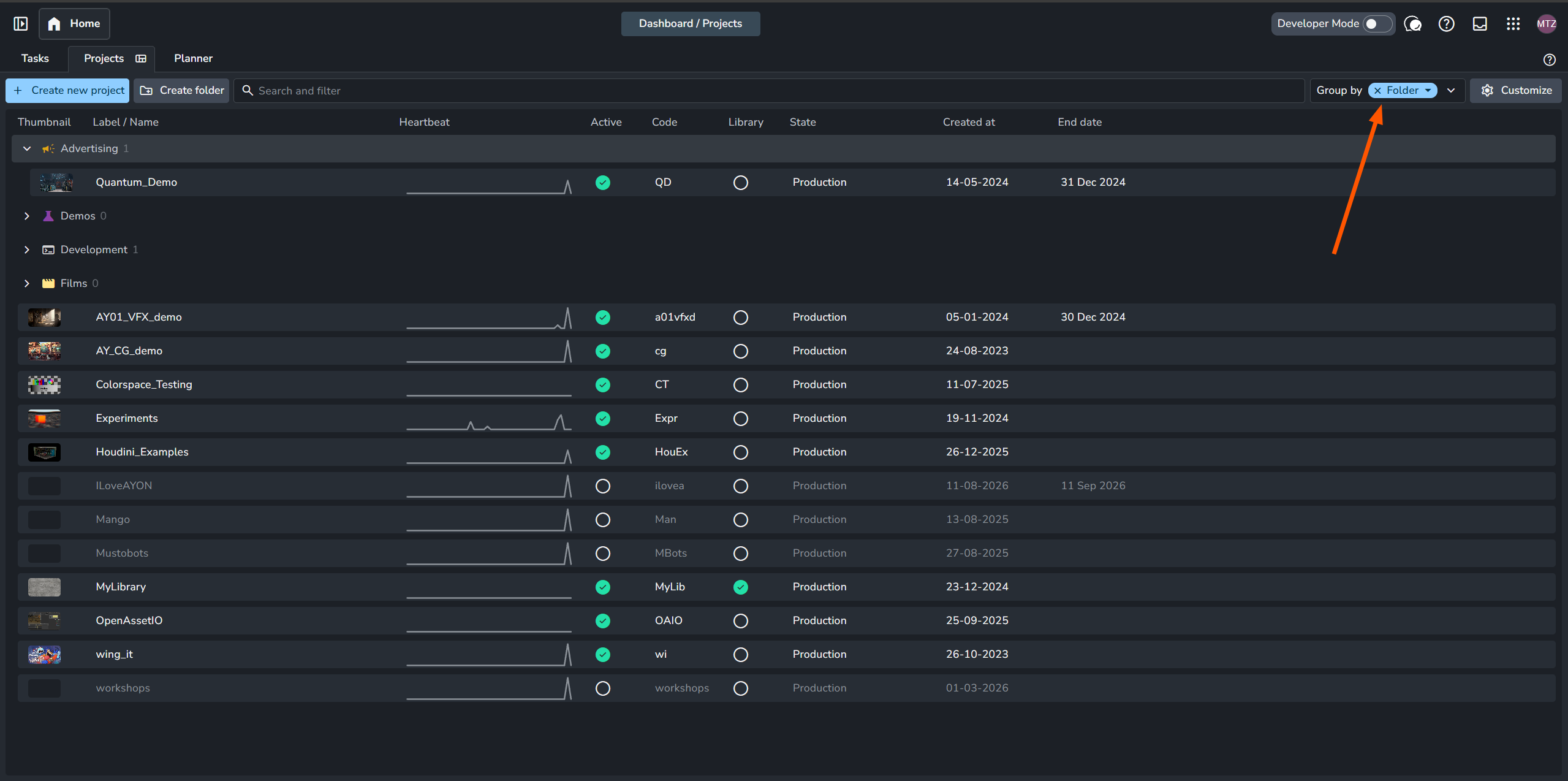
To show folders in Projects tab, set the Group By dropdown to Folder.
Creating and Managing Folders
Click Create Folder in the Projects tab or press F to open the creation window. From there, you can configure the folder's Label, Custom Icon, and Color.
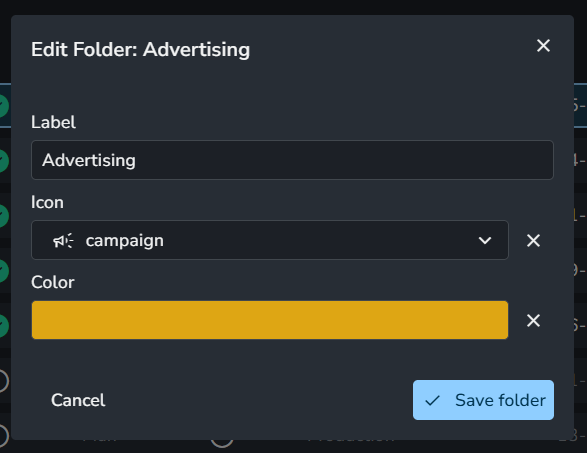
Project folders support multi-level nesting, allowing you to easily organize and restructure your Projects view by moving both folders and projects inside other folders.
Managing Projects within Folders
Move Projects: Right-click a project, open the Move to... menu, and select your target destination folder.
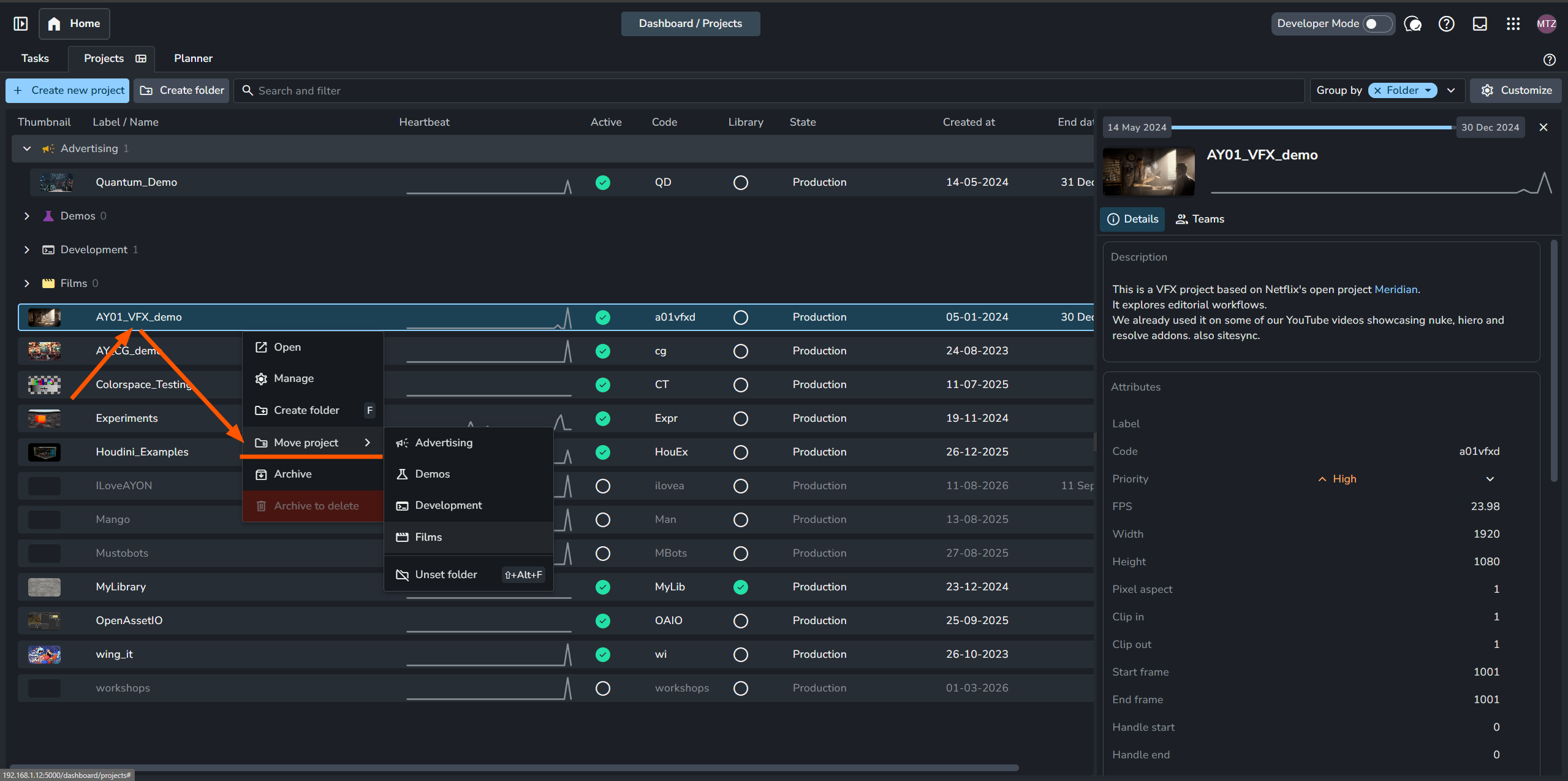
Move a project to a folder Edit or Delete Folders: Right-click any existing folder to change its label, icon, color, or remove it entirely.
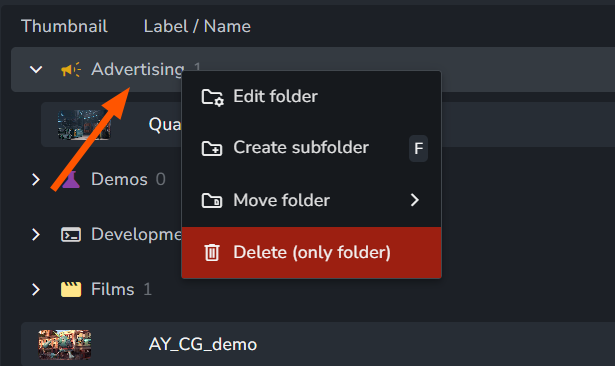
Edit or delete a folder
Pinning Projects in Projects List
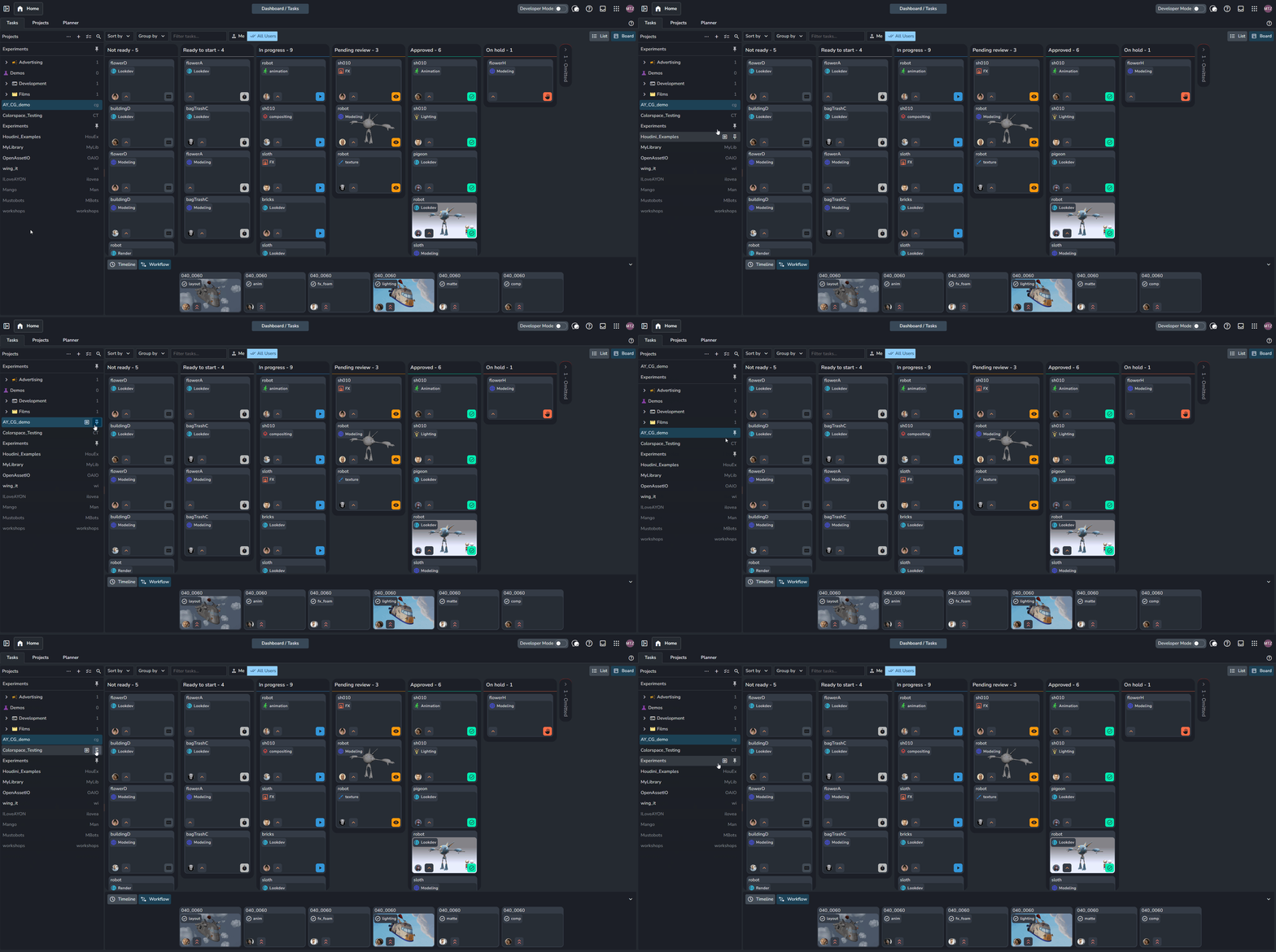
For faster access to your most frequent productions, you can pin projects to the top of the projects sidebar anywhere in AYON Server (such as the Tasks Home page). Pinned projects remain locked at the top of the list, regardless of your active folder structure or sorting.
On the Tasks Home page, simply hover over a project and click the Pin icon to pin it to the top. Click the icon again to unpin it.
Searching for Projects
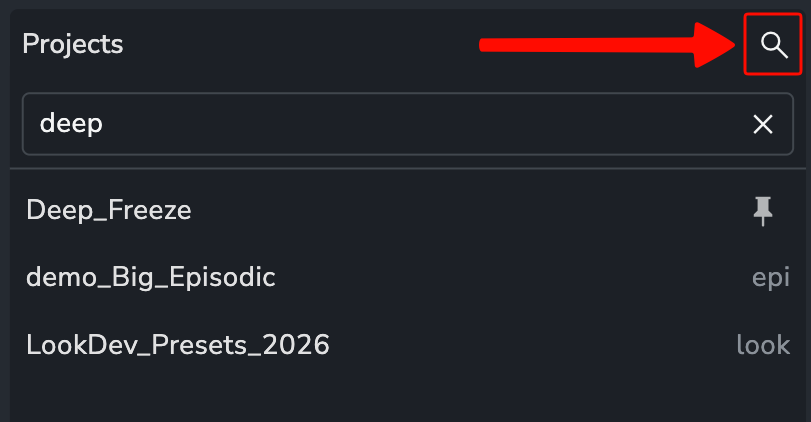
To quickly find a specific project, click the Search button at the top of the project list. if a pinned project matches your search, it’ll be placed at the top.
Project Details Panel
Navigate to the Projects tab and select a project from the list to open its details panel. This panel allows you to view and modify project attributes.
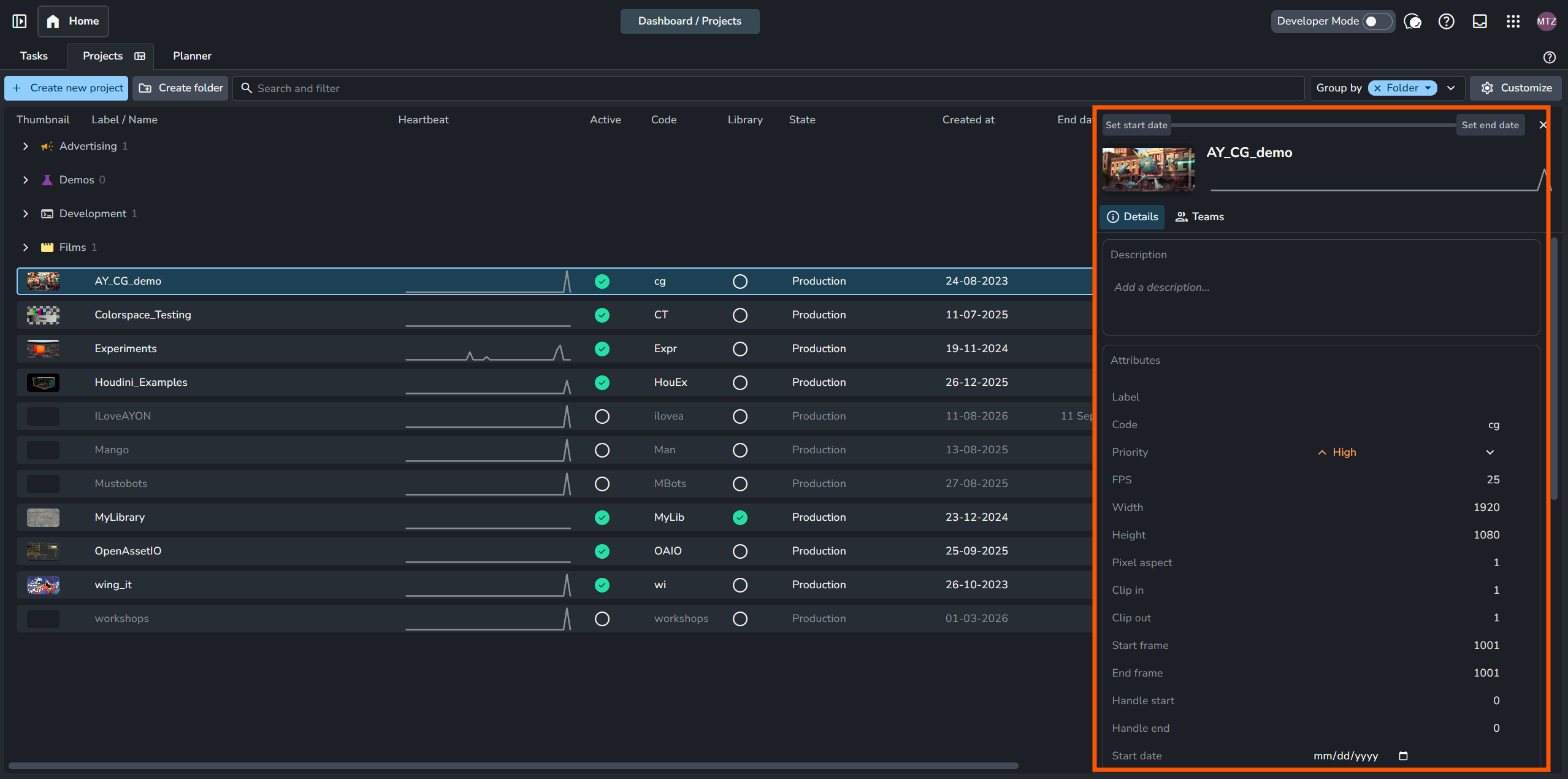
The project acts as the top-level parent entity in the project hierarchy. Folder and asset entities within the project inherit attribute values from the project level by default unless explicitly overridden.
Creating Project Hierarchy
Navigate to the Overview tab by double-clicking a project in the Projects tab. This is where you can manually create and manage your project's folder hierarchy and tasks.
For a step-by-step example of setting up a hierarchy, see the Create Project Hierarchy section in our Getting Started with AYON on Ynput Cloud: A Complete Studio Walkthrough guide.
For further information, see Project Overview Page.
Automated Hierarchy Creation:
Editorial Publishing: Publishing shots via editorial workflows in supported DCC integrations automatically generates missing project hierarchies in AYON.
Production Tracker Sync: When using third-party production tracker addons, AYON automatically creates any missing project structure during sync to match your external tracker.
Project Level Webactions
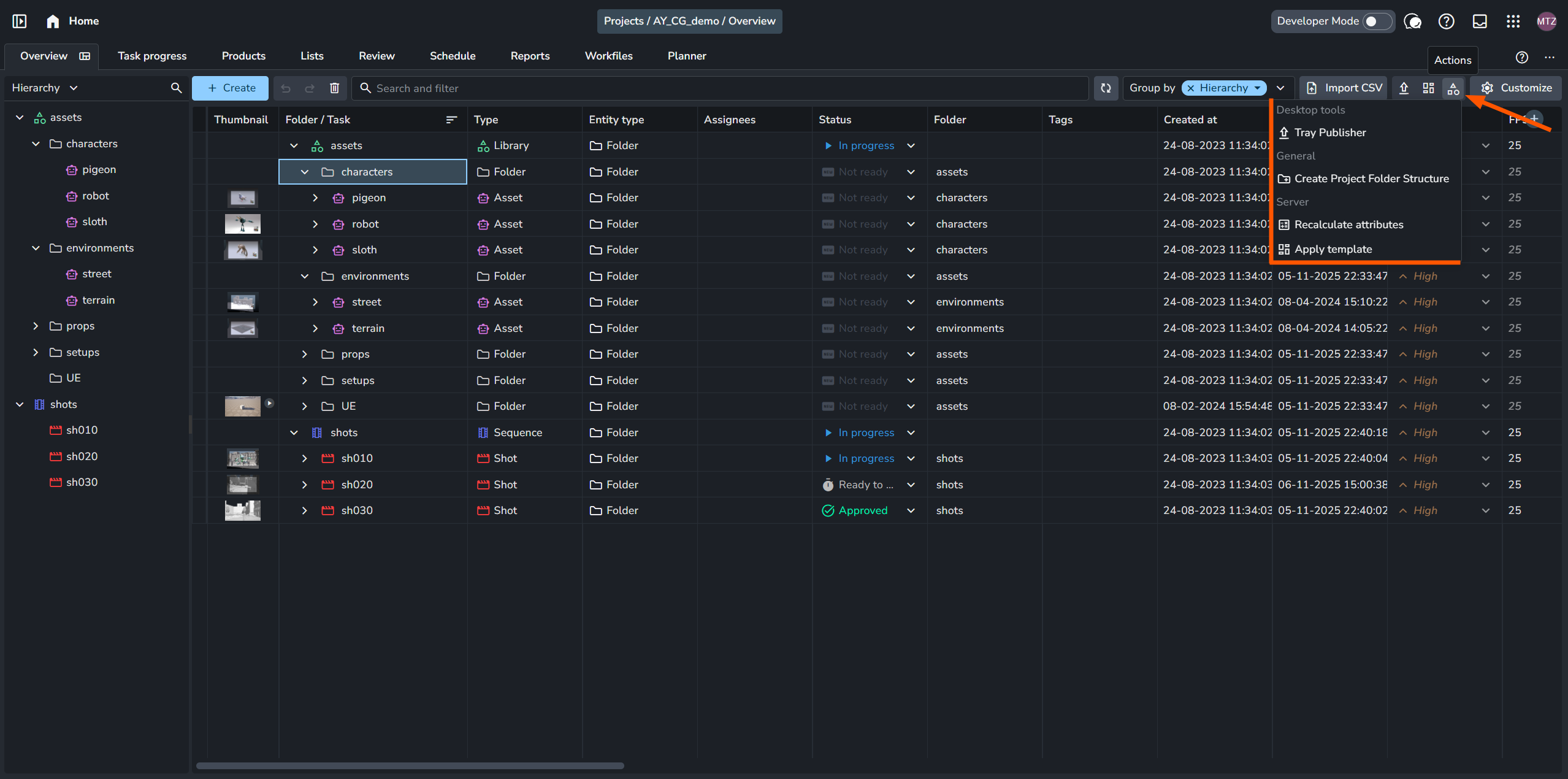
Project-level web actions are designed to run across an entire project rather than individual entities.
To access these actions, navigate to the Overview tab for your project. The Actions menu is located in the top-right corner next to the ⚙️ Customize button. Clicking this icon opens a dropdown list of all available project-level actions configured for your studio.
FAQ
Who can create new projects?
By default, only administrators and managers can create projects.
To grant regular users permission to create new projects, you must set the Studio permissions → Select Access Group → Create projects permission on the permissions page.
For more details, refer to the documentation on User Permissions and Project Access Groups.
How to grant users access to a project?
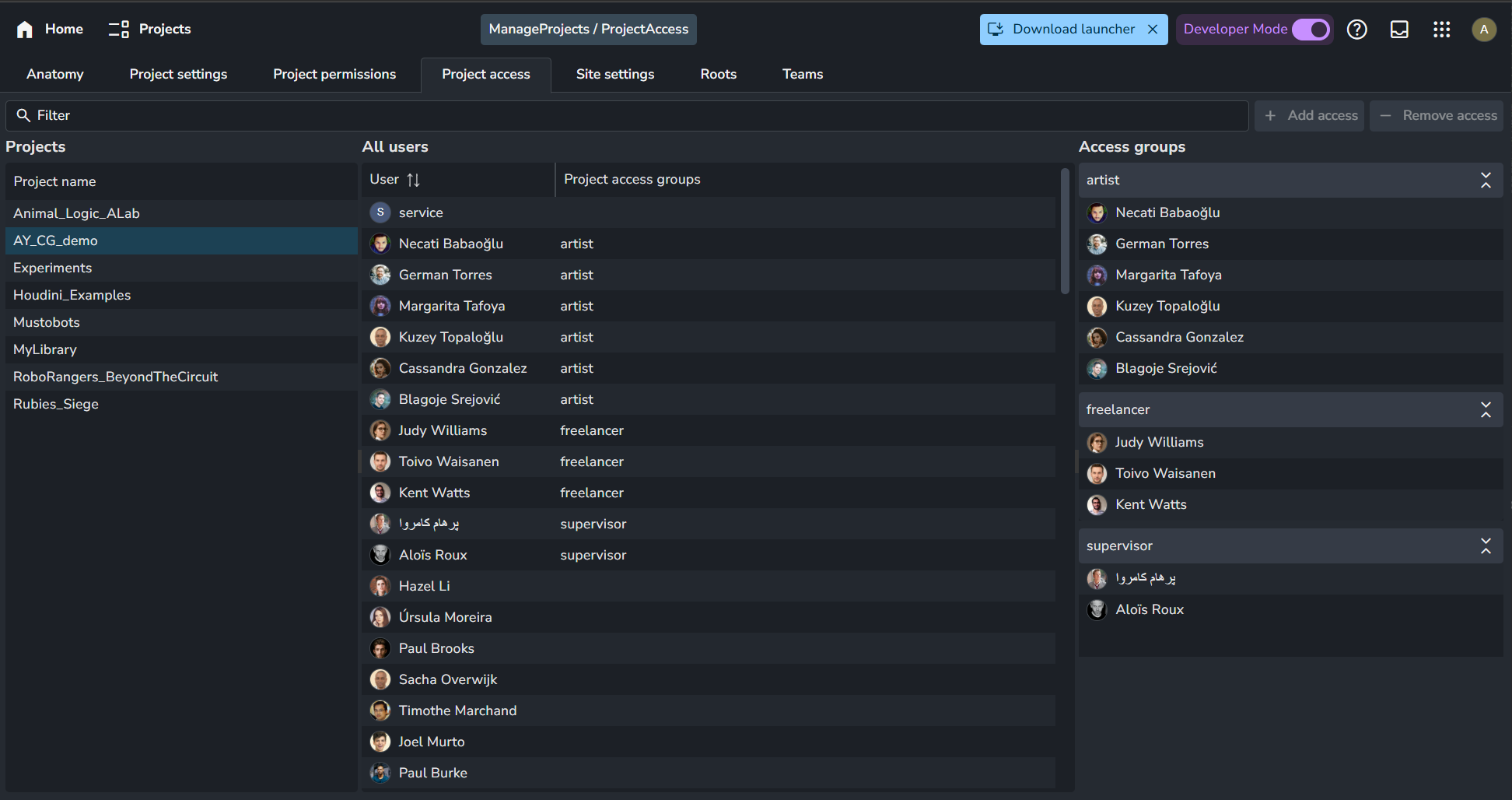
User access and permissions are managed on the Project Access page.
To grant a user access to a specific project:
Navigate to the Project Access page.
Assign the user to the appropriate Access Group for that project.
The assigned Access Group determines the user's specific permissions within the project.
For more details, refer to the documentation on User Permissions and Project Access Groups.
Notes:
Standard Users: If a user is not assigned to any Access Group within a project, they will not be able to see or access that project.
Managers & Administrators: Managers and Admins have global access and can view and manage all projects without needing an explicit Access Group assignment.
How to convert a project to a project library?
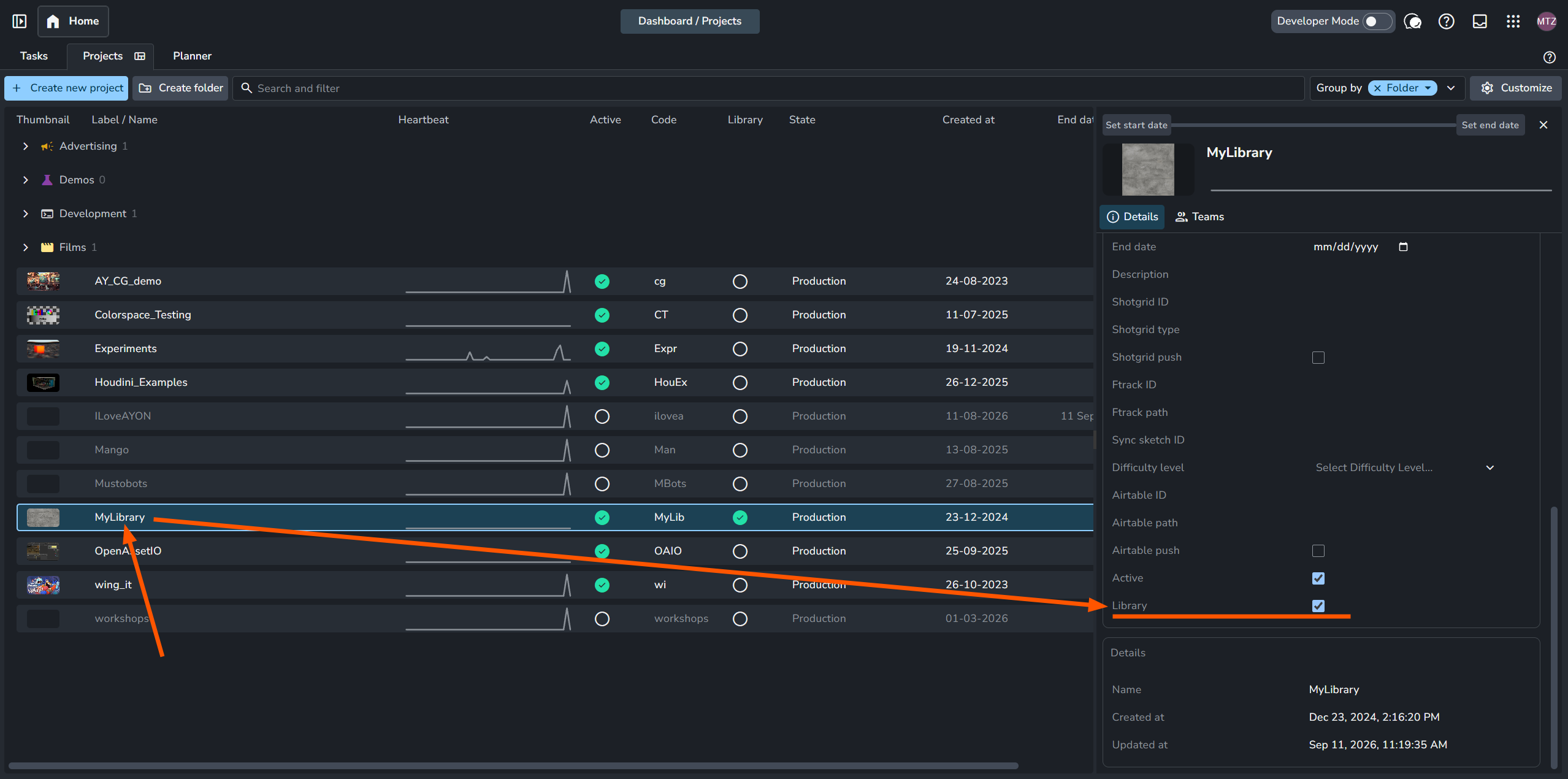
In the Projects tab, select a project to open its details panel. Scroll down to the Library checkbox and check it to convert the project into a library project. To convert it back to a standard production project, simply uncheck the box.
How to Back Up and Restore Projects?
For self-hosted AYON Server, backing up and restoring projects require access to your AYON Docker directory. This process is explained here in AYON Server Provisioning.
For ynput cloud instances, backups are done periodically as outlined in Database restore points row on ynput pricing page.