Applications and Tools
Last updated 8 months ago
Applications Addon Features
Overview
The Application addon enables admins to define both applications and tools that can be used across all projects in the studio. This includes specifying application versions, executable paths, and launch arguments, with cross-platform support for Windows, Linux, and macOS.
An application refers to standalone software, most commonly a DCC (Digital Content Creation software). But, it can also be any general-purpose program.
A tool typically refers to DCC plugins (such as Redshift). However, tools don’t have to be plugins. They can be anything that relies on environment variable setup to function.
Please note that the application addon does not differentiate between different Linux distributions.
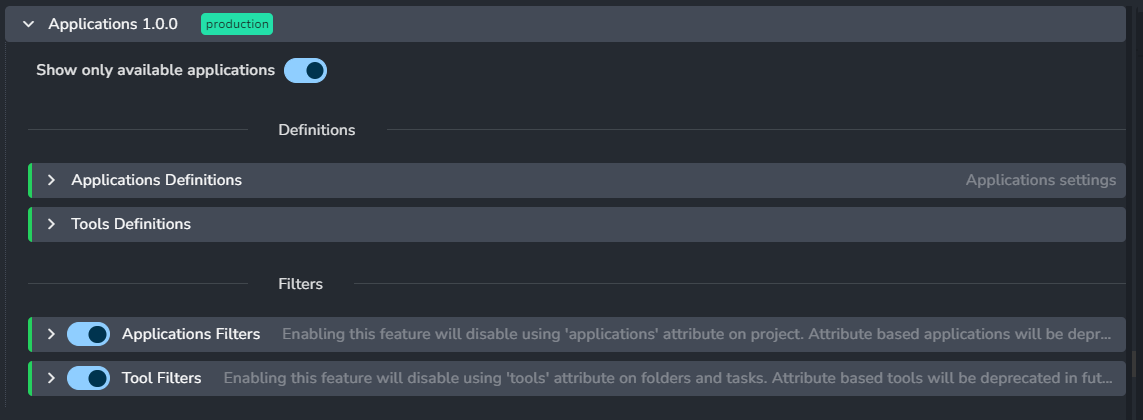
The Addon features two main settings categories: Definitions and Filters:
Definitions: available only in studio settings, allows to define all possible applications and tools that can be used across all projects.
Filters: defines when certain applications and tools are used on project level. This filters whether a certain application or tool should be enabled in a certain launch context, like a specific task type or project-wide.
Applications Web Actions
The web actions feature requires
AYON Server version
1.3.0or higher,Core addon version
0.4.4or higherLauncher version
1.1.0or higher.
Web actions run through shims, which are automatically set up when users install the AYON launcher version 1.1.0 or higher.
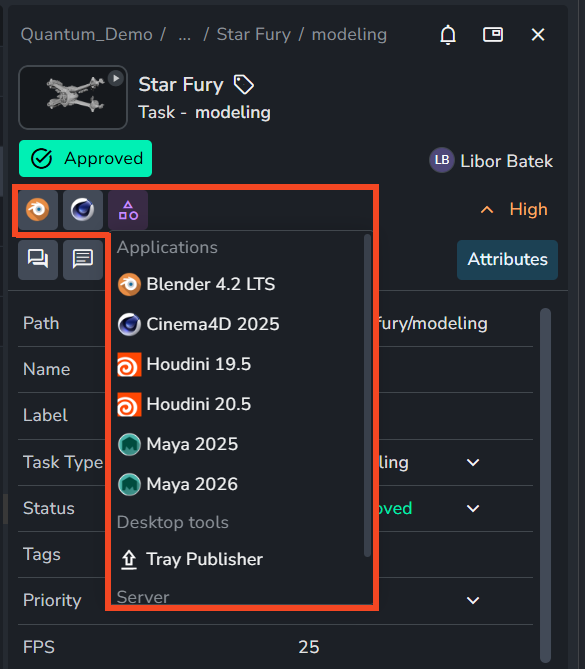
The applications addon implements web actions that allow you to launch applications directly through the AYON web server via the details panel.
The list of application web actions is determined by your configured applications filter settings.
If developer mode is enabled on your server, the list of application web actions will follow your development bundle.
Applications Addon Settings
Show only available applications
Setting Location:
ayon+settings://applications/only_available

The 'Show only available applications' setting is deprecated in Application Addon version 1.2.0 and above. This feature can no longer be supported because the current Launcher tool relies on Web Actions, which do not have access to the local file system to verify installed applications on the user's machine.
When enabled, AYON Launcher will display only those applications for which executable paths exist on the current machine. This acts as an extra filter to the Applications filters, ensuring that inaccessible applications are excluded from view.
Applications Definitions
Setting Location:
ayon+settings://applications/applications
Applications Definitions settings in the Applications Addons settings allow you to add or remove application versions for your studio.
It provides a comprehensive list of all integrated applications in AYON, along with additional applications section.
In AYON, integrated applications are referred to as Hosts. Therefore, the terms application and host are used interchangeably when discussing integrated applications.
Integrated Applications
Integrated applications are those that have an integration addon with AYON (e.g., Maya, Houdini, Nuke, etc.).
These applications are listed directly below the Application Definitions settings, where admins can modify their associated application groups, remove unnecessary applications by disabling them, or add new versions as application variants when needed.
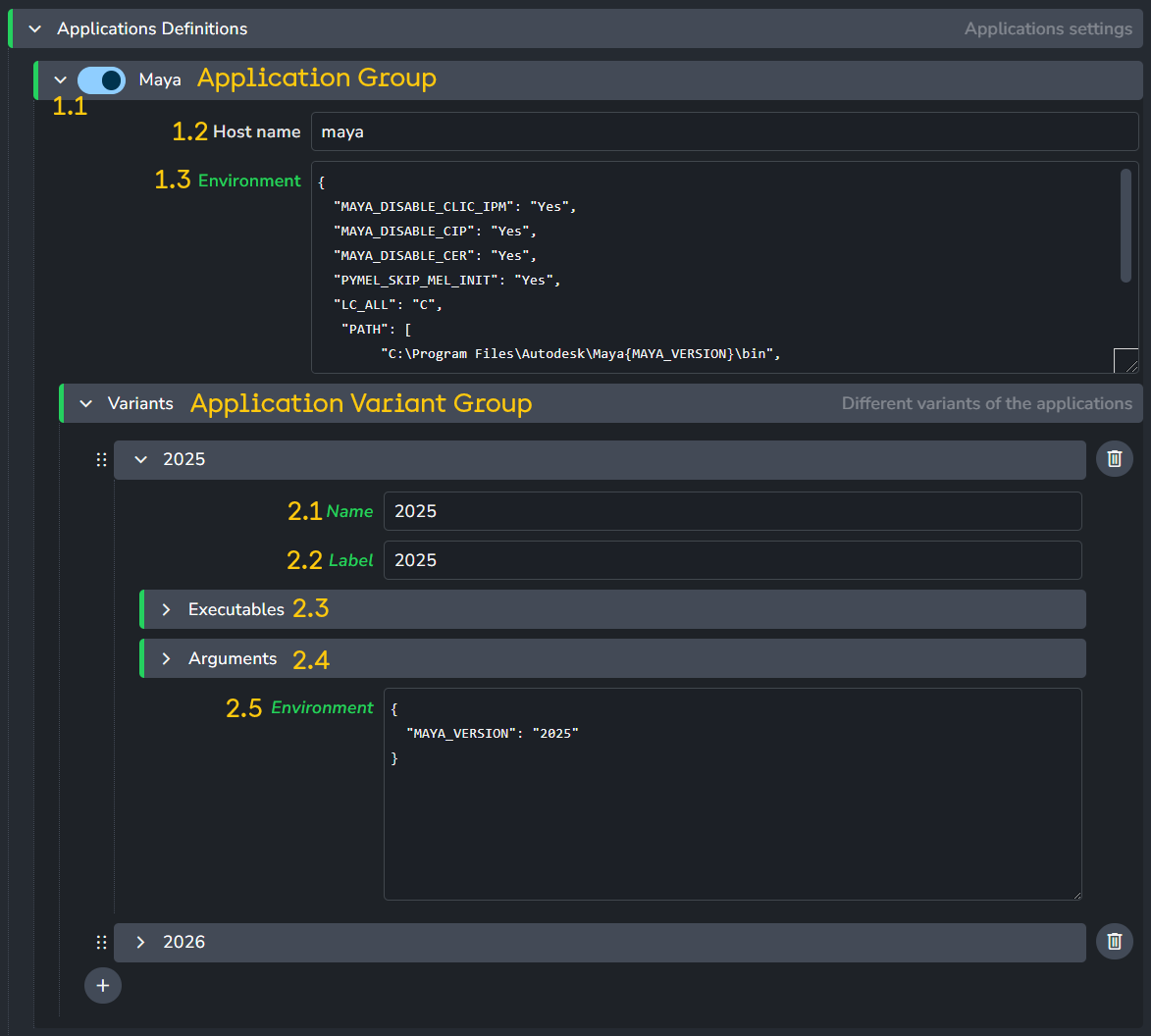
Each application group includes two parts:
Application Settings:
Enable: Toggle to enable or disable this application.
Host Name: The pipeline integration name provided by an AYON addon. These are typically constants tied to a host integration, such as "maya," "houdini," or "nuke." It's recommended to keep these at their default values for now.
Environment: Define additional environment variables that apply to all versions of the application, regardless of version dependency on starting the application.
Application Version Variant:
Name: The name of the application variant.
Label: The label for the application variant.
Executables: Specify the application executables for each platform.
Arguments: Specify default arguments (e.g.,
--nukex).Environment: Define additional environment variables specific to this version variant of the application.
+ Button: Use this to add a new application version variant.
Naming Conventions for Names and Labels
We currently allow the use of any characters. However, we adhere to a specific naming convention alongside the default settings. For names, we typically use lowercase letters, numbers, and hyphens (-). For labels, both uppercase and lowercase letters, as well as periods (.), are used.
Additional Applications
Setting Locaiton:
ayon+settings://applications/applications/additional_apps
Additional applications are those that do not yet have an integration addon with AYON.
Admins can add these applications to the available applications list under the "Additional Applications" setting, enabling users to launch these apps directly from the launcher.
Additional applications will only launch but won’t provide further AYON integration (e.g., menus, creators, publishers). Full integration requires an AYON addon for that application. Once integrated, the app should no longer be listed under "Additional Applications".

+ button: Add application group.
Each application group offers the same settings as those in the integrated applications section but includes a few additional settings:
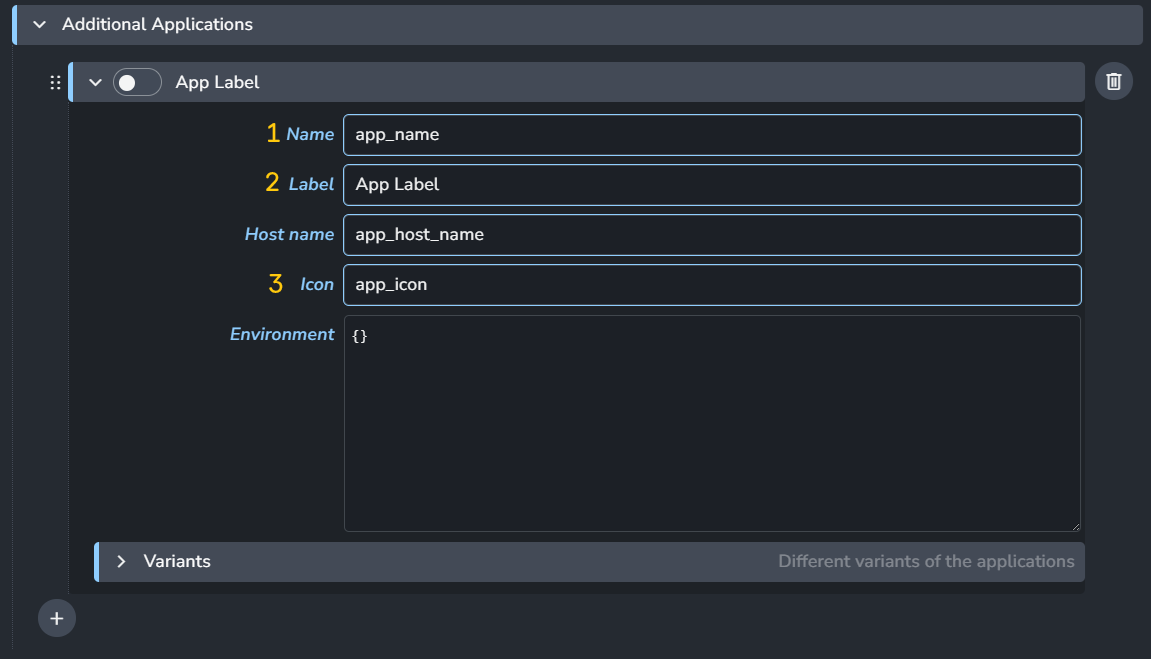
Application Name: The name of the application.
Application Label: The label of the application and the application group (the name next to the toggle).
Application Icon: The icon file name (without extension).
The application icon for additional applications must be stored in the public folder within the application addon. You’ll need to build a custom version of the addon for this. More options will be available in future releases.
Applications Filters
Setting Location:
ayon+settings://applications/project_applications
These filters define the applications that will be shown in the launcher tool. It is profile based filtering that allows to filter applications for specific task types.
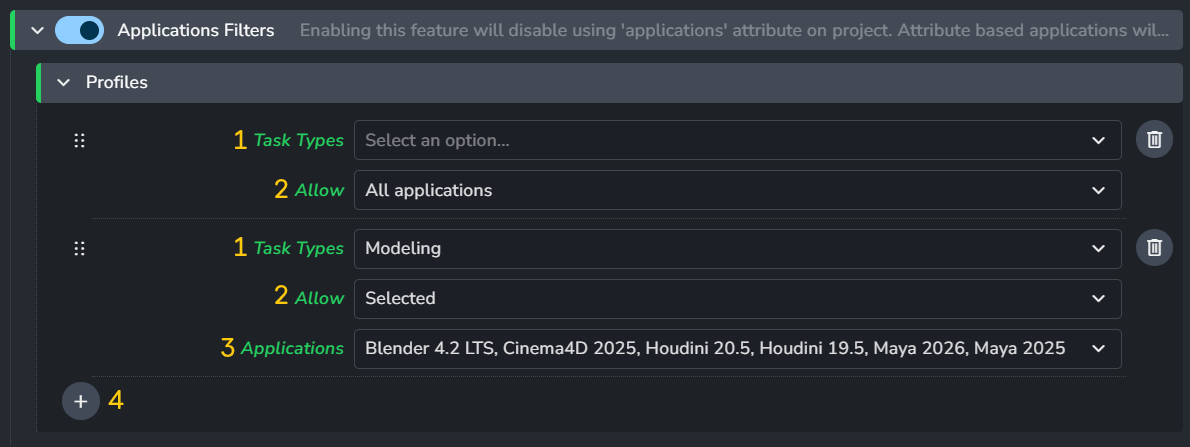
Task Types: Choose from a list of task types to determine which ones the filter profile will affect. If you want the profile to apply to all tasks, leave it blank.
Allow: Determines the mode of the filter, there are two options:
All applications
Selected: when chosen, the Applications list will show up.
Applications: List of applications available for the specified task types.
+ button: Add new profile filter.
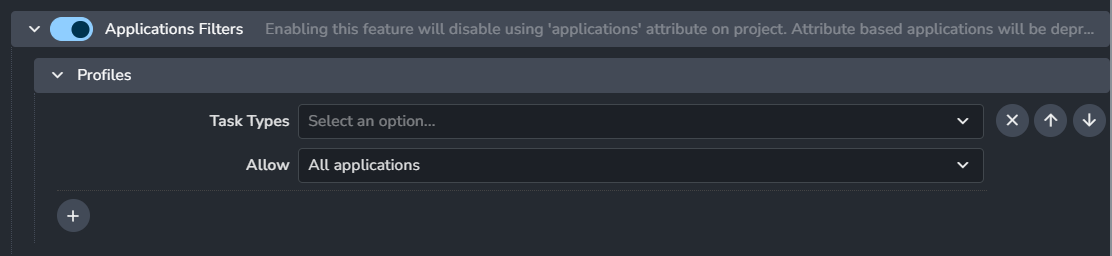
It is recommended to have one default profile with task types left blank and all applications allowed. This prevents the empty application list in the launcher when users select a task type without a matching profile.
Tools Definitions
Setting Locaiton:
ayon+settings://applications/tool_groups
A tool in AYON is anything that needs to be selectively added to your DCC applications. Most often these are plugins, modules, extensions or similar depending on what your package happens to call it.
Tools are generally configured using environment variables. For more details, check out AYON Env Vars and Tools Configuration Explained | Ynput Forums.
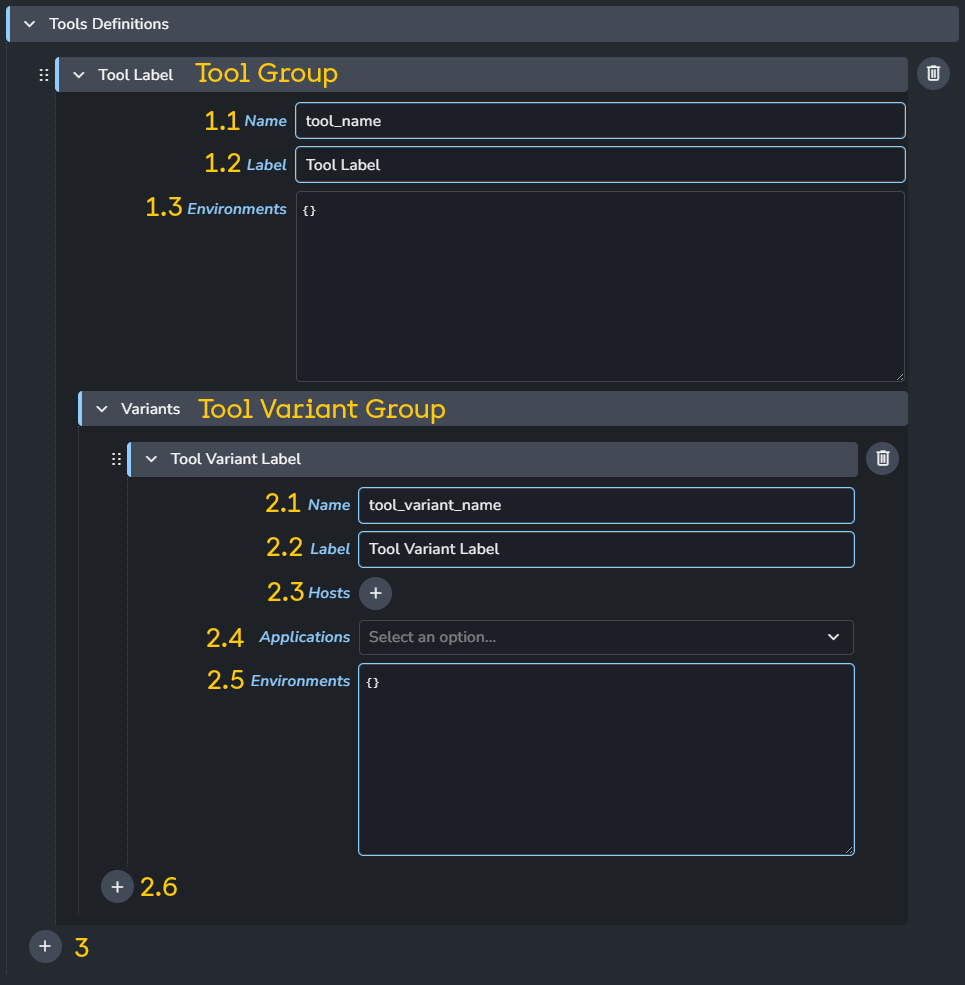
Tool Group:
Name: Tool name.
Label: Tool label. Name is used if not filled.
Environments: Environments variables that will be applied to all tool variants.
Tool Variants:
Name: Tool variant name.
Label: Tool variant label. Name is used if not filled.
Hosts: List of host names you want the tool variant to work with.
Applications: Filter applications for which is tool applicable.
Environments: tool variant environments
+ button: Add new tool variant.
+ button: Add new tool group.
Tool Examples
AYON comes with some major CG renderers pre-configured as an example, but these and any others will need to be changed to match your particular environment.
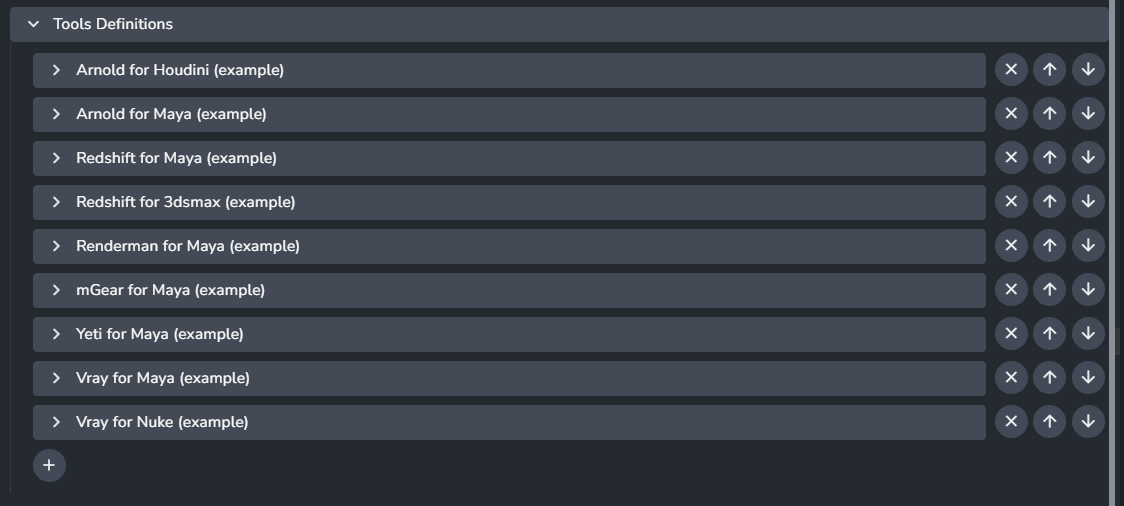
Tools filters
Setting Location:
ayon+settings://applications/project_tools
Tools that will be used on application launch. It is profile based filtering that allows to filter tools for a context. Tools can have more specific filtering than applications.
All the tools defined in Tools Definitions can then be assigned to projects, certain task types or even selectively for only certain folders. You can also change the tools versions on any project level all the way down to individual asset or shot overrides. So it is possible to upgrade you render plugin for a single shot, while not risking the incompatibilities on the rest of the project.
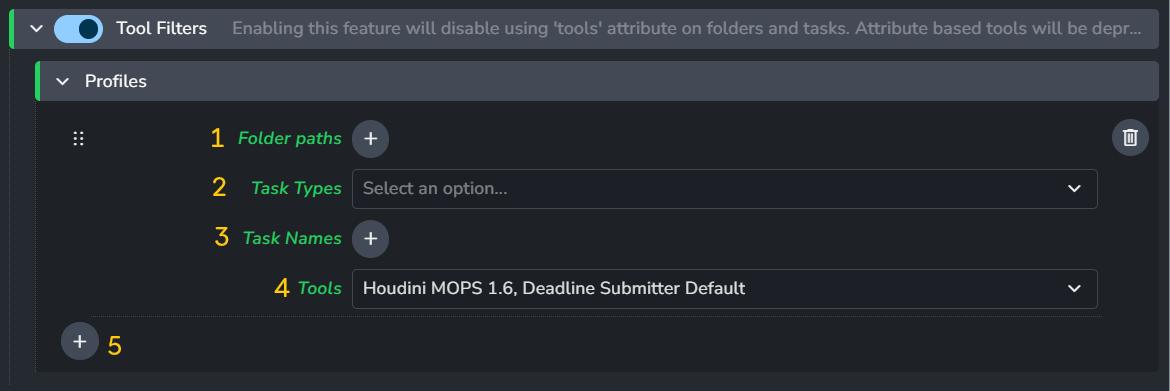
Folder Paths: Folder paths to determine which ones the filter profile will affect. It supports regex patterns.
Task Types: Choose from a list of task types to determine which ones the filter profile will affect.
Task Names: List of task names to determine which ones the filter profile will affect.
Tools: Tools list to determine which ones the filter profile will affect.
+ button: Add application group filters profiles.
Find example of Tool definition and a profile Filter in the FAQ section below: How to make a tool available for all folder paths in a project for a specific application variant?
FAQ
How to add a version of an application?
What does AYON offer to customize the application environments?
Originally answered by @Roy Nieterau on ynput's forums Maya - User prefs and studio prefs.
Global Environment Variables:
ayon+settings://core/environmentsPer application group environment variables. e.g. maya:
ayon+settings://applications/applications/maya/environmentPer application variant environment variables, e.g. maya 2025:
ayon+settings://applications/applications/maya/variants/0/environmentTools environment variables.
Tools are special in that you can set tools to apply to only to certain contexts, e.g. only certain assets or shots instead of project-wide.
What is the syntax AYON uses for defining environments in settings?
How to update the task types list in the filter settings?
In Studio settings: Task types list is generated from the default anatomy preset.
In Project settings: Task types list is generated from the project's anatomy. To navigate quickly, click
a+a.
How to make a tool available for all folder paths in a project for a specific application variant?
Switching AYON task within the host does not update my tools
When tools are set per task, for example, if shot 010 uses Arnold 1.0.0 and another uses Arnold 1.0.1, switching within the DCC to the other shot does not automatically update the loaded tool configurations or environments.
This happens because tool environments are resolved only during the initial launch. As a result, switching between tasks during an active DCC session will not properly reinitialize the tools.
Legacy: Applications and Tools attributes
Deprecated
Please keep in mind that applications and tools project attributes are deprecated, and they will be removed in future versions of applications addon. It is recommended to use the >=1.0.0 application and tool filtering instead.
Legacy Behavior
The legacy behavior is enabled by disabling the filters in settings
By default, the settings based filters are used, but that is automatically changed to use attributes when settings from older version of applications addon are converted, so it is not needed to change it manually for backwards compatibility from older addons.
Settings based filtering was introduced in applications addon release 1.0.0 . Before that applications were set with applications attribute on project (located under project anatomy) and tools were set using tools attribute on Project, Folder and Task entities.
For backwards compatibility the settings do allow to switch between new settings and attributes and the legacy behavior, so we don't break existing productions without option to change it back.