Project Anatomy
Last updated 5 months ago
Overview
Project Anatomy is where you can configure the projects you work on with AYON.
Configurations included on the Anatomy page:
Entity Naming: Configure how the name of a folder or task is generated from its label.
Roots: Root storage path locations. You can add as many as you want.
Templates: Defines file paths for workspaces and publish spaces. They can be relative to the root locations.
Attributes: (Legacy) This is where you can set project attributes. This has been replaced by the Projects Dashboard.
Folder Types: Types of folders you can create in your project hierarchy.
Task Types: Types of tasks you can create in your project hierarchy.
Statuses: The types of statuses you can set for entities within your project.
Tags: The types of tags you can use in your project.
Link Types: The types of links you can create in your project hierarchy.
It's highly recommended not to change project anatomy during an ongoing production. Such changes can lead to inconsistencies in the AYON server and pipeline, causing significant issues.
For example:
Changing project roots mid-production can cause the AYON pipeline to fail to find existing work files and published products.
Modifying the default work template can prevent the pipeline from locating existing work files.
Renaming statuses and tags can cause AYON to not recognize them on entities where they are already set.
Anatomy Presets
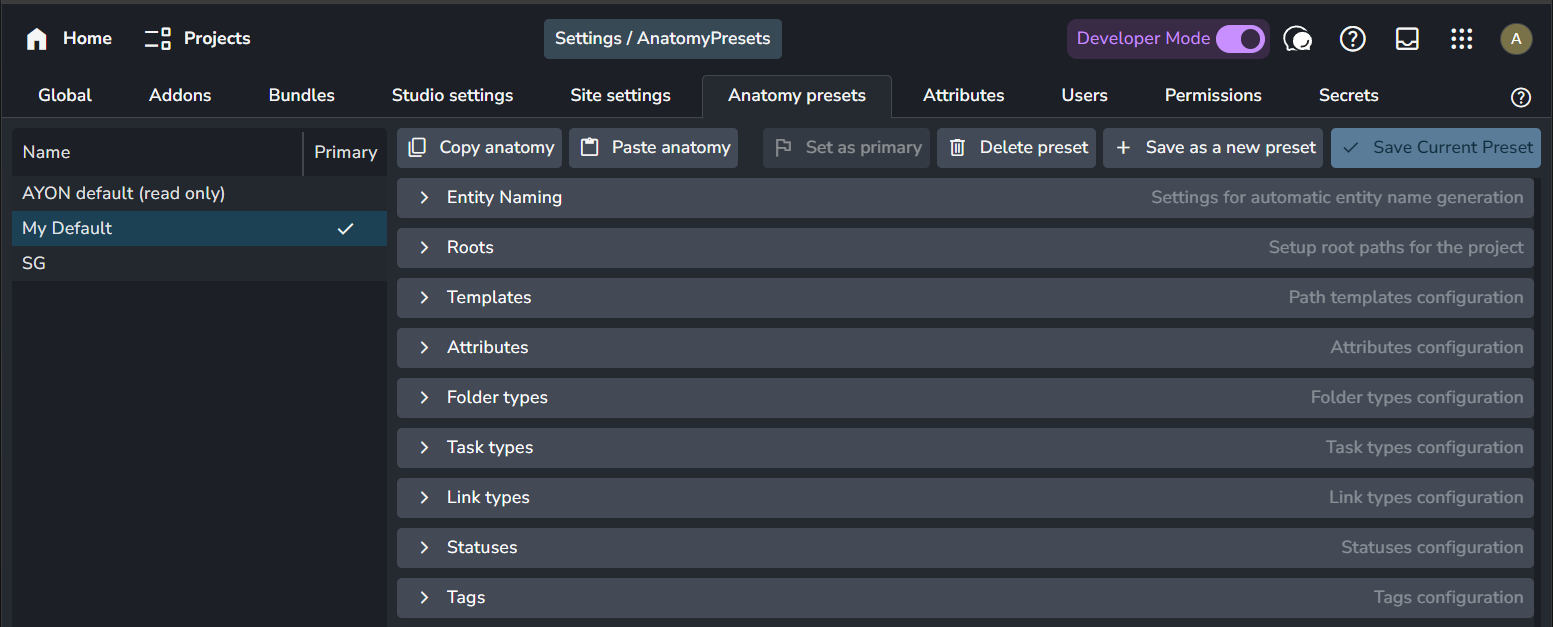
Anatomy presets are defined in the Studio Settings (S+S) within the Anatomy Presets tab. You can define many anatomy presets, but only one can be set as your primary anatomy preset.
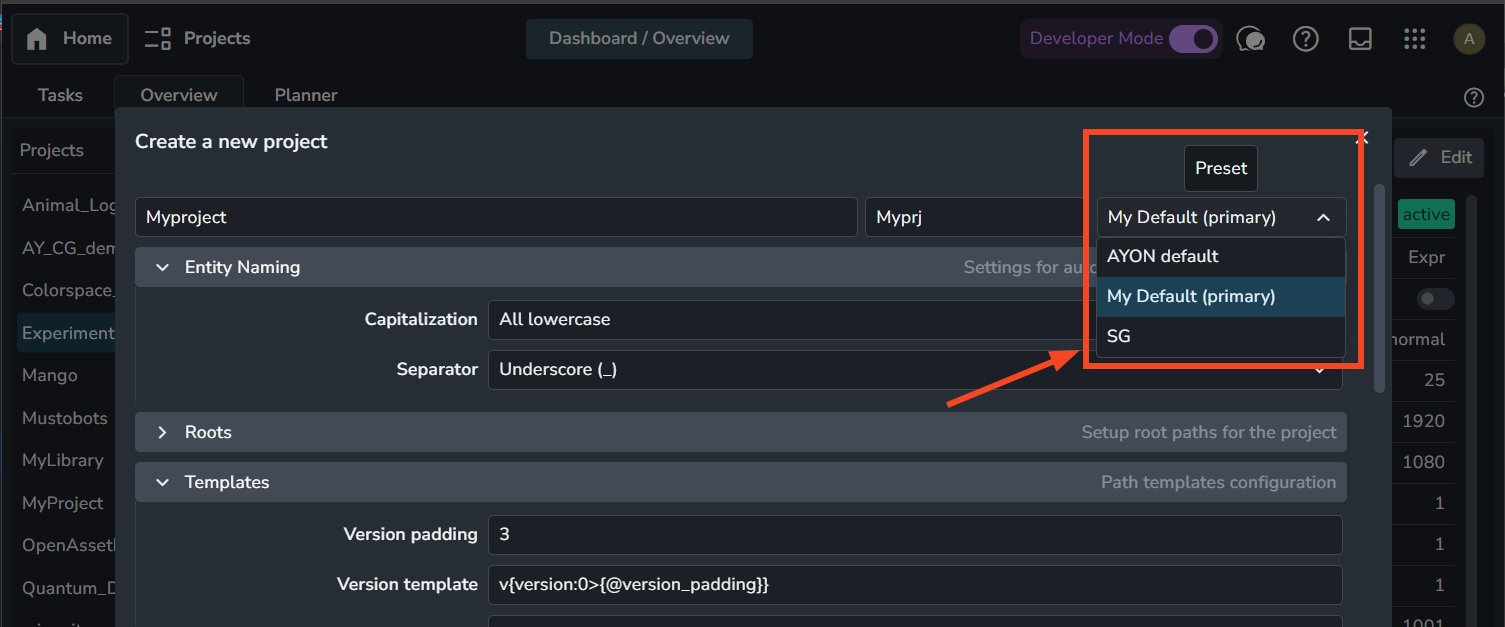
When creating a new project, AYON will prompt you to pick an anatomy preset to apply.
When applying an anatomy preset while creating a project, AYON uses that preset to initialize the values for the project anatomy. It does not keep a live link to the original anatomy preset. Therefore, changing an anatomy preset will not affect the project anatomy that was created from it.
Anatomy Scoping
Studio Settings always reference the Primary Anatomy preset, while Project Settings reference the respective Project Anatomy. e.g., when working with templates.
Project-Defined Templates: A template defined within a project's anatomy will only be available for selection in that project's settings. It will not be available for other projects or the Studio Settings.
Primary-Defined Templates: Conversely, a template defined in the primary anatomy preset will only be available for selection in the Studio Settings (and not directly in any project settings).
Therefore, you need to pay close attention to where you define the templates versus where you are selecting them for configuration.
When selecting a template in Studio Settings, ensure that your project already has the identical template defined at the Project Anatomy level.
Entity Naming
Entity Naming settings control how a folder or task name is automatically generated from its label. This is a suggestion that helps enforce consistent naming conventions across projects. You can always override the suggested name with your own custom name, as long as it follows the correct formatting.
The following options are available:
Capitalization:
all lowercase: Converts all characters to lowercase.
ALL UPPERCASE: Converts all characters to uppercase.
Keep original capitalization: Retains the capitalization exactly as entered.
Capitalize Every Word: Capitalizes the first letter of each word.
capitalize Every Word Except The First: Capitalizes every word except the first.
Separator:
underscore
_: Replaces spaces with an underscore (e.g.,hello_world).dash
-: Replaces spaces with a dash (e.g.,hello-world).dot
.: Replaces spaces with a dot (e.g.,hello.world).none
"": Removes all spaces (e.g.,helloworld).
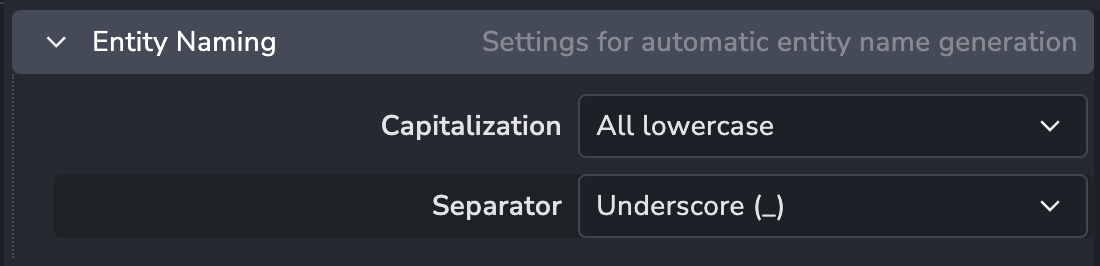
Entity Naming added in server version 1.2.1
Roots
Roots define the storage locations where you can store files. Root paths can point to any path, either local or to shared folders on a network storage. It is required to set the root path for each platform used in the studio. All paths must point to the same folder.
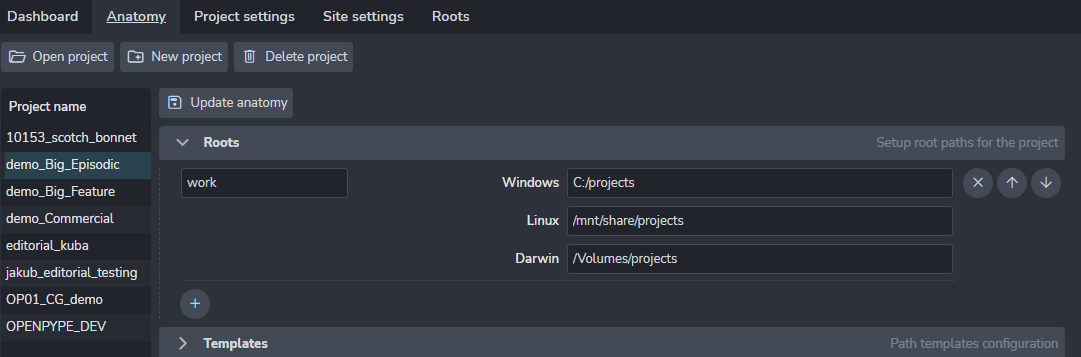
It is possible to set multiple roots when necessary. This may be useful when you need to store a specific type of data on another disk. Nothing really stops you from configuring this the way you need for example, you can define a dedicated root location for your work area and another for renders, or even more.
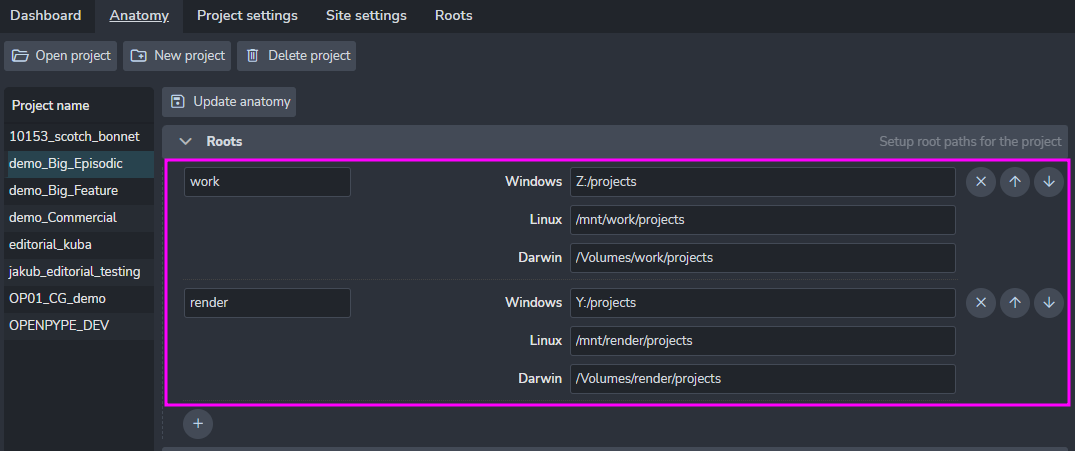
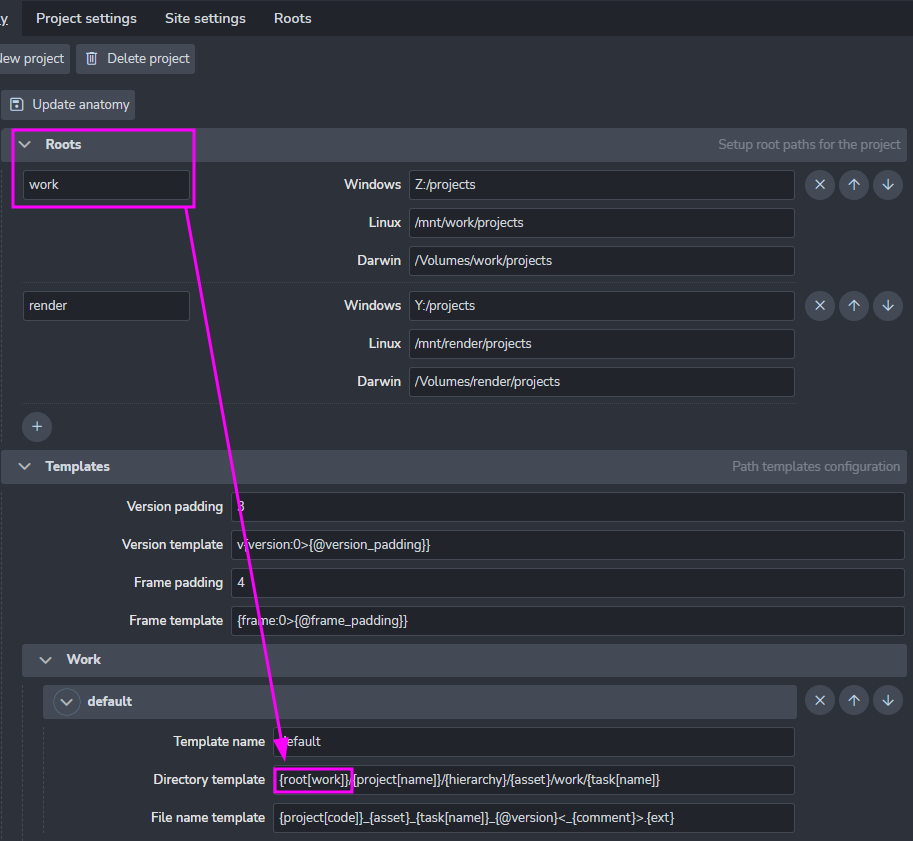
Roots are referenced in templates. For example, if you have a "work" root defined, you can reference it in the form {root[work]} in templates. This ensures that your templates start with a dedicated root location and that all paths are relative to that root.
Templates
Default anatomy templates are essential for AYON to work properly. Feel free to change their values based on your preference, but avoid removing any existing templates.
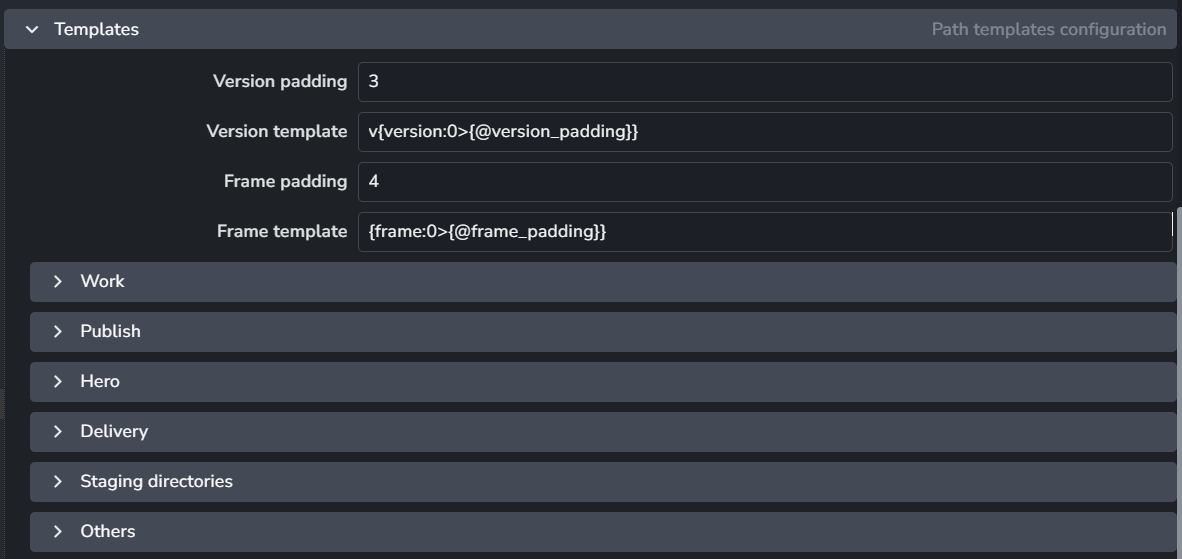
AYON anatomy templates serve as the connection point between the AYON pipeline and your file storage. They allow you to configure how your project's folder structure and filenames will be organized on disk.
For example, while you can create the project folder hierarchy in the Project Overview Page, this action alone does not define the folder structure in your storage.
Each anatomy template is constructed using AYON context keys. For instance, a template starting with {root[work]}/{project[name]} means the file will be saved inside a directory named after your project, beneath a top-level root “work” directory.
AYON comes with a set of anatomy template categories, each dedicated to a particular use case.
Anatomy Templates Categories
Work
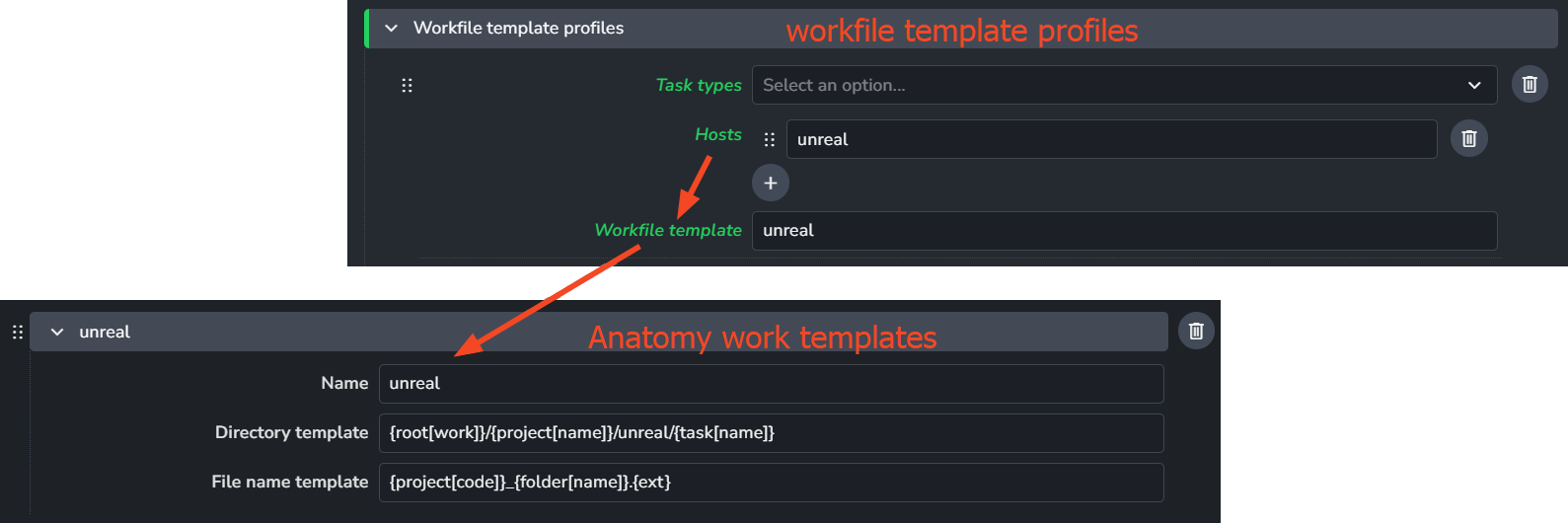
This template defines the work directory where the Workfiles tool will save workfiles. This is also referred to as the work area for a particular task.
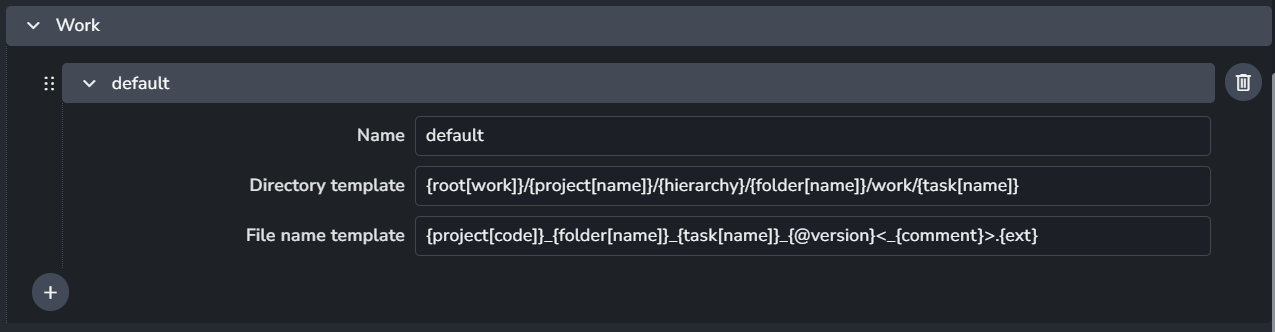
You can add work template using the + button and each work template include:
Name: The template name.
Directory template: Defines the work location.
File name template: Defines the workfile name.
Configuration:
To use work templates in your projects, you must specify them in the Core Addon settings' “workfile template profiles”: ayon+settings://core/tools/Workfiles/workfile_template_profiles
Here, you can specify which task types and hosts use which template. (Not specifying a task type means it works for all task types; not specifying a host means it works for all hosts.)
Publish
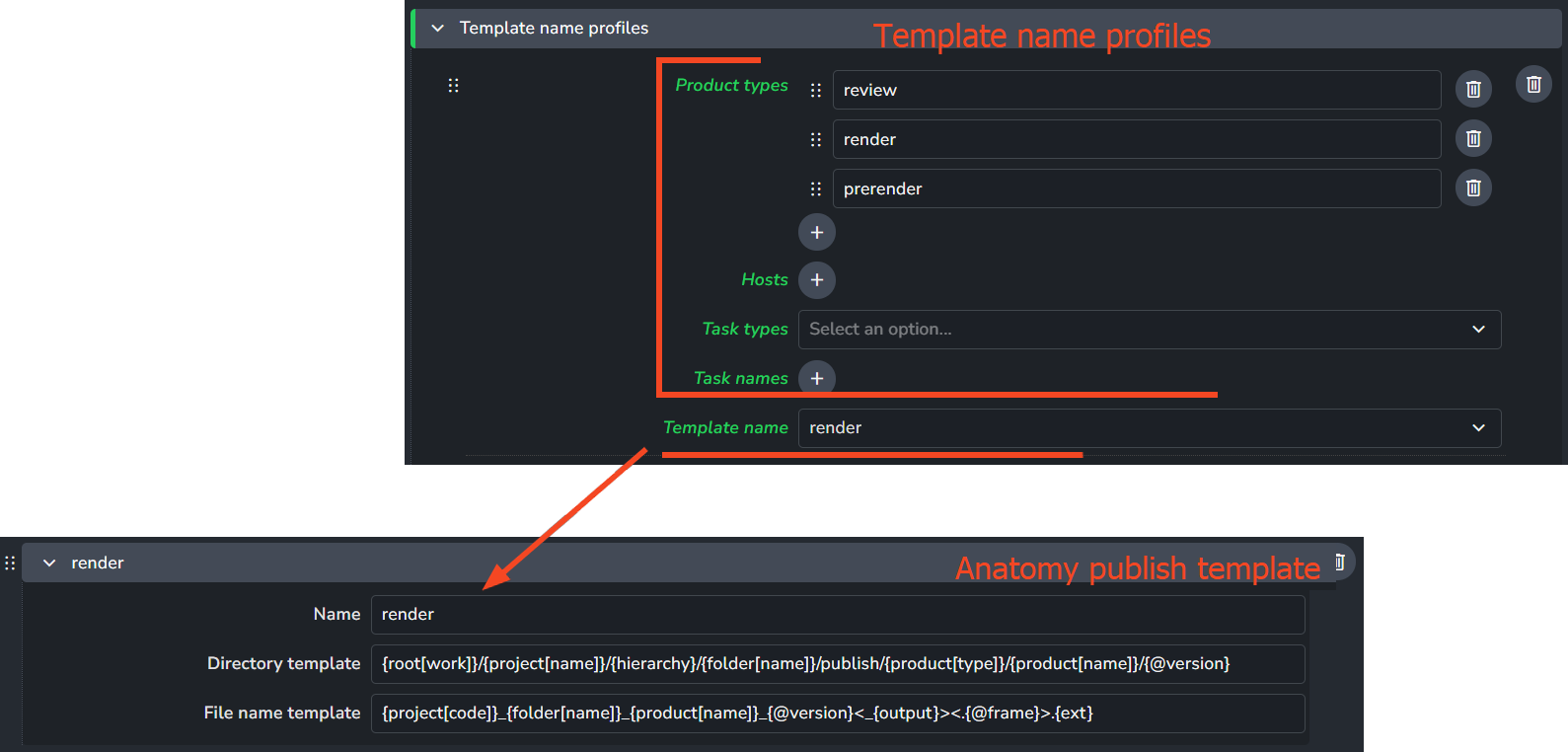
This defines the publish directory, which is the final destination where the published files will be stored.
You can add publish templates using the + button and each publish template include:
Name: The template name.
Directory template: Defines the publish location.
File name template: Defines the published file name.
Configuration:
To use publish templates, specify them in the Core Addon settings' template name profiles: ayon+settings://core/tools/publish/template_name_profiles
Here, you can select the publish template and set conditions for its usage (based on product types, host name, task types, and task name).
Hero
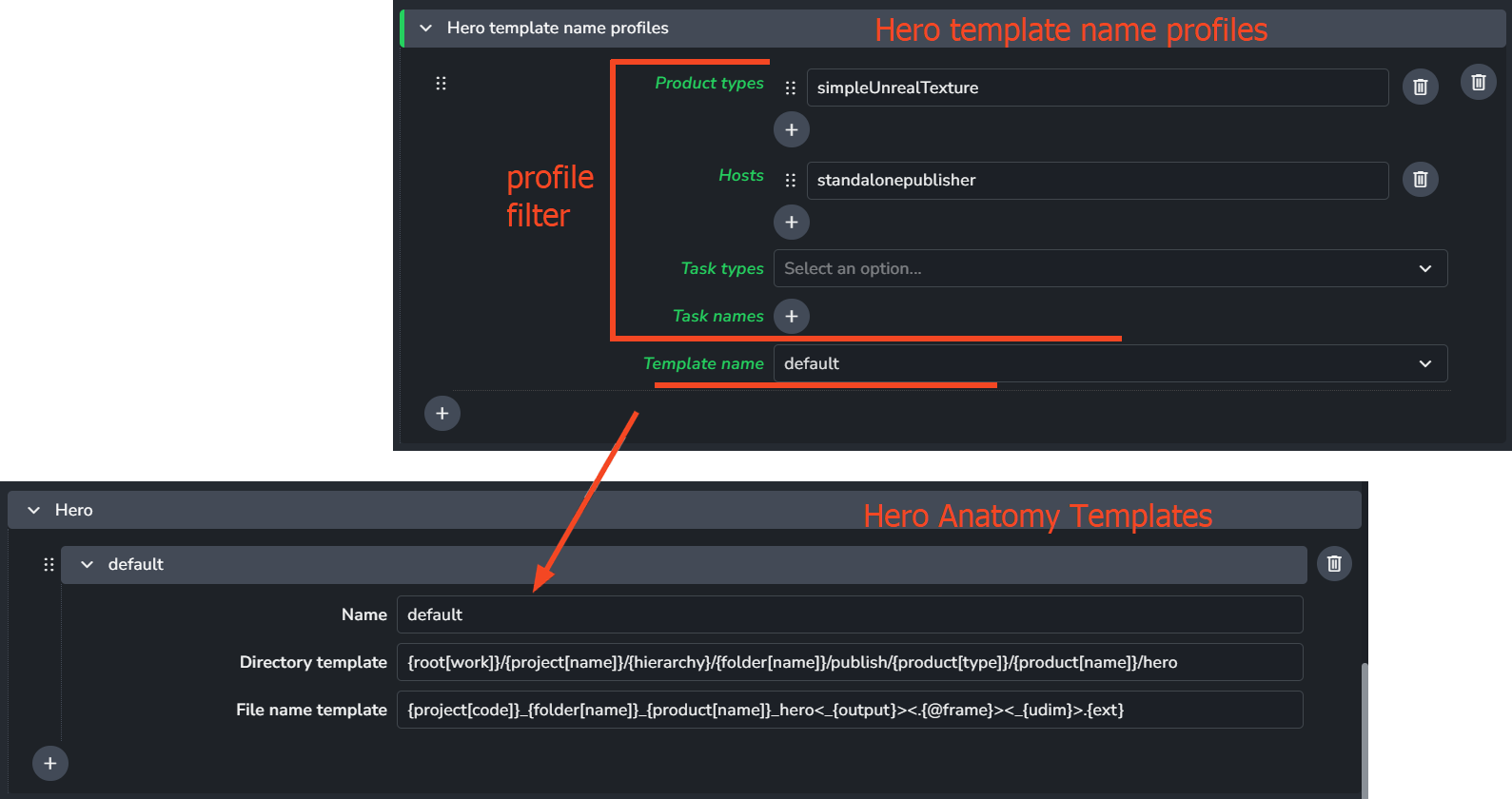
This is the publish directory specifically dedicated to publishing Hero versions.
Configuration:
To use hero publish templates, specify them in the Core Addon settings' hero template name profiles: ayon+settings://core/tools/publish/hero_template_name_profiles
Here, you can select the publish template and set conditions for its usage (based on product types, host name, task types, and task name).
Delivery
This category is for defining delivery templates that can be used by the delivery action within the Desktop Browser tool.
Staging Directories
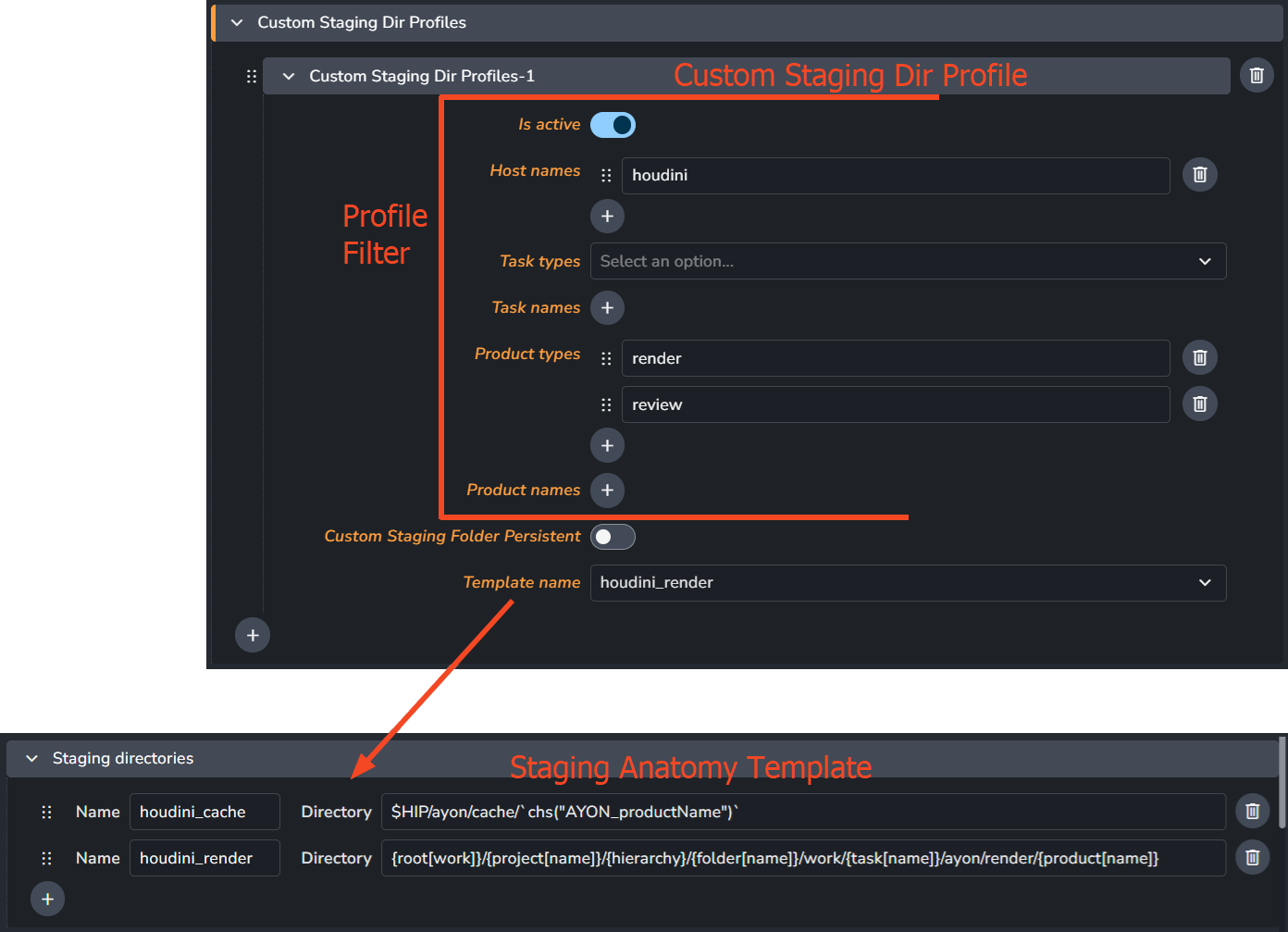
This category is for defining staging templates for storing staging files that are extracted in the staging step during the publishing.
This is not yet supported in all host integration addons!
Configuration:
To specify custom staging locations, set them in the Core Add-on settings' custom staging profiles: ayon+settings://core/tools/publish/custom_staging_dir_profiles
Others
These are extra templates that you can use across the pipeline. They are mostly associated with custom addons that utilize these templates for specific pipeline functions.
Available Template Keys
These are the keys you can reference inside your templates.
AYON Context Keys
The data for AYON Context keys are collected when launching applications and include the current session information, such as the AYON context (project, folder path, task name, app) and the current user.
Publish Data keys
These data are collected at the time of publishing for each publish instance. The data are consistent and always exist regardless of the DCC (Digital Content Creation) application you are publishing from, though they may depend on your specific publish instance.
Dynamic Publish Data keys
These data are collected at the time of publishing for each publish instance. However, they are supported on a product-type basis for each DCC (Digital Content Creation) application. It's recommended to reference them as optional keys, for example, <{renderlayer}><_{aov}>.
Datetime keys
These keys are collected at the time of publishing. More specifically, their values are collected when the "Collect Datetime data" publish plugin is run.
Reference Template Keys
Template keys can be used in many places within AYON. A prime example is in the product name profile settings in the core addon, where you can specify product names using templates.
ayon+settings://core/tools/creator/product_name_profiles
Here's how to reference template keys in different templates:
Standard Keys: To reference anatomy keys, use Python string formatting style by enclosing the key in curly brackets:
{template_key}. For example, you would use{root[work]}or{product[type]}.Optional Keys: To make a key optional, enclose it in angle brackets:
< {template_key} >. You can also add characters that will only appear if the key is resolved. For example, the template< _{udim} >will add an underscore before the UDIM number only if it exists.You can even nest optional segments, such as
< {key1} <.{key2}> >. This will result in an empty string if the outer key (key1) isn't available.
Note: Optional segments that don't contain a formatting key (e.g.,
<something>) will remain as they are. This can cause errors on Windows, as angle brackets and other characters (\/:*?"<>|) are not allowed in file and folder names.Case Sensitivity: The letter case of the key follows the case of the template itself. For example,
{aov},{Aov}, and{AOV}are all distinct keys.Special Keys (Frame & Version): The
frameandversionkeys are special multi-digit numbers. Always prefix them with the@symbol, like this:{@frame}and{@version}. You can also control the zero-padding and template for each.For instance,
v001is the typical output for version1since the version number is always prefixed with a "v" and has 3-digit zero-padding. The frame key, on the other hand, only has frame padding, so frame10would be formatted as1001.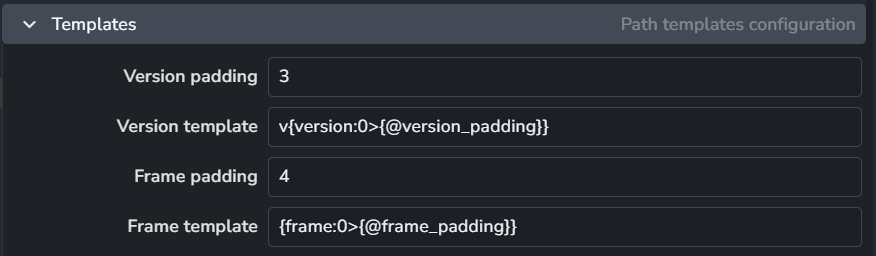
It's highly recommended not to change the default version and frame templates because many parts of the pipeline expect their default template. For example, since it's expected that all versions start with a
v, removing it from the template can be problematic.However, changing the version and frame padding should be fine.
Unique Directory Paths in Anatomy Templates
The AYON Pipeline is highly context-aware, which allows it to precisely identify and manage production files. To maintain pipeline stability and "human readability" on disk, it is a recommended best practice that your work and publish templates resolve to unique paths.
The Fundamental AYON Context
The fundamental building block of an AYON project is the Task. Whenever users perform work, it should be associated with a respective task.
Every task exists within a Folder Path inside a Project. Therefore, the absolute minimum context for any file is denoted by: Project > Folder Path> Task.
Work Context Uniqueness: Achieved by
project name,folder path,task name, and further precision viaapp.Publish Context Uniqueness: Achieved by
project name,folder path,product name, andversion. Further organization is often added viaproduct typeand optionallyrepresentation.
Why Uniqueness Matters for Work Templates
If two different tasks (e.g., modeling and lookdev) resolve to the same folder path because a template is too generic, it creates several critical issues:
Workfile Overwrites: Saving a scene in one task could overwrite a file from another, leading to irreversible data loss.
Versioning Conflicts: Version numbers become ambiguous. If
lookdevandmodelingshare a folder,v002of a modeling file might be confused withv002of a lookdev file.Permission Gaps: If an artist has access to Task A but not Task B, a generic template may allow them to see or open Task B's files through the Workfiles tool because they occupy the same physical directory.
Context Confusion: Opening a file in the "wrong" context (e.g., opening a
lookdevfile while your session is set to modeling) can cause automated tools and publishing plugins to misidentify and mislabel your data.
The Role of the app Key
For studios where a single task might be worked on across multiple applications (e.g., a modeling task using both Maya and Blender), the {app} key provides a final layer of precision. Since the Workfiles tool is accessed from within a DCC, it will only point to the directory dedicated to that specific application.
Work Directory Template Examples
Standard Task Isolation: The standard setup; ensures every task has its own work area. All tasks are kept below
workfolder within the destination folder path.{root[work]}/{project[name]}/{folder[path]}/work/{task[name]}
Hierarchical Splitting: Equivalent to standard isolation, but used when you want to explicitly separate the folder name from its parent hierarchy. This is useful for adding intermediate folders.
{root[work]}/{project[name]}/{hierarchy}/{folder[name]}/work/{task[name]}
Multiple apps per task: Recommended when multiple DCCs are used for the same task to prevent cross-app file clutter.
{root[work]}/{project[name]}/{folder[path]}/work/{task[name]}/{app}
Why Uniqueness Matters for Publish Templates
Uniqueness in publish templates is primarily about avoiding file clashing and ensuring storage is "human-readable."
If a publish template is too generic—for example, if it doesn’t specify the {version}, it becomes incredibly difficult to track which files belong to which iteration. While you might be able to identify versions by their filenames, having dedicated folders ensures that versions are isolated and easy to identify.
The Role of the product type key
The {product[type]} key is used to categorize your published data (e.g., render, model, camera). While not strictly required for uniqueness (since product names are usually unique within a folder), it is an essential organizational tool. Categorizing by product type allows users to quickly browse and differentiate between product types on disk.
The Role of the representation key
This template key can be used for organizing your product folder, but it is not a requirement for achieving uniqueness.
Important:
You must mark this key as optional using angle brackets
< /{representation}>in the publish template.This is due to a "chicken or egg" situation in farm rendering: the path needs to be evaluated before submitting the Deadline job, but the
representationkey only has a value while the job is rendering. Marking it as optional allows the system to skip the{representation}during the initial submission. However, once the publish job is processed on the farm, the full path will be re-evaluated and the files will be placed into the correct representation-specific folder as expected
Using the representation key
Using the {representation} key in a directory template is not recommended for standard production environments. The AYON pipeline currently expects all files belonging to a specific product version to reside in a single directory.
Moving representations into separate sub-directories can lead to unexpected results and unknown pipeline conflicts. For instance, this breaks the logic for the resources folder; if two representations share the same auxiliary files, their relative paths become ambiguous, leading to linking or integration errors.
With that being said, feel free to explore using the {representation} template key in your custom workflows and report any errors or unexpected behavior on our Feedback Portal.
Standard Publish Directory Template Examples
Standard Product Isolation: The standard setup; ensures every version of a product has its own publish folder. All products are kept below
publishfolder within the destination folder path.The standard setup; ensures every version of a product has its own unique publish folder. It uses
product typeto categorize products belowpublishfolder within the destination folder path for a clear navigation.{root[work]}/{project[name]}/{folder[path]}/publish/{product[type]}/{product[name]}/{@version}
Hierarchical Splitting: Equivalent to standard isolation, but used when you want to explicitly separate the folder name from its parent hierarchy. This is useful for adding intermediate folders.
{root[work]}/{project[name]}/{hierarchy}/{folder[name]}/publish/{product[type]}/{product[name]}/{@version}
Multiple representation per product: (Not Recommended) Used when you want each representation to be placed within its own dedicated sub-folder.
{root[work]}/{project[name]}/{folder[path]}/publish/{product[type]}/{product[name]}/{@version}</{representation}>
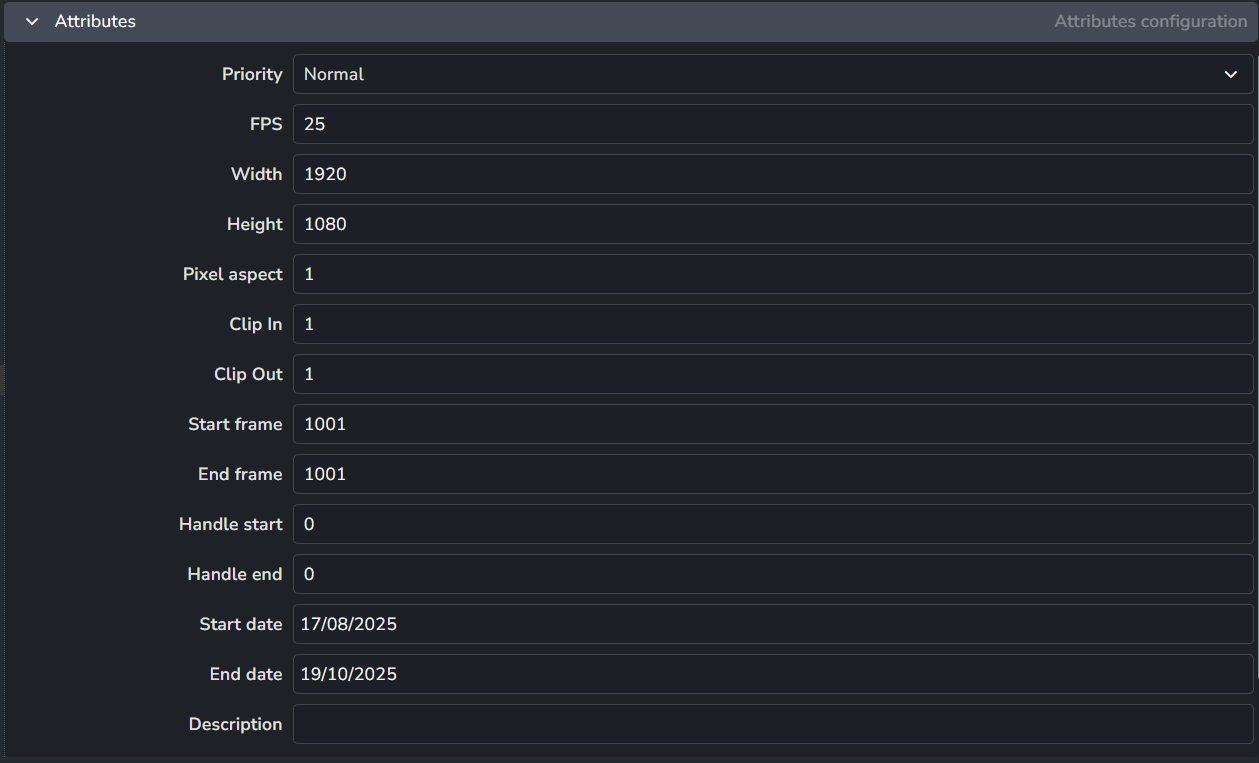
Attributes
This section is deprecated in favor of the Projects Dashboard.
Project attributes are used as default values that project folders inherit. Attributes that are not project-specific always use values from the folders themselves.
Folder Types
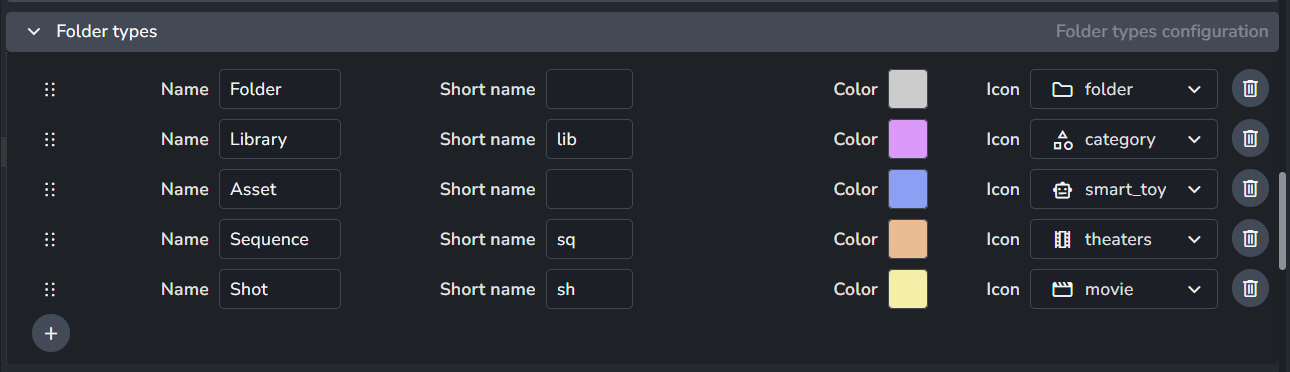
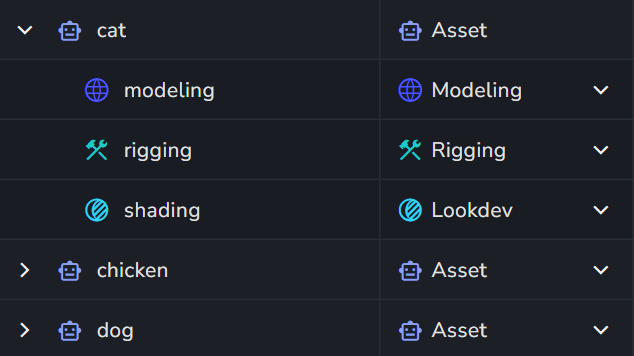
These are the types of folders you can create within your project hierarchy.
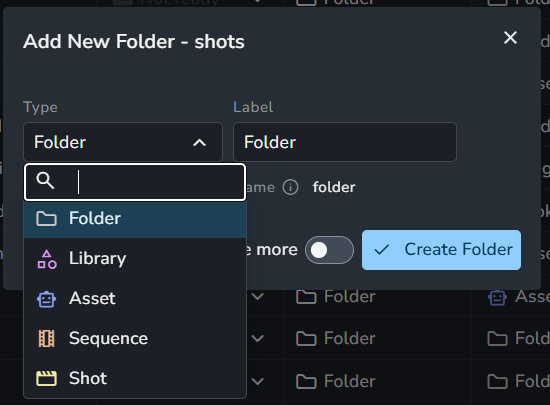
When creating a new folder under your project, you are only allowed to choose from the defined folder types.
The order of folder types in the Project Anatomy is crucial; it directly controls the display order of folder dropdown menus across the AYON server. Consequently, this order is exactly what users will see when creating new folders.
AYON also pulls the colors defined in your Project Anatomy for folder and task types and applies them to their respective projects.
Task Types
These are the available task types for a project.
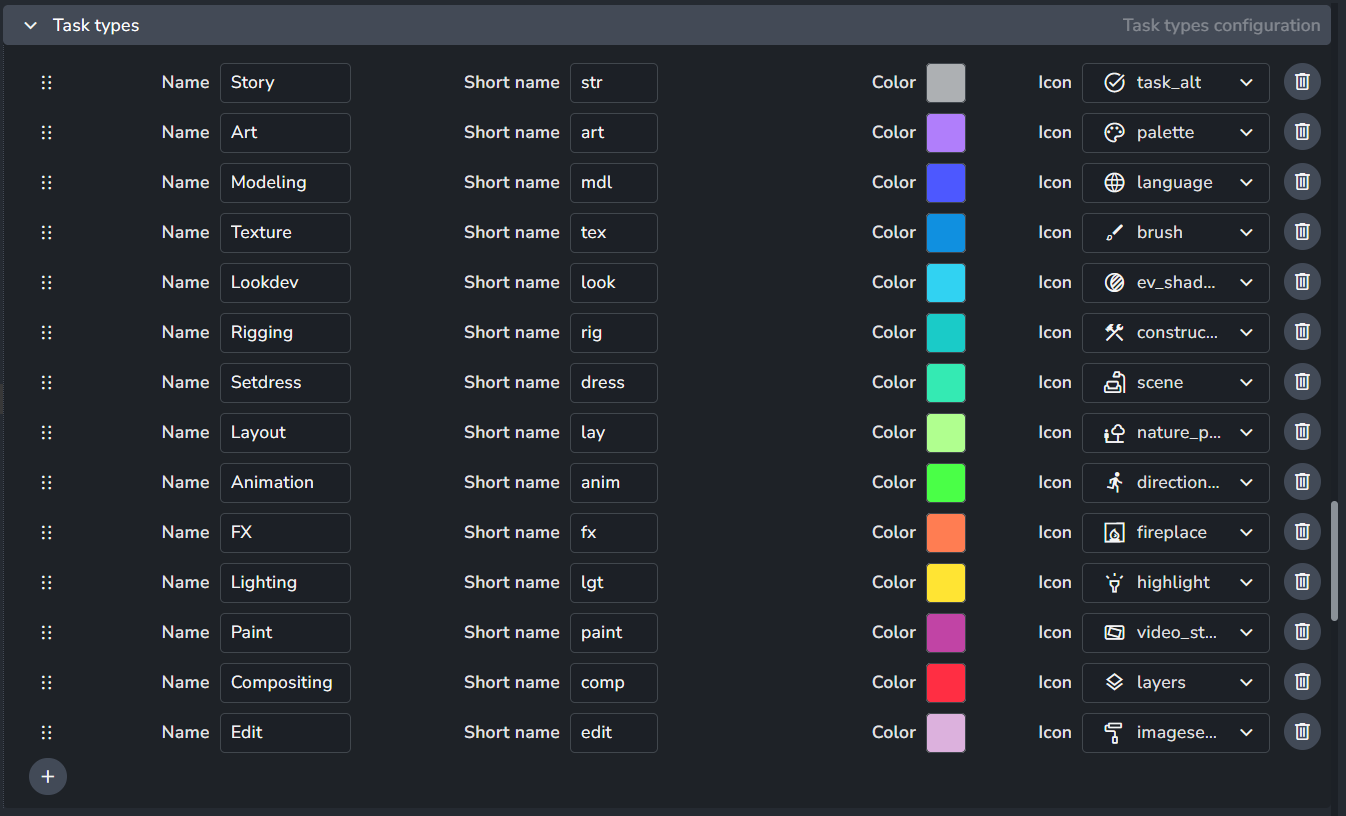
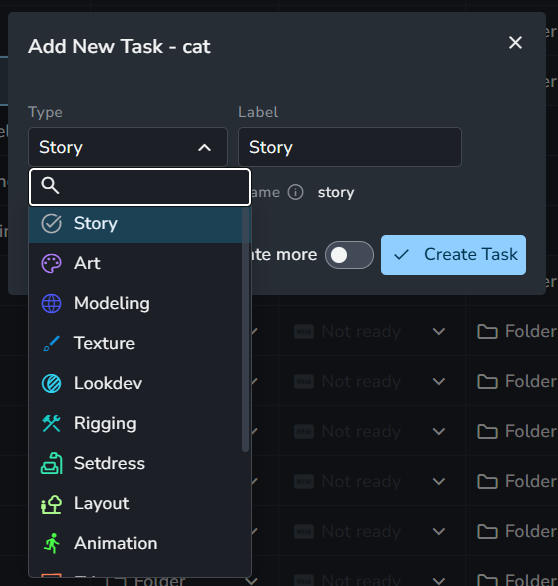
When creating a new task, you are only allowed to choose from the defined task types.
The order of task types in the Project Anatomy is crucial; it directly controls the display order of task dropdown menus across the AYON server. Consequently, this order is exactly what users will see when creating new tasks.
Statuses
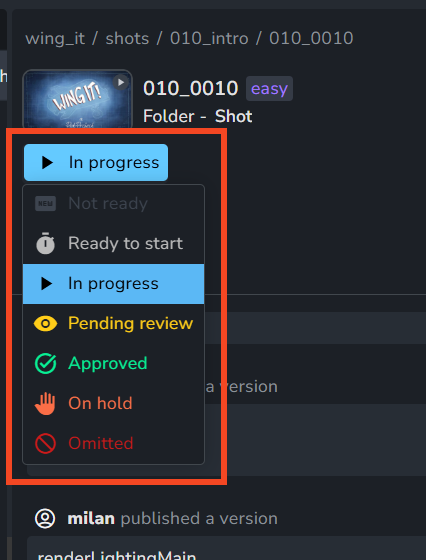
Any entity type (such as Folder, Product, Version, Representation, Task, or Workfile) can have a status defined within its scope. This means Folders and Tasks may share the same set of statuses, while a Version may have a completely different set. Each entity can only have one status assigned at a time.
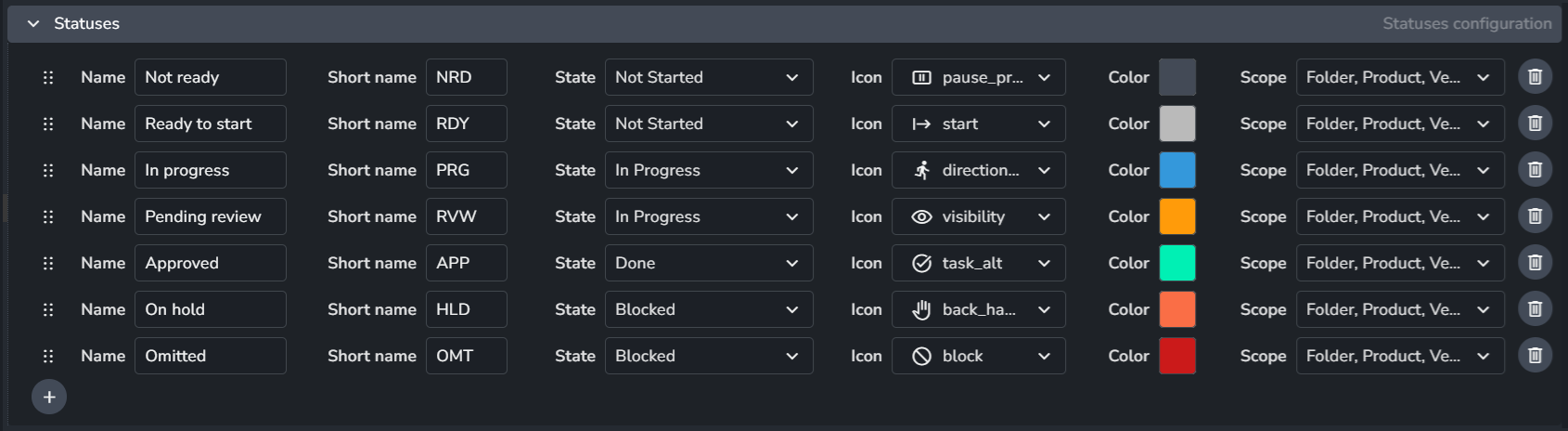
The order of statuses in the Project Anatomy is crucial; it directly controls the display order of statuses across the AYON server. Consequently, this sequence is exactly what users will see when setting a status or when viewing the statuses in the "slicer" on the left side of pages like the Overview page.
Additionally, AYON identifies the first status with an in_progress state and uses it as the default status for all new publishes.
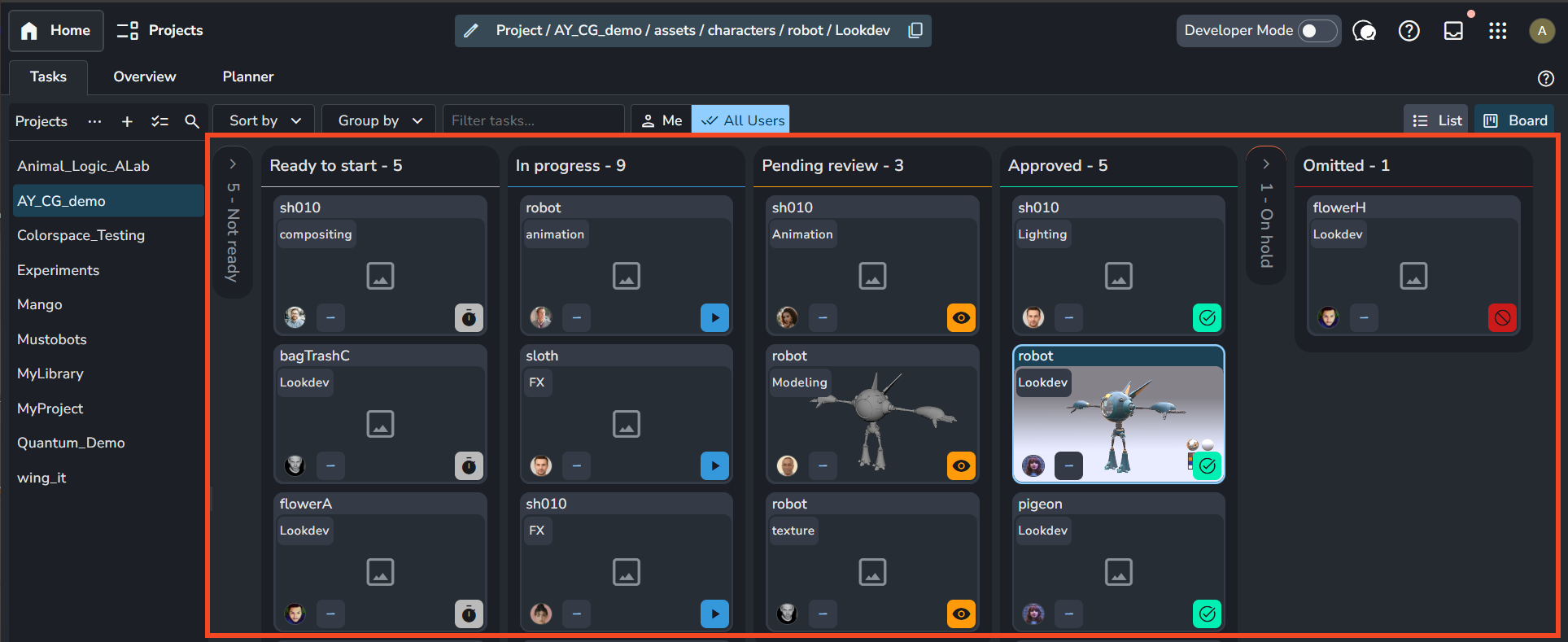
You can view and set statuses in multiple places within AYON, For example:
In the Tasks (Home) Page:
Tags
Tags can be anything and are supported on all entity types, including Folder, Product, Version, Representation, Task, and Workfile. An entity can have multiple tags or none at all.
Tags can be anything and are supported on all entity types, including Folder, Product, Version, Representation, Task, and Workfile. An entity can have multiple tags or none at all.
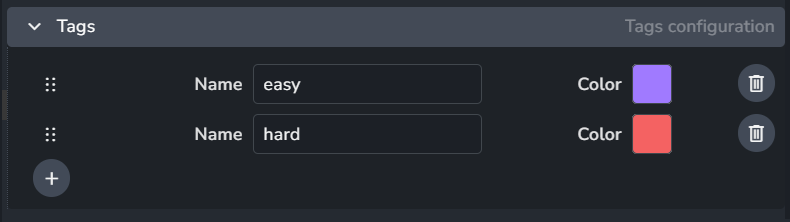
The order of tags in the Project Anatomy is crucial; it directly controls the display order of tag dropdown menus across the AYON server. Consequently, this order is exactly what users will see when assigning tags.
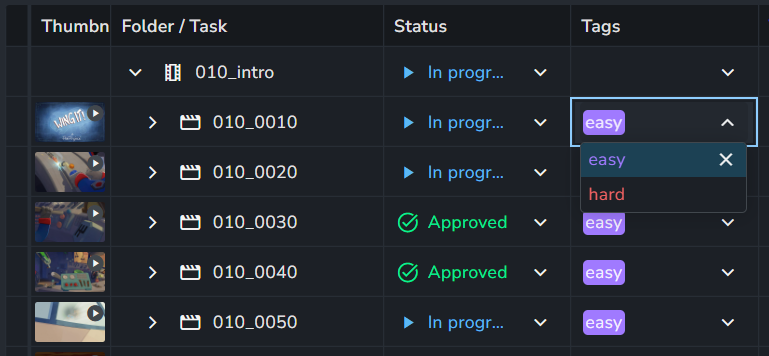
When adding a tag to an entity, you can only choose from the predefined tags.
Link Types
Links are static relationships you can create between two entities in AYON. For example, you can create a link from Task A to Task B.
Link Types define the available links you can create in your project. Each link type definition includes a link type name, an input type, an output type, and a color. The color is used for visualization in the Node Graph addon.
You can create and manage links within AYON via the Links Manager.
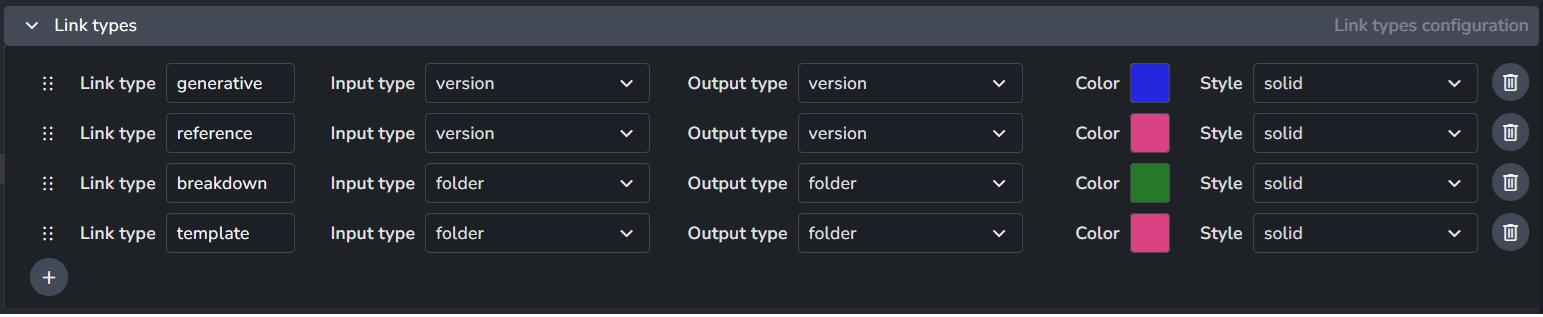
Default anatomy preset include the following link types:
Generative: A relationship between two product versions where the input was used to generate the output. For example a workfile used to render an image sequence. Or a model used to create an animated cache.
Reference: A relationship between two product versions where the input is needed for the output to be functional. For example a model that is referenced into a rig, or a footage that is loaded to a compositing workfile.
Breakdown: Represents folder relationships based on a script breakdown. For example an asset that needs to be used in a shot.
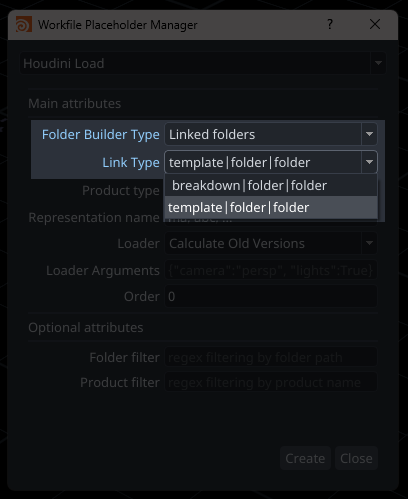
Template: This is a folder-to-folder link type. It is the fallback link type used in workfile load placeholders. The input of linked folders is where the tool will look for products when the Folder Builder is set to "Linked folders".
Product Types
This setting is purely cosmetic for displaying product types on the AYON Server web UI and should not have any effect on the pipeline.
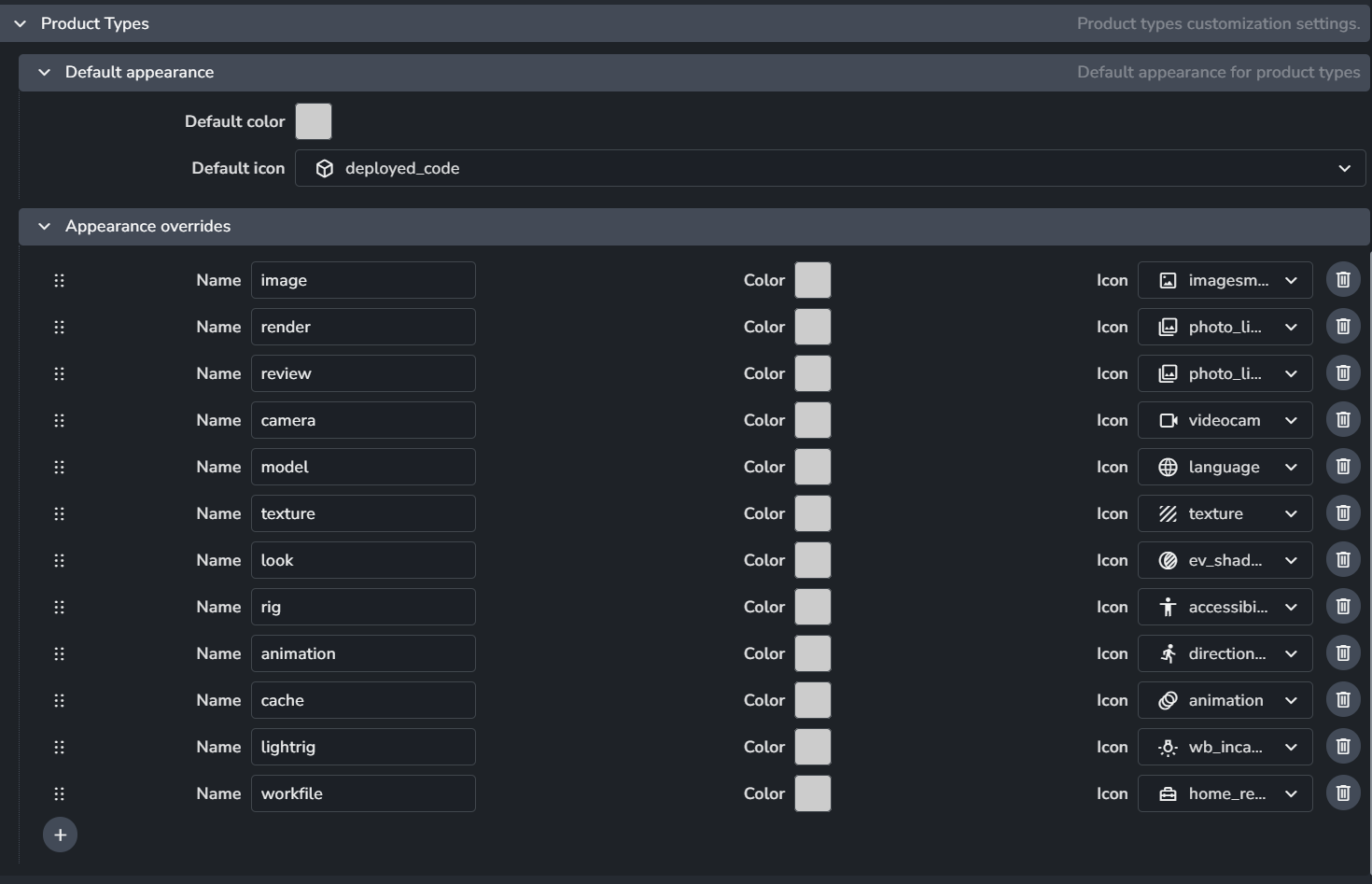
This configuration includes two options: Default Appearance and Appearance Overrides.
Default Appearance: This styling is applied to all products unless an override is specified for a particular product type.
Appearance Overrides: Here, you can define specific product types and set a favored color and icon for their display on the web UI.
FAQ
I Can’t Find the Anatomy Template in Settings
This situation typically occurs when you define your anatomy template in one location but try to reference it in a different scope that doesn't share that definition.
For example, a template defined in the Primary Anatomy Preset will be available for selection when configuring Studio Settings. However, that same template will generally not be available when configuring settings at the Project level, as Project Settings reference the project's own project anatomy.
To resolve this, ensure your template is defined within the specific anatomy that the settings section you are working in is referencing.
For additional information, please see the Anatomy Scoping section.