Power Features
Last updated 4 months ago
The Power Features is a premium addon included with the Studio and Pro subscriptions.
unlocks "pro" functionality across your AYON server and manages the licensing for all Pro-tier addons listed on subscription page.
AYON offers Power Features to enhance production tracking tools for studios that need advanced functionality. Power Features are only available with an AYON subscription.
Features that require a Power license are marked with a ⚡️ symbol throughout the app. Clicking on this icon provides more details about the feature.

Some Power Features may not appear if you don’t have access. The full list of Power Features are listed below.
Power Features List
This list will continue to expand, with new features being added. We would love to hear your feedback or ideas for future features!
Multi view slicer
The slicer lets you quickly refine your view by filtering attributes on the fly, without modifying your existing filters. It’s a fast and flexible way to explore data, helping you focus on what matters most, without disrupting your workflow. Slice by hierarchy, assignee, status, and task type and custom attributes.

Annotations
Enhance collaboration with Annotations, allowing you to draw directly on videos and images for clearer communication.
Mark up any frame of a video or image.
Adjust brush size and erase with a simple right-click.
Choose from preset colours, pick a custom shade, or use the eyedropper tool.
Full keyboard support.

Reviewables transcoder service
The Reviewables transcoder service automatically transcodes and optimises any video format to meet web and browser standards, ensuring smooth playback in the browser. By default, only specific .mp4 formats are supported for publishing and playback due to browser limitations. This service takes care of transcoding your reviewables into the compatible format for you.

This feature is still under development and not currently available. Please contact support if this is something that your studio requires.
Full pipeline release access
With Power Features, you gain access to not just the latest pipeline release, but all historical releases. By default, only the latest release is available.

SSO (OAuth2.0, Google)
Let your users log in using any SSO provider instead of email and password. Google SSO and Discord SSO are natively supported, and all other providers are supported through Keycloak. We can also add more providers natively upon request, thanks to AYON’s OAuth2.0 capabilities. Configure it so that SSO logins automatically create new users with the correct details, such as name and profile image.

Automated Status Updates
Powerpack addon provides three configurations for automatically synchronizes the status of folders, tasks, and versions based on predefined triggers.
Be careful when defining synchronization rules to avoid creating circular status loops (e.g., a Task status changes a Version status, which triggers a change back to the original Task status).
Important Note on Status Synchronization:
Studio Level: Status lists are populated from the default presets defined in your Anatomy Presets.
Project Level: Status lists are populated from the respective Project Anatomy.
1. Sync Status: Task → Folder
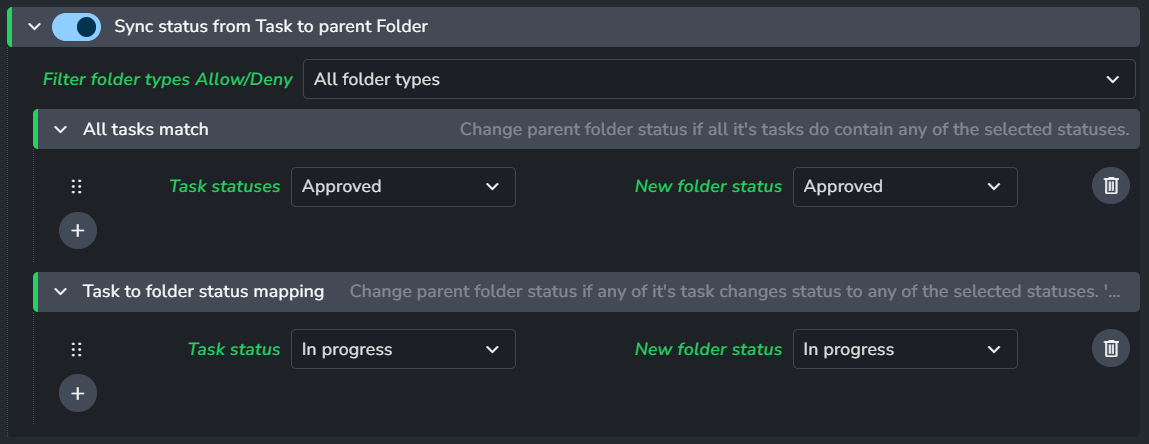
"Approved" Roll-up: Set the folder to "Approved" when all underlying tasks reach "Approved."
Enable Sync status from Task to parent Folder.
Configure Filter Folder Types (either apply to all or limit to specific types).
Under "All tasks match", add a rule: Set "Task Statuses" to
Approved→ set "New Folder Status" toApproved.
"In Progress" Trigger: Set the folder to "In Progress" when any underlying task is set to "In Progress."
Enable Sync status from Task to parent Folder.
Configure Filter Folder Types.
Under "Task to folder status mapping", add a rule: Set "Task Statuses" to
In Progress→ set "New Folder Status" toIn Progress.
2. Sync Status: Task → Version
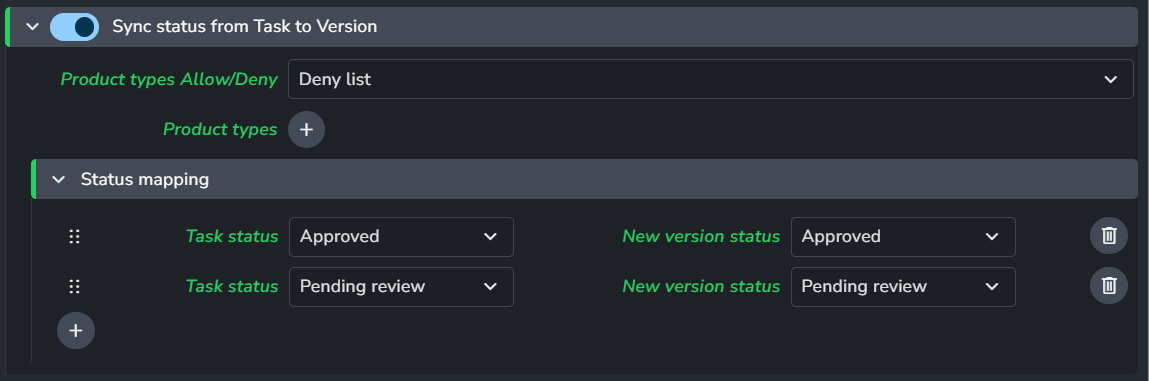
Approve last and hero versions if Task is "Approved":
Configure Product types Allow/Deny (use an empty deny list to include all products).
Under "Status mapping", add a rule: Set "Task Statuses" to
Approved→ set "New Version Status" toApproved.
3. Sync Status: Version → Task
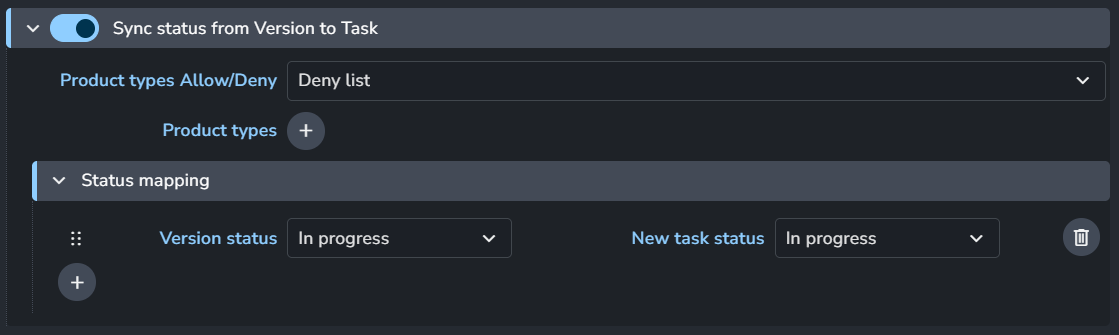
Update Task status based on Version progress: (e.g., set Task to "In Progress" as soon as a Version is published).
Configure Product types Allow/Deny (use an empty deny list to include all products).
Under "Status mapping", add a rule: Set "Version Status" to
In Progress→ set "New Task Status" toIn Progress.
Trigger task which can trigger folder subsequently if configured in 1. Sync Status: Task → Folder
Pin Project Settings on Project Creation
Create project-specific overrides for specified settings, effectively breaking their dependency on studio-wide values.
What can be set as project override: Only settings available at both the Studio and Project levels.
What cannot be set: Settings exclusive to the Studio level (e.g.,
ayon+settings://applications/applications).What does not need project override: Settings exclusive to the Project level, as they are already exclusive to that project (e.g.,
ayon+settings://deadline/deadline_server?project={project_name}).
Example: Pinning Colorspace Settings
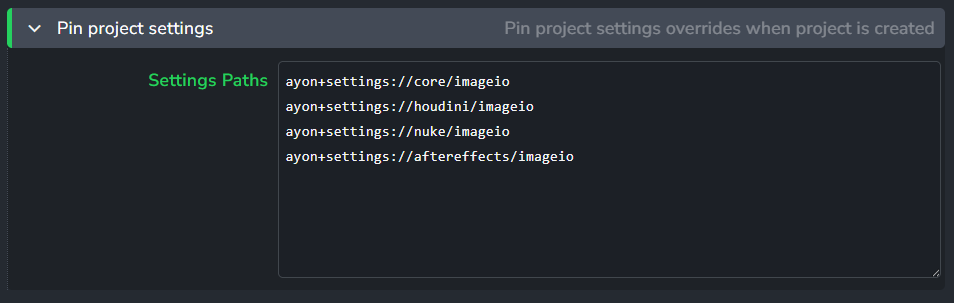
To pin colorspace configurations per project, add the following paths to the Settings Paths list in your studio settings:
ayon+settings://core/imageio
ayon+settings://houdini/imageio
ayon+settings://nuke/imageio
ayon+settings://aftereffects/imageio
Was this helpful?
Still need help? Ask the team