Products and Versions Page
View and browse your published content with powerful filters and beautiful thumbnails.
Last updated About 2 months ago
Available with server version 1.13.0 and replaces the deprecated Browser Page.
The Products page is the central location within AYON for browsing and viewing all the published products and their versions within your project. This page allows you to quickly find, filter, inspect, and preview the work that has been published through the AYON pipeline.
You can access the Products page from the main project navigation bar.
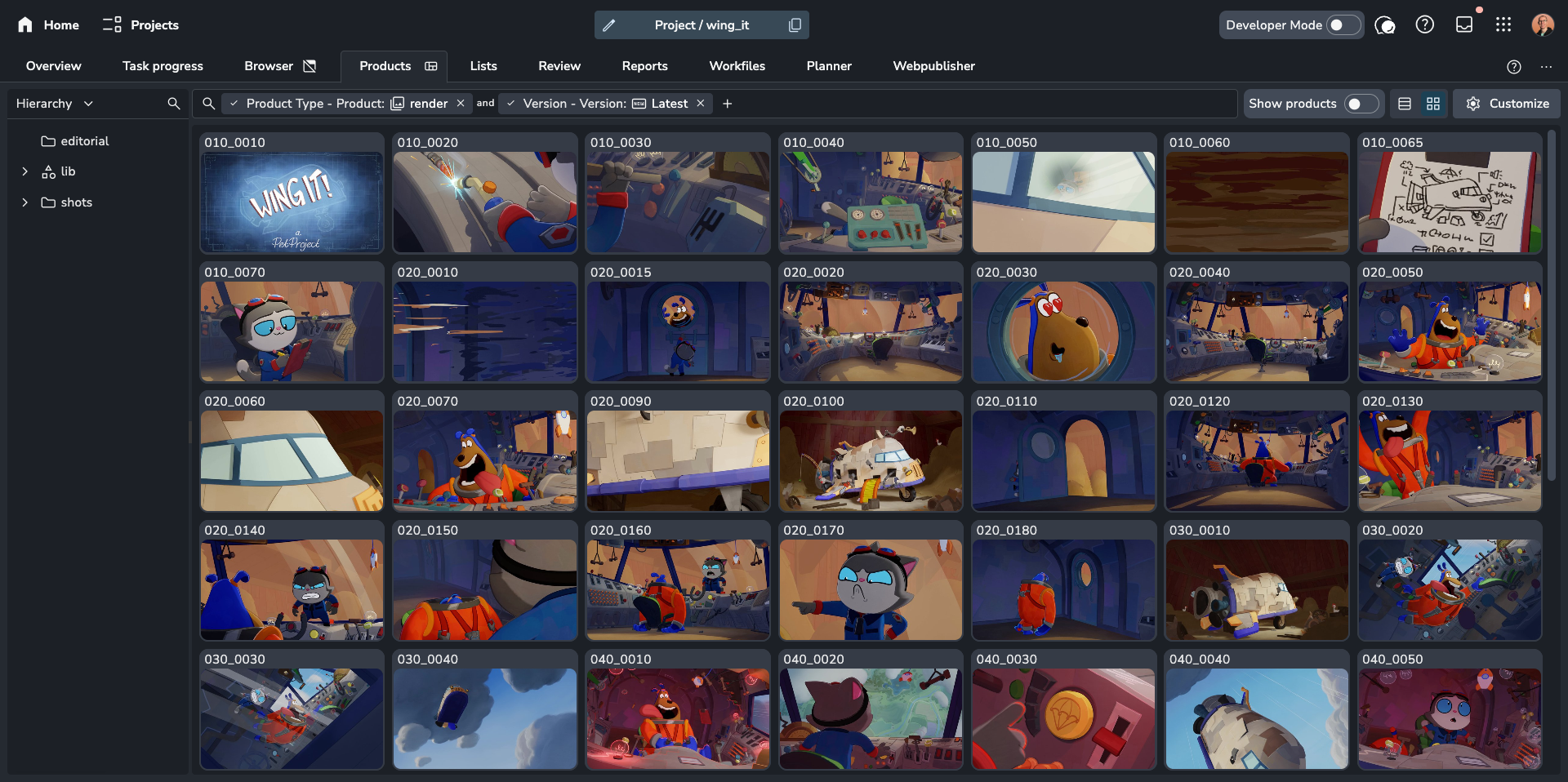
Navigating the Products Page
The Products page offers several ways to view and interact with your published data:
Grid View: The default view, showing items as visual cards. Press
Gto activate.Table View: A condensed, data-rich view. Press
Tto activate.Show Products Toggle: In the top-right corner, the Show products toggle changes the main display between showing individual versions (toggle OFF) and showing products which contain their versions (toggle ON).
Common Interactions
Preview Media (Player): If an item has reviewable media (like a video or image sequence), select it and press
Spacebarto open it in the media player. This works for both products and versions in both Grid and Table views.Navigate in Player: While the player is open, use
⌘ + Left/Right(Mac) orCtrl + Left/Right(Windows/Linux) to quickly jump between the previous/next items in your list.Hero Indicator: A star icon (⭐) next to an item indicates it is a Hero version. This is visible in both Grid and Table views for products and versions.
Open Entity Details: Double-click a Folder or Task cell within the table to instantly open that entity in the Details Panel without navigating away from the page.
Filtering and Sorting
Finding specific published work is made easy with the Slicer panel, Filter bar, and Customize settings.
Slicer Panel (Left)
The slicer provides quick filtering based on common attributes:
Hierarchy: Navigate and select specific folders (like Assets, Shots, Sequences) to see only the products/versions within that part of the project structure.
Task Assignee: Filters versions based on who is assigned to the task linked to the version.
Version Status: Filters by the status assigned to the versions (e.g., Approved, Pending Review).
Version Author: Filters versions based on the user who published (created) them.
Product Type: Filters by the type of product the version belongs to (e.g., model, render, plate).
Task Type: Filters versions based on the type of task they are linked to (e.g., modeling, compositing).
Filtering Versions
For more complex queries, click the Filter button to add filters based on various product or version attributes.
You can filter products based on their attributes (e.g., Product Type = 'render').
You can filter versions based on their attributes (e.g., Version Status = 'Approved').
You can also filter products based on the attributes of the versions they contain. For example, filtering by
Version Status = Approvedwhen "Show products" is ON will display only products that have at least one approved version inside.Parent Folder Filtering: Filter versions and products dynamically using the attributes of their parent folders (e.g., isolating versions whose parent shot folder status is set to "Pending Review").
Combining Filters: Multiple filters can be active simultaneously to narrow down results precisely.
Special Filters: Use options like "Latest Done" in the Version filter to see only the highest numbered version that has a 'Done' status (like Approved) for each product.
Scoped Search Grouping: Search filter dropdown fields are grouped by target entity type (Folder, Product, Version) with distinct icons, making it easy to build targeted queries across parent folder attributes.
Latest per Folder: Toggle Latest per folder in the Customize panel to restrict the display to show only the single latest published version for each folder (1 version per folder). This filter can be combined with other filters.
Sorting
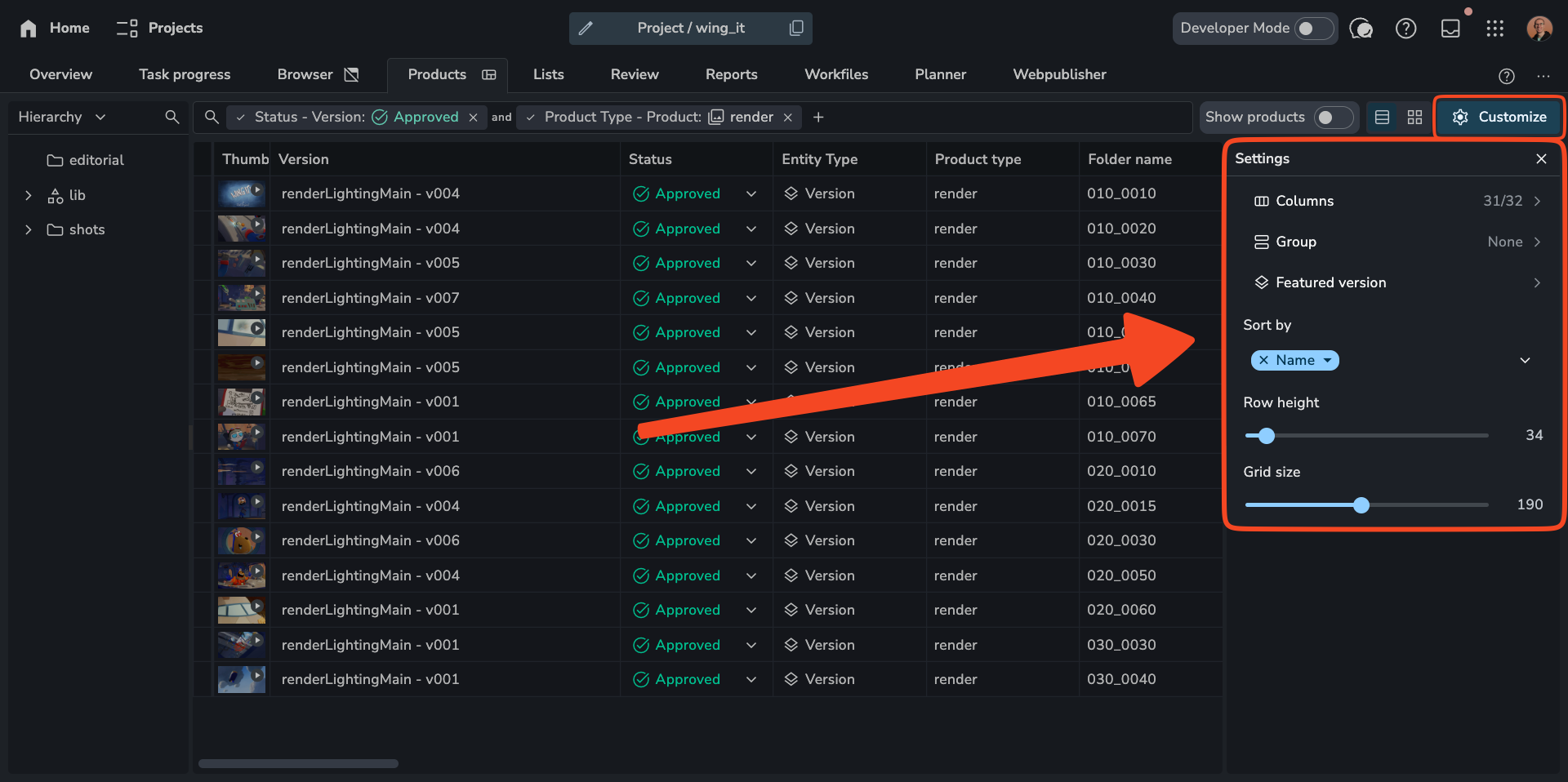
You can change the sort order for items in both the Grid and Table views by going to Customize > Sorting setting.
Grid View (G)
The Grid view presents items as visual cards, ideal for quickly scanning thumbnails. You can adjust the size of these cards using Customize > Grid size.
Version Focus (Show Products OFF):
Each card represents a single version.
Grouping: Use
Customize > Groupto group version cards by attributes like Status. You can also specify the grouping order, ascending or descending.
Note: Currently, grouping only applies when viewing versions, not products.
Product Focus (Show Products ON):
Each card represents a product.
Featured Version Display: The thumbnail, status, and other info shown on the product card are taken from its "Featured Version" (e.g., the Hero version or the latest approved version). You can configure the priority order for featured versions in
Customize > Featured version.View Contained Versions: Double-click a product card to open a side panel listing all versions within that product.
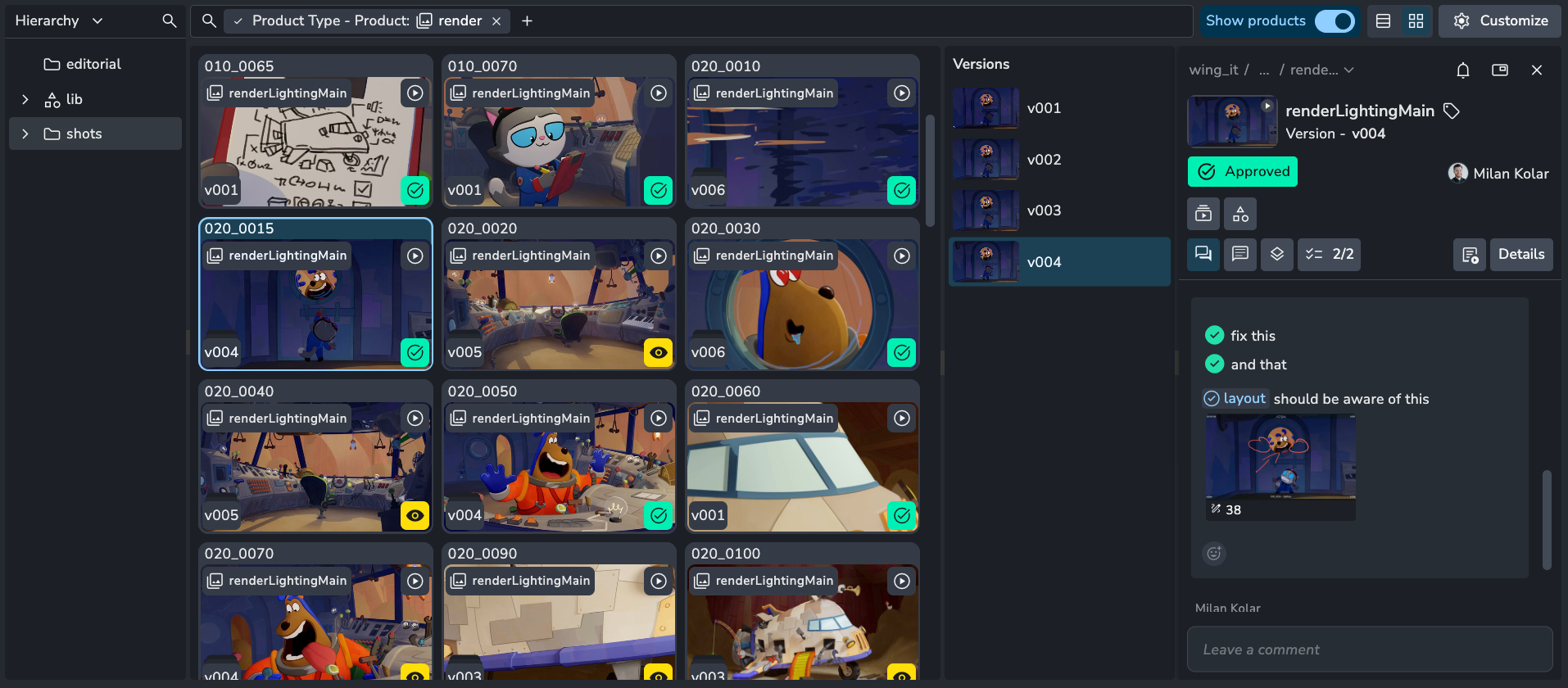
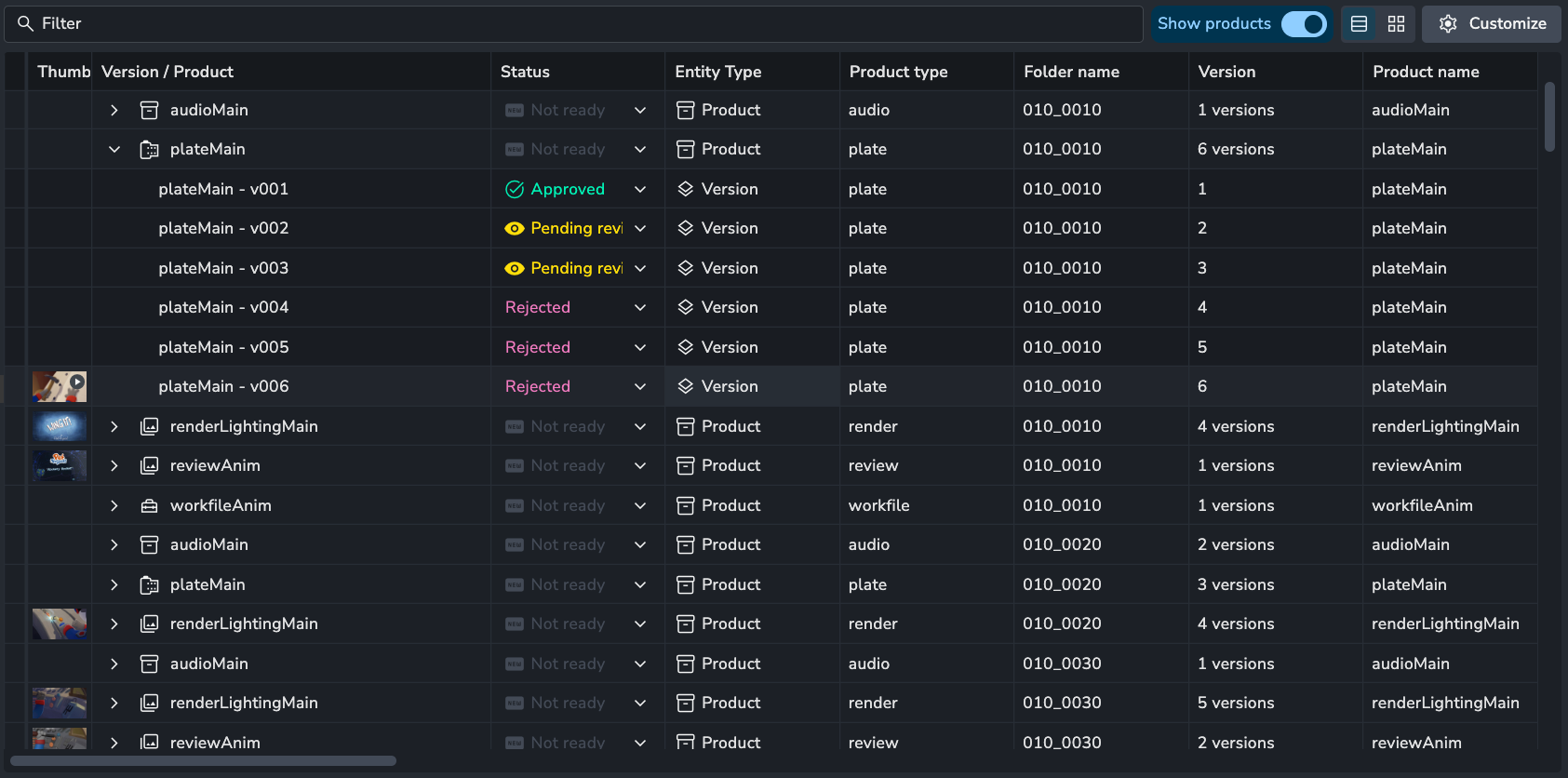
Table View (T)
The Table view offers a compact, spreadsheet-like interface for managing detailed information.
Version Focus (Show Products OFF):
Each row represents a single version.
Direct Editing: You can directly edit attributes like Status in the table cells.
Sorting: Click column headers to quickly sort the version list, or use the
Customize > Sortingmenu for more options.Column Customization: Use the
Customizepanel to show, hide, reorder, or pin columns.
Product Focus (Show Products ON):
Each row represents a product.
Expandable Rows: Click the arrow next to a product row to expand it and see all the versions it contains.
Filtering: Filters applied from the top bar will show products matching product attributes OR products containing versions that match version attributes.
Views
The Products page supports Views, allowing you to save and share your customized layout, sorting, and filtering configurations.
You can set up a specific combination of filters, sort criteria, and display options (Grid/Table, Show Products, Column layout, etc.).
Once configured, you can save this setup as a new View and share it with specific users or the entire project team.
For more information on managing and sharing views, see: Views .
Key Use Cases
Browsing Published Work: Quickly scan thumbnails or table data to see the latest renders, models, plates, etc., across the project or within specific folders.
Finding Specific Versions: Use filters to locate versions by status, author, date, type, or linked task information.
Checking Asset Status: Switch to "Show products" mode and filter by version status (e.g., 'Approved') to see which assets have approved versions.
Previewing Media: Use the
Spacebarkey on any item to quickly open the player and review media.
Still need help? Ask the team