Data Import
Last updated 5 months ago
The Data Importing feature allows you to bulk-create or update project entities using CSV or TSV data. It is designed to be artist-friendly and flexible, allowing you to map data from external sources (like ftrack or Excel) even if the formatting doesn't perfectly match AYON's internal structure.
Currently, you can import data into three primary areas:
Folders and Tasks (imported together to build hierarchies).
Lists.
Users.
Step-by-Step Guide
Step 1: Initialize the Import
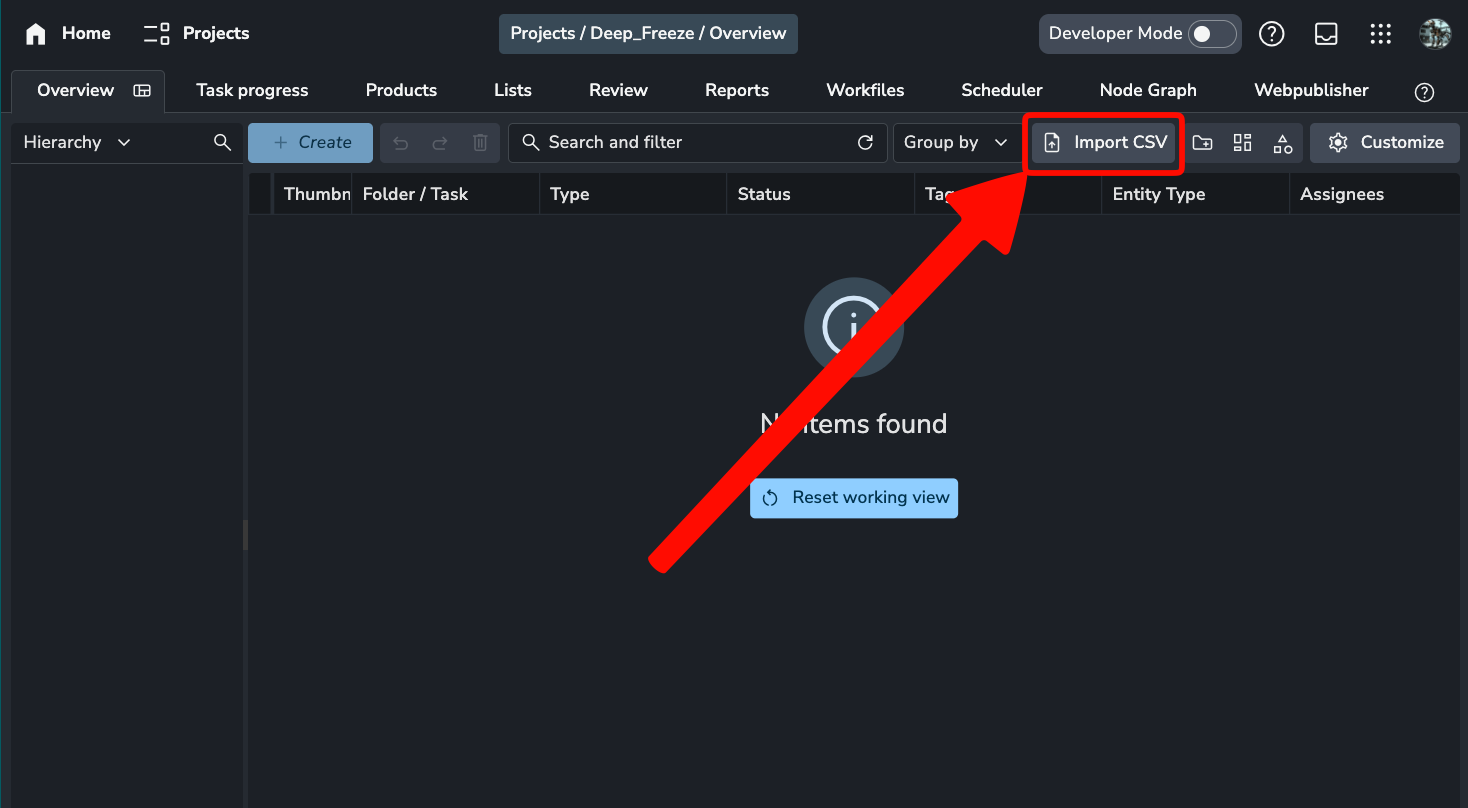
Navigate to the page where you wish to add data (e.g., the Overview page for folders or the Users tab for team management). Click the Import CSV button located in the top-right corner.
Step 2: Input Your Data
You have three ways to provide your data:
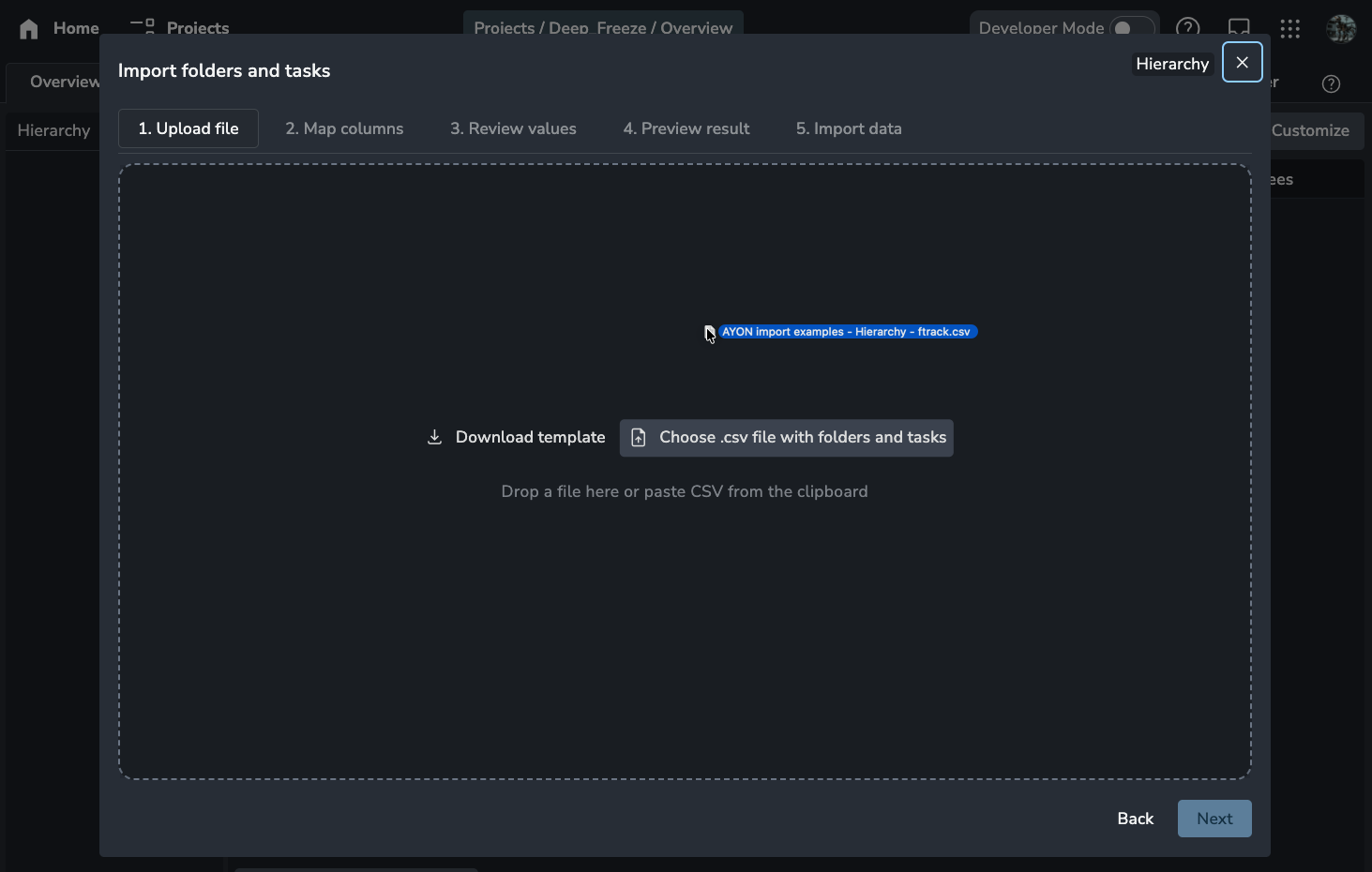
Upload: Drop a
.csvfile directly into the panel.Paste: Copy cells from a spreadsheet (Google Sheets/Excel) and press
Cmd/Ctrl + Vto paste them in.Templates: If you want a perfectly formatted file, click Download Template to see exactly which columns AYON expects. This is the fastest way to ensure compatibility.
Step 3: Map Columns
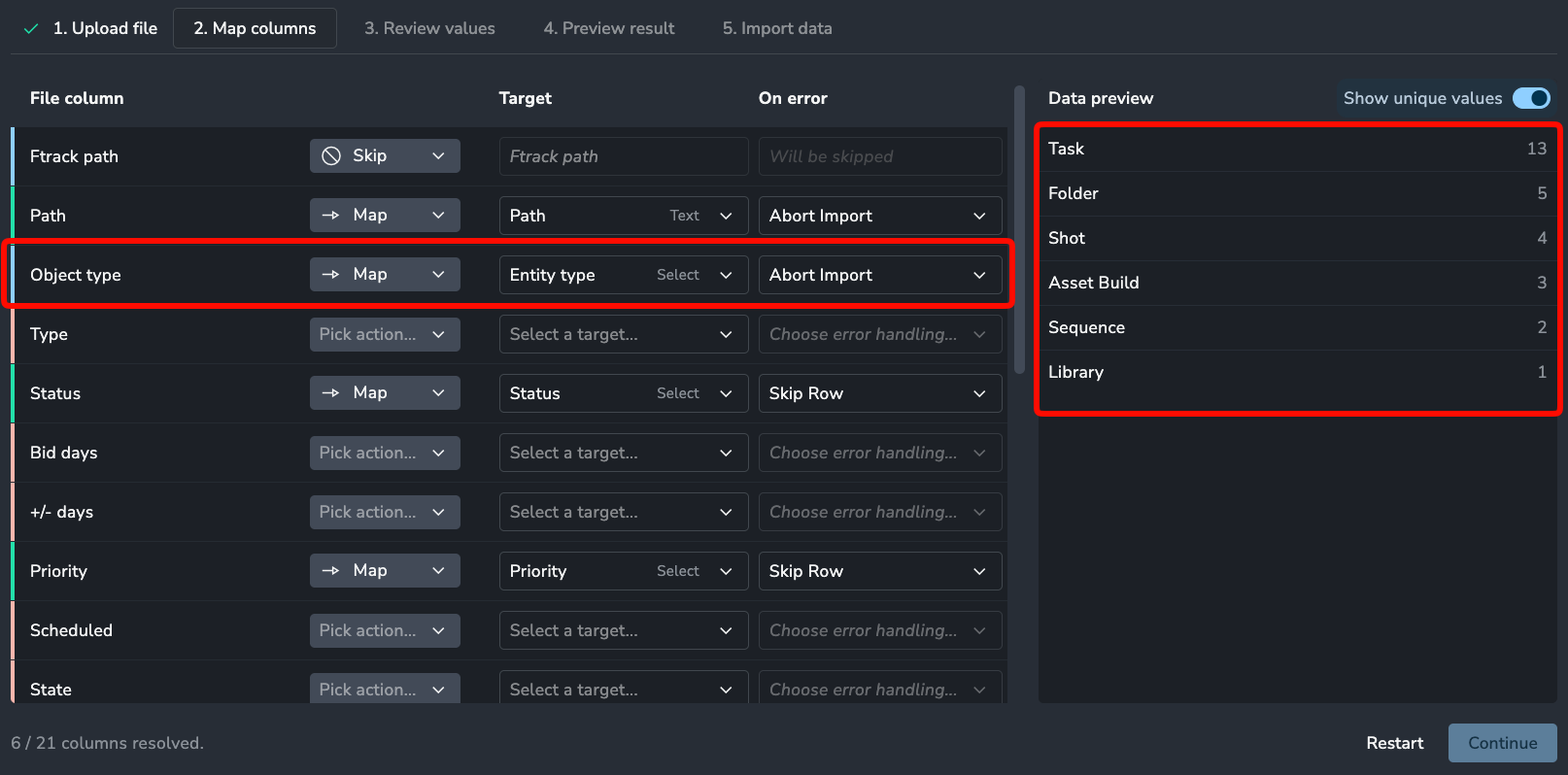
AYON will detect the rows and columns in your data. You must now tell the system which of your columns match AYON's required fields.
Auto-Mapping: If your column header matches an AYON field name (e.g., "Path"), a green indicator will appear, and the mapping is created automatically.
Manual Mapping: Columns with a red indicator require your attention. For example, you might map an ftrack "Object Type" to the AYON Entity Type. Or “Done state” to AYON Status.
Skipping Data: If a column isn't useful (like an internal database ID from another software), set it to Skip. It will be ignored during the import.
Data Preview: Hover over any row in the mapping screen to see a live preview of the data in that column.
Step 4: Review Values
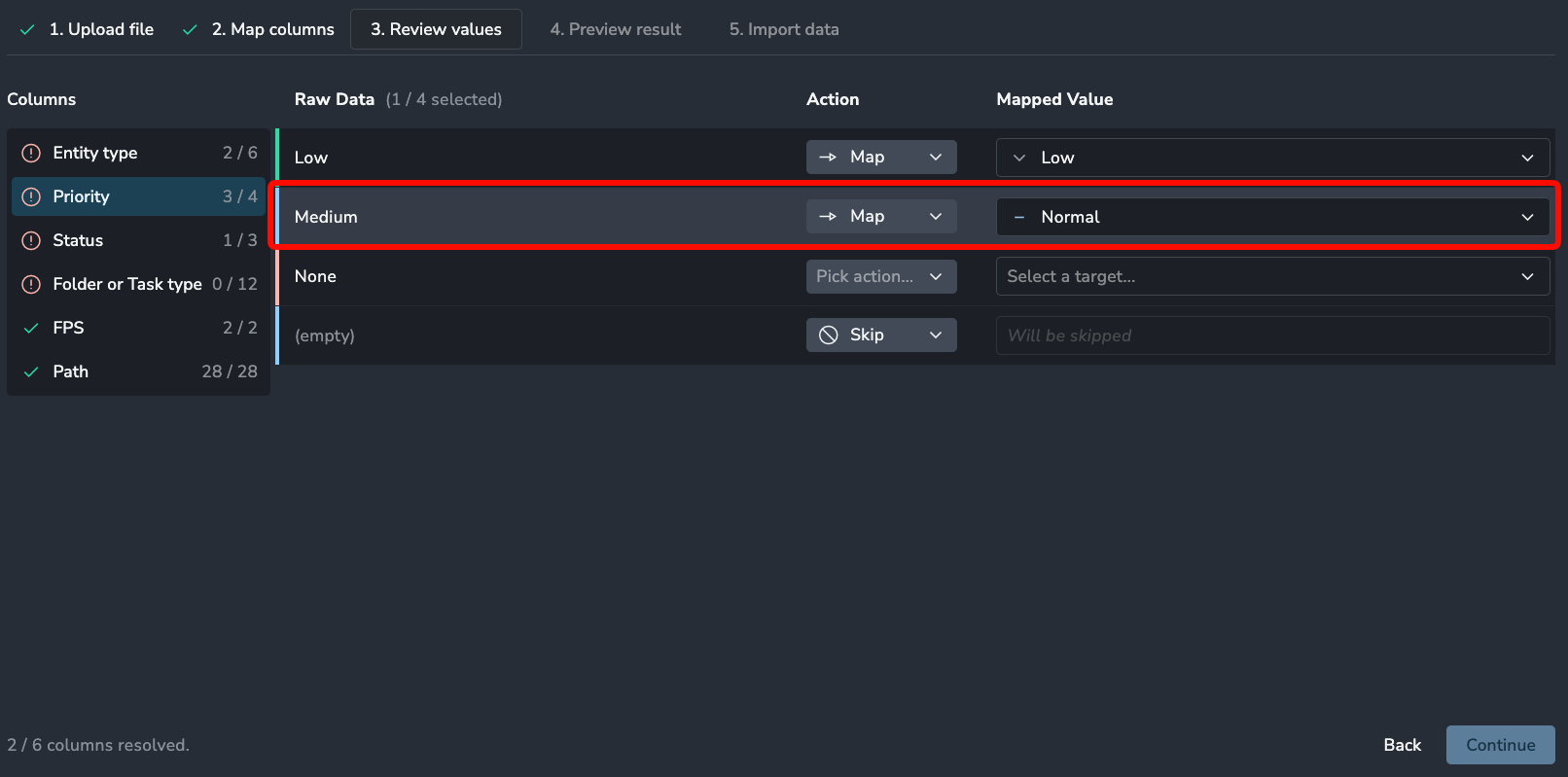
Once columns are mapped, you must resolve specific values. If your source data uses "Shot" but AYON uses "shot_folder," you need to bridge that gap.
Map to Existing: Point a source value to a value already in your AYON project (e.g., map "Medium" priority to "Normal").
Create New: If a value (like a specific Task Status) doesn't exist yet, you can set it to Create. AYON will add that status to your project during the import.
Skip Values: You can choose to ignore specific rows that contain values you don't want to import.
Step 5: Preview and Confirm
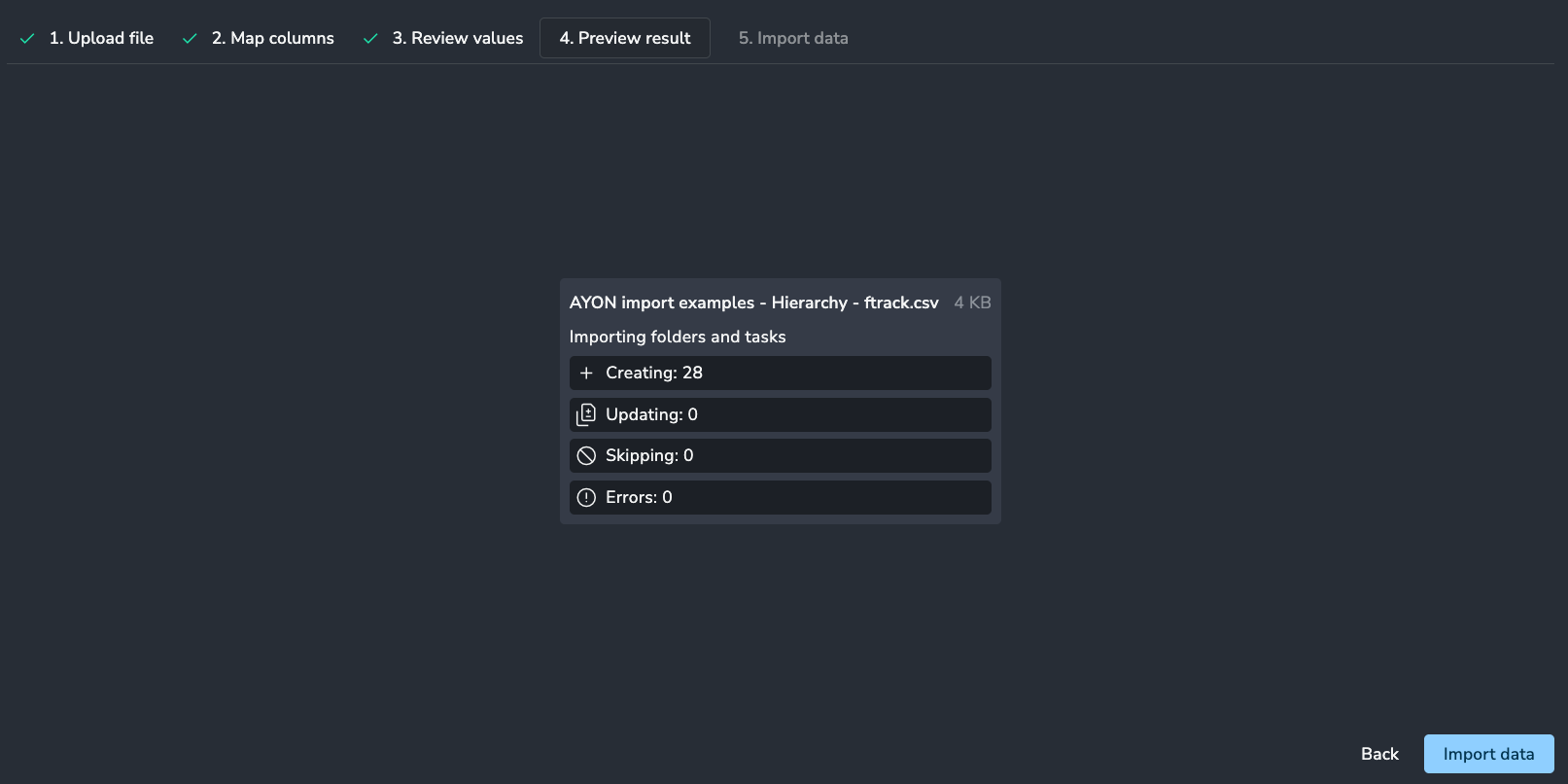
Before any changes are written to the database, AYON provides a Summary Preview. It will tell you:
Created: How many new folders, tasks, or users will be added.
Updated: If a row matches an existing entity (by Path or ID), AYON will update its attributes instead of creating a duplicate.
Errors: Any rows with incompatible data types that will fail to import.
If everything looks correct, click Import Data.
⚡ Import Presets (Power Feature)
Access to Import Presets requires a Pro or Studio subscription.
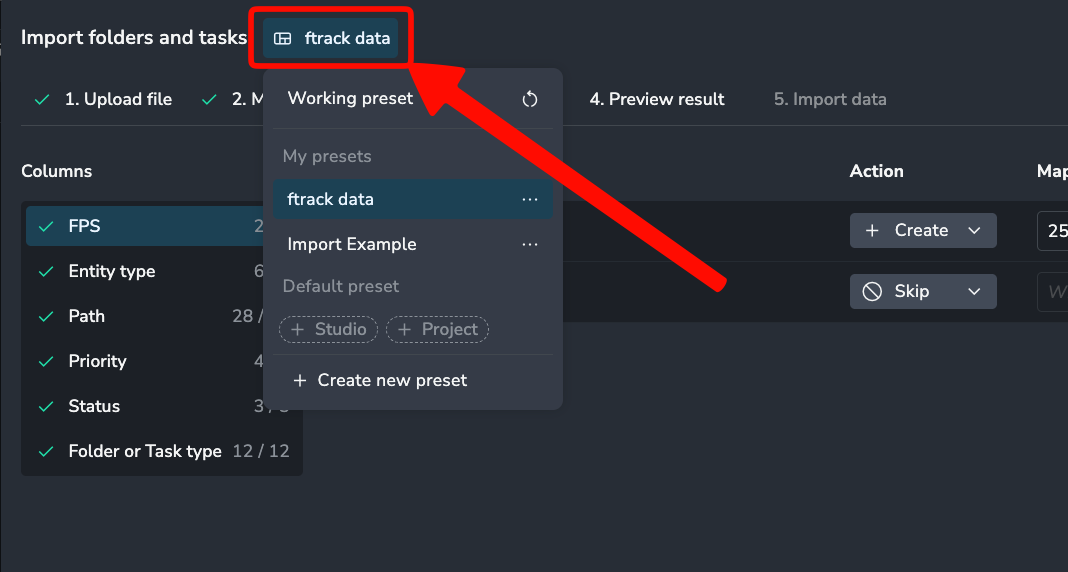
If you frequently import data from the same source (such as a weekly vendor delivery or an ftrack export), you can save your column and value mappings as a Preset.
Scope: Presets can be saved for a single project or made available across the entire studio.
Access: You can keep presets private or share them with the rest of your team to standardize the ingestion workflow.
Technical Notes
Required Fields:
Folders & Tasks: Requires Path and Entity Type.
Lists: Requires either Entity ID or Folder Path.
Users: Requires Name. Optional fields include Email and Full Name.
Update Logic: AYON uses a "Match and Update" strategy. If the importer finds an existing entity that matches your data, it will update that entity's attributes rather than creating a new one, preventing project bloat.
Subtypes: When importing Folder or Task types, you can provide them in two separate columns or as a single "Subtype" column that AYON will parse during the import.