The Activity Feed and Comments
Last updated 6 months ago
The activity feed is a suite of features that were introduced in 1.1.0.
Overview
In essence, the activity feed serves as a unified interface for viewing a stream of events associated with a specific entity. For instance, the activity feed for a task may include comments from supervisors, status updates, or instances when a user was assigned to the task.
Think of it as a timeline illustrating different activities associated with the entity.
The activity feed encompasses more than just a section for comments; it aggregates a variety of distinct "activities" into a single feed.

The activity feed will primarily be utilized on your tasks board but will be extended to additional pages in the future.
Initially, the activity feed will be accessible on tasks and versions but may potentially be expanded to include other entity types in the future, such as folders.
Types of Activities
Comments
Status changes
Assignee changes
Published versions

You can filter these different types for a more focused feed. Additionally, there are special filters available to target specific comment types, such as comments containing checklist items.

Mentions
The activity feed features a robust linking system among entities, enabling seamless collaboration and contextual communication.
You can mention or "tag" three different things using the @ annotation:
@users- any user on the same project.@@versions- versions related to the entity.@@@tasks- sibling tasks of the same folder.
When something is mentioned in a comment, it will be displayed in the activity feed associated with that mention.

In this example, Felix leaves a comment on his Compositing task, mentioning the Lighting task that requires fixes. Felix doesn't need to search for the Lighting task and rewrite his comment; it automatically appears on the Lighting task. Now, both Felix and Frank can collaborate on the fix without leaving the context of their tasks. Frank can then mention the Compositing task to inform Felix that a new version is ready.
Relations
Certain activity items can be related to another entity besides their origin. For instance, comments made on versions are related to their parent task. When a comment is made on a version, this relation causes the comment to be visible on the task itself. This operates similarly to mentions but without requiring an explicit mention.

Rich Text Editor and Markdown
Comments fully support GitHub Flavored Markdown which covers Basic Markdown syntax. You might be wondering, what is markdown? Don't worry, the comment text editor is also a rich text editor and supports everything you would expect, including headings, bold, italic, underlines, and lists.

Checklists
Checklists can be created and checked/unchecked by any user. They do not affect the status of the task but provide a general idea of the remaining work on a task. They are useful for reviews to keep track of whether feedback has been addressed.

Versions
Published versions will appear in the activity feed, allowing you to track when a new version is published and understand its context. To view all versions without grouping, utilize the Published Versions filter.
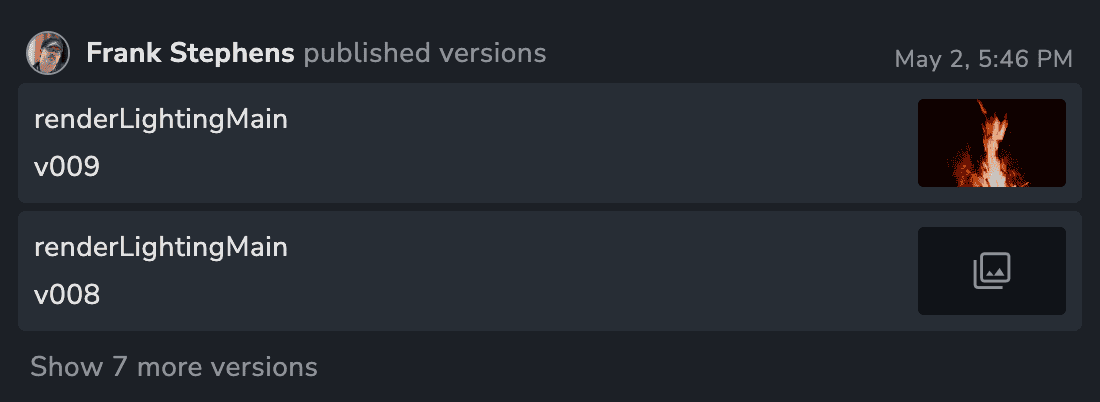
Click on a version to access its details and activity feed. Any comments made on a version will be visible in the parent task activity feed.

When a new version is published watchers of the linked task will receive a notification in their inbox.
Attachments
You can attach any type of file to a comment. Common image types will be previewable inside the web app, and we plan to support previewable videos in the future.
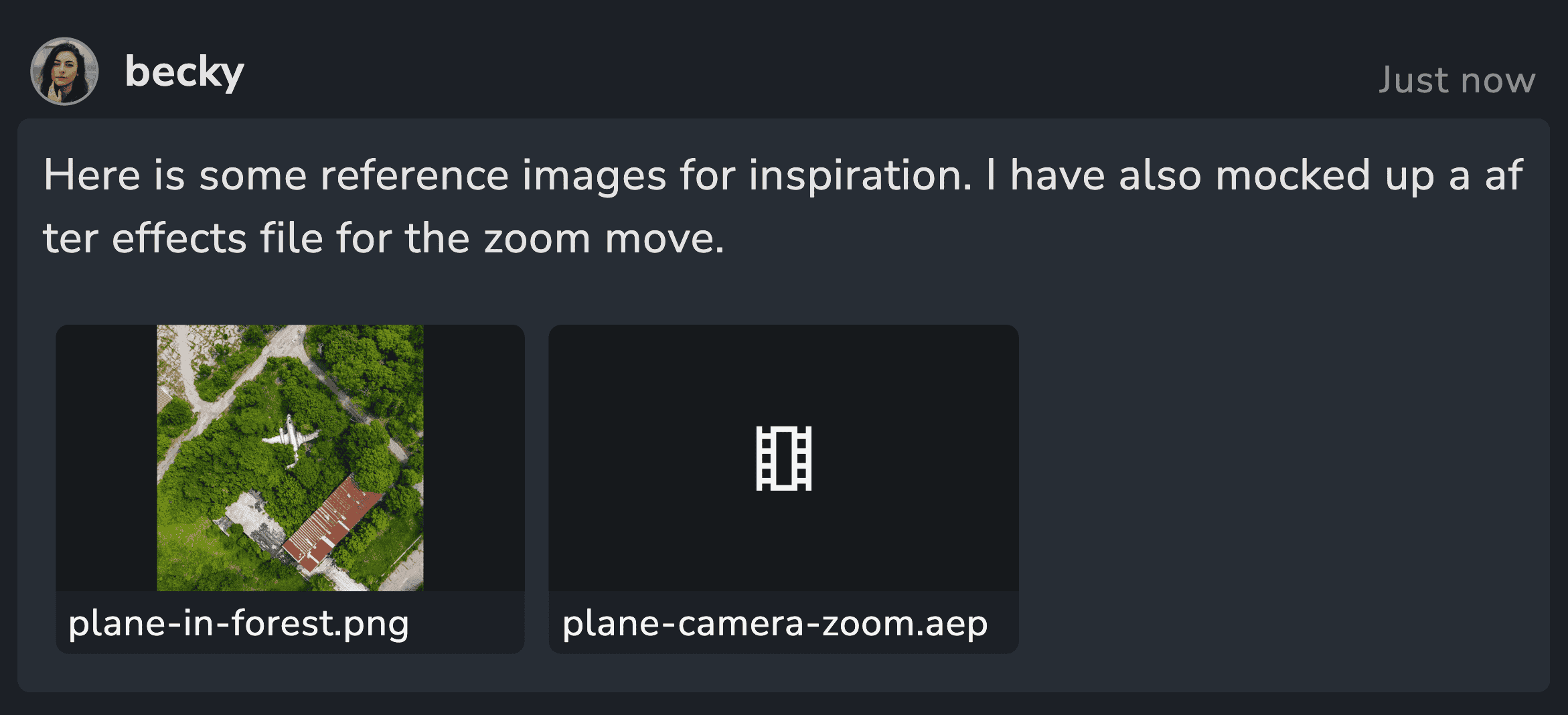
In addition to using the attachments button, you can drag and drop files or even paste images directly from your clipboard.
Review workflow: Capture a screenshot -> Markup in your preferred app -> Paste the marked-up image as an attachment.
Attachment files are stored in the docker storage space /storage/server/uploads. When a comment is deleted a background worker cleans up unused files.
There is currently no file size limit but we intend to introduce a default that can be configurable.
Reactions
Users can react to comments in the feed to express a general sentiment or acknowledge a comment. This feature helps communicate recognition, such as appreciating great work or indicating that a comment was seen. Reactions are intentionally open to interpretation, allowing users to decide how they are used. The current set of reactions includes five options, offering useful ways to respond, though this may change in the future.
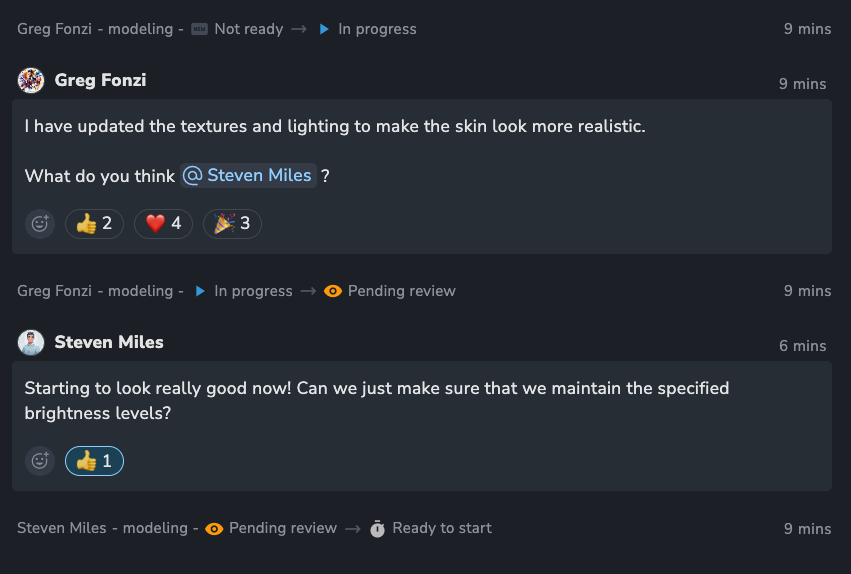
Reactions will not send notifications or affect watchers in any way.
The user interface limits the reactions users can choose from, but the API allows for any reaction type without restrictions.
Comment Categories ⚡️
⚡️ Comment Categories requires a Pro or Studio subscription.
Comment Categories control who can see comments in the activity feed. By assigning a category, you can limit a comment's visibility to specific users or teams, such as for private producer notes or client-only feedback.
Setting a Category on a Comment
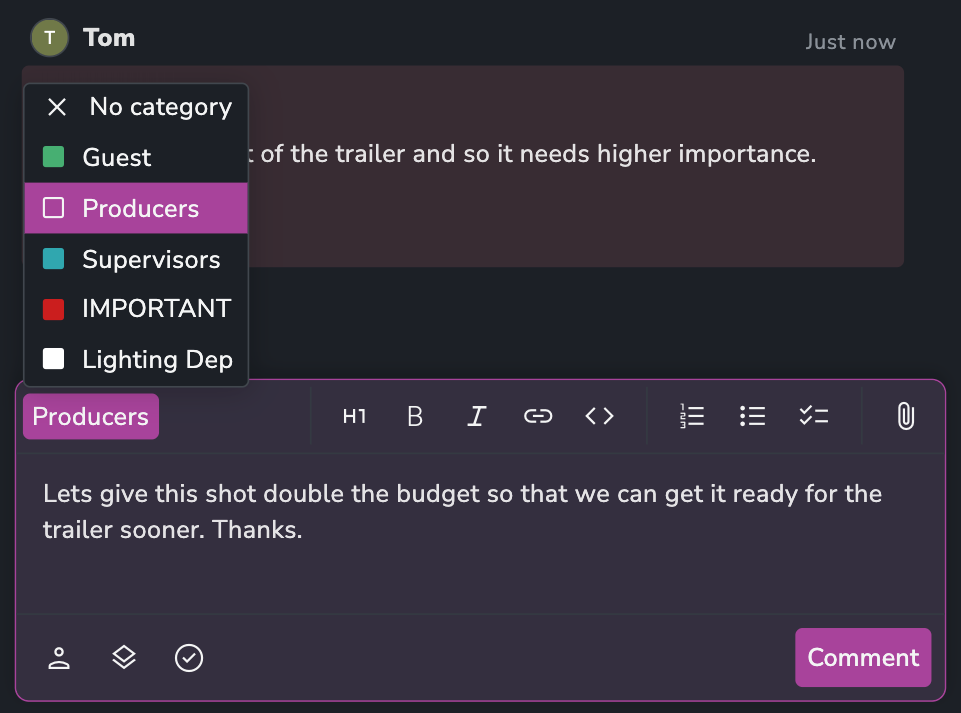
If you have Creator access to any categories, a selector will appear in the comment box.
Click the category selector (it defaults to "Standard").
Choose a category from the list.
Write and submit your comment.
The comment will be highlighted with the category's color. Users without permission for that category will not see the comment at all.
Creating and Managing Categories
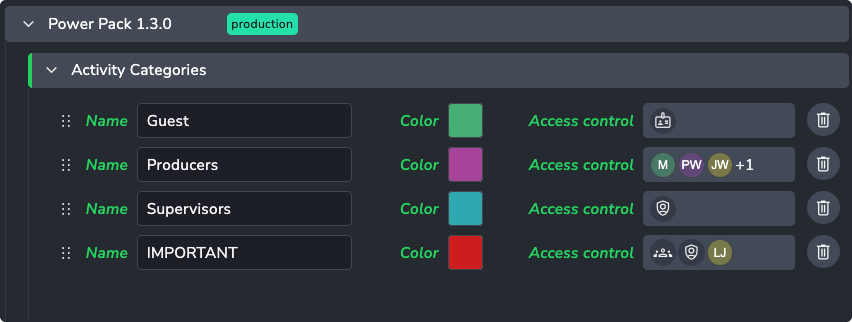
Categories are managed by Admins in Studio Settings > Addons > Power Pack.
Here, you can create categories by defining a:
Name: A unique name (e.g., "Producer", "Client").
Color: A hex value for visual identification.
Access: A list of users or groups and their permission level.
These settings can be overridden in Project Settings, which is also where you can add Project Teams to a category's access list.
Permissions
Access is granted per-category:
Viewer: Can see comments with this category.
Creator: Can see and create comments with this category.
None: Users not in the list cannot see the category's comments.
Note: AYON Admins and Managers always have full access to all categories.
Guest Categories
Comment categories are essential for managing external guest access, particularly in Review Sessions. They control a guest's ability to comment and which comments they can see, allowing for private client or vendor feedback channels.
For the complete workflow, please see the Guest Commenting and Visibility section in the Review Sessions article.