Teams
The Teams page organises your users for better management across AYON.
Last updated About 1 year ago
The Teams page was created as a proof of concept. The team roles and team leaders are considered dummy data that have no effect on the rest of AYON; the page only shows how teams can be organized. It is not yet ready for production, but we encourage you to explore it. We have plans to integrate teams more effectively in the future. See the Team assignments and mentions feature request for more information.
The Teams page in AYON allows you to organize users into custom groups within your project. While currently serving as an organizational tool, it will evolve to integrate with user management and permissions throughout the application.
Teams Features
Create New Teams: Give your team a simple, descriptive name (e.g., "Producers," "Animators").
Add Team Members: Add any number of individual AYON users to a team. A user can be part of multiple teams.
Assign Team Roles: Define custom roles for team members (e.g., "Director," "Manager," "Producer"). This helps in visualizing each member's specific responsibility within the team.
Specify a Team Leader: Designate a user as a team leader to indicate who is in charge. Team leaders have the team name displayed in teal. A team can have more than one leader.
Accessing the Teams Page
To access the Teams page, go to Project Settings (shortcut P+P). Select a project, and then navigate to the Teams tab.
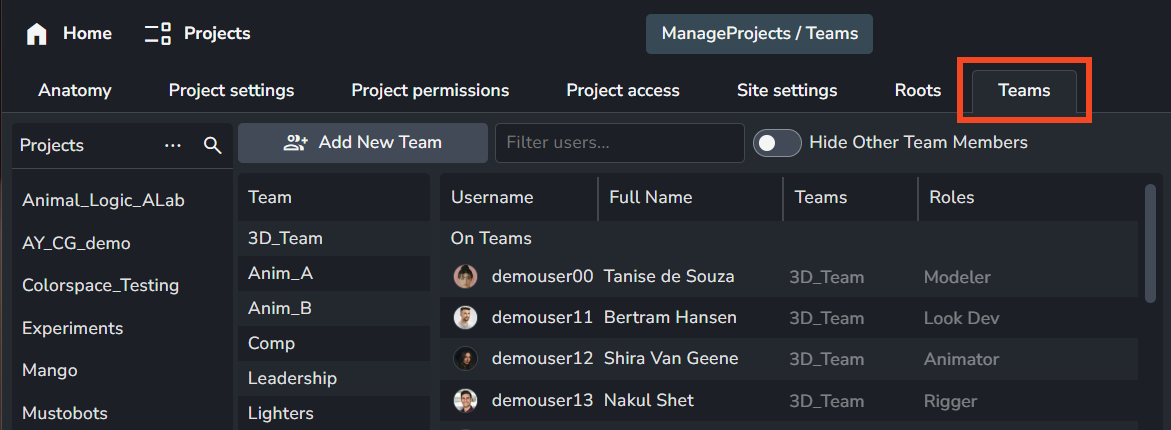
Teams Page
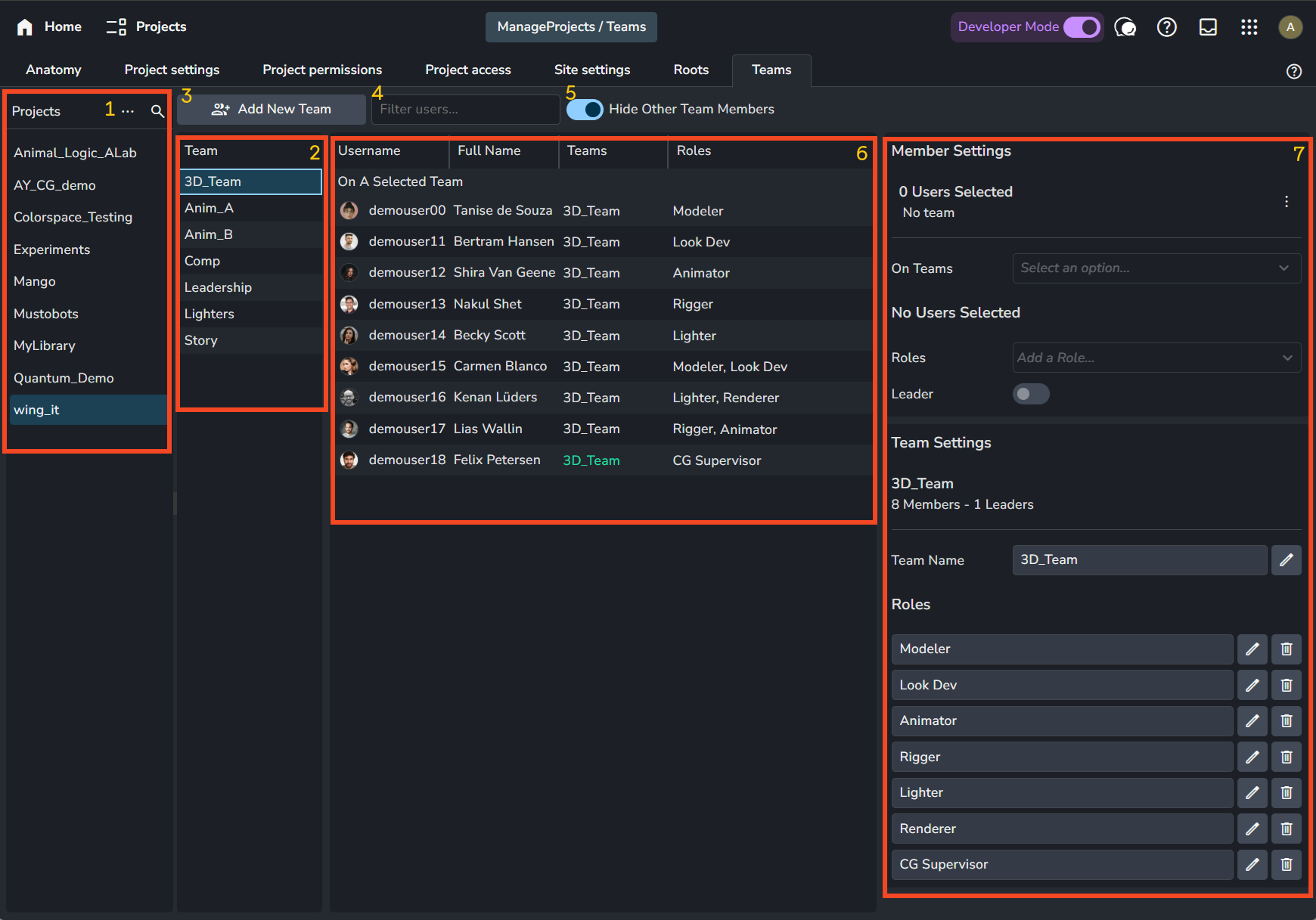
Project Selection Panel: A panel for selecting projects.
Team Selection Panel: A panel for selecting teams.
Add New Team Button: Click this to create a new team. See the Create Teams section.
Filter: A simple filter that allows you to filter the members table by user name.
Hide Other Team Members: When enabled, this option hides any user in the members table who is not a member of the selected team.
Members Table: This table includes all users who can be added to teams, with the exception of service users.
Team & Member Settings Panel: This panel shows settings for the currently selected team and user.
Managing Teams
Create Teams
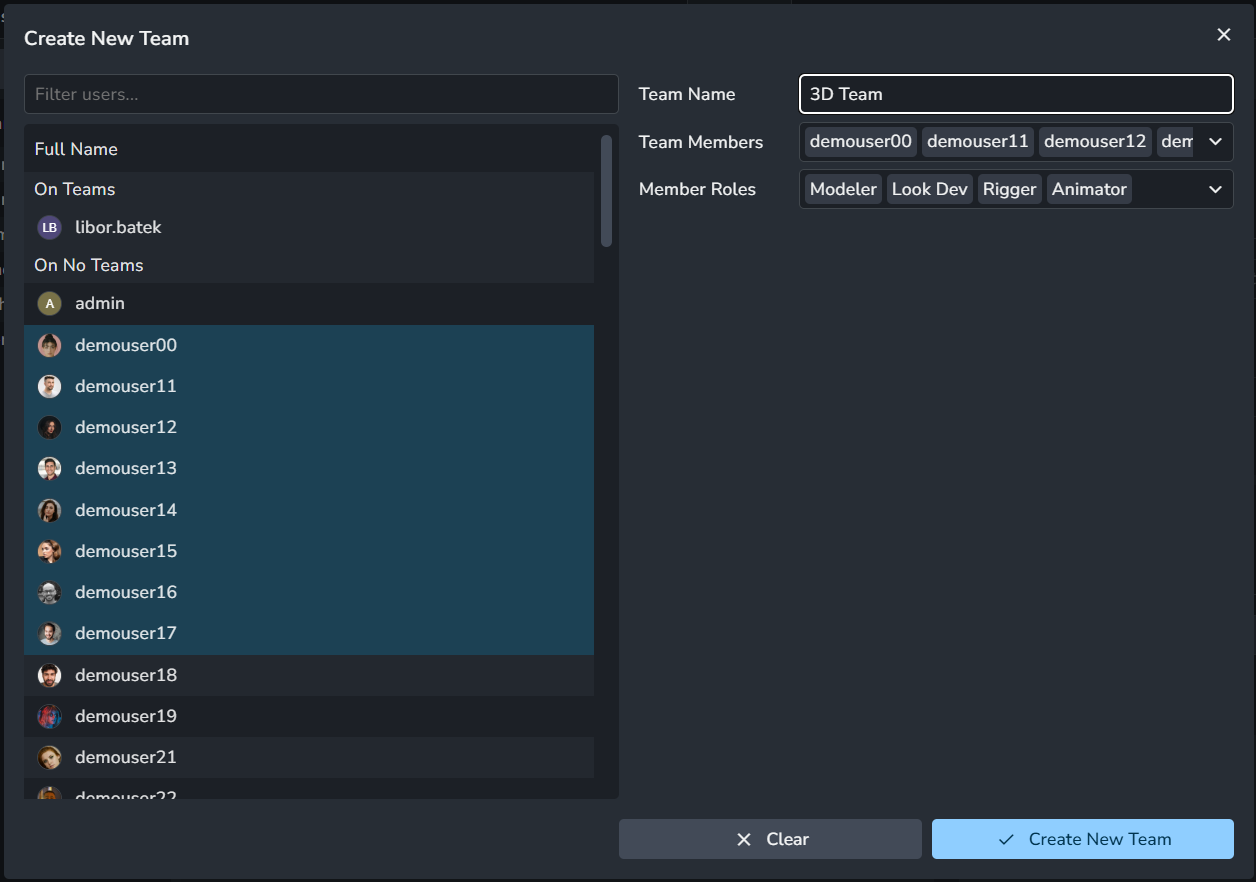
Clicking the Add New Team button will show a pop-up window where you can give your team a name. After naming the team, you can specify its members and their roles.
All specified roles will be assigned to all specified members.
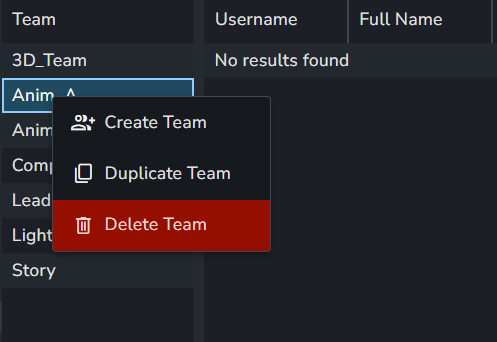
Alternatively, you can right-click within the team selection panel to create a new team or duplicate an existing one.
Modify Team Settings
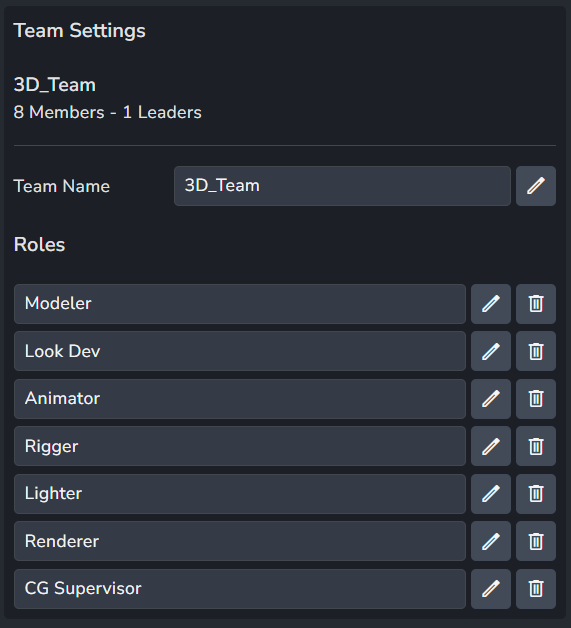
After a team is created, you can only modify its name and roles. Adding new roles or members is done on a per-user basis in the member settings.
Modify Member Settings
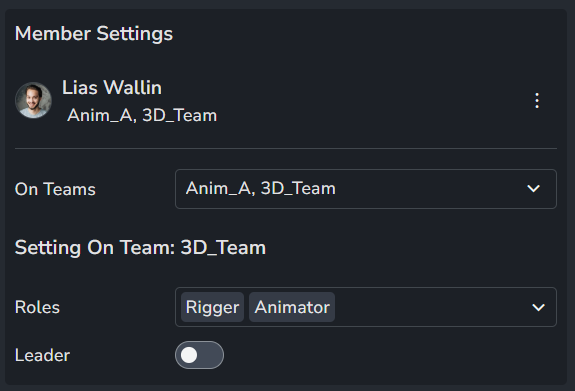
In the member settings panel, you can specify the following:
Teams: You can choose which teams the selected user belongs to.
Roles: You can set the user's roles within the selected team.
If a role does not already exist, it will be created and added to the selected project.
Leader: When the
Leadertoggle is enabled, the user is marked as a team leader. Teams can have more than one leader.
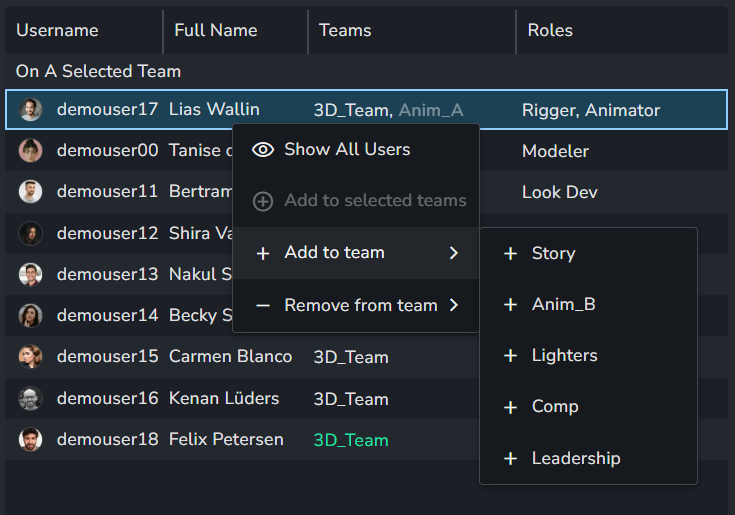
Alternatively, you can right-click a user in the user table to add or remove them from different teams.
Delete Teams
You can delete teams by right-clicking a team within the team selection panel and selecting 🗑️ Delete Team.
Future Enhancements
Currently, the Teams page primarily functions as a way to visually group your users. However, future updates will expand its functionality significantly:
Team Mentions: You will be able to mention an entire team in comments, notifying all its members.
Permission Management: Assign permissions to entire teams, rather than individual users, streamlining access control across the application (e.g., granting a whole team access to specific comments or entities).
The goal is to enable team assignments to act as a proxy for assigning all users within that team wherever user assignment is possible in AYON.