Advanced Burnins
Last updated 6 months ago
The Burnins is a premium addon included with the Studio and Pro subscriptions.
Overview
The Premium Addon Burnins provides an advanced Burnin plugin. It offers enhanced burn-in functionalities, including:
The ability to add a bitmap logo with alpha channel support.
The option to split the burn-in into multiple areas (top and bottom).
Better control over opacity and size.
Preparation
To begin,
Install the addon and ensure it's included in your production bundle. For further info, see Bundles & Addons.
The original
Extract Burninplugin in core addon must be deactivated either on studio or project level based on your preference.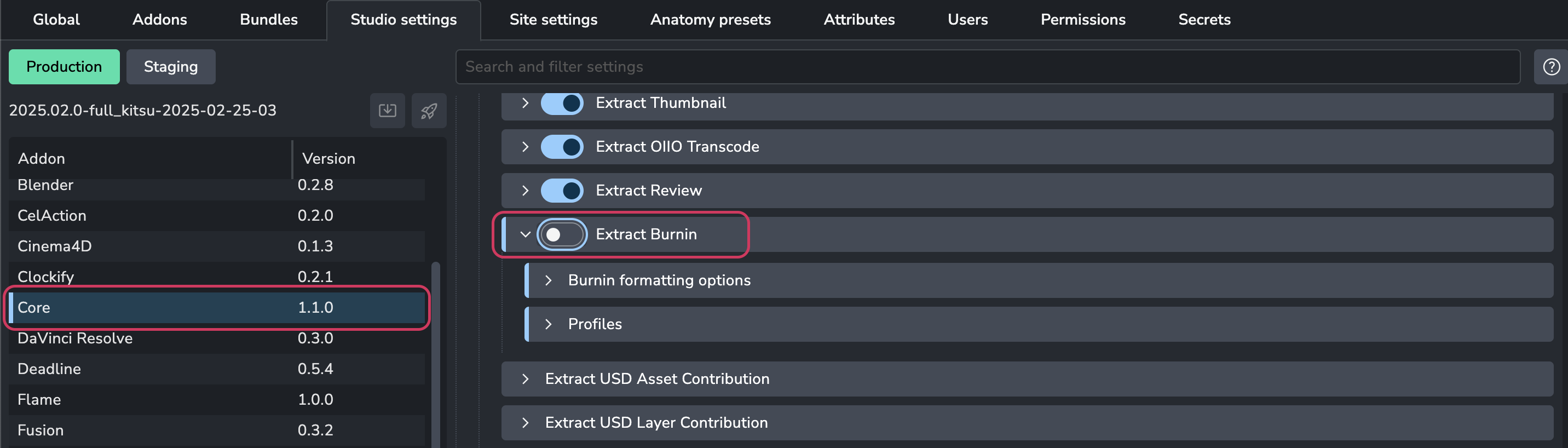
The Premium Burnins plugin should be activated either on studio or project level based on your preference.

The burnin presets can be configured with filtering options and multiple outputs, and default style options can be set for alignment, margins, background color, font color, font size, and font filepath.
The burnin parts (areas) include top and bottom areas with dynamic height ratio input, and each area can have different types of items such as text, image, or spacer with stretch values to determine their width. Each item type has its own properties, such as text string, style options, or path to an image file.
Premium Burnin Configuration
Premium Extract Burnin
Setting Location:
ayon+settings://premium_burnins/publish/PremiumExtractBurnin
It allows
Adding burnin profile presets
Each bunin preset includes a profile filter, each profile preset can have multiple burnin output setups.
Each burnin output setup includes Default Style Options, Top and Bottom settings.
The following sections include breakdown for the settings
Filtering

Each burnin preset has filter options to define the active project scope. The process iterates through all presets and serves the first matching preset, ignoring the rest. The filtering granularity is secured by the following options:
Host names - Enumerator with multiple selection feature to define all whitelisted hosts
Product types - List of Product Types
Product names - List of possible Product names. Regex expression is supported.
Task types - Enumerator with multiple selection feature to define all whitelisted predefined project-related task types. These can be configured in the project anatomy
project_anatomy/tasksTask names - List of task names
Preset's outputs

Each preset can have multiple outputs. The names of the outputs are reflected in the generated filenames.
Default Style Options

Alignment - Enumerator defining the alignment direction of the burnins
Margins - Default margins for all elements rendered within the burnin items
Background color - Default color of all parts, including opacity
Font color - Default font color
Font size - Default font size ratio calculated from the dynamic size of the item's height. For more details, see Parts (areas).
Font filepath - Only supports absolute path to a studio shared font file.
Parts (areas)
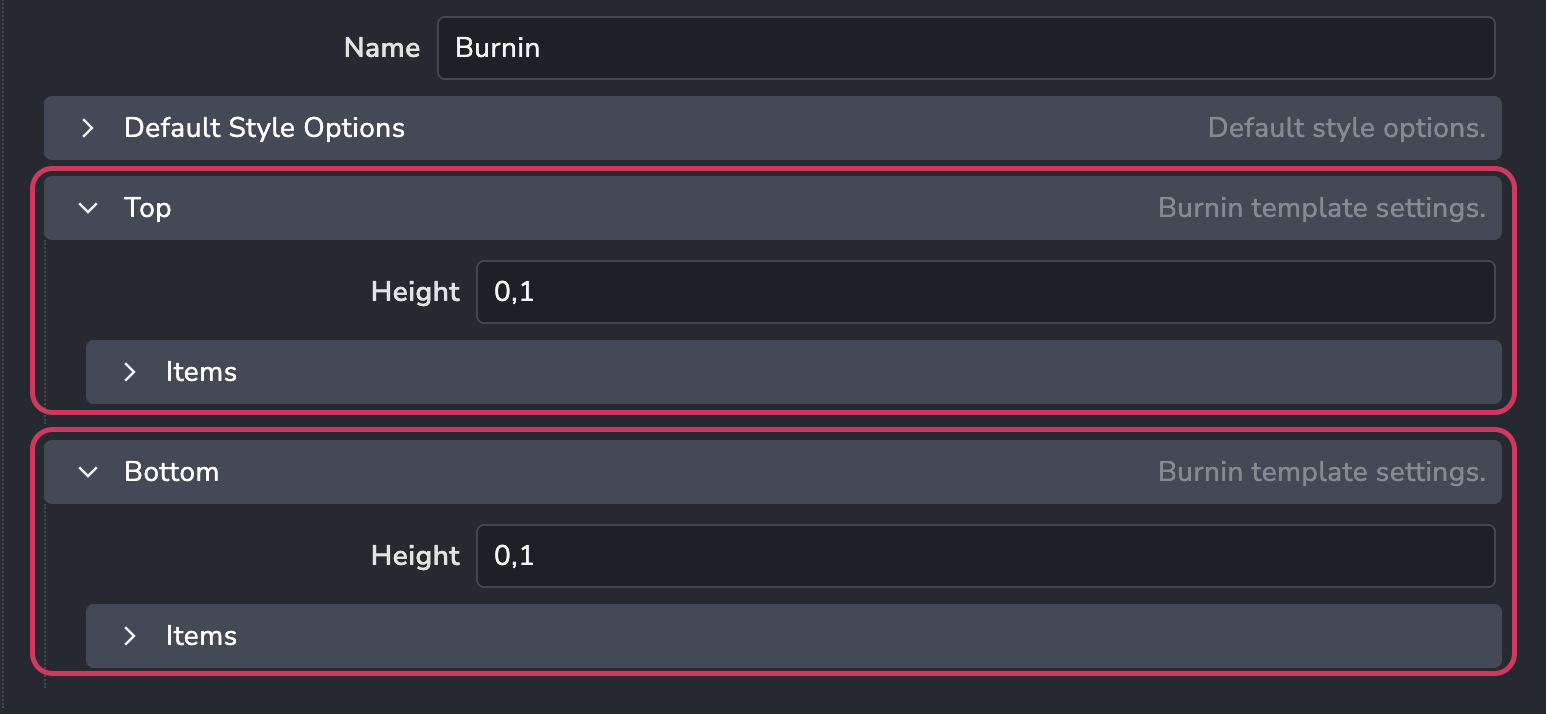
We only support Top and Bottom areas. Each area has a dynamic ratio float number input for height, as well as an Items session. The height is calculated using the following formula:
Input height of the image geometry. In our case,
1080pxProcess multiplies the height of the format with the height ratio. In our case,
0.1Resulting height of the area will be
108px
A Item configuration
The order of items is important and is reflected in the final burnin. To change the order, use the arrows on the right side of the item.
Type: Type of item that can serve the following types:

Text: Text item
Image: Image item
Spacer: Dynamic block that takes up all the remaining space in the area
Stretch (Dynamic blocks): Integer value defining how much of the screen width is reserved for dynamic blocks calculation.

An example calculation:
Configuration
There are three items in the top part (area)
Item #1 has a stretch value of 1
Item #2 has a stretch value of 2
Item #3 has a stretch value of 1
Total stretch value is 4
Resulting width of each item
Item #1 will take 1/4 of the screen width
Item #2 will take 2/4 of the screen width
Item #3 will take 1/4 of the screen width
Item Type properties
Each type has a different set of properties. Here's a list of all properties for each type. Since all types share Stretch and Type, we'll only explain the rest of the type-related properties.
Text Properties
Text - String value of the text that will be rendered. Anatomy context-related variables are supported. For more details see Available Template Keys.
Style option - All type-related style options set either as inherit or override. For more details, see default style options

Image Properties
Path to image - Multi-platform supported path input. Environment variable formatting is supported in the path. See the example below. The image file should be accessible from the studio shared folder.

Spacer Properties
