Entity Templates
Last updated 12 months ago
Overview
Entity Templates let you store and reuse project hierarchies. For instance, you could use a template to create a set of tasks for a lead character or to initialize a project with a default folder structure. These templates are not applied automatically; you must trigger them manually.
Entity Template Actions
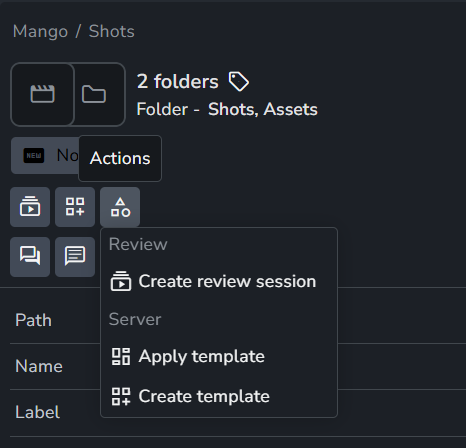
Entity templates come with two main web actions:
Apply template: This action applies a template to your selected folders or projects. You'll find it in the folder and project-level actions.
Create template: This action creates a new template from your selected folders. It is available in the folder-level web actions.
Do not confuse the "Apply template" action with "Create Project Folder Structure".
"Apply template" creates folders only on the AYON server, while "Create Project Folder Structure" creates an additional folder structure on the disk as specified in the core addon setting “project folder structure” (ayon+settings://core/project_folder_structure).
Creating Entity Templates
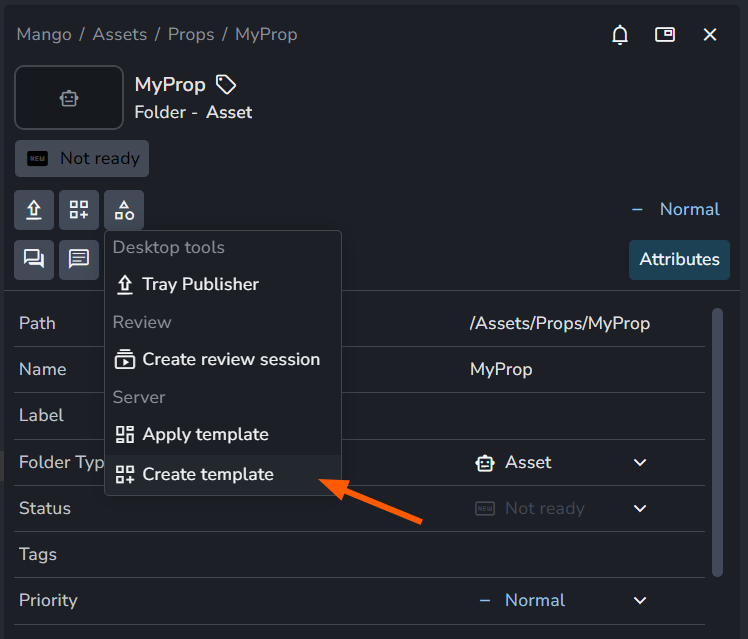
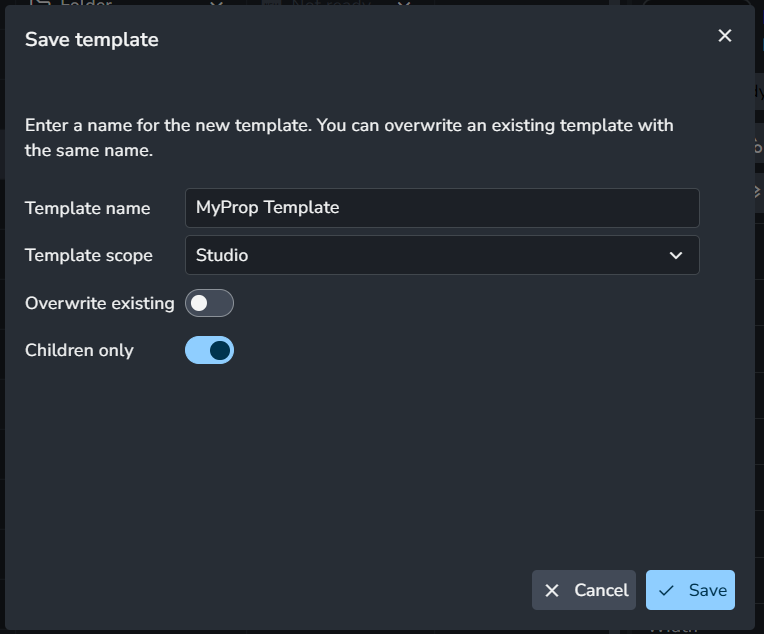
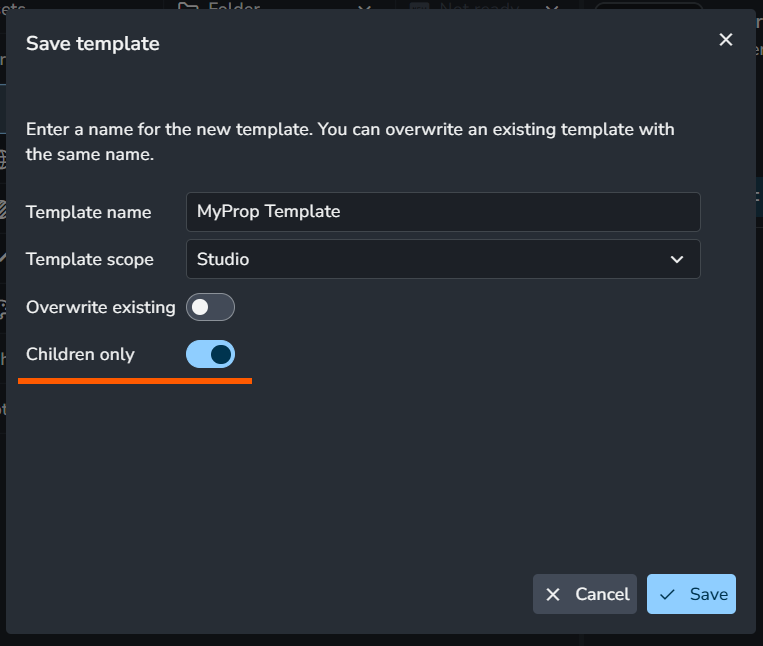
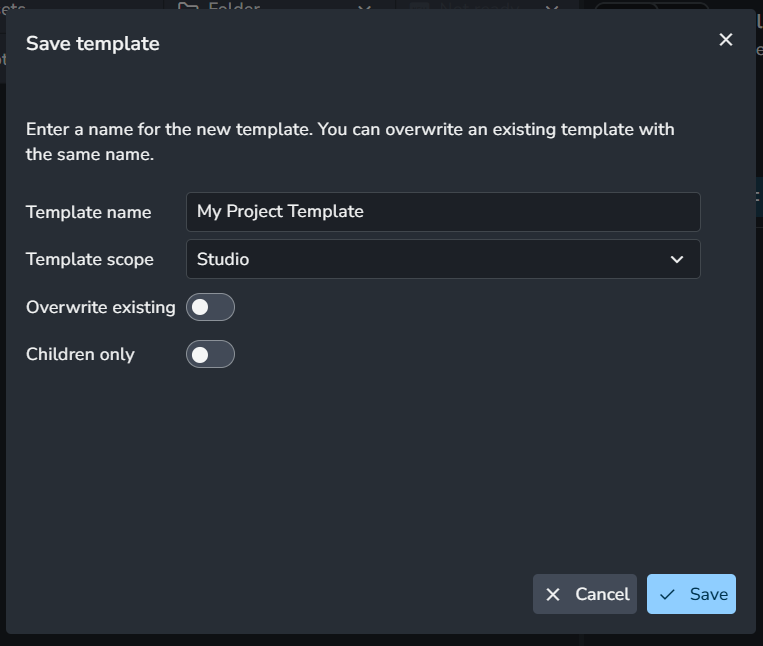
To create a template, trigger the "Create template" action. A pop-up window will appear where you can configure the following options:
Template name: The name for your template.
Template scope: Decide whether to save the template in the studio or project settings of the Power Pack add-on.
Overwrite existing: If enabled, a new template with the same name will completely replace the existing one.
Children only: If enabled, only the children of the selected folder will be included in the template. This is useful for creating templates for assets or shots.
Once you finish, the template will be added to the Power Pack addon settings.
Examples
Create Asset or Shot Template
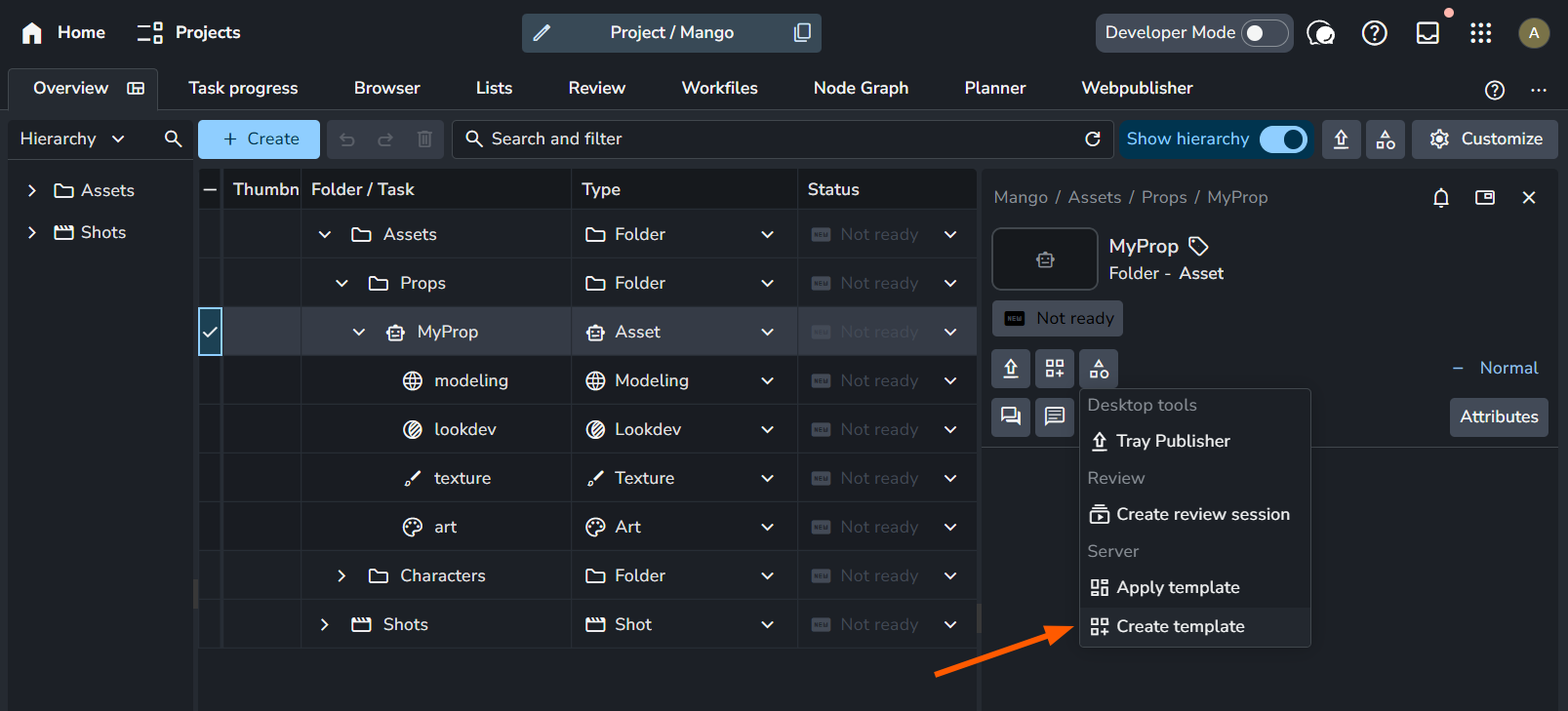
In the Project Overview Page, create your asset or shot and add the tasks you need.
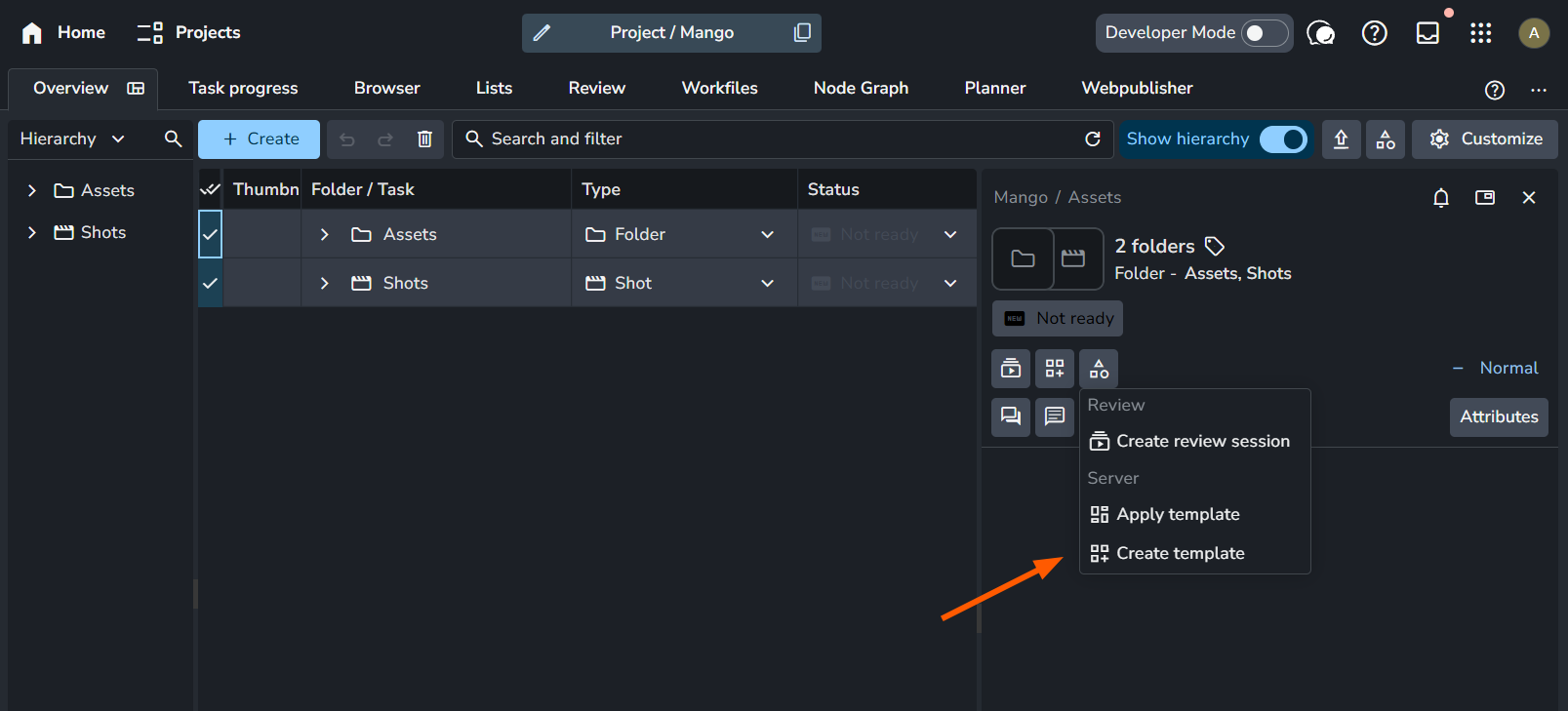
Select the asset or shot and trigger the Create template action.
In the options pop-up, enable Children only to ensure the template includes only the descendants of the selected folder, then click Save.
Create Project Template
In the Project Overview Page, create the hierarchy you want to use as a template.
Select the folders you wish to include in your project template and trigger the Create template action.
Specify the options and click Save.
Applying Entity Templates
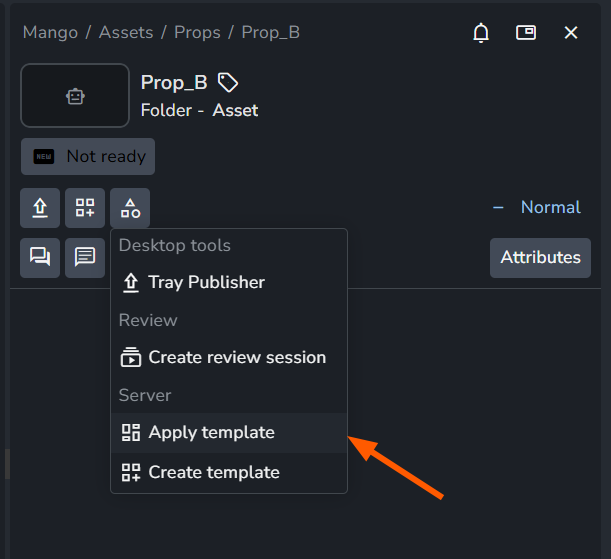
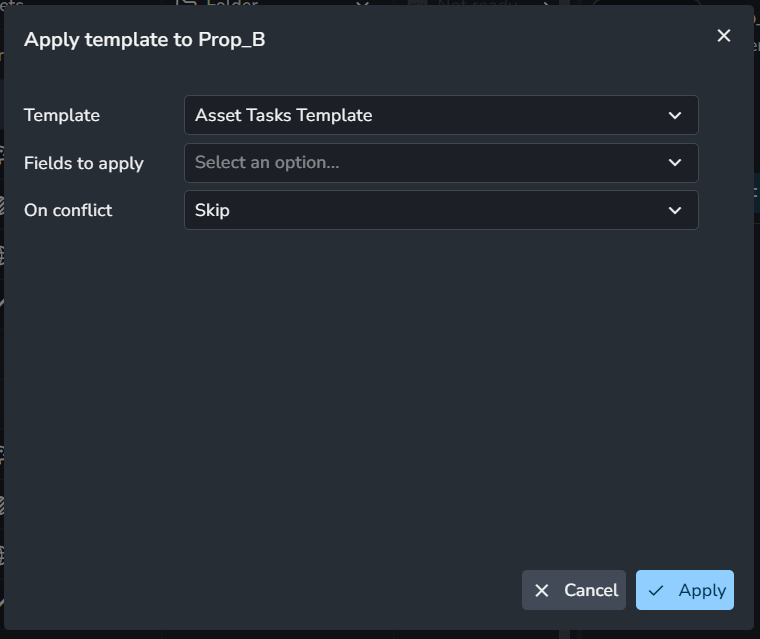
The "Apply templates" action allows you to select a template and apply it to your current selection. A pop-up window will appear with the following options:
Template: Select the template to apply from the dropdown menu.
Fields to apply: Choose which fields from the template you want to apply.
On conflict: Decide how to handle conflicts. The options are Skip, Merge, or Replace.
Examples
Apply an Asset or Shot Template
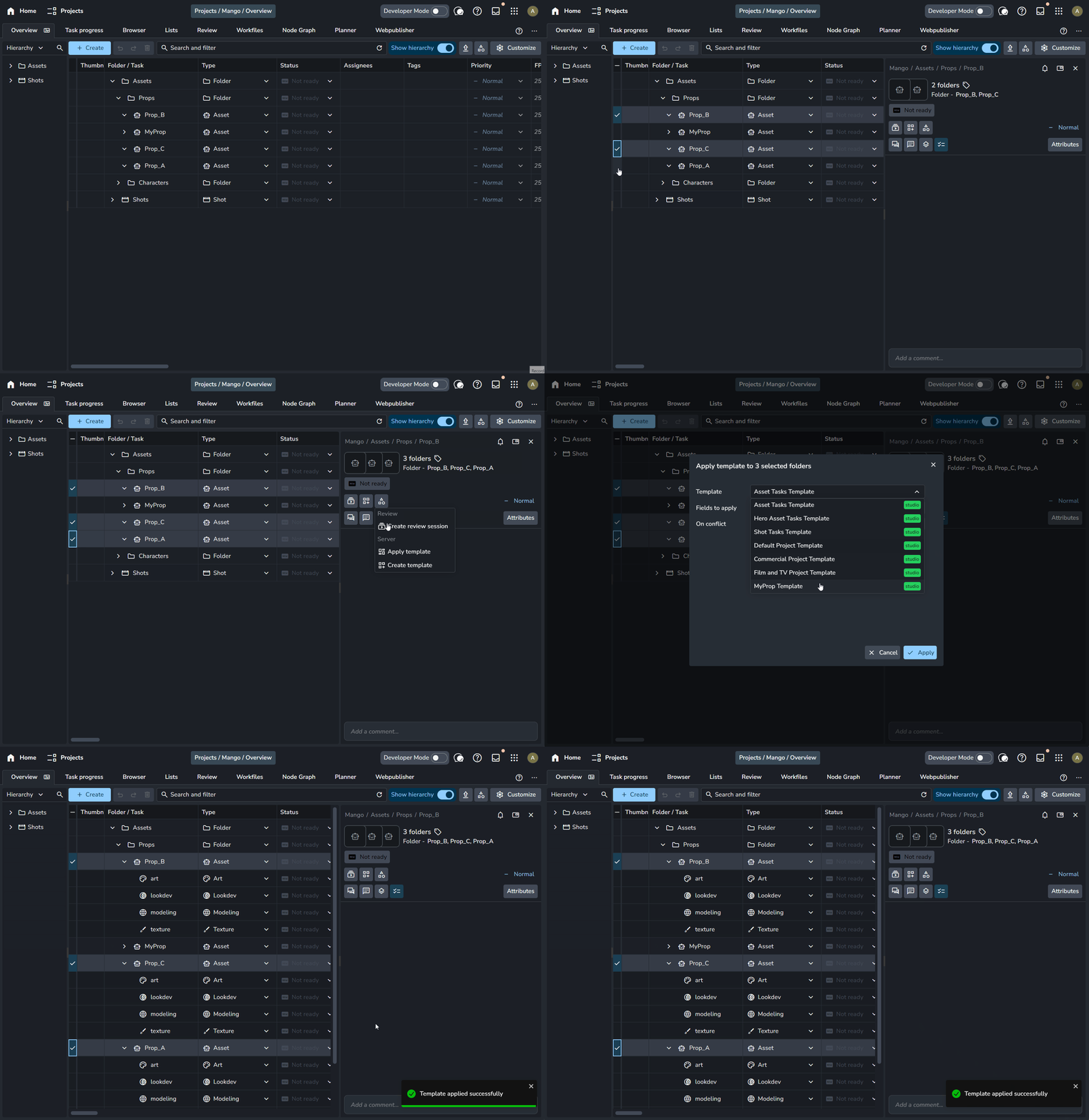
In the Project Overview Page, select the asset or shot to which you want to apply the template.
Trigger the Apply template action.
Select the template, specify the options, and click Apply.
Apply a Project Template
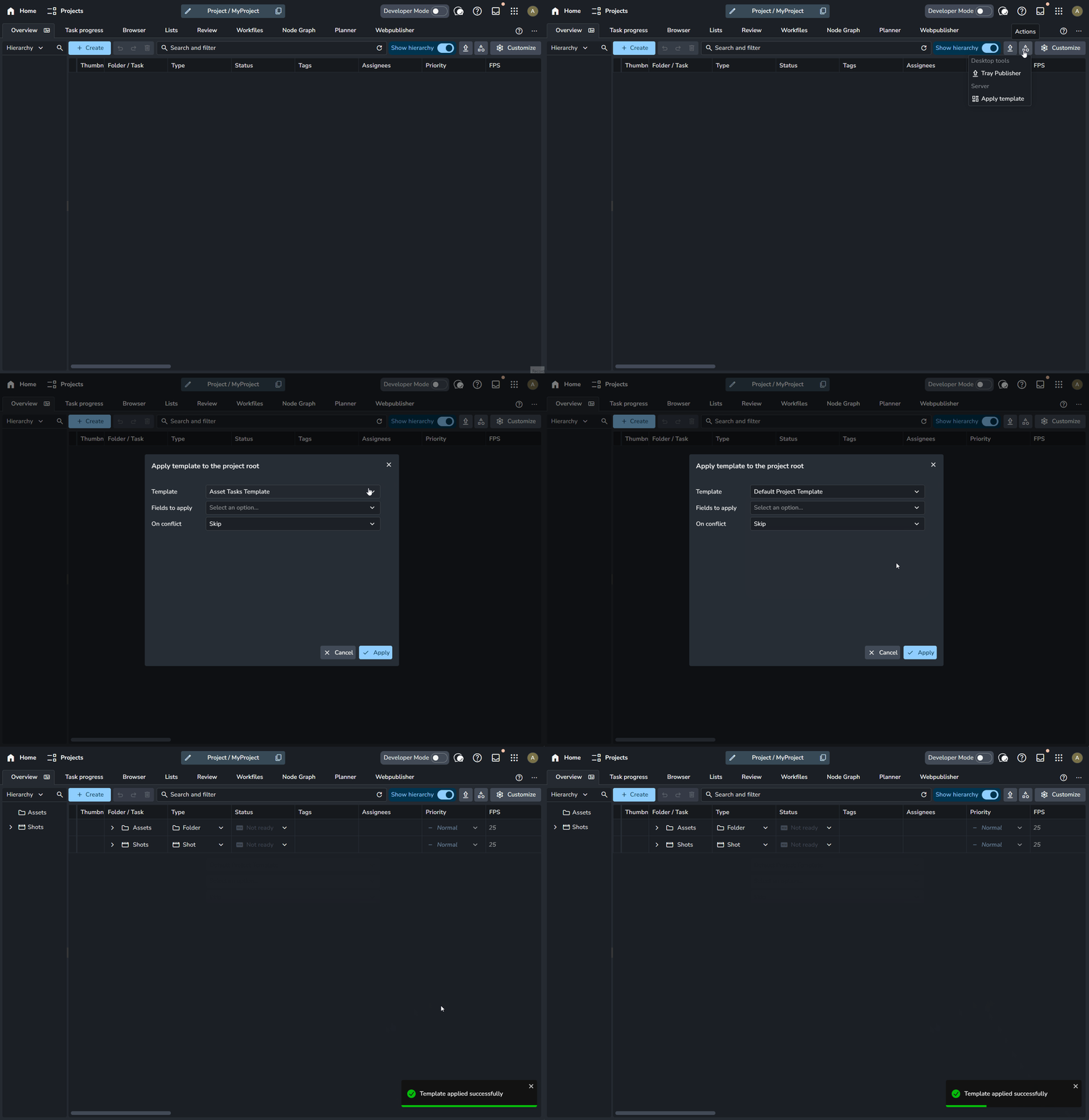
To apply a template to a project, you don't need to select anything. Simply trigger the Apply template web action from the project-level actions in the Project Overview Page.