Working with Harmony in AYON
Last updated Over 1 year ago
AYON Menu
When launching Harmony via AYON Launcher, An AYON Menu wil be added to your app menus.
AYON Menu shows the available AYON Tools.
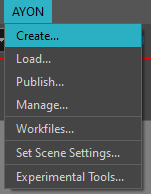
Menu creation can be temperamental. Its best to start Harmony and do nothing else until the application is fully launched. If you dont see the AYON menu, then follow this to create it:
Go to the
Script EditorFind the script called
TB_sceneOpened.jsand run it.Choose the
startmethod to run.
AYON Tools
AYON Global Tools
Workfile Actions
Set Scene Settings: Set FPS, start and end frames, start and end handles, as well as resolution width and height in the work area according to the current AYON task.
Pipeline Tools
Only one tool can be open at a time. If you open a tool while another tool is open, it will wait in queue for the existing tool to be closed. Once the existing tool is closed, the new tool will open.
Workfiles
Workfiles are managed by Workfiles tool.
Work files are temporarily stored locally, in [user]/.ayon/harmony, to reduce network bandwidth. When saving the Harmony scene, a background process ensures the network files are updated.
Because the saving to the network location happens in the background, be careful when quickly saving and closing Harmony (and the terminal window) since an interrupted saving to the network location can corrupt the workfile. To be sure the workfile is saved to the network location look in the terminal for a line similar to this:
DEBUG:avalon.harmony.lib:Saved "[Local Scene Directory]" to "[Network Scene Directory]\[Name Of Workfile].zip"
Create & Publish
Create
AYON > Create
In Creator / Publisher tool, in Creator tab allows you to create publish instances.
These are the product types supported in Harmony:
RenderThis instance is for generating a render and review. This is a normal write node, but only PNGs are supported at the moment.
TemplateThis instance is for generating a templates. This is a normal composite node, which you can connect any number of nodes to.
Any connected nodes will be published along with their dependencies and any back drops.
PalettePalettes are indirectly supported in Harmony. This means you just have to have palettes in your scene to publish them.
When you Use selection on creation, the last selected node will be connected to the created node.
Publish
AYON > Publish
In Creator / Publisher tool, in Publish tab allows you to run through checks to make sure the contents you are publishing is correct. Hit the "Play" button to start publishing.
You may encounter issues with publishing which will be indicated with red squares. If these issues are within the validation section, then you can fix the issue. If there are issues outside of validation section, please let the AYON team know.
Validation Issues
All validators will give some description about what the issue is.
Some validator have repair actions, which will fix the issue by providing buttons on the top of the page. Once all issues are fixed, you can just hit the "Refresh" button and try to publish again.
Load
AYON > Load
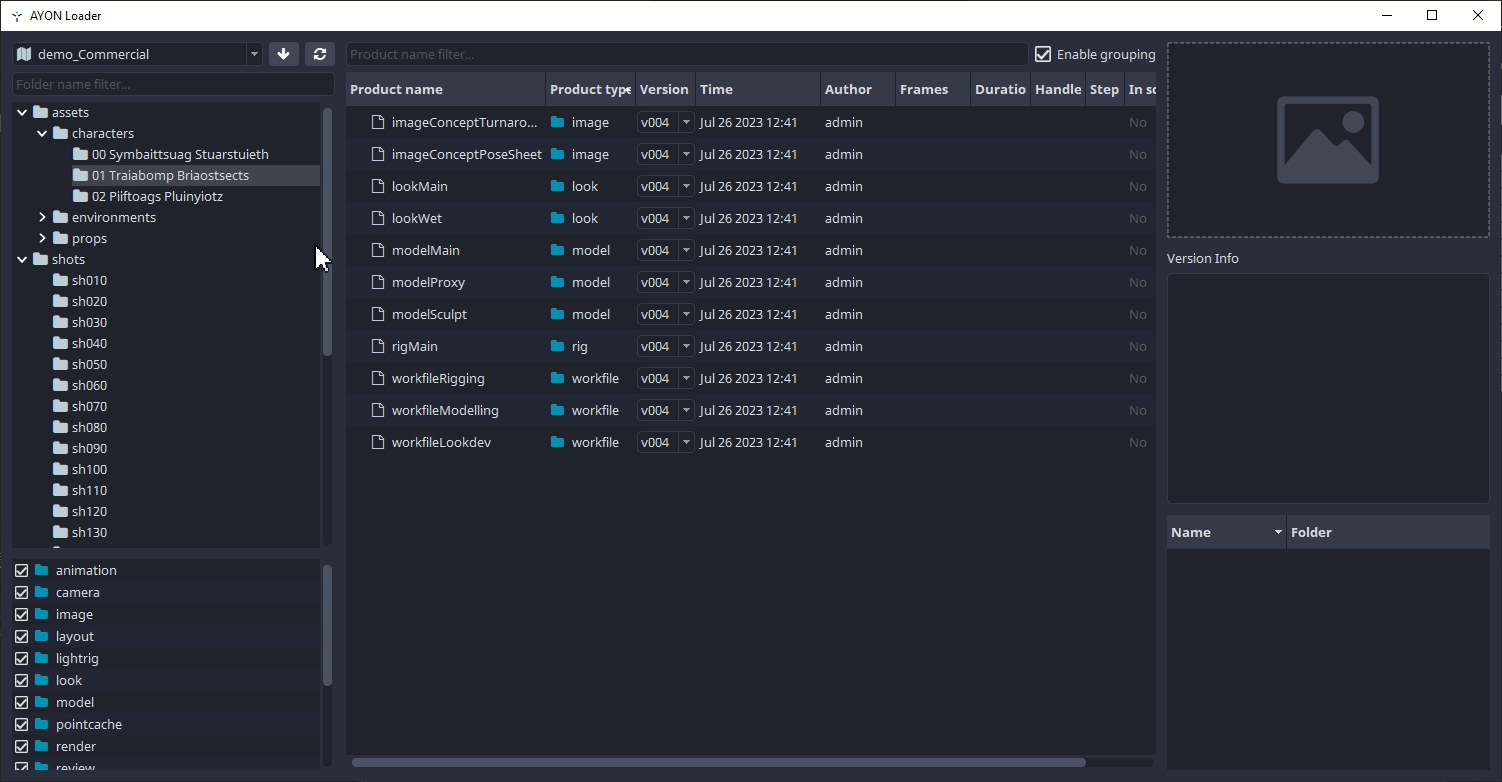
The supported product types for Harmony are:
imageharmony.templateOnly import is current supported for templates.
harmony.paletteLoaded palettes are moved to the top of the colour stack, so they will acts as overrides. Imported palettes are left in the scene.
workfileOnly of type
zip.
To load, right-click on the product you want and choose a representation:
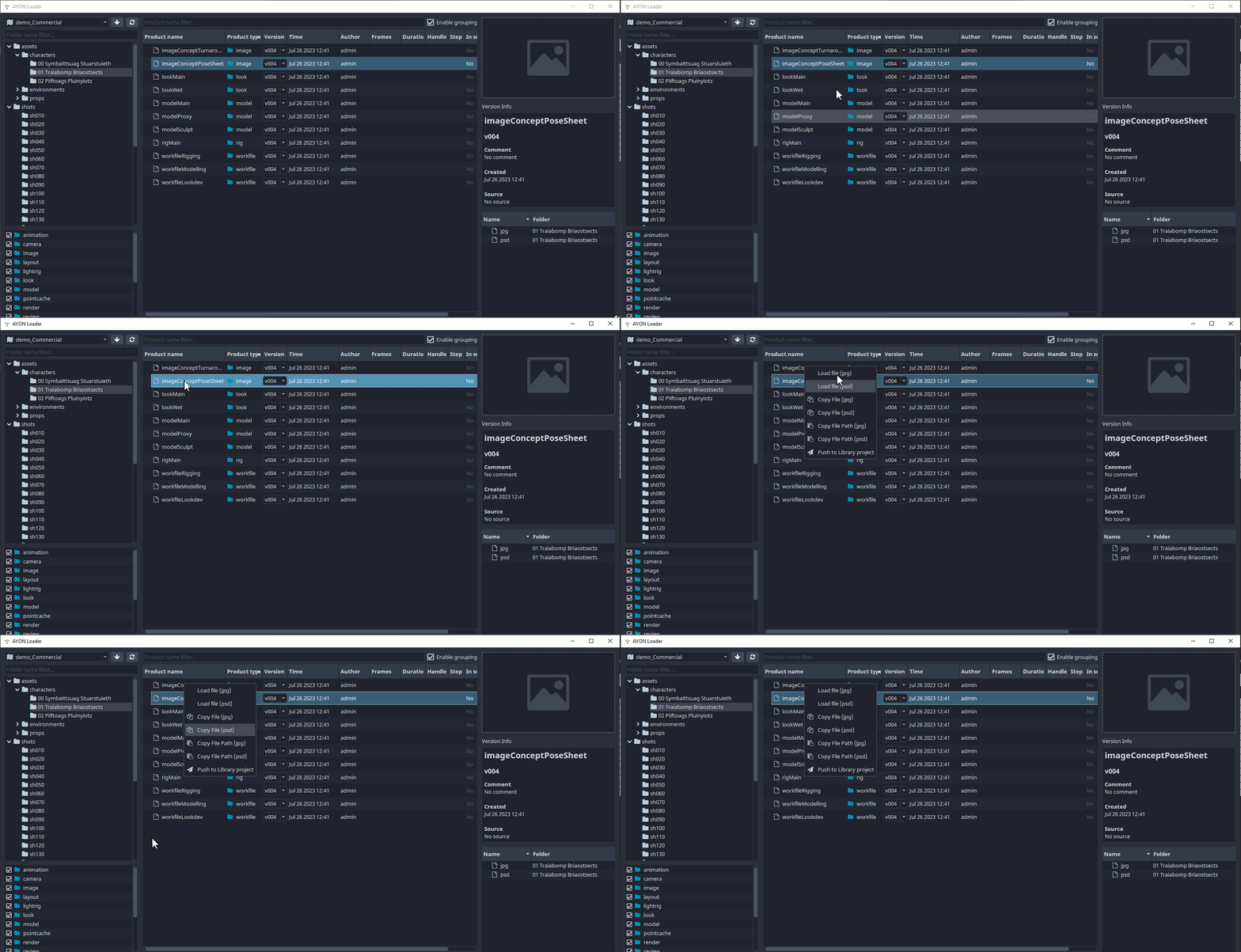
Loading templates or workfiles will import the contents into scene. Referencing is not supported at the moment, so you will have to load newer versions into the scene.
Manage
AYON > Manage
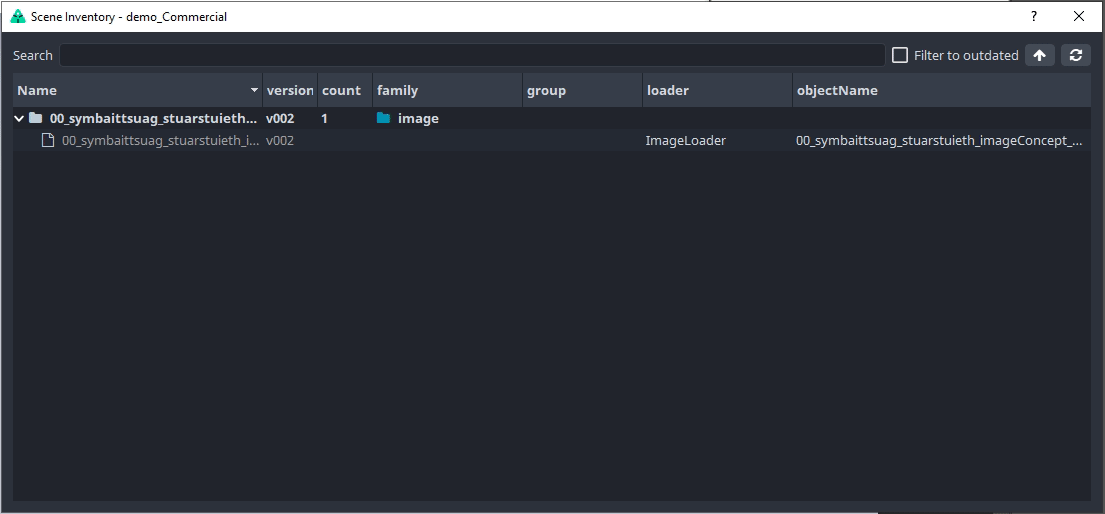
You can switch to a previous version of the image or update to the latest.
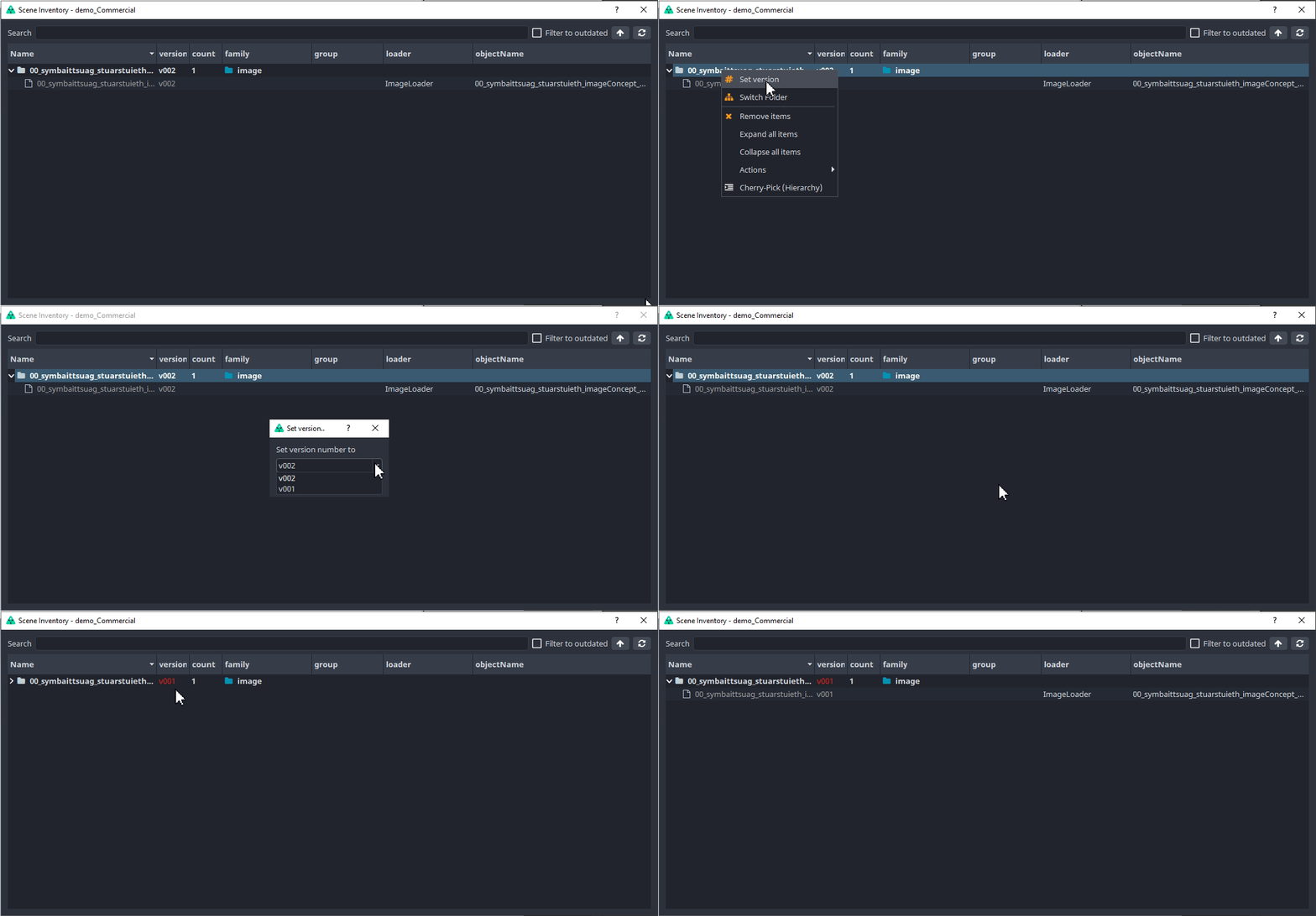
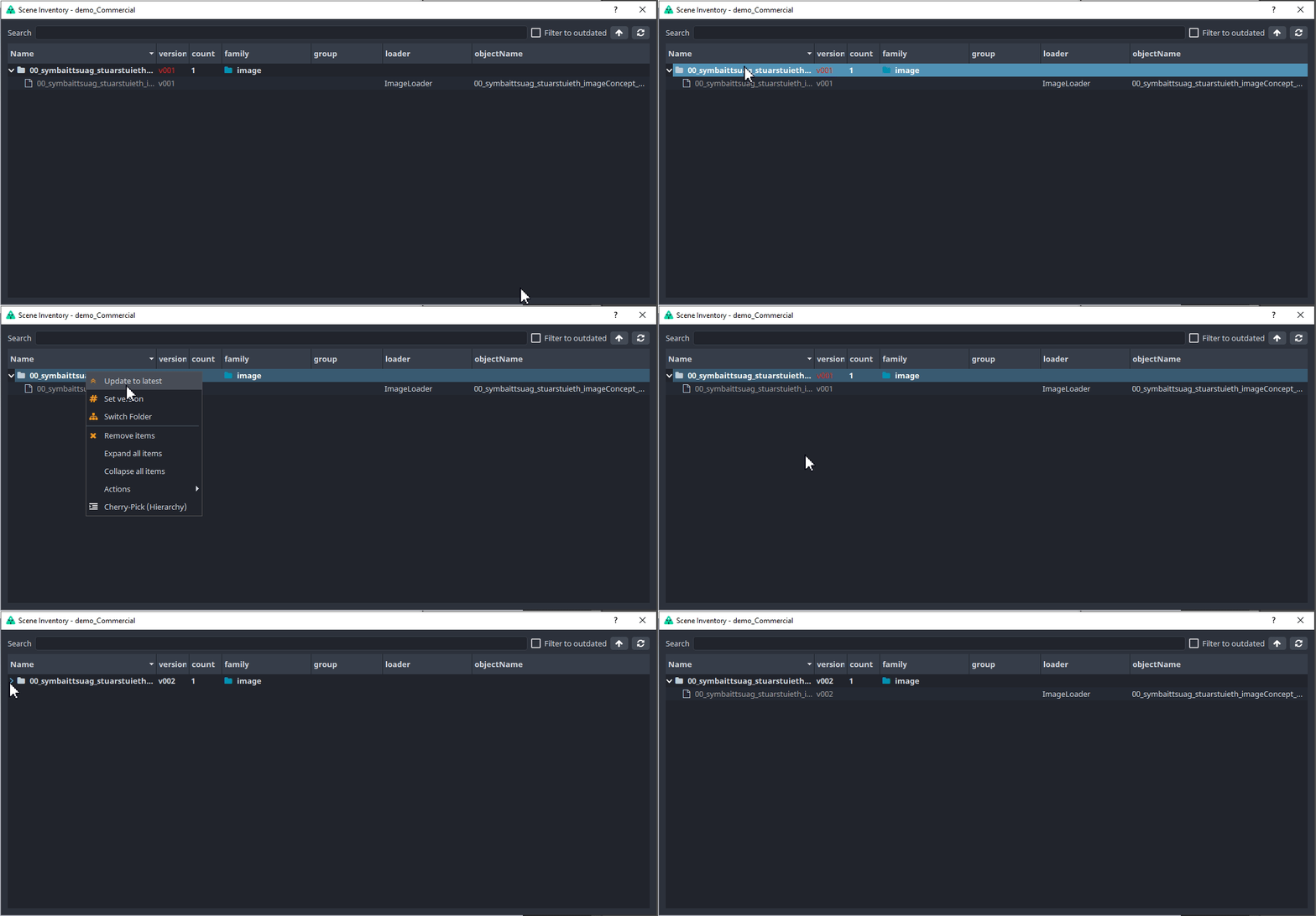
Images and image sequences will be loaded into the scene as read nodes can coloured green. On startup the pipeline checks for any outdated read nodes and colours them red.
Green = Up to date version in scene.
Red = Outdated version in scene.