Workflows & Automations
This guide covers how to turn your AYON workflow graphs into automations: triggering them from events like version creation, on a schedule, or from folder and version actions, with hands-on examples using the addon's built-in demo workflows.
Last updated About 1 month ago
Workflow graphs and automations
In the previous guide, Workflow Editor: Your First workflows, we learned how to create a workflow graph that we can either run directly or dispatch to the farm. But we always had to open the workflow graph in the Workflow Editor to run it.
The workflow addon also lets you use your workflow graphs for automations, and to provide actions that can be triggered on demand from the server web UI.
Example use cases:
Running a workflow when a new product version is created
Reacting to an action triggered from a folder or a version on the AYON server
Running a daily workflow to create a playlist or archive entities
Ensure the workflow addon service is running before proceeding. For detailed steps, see Configure Workflow Addon.
How Event-Triggered Workflows Works
You create a workflow that reacts to the criteria you want, then register it from the Workflow Editor. Once that criteria is met, the workflow event processor service picks it up and runs the workflow.
Currently, workflow graphs support these criteria. Each one has a corresponding node that your workflow graph must start with.
Supported trigger types
When an event occurs:
On task assignees changed → use the
OnTaskAssigneesChangednodeOn version creation → use the
OnVersionCreatednode
When a workflow action is triggered from an entity's action menu:
Run the action from version actions → use the
OnActionFromVersionnodeRun the action from folder actions → use the
OnActionFromFoldernode
Periodically:
On a schedule → use the
OnSchedulenode
To support more events, the input nodes can be extended to cover custom event topics you might have. Please refer to Reference: creating your own EventTrigger or OnSchedule input node.
Example workflow graph automations
Available in the ayon-workflow-nodes repository. They also ship with the addon. By default, you can find them at:
Windows:
C:\Users\YOUR_USER\AppData\Local\Ynput\AYON\addons\workflow_X.X.X\ayon_workflow\demo\workflow_from_eventsLinux:
~/.local/share/Ynput/AYON/addons/workflow_X.X.X/ayon_workflow/demo/workflow_from_eventsmacOS:
~/Library/Application Support/Ynput/AYON/addons/workflow_X.X.X/ayon_workflow/demo/workflow_from_events
Let's see them in action.
Set task assignees as parent folder watchers
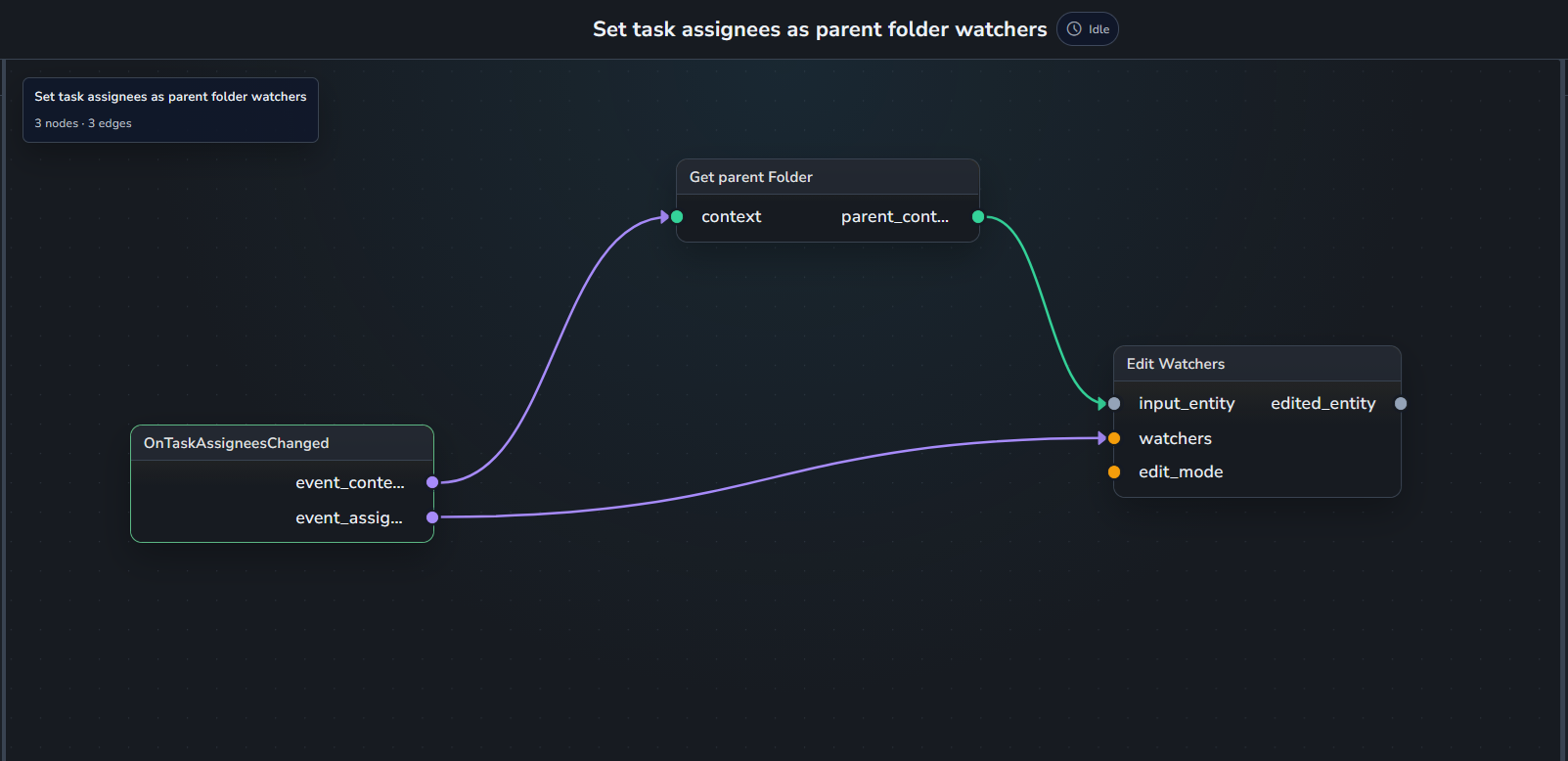
This triggers automatically when assignees change on any task, adding them as watchers on the parent folder.
Open it in the Workflow Graph Editor:
File > Load...and selecton_task_assignees_changed_watch_parent_folder.json.Register it:
File > Registered Workflows > Register Current Workflow..., then pick a name for your workflow.Test it by changing assignees on a task and checking whether they're added as watchers on the parent folder.
VersionCreatedWorkflow
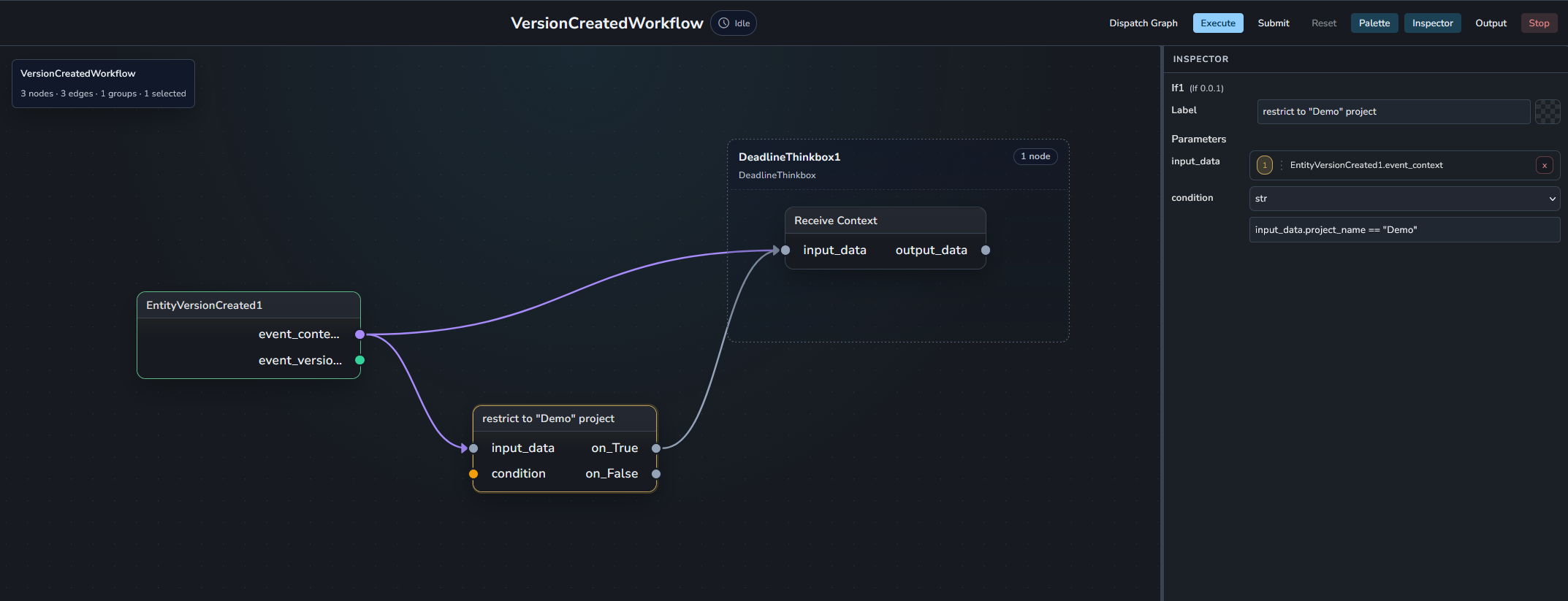
This workflow runs when a new version is created. It also shows how to use the If node to dispatch a job only if the created version belongs to the Demo project.
Open it in the Workflow Graph Editor:
File > Load...and selecttrigger_from_version_created_event.json.Register it:
File > Registered Workflows > Register Current Workflow..., then pick a name for your workflow.
Test it by publishing a version using an AYON pipeline DCC integration or the Tray Publisher (see Working with AYON Tray Publisher), or by uploading a version directly in the web UI (see Create Versions Without a Pipeline).
CronWorkflow
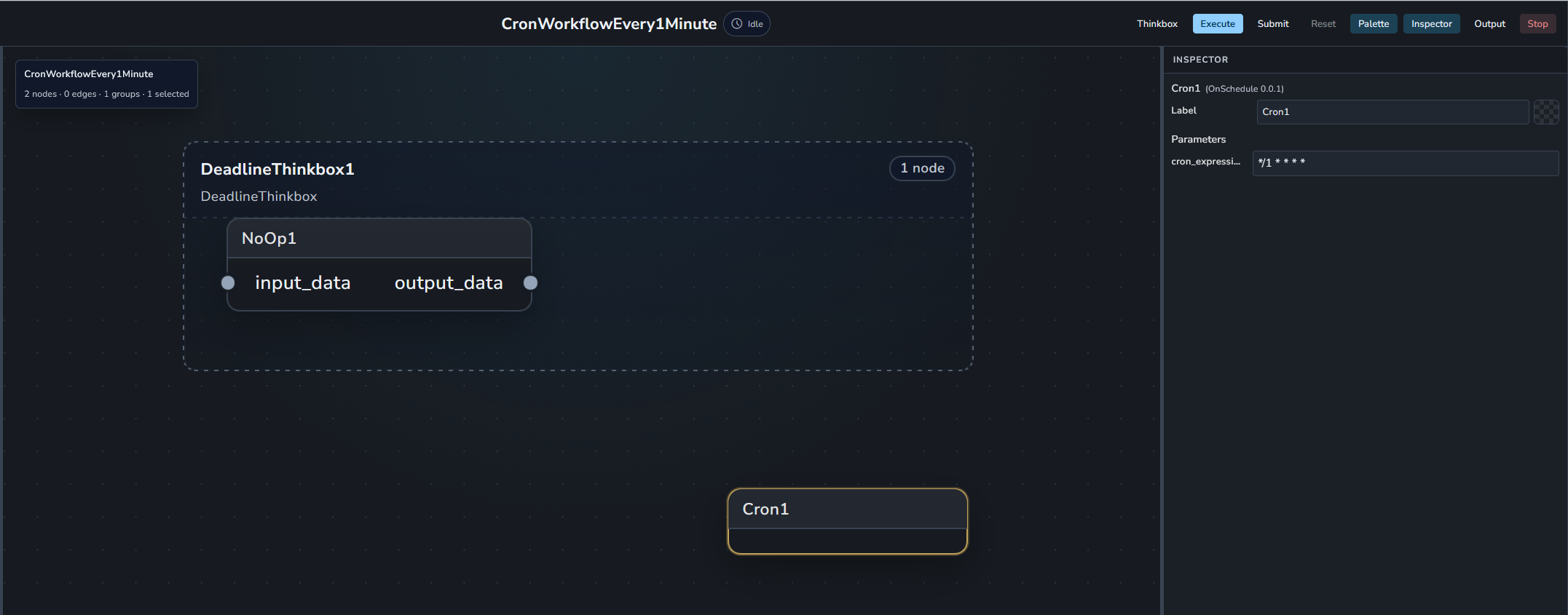
This triggers based on a schedule, specified using a cron expression.
Open it in the Workflow Graph Editor:
File > Load...and selecttrigger_from_cron.json.Register it:
File > Registered Workflows > Register Current Workflow..., then pick a name for your workflow.
The cron expression in CronWorkflow example is set to */1 * * * *, which triggers every minute and dispatches a no-operation workflow to Deadline. You can easily check what a cron expression translates to at crontab.cronhub.io.
Test this by watching the Deadline Monitor, since this workflow is set to dispatch to Deadline.

SimpleActionWorkflowFolder
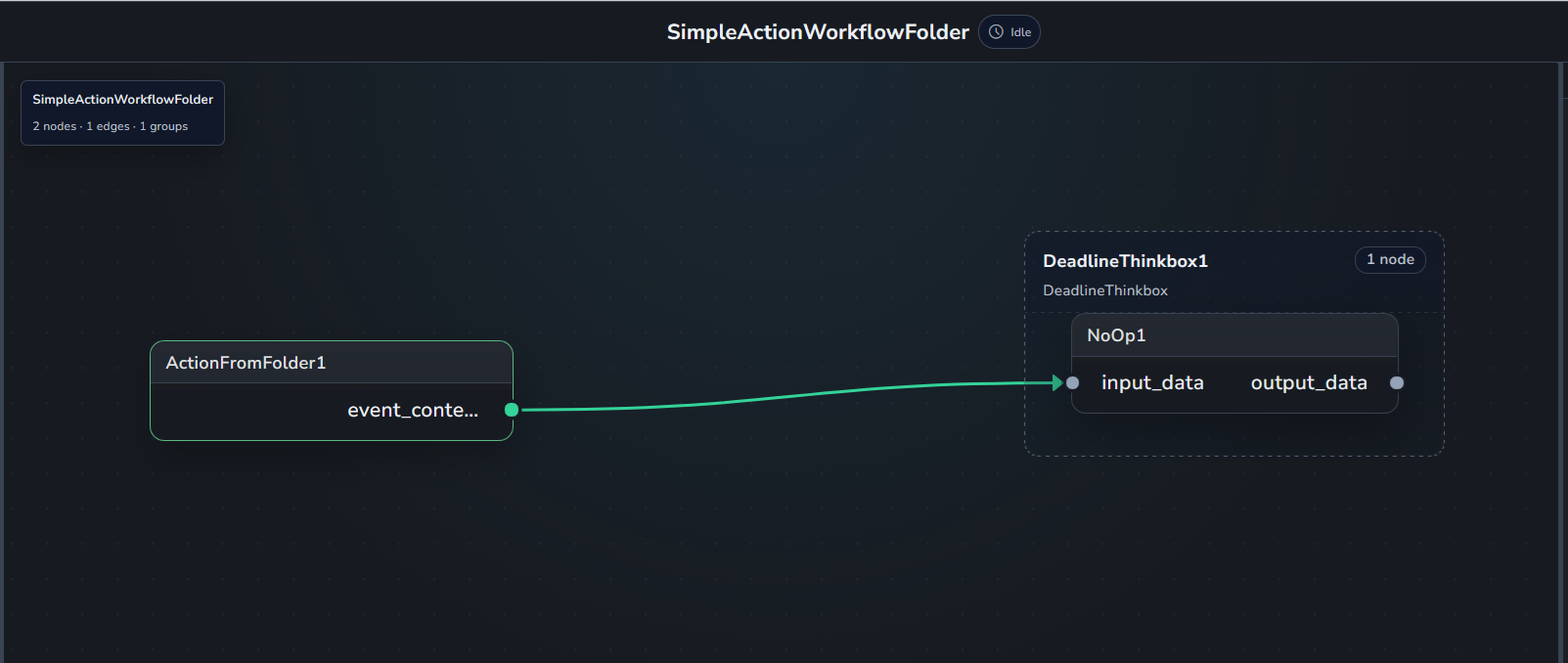
This is an empty workflow that simply dispatches to Deadline with no operation.
Open it in the Workflow Graph Editor:
File > Load...and selecttrigger_from_simple_action_folder.json.Register it:
File > Registered Workflows > Register Current Workflow..., then pick a name for your workflow.Go to AYON workflow addon settings:
ayon+settings://workflow/simple_actions/from_folder.Add it to the "From Folder" setting. Let's set the action label to "Workflow Folder Action Test," enable the Execute Locally field, and select "SimpleActionWorkflowFromFolder" from the workflow name menu. With Execute Locally enabled, running this action opens the launcher on the user's machine to run the workflow.
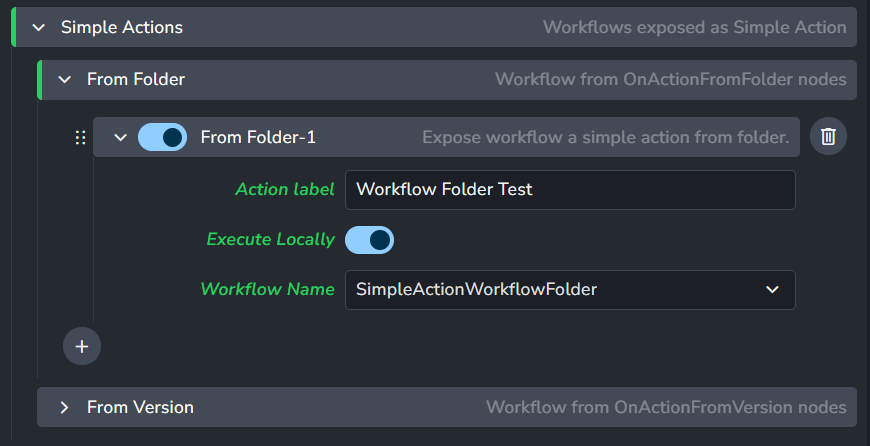
Adding workflow to the "From Folder" setting. Enable the added setting entry, as it's disabled by default.
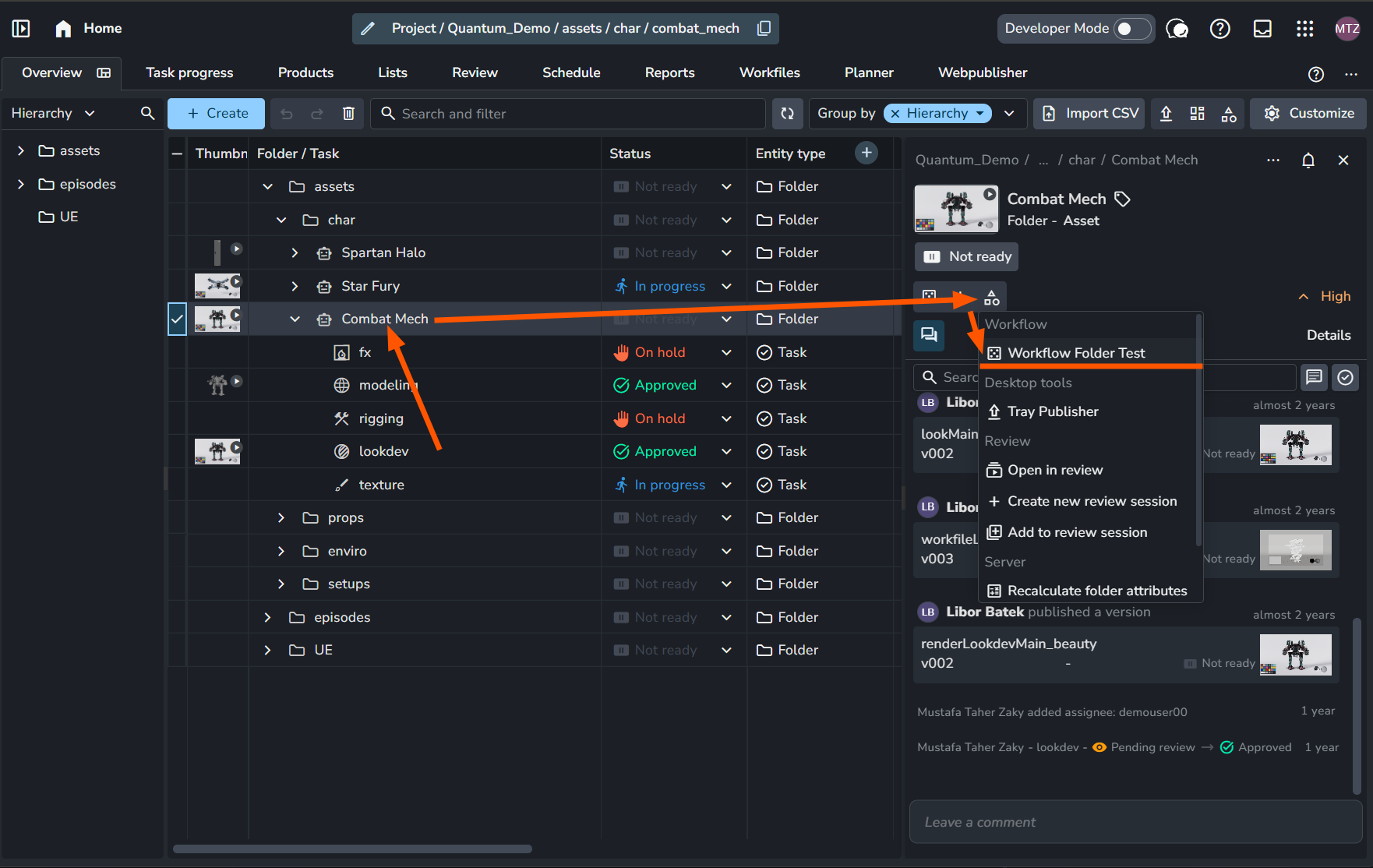
Test it: you'll see the action in the action menu on folder entities. Click it to check whether it dispatches the workflow to Deadline.

SimpleActionWorkflowVersion
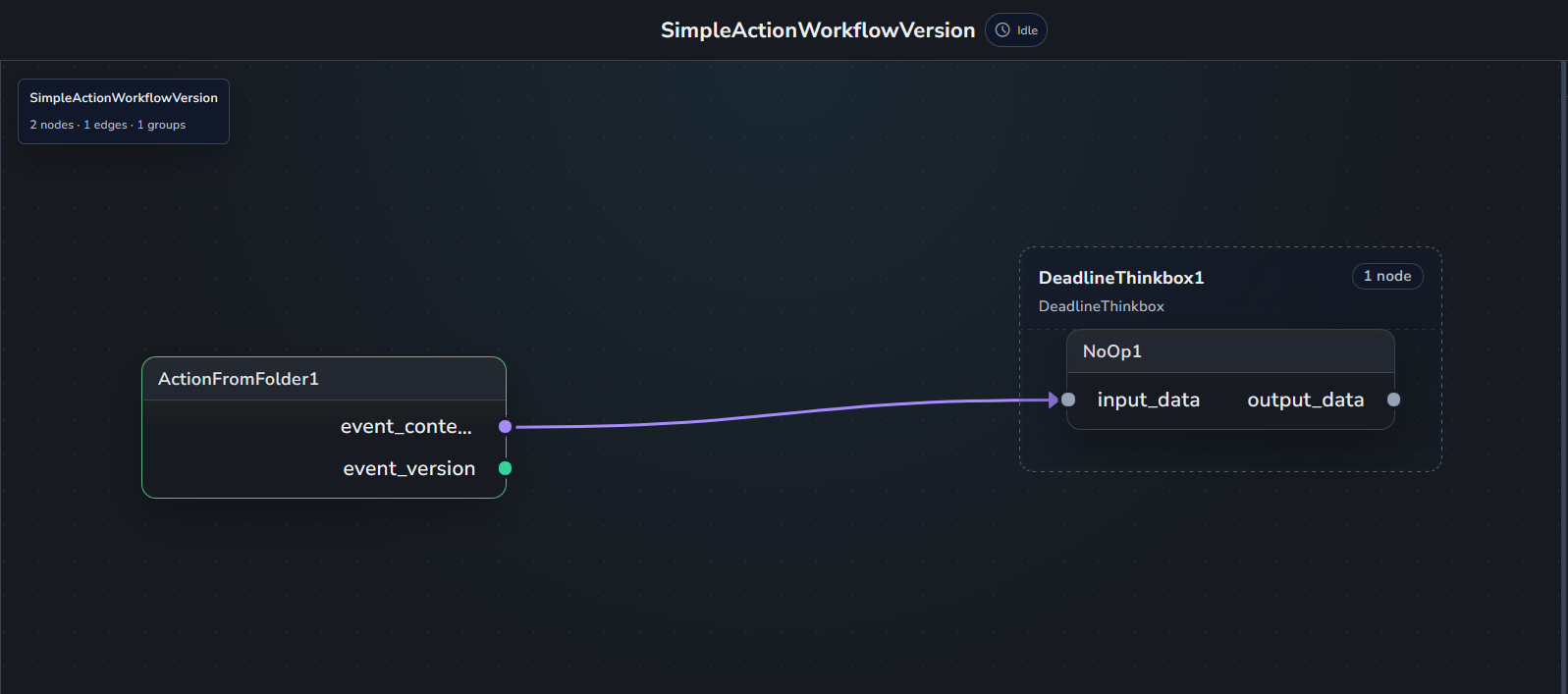
This is an empty workflow that simply dispatches to Deadline with no operation.
Open it in the Workflow Graph Editor:
File > Load...and selecttrigger_from_simple_action_version.json.Register it:
File > Registered Workflows > Register Current Workflow..., then pick a name for your workflow.Go to AYON workflow addon settings:
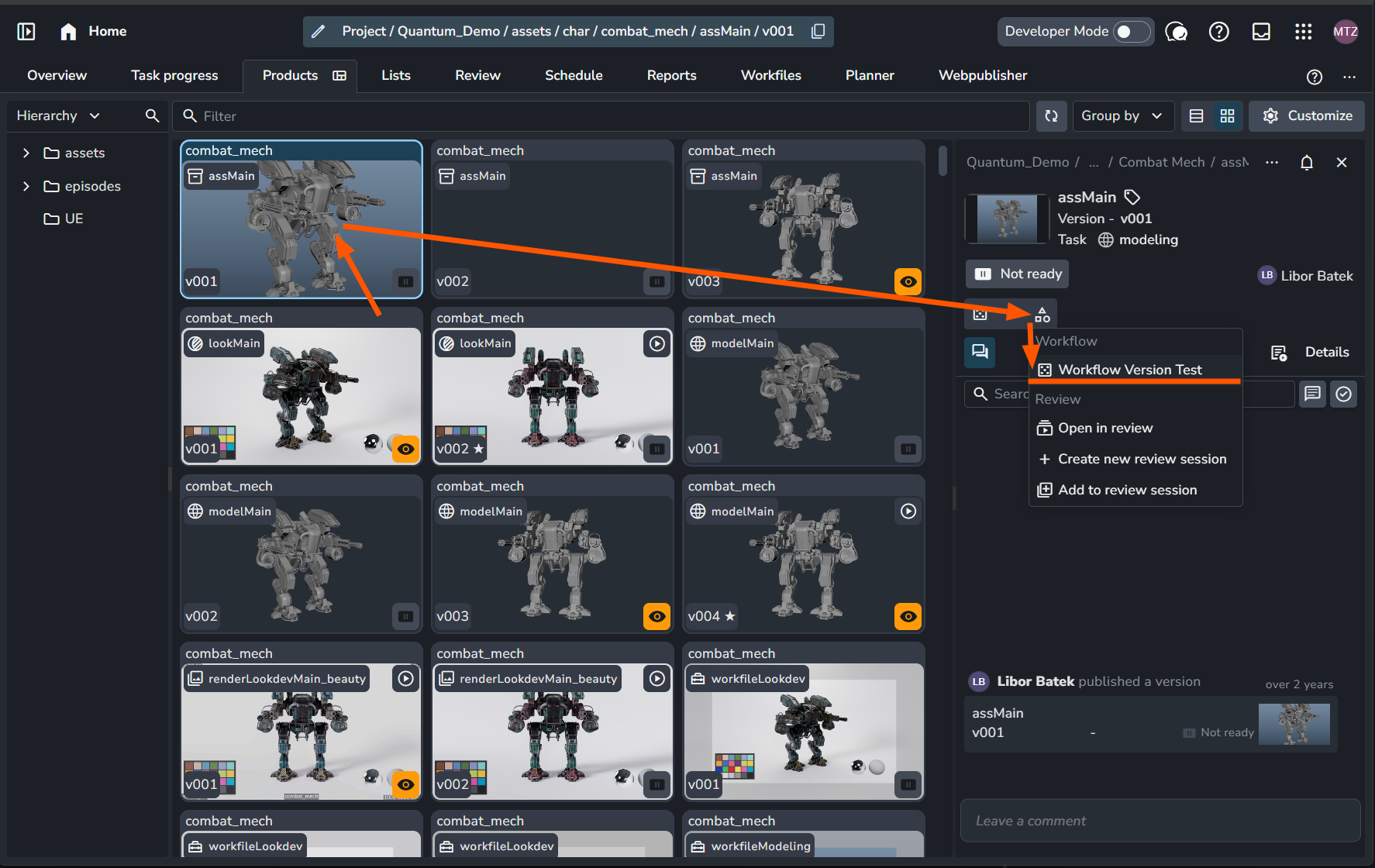
ayon+settings://workflow/simple_actions/from_version.Add it to the "From Version" setting. Let's set the action label to "Workflow Version Action Test," disable the Execute Locally field, and select "SimpleActionWorkflowVersion" from the workflow name menu. With Execute Locally disabled, the workflow is instead passed to the event processor service to run.
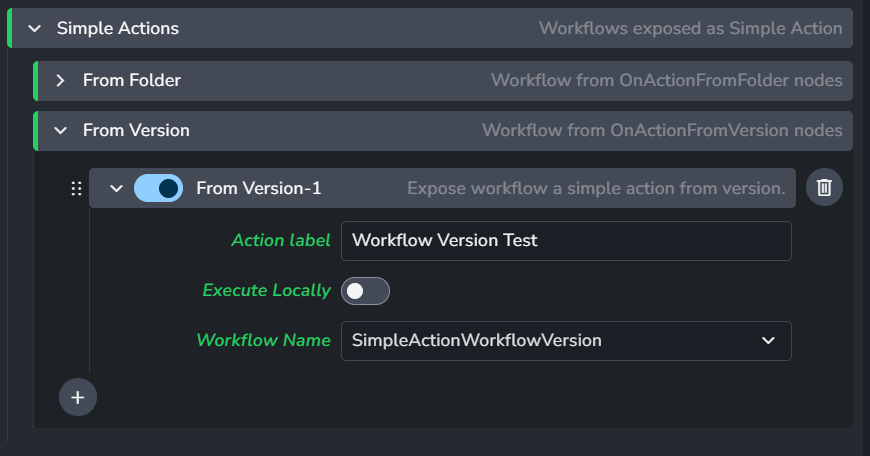
Enable the added setting entry, as it's disabled by default.
Test it: you'll see the action in the action menu on version entities. Click it to check whether it dispatches the workflow to Deadline.
Further reading
Check out the Event-triggered Workflows dev docs if you'd like to read more about how this works under the hood.
Was this helpful?
Still need help? Ask the team