Planner - Resources
Last updated About 5 hours ago
The Planner is a premium addon included with the Studio subscription, or as an extra with a Pro subscription.
The studio-level Resources tab is where you set up everything the Planner can book. Once your resources exist, you book them in Planner - Plan (Bookings). For an introduction to the Planner, see Planner - Addon Overview.
Resource types
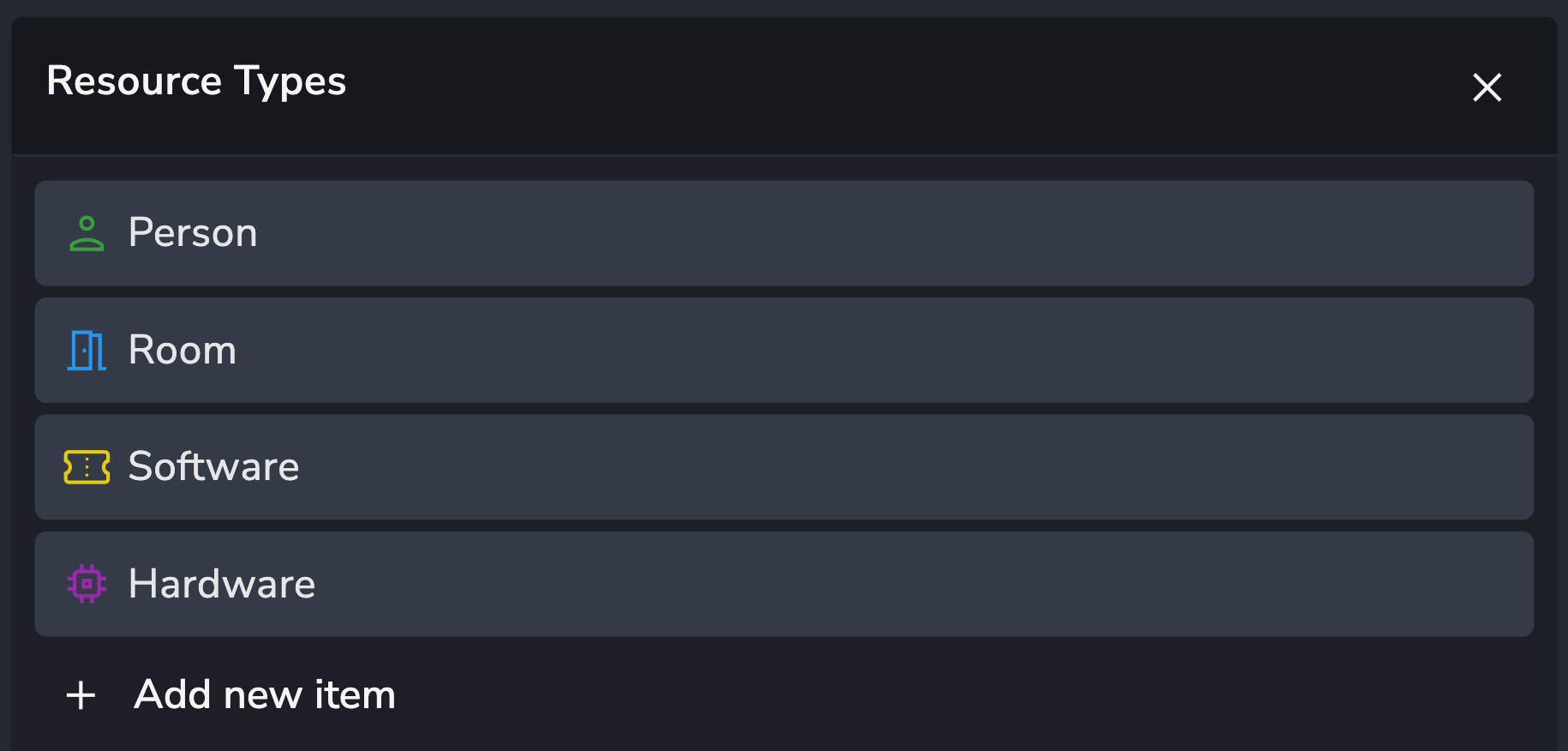
A resource is anything your studio needs to schedule. Resource types are not hard-coded, so you define the ones that match how you work.
Resource Type Examples
People: artists, supervisors, coordinators, freelancers.
Spaces: review rooms, edit bays, grading suites, stages.
Hardware: workstations, render nodes.
Software: floating licences, such as a pool of Nuke licences.
People resources are not AYON users
Person resources are separate from licensed AYON user accounts. You can forecast a team and book a placeholder, such as "Senior Animator", before that person is added to AYON.
Resource attributes
Attributes describe a resource, for example Department, Location, Role or Day Rate. Each attribute is scoped to resources, bookings, projects, or a combination.
An attribute scoped to both resources and bookings appears twice in Group by, once for each, so you can group by where a person is based or where a booking takes place.
Managing resources
The Resources tab lists every resource in a table. From here you can:
Create resources with Create new resource.
Edit attributes inline, including on multiple selected rows at once.
Filter the list, or use Advanced search to find resources by attribute, such as everyone in London.
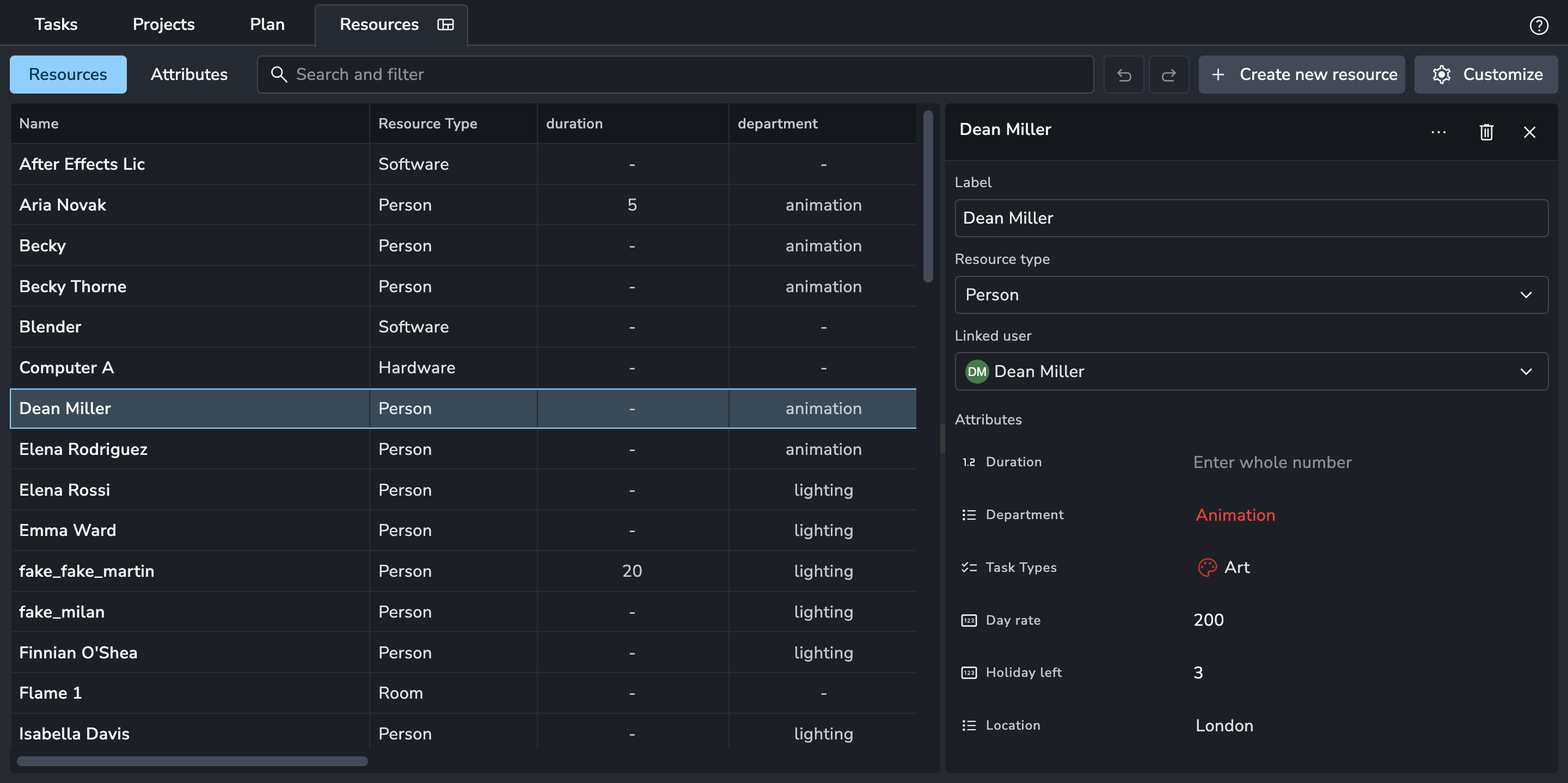
Take care when deleting resources, as any bookings that use them are affected.
Attribute access
You can limit who sees or edits individual event and resource attributes, such as a day rate.
Go to Home > Resources > Attributes.
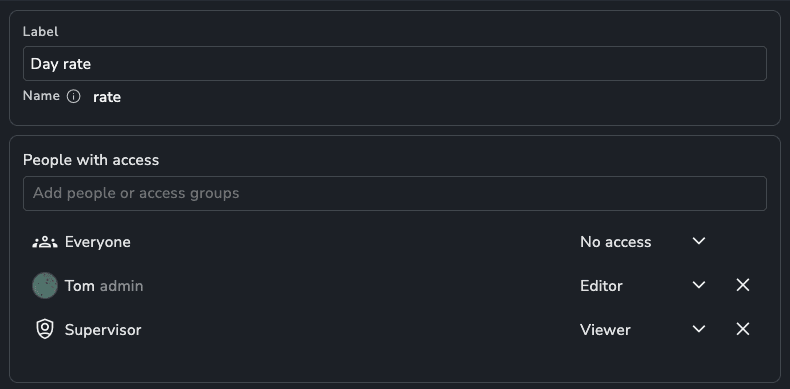
Select an attribute. The People with access panel shows who can use it; by default everyone is an editor.
Set a level for everyone, then add higher access for specific users or access groups.
An attribute set to No access is hidden from everyone except admins. A Viewer attribute is shown read-only. For example, set a Rate attribute to No access, give the Supervisor access group Viewer, and give a few named producers Editor.
To control who can see and edit events themselves, see Permissions in Planner: Plan tab.