Launcher
This page explains the basic usage of AYON Launcher, including the Tray Menu and how to use different actions.
Last updated 11 months ago
Introduction
The AYON Launcher allows users to log in, launch applications, and access a variety of AYON tools. It also manages updates to ensure everything runs smoothly. For more details, please refer to Getting Started with AYON Pipeline.
Once you launch the AYON Launcher, the AYON icon should appear in your system tray.
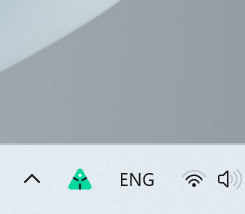
Launcher Icon Color Code
The AYON icon can appear in different colors, indicating the pipeline mode in which AYON was launched.
⬤ : AYON is in Production mode.
⬤ : AYON is in Staging mode.
Please refer to your admin to set up the launcher in staging mode for you.
Tray Menu
When you click the AYON icon in your tray, the AYON Tray Menu appears. It provides a set of tools:
Launcher Info The button with the launcher version number.
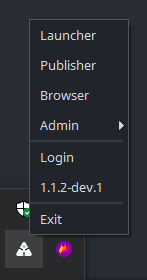
Launcher
The AYON Launcher is designed to display actions for selected entities, such as application actions.
Application actions allow you to launch Digital Content Creation (DCC) applications within a specified AYON context: project, folder path, and task.
Application actions automatically configure the studio environment based on your administrator's settings in Applications and Tools, which significantly reduces the need for manual adjustments of local user preferences.
By default, the last workfile is opened when starting an application. However, administrators can modify this behavior through the workfile settings in Core Addon Settings. Additionally, users have the option to right-click the application and choose to skip opening the last workfile or select a specific workfile to open from the workfiles list in the Launcher UI.
Launcher UI
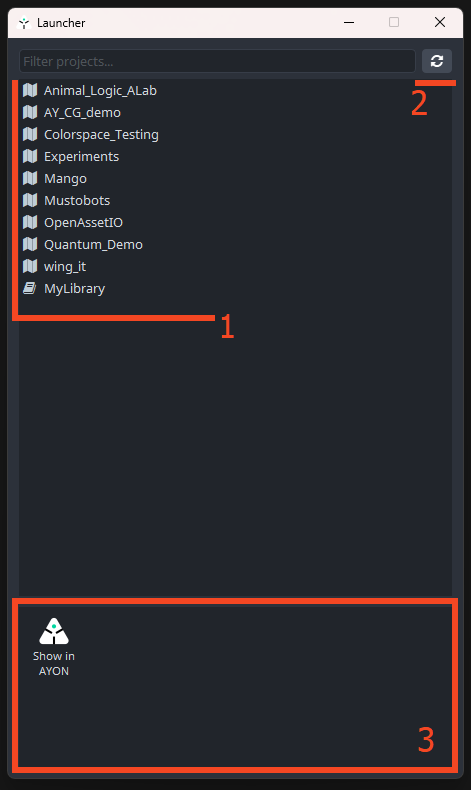 | 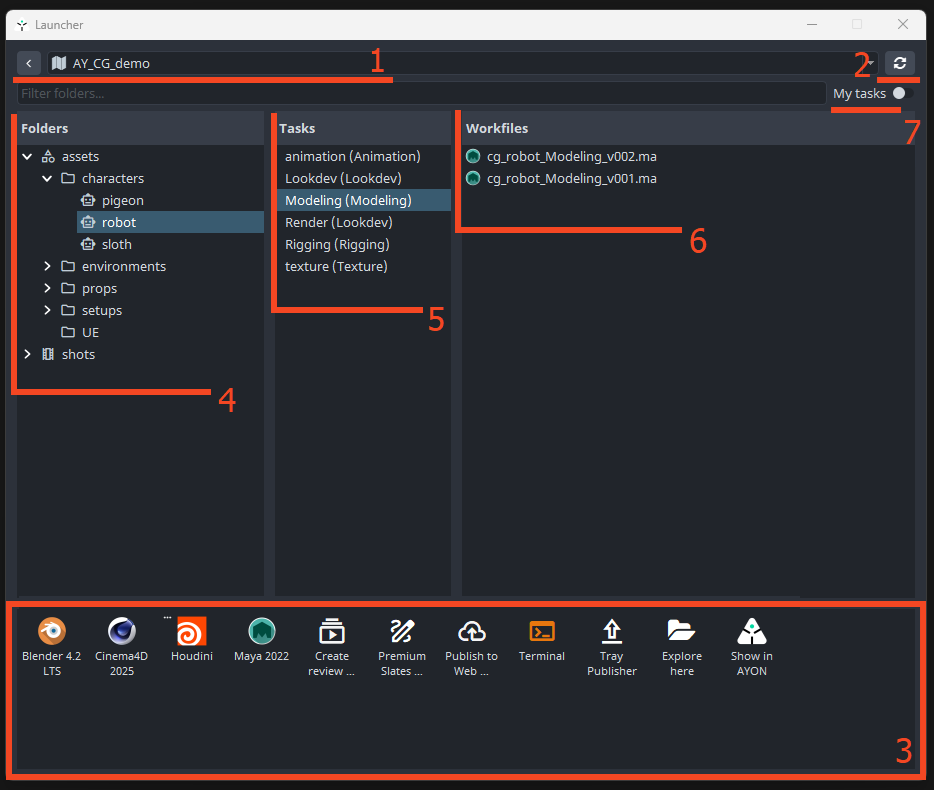 |
Select a Project. If no project is selected, use the project filter at the top.
Refresh View
Actions Pane
Select Folder. Use the folder filter at the top.
Select Task
Select Workfile
Show tasks assigned to you only.
Action Pane
Available actions follow your studio's configuration for application and tool settings specified in Applications and Tools.
Left-click an action to trigger it and open a list of available application variants. By default, it opens the last available workfile; otherwise, it starts a new scene.
Right-click an action to change its configuration, which is useful for specifying how to launch applications. For example, enable
skip last workfileto always start a new scene.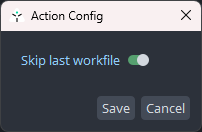
If admins have enabled the Templated Build Workfile feature for the selected app, AYON will automatically initialize your scenes for any new ones created.
Common Actions
Action Icon | Action Name | Action Description |
Launch Applications | Denoted by the DCC app icon. | |
 | Explore Here | Opens the location for the selected folder or task in the file explorer. |
 | Show in AYON | Opens the location for the selected folder or task on the AYON server. |
 | Terminal | Allows you to open the terminal initialized with the selected application's environment. Useful for admins and TDs. |
Publisher
This is only available if your admin added the tray publisher addon to the pipeline bundle.
When clicked, it launches the standalone publisher. For more info, see Working with AYON Tray Publisher. It's the same as our Creator / Publisher tool but standalone.
Browser
Explore Published Products. It's the same as the Loader tool but used for browsing and checking published products.
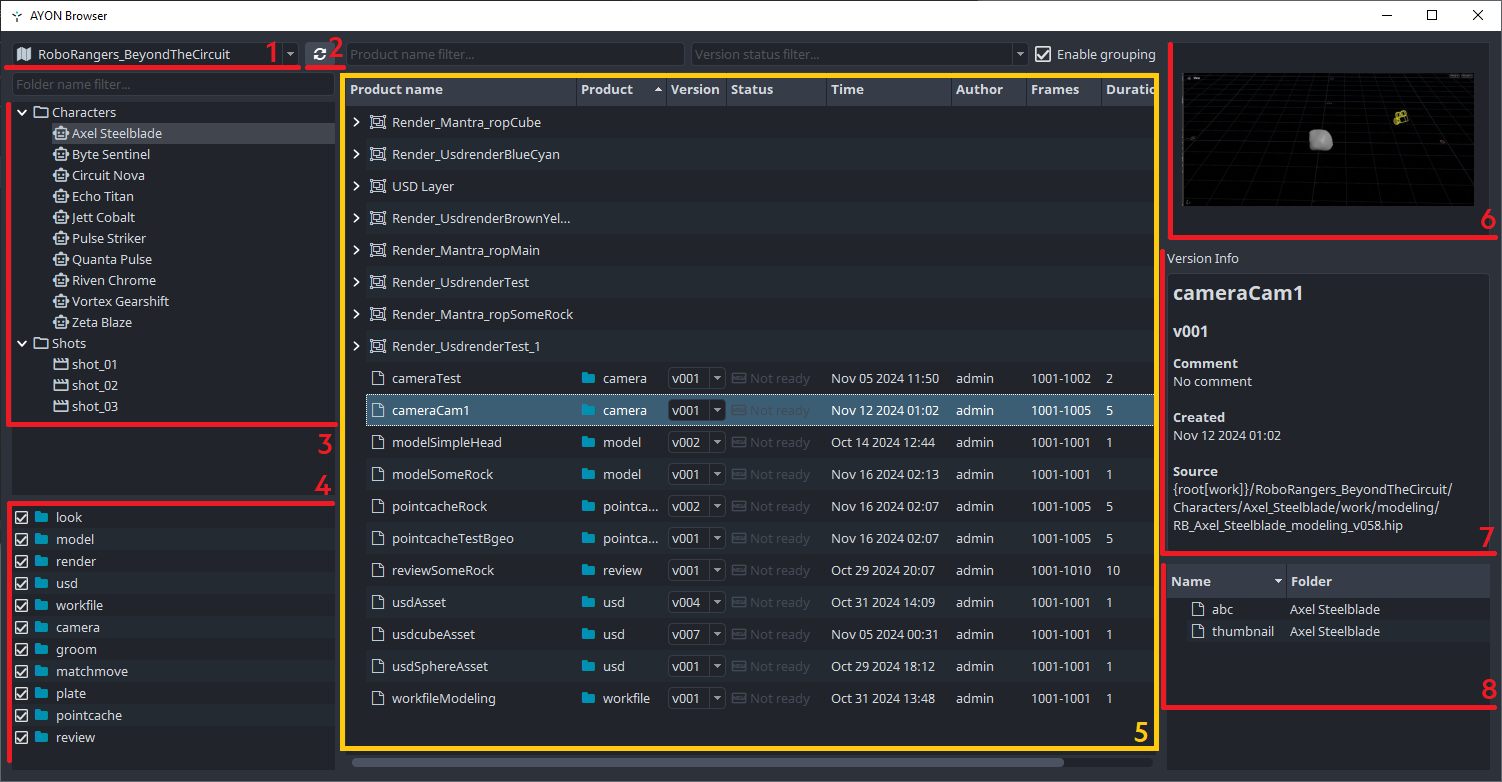
Select a Project
Refresh UI
Select a Folder
Available Published Product Types
Available Published Products
Thumbnail of the Selected Product or Folder
Version Info of the Selected Product
Available Representation for the Selected Product Version
Admin (Utilities)
Useful AYON utilities for Admins and TDs.
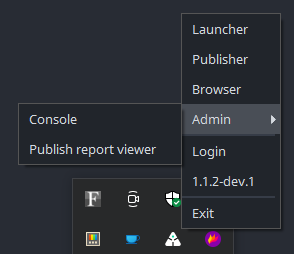
Console
It's like any other script editor in DCCs where you can interact directly with AYON.
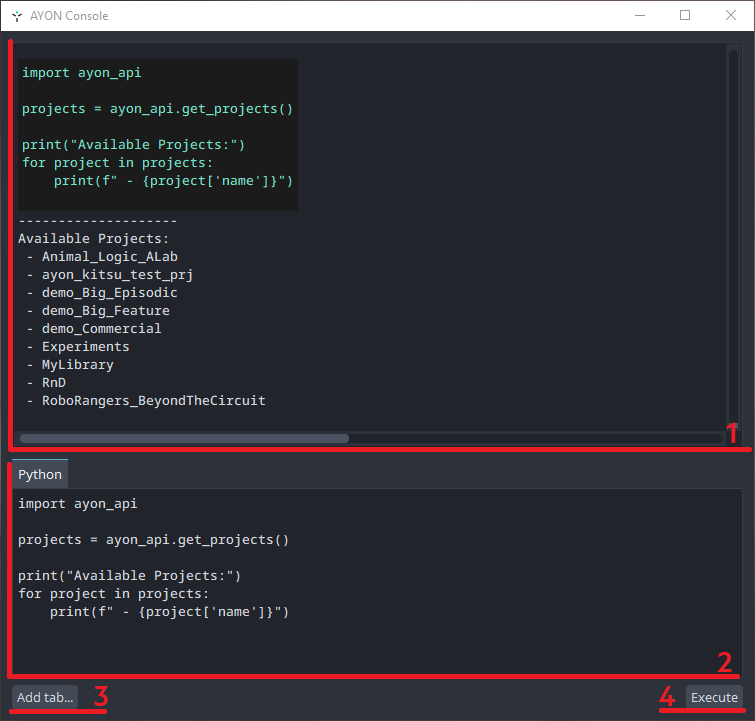
Script Output Pane
Script Input Pane
Add Tab...
Execute
Some Useful Code Snippets:
Publish Report Viewer
This tool is used to examine exported publish reports.
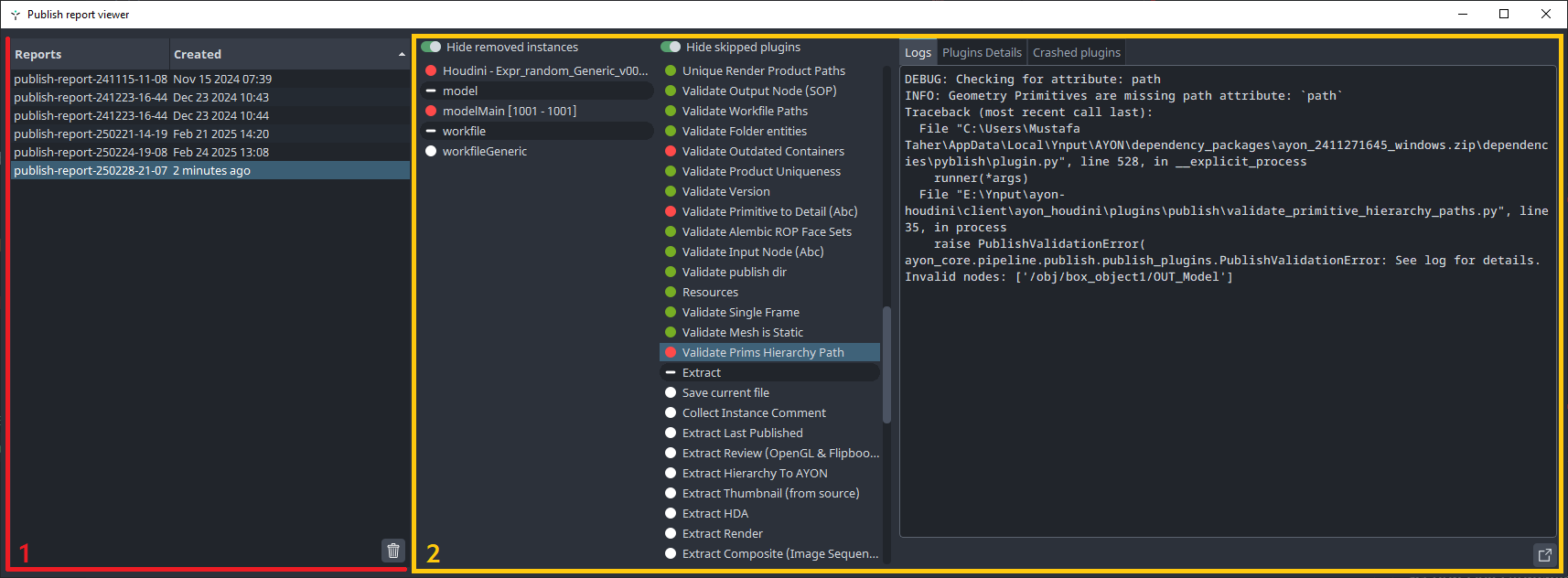
Publish Reports Pane: Drag and drop publish reports to add them. Click the trash icon to remove them.
Report Viewer: Displays what the publisher looked like when the report was exported.
Login
Log in to AYON using the credentials provided by your studio. You can log in directly using the input fields on the login window or click Login with AYON Server to log in using the browser.
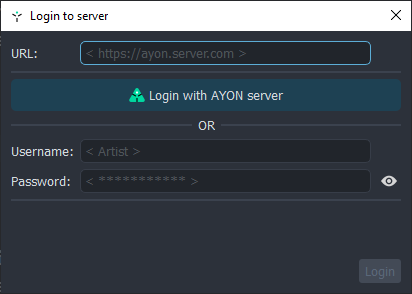
Login window.
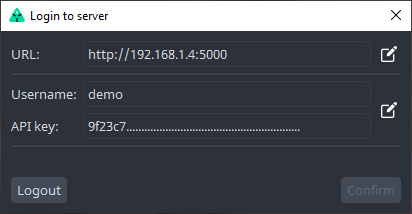
Once logged in, the login window will show the current user.
Launcher Info
This button is labeled with the AYON launcher version. When clicked, it shows additional information about your installed AYON launcher, local site ID, and environment variables.
See Environment Variables for more information about environment variables set during startup.
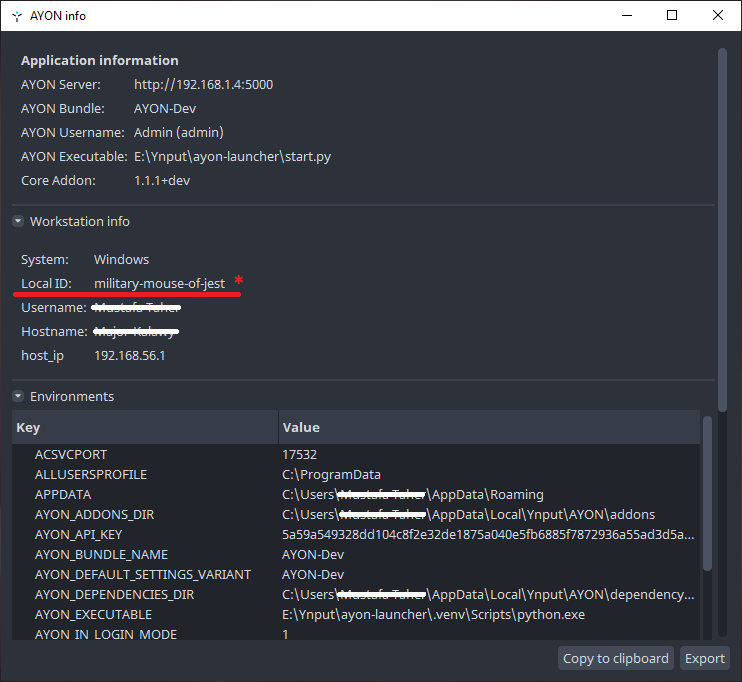
* Local Site ID: A unique ID assigned to your machine when installing AYON Launcher. For further details, check Site ID.
Exit
Exit and close the AYON Launcher desktop app.