Views
Save, manage, and share custom page layouts in AYON with Views. Configure personalized page layouts and share them with your team.
Last updated 9 months ago
Access to the Views feature requires a Pro or Studio subscription.
View is a powerful yet intuitive way to save, manage, and share custom page layouts. Views allow you to configure a page with specific filters, sorting, and column arrangements and then save that configuration for quick access later or for sharing with your team.

The Working View
Every user starts with a Working View. This is your personal, private workspace. Any changes you make to filters, sorting, or layout on a page are initially applied to your Working View. It's designed for you to freely experiment and tailor the page to your immediate needs without affecting any saved views used by yourself or others.
Creating a New View
To create a new view, first arrange the page exactly how you want it. For example, you might filter by a specific task status, group by assignee, and sort by priority. Once your layout is set in your Working View, you can save it as a new, reusable view.
Click the Create New View button.
A dialog will appear with the following options:
Name: Give your view a descriptive name (e.g., "Pending Review - Animation").
Scope: Decide where the view will be available.
This Project: The view will only appear on the current project.
All Projects: The view can be used across all projects in AYON.
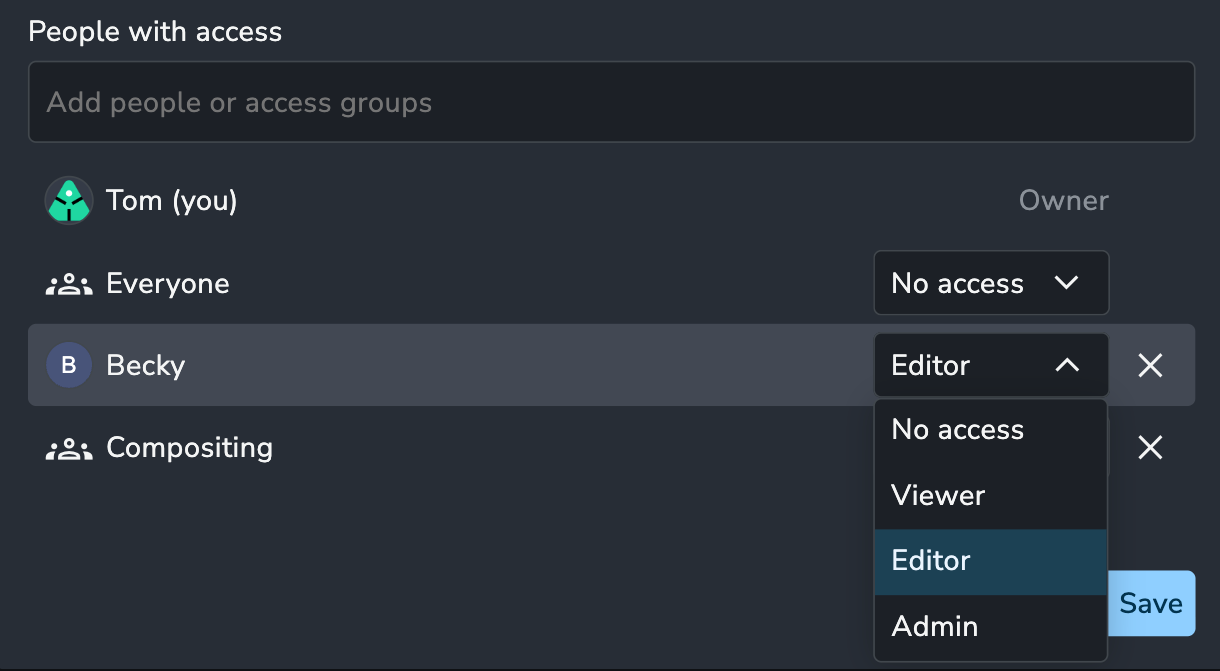
Access: Control who can see and use this view. You can grant access to Everyone, specific Users, or entire Groups (e.g., "Compositing Team").
Access Permissions
When sharing a view, you can assign different levels of permission to users or groups:
Viewer: Can load and use the view, but cannot edit its layout or settings.
Editor: Can edit the view's name, scope, and layout, but cannot manage its access permissions or delete it.
Admin: Has full control over the view, including managing access and deleting it, just like the view's owner.
Updating and Saving Views
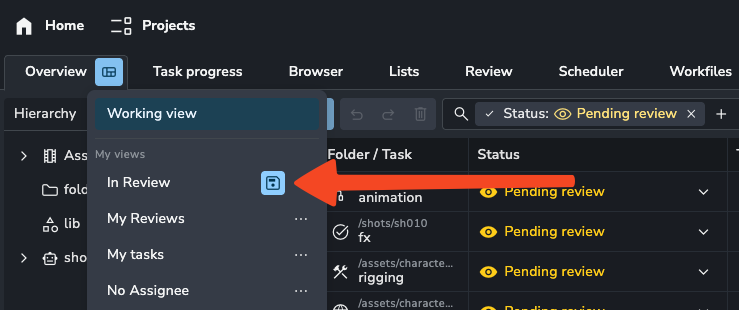
To prevent accidental changes to a shared layout, AYON never automatically saves your modifications to a loaded view. If you load a saved view (e.g., "My Reviews") and then change a filter, you will automatically be switched back to your Working View. This ensures that your exploratory changes don't disrupt a saved layout for others.
If you want to permanently update a view with your current layout:
Click the Save icon next to the name of the view you wish to update. This will take your current layout from the Working View and apply it to the saved view.
Duplicating Views
To duplicate a view, simply load the view you wish to copy, make any desired modifications, and then select Create New View. The new view will be created using your current on-screen layout as its foundation.
Page-Specific Views
Each page within AYON (e.g., Project Overview Page, Task Progress Page, Lists, Review Sessions, Reports ) maintains its own unique set of views. This means a view created on the Overview page will not be available on the Tasks page, allowing for tailored layouts specific to the context of each page.
Default views
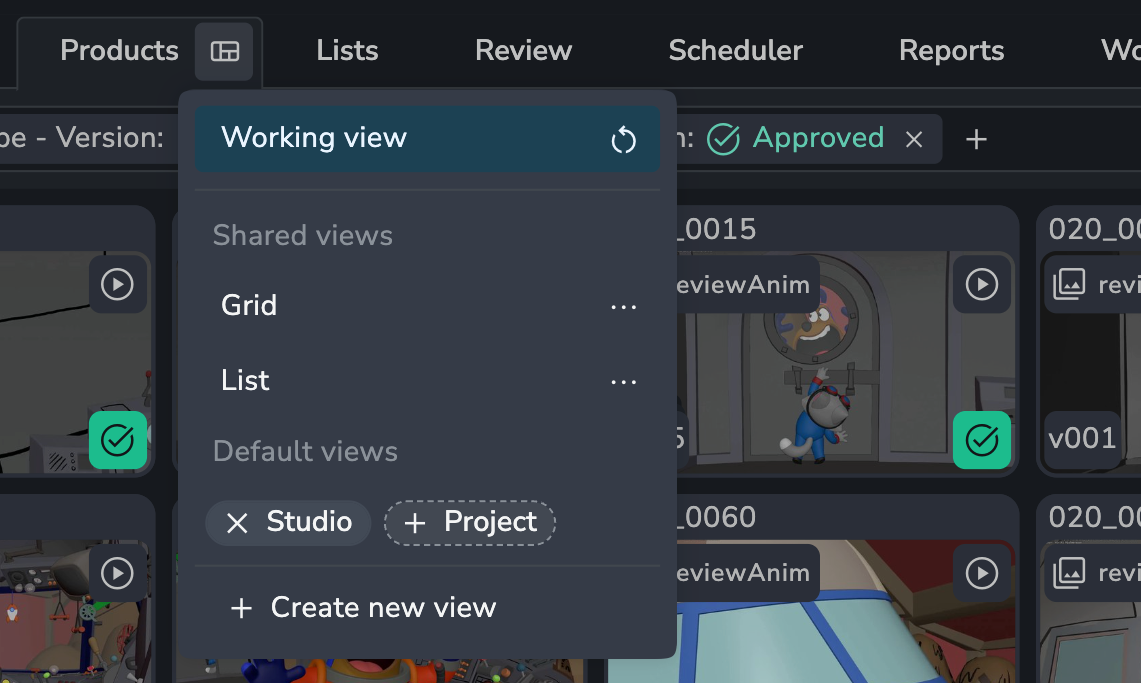
A Default View is a saved layout configuration that can be designated as the standard starting view for other users.
Only Admin users have the permission to create and manage Default Views.
Applying the Default View
Users who visit a page for the first time will not automatically load the Default View; they will start with a standard view. However, they can easily load the default at any time to replace their current layout in the Working View.
Managing Default Views
Default Views are set across two hierarchical scopes, allowing for flexible standardization:
Studio Default (All Users): This view is applied across the entire studio and is the fallback if no Project Default is active. This option is available in the Community Edition.
Project Default ⚡: This view is specific to a single project and overrides the Studio Default. Setting a Project Default requires an AYON Pro or Studio subscription (Power Features).
Set a Default View
Configure the layout (filters, sorting, columns) in your current Working View exactly as desired.
In the Default Views section (visible to Admins), click the plus icon (
+) next to the desired scope (Studio or Project).
Remove a Default View
Hover over the default view and click on the
xicon.