Substance Designer Addon Settings
Last updated Over 1 year ago
Color Management (ImageIO)
Color configuration for Substance Designer and also override the global color management settings, check Host specific overrides.
Enable Color Management
Setting Location:
ayon+settings://substancedesigner/imageio/activate_host_color_management

This toggle enables AYON's global color management. This toggle is a master switch that enables and disables the whole section.
File Rules
Setting Location:
ayon+settings://substancedesigner/imageio/file_rules
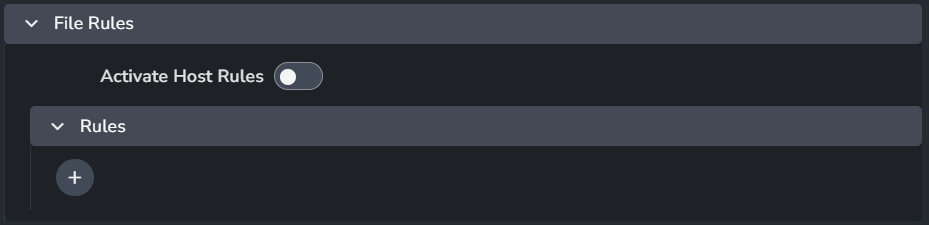
Activate Host Rules
Rules
+: Add more rules
Each rule consists of
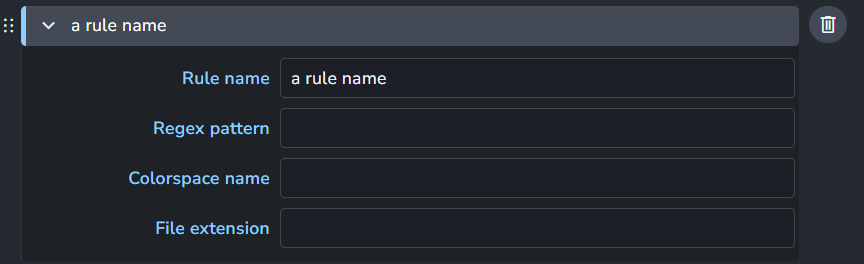
Rule name
Regex pattern
Colorspace name
File extension
Project Creation
Project Templates
Setting Location:
ayon+settings://substancedesigner/project_creation/project_templates

This setting initializes the substance designer workfile by creating a substance graph.
Each template consists of
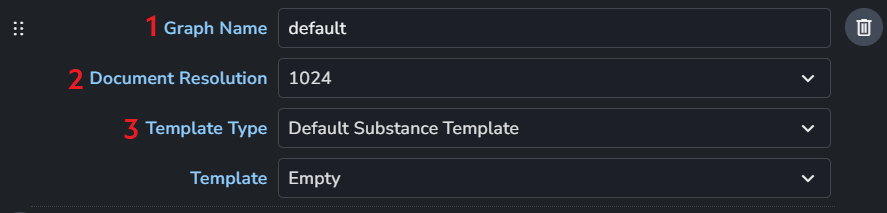
Graph Name: This name will be used for the created graph.
Document Resolution: Choose from a list the texture resolution when creating new project.
Template Type: Choose from a list either default substance templates or custom template for project creation. Each selection shows different settings. Find below the available options.
+: Add more rules
Template Type | Available Settings |
Default Substance Template | 
|
Custom Template | 
|
Template By Task Types | 
|
Creator Plugins
Create Textures
Setting Location:
ayon+settings://substancedesigner/create/CreateTextures

Review: Enable to generate review.
Image Output File Type: Choose from a list the texture output format.