Loader
Last updated 11 months ago
Overview
The Loader tool allows you to load available (already published) products into your active workfile. It also provides various options for loading, including selecting specific product version and accessing useful information related to the products like available representation types etc.
The Loader supports loading from both the current and any Library projects.
Usage
Navigate to the menu AYON > Loader
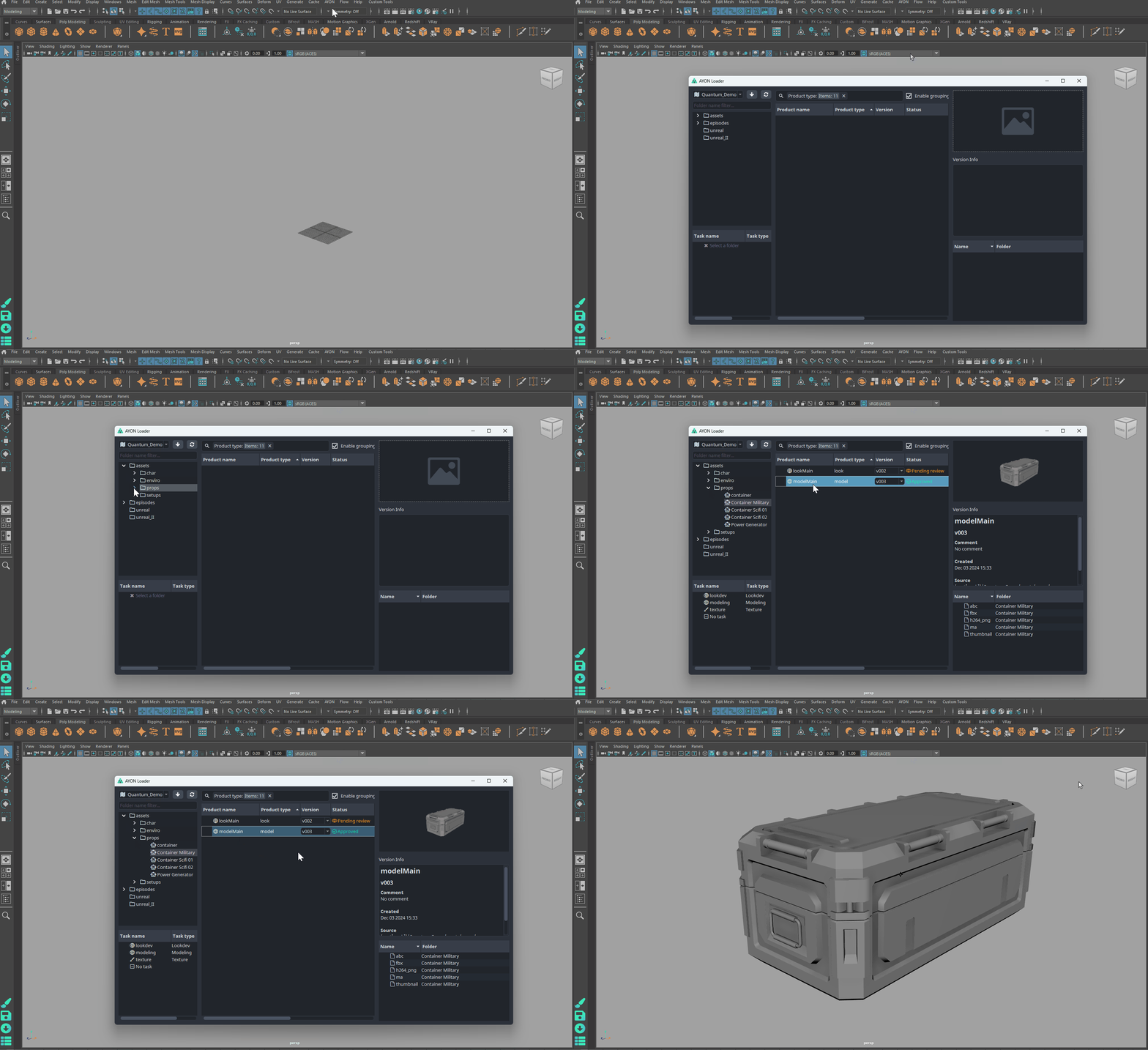
In the Loader window, navigate to the left view pane containing file browser and select the Folder you would like to load from.
From the middle pane, pick the product type you want from the folder you previously selected.
Right-click on the product to show the Actions menu.
Select the way the product gets into your scene (load, reference, ...).
You can also perform the load action on multiple selected products simultaneously.
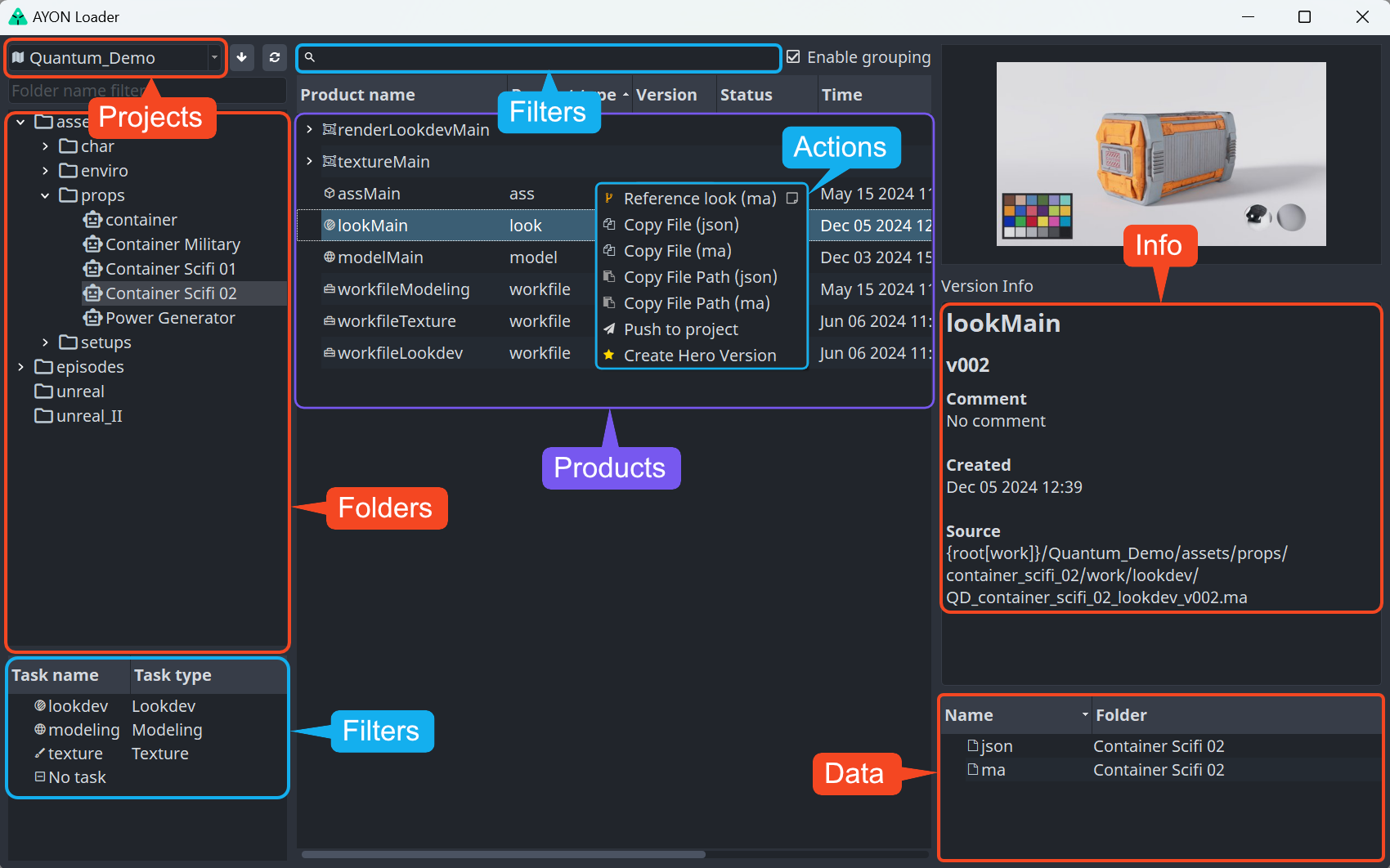
Loader Window
Here's a screenshot of the Loader window with marked areas for Folders, Products, Info & Data, and the Actions menu. You can apply different types of filters to the items listed in each area.
Project Selection
On top left, there’s a combo Box which allows you to choose project you want to load from.
At present, the project menu includes only the current project and library projects.
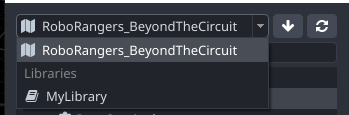
To access a different project in the Loader, mark it as a library in the web interface. They’ll then appear under the Libraries section.
Refresh data
Data is not auto-refreshed. To refresh assets or products, press the refresh button. You can alternatively close and re-open the Loader instead.

Load another version
By default, Loader loads the latest existing version, but you can load any other existing version too. Double-click on the product in the version column to expose the dropdown and choose the version you want. Next, right-click to access the Actions menu and select any of the load actions.
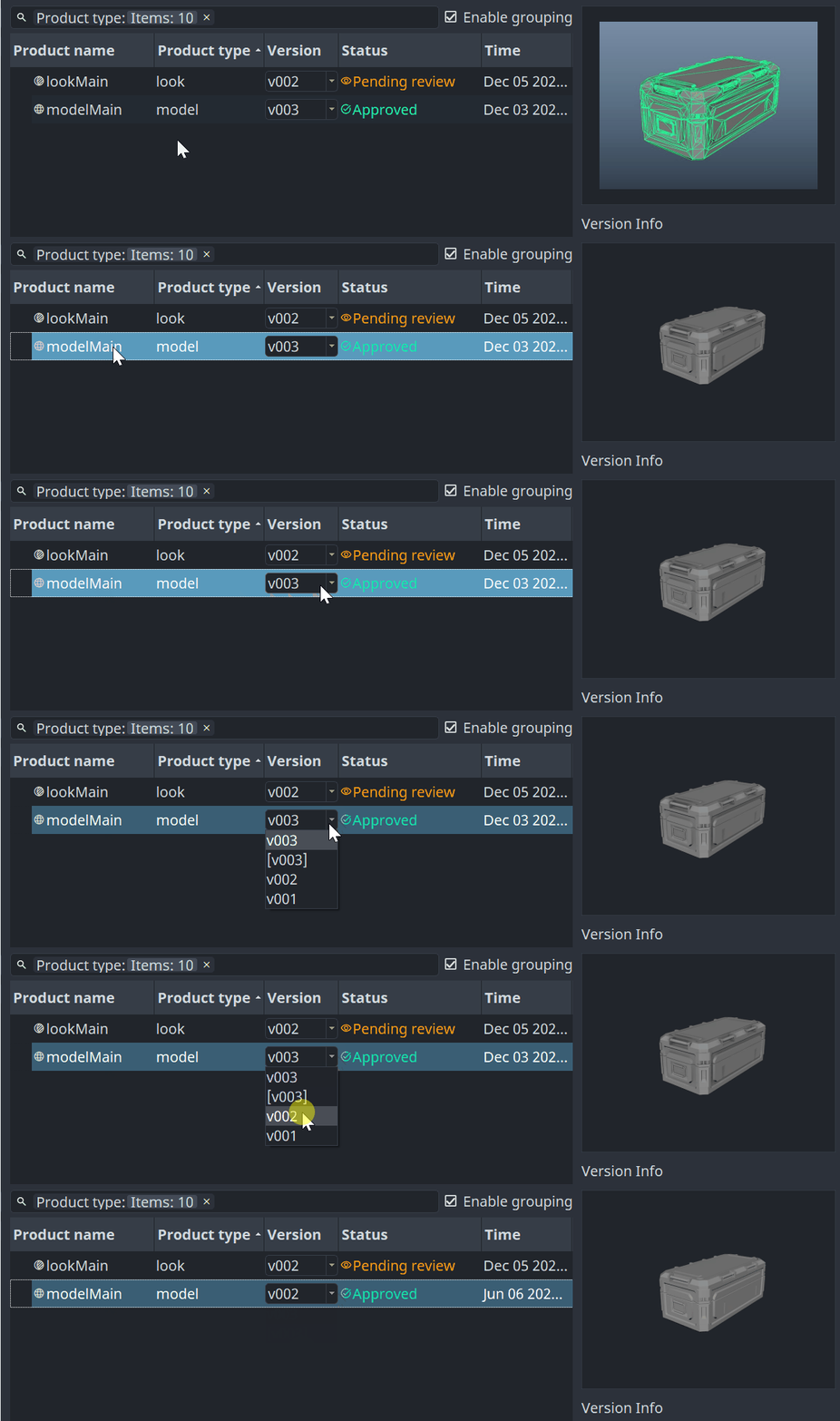
The Hero version is denoted by square brackets and shows the version number it was derived from.
For example, if a Hero version was published from version v003, the Hero version will look like [v003].
Filtering
Filter Products by name
To filter products by name, choose the filter type Product Name and type the name or part of it in the filter input box. Only product names containing the string remain visible
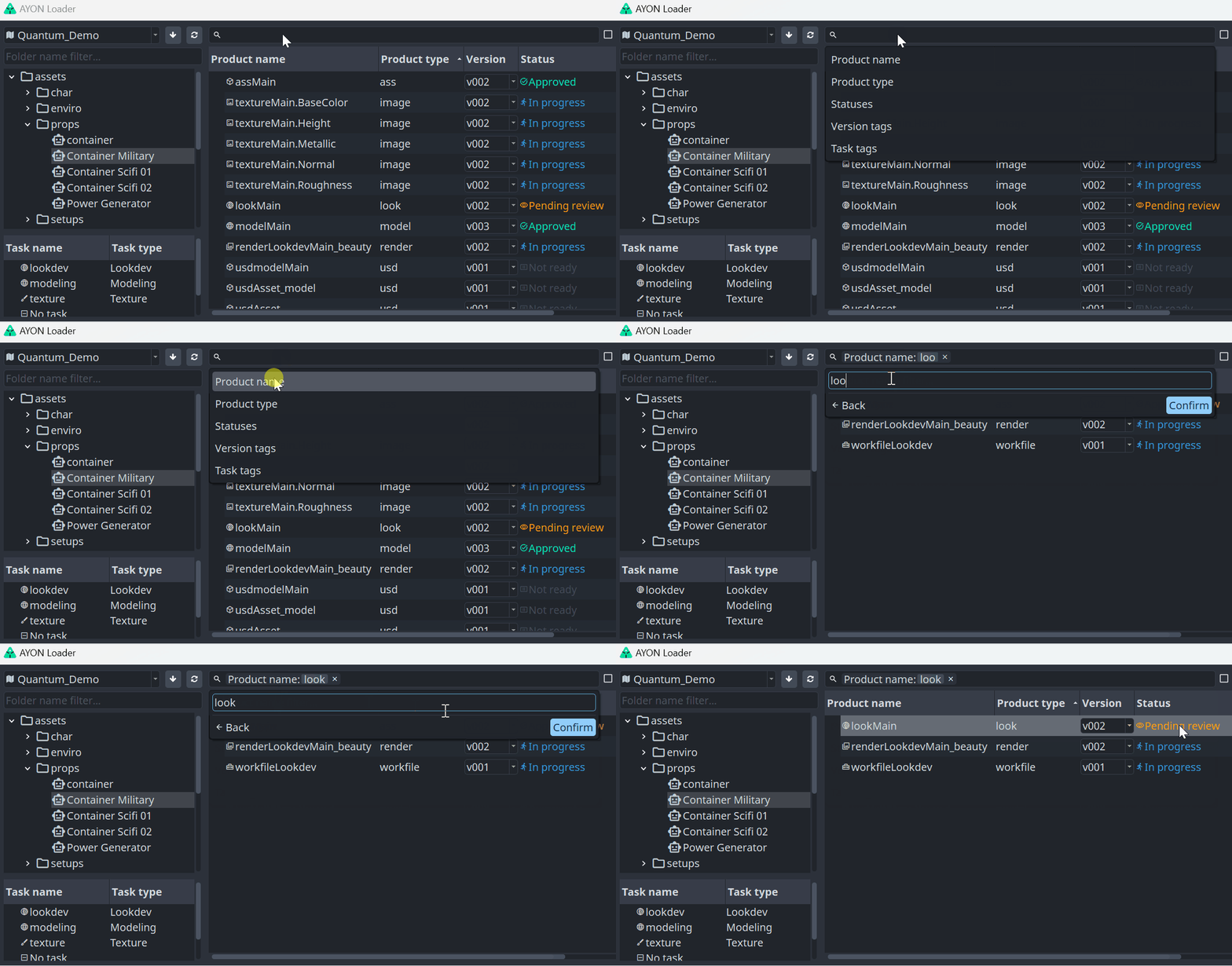
Filter Products by product type
To filter products by their producty type navigate to the Filter items… at the top, pick Product Type list and check the product type(s) you want to display. You are also free to invert your selection via buttons below to make the filtering process quicker filtering out types which you are not interested in.
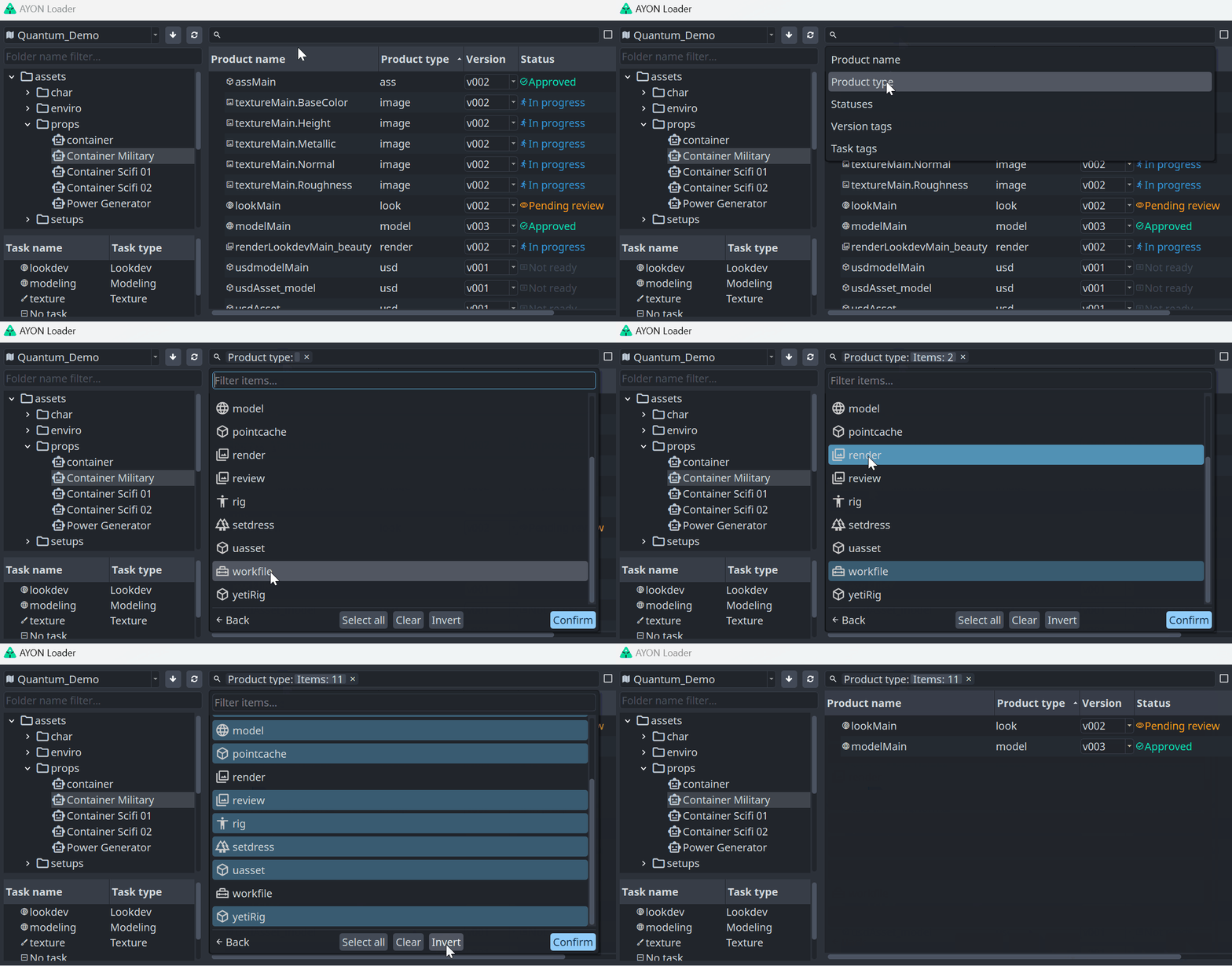
Combining Filter types
You can combine different types of filters simultaneously, enhancing the effectiveness and versatility of filtering options.
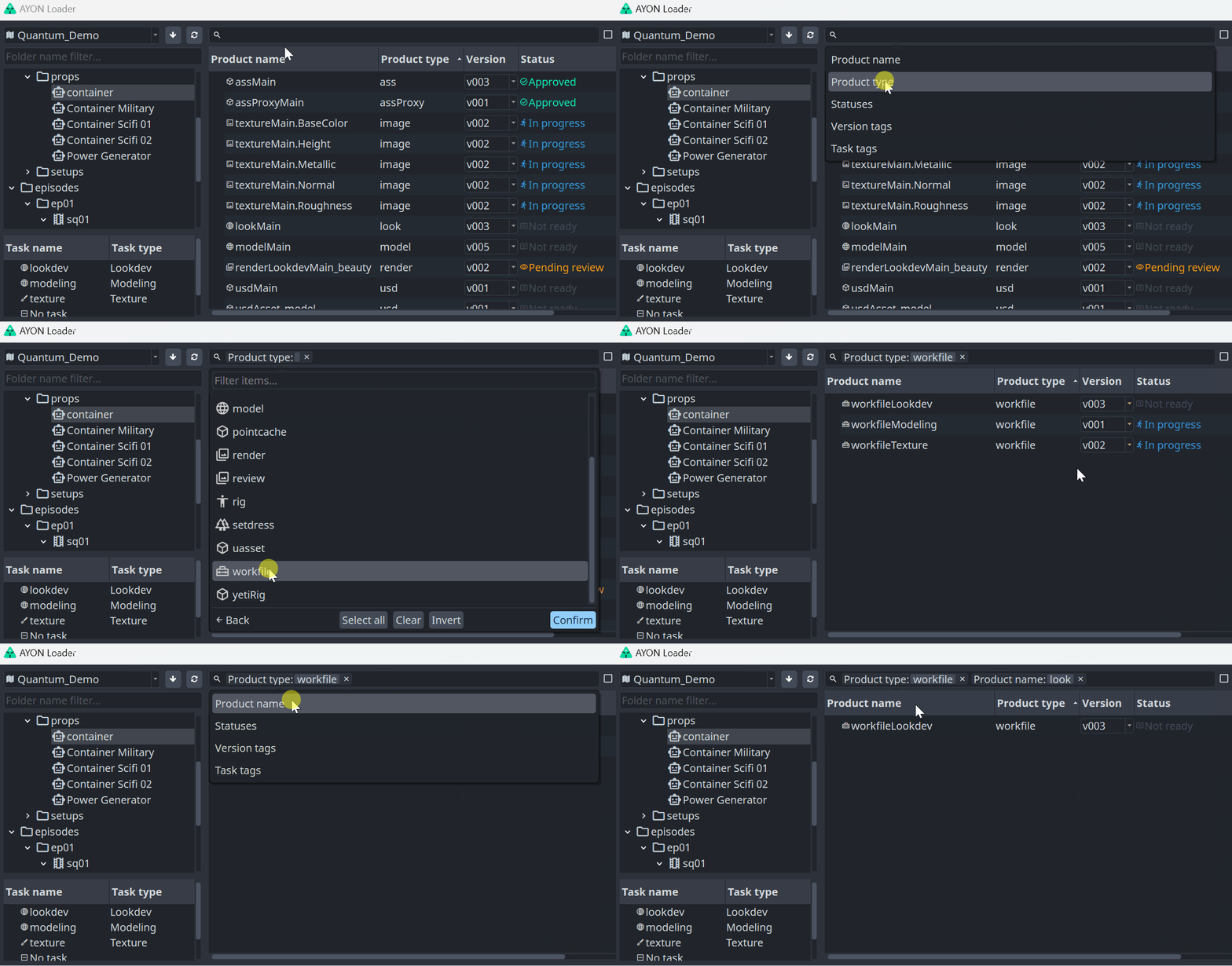
Product groups
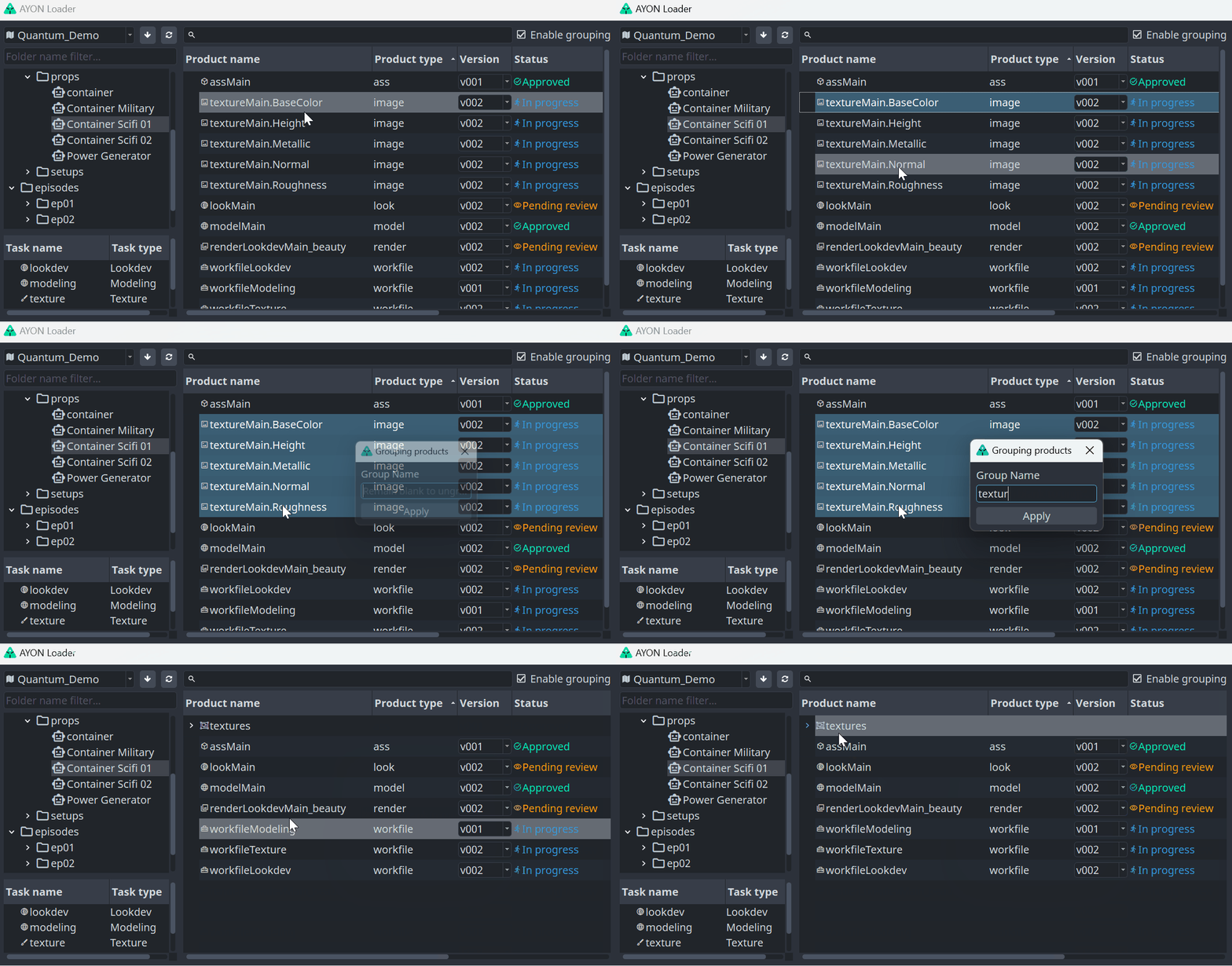
Products may be grouped to improve readability in the Loader. You can toggle the visibility of groups with the Enable Grouping checkbox.
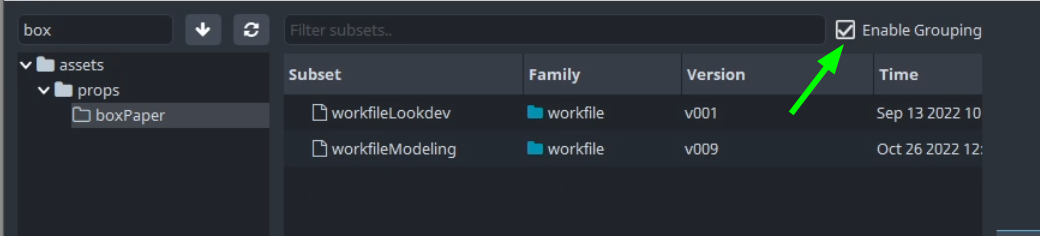
Add to group or change current group
You can set the group of selected products with the shortcut Ctrl + G. If needed, you can remove the existing group by selecting it first and hitting Ctrl + G, leaving its name empty, which removes the group completely.
The group setup will apply to all users involved in the project shared across the database.
Site Sync support
If Site Sync is enabled in AYON Studio Settings, an additional widget appears in the Loader's bottom-right corner. This widget allows the user to share work across multiple sites, whether it's a local drive or a remote site like Google Drive. The widget offers a set of tools for transferring data across sites.
It contains a list of all representations for the selected asset and their availability on a particular site:
active: yours
remote: theirs
As shown on the right, there are representation files available only on the remote site, but not on the local site. If you want to work with the files, you need to download them first. To download a particular representation, right-click on it and select the Download action.
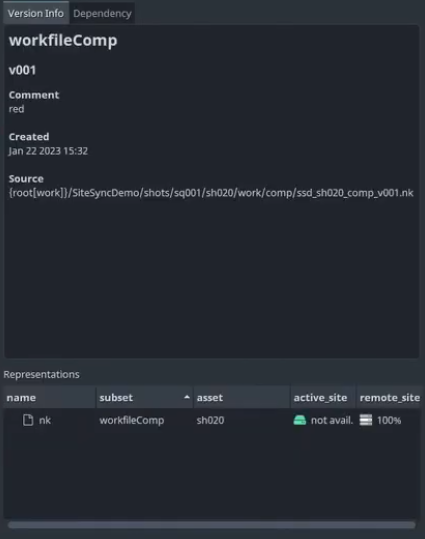
You can use multi-selection for representations to mark them for downloading in one step.