Working with Premiere in AYON
Last updated Over 1 year ago
Overview
Premiere integration currently allows you to:
import and add various media to sequences (image plates, renders, audio files, video files etc.)
manage workfiles (eg. load existing, publish new ones)
Premiere Extension Installation
Once your admin activates Premiere in the production bundle under Applications and Tools settings, you need to run the AYON Launcher at least once. This ensures the launcher downloads the addon to the correct location on your computer. The launcher will then automatically install the extension for your convenience, as outlined in the Automated Installation section. If it fails, refer to the Manual Installation instructions.
Automated Installation
This could be handled by auto_install set up by your TD / Admin already. Please check with them, or if you are feeling adventurous just try to open Premiere via AYON directly.
If you see there AYON Menu or you find AYON option in Windows > Extensions, you are in luck and extension is installed. No need to install it manually and you can skip next section.
Manual Installation
Windows
There is a possibility that admin installed extension for you or set automatic installation. You could try to use AYON Launcher and start Premiere on selected task.
If you are seeing AYON integration gray menu (or after enabling it in Window > Extensions > AYON) you are good to go and you can safely skip next section about installing extension.
Use your favorite app to install extensions. We recommend using Anastasyi's Extension Manager.
Locate and install the
extension.zxpfile. You can find it in theAppDatafolder, typically atc:\Users\YOUR_USER\AppData\Local\Ynput\AYON\addons\premiere_X.X.X\ayon_premier\api\extension.zxp.
You can quickly navigate to the local app data using the environment variable shortcut: %LOCALAPPDATA%. For example, using %LOCALAPPDATA%\Ynput\AYON\addons as path to see your installed addons.
Linux
Use your favorite app to install extensions.
Locate and install the
extension.zxpfile. You can find it in the user data folder, typically at~/.local/share/Ynput/AYON/addons/premiere_X.X.X/ayon_premier/api/extension.zxp.
MacOS
Use your favorite app to install extensions. We recommend using Anastasyi's Extension Manager.
Locate and install the
extension.zxpfile. You can find it in theApplication Supportfolder, typically at~/Library/Application Support/Ynput/AYON/addons/premiere_X.X.X/ayon_premier/api/extension.zxp.
AYON Tools
Once everything is set up, when launching Premiere via AYON launcher, you’ll be able to find and use AYON tools.
AYON Global Tools
AYON Pipeline Tools
On newer MacOS you need to:
go to
Applications/Adobe Premiere XXXXright clicking on the
Adobe Premiere XXXX.appthen
Get Info, checkOpen using Rosetta
Quick Start
When you launch Premiere you will be met with the Workfiles app. If don't have any previous workfiles, you can just close this window.
Workfiles tools takes care of saving your .prproj files in the correct location and under a correct name. You should use it instead of standard file saving dialog.
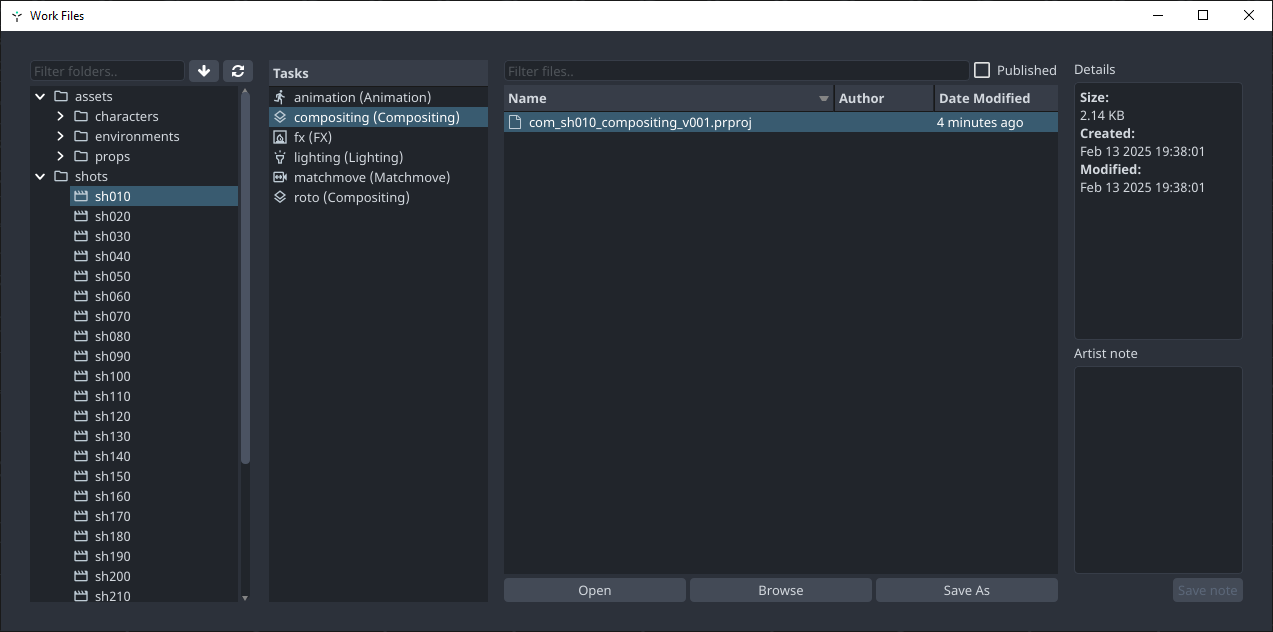
In Premiere you'll find the tools in the AYON extension. You can show the extension panel by going to Window > Extensions > AYON.
Publish
When you are ready to share some work, you will need to publish it. This is done by opening the Creator / Publisher through the Publish... button.
There is always instance for workfile created automatically (see workfileCompositing item in Products to publish column.) This allows to publish (and therefore backup) workfile which is used to produce another publishable elements (as image and review items).
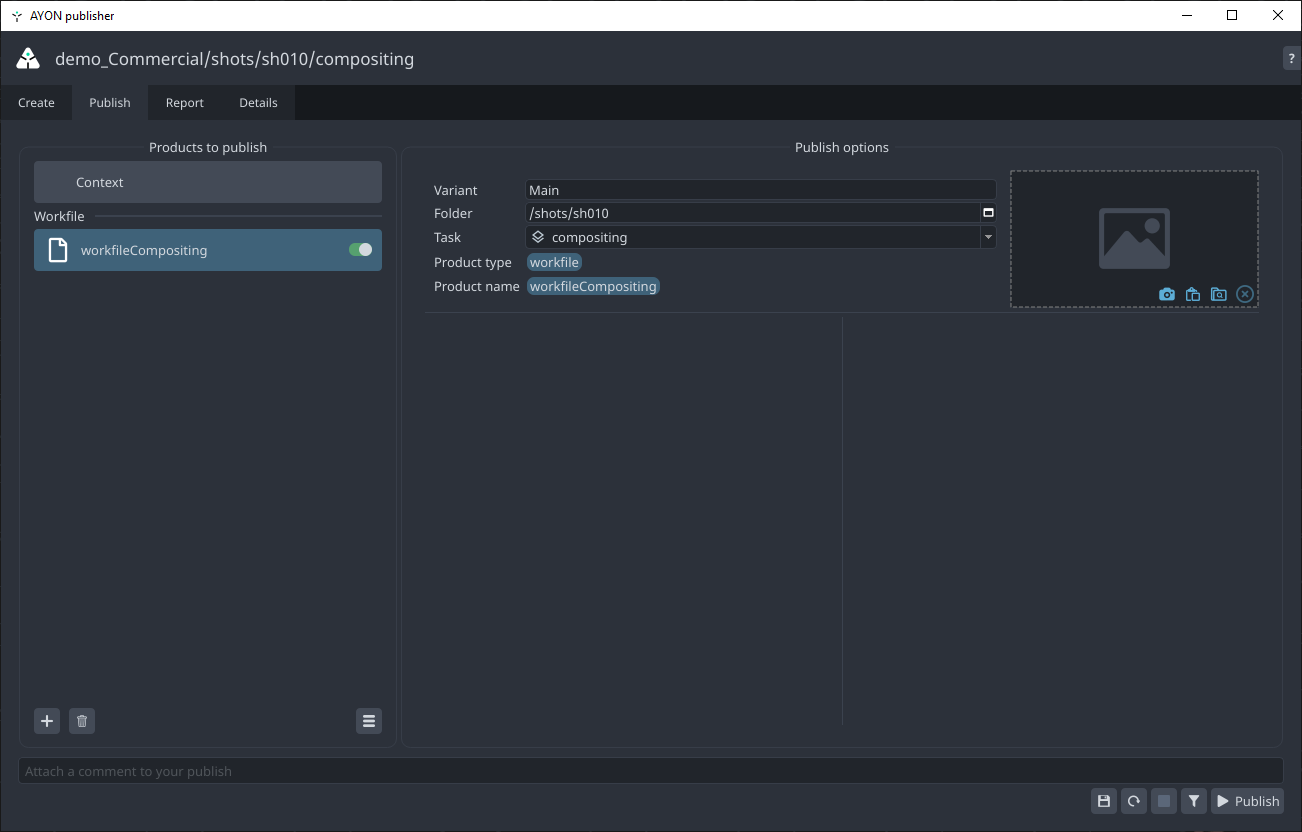
Workfile instance will be automatically recreated though. If you do not want to publish it, use pill toggle on the instance item.
If you would like to modify publishable instance, click on Publish tab at the top. This would allow you to change name of publishable instances, disable them from publishing, change their task etc.
Publisher allows publishing into different context, just click on any instance, update Variant, Folder or Task in the form in the middle and don't forget to click on the 'Confirm' button.
Custom Product Names
Name of publishable instance (eg. product name) could be configured with a template in Product name profiles ayon+settings://core/tools/creator/product_name_profiles.
(This must be configured by admin who has access to AYON Settings.)
Load
When you want to load existing published work, you can use the Loader tool. You can reach it in the extension's panel.
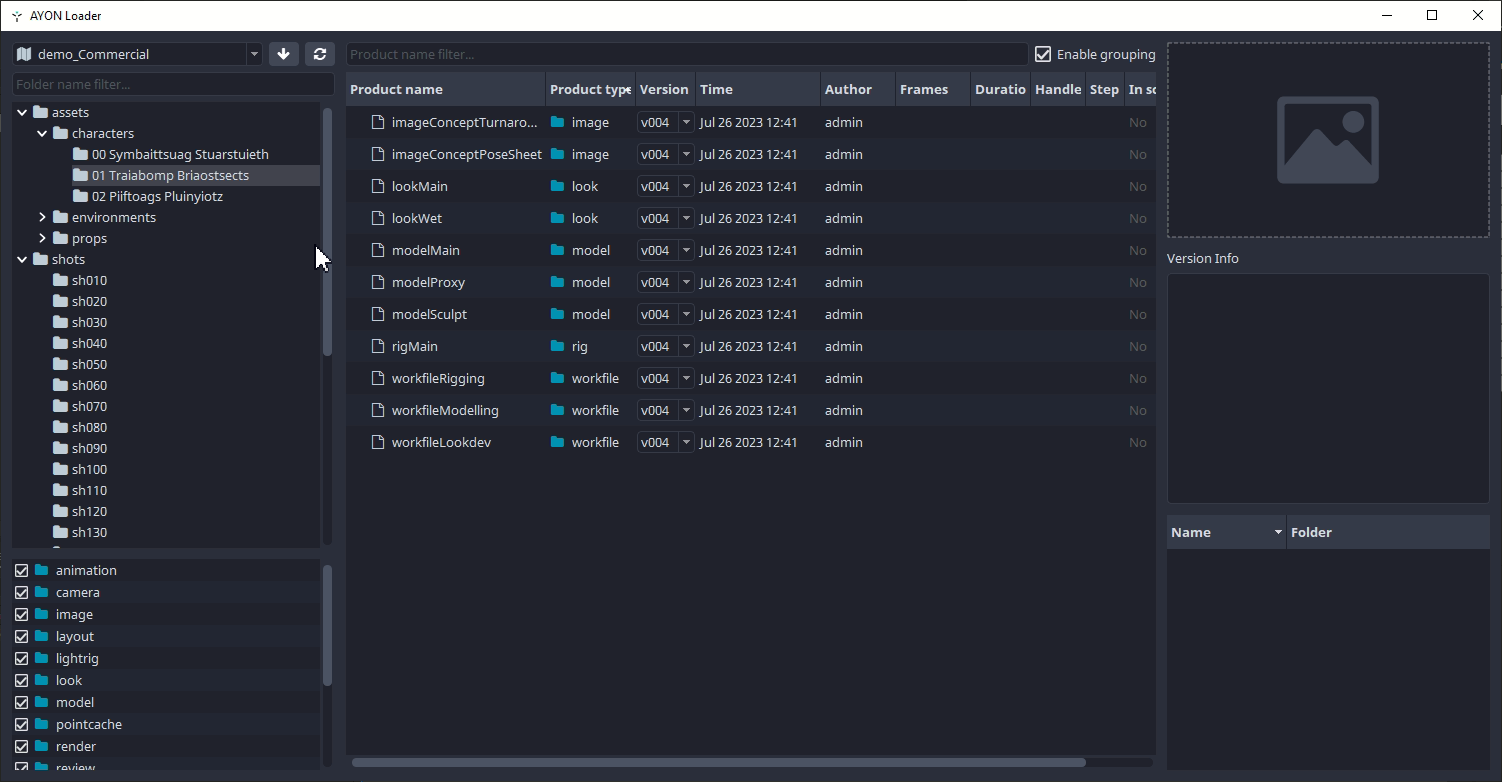
The supported product types for loading into Premiere are:
imageplaterenderprerenderreviewaudio
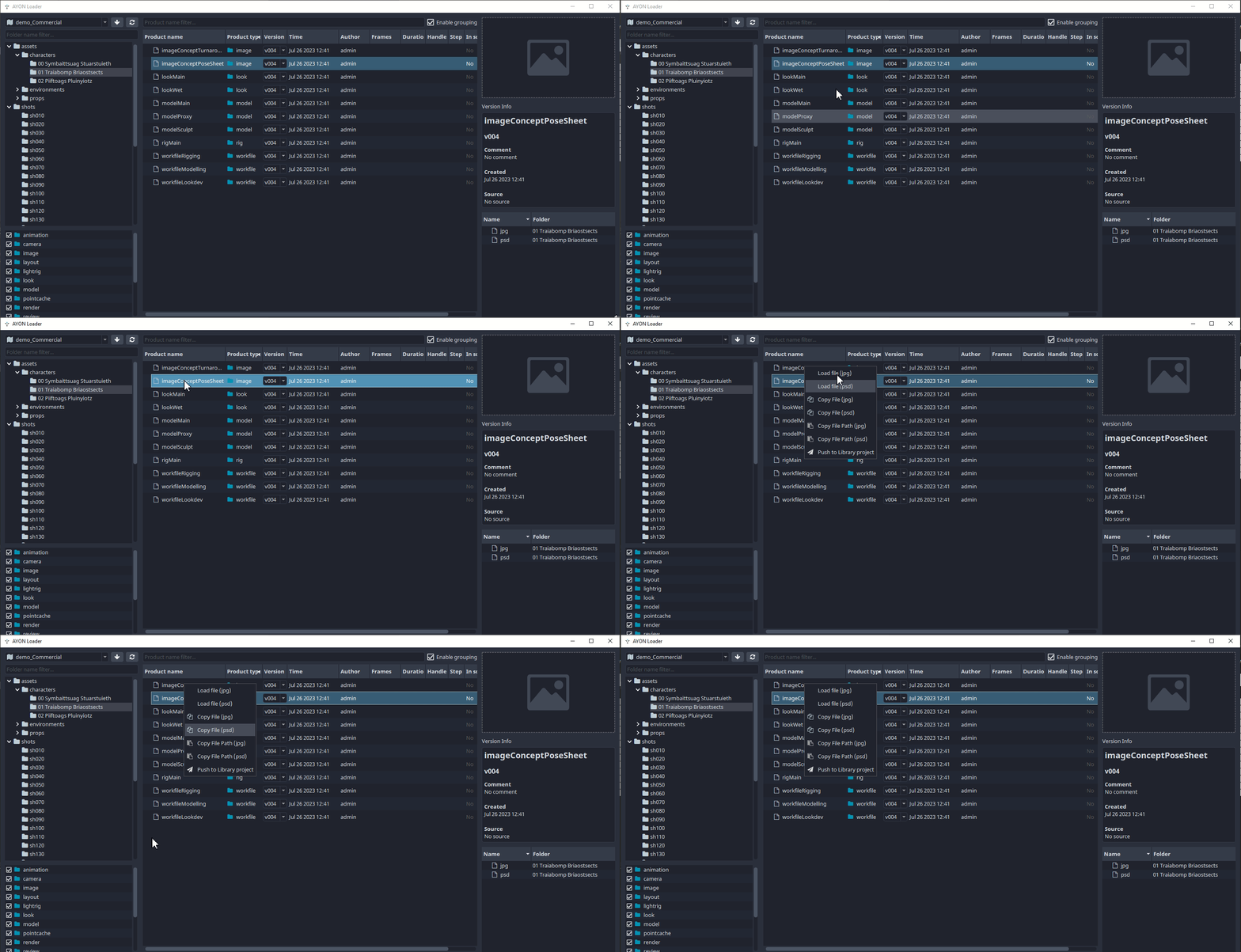
To load an item, right-click on the product you want and choose a representation you want to load:
Manage
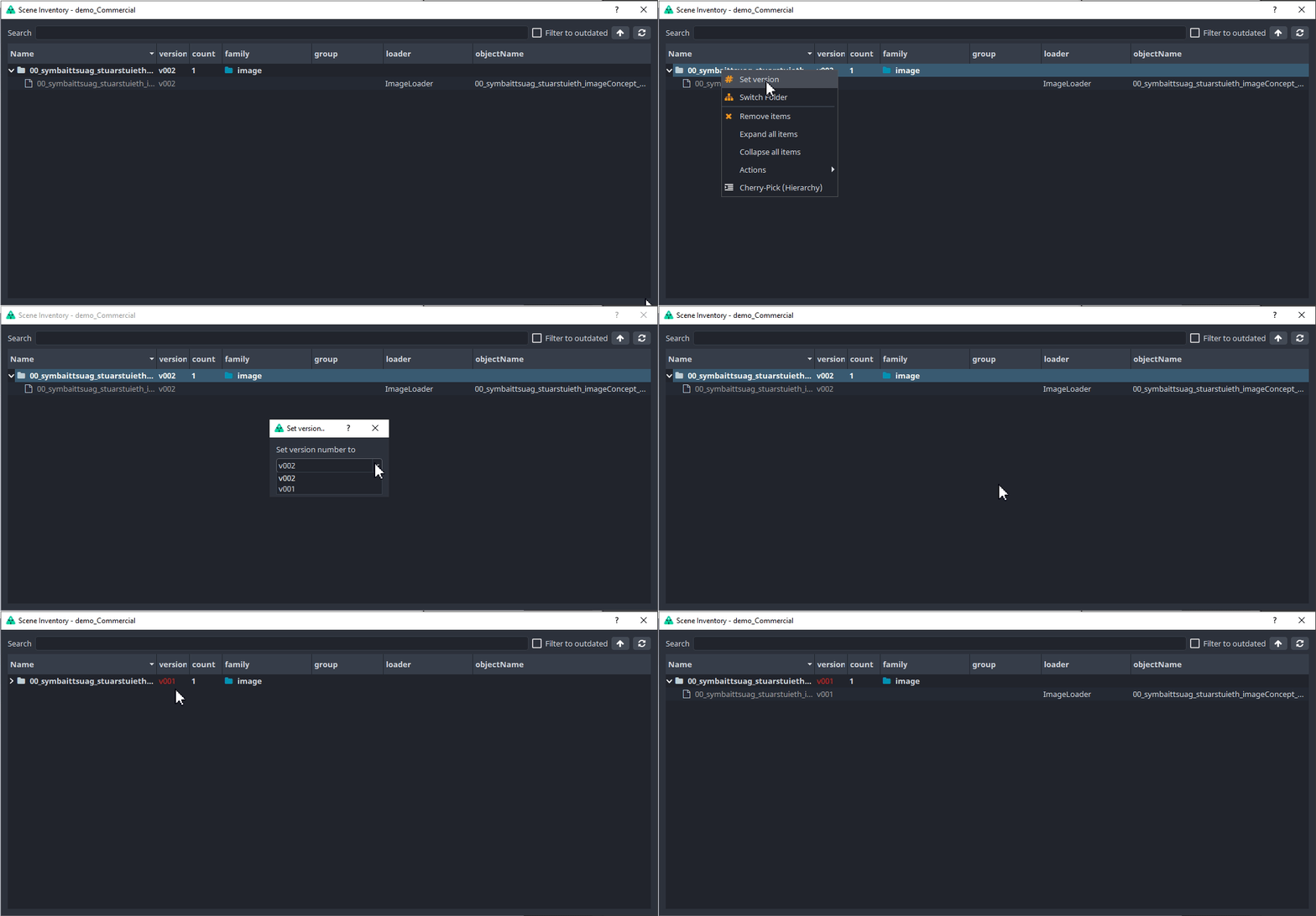
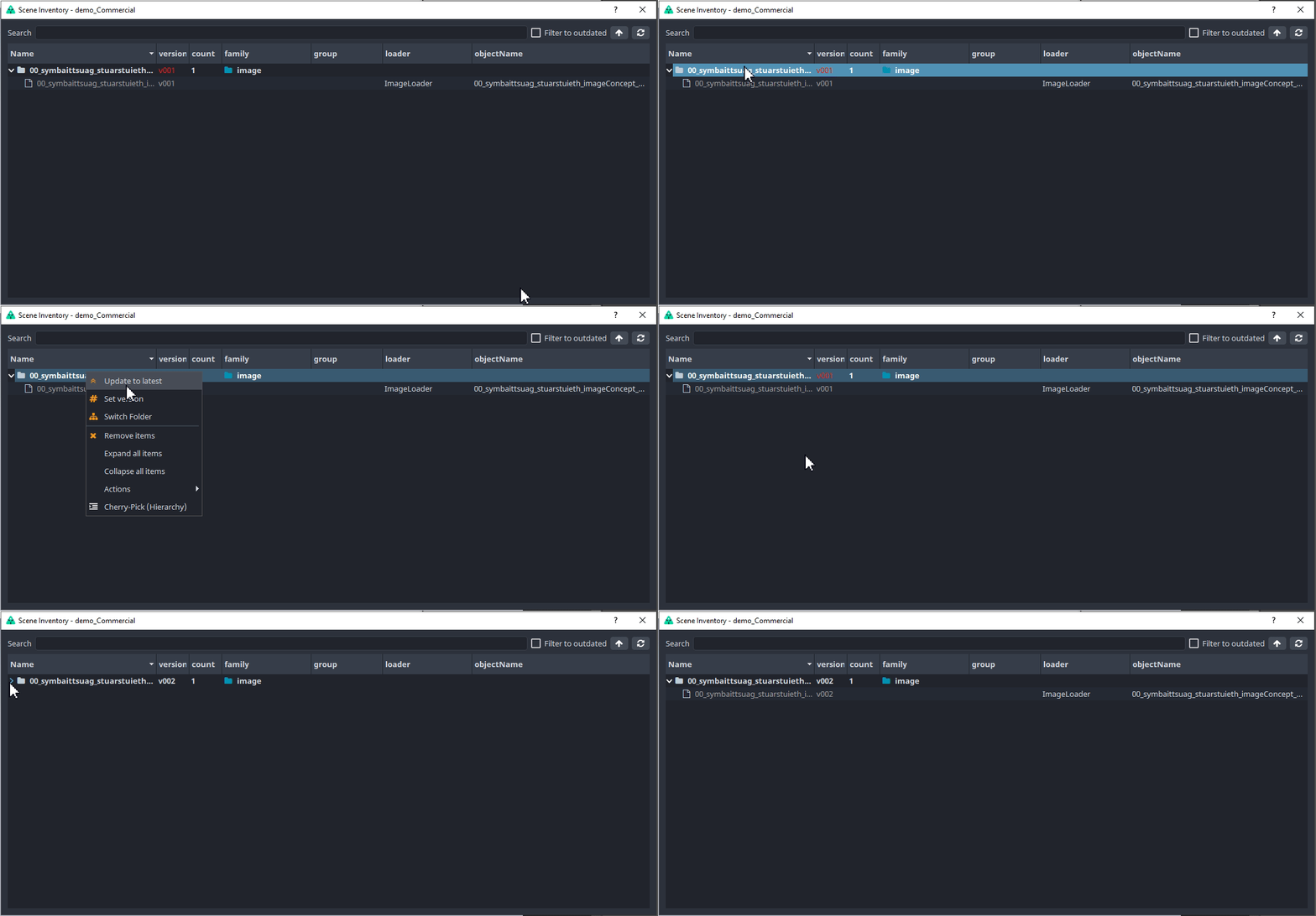
Now that we have some content loaded, you can manage which version is loaded. This is done through the Scene Inventory. You can reach it through the extension's Manage button.
Loaded images have to stay as smart layers in order to be updated. If you rasterize the layer, you can no longer update it to a different version using AYON tools.
You can switch to a previous version of the image or update to the latest.
Troubleshooting
If you would like to ask for help admin or support, you could use any of the three options on the Note button on bottom left:
Go to details- switches into a more detailed list of published instances and plugins.Copy report- stash full publishing log to a clipboardExport report- save log into a file for sending it via mail or any communication tool
If you are able to fix the workfile yourself, use the first button on the right to set the UI to initial state before publish. (Click the Publish button to start again.)
Experimental tools
Currently empty. Could contain special tools available only for specific hosts for early access testing.
Metadata management
For AYON integration to work, some information about loaded items or create instances is stored directly into .pproj file.
For this new dummy Bin with name AYON Metadata - DO NOT DELETE is always automatically created. This Bin shouldn't be touched or all information about loaded containers would be lost!
But if you encounter some unrecovered error, Creator / Publisher or Scene Inventory windows wouldn't show up, you might try to delete this Bin. It will be re-created after pushing on Publish... menu item.
(For curious metadata are physically stored in this Bin.Clip.Description)