Configure Hiero Addon
Last updated Over 1 year ago
Color Management (ImageIO)
Setting Location:
ayon+settings://hiero/imageio
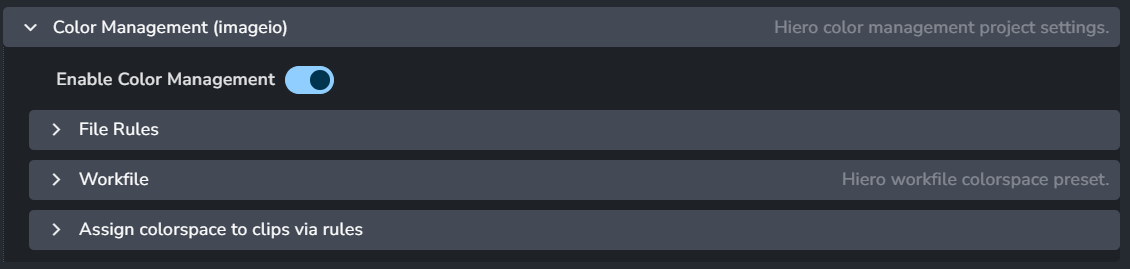
Allows admins to override the global color management settings, check Host specific overrides.
Enable Color Management: This toggle enables AYON's global color management. This toggle is a master switch that enables and disables the whole section.
File Rules

Activate Host Rules
Rules
+: Add more rules
Each rule consists of
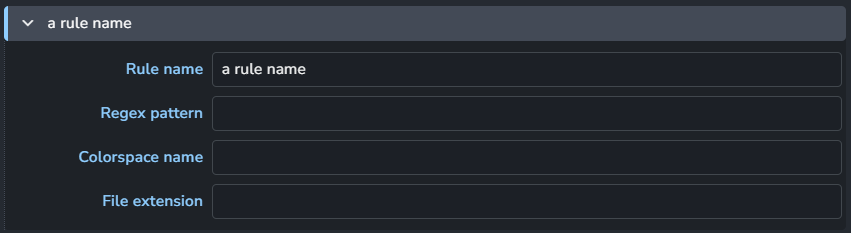
Rule name
Regex pattern
Colorspace name
File extension
Workfiles
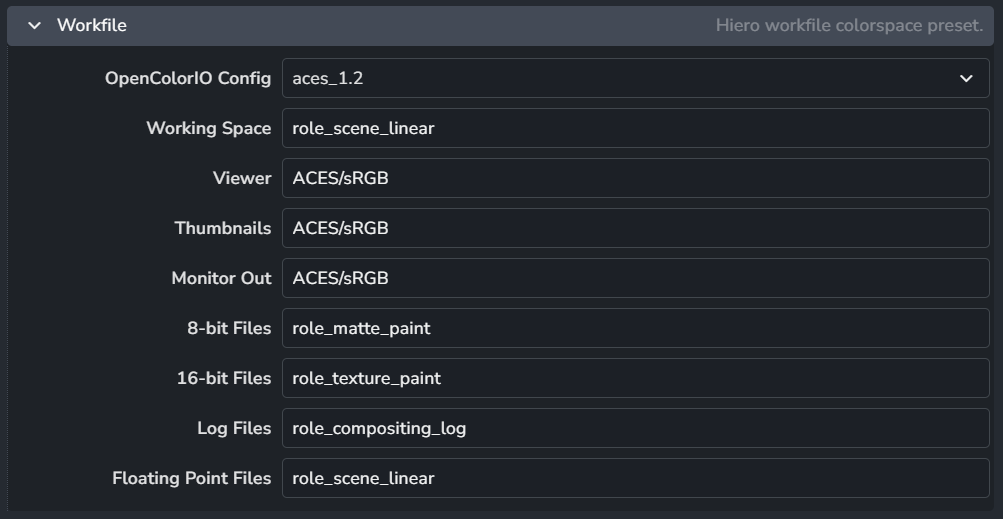
Hiero project color settings map 1:1
OpenColorIO Config
Working Space
Viewer
Thumbnails
Monitor Out
8-bit Files
16-bit Files
Log Files
Floating Point Files
Assign colorspace to clips via rules
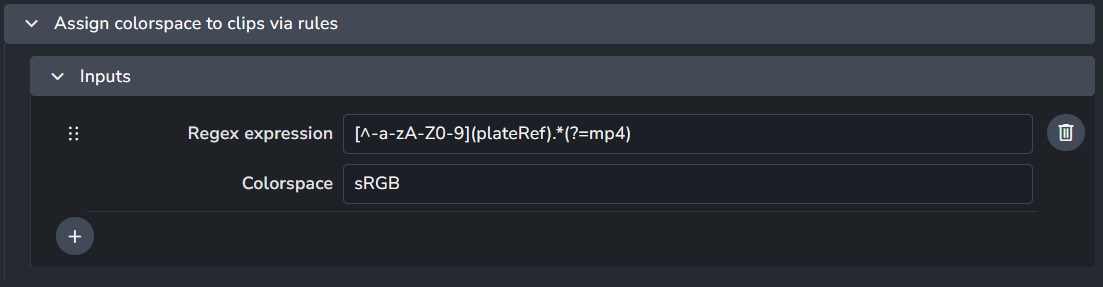
When using loading different clips and images sequences via AYON loader, you can set the default colorspace for the read node based on a regex expression.
Regex expression
Colorspace
+: Add more rules.
Creator Plugins
Create Shot Clip
Setting Location:
ayon+settings://hiero/create/CreateShotClip
Set default values for all Creator attributes in the Creator UI from this settings category. This helps predefine the values for Creator attributes. Let's break it into smaller sections:
Shot hierarchy and rename settings
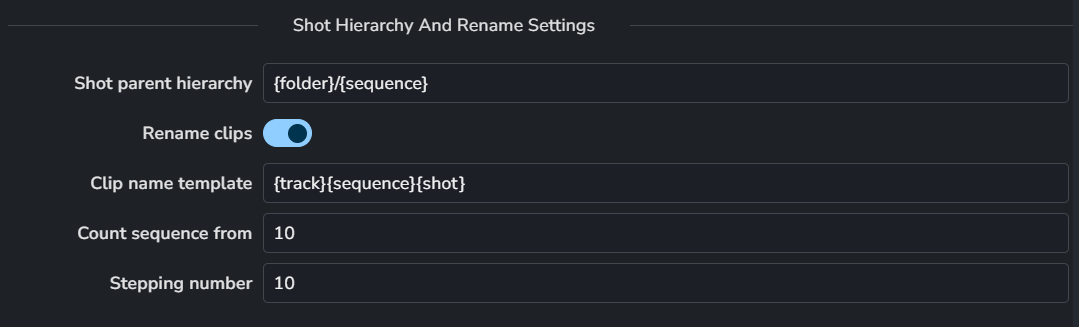
Shot parent hierarchy - template for defining the parent hierarchy of the Shot folder.
Rename clips - if enabled, the plugin will use renaming rules to rename the clips sequentially.
Clip name template - template for defining the shot clip name.
Count sequence from - numeric value for defining the starting number for the shot name.
Stepping number - numeric value for defining the incrementing number for the shot name.
Shot template keywords
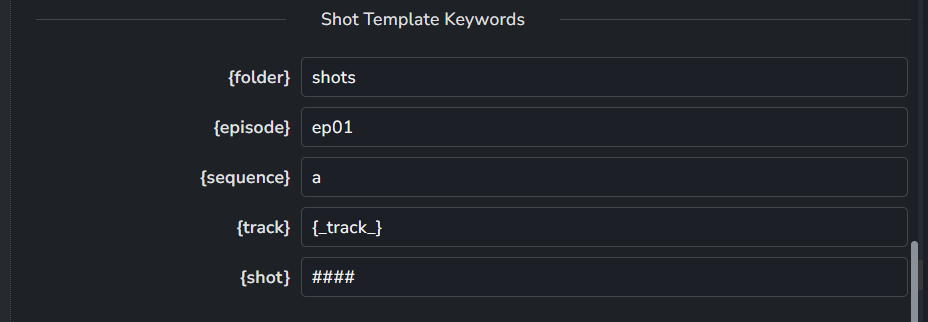
Following is a list of available keywords that can be used in Shot parent hierarchy or Clip name template of the Shot hierarchy and rename settings section above:
{folder} - Literal value for the Folder token. Text and numbers can be used.
{episode} - Literal value for the Episode token. Text and numbers can be used.
{sequence} - Literal value for the Sequence token. Text and numbers can be used.
{track} - Literal value for the Track token. Text and numbers can be used. Hiero’s original track name could be accessed via the {_track_} token.
{shot} - Literal value for the Shot token. Text and numbers can be used. Hashes are used to define the number of digits in the sequence number. Original hiero segment name could be accessed via the {_shot_} token.
Vertical synchronization of attributes

Enable vertical sync - If enabled, clips on the timeline in multiple tracks will be synchronized vertically with the same attributes. Shot names will also be synchronized. The workflow assumes that the clips above the main hero track are vertically aligned without overlaps. Clips can be shorter than the main hero track clip, but not longer. The plugin will use the main hero track clip as a reference for vertical synchronization.
Shot attributes
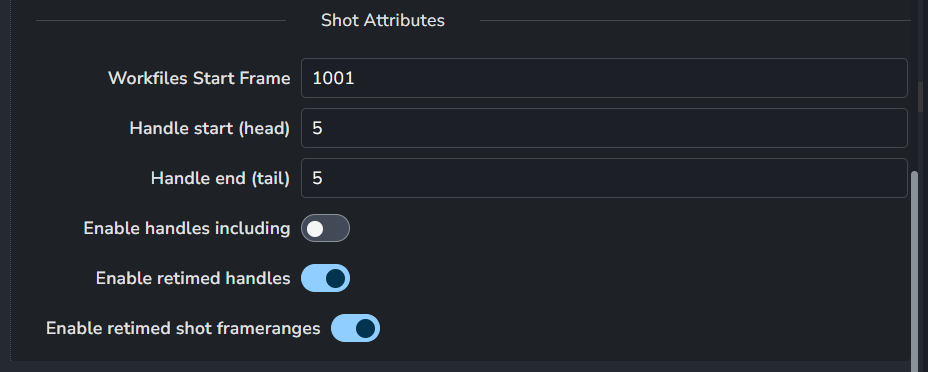
Workfile start frame - Numeric value for defining the starting frame of the workfile. This value is set to Shot folder attributes as Frame start value.
Handle start (head) - Numeric value for defining the maximum trimming value to be applied to the head of the clip. If the available media is shorter than the handle value, the clip will be trimmed to the available media length. The resulting value is then set to the Shot folder attributes as Handle start value.
Handle end (tail) - Numeric value for defining the maximum trimming value to be applied to the tail of the clip. If the available media is shorter than the handle value, the clip will be trimmed to the available media length. The resulting value is then set to the Shot folder attributes as Handle end value.
Enable handles including - If enabled, handles will be included in the workfile start frame value. Since AYON excludes handles by default, this option will recalculate the workfile start frame value to include them. Here is an example of the resulting calculation:
'workfile start frame' = 'workfile start frame' - 'handle start' + 1Enable retimed handles - If enabled, shot attributes for handles will be recalculated based on the speed of the retimed clip. This option is useful when production wants to avoid including handles that result in a high number of frames due to high retime speeds. The handle values will be recalculated based on the retime value. For example:
'handle start' = 'handle start' * 'retime speed'and'handle end' = 'handle end' * 'retime speed'Enable retimed shot framerange - If enabled, the shot attributes for the frame range will be recalculated based on retimed timeline segment. This option is useful disabled when production wants to keep unretimed working framerange. The frame range values will be recalculated based on the retime value. For example:
'workfile start frame' = 'workfile start frame' * 'retime speed'and'workfile end frame' = 'timeline segment duration' * 'retime speed'
Collect Shot Clip Instances
Setting Location:
ayon+settings://hiero/create/CollectShotClip

Collect only instances from selected clips
Loader plugins
Load Clip
Setting Location:
ayon+settings://hiero/load/LoadClip
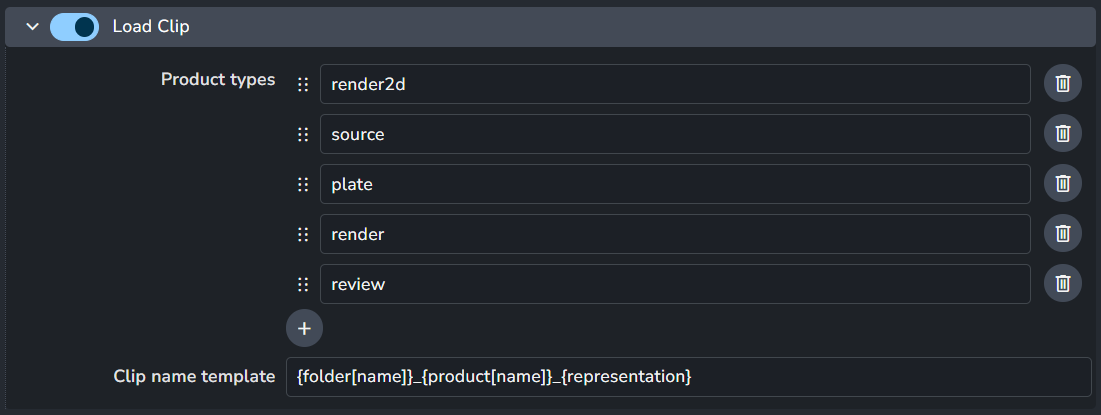
Product types
Clip name template
Publish plugins
Collect Clip Effects
Setting Location:
ayon+settings://hiero/publish/CollectClipEffects

Effect Categories
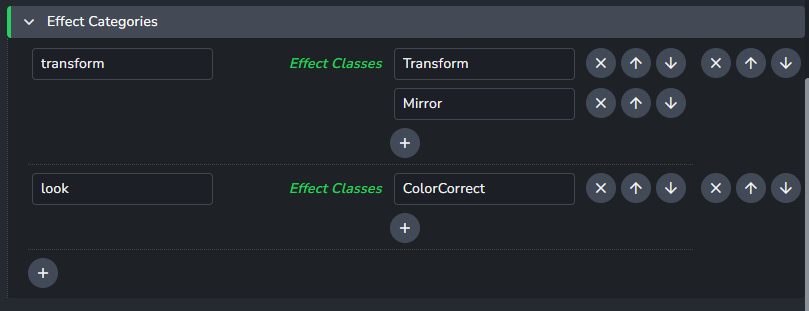
This setting allow studios to split soft effect stacks into meaningful categories. For example splitting look related effects from transform related effects.
The names of the effect classes do not have to include any numbers. For example the Text effect's class is Text2, so just input Text.
If there are no categories, then all effects will be published together.
The categories will sufficed to the subset name when publishing:

Effect Tracks
+ : Add an item
Each one consists of

Effect Name
Track Names
Custom Tools
Setting Location:
ayon+settings://hiero/scriptsmenu
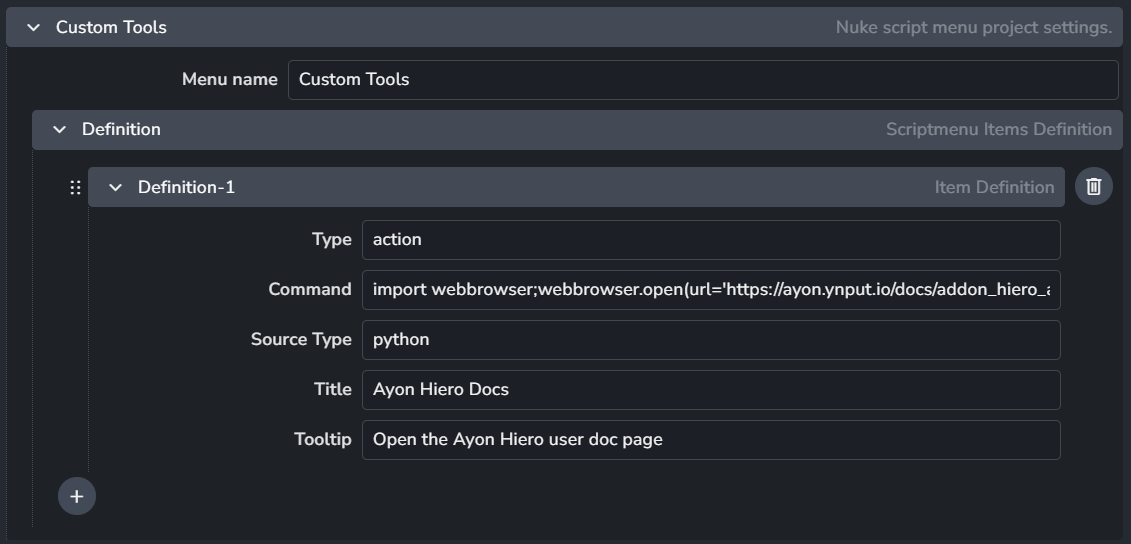
Creates a custom tools menu from the provided action definitions which extends definitions in Hiero -> Scripts Menu Definition.
Menu Name
Definitions
Each definition includes
Type
Command
Source Type
Title
Tooltip
+: Add more definitions
Filters
Setting Location:
ayon+settings://hiero/filters

+ : Add a filter.
Each filter consists of

Name
Active