FAQ
Frequently asked questions about AYON pipeline
Last updated 5 months ago
How to Synchronize Workfile Version to Published Version
The AYON pipeline allows you to publish products with the same version number as your current workfile.
To enable this feature, follow these steps:
Enable Host Application Support: Ensure that your Digital Content Creation (DCC) application is included in the list of hosts for the Collect Version from Workfile plugin, which can be found at
ayon+settings://core/publish/CollectSceneVersion/hosts.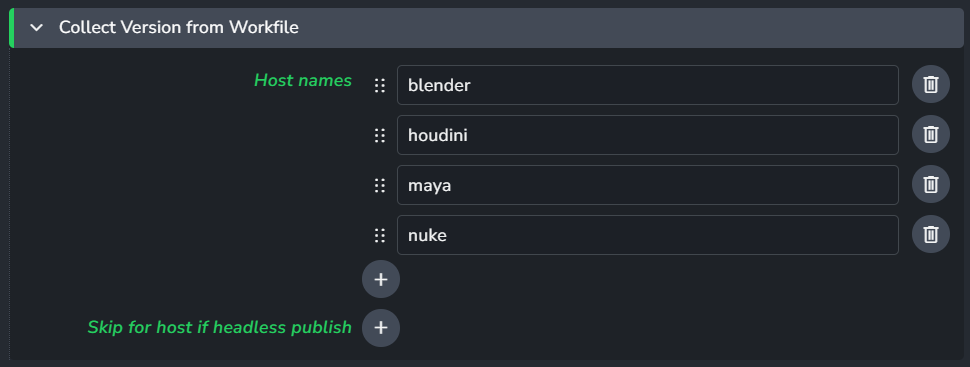
Version synchronization will not occur for applications not on this list. For example, in the image above, the version sync feature will only work for Blender, Houdini, Maya, and Nuke, as they are the only ones currently listed.
Enable Global Version Sync: To enable workfile version sync for all published products, enable the Follow workfile version setting, which is located at
ayon+settings://core/publish/CollectAnatomyInstanceData/follow_workfile_version.
Nuke-Specific Configuration: Nuke offers a specific setting that allows you to control which product types apply the workfile version sync. This setting is part of the Collect Instance Data plugin, located at
ayon+settings://nuke/publish/CollectInstanceData.
Important Note: Enabling the Follow workfile version setting from Step 2 will override this Nuke-specific product type setting, causing the version synchronization to happen for all published products regardless of what is configured here.