OpenUSD Contribution Workflow Settings
Last updated 8 months ago
These settings are related to USD contribution workflow and they currently live outside of the USD addon.
It is considered to move all the USD bits into ayon-usd addon.
Settings Filter
You can set the settings filter to usd to quickly show usd settings within an addon.
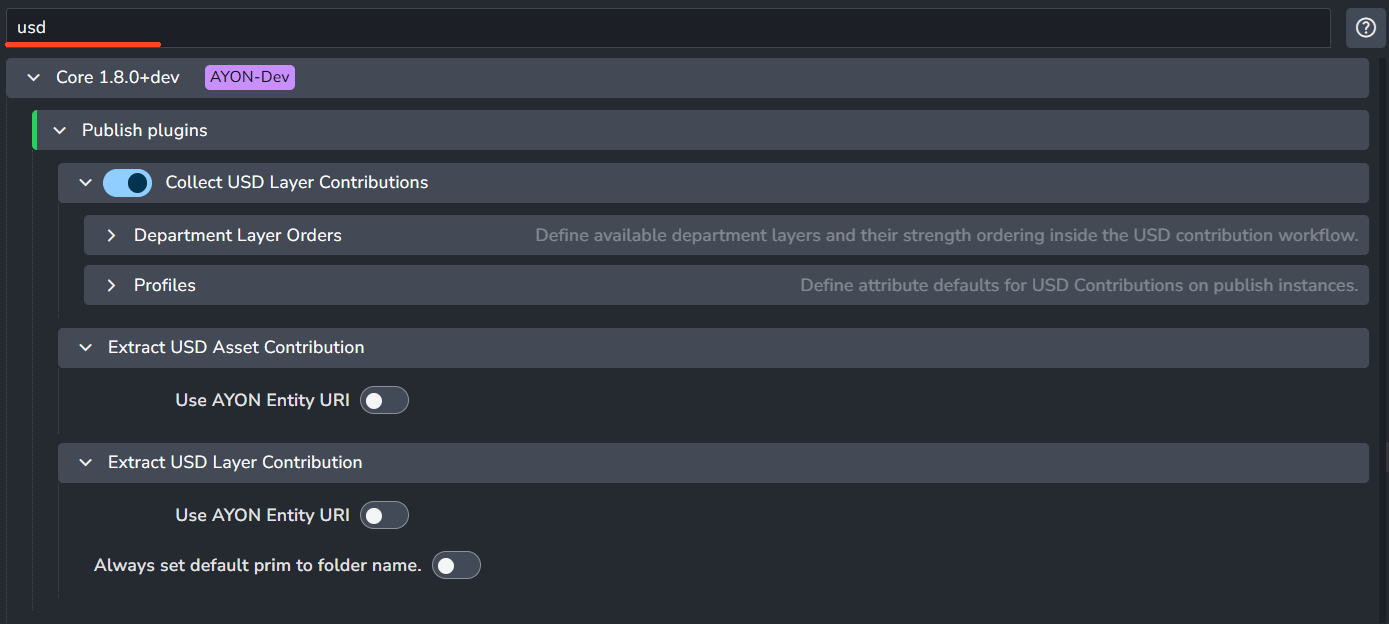
Core Addon
Collect USD Layer Contributions
Setting Location:
ayon+settings://core/publish/CollectUSDLayerContributions
Department Layer Order
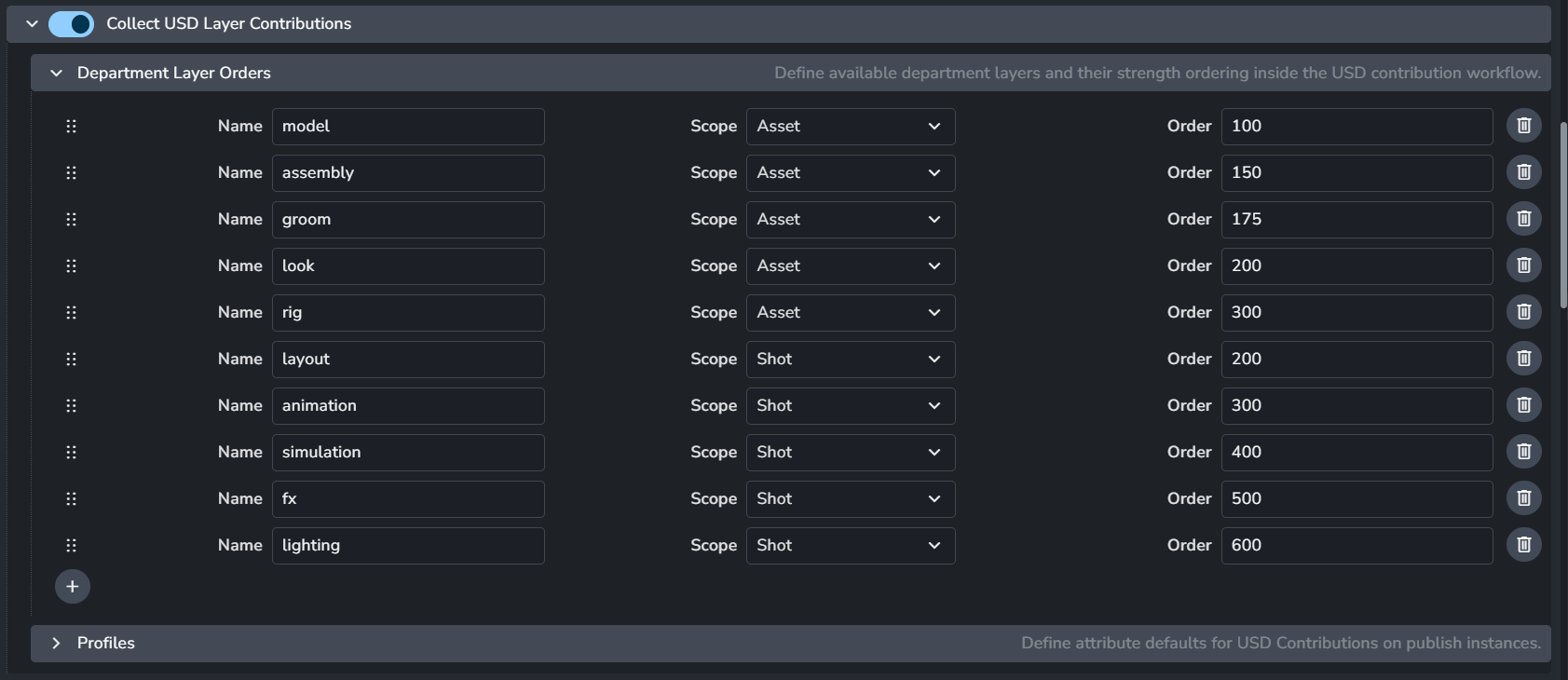
The Department Layer Order defines the specific layers available to artists and their stacking order within the USD structure.
You can add more layers via the + button and delete items via the pin button on the right next to every layer.
Default Department Layers & Typical Usage:
The following values are pre-configured to handle standard production pipelines:
Asset layers
model:
100assembly:
150groom:
175look:
200rig:
300
Shot layers
layout:
200animation:
300simulation:
400fx:
500lighting:
600
These values serve as typical configurations that suit common use cases.
When users publish AYON USD contributions, they’ll find ‘initialize as’ option which limits the department layers list to show only relevant layers. as shown in department layers user guide.
If you need a specific department (e.g., Animation) to function in both Assets and Shots, consider creating unique names like assetAnim and shotAnim. This prevents unexpected layer-stacking conflicts when an asset and a shot are mixed in the same stage.

Alternatively, you can explicitly set a single layer to be available for both categories if the order value is compatible.

Layer Order
Hover over the Order field for more details on the strength ordering:
Higher order means a higher strength and stacks the layer on top.
Opinions from a layer that is on top are stronger than those below it.
See the USD acronym LIVRPS for more details on USD's strength ordering.
Department Layer Profiles
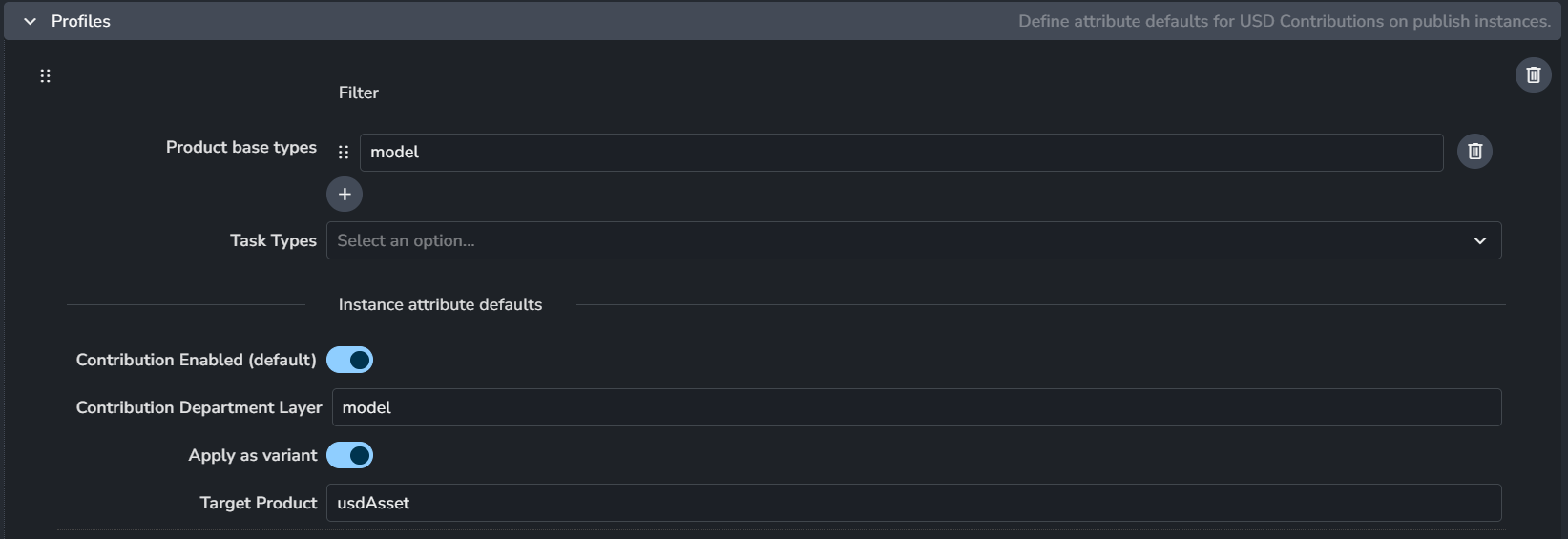
Department Layer Profiles are used to pre-configure the USD contribution publish options in Publisher Tool UI for artists. These profiles ensure that when a specific task is detected, the artist is presented with the correct defaults.
For example, a Model publish profile will automatically:
Set the target product to usdAsset.
Set the structure to Asset.
Set the department layer to model.
Enable Apply as Variant.
While the default profiles cover the vast majority of industry-standard workflows, they can be customized here to fit unique studio requirements.
Settings for each profile item:
Product types: The product types to match this profile to. When matched, the settings below would apply to the instance as default attributes.
Task types: The current create context task type to filter against. This allows to filter the profile to only be valid if currently creating from within that task type.
Contribution Enabled (default): The default state for USD Contribution being marked enabled or disabled for this profile.
Contribution Department Layer: The default contribution layer to apply the contribution to when matching this profile. The layer name should be in the 'Department Layer Orders' list to get a sensible order.
Apply as variant: The default contribution layer to apply the contribution to when matching this profile. The layer name should be in the 'Department Layer Orders' list to get a sensible order.
Target Product: The default destination product name to apply the contribution to when matching this profile. Usually e.g. 'usdAsset' or 'usdShot'.
Extract USD Asset Contribution
Setting Location:
ayon+settings://core/publish/ExtractUSDAssetContribution

Use AYON Entity URI: Enable to use Entity's URI instead of file path.
Extract USD Layer Contribution
Setting Location:
ayon+settings://core/publish/ExtractUSDLayerContribution

Use AYON Entity URI: Enable to use Entity's URI instead of file path.
Houdini Addon
Create USD Look
Settings Location:
ayon+settings://houdini/create/CreateUSDLook

Default Products: List of default variants for each product.
Create USD
Settings Location:
ayon+settings://houdini/create/CreateUSD

Default Products: List of default variants for each product.
Create USD render
Settings Location:
ayon+settings://houdini/create/CreateUSDRender
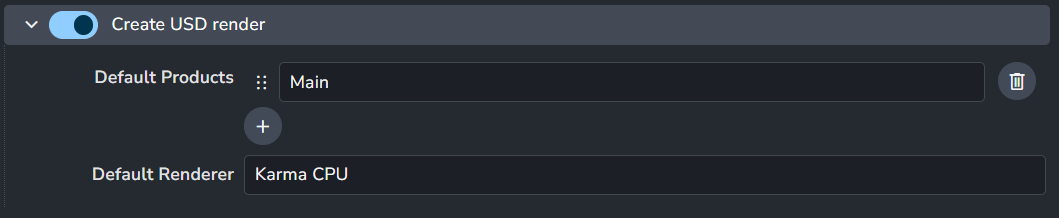
Default Products: List of default variants for each product.
Default Renderer: Specify either the Hydra renderer plug-in nice name, like
Karma CPU, or the plug-in name, e.g.BRAY_HdKarma.
Validate USD Look Assignments
Settings Location:
ayon+settings://houdini/publish/ValidateUsdLookAssignments

Enable: The default state of the plugin.
Optional: Allows the user to toggle this setting in the publisher UI.
Active: The default value of the toggle in the publisher UI.
Validate USD Render Product Paths
Settings Location:
ayon+settings://houdini/publish/ValidateUSDRenderProductPaths

Enable: The default state of the plugin.
Optional: Allows the user to toggle this setting in the publisher UI.
Active: The default value of the toggle in the publisher UI.
Validate USD Render Resolution
Settings Location:
ayon+settings://houdini/publish/ValidateRenderResolution

Validate render resolution and pixel aspect of USD render products match the context resolution.
Enable: The default state of the plugin.
Optional: Allows the user to toggle this setting in the publisher UI.
Active: The default value of the toggle in the publisher UI.
Extract USD
Settings Location:
ayon+settings://houdini/publish/ExtractUSD

Remap save layers to AYON Entity URI: Enable to use Entity's URI instead of file path.
LOP Load Asset
Settings Location:
ayon+settings://houdini/load/LOPLoadAssetLoader

Use AYON Entity URI: Enable to use Entity's URI instead of file path.
LOP Load Shot
Settings Location:
ayon+settings://houdini/load/LOPLoadShotLoader

Use AYON Entity URI: Enable to use Entity's URI instead of file path.
USD Sublayer Loader
Settings Location:
ayon+settings://houdini/load/USDSublayerLoader

Use AYON Entity URI: Enable to use Entity's URI instead of file path.
USD Reference Loader
Settings Location:
ayon+settings://houdini/load/USDReferenceLoader

Use AYON Entity URI: Enable to use Entity's URI instead of file path.
USD SOP Import Loader
Settings Location:
ayon+settings://houdini/load/SopUsdImportLoader

Use AYON Entity URI: Enable to use Entity's URI instead of file path.
Maya Addon
Setting Explicit Plugins Loading at location ayon+settings://maya/explicit_plugins_loading has mayaUsdPlugin by default.
Create Multiverse USD
Settings Location:
ayon+settings://maya/create/CreateMultiverseUsd

Default Products: List of default variants for each product.
Create Multiverse USD Composition
Settings Location:
ayon+settings://maya/create/CreateMultiverseUsdComp

Default Products: List of default variants for each product.
Create Multiverse USD Override
Settings Location:
ayon+settings://maya/create/CreateMultiverseUsdOver

Default Products: List of default variants for each product.
Maya USD Export Chaser: Filter Properties
Setting Location:
ayon+settings://maya/publish/CollectMayaUsdFilterProperties

Default Filter: Set the default filter for USD properties to export. It uses SideFX Houdini Pattern Matching in Parameters.
Some examples would include:Only include xforms:
xformOp*Everything but xforms:
* ^xformOp*Everything but mesh point data:
* ^extent ^points ^faceVertexCounts ^faceVertexIndices ^primvars*
Extract Maya USD Model
Settings Location:
ayon+settings://maya/publish/ExtractMayaUsdModel

Enable: The default state of the plugin.
Optional: Allows the user to toggle this setting in the publisher UI.
Active: The default value of the toggle in the publisher UI.
Extract Maya USD Pointcache
Settings Location:
ayon+settings://maya/publish/ExtractMayaUsdPointcache

Enable: The default state of the plugin.
Optional: Allows the user to toggle this setting in the publisher UI.
Active: The default value of the toggle in the publisher UI.
Extract Maya USD Animation
Settings Location:
ayon+settings://maya/publish/ExtractMayaUsdAnim

Enable: The default state of the plugin.
Optional: Allows the user to toggle this setting in the publisher UI.
Active: The default value of the toggle in the publisher UI.
Maya Load USD to Maya Proxy Loader
Settings Location:
ayon+settings://maya/load/MayaUsdLoader

Use AYON Entity URI: Enable to use Entity's URI instead of file path.
Multiverse USD Loader
Settings Location:
ayon+settings://maya/load/MultiverseUsdLoader

Enable: The default state of the plugin.
Multiverse USD Override Loader
Settings Location:
ayon+settings://maya/load/MultiverseUsdOverLoader

Enable: The default state of the plugin.
Blender Addon
Extract Model USD
Setting Location:
ayon+settings://blender/publish/ExtractModelUSD

Enable: The default state of the plugin.
Optional: Allows the user to toggle this setting in the publisher UI.
Active: The default value of the toggle in the publisher UI.
Was this helpful?
Still need help? Ask the team