Calculated Attributes
Last updated 7 months ago
Overview
The Calculated Attributes feature allows you to create dynamic attributes whose values are computed automatically based on a formula (which can be a mathematical expression or a logical statement). This formula references other attributes from the current entity or related entities.
For example, you can have a custom attribute called frameLength that is calculated automatically based on the values of frameStart, frameEnd, handleStart, and handleEnd.
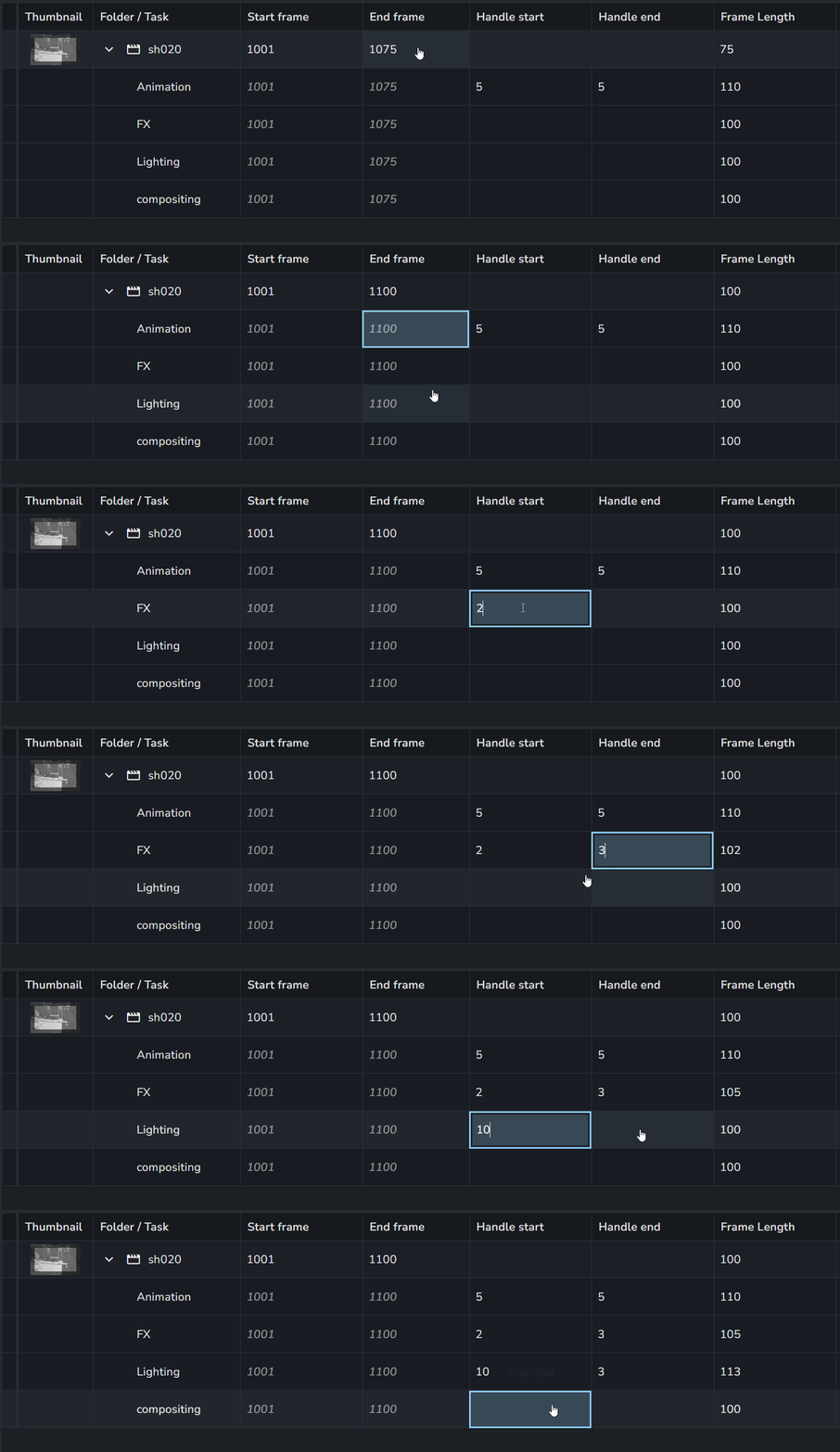
Calculated Attribute Configuration
⚡️ Custom Attributes requires a Pro or Studio subscription and the Powerpack 1.4.0 installed.
In the Power Features addon settings, go to the “Calculated Attributes” section. From there, you can create new formulas for any attribute.
When creating a calculated attribute, the base attribute must already exist. For details on how to create attributes, see Attributes.
Example Attribute
Configure frameLength as a calculated attribute for both Folder and Task entity types.
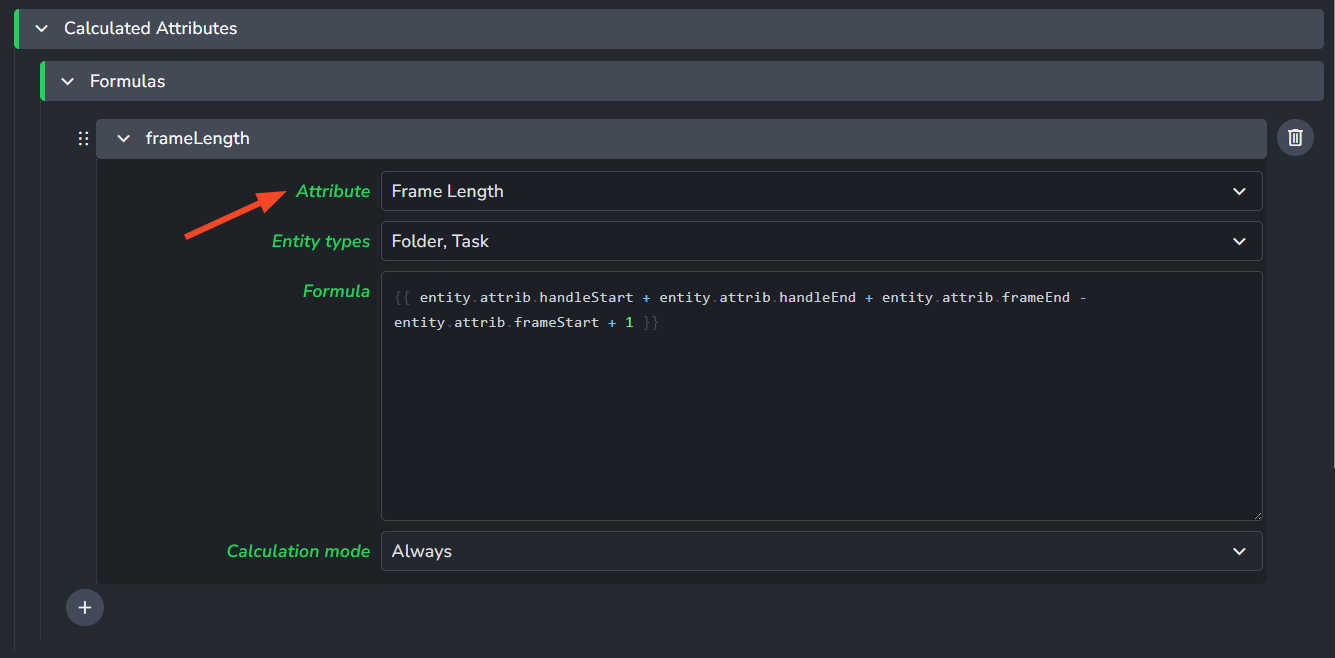
Prerequisite: The frameLength attribute must already be defined for both the Folder and Task entity types. It’s recommended to turn off Inherit toggle in your attribute definition.
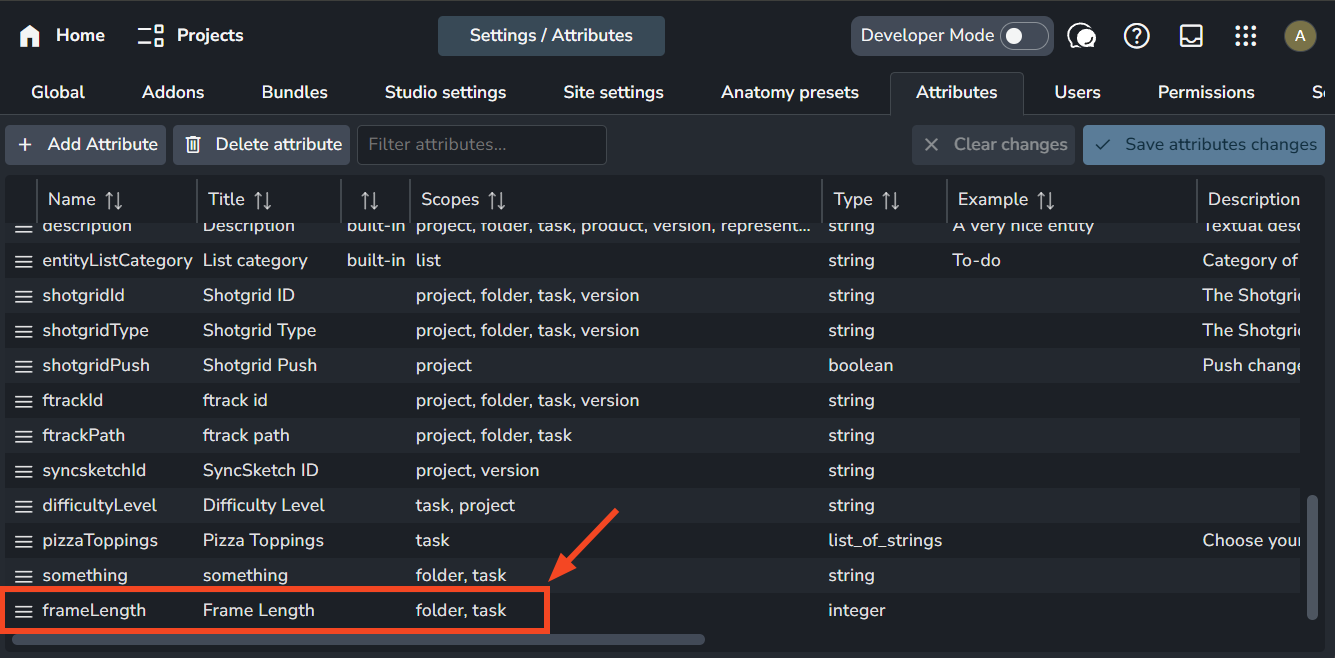
Frame Length Formula
{{ entity.attrib.handleStart + entity.attrib.handleEnd + entity.attrib.frameEnd - entity.attrib.frameStart + 1 }}Settings
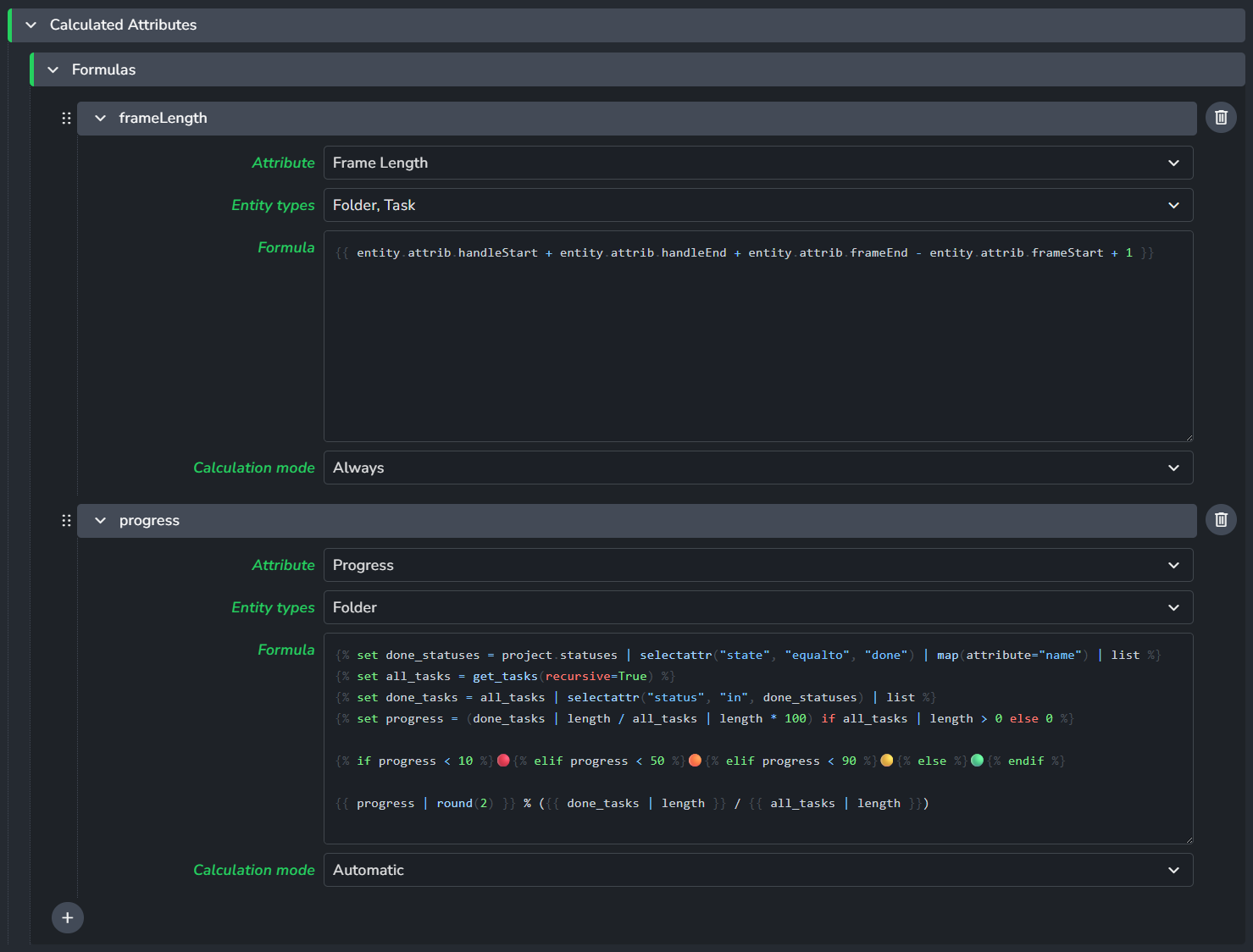
Attribute: Select the attribute you want to calculate. This can be any existing attribute on the entity.
Entity types: Choose the types of entity (e.g., Folders, Task) for which this calculated attribute will apply.
Formula: Enter the formula that defines how the attribute should be calculated.
Calculation Mode: The calculation mode determines when and how the attribute's formula is evaluated:
Automatic (default): The attribute is recalculated automatically when the entity is saved, but only if the formula references data from the entity itself. If the formula depends on related entities (for example, the project or its tasks), it will not recalculate automatically on save. In that case, you’ll need to trigger the calculation manually using a specific action.
Manual: The attribute is recalculated only when you explicitly trigger the calculation via an action. This mode gives you full control over when updates happen.
Always: The attribute is recalculated every time the entity is saved, regardless of what the formula references. Use this mode with caution, as frequent recalculations, especially with complex formulas, can impact server performance due to increased CPU and I/O usage.
Selecting the appropriate calculation mode is important for both accuracy and efficiency. For most cases, "Automatic" is recommended unless you need more control over when recalculation occurs.
Formulas
Formulas use the Jinja2 templating engine, which is a powerful tool for generating output based on data. The formula always returns a string, but the system automatically attempts to convert it to the attribute's defined type (e.g., number, date, boolean) if possible and strips unnecessary whitespace.
The basic building blocks are:
{{ expression }}: Whereexpressionis evaluated and the result is inserted into the output.{% statement %}: Wherestatementis a control structure that can include logic like loops or conditionals.expression | filter: Wherefilteris applied to the result of an expression to transform it.See jinja2 documentation for more details.
AYON specific variables and functions
Access Entity Attributes
You can access all entity attributes using dot notation: entity.attrib.<attribute_name>.
You can find all of the available attributes scoped to an entity type in your Attributes tab.
Examples
Basic expressions
{{ entity.name | upper }} is {{ entity.status }}The above formula would output the entity's name in uppercase followed by its status (e.g. SH01 is Approved) Notice the use of {{ }} for expressions and | upper as a filter to convert the name to uppercase.
We are using two expressions and outside of them is just plain text.
expressions for calculated attributes must always be enclosed by double curly brackets ({{ }}); otherwise, the system will return the expression as a literal string.
Example:
Conditions
{% if %} and {% else %} statements can be used to control the flow of the template.
{% if entity.active %}
    {{ entity.name }} is active.
{% else %}
    {{ entity.name }} is inactive.
{% endif %}
Local variables
{% set variable = value %} can be used to define local variables within the template.
{% set status_names = project.statuses | map(attribute="name") | list  %}
{{ status_names | length }} statuses available
Roll-up Subfolder Count
You can use get_children to create dynamic descriptions or status summaries for your sequences and folders. By setting the recursive parameter to True, you can count every nested folder within a hierarchy.
Formula Configuration:
Attribute:
Description(or any custom text attribute)Entity types:
Folder{% set subfolders = get_children(recursive=True) %} I have {{ subfolders | length }} subfolders
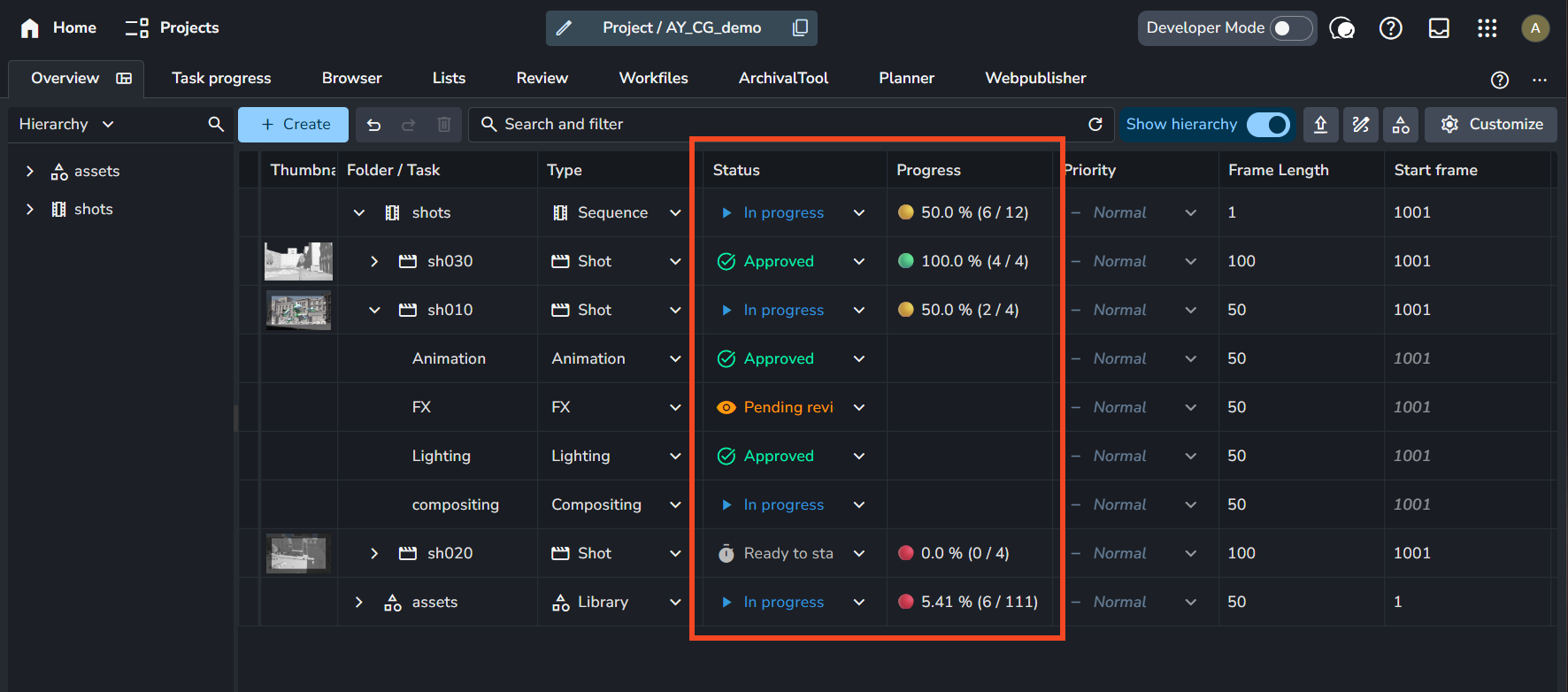
Result in Production Tracking: This formula will automatically update the description field for each folder, providing a real-time count of the underlying hierarchy.
Advanced example
Entity type: Folder
{% set done_statuses = project.statuses | selectattr("state", "equalto", "done") | map(attribute="name") | list %}
{% set all_tasks = get_tasks(recursive=True) %}
{% set done_tasks = all_tasks | selectattr("status", "in", done_statuses) | list %}
{% set progress = (done_tasks | length / all_tasks | length * 100) if all_tasks | length > 0 else 0 %}

{% if progress < 10 %}🔴{% elif progress < 50 %}🟠{% elif progress < 90 %}🟡{% else %}🟢{% endif %}

{{ progress | round(2) }} % ({{ done_tasks | length }} / {{ all_tasks | length }})
This formula calculates the progress of tasks within a folder and displays it with a colored circle emoji based on the percentage of completed tasks.
Explanation:
First, we create variables that we will need using set statement:
done_statuses: A list of status names that are considered "done" based on the project's status definitions.all_tasks: A list of all tasks within the folder, including those in subfolders (recursive).done_tasks: A list of tasks that have a status in thedone_statuseslist.progress: The percentage of completed tasks. If there are no tasks, it defaults to 0 to avoid division by zero.
Then, we use conditional statements to determine which colored circle emoji to display based on the progress percentage:
Red circle (🔴) for progress less than 10%
Orange circle (🟠) for progress between 10% and 50%
Yellow circle (🟡) for progress between 50% and 90%
Green circle (🟢) for progress 90% and above
Finally, we format the output to show the emoji, the rounded progress percentage, and the count of done tasks versus total tasks.
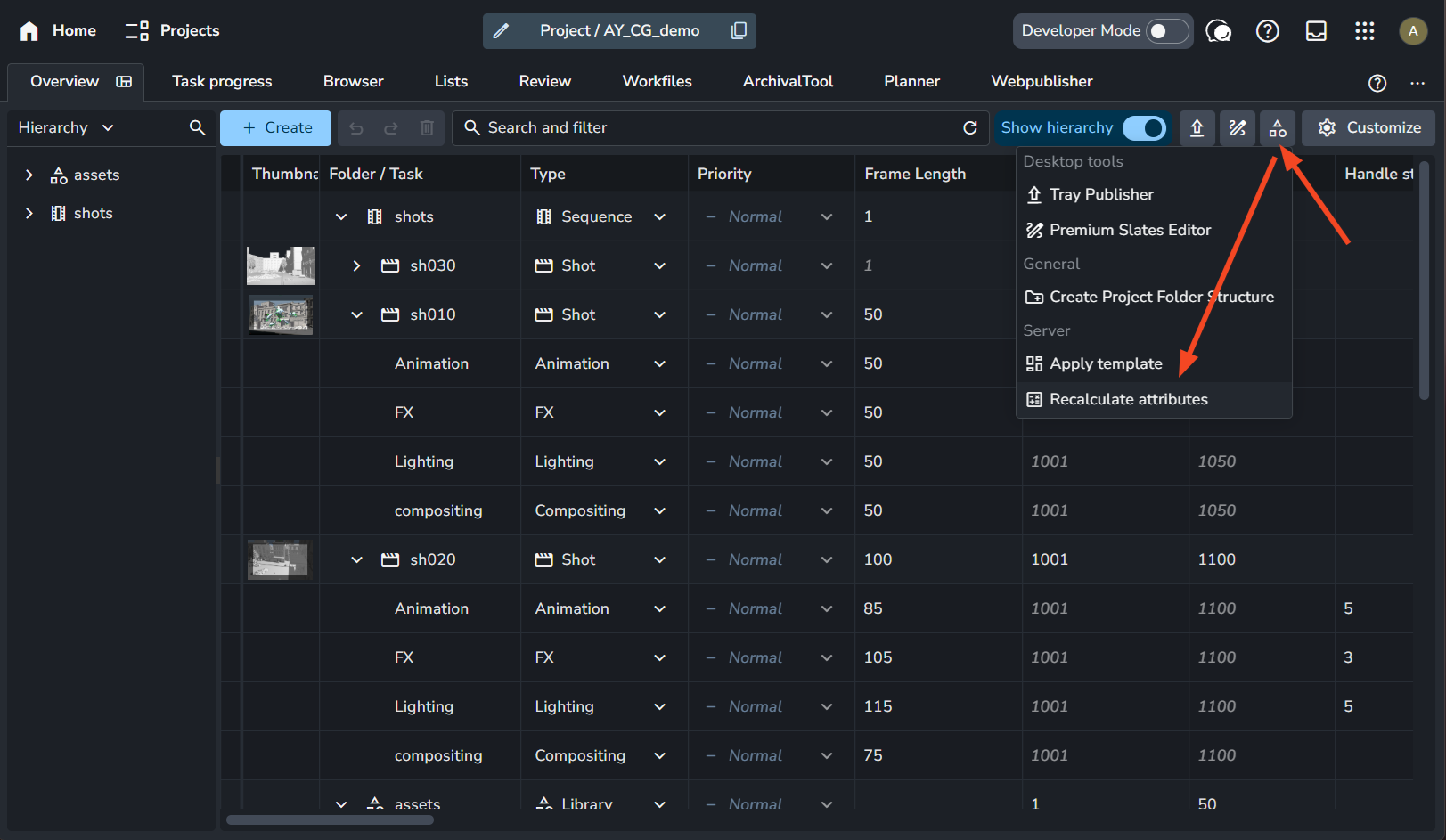
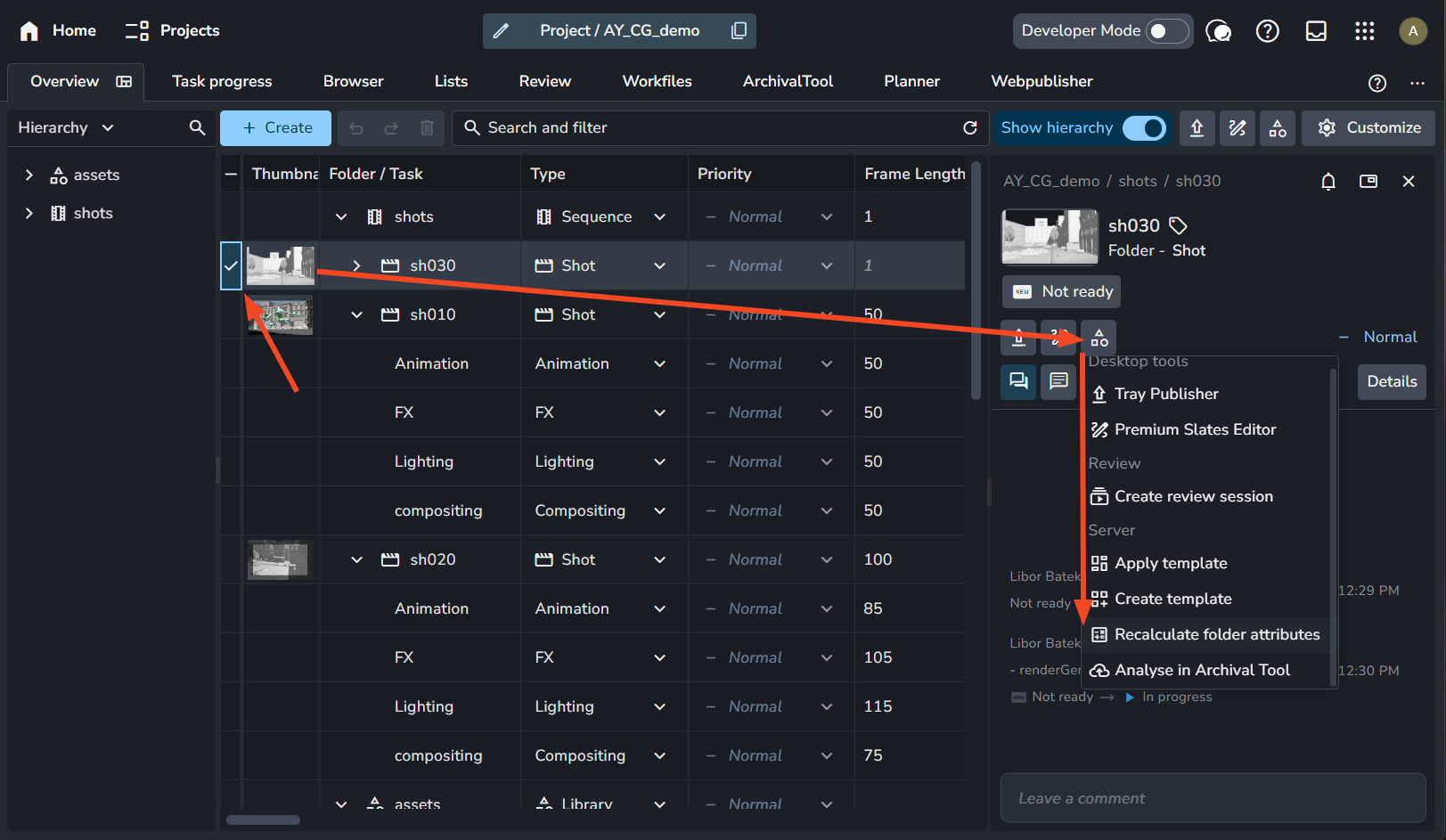
Recalculate Attributes Action
The Recalculate Attributes action is used to refresh the values for dynamic (calculated) attributes.
This action can be found at the project level and within the details panel of various AYON entities, including Folder, Task, Product, and Version entities.
Was this helpful?
Still need help? Ask the team