AYON OpenUSD Resolver
Learn how the AYON OpenUSD Resolver uses entity URIs to resolve dynamic file paths in OpenUSD, with support for versioning, farm rendering, pinning, mapping, and debugging.
Last updated 5 months ago
AYON USD Resolver: Overview
What is the AYON USD Resolver?
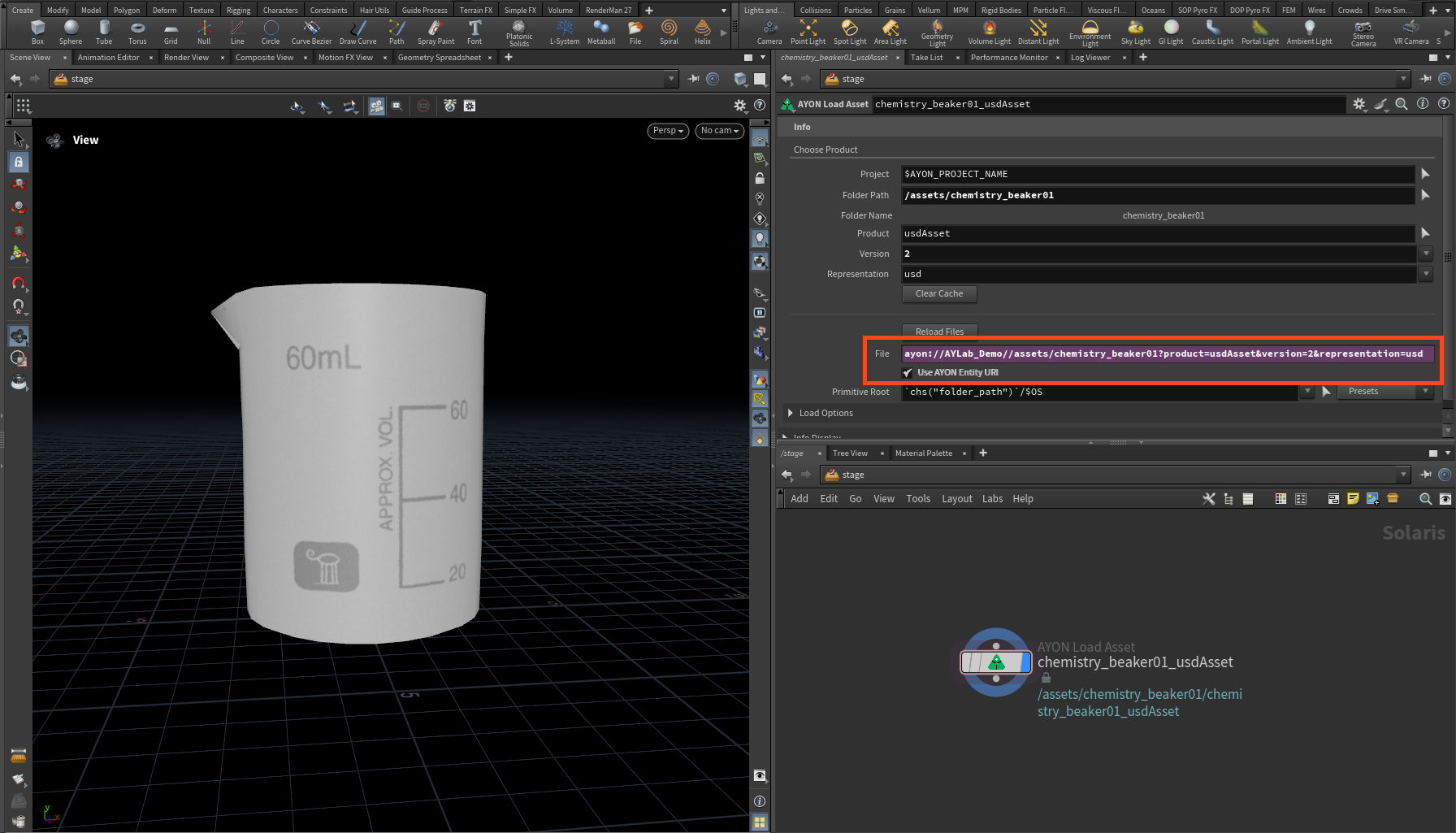
The AYON USD Resolver is a USD plugin that translates AYON Entity URIs into physical filepaths at runtime. This allows USD files to dynamically "point" to specific versions without needing to update the internal paths manually.
Common use cases include:
Always Latest:
ayon://AYLab_Demo/assets/chemistry_beaker01?product=usdAsset&version=latest&representation=usdHero Versions:
ayon://AYLab_Demo/assets/chemistry_beaker01?product=usdAsset&version=hero&representation=usd
This ensures your USD Assets and Shots are always up to date, letting the resolver handle the heavy lifting of path translation.
AYON Entity URI Structure
AYON uses Entity URIs for quick redirection and navigation. While they can point to tasks or folders, OpenUSD is primarily concerned with Representations.

Format:
ayon://{project_name}/{folder_path}?product={product_name}&version={version_number}&representation={representation_name}ayon://: The URI Scheme (also supports
ayon+entity:).project_name: Case-insensitive project name.
folder_path: Hierarchy path within the project.
product_name: Name of the published product.
version_number: Can be an integer (
4), a padded string (v004), or a keyword (latestorhero).representation_name: The extension or representation (e.g.,
usd,abc,exr).
Setup AYON USD Resolver for your Production
Enable the Resolver
To enable the AYON USD Resolver, configure the following in your OpenUSD Addon Settings:
Enable Binary Distribution setting in studio settings to allow AYON to download the prebuilt binaries automatically.
Set LakeFS Credentials access keys (contact your Admin or Ynput support to receive these).
Set application aliases in Resolver Application Paths which tells AYON which resolver build should be used with which DCC variant names.
Example: If you have a Houdini variant named
21-0-596defined in your applications, you can add it to the application alias ashoudini/21-0-596.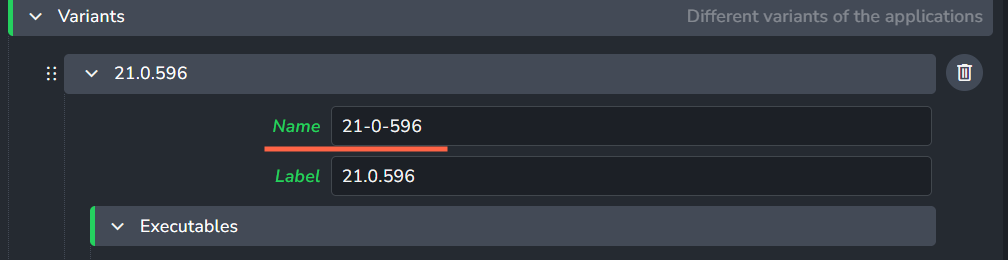
AYON Application Addon configuration for Houdini which shows Houdini patch variant 21-0-596 defined in the application's variant Name field. 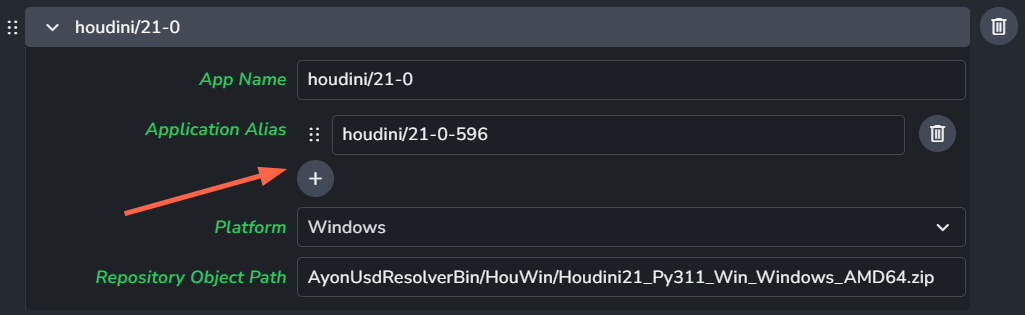
AYON OpenUSD Resolver Application Paths setting for Houdini 21.0 binary distribution on Windows, highlighting the plus (+) button used to add entries to the Application Alias list. The interface includes fields for App Name (houdini/21-0), an active alias (houdini/21-0-596), and the Repository Object Path targeting a specific resolver build
Farm Rendering
The AYON USD Resolver supports farm rendering. Recent builds for Houdini 21 and Maya 2026 include important bug fixes for initializing the resolver on Deadline farm render jobs.
When the resolver initializes correctly on the farm, you'll see log lines indicating the USD asset resolver is active for the application:
2026-02-12 17:41:47: 0: STDOUT: >>> [ Initializing USD asset resolver for application: houdini/21 ]USD Resolver: Resolution & Mapping
The AYON USD Resolver manages the resolution of Entity URIs within your DCC. You can control how these URIs are resolved using different strategies and override mappings.
Resolution Strategies
The resolver operates in one of two states to determine how it communicates with the AYON server:
1. Live Mode (Default)
In Live Mode, the resolver actively queries the AYON server for every URI it encounters. This is the standard behavior initialized automatically when launching applications through AYON. For absolute or relative file paths, the resolver delegates the resolution to the default USD resolver.
2. Pinning Mode
Automated pinning currently only supports USD renders in Houdini.
Pinning Mode is a static resolution strategy. Instead of querying the server, the resolver uses a "pinning file"(essentially a phone book) that maps specific Entity URIs to fixed file paths. This bypasses server requests, significantly improving performance in environments where asset stability is preferred over live-server updates.
Key Benefits:
Performance: Prevents overwhelming the AYON server. Without pinning, hundreds of farm workers might generate thousands of simultaneous queries; pinning reduces this to zero server communication during the render.
Stability and Consistency: Pinning "freezes" the Entity URI to a specific physical path. This ensures every farm worker uses the exact same file versions throughout processing the render deadline job.
This is vital when using "latest" or "hero" version keywords. The pinning file captures what "latest" was at the moment of submission, preventing a new publish from changing the versions mid-render and causing visual inconsistencies.
Emergency Retargeting: Allows you to redirect a URI to a different version without ever opening or modifying the source USD file.
Example: If a render fails because
v005is discovered to be broken, you can simply update the pinning file to retarget those URIs tov003. The farm will immediately begin pulling the working version.
Automated Pinning on Farm
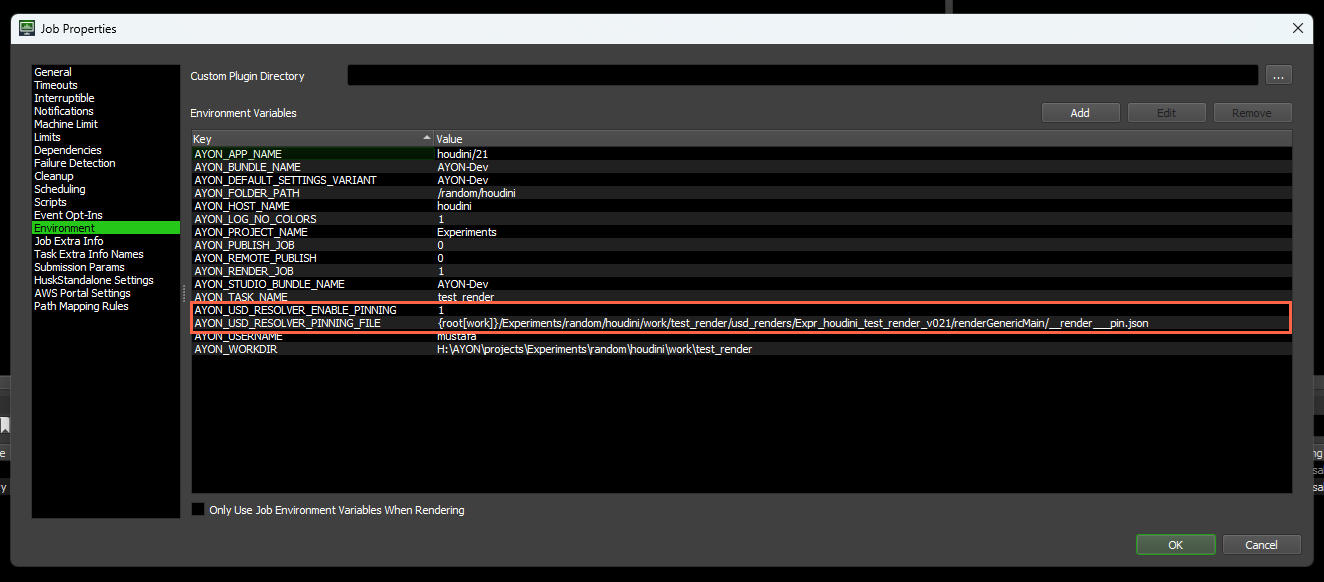
By default, pinning mode is activated by enabling the “Generate USD Resolver Pinning file on publish” setting in the AYON USD Addon Settings. When this is active:
Automatic Generation: Houdini generates a
__render___pin.jsonfile during the publish process.Job Injection: AYON automatically injects the necessary environment variables (
AYON_USD_RESOLVER_ENABLE_PINNINGandAYON_USD_RESOLVER_PINNING_FILE) into the Deadline job.
Manual Pinning (Debugging/Testing)
Manual debugging is useful for verifying that the resolver is correctly mapping paths or for testing retargeting. This requires an existing pinning file generated from a previous publish.
To test pinning mode locally on your workstation:
Locate the Pinning File:
Publish a USD render in Houdini. In the Details tab, find "Extract Skeleton Pinning JSON" to get the path to the
__render___pin.json.Alternatively, get the
__render___pin.jsonpath from the deadline job you have previously submitted.
Initialize Terminal: Select your project/asset context in the AYON Launcher, select Terminal, and Select your Houdini version.
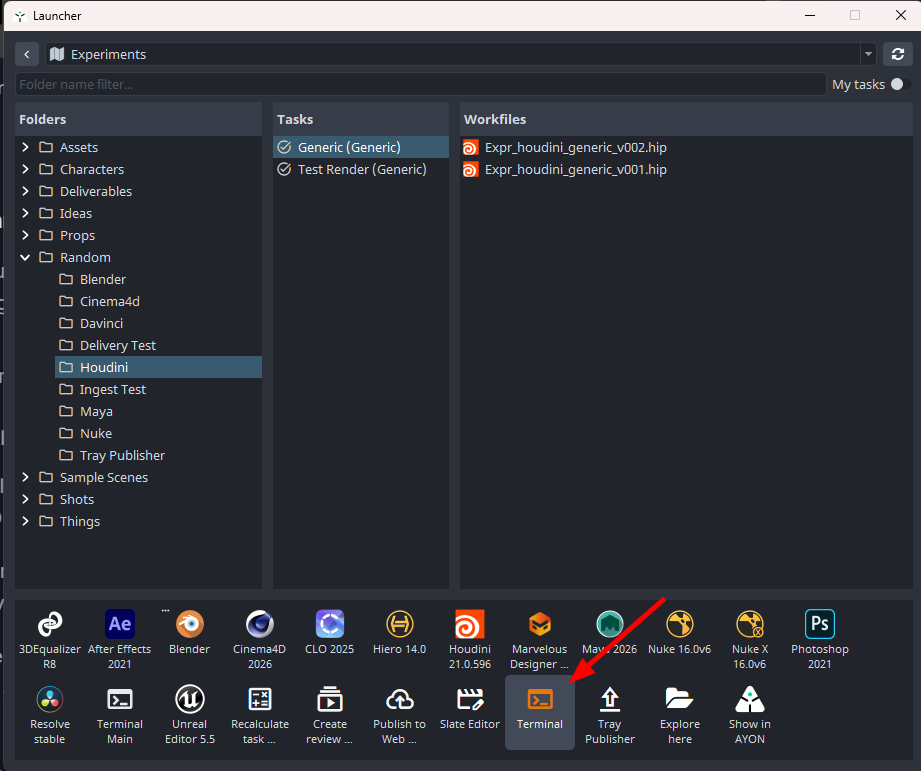
Enable Pinning Mode in terminal: set the necessary environment variables (
AYON_USD_RESOLVER_ENABLE_PINNINGandAYON_USD_RESOLVER_PINNING_FILE)set AYON_USD_RESOLVER_ENABLE_PINNING=1 set AYON_USD_RESOLVER_PINNING_FILE=H:/AYON/projects/Experiments/random/houdini/work/test_render/usd_renders/Expr_houdini_test_render_v013/renderGenericMain/__render___pin.jsonLaunch: Run
houdinifxfrom that same terminal.houdinifx
Resolver Dynamic Mapping
Dynamic Mapping allows you to provide the resolver with additional context before resolution occurs. This is an "upstream" feature that intercepts URIs and redirects them based on your instructions.
Note: This feature is independent of Pinning Mode; it acts as a pre-processing layer that runs before the resolution strategy is applied.
Use Cases:
Hotfixes: Redirect a specific version or replace an entire product reference without modifying the original USD file. Example (Product Swap):
From:
"ayon+entity://dev_project_1//sh010?product=modelTestCube&version=v001&representation=usd"To:
"ayon+entity://dev_project_1//sh010?product=modelTest&version=v001&representation=usd"
Testing: Point production URIs to local development versions or file-system overrides for rapid iteration. Example (Local Path Redirection):
From:
"ayon+entity://dev_project_1//sh010?product=modelTest&version=v001&representation=usd"To:
"/home/ynput/dev/ayon-usd-resolver/testAssets/Cone.usd"
Dynamic Remapping File
You can provide mapping instructions using either a USD or JSON file.
#usda 1.0
(

    // Define your mappings within the customLayerData metadata:
    customLayerData = {
        string[] mappingPairs = [
            "source_uri_or_path", "target_uri_or_path",
            "source_uri_or_path", "target_uri_or_path"
        ]
    }
    doc = "Test mapping file for AYON USD Resolver"
)

def Xform "Root"
{}
{
"mappingPairs": {
"source_uri_or_path": "target_uri_or_path",
"source_uri_or_path": "target_uri_or_path"
}
}USD Dynamic Mapping Houdini Example
In this example, we will map a latest version to a specific older version (v006)
1. Create your Mapping File
Create a USD or JSON file (e.g., mapping.usd or mapping.json) to define the redirection:
#usda 1.0
(
    customLayerData = {
        string[] mappingPairs = [
            "ayon://Experiments//random/houdini?product=usdAsset&version=latest&representation=usd",
            "ayon://Experiments//random/houdini?product=usdAsset&version=6&representation=usd",
        ]
    }
    doc = "Test mapping file for AYON USD Resolver"
)

def Xform "Root" (
    doc = "Empty root - mappings are in layer metadata"
)
{}
{
"mappingPairs": {
"ayon://Experiments//random/houdini?product=usdAsset&version=latest&representation=usd": "ayon://Experiments//random/houdini?product=usdAsset&version=6&representation=usd"
}
}2. Apply Mapping in Houdini
To apply this mapping within your Solaris stage:
Add a
configurestagenode to your Solaris scene graph.Set the
Resolver Context Assetparameter to point to yourmapping.usdormapping.jsonfile.
Set the Resolver Context Asset parameter to point to your mapping file (USD or JSON). Load your asset using its Entity URI (e.g., via the AYON Asset Loader with URI mode enabled).

Load Asset with latest version using entity URI.
3. Verify the Result
You can verify that the mapping was applied successfully in the Scene Graph Layers tab:
Without the mapping file, the resolver would load the actual latest version (e.g.,
v007).
The actual latest is loaded which is v007 in my case. With the mapping file active, you will see
v006loaded instead.
The v006 is loaded instead of the actual latest.
Caching
The AYON USD Resolver has a local caching mechanism to optimize its performance in daily use. Entity URIs traditionally resolve to static paths, so caching them in your local sessions is the best way to improve performance.
Debugging Resolver
AYON USD Resolver Verbosity
The AYON USD Addon settings provide two flexible configurations for controlling log output: AYON USD Resolver Config and USD Library Config.
By default, the resolver is configured to show Warnings only. To troubleshoot issues or inspect resolution behavior, you can increase the verbosity using the steps below.
Adjusting Log Levels
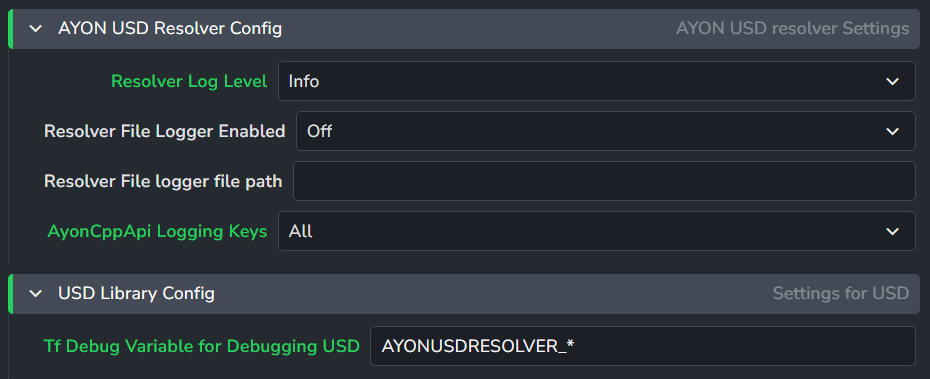
AYON USD Resolver Config: Navigate to AYON USD Resolver Config
ayon+settings://usd/ayon_usd_resolverResolver Log Level: Set this to Info to make the resolver more verbose.
Logging Keys: Set this to All. This enables a list of extra logging options for the internal
AyonCppApi.
USD Library Config: Navigate to USD Library Config
ayon+settings://usd/usdTf Debug Variable: Set this to
AYONUSDRESOLVER_*.
TF_DEBUG
The TF_DEBUG variable allows you to inspect specific internal USD log outputs. This is particularly useful for verifying if plugins are loaded correctly or if data is being refreshed as expected.
Useful Keys for TF_DEBUG:
AYONUSDRESOLVER_RESOLVERAYONUSDRESOLVER_RESOLVER_CONTEXTAYONUSDRESOLVER_*PLUG_*
For more detailed information on using TF_DEBUG in USD, refer to Debugging | lucascheller USD Survival Guide.
Experimenting with USD Resolver in Terminal
You don't need to launch a heavy DCC (like Houdini or Maya) simply to test if your URIs are resolving correctly or to inspect a USD file. You can use the standard USD Toolset directly from your terminal.
1. Initialize the Environment (Houdini)
To ensure the resolver and USD tools are available, follow these steps:
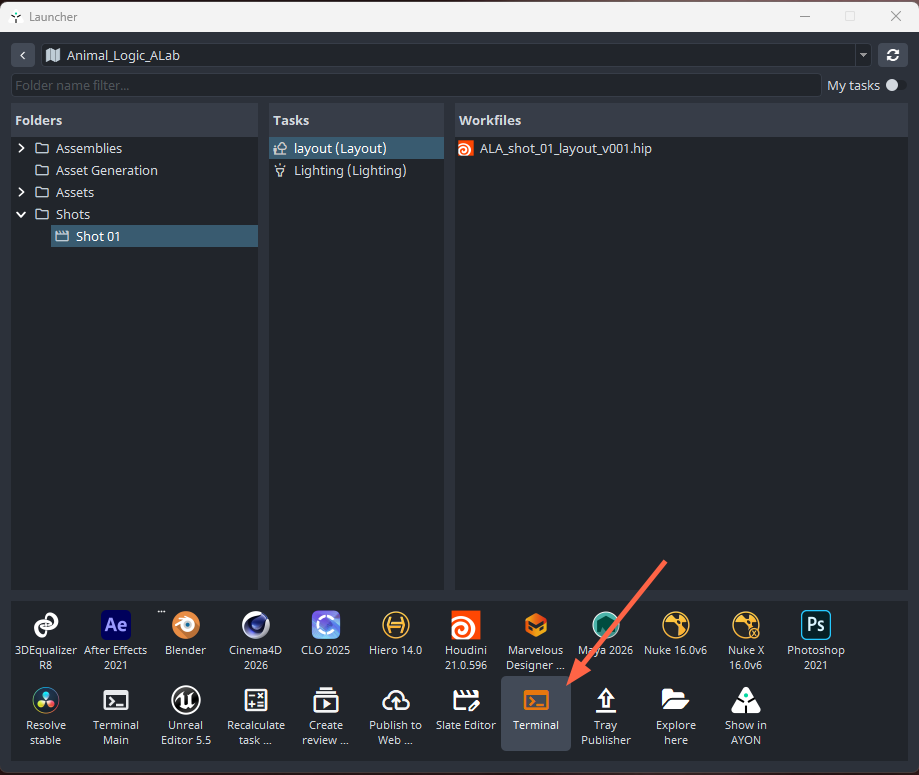
Initialize Terminal: Select your project/asset context in the AYON Launcher, select Terminal, and Select your Houdini version. This initializes the AYON environment and adds Houdini’s USD executables to your system path.
Set HFS: Many USD scripts shipped with Houdini expect the
$HFSvariable to be defined. You can manage this in two ways:One-time Setup: Configure it in the Houdini Variant Environment within the AYON Application Settings. This ensures every terminal or Houdini session launched via AYON has it pre-set. (This example is adapted from the example here)
{
    "HOUDINI_VERSION": "21.0.596",
    "HFS": {
        "windows": "C:/PROGRA~1/SIDEEF~1/HOUDIN~1.596",
        "darwin": "/Applications/Houdini/Houdini{HOUDINI_VERSION}/Frameworks/Houdini.framework/Versions/Current/Resources",
        "linux": "/opt/hfs{HOUDINI_VERSION}"
    }
}
Windows Short Paths Required: On Windows, you must use 8.3 short paths (e.g.,
PROGRA~1) for the$HFSvariable. The standard USD.cmdscripts shipped with Houdini do not support spaces in file paths and will fail to execute if defined with a standard path likeC:\Program Files\...Manual Setup: Set it directly in your active terminal session:
set HFS=C:/PROGRA~1/SIDEEF~1/HOUDIN~1.596export HFS=/opt/hfs20.x.xxx/Applications/Houdini/Houdini20.x.xxx/Frameworks/Houdini.framework/Versions/Current/Resources
Note for Manual Setup: If you are initializing the resolver manually (outside the Launcher), you must set the AYON_API_KEY, AYON_SERVER_URL, and AYON_PROJECT_NAME environment variables so the resolver can connect to your server.
If you are using Dynamic Mapping (via JSON/USD files) or Pinning Mode (via a __render___pin.json pin file), ensure you set the corresponding environment variables in your terminal session. This allows redirections to take effect when running commands like usdresolve.
2. Useful Commands:
Once initialized, you can start using USD Commands here are some examples:
A. usdresolve
Test if a specific URI points to the correct file path on your disk:
usdresolve "ayon+entity://Animal_Logic_ALab/assets/book_encyclopedia01?product=usdAsset&version=v002&representation=usd"Example Output:
H:\AYON\projects\Animal_Logic_ALab\assets\book_encyclopedia01\publish\usd\usdAsset\v002\ALA_book_encyclopedia01_usdAsset_v002.usd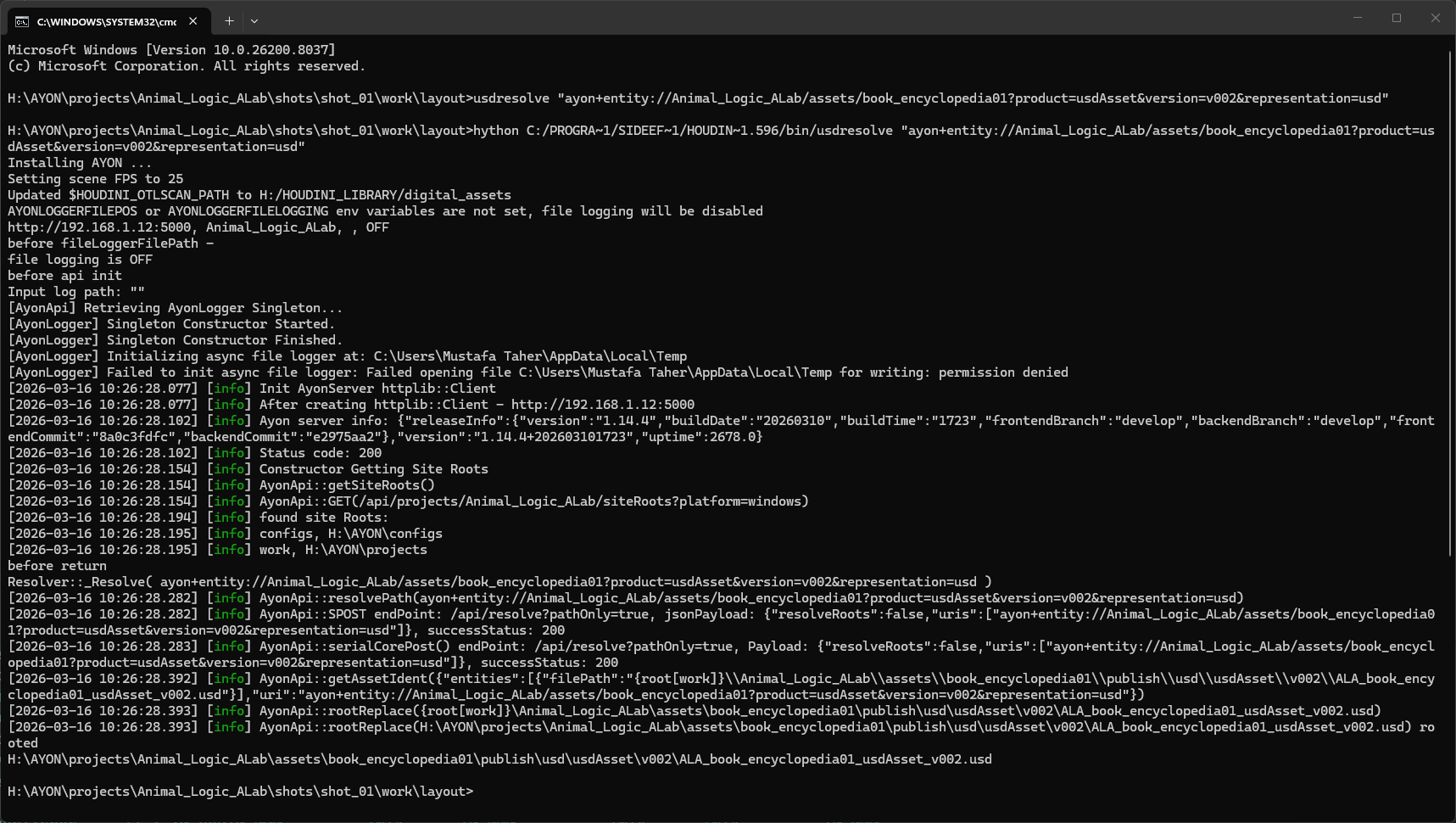
B. usdcat
Inspect the flattened content of a USD file or check if the resolver can successfully "read" through an asset's layers:
usdcat "ayon+entity://Animal_Logic_ALab/assets/book_encyclopedia01?product=usdAsset&version=v002&representation=usd"Example Output:
#usda 1.0
(
    defaultPrim = "book_encyclopedia01"
    framesPerSecond = 25
    metersPerUnit = 1
    timeCodesPerSecond = 25
    upAxis = "Y"
)

class "__class__"
{
    class "book_encyclopedia01"
    {
    }
}

def Xform "book_encyclopedia01" (
    assetInfo = {
        string identifier = "book_encyclopedia01/book_encyclopedia01.usd"
        string name = "book_encyclopedia01"
    }
    prepend inherits = </__class__/book_encyclopedia01>
    kind = "component"
    prepend payload = @./payload.usd@
)
{
}
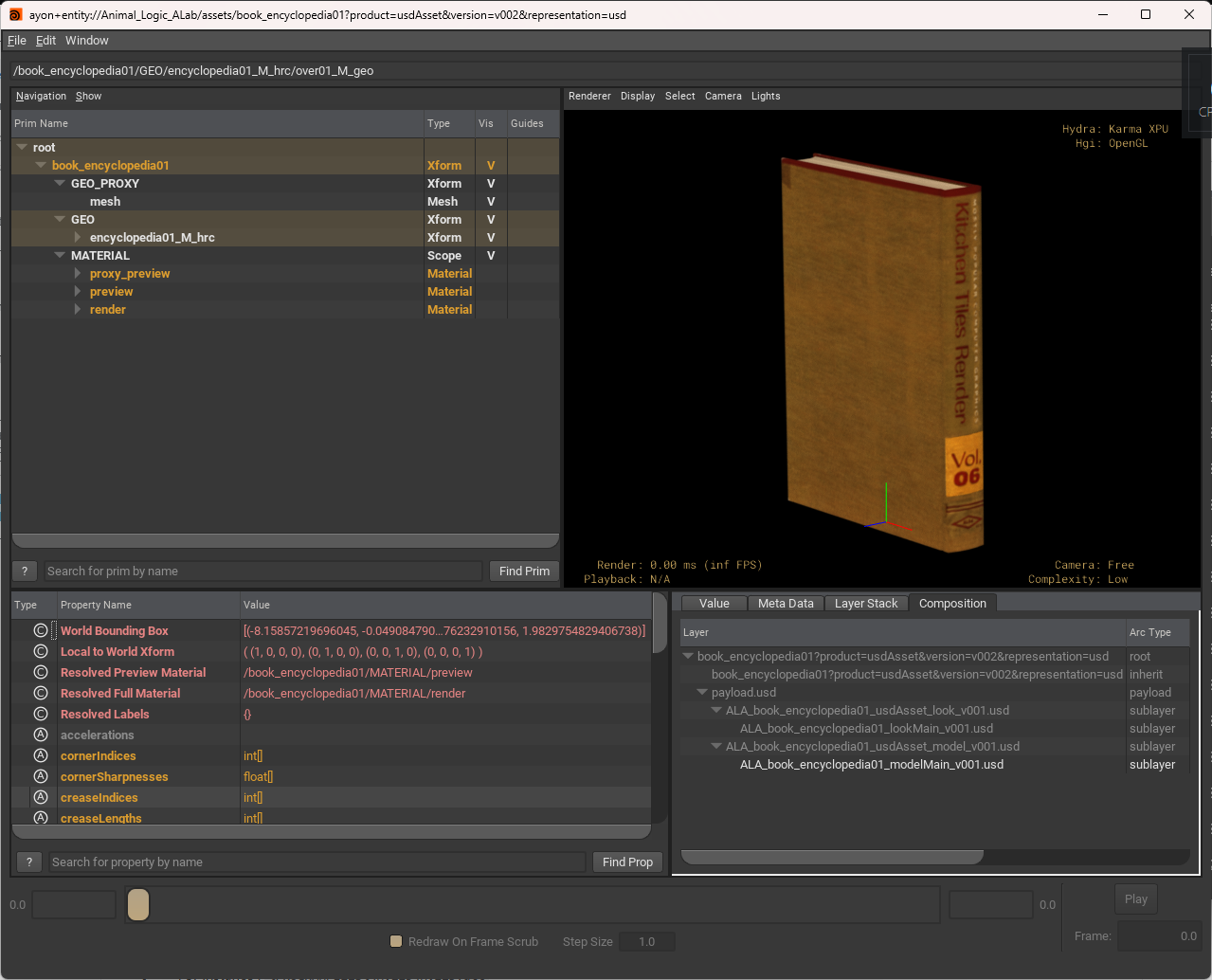
C. usdview
Open a lightweight viewer to see the result of your resolution and mapping in a 3D viewport:
usdview "ayon+entity://Animal_Logic_ALab/assets/book_encyclopedia01?product=usdAsset&version=v002&representation=usd"Expected Output: The usdview window will launch, displaying the resolved asset in the GL viewport.
Compatibility With DCCs
Mandatory Requirement for Maya 2026.2
Maya 2026.2 is shipped with multiple USD versions: v24.11 and v25.05.
The AYON Resolver specifically requires USD v25.05 to function. If Maya remains on the default version (v24.11), the resolver will fail to resolve entity URIs.
For more information, see Maya and MayaUSD Compatibility under AYON Maya OpenUSD Workflow.
API and Technical References
FAQ
What is the __render___pin.json file next to my USD?
If you see this file next to a __render__.usd, it is a pinning map. It contains a list of every URI used in that file and its resolved path (marked by the ayon_resolver_pinning_data key). This ensures that what you saw in your LOPs viewer is exactly what the farm renders.
Was this helpful?
Still need help? Ask the team