Navigating AYON Server
This guide walks you through the AYON Server interface, focusing on the primary navigation points and their keyboard shortcuts.
Last updated 6 months ago
Overview
AYON Server provides multiple buttons and shortcuts to navigate the system quickly. The interface is primarily controlled via two main clusters of buttons located at the top of the Web UI:
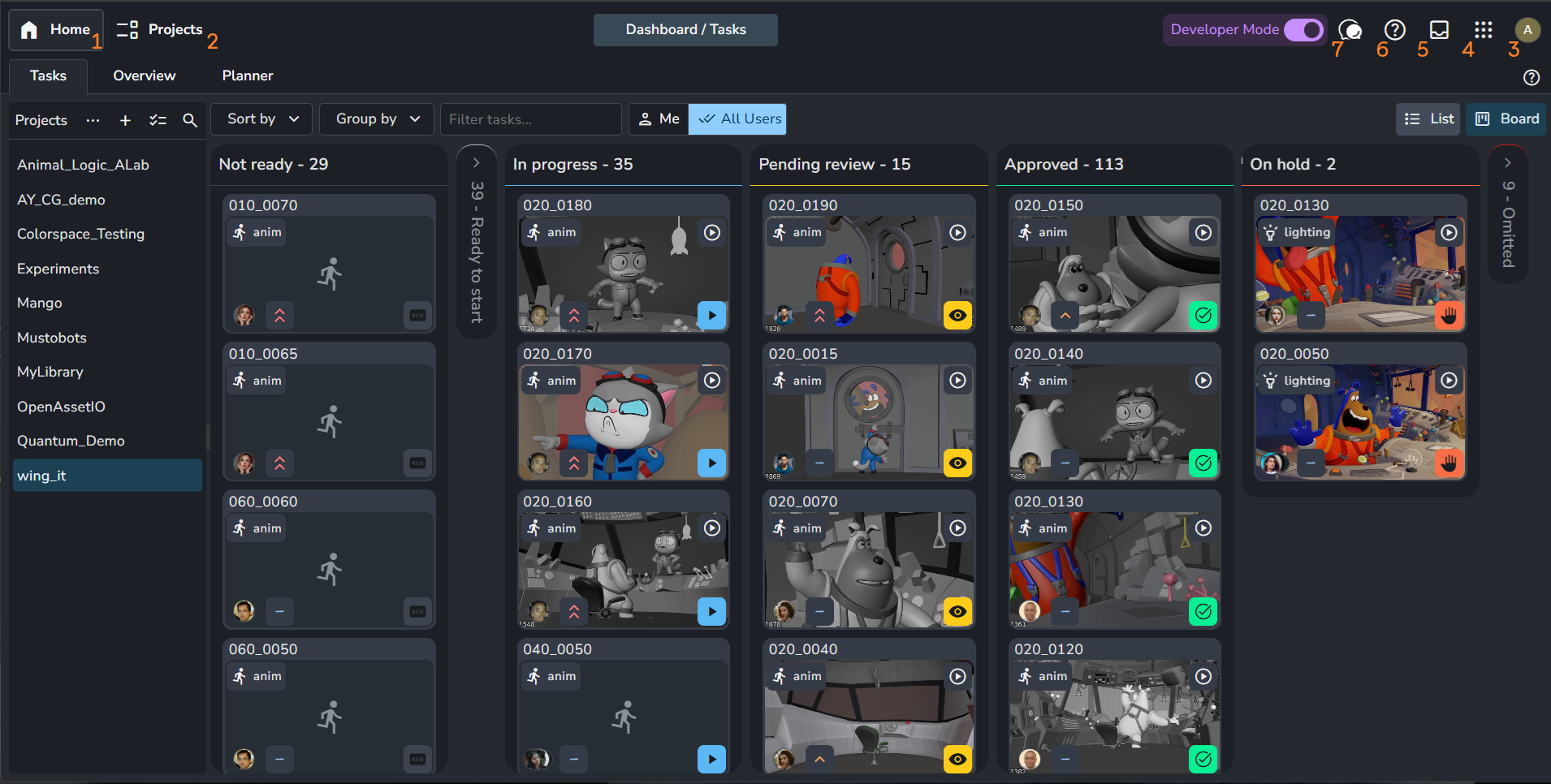
Top Left (Production):
Home
Projects
Top Right (Management & Personal):
User Account
App menu
Inbox
Help menu
Chat bubble
In the following sections, we expand on the functionality of each area.
Additive Addons
Keep in mind that some addons may add more tabs to your AYON Server.
For example, when you install the Planner Addon, you will see a new "Planner" tab appear inside your Home and Project pages.
Production Access
These buttons provide access to your daily production work.
Home (
H + H): Your studio dashboard. Use this for a quick digest of tasks and to see general information about active projects. For more info, see Tasks (Home) PageProjects (
1): The production hub. This is where you enter a specific project to manage folders, assignments, products, and review work. For more info, see Project Overview Page and Products and Versions Page.
App Menu
Clicking the App Menu (the grid icon with nine dots) at the top, next to your profile image, opens the main navigation panel. The App Menu items are divided into two primary groups:
Configuration
Studio Settings (S + S): This is where you manage studio-wide configurations. It provides a central location for global server settings, addons, bundles, studio-level addon settings, studio-level site settings, Anatomy presets, attributes, users, permissions, and secrets.

AYON Studio Settings top navigation bar highlighting the active Secrets tab, alongside other management tabs: Global, Addons, Bundles, Studio settings, Site settings, Anatomy presets, Attributes, Users, and Permissions. Project Settings (
P + P): Used for project-specific configurations. Here, you can manage the project anatomy, settings overrides, permissions, access controls, site settings, roots, and teams.
AYON Projects Settings top navigation bar with the active Anatomy tab, alongside other management tabs: Project settings, Project permissions, Project access, Site settings, Roots, and Teams. Market (
M + M): Browse and install new addons to extend your server's capabilities. For more info, see AYON Market
System
Event Viewer (
E + E): Considered the server's "Black Box," this is where you can monitor logs and troubleshoot system issues.Services (
V + V): Monitor the health and status of background AYON workers. For more information, seeAYON Services.Server Actions: This section allows you to trigger a Pipeline Update or Restart the Server. For more information, see Updating Pipeline to latest Release.
Communication & User
These icons handle your personal experience and notifications.
Inbox: Where you find notifications and mentions. For more info, see Inbox and Notifications
User Account button: This is where you manage your account, download the AYON launcher, or sign out.
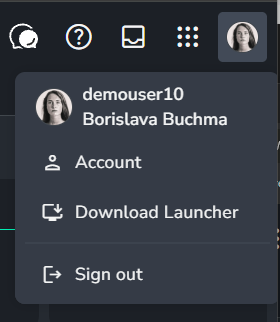
AYON user account dropdown menu providing access to individual profile management and logout actions, including Account for profile and session management , Download Launcher for direct access to the desktop app binaries , and Sign out for session termination. Account: Modify your profile, manage active sessions, or find your available launchers.
Download Launcher: A direct shortcut to the launcher downloads page.
This downloads the specific launcher installers hosted on your current AYON Server. These are managed and updated by your studio Admins or TDs.
Sign Out (
0 + 0): logout and return to the login screen.
Chat Bubble: Opens the AYON AI assistant for help with documentation.
Help Menu
The ? icon contains essential resources for technical users:
REST API: Opens a dynamic documentation page. This is unique to your server; it includes endpoints for all addons currently in your Production Bundle.
GraphQL Explorer: An interactive playground to query the AYON database directly.
Community: Quick links to the Documentation, Discord, Forums, and Feedback portal.
Tips
AYON Shortcuts
For a complete list of AYON Shortcuts, go to AYON Web App Keyboard Shortcuts.
If you are ever lost, remember these essential shortcuts:
Production (
1): Go to project-specific folders and reviews.Admin (
S+S, P+P, E+E, B+B): Manage settings, bundles, and server logs.Overview (
H+H): Return to the studio-wide dashboard.
FAQ
How to show the version of AYON Server?
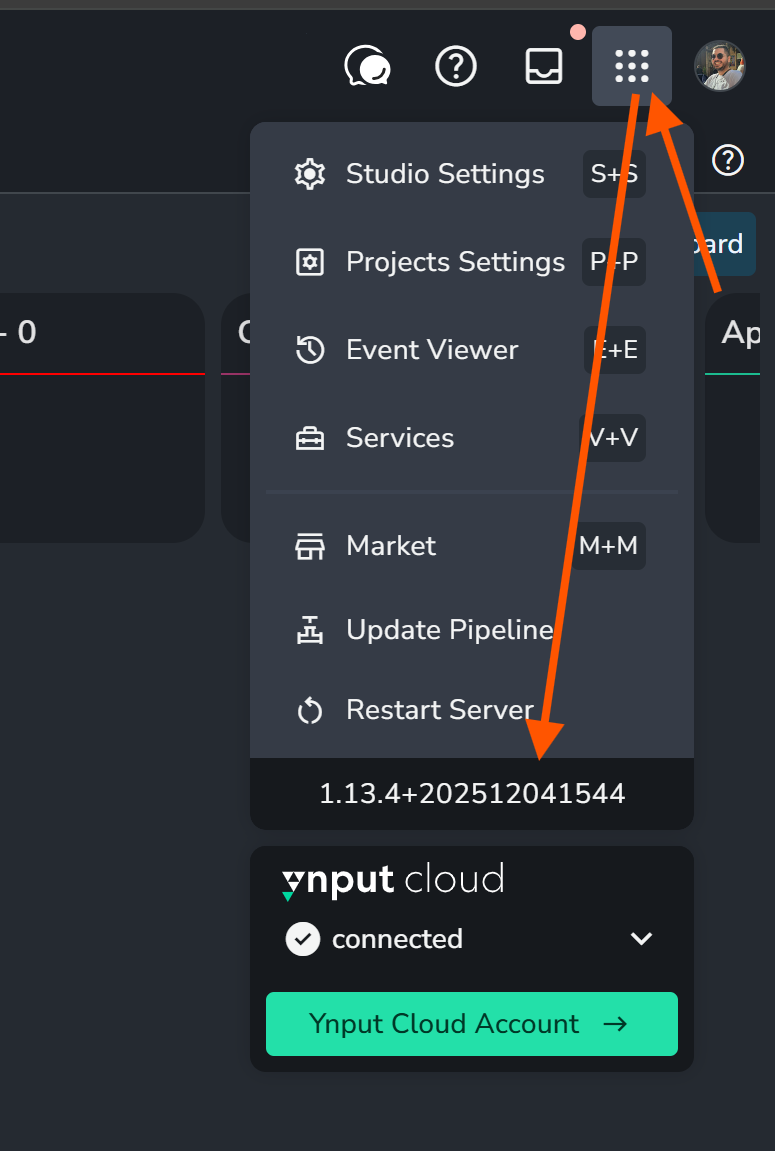
To show the the version of your server, follow the following steps:
Click AYON Main menu on top right
You’ll be able to find the version of AYON server.
The server version is usually a two numbers separated by a plus sign that represents backend version + frontend version e.g. 1.13.4+202512041544 shows that server is on backend version 1.13.4 and frontend version on 202512041544.
Was this helpful?
Still need help? Ask the team