User Permissions and Project Access Groups
Last updated 8 months ago
AYON provides comprehensive and granular permissions to manage user access within projects and their settings.
Overview
AYON uses a layered permission system combining Access Levels (Roles) and Access Groups. This system governs how users access the AYON Server, Desktop App, and Pipeline tools.
AYON permissions manage AYON access only. They do not manage File System permissions (OS-level read/write access to server drives). While terminology like "Folder Permissions" is used, it refers to Folder entities within the AYON Server, not physical directories on disk.
Layer 1: User Access Levels ( User Roles)
Access Levels are built-in roles that define a user's core authority on the server:
Admin: Full, unrestricted access to all projects, studio settings, bundles, and user management (including adding other Admins).
Manager: Access to all projects and most settings. They can manage other Managers or standard Users but cannot modify Admin accounts.
User: By default, standard users have no access to studio settings, project settings, or projects. Their entire experience is defined by their Access Group.
Layer 2: Access Groups
An Access Group is a set of configurable permissions that governs how a user interacts with project data (Folders, Tasks, Attributes). This can be useful for protecting project integrity (e.g. preventing accidental deletions) or aligning with NDAs (e.g. restricting what freelancers see).
AYON includes three default groups to serve as a starting point:
Artist: Can interact with the pipeline but cannot create or delete folders.
Freelancer: Highly restricted; can only see and publish to folders where they have explicitly assigned tasks.
Supervisor: Broad access to create, update, and delete project data, but restricted from sensitive system settings.
Where to Configure Permissions
Permissions are managed across four key areas:
Define Access Groups
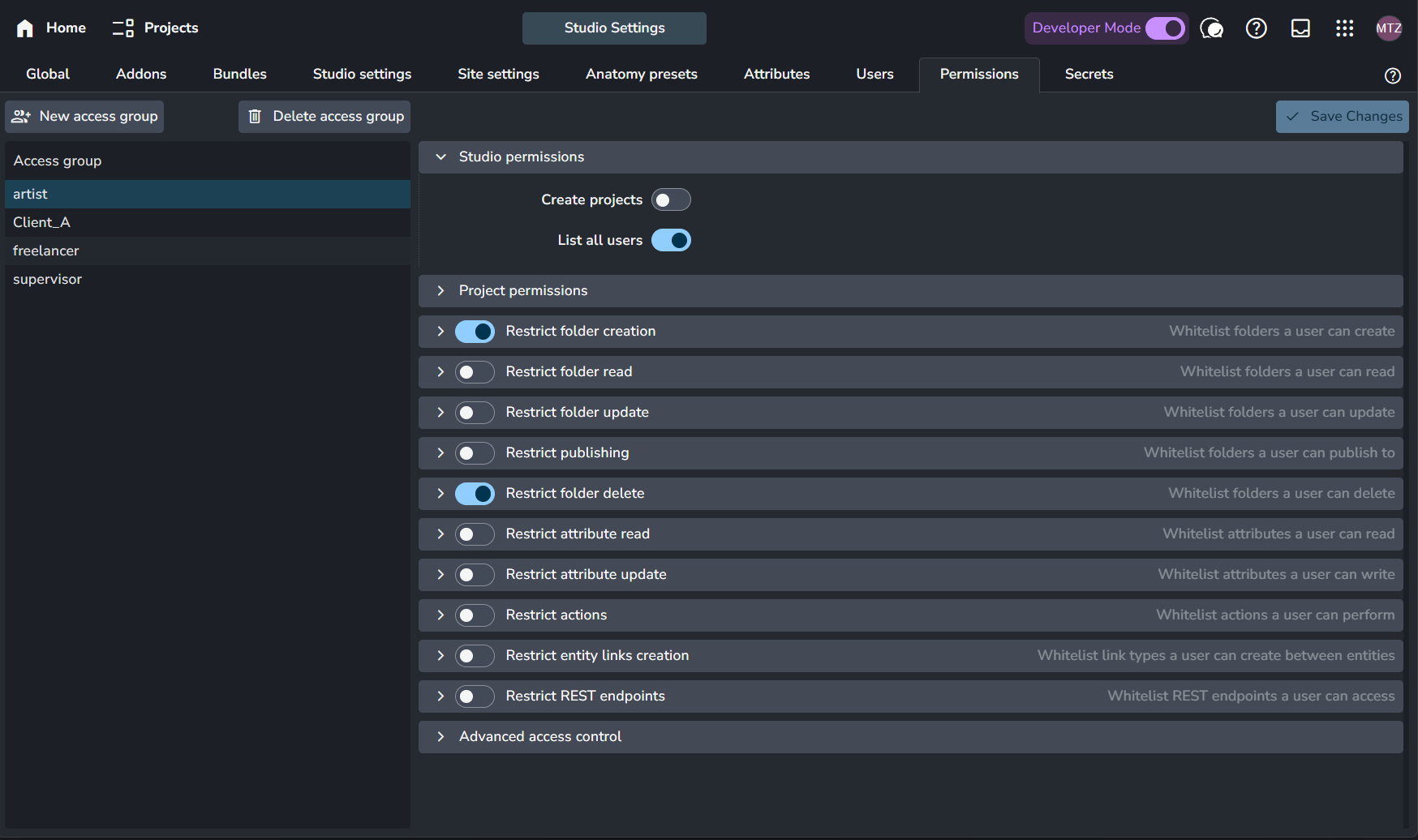
Access groups are defined in the Permissions tab of Studio Settings. These definitions include:
Studio Global Permissions: (e.g., List all users) which govern interactions outside of specific projects.
Default Project Permissions: The baseline rules for how this group behaves when assigned to a project.
Access Group Project Overrides
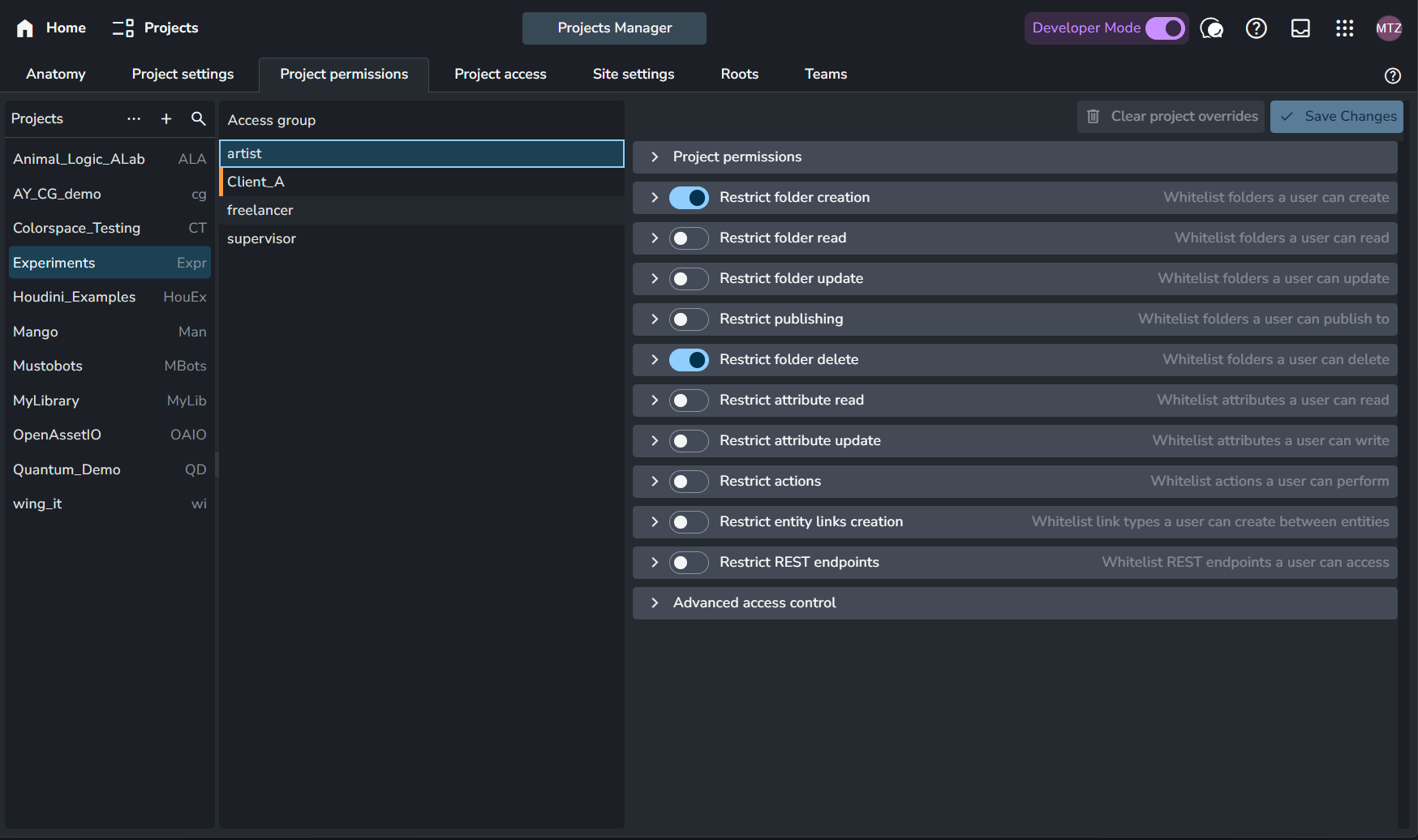
You can specify project overrides in the Project Permissions tab within that project's settings.
Setting Default User Access Level and Project Access
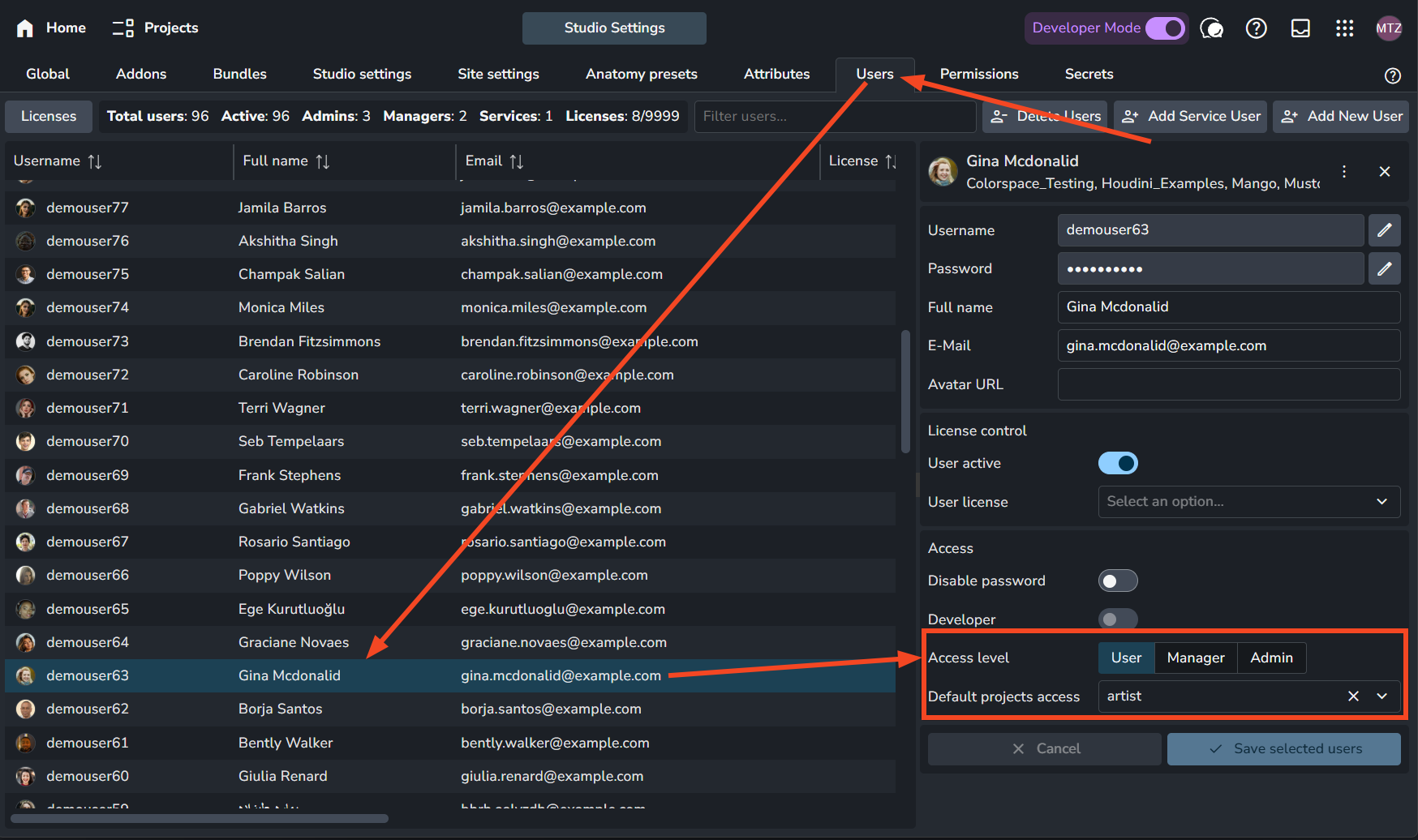
Configuring a user's baseline role and their default group is handled in the Users page:
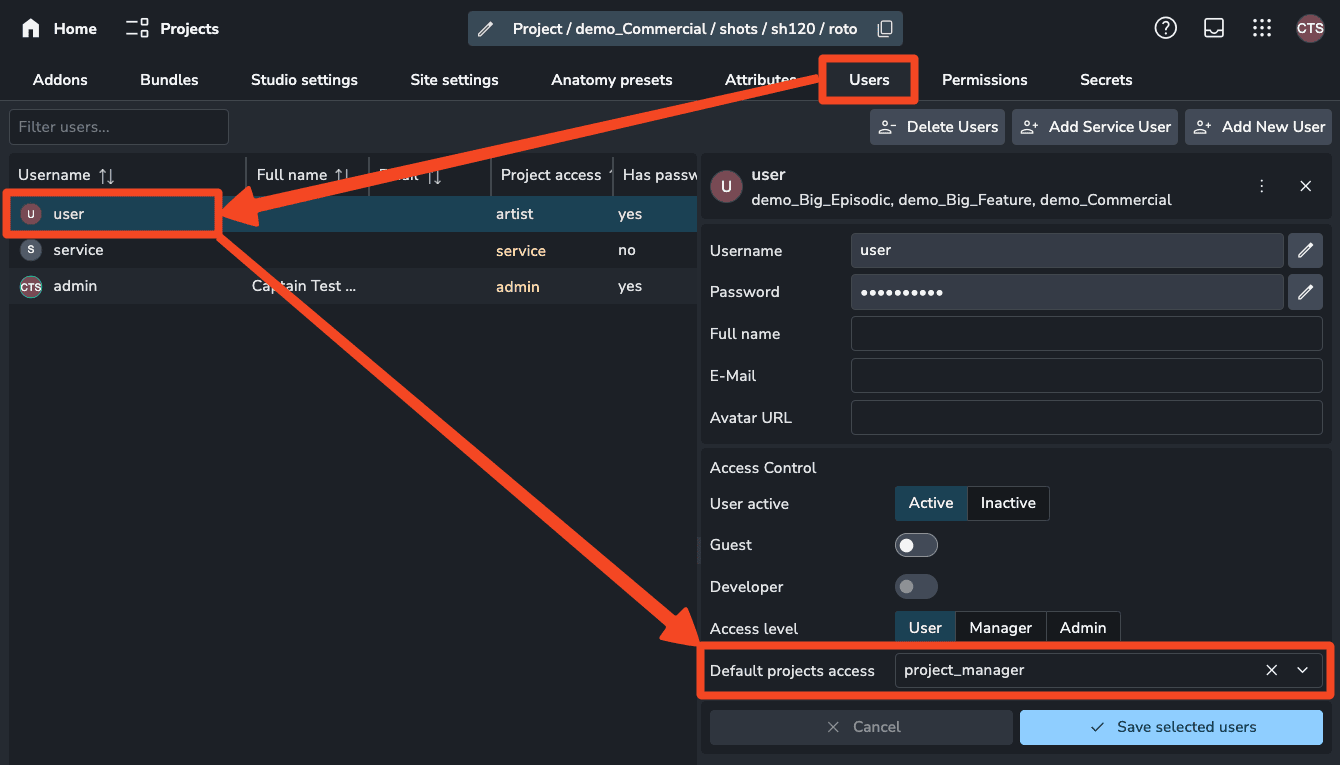
Navigate to Studio settings > Users.
Select a user from the list.
In the right-hand panel, set the Access Level (Role) and the Default Project Access (Access Group).
The Default Project Access simply acts as a template for new projects; for existing projects, visibility is strictly "Invite-only" via the Project Access tab in project settings.
Admins and Managers can only assign users to access levels equal to or lower than their own.
Set Project Access Level
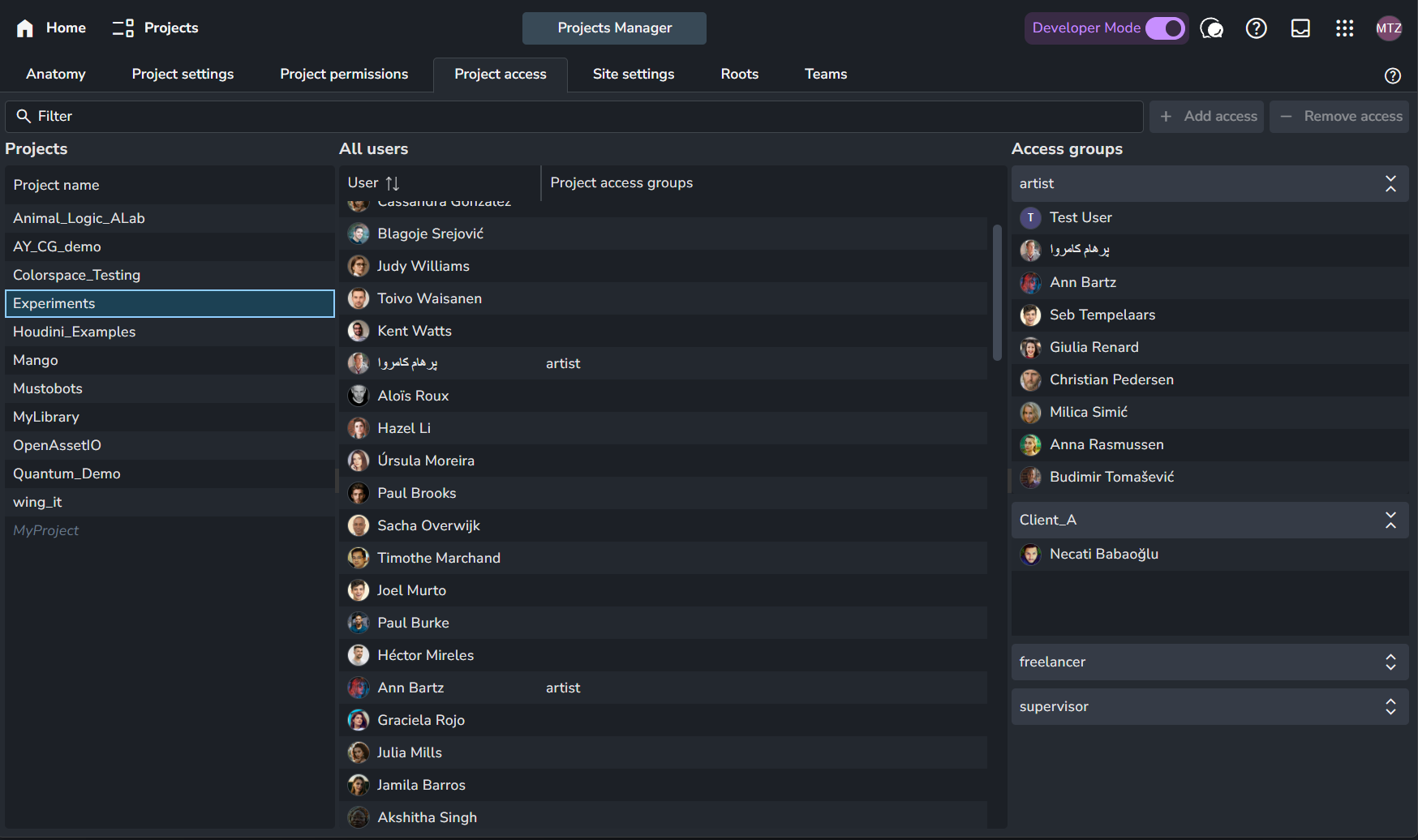
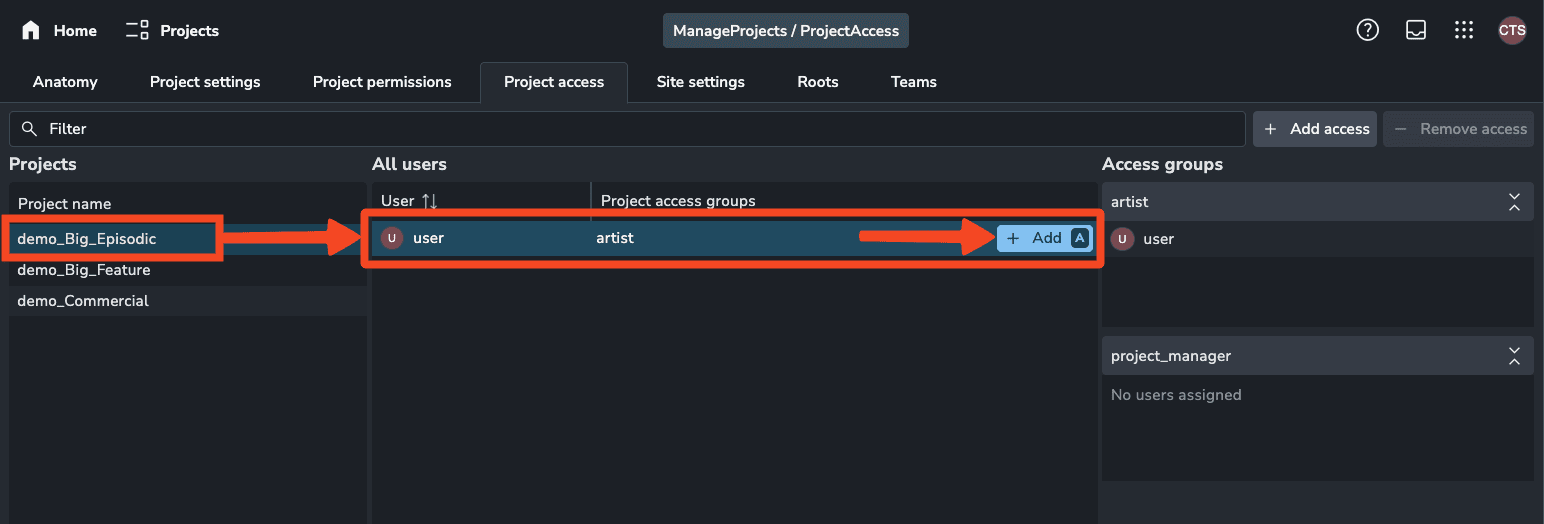
To grant a user access to a specific project, go to the Project Access tab in that Project's Settings. Here, Admins and Managers can explicitly assign users to a specific Access Group for that project.
If a user is not explicitly added to an Access Group within a project's "Project Access" tab, they will not see the project at all, regardless of what is set as their "Default Project Access" in the Users page.
How Permissions work
Understanding how permissions are evaluated is crucial for access configuration and troubleshooting:
Project-Specific Evaluation: When a user is working inside a project, their final permissions are a combination of their Access Level + their assigned Project Access Group.
Global/Studio Evaluation: Access Group definitions also include "Global" permissions (e.g., List Users). Because these actions happen outside of a specific project, the server follows the Default Access Group assigned in the Users page to evaluate them.
Admin Note: Always ensure the "Default Access Group" in the Users tab reflects the baseline permissions you want that user to have across the whole studio.
Access Permissions Settings
While admins and managers have automatic access to all projects, users need to be assigned to specific access groups to gain project permissions.
Access Groups are configured on the Permissions page inside of studio settings. These groups determine what actions users can perform within a project, such as reading, creating, updating, or deleting project resources.
Partial Project Access (Access List)
Access groups can provide selective permissions, such as restricting a user to only view tasks they are assigned to, while hiding other tasks and folders.
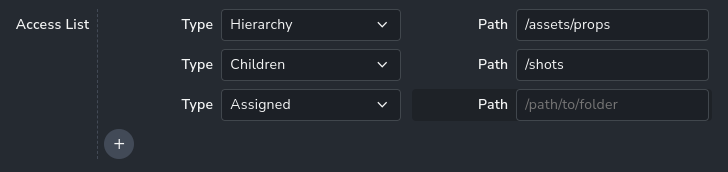
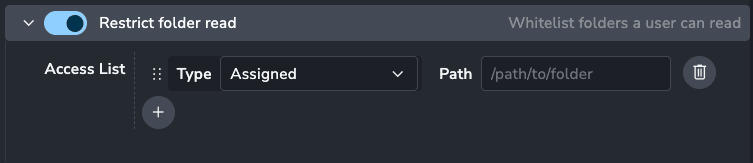
Access List: Assigned
When the "Assigned" filter is applied, users will only have permissions for folders that contain at least one task assigned to them.
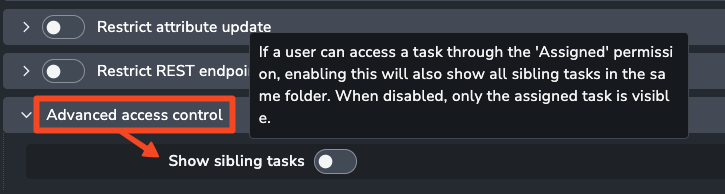
By default, this view also shows all sibling tasks within those folders. To hide these sibling tasks, go to Advanced Settings and toggle off the "Show sibling tasks" option.
The Path option has no effect when using type Assigned
Access List: Hierarchy and Children
Hierarchy and Children types define how permission paths are applied.
For example, a user with a read restriction set to the hierarchy path /assets/props will see the props folder along with all its subfolders and tasks.
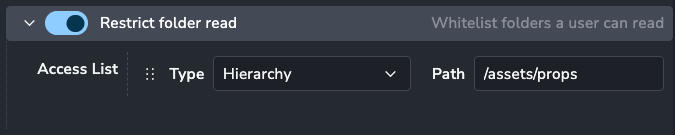
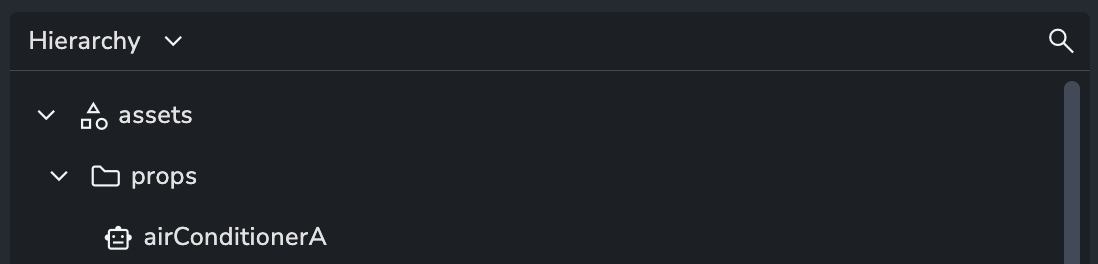
The key difference between Hierarchy and Children applies only to write permissions:
Hierarchy: Allows editing of the props folder and everything inside it.
Children: Allows editing only of the contents inside the props folder, but not the folder itself.
User Management Permissions
By default, users have limited project settings access. To allow roles like production coordinators to manage project-specific settings without full project and studio permissions, use customized access groups.
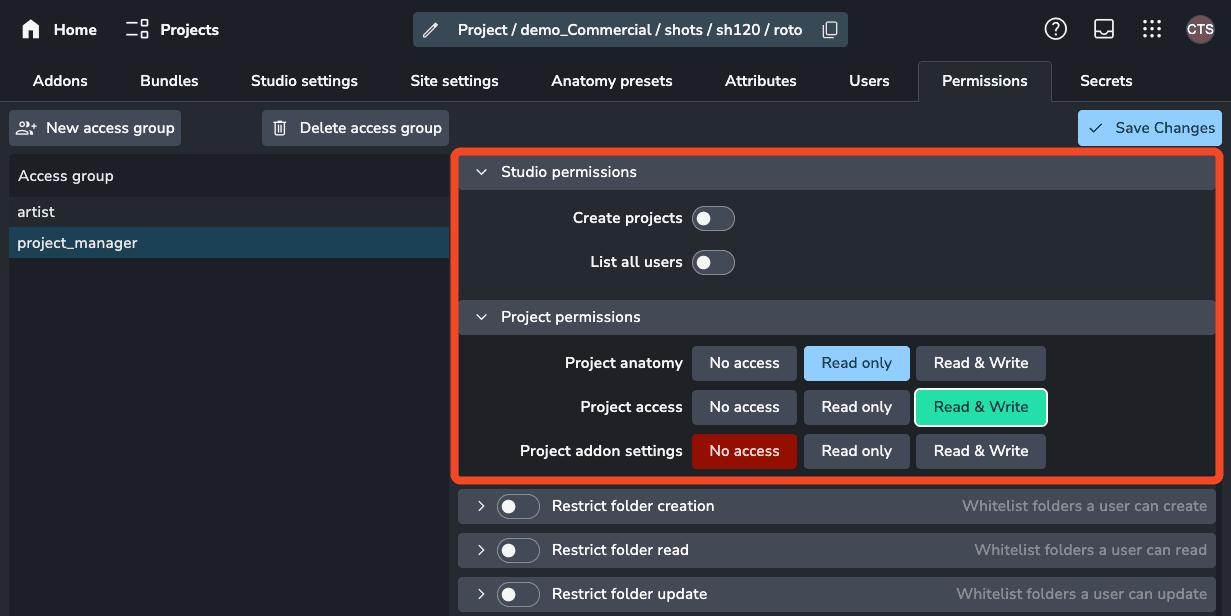
Example: Assigning the project_manager access group allows a user to view the project anatomy, modify project access with no access to project addon settings.
To grant a user the ability to view the Project access page and manage users, ensure they have the corresponding access group in their Default Project Access list. This provides them with access to all studio users.
Permissions Project Overrides
Permissions apply to all projects by default but can be customized for individual projects on the Projects Permissions page in Project Settings.
Default Project Access
Users can be assigned default access groups for new projects. This ensures they automatically receive those access groups when new projects are created. Note that this does not apply retroactively to existing projects.
Adding Users to Projects
To grant project access to a user, assign them to one or more access groups for each project:
Navigate to the Project access page in Project Settings.
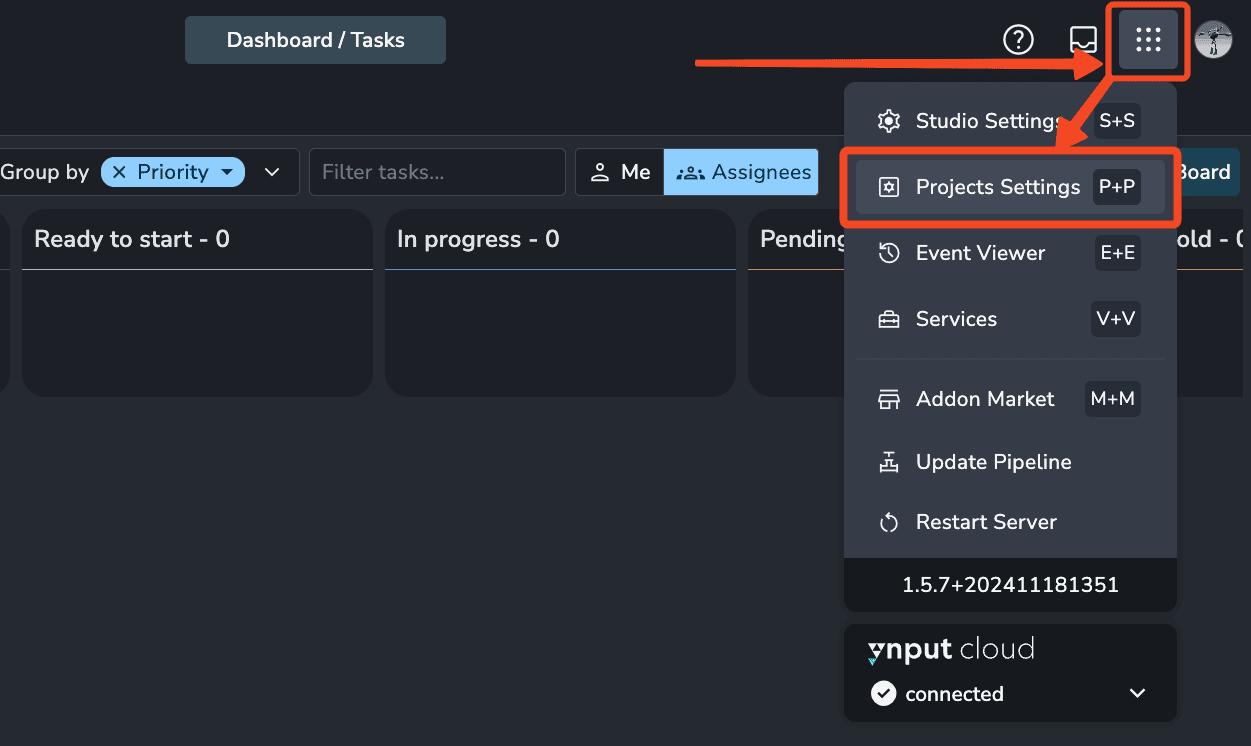
Select one or multiple projects to give users access to.
Choose one or more users to assign the access groups to.
Assign one or more access groups to these users for the selected projects.
This approach allows for precise control of user permissions on a per-project basis.
Was this helpful?
Still need help? Ask the team