AYON Workflow Introduction
An overview of workflow addon features, the development roadmap, technical considerations, and the installation process.
Last updated 16 days ago
AYON Workflow is a premium addon included with the Studio subscription.
Overview
Connect your tools and automate handoffs with visual node graphs.
Studios often struggle not from a lack of tools, but because the handovers between them—publishing, rendering, reviewing—depend on manual steps, custom scripts, and duct tape.
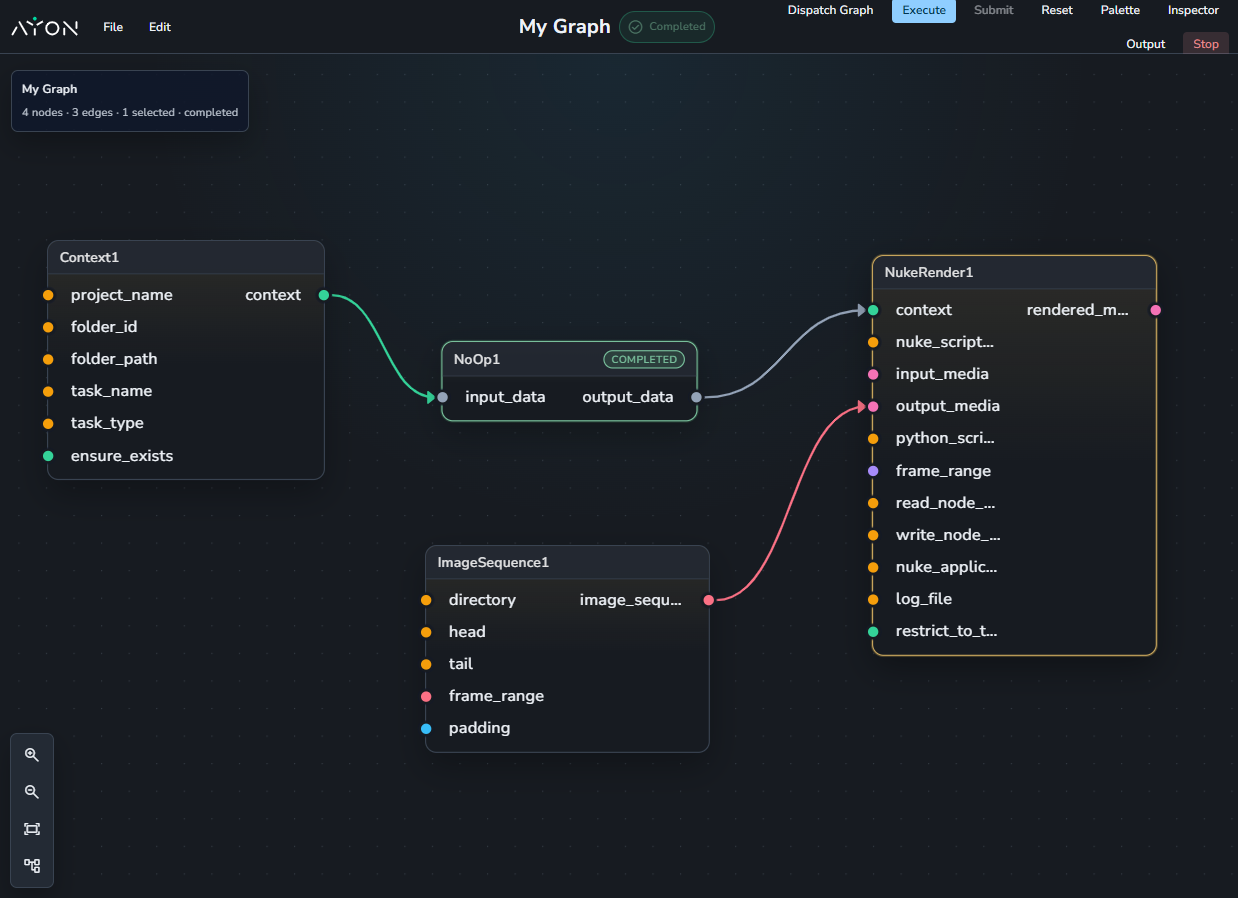
AYON Workflow is a node-based automation framework built into AYON. It gives teams a visual, structured way to connect publish events, DCC actions, and render farm jobs into repeatable pipelines.
For Technical Artists: Design and test complex workflows interactively using a visual editor. Chain operations across multiple DCCs, automate publishing, and orchestrate multi-step production tasks without writing code.
For Pipeline TDs & Developers: Build custom automation tools and extend AYON’s capabilities using Python-based node plugins. Create reusable workflows that handle render farm management, retry logic, and orchestration overhead automatically.
Core Concepts
Nodes
A Node represents a single task. It takes inputs, performs a job, and produces outputs. Examples: Find a Task, Render a Nuke script, Process an Image Sequence, Publish a version.
Workflows
A Workflow is a visual graph connecting Nodes. By linking the output of one node to the input of another, you define the exact sequence of events.
Example: [Find Asset] -> [Render on Farm] -> [Encode Video] -> [Publish]
Execution
A Workflow can be executed in two ways:
Local: Runs immediately on your workstation. Perfect for quick tasks or browser-triggered actions.
Farm (Dispatch): Sends the heavy lifting to your farm (like AWS Deadline or AYON Ash) as background jobs.
Developers and TDs can execute workflows as separate sub-tasks via Python or the CLI. This is useful for experimenting with specific parts of a graph or building complex automations that require external logic between tasks.
Installation and setup
Download the addon from the market and add it to your production bundle.
Run the processor service in the services tab.
For detailed setups, see Configure Workflow Addon.
Get Started
These guides will walk you through your first workflow, more advanced automations, and full addon configuration.
Workflow Editor: Your First workflows: Start here if you've never used the Workflow addon before. It walks through your first steps with hands-on, step-by-step examples using demo files, and includes a reference for the Workflow Editor's interface.
Workflows & Automations: A more advanced guide on using workflow graphs in automations, covering event-triggered workflows, triggering workflows from action menus, and scheduled workflows.
Configure Workflow Addon: Detailed setup steps for the addon, including an explanation of its settings.
Workflow Addon Features
Workflow Graphs Editor
Replacing thousands of lines of hidden Python code with a visual graph brings clarity.
Supervisors, artists, and technical teams can easily look at a workflow graph, understand the logic, and refine it together.
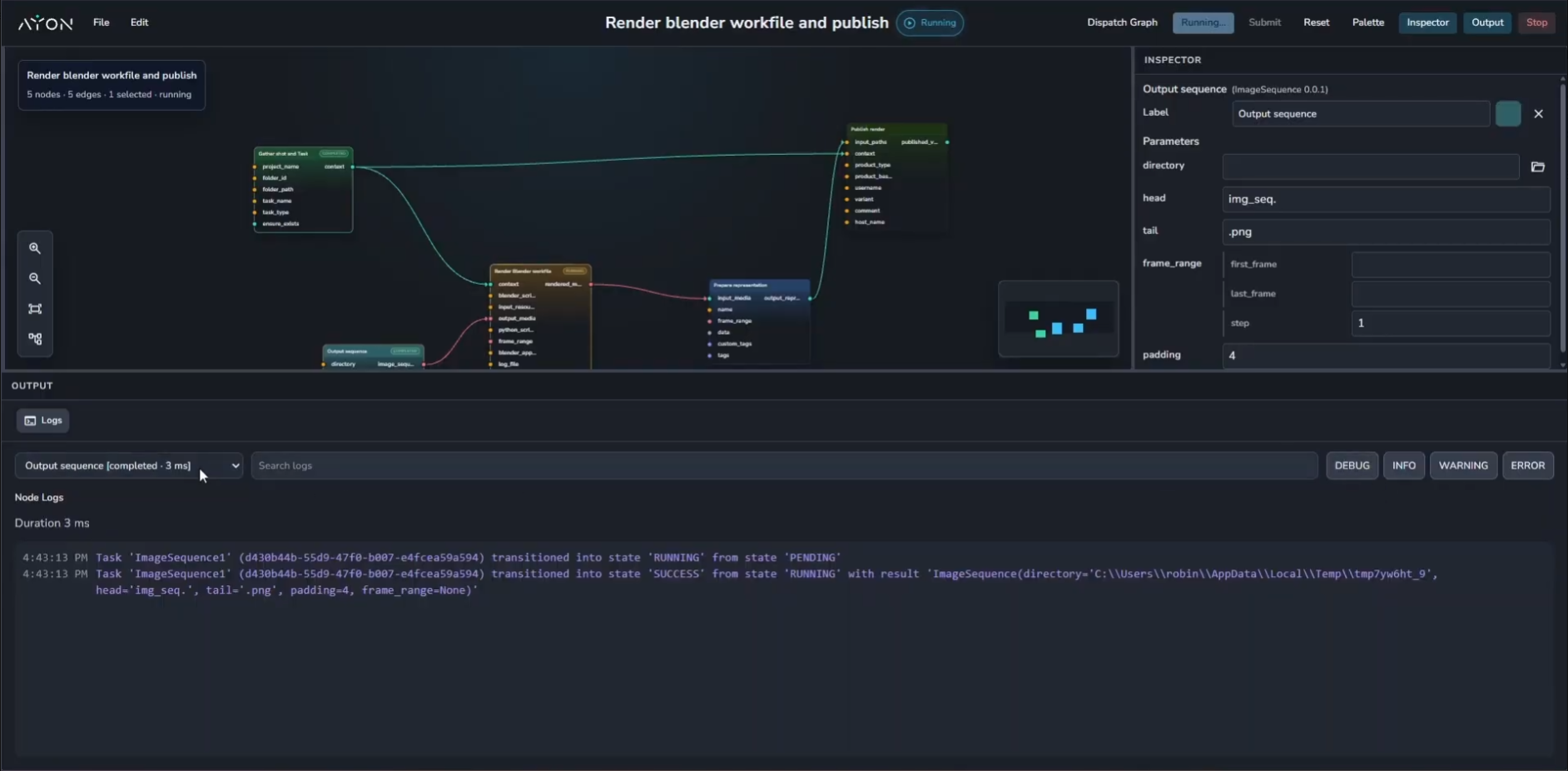
The editor includes:
The Canvas: Where you drop and wire your nodes.
The Node Library: The list of available actions.
The Properties Panel: Where you configure node settings.
The Log and Output Panel: Where you check the output for each node.
To launch the editor: Right-click the AYON Tray icon on your workstation, and click Workflow Editor. This will open the visual builder in your default web browser.
For a detailed Workflow Graph Editor reference and its nodes, see Workflow Editor Reference.
Run Workflow graphs on the Render Farm
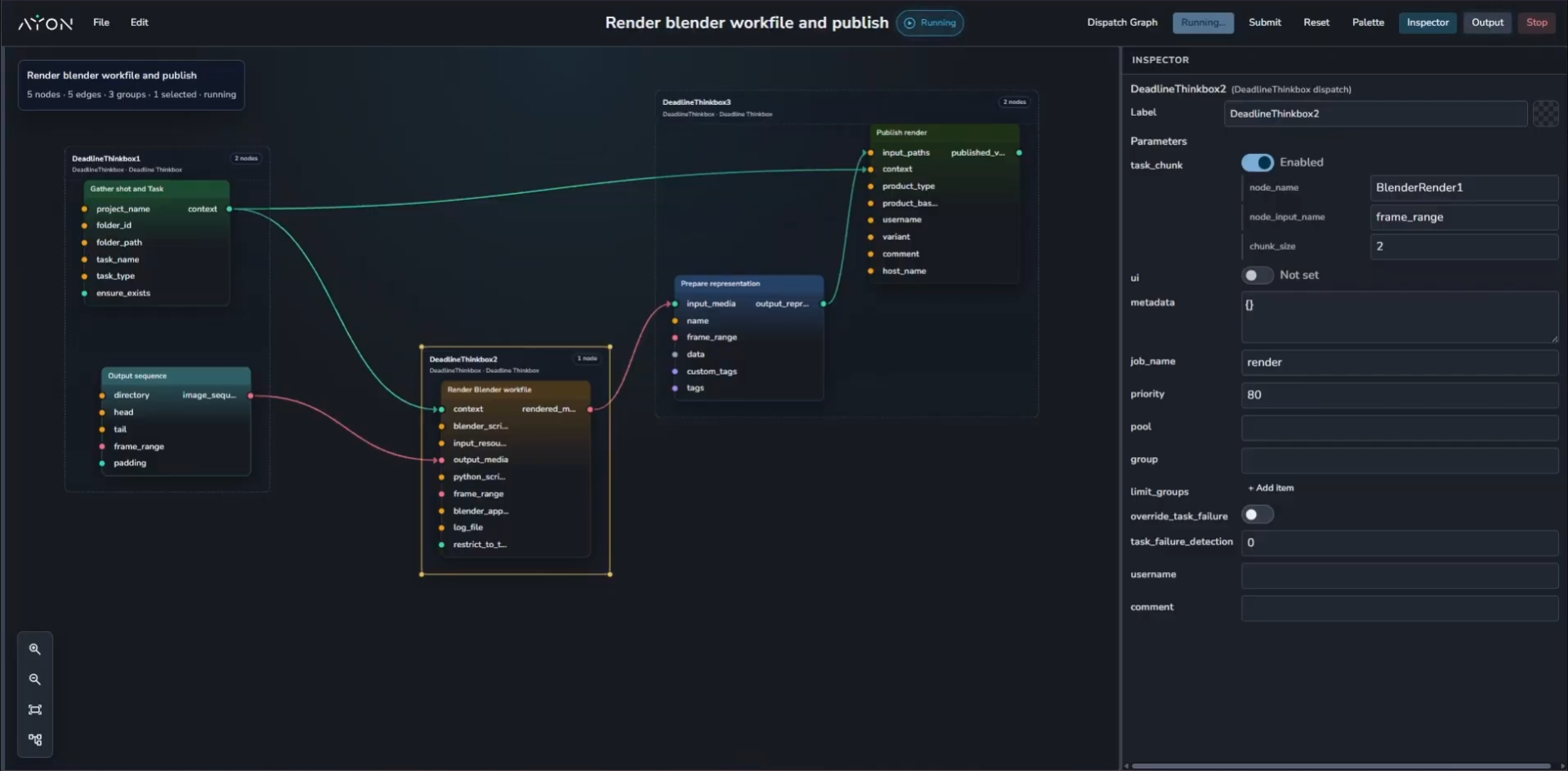
Workflows aren't just for local automation. When building your workflow, you can also submit them on your farm. When you click Submit, the workflow is sent to your render farm (e.g., AWS Deadline).
Scaling with Chunking: If your dispatch node processes an image sequence, the farm will automatically split (or "chunk") the frames across multiple machines, process them in parallel, and seamlessly merge the results back together before continuing the rest of the workflow.
For a step-by-step example, see Render a Blender File on Farm.
Workflow graphs and automations
Workflows can be incorporated into automations, running on demand from folder and version action menus on the server, triggered by server events, or run periodically on a schedule.
For more information and step-by-step workflow automation examples, see Workflows & Automations.
Bring your own nodes
AYON Workflow is highly extensible. If the built-in nodes don't cover your specific pipeline needs, your technical team can easily write custom nodes in Python.
Custom nodes can be packaged inside your own custom AYON Addons, or loaded directly from a network drive by setting the AYON_WORKFLOW_ADDITIONAL_PLUGIN_PATH environment variable. Once registered, your custom nodes automatically appear in the visual editor.
For more information, check out the Custom Node Example Implementations dev docs and Event-triggered Workflows dev docs
Roadmap
Future updates will focus on deeper server integration and automation triggers:
Server-side Storage: Save and version workflows directly on the AYON server.
Contextual Execution: Settings to specify which workflows run on specific projects or tasks.
Was this helpful?
Still need help? Ask the team