Workflow Editor: Your First workflows
Last updated About 17 hours ago
Overview
Workflows are visual graphs for tasks and automations without writing code.
This guide is a walkthrough your first workflow graph and include a reference for the graph editor.
Quick Start
Workflow editor Quick Start section includes three example:
Hello World
Download Example
hello_world.json
748 bytes• Text
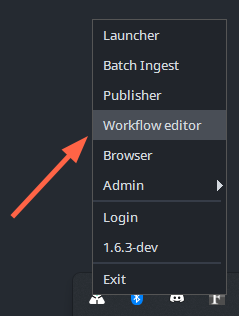
Start workflow editor: To open the workflow Editor, you can find it in the AYON tray menu.
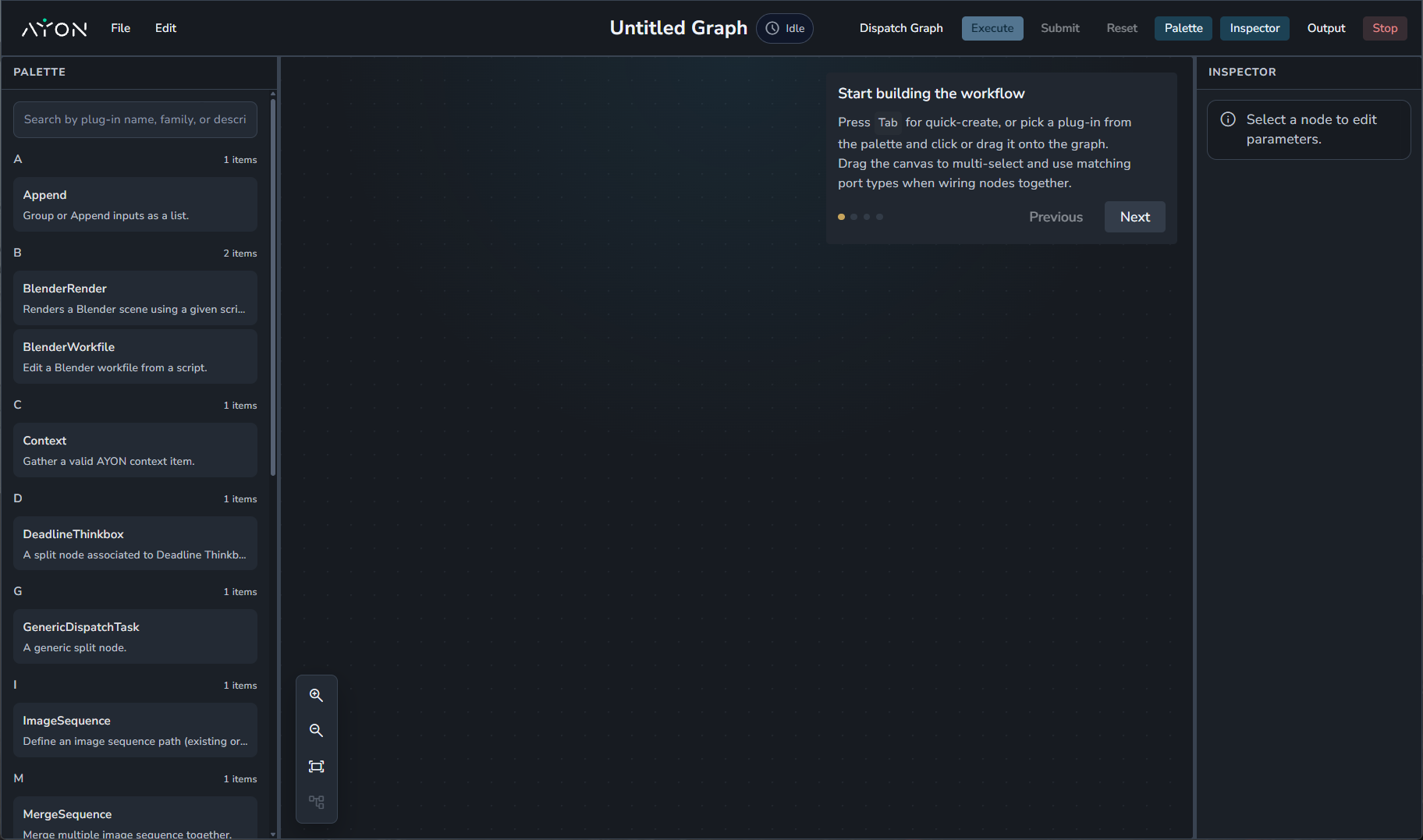
Press
TAB: To show tab menu where you can select which node to create.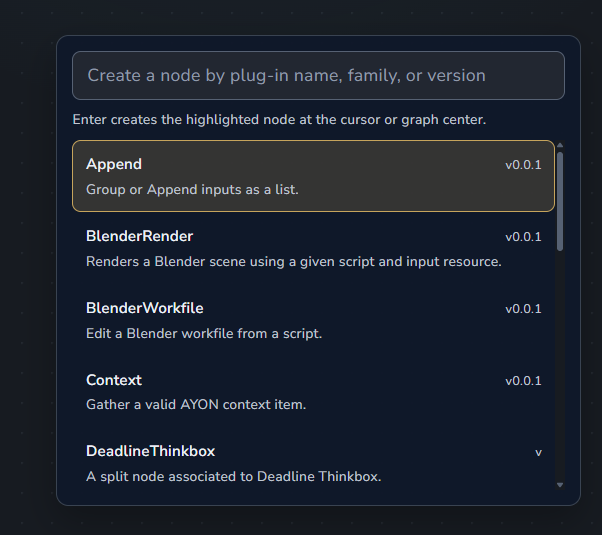
Create first Node: Choose
NoOpnode.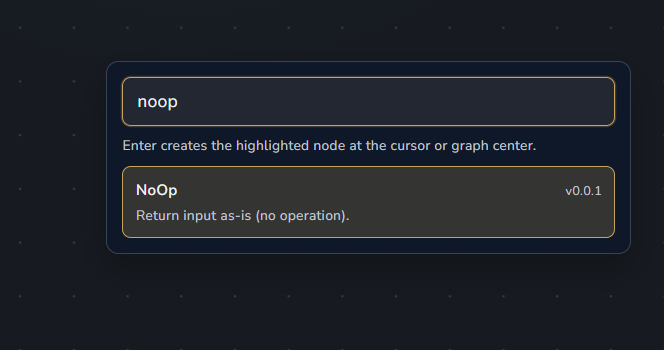
You can see the node’s properties on the right hand panel.
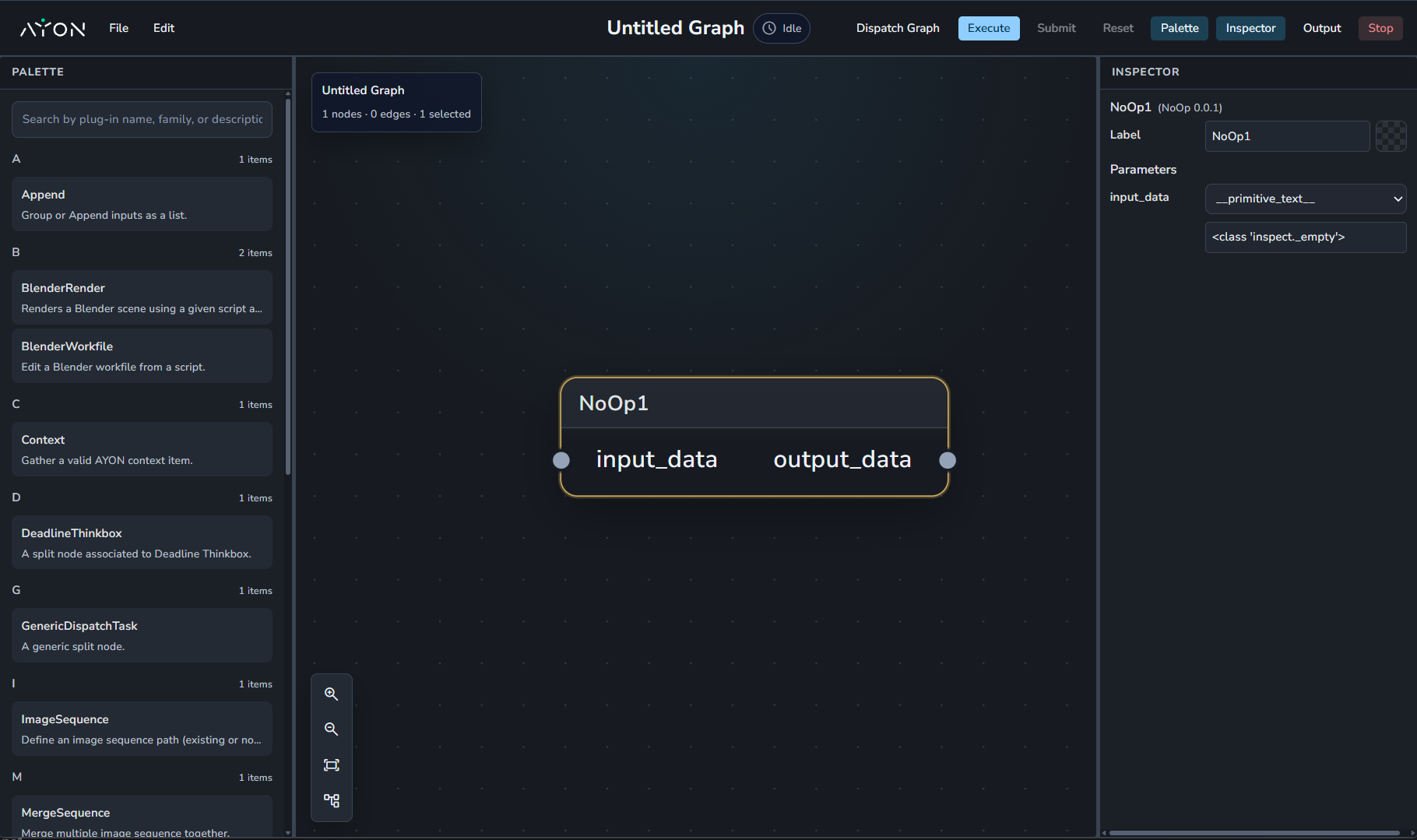
Execute: You can execute the graph locally by the pressing the blue
Executebutton in the upper right.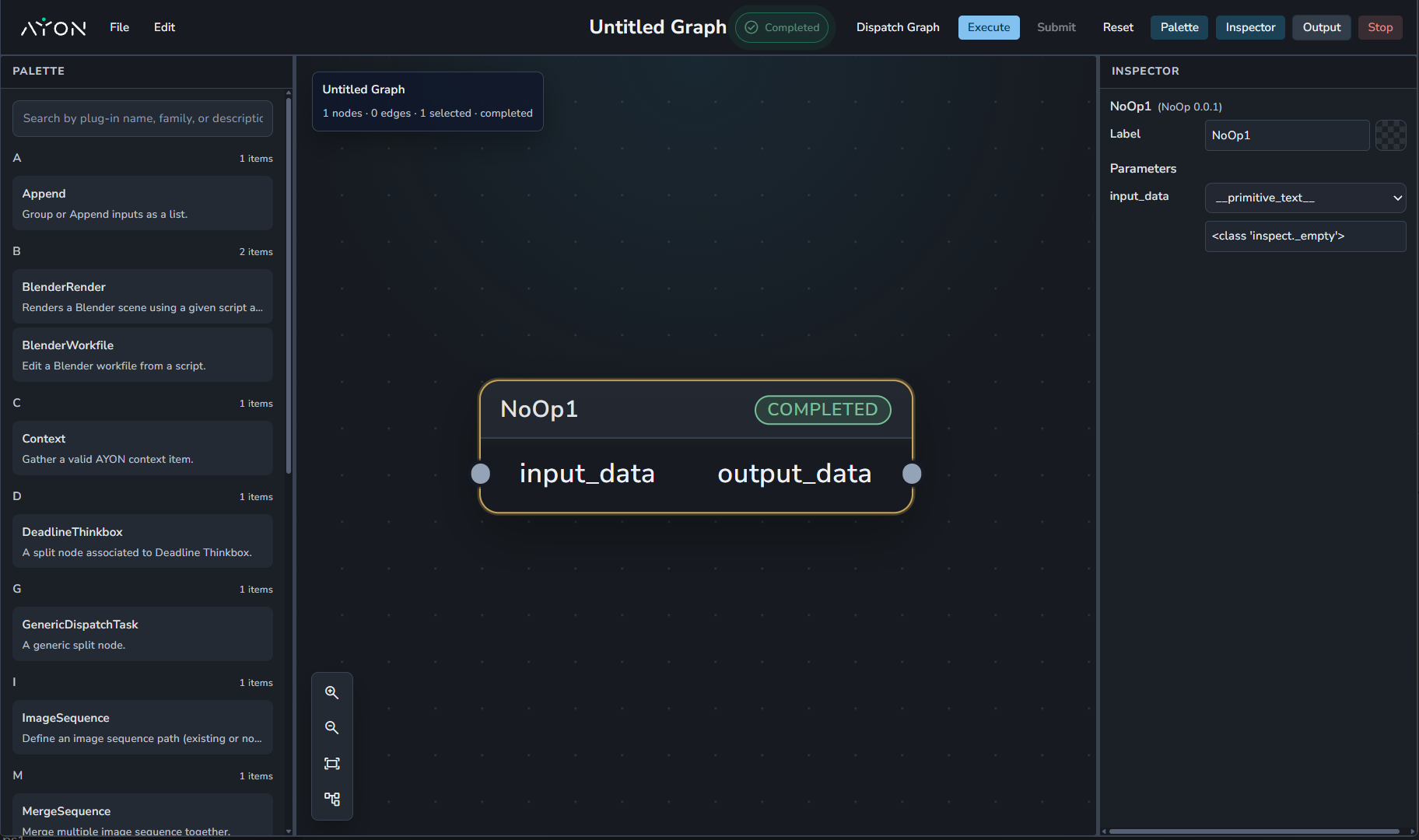
You can set a name for your workflow via clicking the title above.
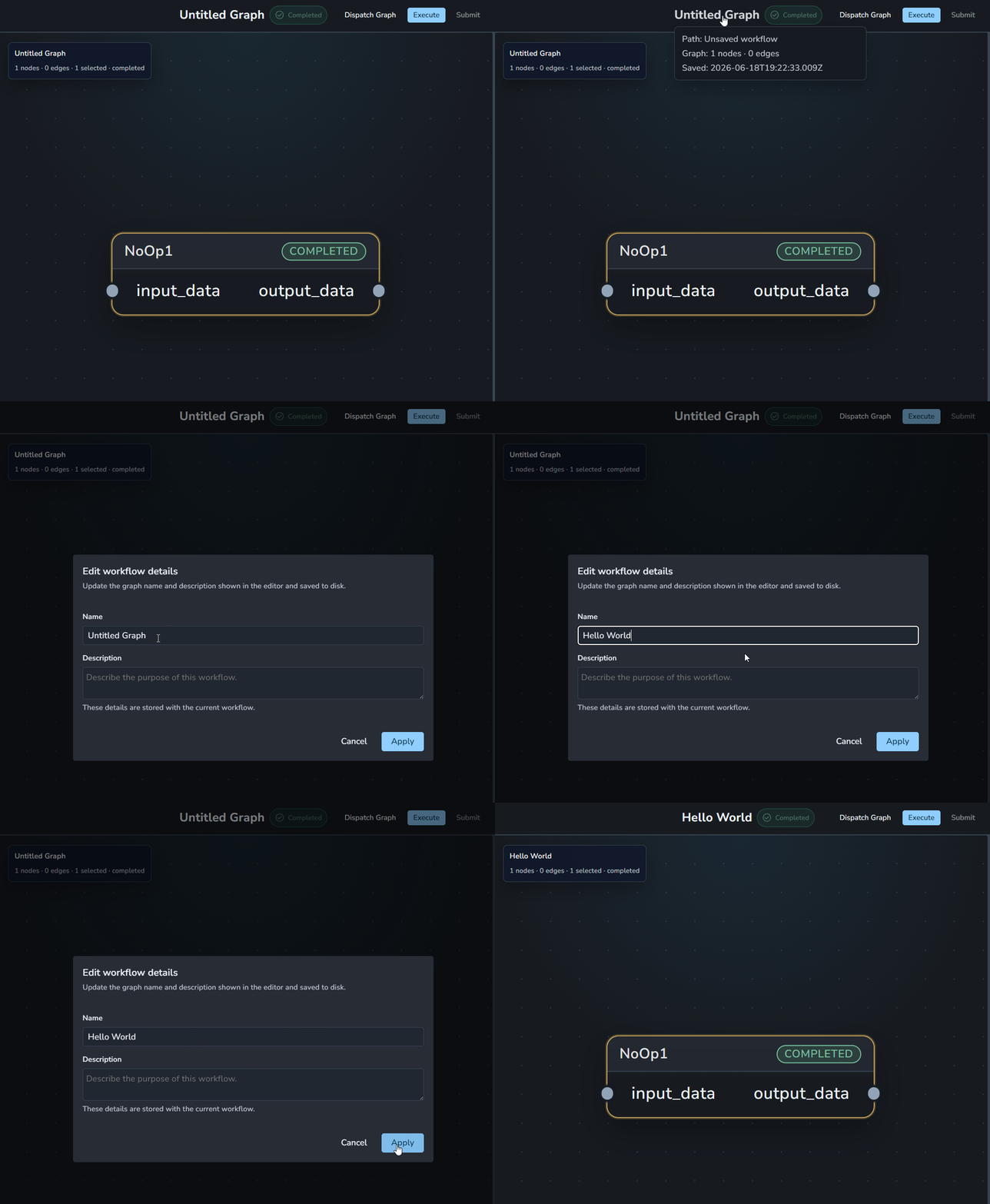
You can save your workflow via
File > Save…which saves your workflow as json file.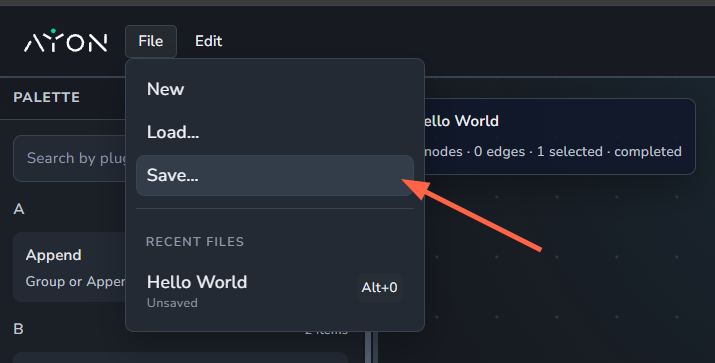
Render a Blender File
Download Example:
render_a_blender_file.json
4.6 KB• Text
example_render.blend
523 KB
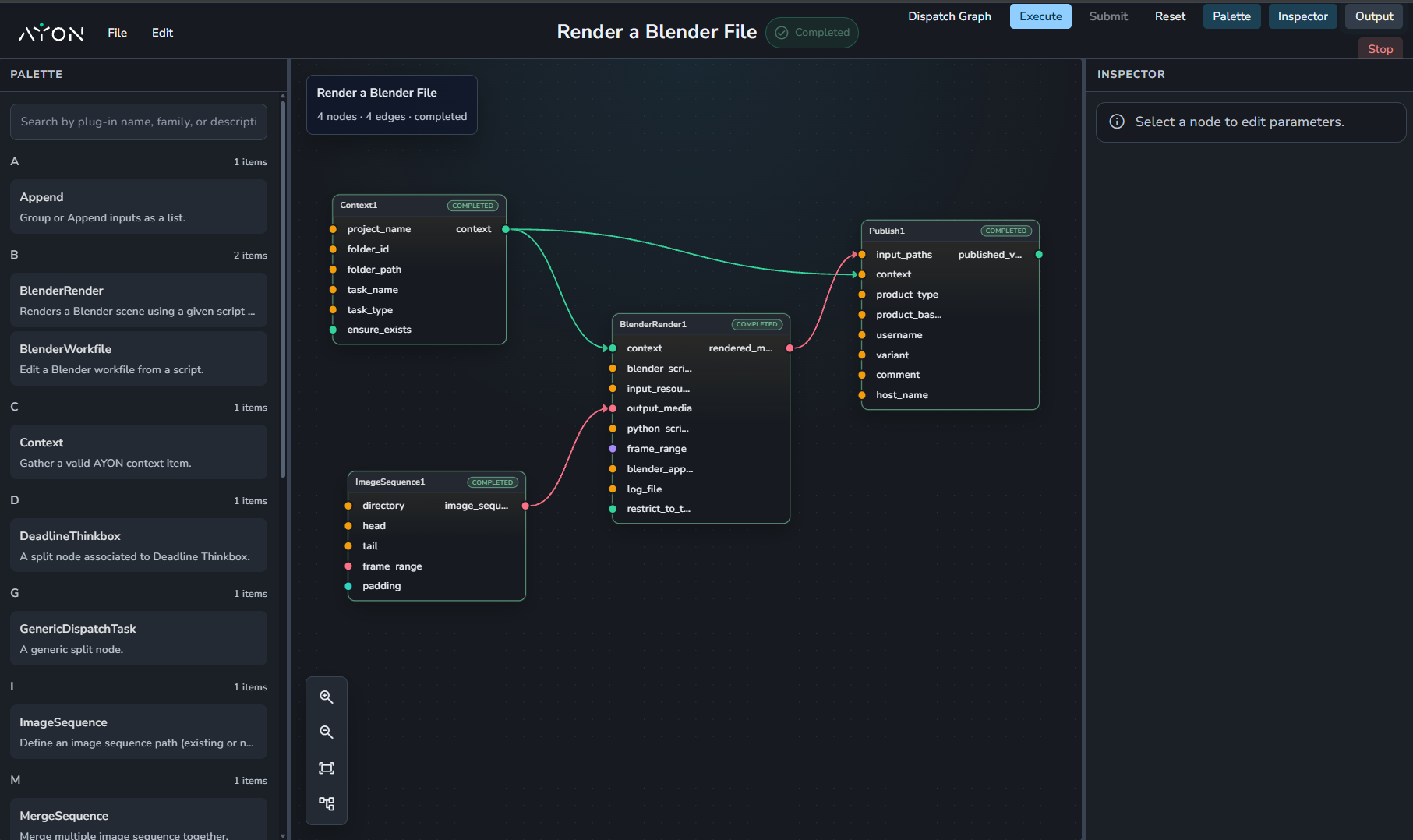
While you can go directly to the tab menu in the graph editor and create a blender render node, it won’t work outside of the box as it requires some preparation.
Steps:
Add nodes: Add “blender render”, “context”, “image sequence”, and “publish” nodes
Make connections:
Connect the output of the context to the “blender render” and “publish” nodes, this tells the workflow engine that the context used to open the blender file is the same we are publishing to.
Connect the output of “image sequence” to the “output_media” in the “blender render” this tells the engine what render files to expect and their frame range.
connect the output of the “blender render” to the “input_paths” of the “publish” node which tells the engine to publish the input media.
Set parameters:
“Context” Node: Set project_name, folder_path, task_name, and task_type.
“Image Sequence”: Set directory of the render file, head and tail of render file, frame_range, and padding. same as configured in the blender file.
“Blender Render”: Set “blender_script_bath”, “frame_range” to render and “blender_application_variant“ from application addon configuration.
“Publish”: set the “product_type”, “variant”, and “username”.
Press: “Execute”
Render a Blender File on Farm
Download Example:
render_a_blender_file_on_farm.json
5.8 KB• Text
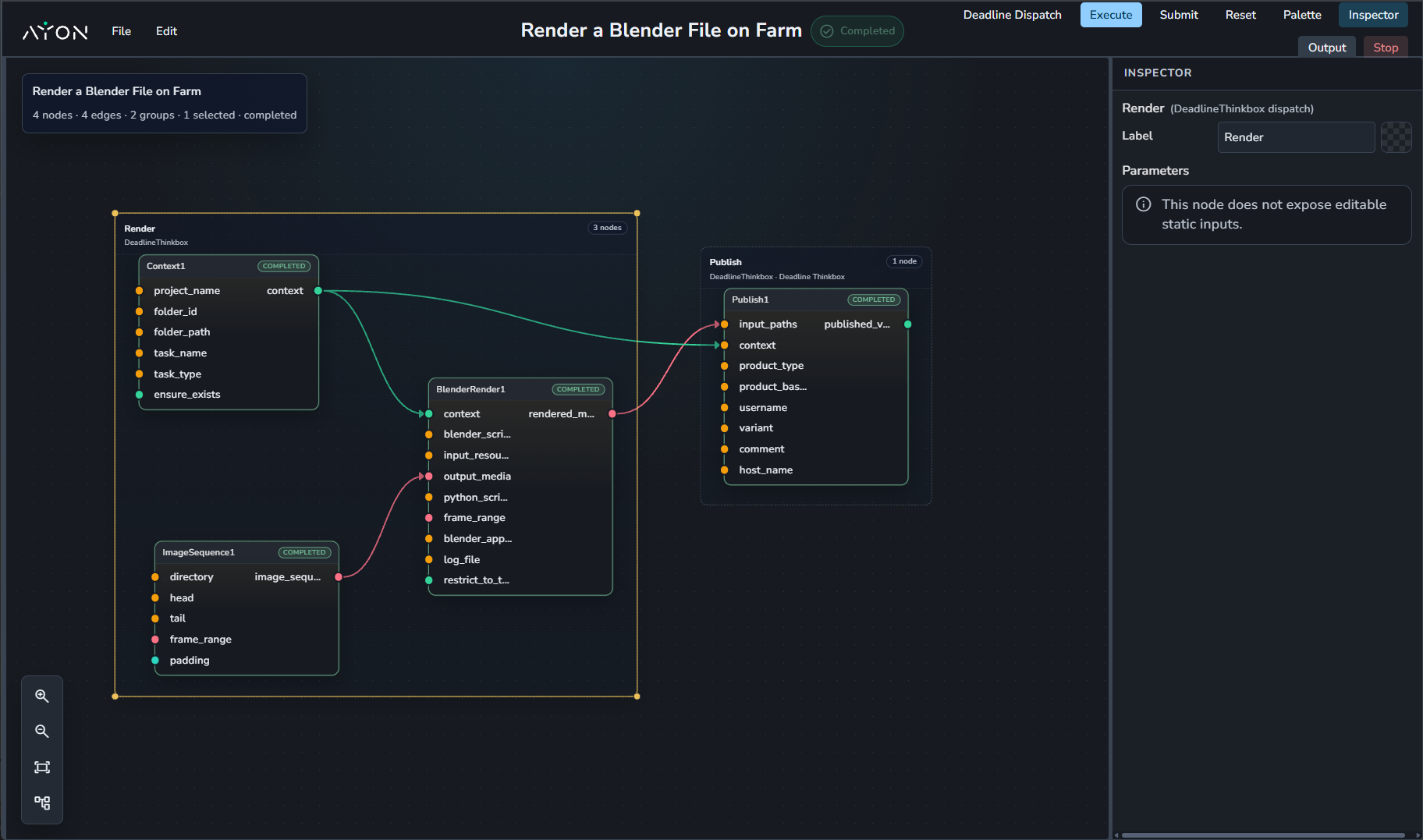
We can start from the previous example Render a blender file and make it run on farm.
In order to make run on farm, we’ll need to create a dispatch plan by creating groups for nodes. each group represents a job on the render farm. For this example, we’ll create two groups: Render and Publish.
Steps:
Create dispatch: Click
Dispatch Graphin the upper right and selectNew…
Then, you’ll be prompted to pick a name for your dispatch graph and dispatch type. For this example, we will set dispatch type to
DeadlineThinkbox.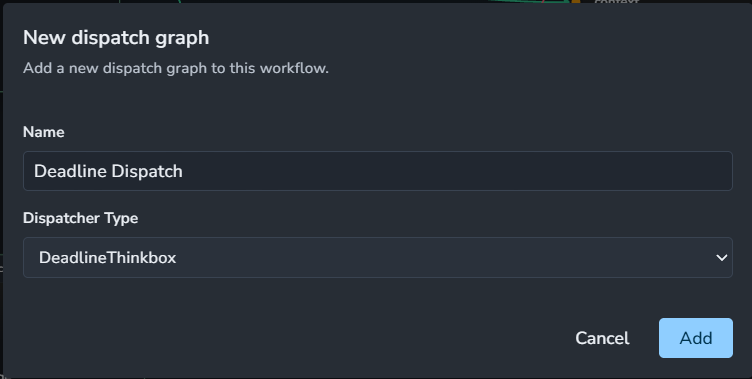
Once added, you’ll notice the dispatch button turned into the dispatch name you chose.

Create groups: let’s create two groups:
Group 1: select “Context”, “Image Sequence”, “Blender Render” and press “Ctrl+G” then select Deadline Thinkbox.
Group 2: select “Publish” and press “Ctrl+G” then select Deadline Thinkbox.
Set parameters: For each group,
Set label for easy identification in the graph
Set the jobname for easy identification in deadline monitor.
For render job, you can set Chunking if you want the render to be rendered in chunks.
Press: “Submit” and it’ll proceed you to pick the location for saving the dispatch data.
Pick a location that is accessible on the farm machine as dispatch data must be accessible on the farm machine running the job.
Go to Deadline monitor and check for the submitted jobs.
You can safely delete the dispatch data once job is done unless you plan on restarting the job on the farm.
Workflow Editor Reference
Workflow Editor Interface
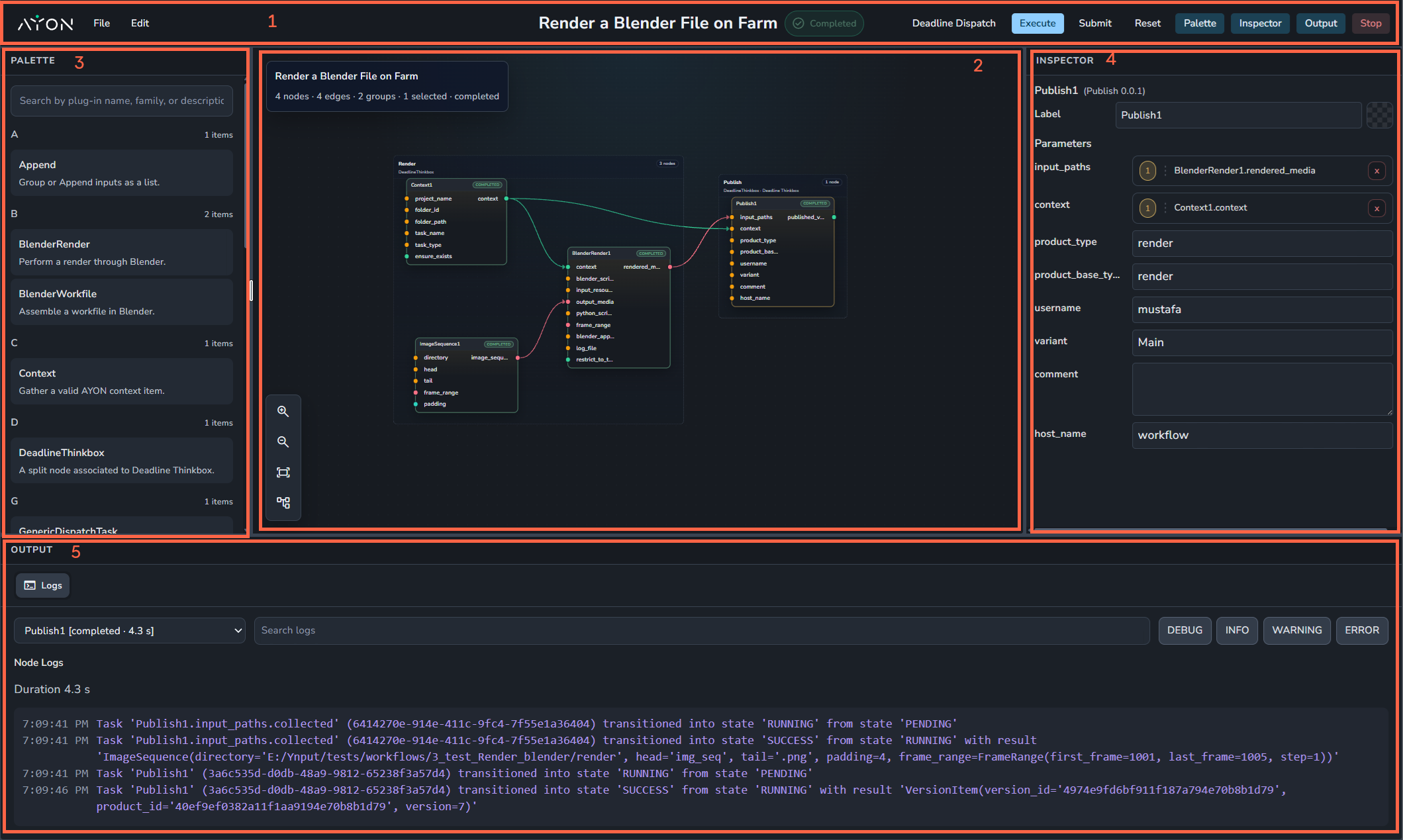
After we got our hands dirty, let’s explore the UI of the workflow editor:
Workflow Editor Header: This is where you will find the menus, workflow name, workflow status (e.g., Running or Complete), and the Dispatch menu. It also includes the execution buttons (Execute, Submit, and Reset), along with toggle buttons to show or hide the Palette, Inspector, and Output Log panels. Additionally, there is a Stop button to terminate the editor backend.
Simply closing the browser tab will not stop the editor's backend process; you must click the Stop button to shut it down completely.
Node editor Panel: It’s where you create nodes and dispatch groups.
Palette Panel: It’s where you find nodes and drag them to the editor.
You can show/hide this panel via the “Palette” button on the top right.
Inspector Panel: It’s where you can modify the parameter for the selected node in the graph.
You can show/hide this panel via the “Inspector” button on the top right.
Output Panel: It’s where you can check the log of the graph or a specific node in the graph.
You can show/hide this panel via the “Output” button on the top right.
Workflow Editor Shortcuts
TAB: for quick-create, or pick a plug-in from the palette and click or drag it onto the graph.
Hold
Cand drag across connections to cut them.Use
Ctrl/⌘+CandCtrl/⌘+Vto copy and paste workflow JSON selections.Press
DeleteorBackspaceto remove selected nodes or links.L: Layout graph
F: Frame all nodes
Ctrl+G: Create group from selection
Del/Backspace: Delete selection
Alt+0 to Alt+9: Switch between recent files
Nodes Reference
Append
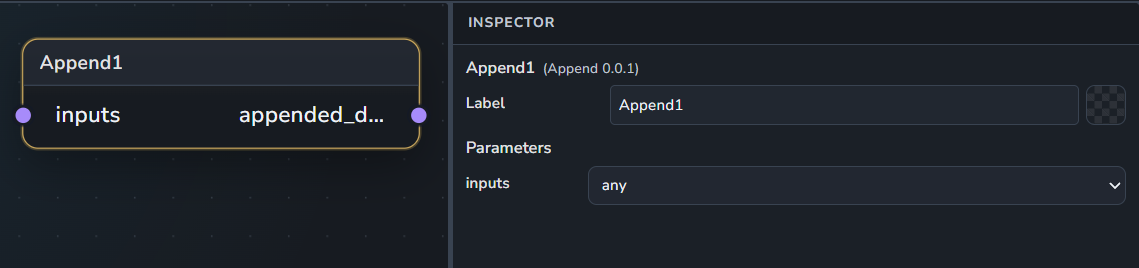
Group single or multiple inputs together into a list format.
Inputs:
inputs: Any input or list of inputs. Supports multiple connections.
Outputs:
appended_data: The resulting list of grouped data.
BlenderRender
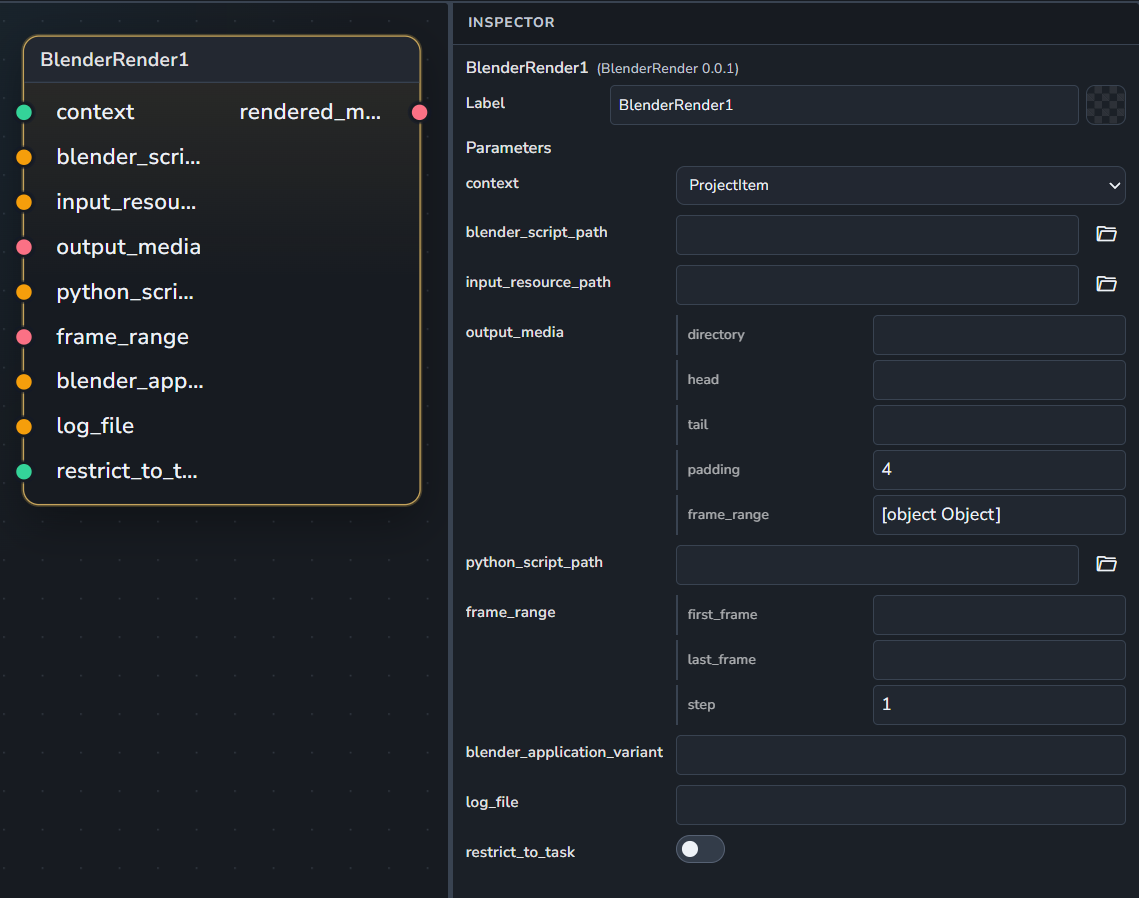
Performs a render operation using Blender.
Inputs:
context: The AYON render context.
blender_script_path: The path to the
.blendscene file.input_resource_path: Path to a specific input resource.
output_media: The expected output image sequence.
python_script_path: Path to an optional Python script to run.
frame_range: Specific frame range to restrict the render to.
blender_application_variant: Specific application variant/version to use.
log_file: Path to save the render logs.
Outputs:
rendered_media: The resulting rendered image sequence.
BlenderWorkfile
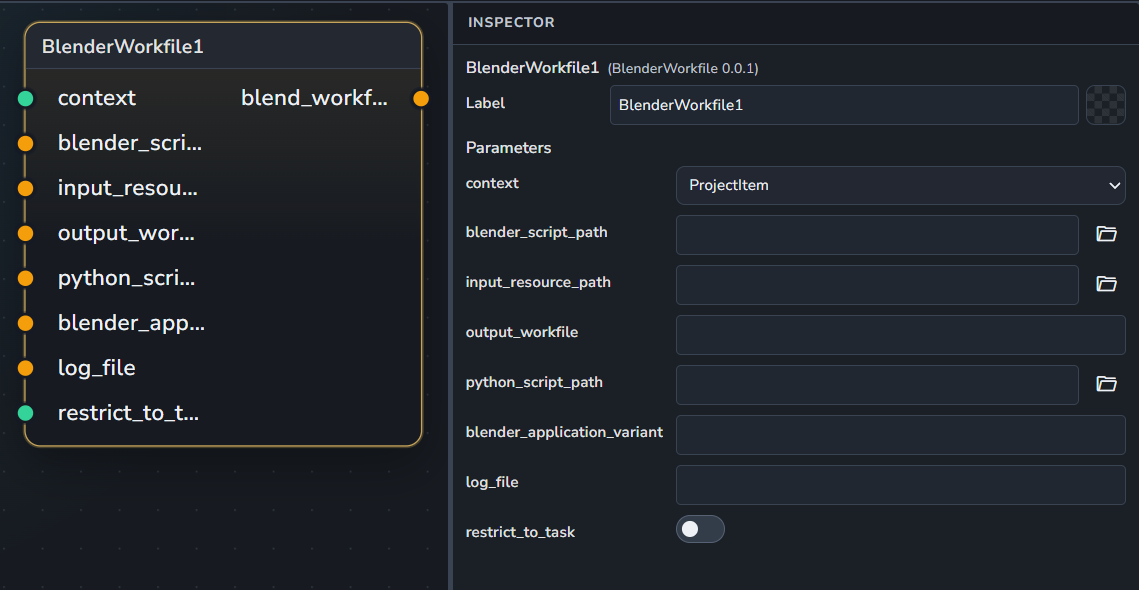
Assembles a workfile within Blender.
Inputs:
context: The assembly context.
blender_script_path: The path to the
.blendfile.input_resource_path: Path to a required input resource.
output_workfile: The path where the workfile will be saved.
python_script_path: Path to an optional Python script.
blender_application_variant: Specific application variant/version to use.
log_file: Path to save logs
Outputs:
blend_workfile: The resulting Blender workfile path.
Context
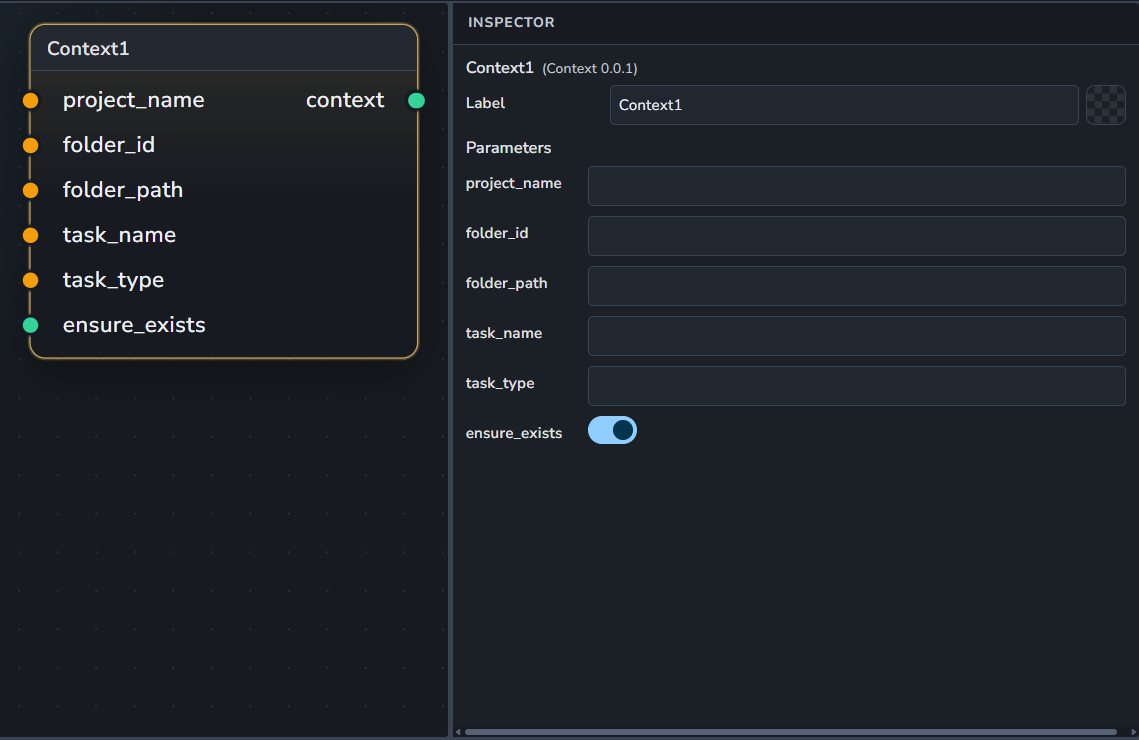
Gather a valid AYON context item.
Inputs and parameters:
label: name of the node
project_name
folder_id or folder_path: folder_id takes precedence. user should provide one of them.
task_name
task_type
ensure_exists: When enabled, it checks if given context exists.
if it doesn’t exist it errors as it doesn’t support creating context if it doesn’t exist.users should keep it enabled.
Gathers and validates an AYON context item based on project, folder, and task parameters. Inputs:
project_name: The name of the project.
folder_id: The unique ID for the folder. it overrides the folder_path if both entered.
folder_path: The path for the folder.
task_name: The name for the task.
task_type: The type for the task.
ensure_exists: When enabled, it checks if given context exists.
Currently, it doesn’t support creating the context if it doesn’t exist.
Outputs:
context: The AYON context item.
GetParentContext
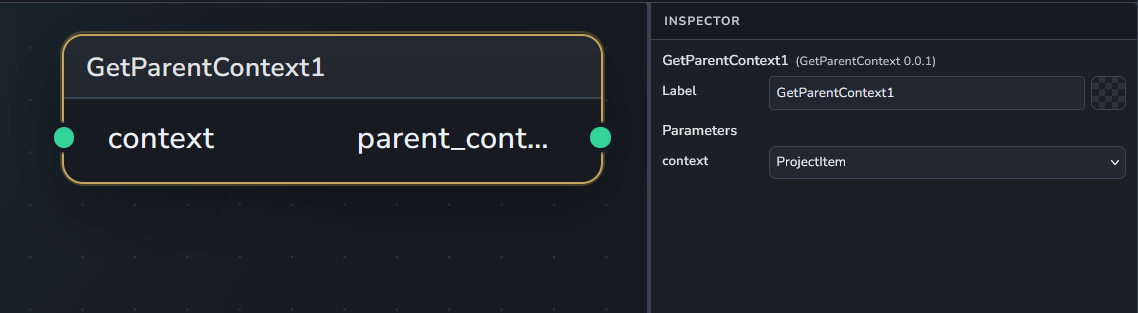
Get parent context of an AYON context item.
Inputs:
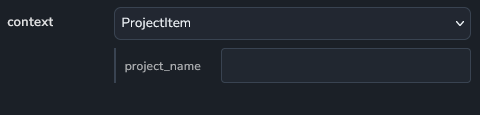
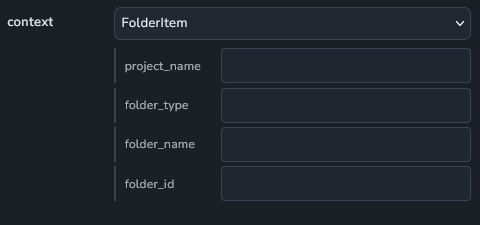
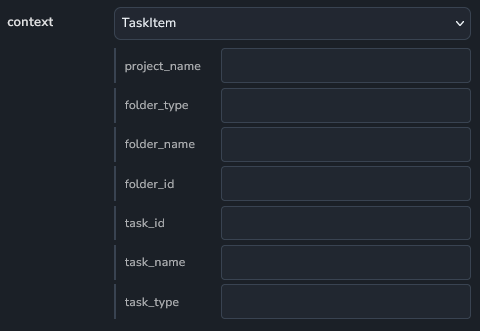
context: An AYON context item.
Project entity
Folder entity
Task entity
Outputs:
parent_context: The parent context.
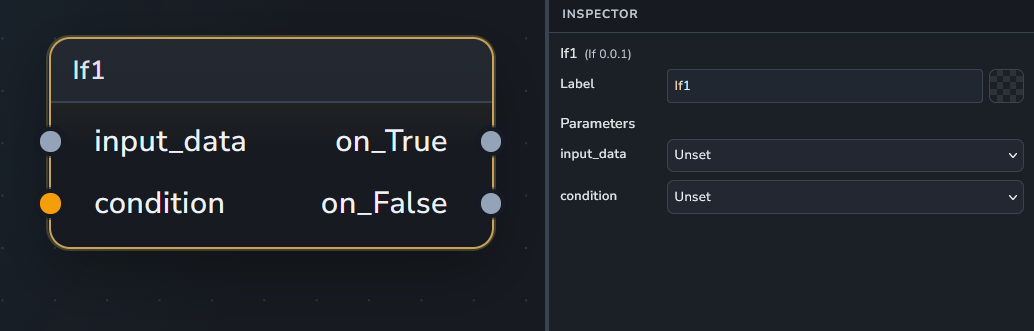
If
Inputs:
input_data: The input data.
condition: The condition to evaluate. Defaults to bool(input_data). If a string is provided, it is evaluated as a Python expression against
input_data(trusted workflows only).
Outputs:
on_True: input_data when condition is True
on_False: input_data when condition is False
ImageSequence
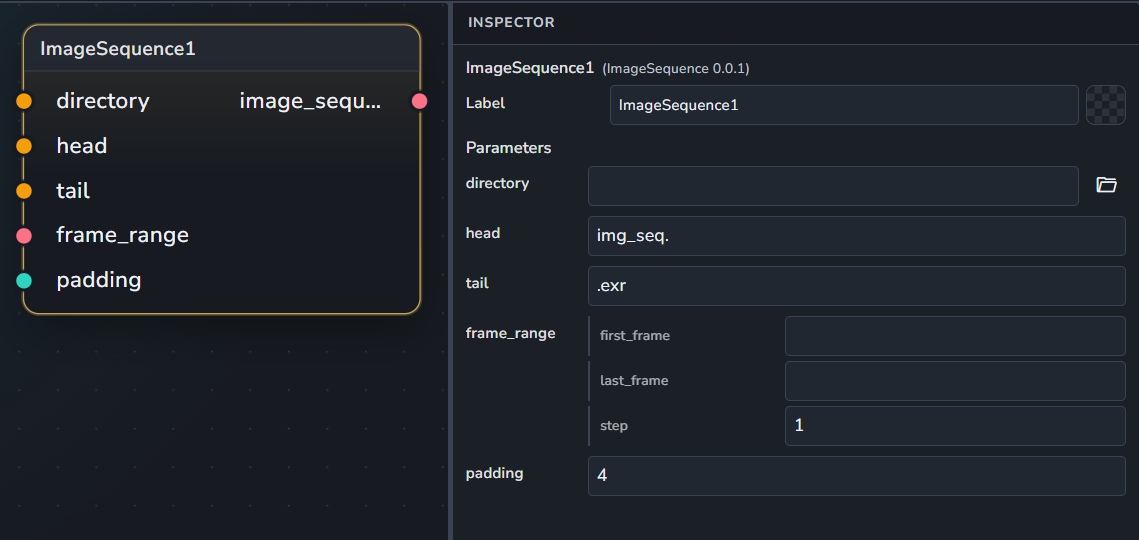
Defines a path for an image sequence, whether it exists on disk yet or not.
Inputs:
directory: The parent directory containing the sequence.
head: The prefix of the sequence filename (Default: "
img_seq.").tail: The file extension or suffix of the sequence (Default: "
.exr").frame_range: The frame range for the sequence.
padding: The number of digits used for frame padding (Default:
4).
Outputs:
image_sequence: The defined image sequence.
MergeSequence
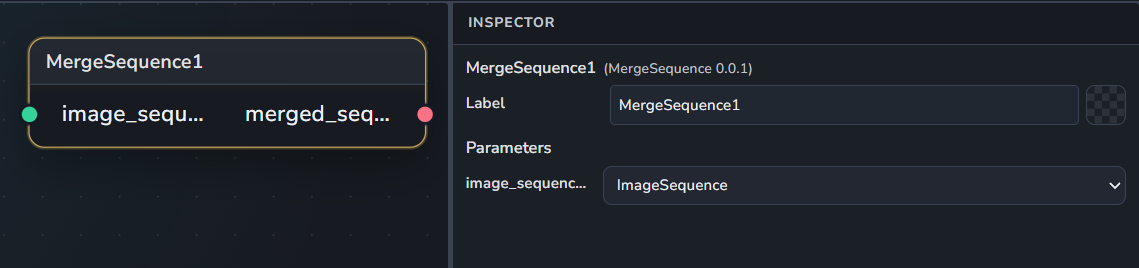
Merges multiple image sequences together into a single sequence object.
Inputs:
image_sequences: One or more image sequences to be merged. Supports multiple connections.
Outputs:
merged_sequence: The resulting merged image sequence.
NoOp
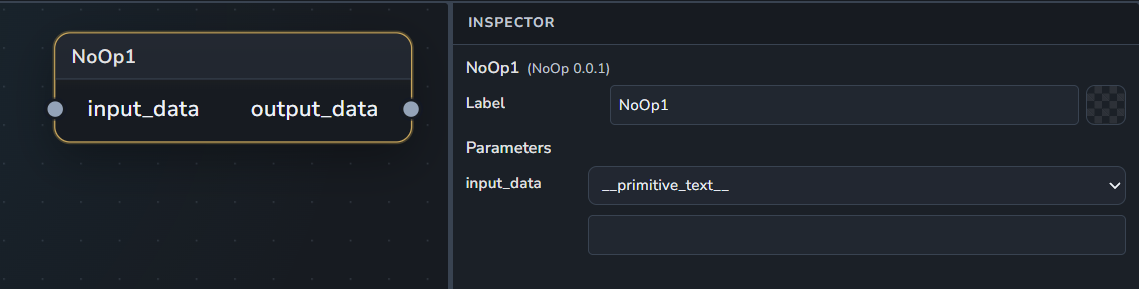
Return the input data as-is without any modifications.
Inputs:
input_data: An input data of any type to be returned as-is.
Outputs:
output_data: The original input data.
NukeRender
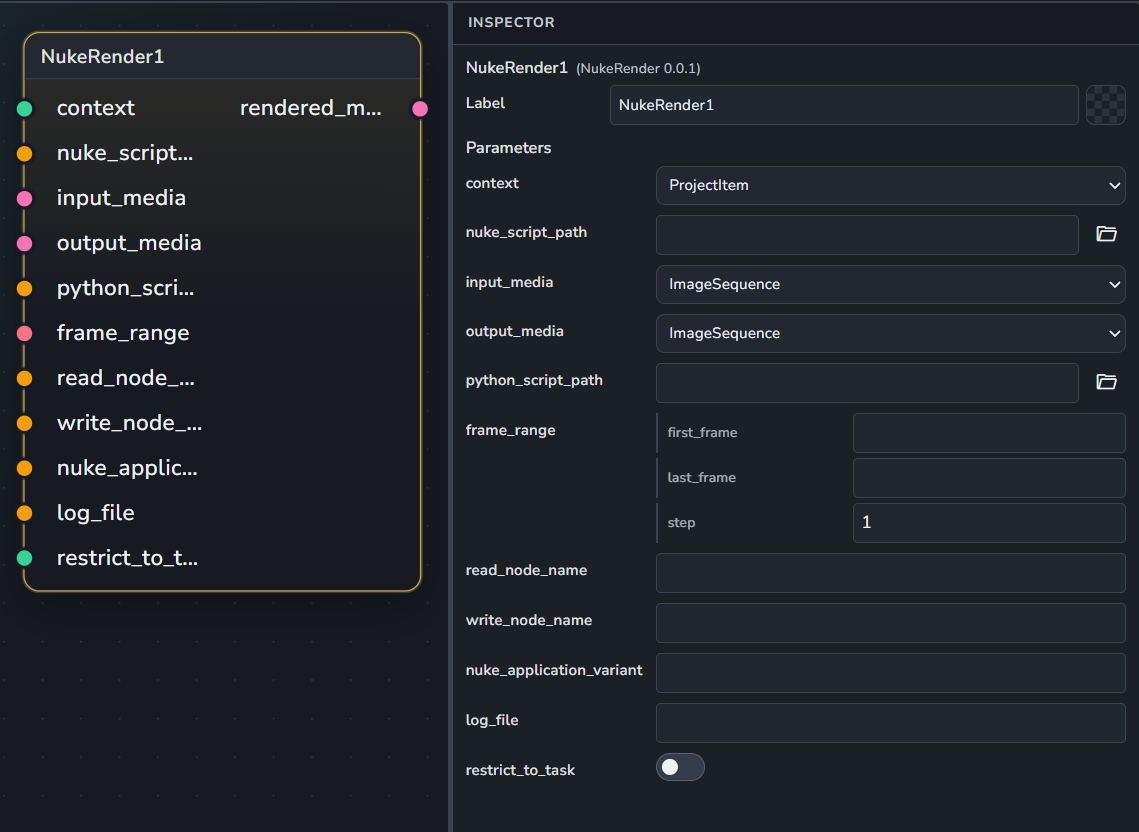
Performs a render operation using The Foundry's Nuke.
It’s expected that the nuke script has one read node and one write node.
Inputs:
context: The AYON render context.
nuke_script_path: The path to the
.nkscene file.input_media: The media to be processed.
output_media: The expected output media format.
python_script_path: Path to an optional Python script to run.
frame_range: Specific frame range to restrict the render to.
read_node_name: Explicitly specify a Read node name to use.
write_node_name: Explicitly specify a Write node name to use.
nuke_application_variant: Specific application variant/version to use.
log_file: Path to save the render logs.
Outputs:
rendered_media: The resulting rendered media.
OnActionFromFolder
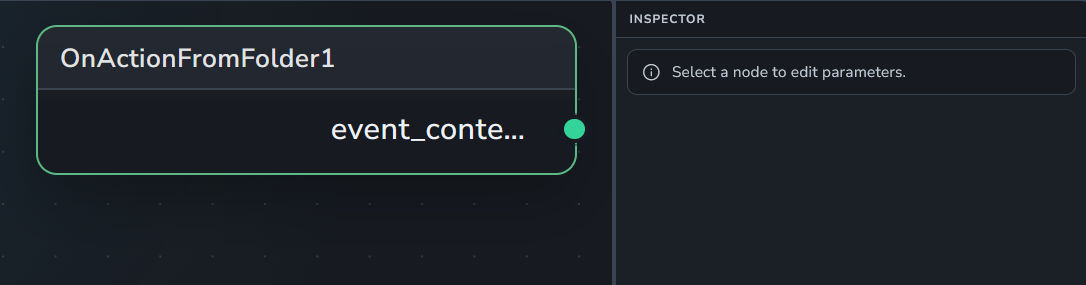
Trigger node: on simple action from folder.
Outputs:
event_context: The output event context
OnActionFromVersion
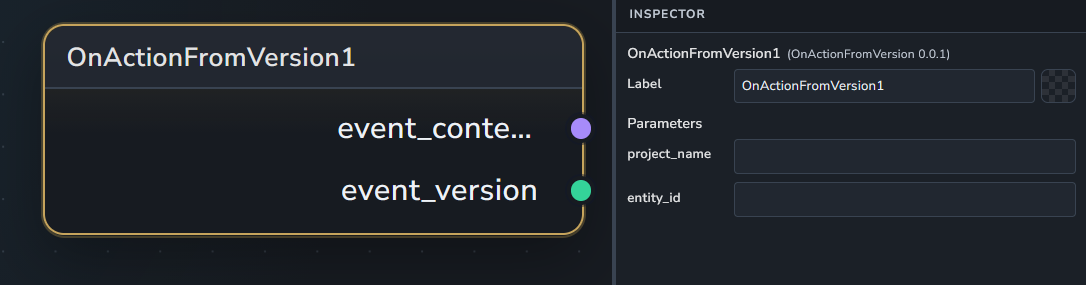
Trigger node: on simple action from version.
Outputs:
event_context: The output event context.
event_version_item: The output event version.
OnSchedule
A cron-based trigger input node.
Inputs:
cron_expression: The cron expression.
OnTaskAsigneesChanged
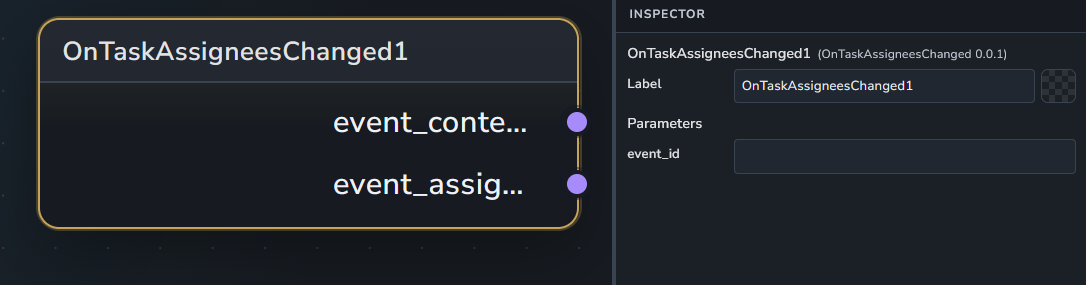
Trigger node: on task assignees changed.
Outputs:
event_context: The output event context.
event_version_item: The output version item.
OnVersionCreated
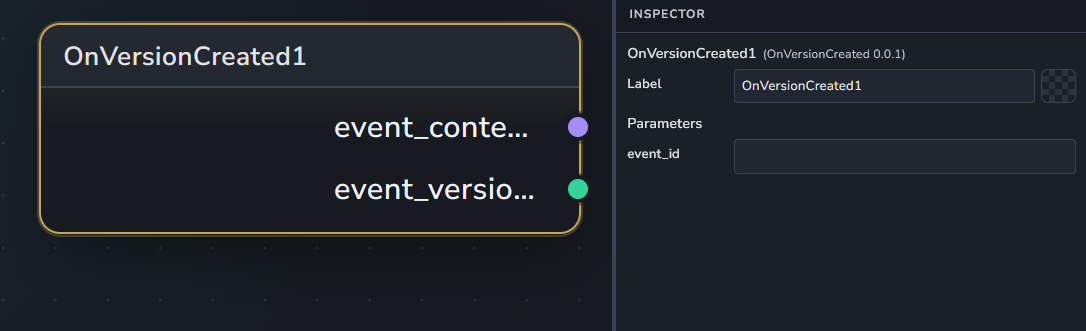
Trigger node: on new version created.
Outputs:
event_context: The output event context.
event_version_item: The output version item.
Publish
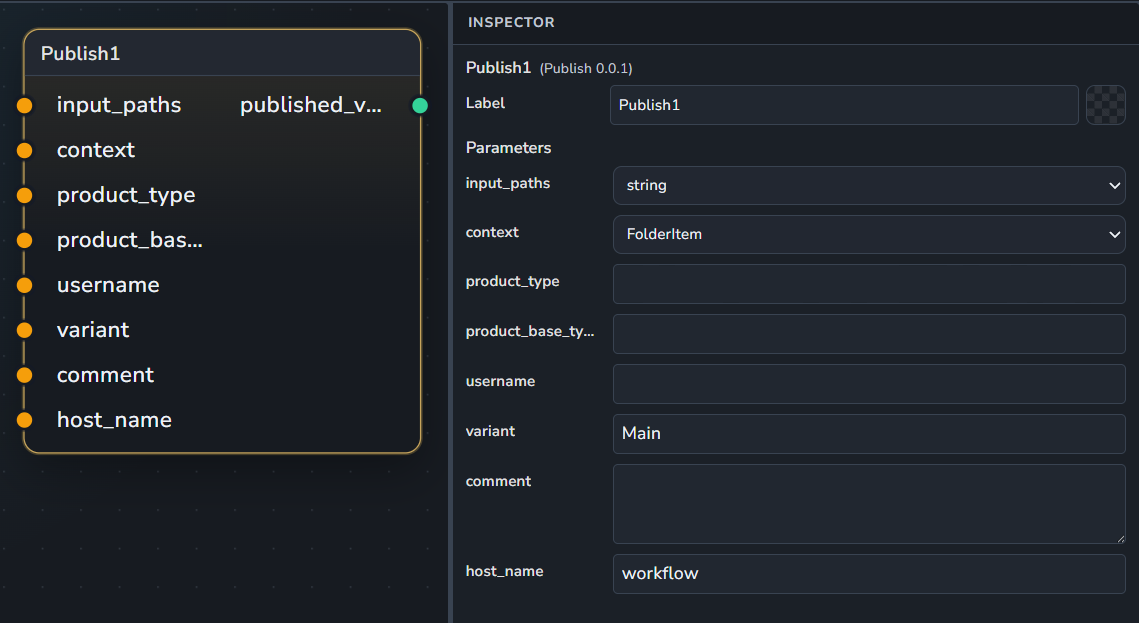
Publishes files or media into the AYON system.
Inputs:
input_paths: The files or media to be published. Supports multiple connections.
context: The AYON context where the item will be published.
product_type: The type of the product.
username: The name of the user performing the publish.
variant: The product variant name (Default: "
Main").comment: An optional description of the changes.
Outputs:
published_version: The resulting version item in AYON.
Representation
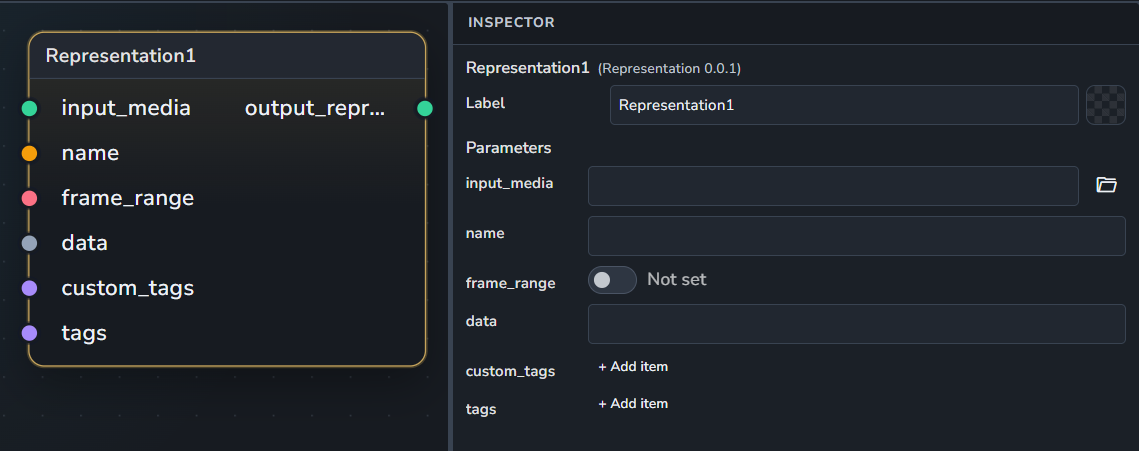
Prepare a representation for publishing.
Inputs:
input_media: The file path of a content to be published.
name: The representation name
frame_range: The representation frame range.
data: The raw representation dict data.
custom_tags: The representation custom tags.
tags: The representation tags.
Outputs:
output_representation
SetEntityWatchers
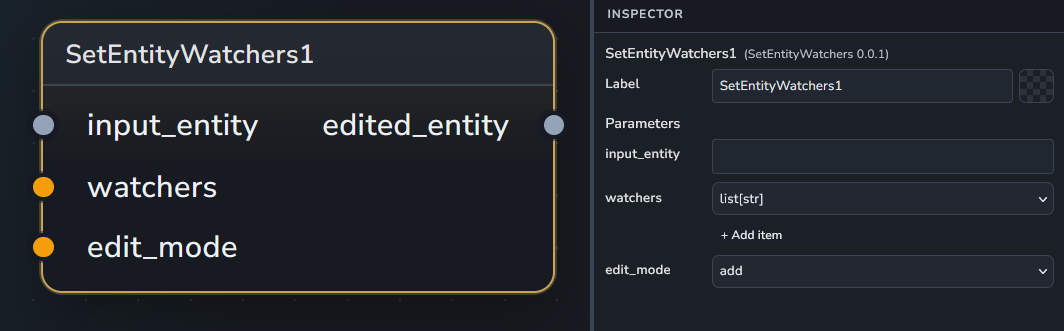
Set entity watcher(s) to an AYON context item.
Inputs:
input_entity: An AYON entity.
watchers: A list of watchers to set.
edit_mode: The mode used to edit watchers.
Outputs:
edited_entity: The entity with watchers set.
TaskContext
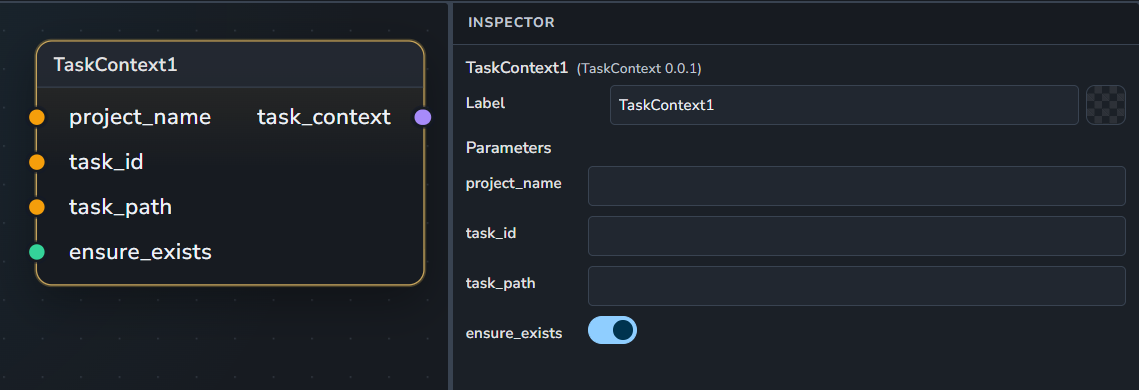
Gather a valid AYON task context.
Inputs:
project_name: The project name.
task_id: An optional task id.
task_path: An optional task path.
ensure_exists: Assert context existence.
Outputs:
task_context
UI Test
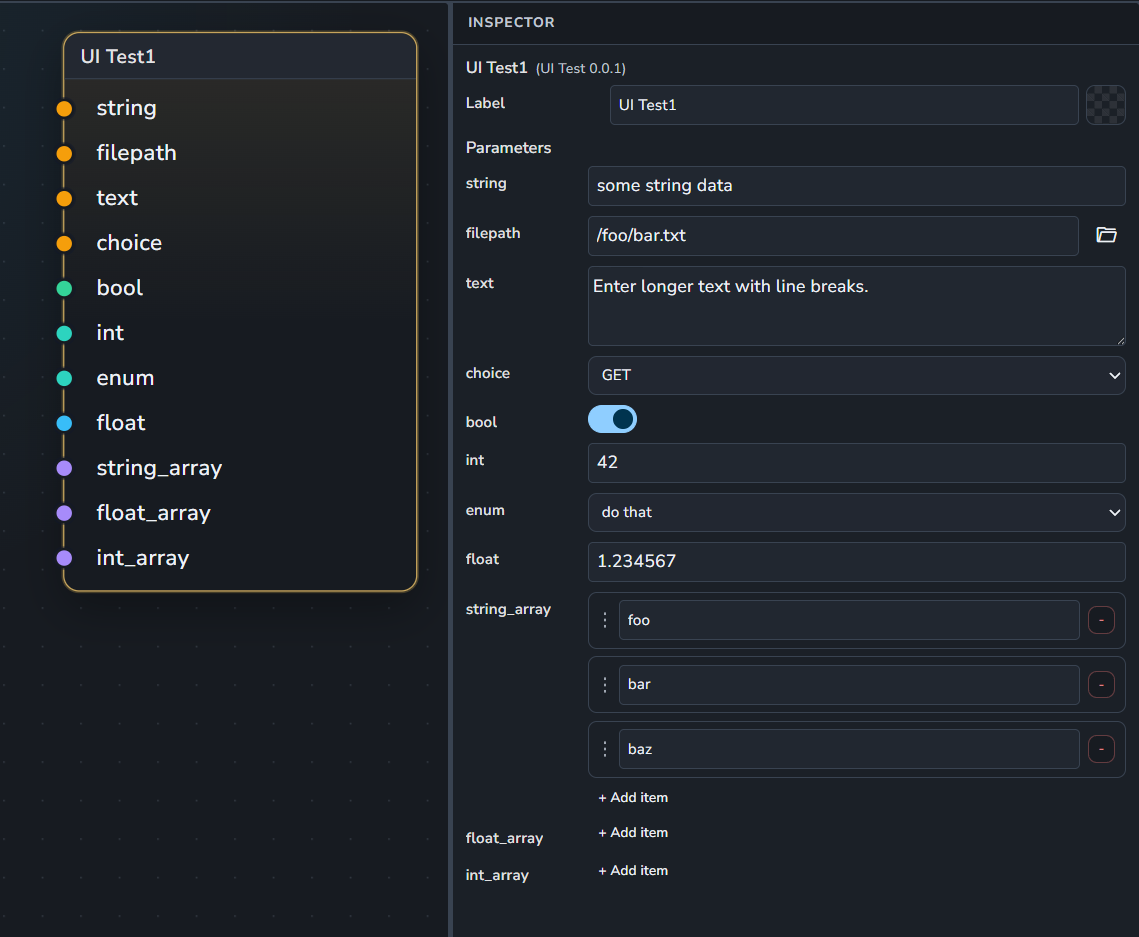
A utility node used to display and test all supported UI widgets.
Inputs:
string: A basic string input.
filepath: A file selection widget.
text: A multi-line text input widget.
choice: A dropdown menu with preset options (GET, POST, etc.).
bool: A toggle/binary checkbox.
int: A numerical integer input.
enum: A selection list widget.
float: A decimal numerical input.
string_array: A list of strings.
float_array: A list of floats.
int_array: A list of integers.
Outputs:
None
Video
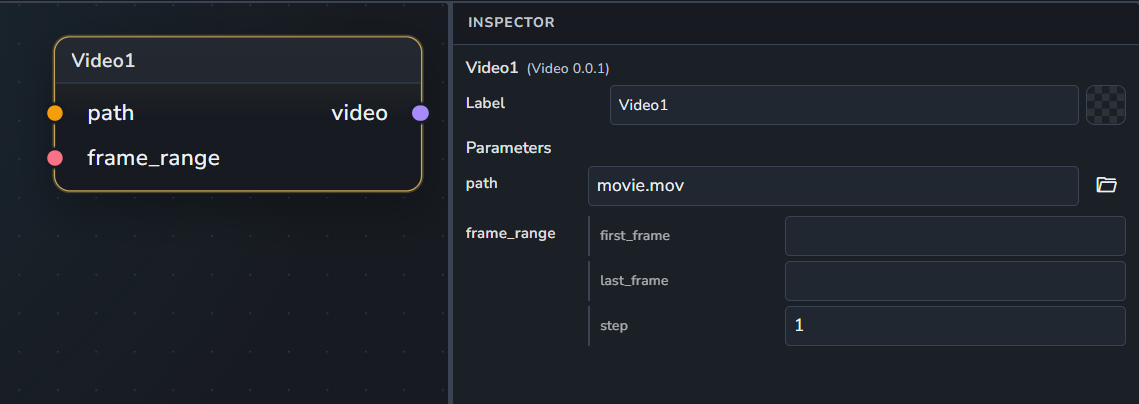
Defines a path for a video file, whether it exists on disk yet or not. Inputs:
path: The file path to the video (Default: "
movie.mov").frame_range: The frame range associated with the video.
Outputs:
video: The defined video.
Dispatch Groups Reference
Generic Dispatch
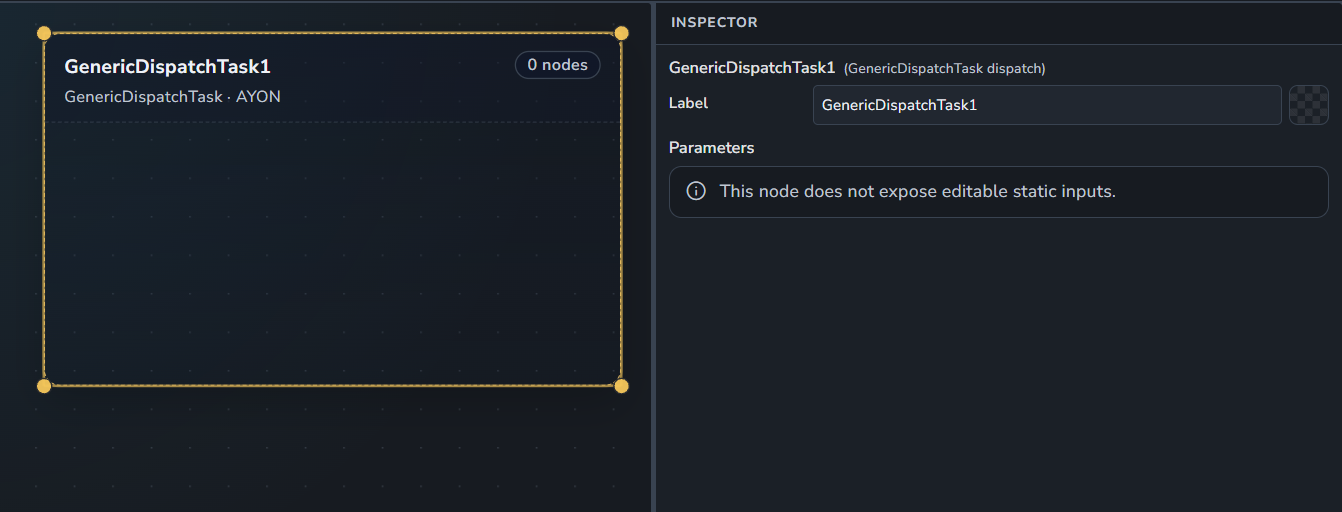
A Generic Dispatch group dispatched to AYON.
Deadline Dispatch
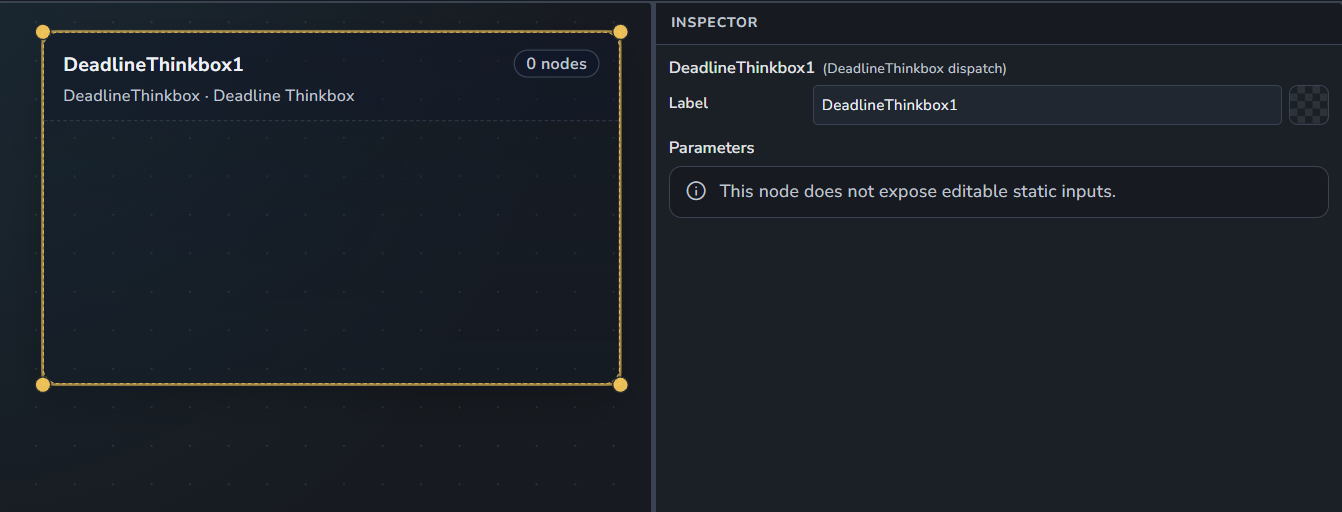
A Deadline Dispatch group dispatched to Thinkbox Deadline Farm.
Royal Render Dispatch
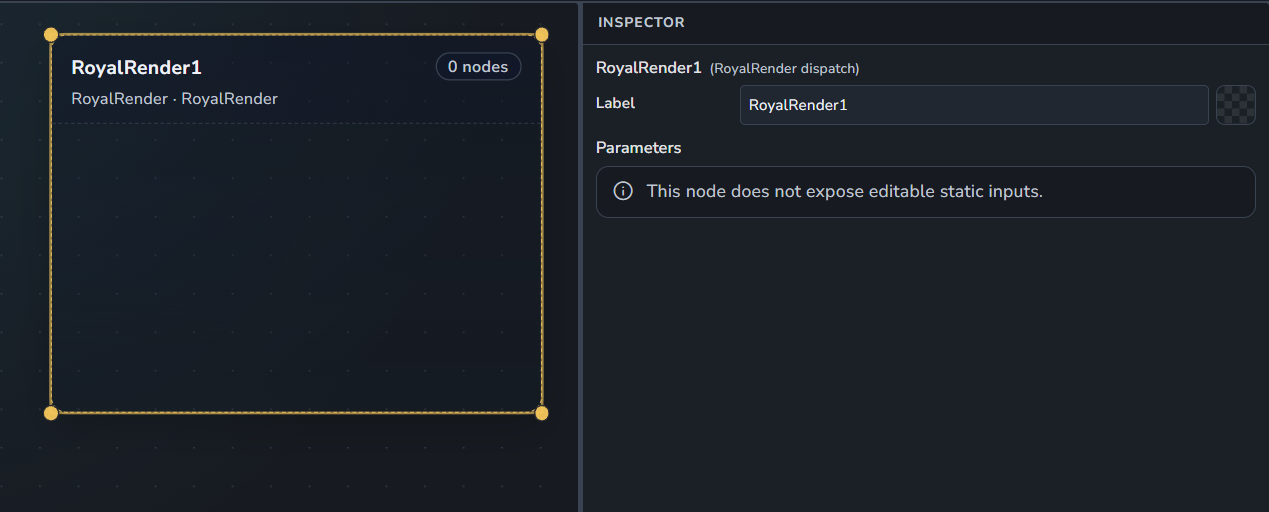
A Royal Render Dispatch group dispatched to Royal Render Farm.