AYON Templated Workfile Builder Reference
Last updated 3 months ago
Overview
The Templated Workfile Builder is designed to eliminate empty-scene friction. Instead of starting from scratch, it initializes new workfiles using predefined scene files.
Core Components of a Template
An AYON workfile template is a standard DCC scene file saved at a centralized location on disk and configured within the studio server settings. A complete template can incorporate three distinct layers of automation:
1. Workfile Setup (The Base Scene)
This is the raw, pre-configured data saved directly in the template file. It acts as the visual or structural skeleton for the department's workflow.
Houdini / Nuke: Pre-made node graphs and baseline write/render setups.
Maya: Standardized outliner hierarchies, default cameras, and groups.
2. Load Placeholders
Load placeholders are smart markers embedded into the template workfile. When an artist triggers a templated build, the system evaluates these markers, queries the database, and dynamically imports or references matching upstream assets.
Dynamic Scoping: They can be set to pull data from the Current Context (e.g., the shot the artist is working on) or from Linked Folders (e.g., pulling character rigs linked as inputs to a layout shot via the asset dependencies).
Granular Filtering: Placeholders are configured using specific parameters such as Product Types, Representation Names (file formats like
abcorusd), and Folder/Product Filters (which support regex strings likeTire\|Boxto narrow down asset ingestion).
3. Create Placeholders
Create Placeholders establish pre-defined pathways for pushing data out.
Automated Publishing: On scene generation, these placeholders automatically generate Publish Instances inside the scene.
This pre-defines the exact products the artist is expected to deliver (e.g., automatically generating a
Reviewinstance or a primaryRenderoutput node) so the artist never has to open the Publisher UI manually to construct them from scratch.
Profiles & Context Filtering
The system determines which template to load based on a set of conditional rules configured under Templated Build Workfile in the server settings.
Studio/Project Settings ➔ Host Addon ➔ Templated Build Workfile Profiles Each profile contains a Context Filter that ensures artists only get templates relevant to their exact assignment. The build system matches the active context against:
Task Names: (e.g., only apply this template if the task name matches
lighting).Task Types: (e.g., apply broadly to any task categorized under
Compositing).Folder Properties: Filtering by parent folder types or specific asset categories.
Scene Initialization & Startup Behavior
The Templated Workfile Builder is designed primarily to establish a baseline for empty scenes. Its behavior adjusts automatically depending on the state of the artist's workspace:
No Existing Workfiles: When an artist starts a task for the first time, the builder steps in, creates the first version of the workfile using the mapped path template, resolves all placeholders, and opens the populated file (provided the
Create new workfileoption is enabled in the template builder settings).Existing Workfiles Present: If work history already exists, the automatic build cycle yields to user preference. Artists can control this behavior via the Desktop Launcher or host preferences:
If "Skip Opening Last File" is enabled in the launcher, the DCC will initialize into a fresh, empty environment where the builder steps in and builds the workfile automatically.
If disabled, the system defaults to opening their latest, pre-existing work version, leaving the scene data intact.
Manual Workfile Build: At any point, an artist can manually select
AYON > Template Builder > Build Workfile from Templateto instantiate a clean template copy inside their current session.
AYON Template Builder: Step-by-Step Tutorials
Because AYON’s Template Builder uses a unified design pattern, configuring a template in Nuke or Houdini follows the exact same logic as configuring one in Maya. Let’s look at two practical examples to get you up and running.
Example 1: Setting a Template for "Lighting" Task Types
This example demonstrates how to assign a default base scene to a specific department at the project level in Maya.
Step 1: Prepare and Save the Base Scene
Open Maya DCC via the AYON Launcher.
Build your base skeleton file (e.g., set up default rendering cameras, environment lights, or organizational groups).
Save this file to a centralized, shared studio network location that all artists can access.
Step 2: Configure the Profile on AYON Server
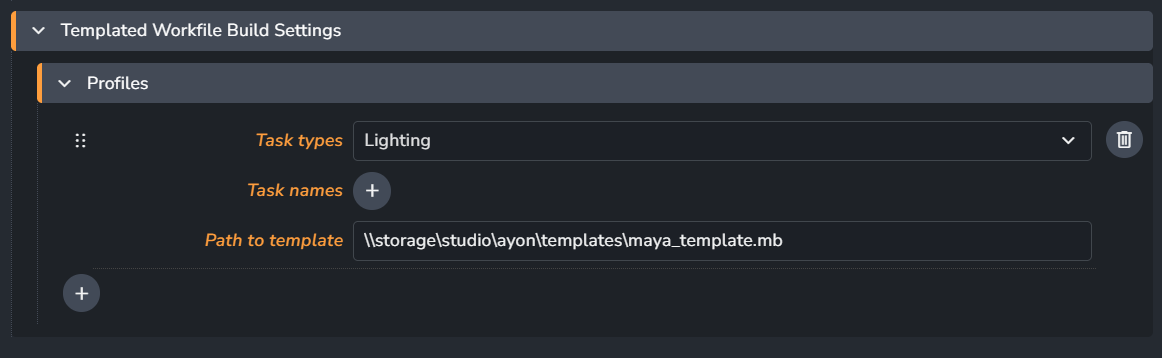
Before proceeding with this step, ensure you have the lighting task type already created and configured in the project anatomy settings of your project.
Open the AYON web frontend.
Press
ptwice (p+p) as a keyboard shortcut to jump directly to Project Settings.Navigate to your host addon settings:
Maya ➔ Templated Workfile Build Settings.Create a new profile under the profile list.
In the Context Filter, choose
lightingfrom the Task Types dropdown menu.Paste your shared file network path into the Path to Template field.
Result: The next time an artist launches a "Lighting" task with no existing work history, AYON will automatically initialize their session with this exact Maya file.
Example 2: Dynamically Loading Products from Linked Assets
AYON features a robust asset-dependency linking system (e.g., linking multiple character/set folders to a specific shot folder). This tutorial shows you how to build an automated layout/shot setup template in Houdini that harvests those links.
Before proceeding with this example, ensure you have project links configured in your project anatomy, and verify that your target shot actually has linked assets assigned within the Overview page. For more information, please refer to the documentation for Project Anatomy — Links and Links Manager.
Step 1: Open a Build Session
Open Houdini through the AYON Launcher in any asset or shot context (the specific context doesn't matter during template creation).
Step 2: Create a Load Placeholder
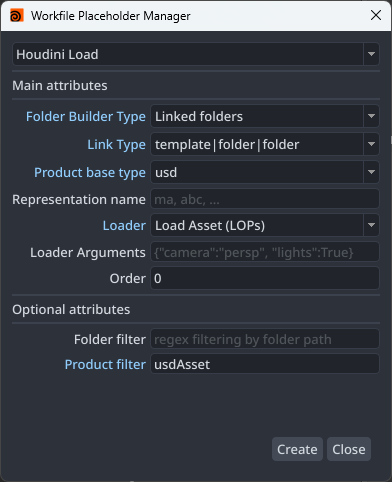
From the top application menu, navigate to
AYON ➔ Template Builder ➔ Create Placeholder…to instantiate an AYON Load Placeholder.A popup window appears where you can configure the Build Scope:
Set Folder Type Build to
linked folder.Set Link Type to the specific folder-to-folder link schema used by your studio (e.g.,
asset-to-shot).
Define the Asset Target Details:
Set Product Type to
usd.Set Product Filter to
usdAsset(matching your studio's publishing nomenclature).Set Folder Filter to
char/*if you want to restrict the ingestion to only load assets nesting under the character directory.
Set the Loader representation to
Load Asset (LOPs)to instruct Houdini on how to mathematically interpret and reference the incoming USD data.Save this file to your shared network storage and map it to your target Project Profile on the AYON server (following the profile matching steps from Example 1).
Result: When an animation or layout artist initializes a new shot workfile using this template, the builder automatically scans the shot’s asset links, filters for character USDs, and dynamically references them into the Houdini .hip file instantly.