OpenUSD Addon Settings
Last updated 6 months ago
Overview
Currently, the usd addon is only responsible for downloading of USD binaries for AYON, along with pre-built AYON USD resolvers for various DCCs.
Once you enable and configure Binary Distribution setting, usd addon will download a matching AYON USD Resolver automatically for the launched application (if there's a compatible build for it).
We provide multiple recent versions of major DCCs, like Houdini and Maya.
Available Builds
Resolver Application Paths setting comes pre-configured with all of the available builds on our lakeFS server.
Unreal:
WindowsUnreal 5.4 Py 3.9
Maya:
WindowsLinuxMaya 2026 Py 3.11New resolver that supports farm rendering.Maya 2025 Py 3.11Maya 2024.2 Py 3.10
Houdini:
WindowsLinuxHoudini 21.0 Py 3.11New resolver that supports farm rendering.Houdini 20.5 Py 3.11Houdini 20.5 Py 3.10Houdini 20 Py 3.10Houdini 20 Py 3.9Houdini 19.5 Py 3.9Houdini 19.5 Py 3.7
USD Standalone Resolver:
WindowsLinuxUSD 23.5 Py 3.9
Binary Distribution
Setting Location:
ayon+settings://usd/distribution
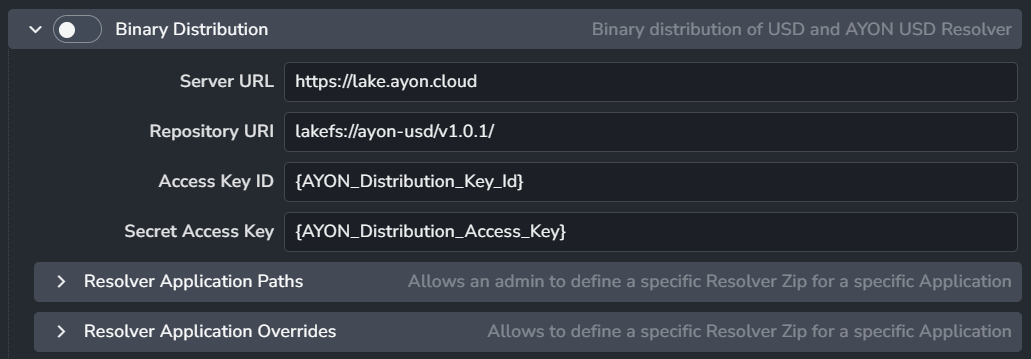
Disabling this setting also disables the use of the AYON USD resolver.
Server URL: The URL for the USD binary distribution LakeFs server. It's recommended to keep the default value to use the USD builds we provide.
Repository URI: The repository tag or branch URI within the LakeFs server. It's recommended to keep the default value to use the USD builds we provide.
Access Key ID: The LakeFs server access key ID.
Secret Access Key: The LakeFs server secret access key.
Access Keys are currently not public, however they are provided upon request.
Reach out us on our website ynput.io or Our Forums or Discord Server Ynput Community.
Resolver Application Paths
Setting Location:
ayon+settings://usd/distribution/asset_resolvers
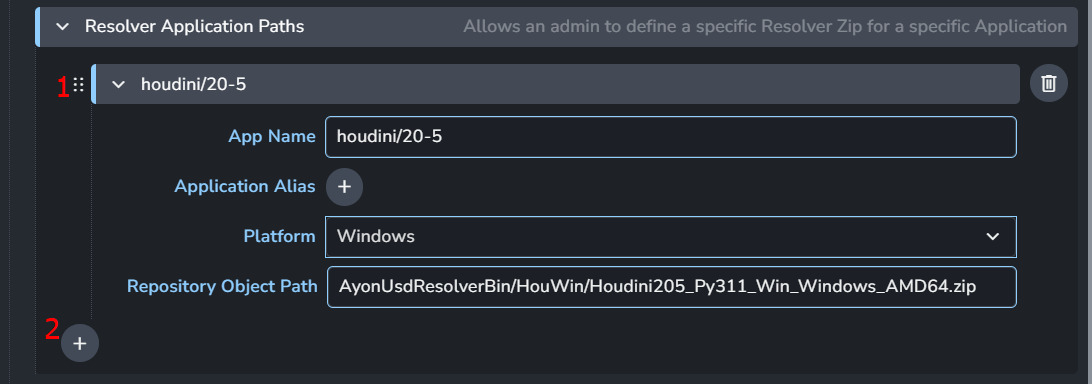
Define a specific Resolver Zip for a particular application.
You won't need to modify this setting as it comes pre-configured with all the packages we provide. However, you may tweak the Application Alias to suit your applications' setup.
Each Application path group:
App Name: Application name, e.g.
maya/2025Application Alias: Define a list of App Names that use the same resolver.
Platform: drop down menu to select the platform:
windows,linux&darwin.Repository Object Path: The LakeFs internal path to the resolver zip, e.g.,
AyonUsdResolverBin/Hou/ayon-usd-resolver_hou19.5_linux_py37.zip. You can find LakeFsPathinformation in the Object Info section by clicking the gear icon on the right side when hovering over a file on the LakeFS server.
+: Add application path group
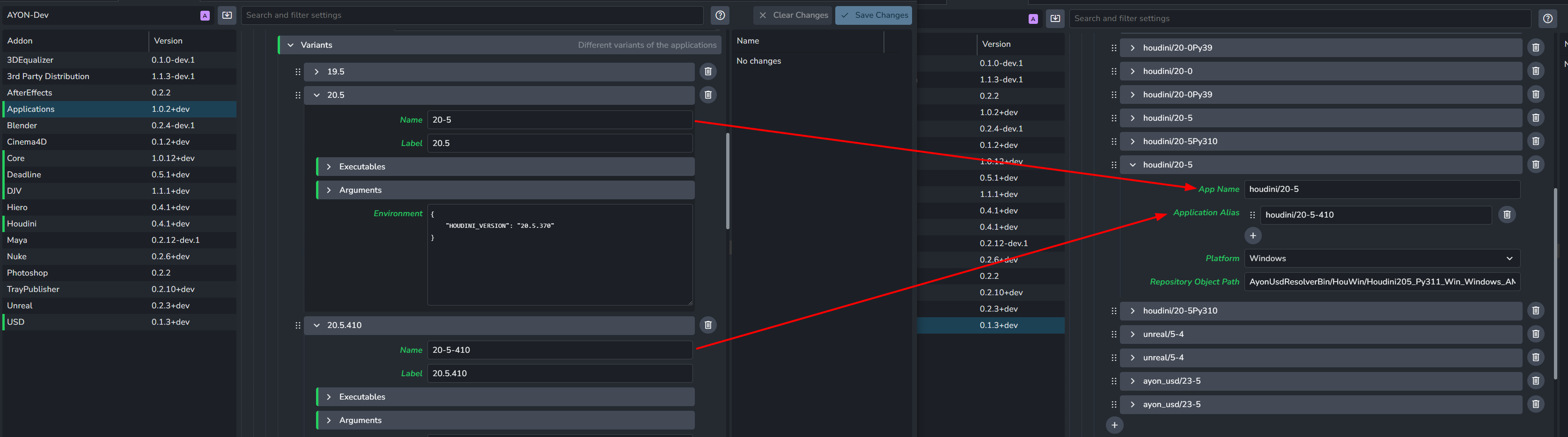
Application Alias
You'll likely find the Application Alias setting most useful, as it lets you use the same resolver build with different versions of an app (e.g., different patch versions of Houdini 20.5).
Resolver Application Overrides
Setting Location:
ayon+settings://usd/distribution/lake_fs_overrides
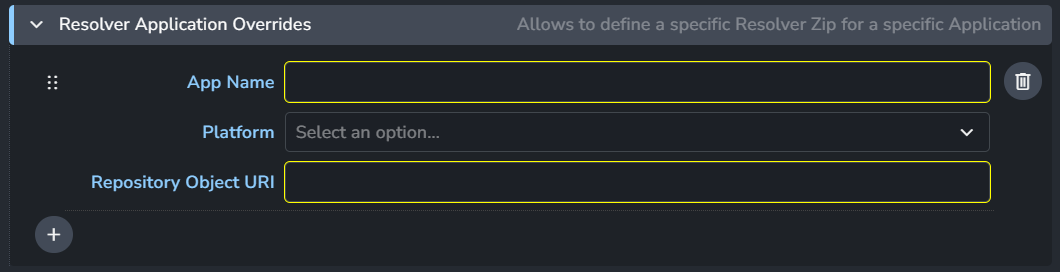
Define a specific Resolver Zip for a specific Application.
Each Application override group:
App Name: Application name, e.g.
maya/2025Platform: drop down menu to select the platform:
windows,linux&darwin.Repository Object URI: Path to USD Asset Resolver plugin zip file on the LakeFs server, e.g:
lakefs://ayon-usd/V001/AyonUsdResolverBin/Hou/ayon-usd-resolver_hou19.5_linux_py37.zip.
+: Add application override group.
Publish plugins
Process USD files to use relative paths
Setting Location:
ayon+settings://usd/publish/USDOutputProcessorRemapToRelativePaths

When enabled, published USD layers will anchor the asset paths to the published filepath.
Enable: The default state of the plugin.
Optional: Allows the user to toggle this setting in the publisher UI.
Active: The default value of the toggle in the publisher UI.
Generate USD Resolver Pinning file on publish
Setting Location:
ayon+settings://usd/publish/ExtractSkeletonPinningJSON

When enabled, on publishing USD files a pinning file will be written along with the published file that pins all dynamic entity URIs to the paths in the pinning file. This should be disabled when not using the USD resolver.
Enable: The default state of the plugin.
Optional: Allows the user to toggle this setting in the publisher UI.
Active: The default value of the toggle in the publisher UI.
FAQ
How to Use Relative Paths Without AYON USD Resolver
Sharing assets with external studios and need everything to be absolute? You'll likely want to use relative paths without the AYON USD resolver. Here's how:
Solution:
Disable USD Binary Distribution.
Disable Generating Pinning Files.
Enable Using USD Relative Paths.
Enabling Using USD Relative Paths in studio settings will impact the current active project. It's best to enable it only in Project Settings P+P for new projects to avoid affecting existing ones.
For more details on project and studio settings, check out Addon Settings Categories.