AYON Server Provisioning
Last updated 4 days ago
Overview
You can provision your AYON server using the following methods:
The AYON Web UI
AYON Docker Helper Scripts
AYON Server CLI Tools.
Modifying the conent of the AYON Docker
addonsandstoragedirectories.
AYON Docker Helper Scripts
The AYON Docker repository includes a set of helper scripts that can be accessed using make on Linux and Mac, and manage.ps1 on Windows.
On windows, If you encounter a permission error, you may need to set your execution policy to RemoteSigned by running Set-ExecutionPolicy RemoteSigned in PowerShell. For more information, see Why are my PowerShell scripts not running? | Stackoverflow.
Arguments for Server Management
These arguments are used for provisioning and maintaining the AYON server.
setup: Applies the settings template fromsettings/template.json.dbshell: Opens a PostgreSQL shell.reload: Reloads the running server.demo: Creates demo projects based on the settings in the./demodirectory.dump <PROJECT>: Dumps a project's database into a file.restore <PROJECT> <SQL File>: Restores a project's database from a file.
Arguments for Development
These arguments assist with development.
backend: Clones or updates theayon-backendrepository into the./backenddirectory within yourayon-dockerclone.frontend: Clones or updates theayon-frontendrepository into the./frontenddirectory within yourayon-dockerclone.build: Builds the AYON Docker image from the./backendand./frontenddirectories.relinfo: Creates aRELEASEfile with version information (for debugging purposes).
Setup
The settings/template.json file allows you to specify server settings without using the web UI.
You can apply these settings by running the setup argument in the terminal:
Examplecd <path to your ayon docker>
./manage.ps1 setupService Account
A common use case for template.json is creating a service account. This allows you to have a default service account with a hardcoded API key, which is useful for development since the web interface always generates a random API key.
You can create a service account by modifying the settings/template.json provisioning file and then running the setup argument.
⚠️ Important: Don't use the example value in template.json as-is — especially if you're exposing your AYON server to the internet. Generate a unique API key instead, either by editing the template.json file and running the setup command, or by creating a service user through the web UI's Users page as oulined in User Management, which generates a unique key for you automatically. API keys currently carry admin-level privileges, so an unchanged default key would grant full administrative access to anyone who can access your AYON server.
Example template.json :
Example{
"users": [
{
"name": "service",
"apiKey": "veryinsecurapikey",
"isService": true
}
]
}dbshell
The dbshell argument allows accessing AYON’s Postgre DB shell.
Examplecd <path to your ayon docker>
./manage.ps1 dbshellAlternatively, you can access the DB shell via a Docker command, which works on all operating systems (Windows, Linux, and Mac):
docker compose exec postgres psql -U ayonExample DB Shell: Print all projects in AYON.
psql (15.13 (Debian 15.13-1.pgdg120+1)) Type "help" for help.

ayon=# SELECT name from projects;
       name
-------------------
 demo_Commercial
 demo_Big_Episodic
(2 rows)
demo
To help you become familiar with the web interface, the demo/ directory includes three demo project templates:
demo_Commercialdemo_Big_Episodicdemo_Big_Feature
Examplecd <path to your ayon docker>
./manage.ps1 demoThese demo projects may take a while to create.
They include fake data for testing and evaluating the AYON Server. They are no real workfiles or published products.
dump
This argument dumps a project's database into a file, which is primarily used for creating backups.
Examplecd <path to your ayon docker>
./manage.ps1 dump projectname=<project_name>It output’s project database sql file dump.{project_name}.sql.
restore
This argument restores a project's database from a file, which is primarily used for restoring from backups.
Examplecd <path to your ayon docker>
./manage.ps1 restore projectname=<project_name> <project_db_sql_file>AYON Server CLI Tools
Since AYON Server version 1.11.0, command-line interface (CLI) tools have been included in the AYON server image. These tools can be accessed using the docker compose exec server with the ay command.
To view the list of available tools:
cd <path to your ayon docker>
docker compose exec server ay --help
To run a specific tool:
cd <path to your ayon docker>
docker compose exec server ay {toolname}
Addons Directory
AYON addons are installed into the addons directory, following this structure:
addons/
  └── {addon_name}/
         └── {addon_version}/
Manage Addons Manually
You can add or remove addons to your AYON server by modifying the contents of the addons directory.
While removing addons manually from the addons directory works fine, adding them requires a specific process. You must extract the contents of the addon's .zip release package into a directory named after the addon version, which is located inside a directory named after the addon. Directly adding the contents of the repository will not work, as its file structure is different from that of a release package.
Using Development Versions of Addons
AYON supports the use of addons that are in active development. A +git suffix is added to the addon's version to differentiate it from a production version. This happens because the addon's version directory contains the .git folder.
To set up a development version of an addon, follow these steps:
Create a directory for the addon within the
addonsfolder if it doesn’t exist already, using the addon's name (specified in itspackage.pyfile). e.g., the core addon's name is core, as shown here.mkdir addons/coreNavigate to the addon directory.
cd addons/coreClone the addon repository into a development directory. While you can name this directory anything you like, we will use
devin this guide.git clone https://github.com/ynput/ayon-core devRestart your AYON Server from the web UI or by using
docker compose restartin the terminal.In your bundle, you will see the development addon version with the
+gitsuffix.
Your addon's directory structure should now look like this:
addons/
   └── core/
        └── dev/
             └── the addon repository contents.
Since you are working within the server's Docker directory, any changes to the server-side part of your addons will be reflected in the server once you restart it. This eliminates the need to create and upload an addon .zip package to the server.
On the other hand, the client-side part of the addon (which includes the pipeline) requires you to specify its path in your dev bundle settings so that it is used when addons are initialized on startup. This is crucial because AYON, by default, expects to use the path of the distributed package in the local app directory.
Developing Addons Directly on the Server
Because AYON reads addons live from the server, any change to the version string in your package.py file (e.g., when developing addons directly on the AYON server) is immediately registered as an update. To the server, it appears as though the previous version has been removed and replaced by the new one. Consequently, the addon will vanish from any bundles that were still referencing the older version. Therefore, you must update your development bundle to point to the new version identifier.
Note that while the settings associated with the previous version remain stored on the server, you can easily re-apply them to the new version using the "Copy settings from" functionality.
WARNING: DEVELOPING ADDONS DIRECTLY WITHIN A STORAGE FOLDER LINKED TO YOUR PRODUCTION OR STAGING BUNDLES CAN CAUSE IMMEDIATE, CASCADING FAILURES IN YOUR PRODUCTION PIPELINE WHENEVER THE DEVELOPMENT VERSION CHANGES.
Note: While you can toggle the +git suffix using AYON_USE_GIT_SUFFIX_FOR_ADDONS (see AYON Docker Configuration Options), doing so does not prevent the addon from "disappearing" from existing bundles when its version changes.
For additional information about development mode, please see the AYON development mode documentation.
Storage Directory
This folder contains uploads to your AYON server, such as AYON Launcher installers, dependency packages, avatar images, and project data.
The storage directory structure is as follows:
storage/
  ├── desktop
  |     ├── dependency_packages
  |     └── installers
  ├── server
  |     ├── avatars
  |     └── projects
  └── static
The project data in the storage directory refers to files created by interacting with the web UI. for example, thumbnails, reviewables, and activity feed comments.
This is different from the project pipeline files, such as published products and workfiles, which are generated by AYON's pipeline and Digital Content Creation (DCC) integrations.
The storage directory within the AYON Server is managed by the server itself. Therefore, it is strongly recommended that you use the AYON Web UI, the AYON API, or official tools to perform any actions.
Manual interactions with the storage directory are limited and specific:
desktopsubfolder: This subfolder contains dependency packages and AYON Launcher installers. You can delete old files within this subfolder to remove them from your server. However, for creating and uploading new dependency packages or AYON Launcher, it is recommended to use the AYON Web UI (as outlined in the Bundles & Addons article) or the dedicated tools: ayon-dependencies-tool or the ayon-launcher via your terminal.serversubfolder: This subfolder includes AYON server data. Manual interactions here are limited to copying and pasting files for backing up and restoring project data. For all other operations, such as deleting or uploading, you should use the AYON Web UI or the AYON API (either the REST API or the AYON Python API).
FAQ
How to use pgAdmin?
pgAdmin is a graphical user interface (GUI) tool that allows you to access the AYON database directly, as an alternative to using the dbshell in the terminal.
“With great power comes great responsibility.”
With pgAdmin, you have full control over the AYON database, including the ability to retrieve, add, and remove data. Be caution when making changes, as you could potentially break your production environment if you are not sure what you are doing.
To use pgAdmin, you must expose the PostgreSQL port of the postgres container. Add the following code snippet below this line in the docker-compose.yml file:
    ports:
      - 5432:5432
Then, rebuild your Docker containers using the docker compose up -d --build command. After this, you will be able to set up the pgAdmin connection.
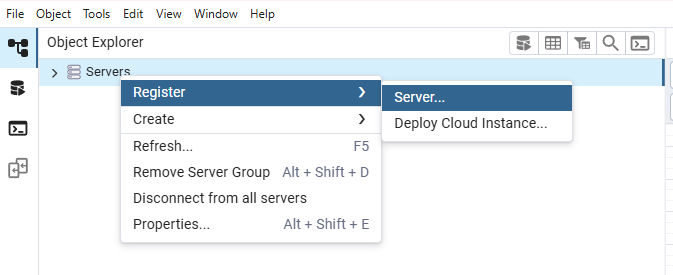
First, register a server.
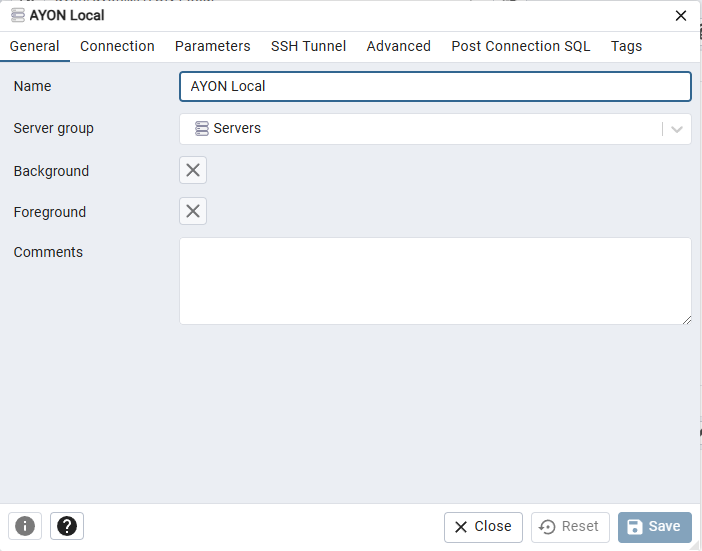
Give your connection a name.
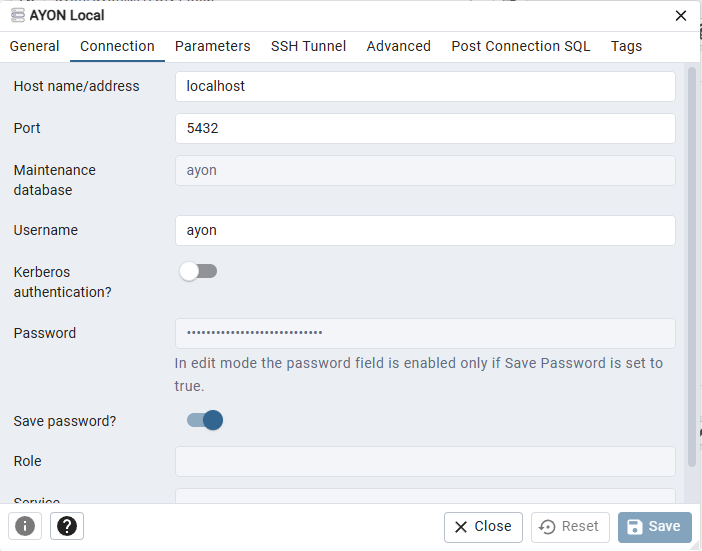
Set your connection details. The username and password are both ayon.
Once your connection is set up, you will be able to access the AYON database directly. From there, you can explore the available tables and practice PostgreSQL queries.
SELECT name FROM projects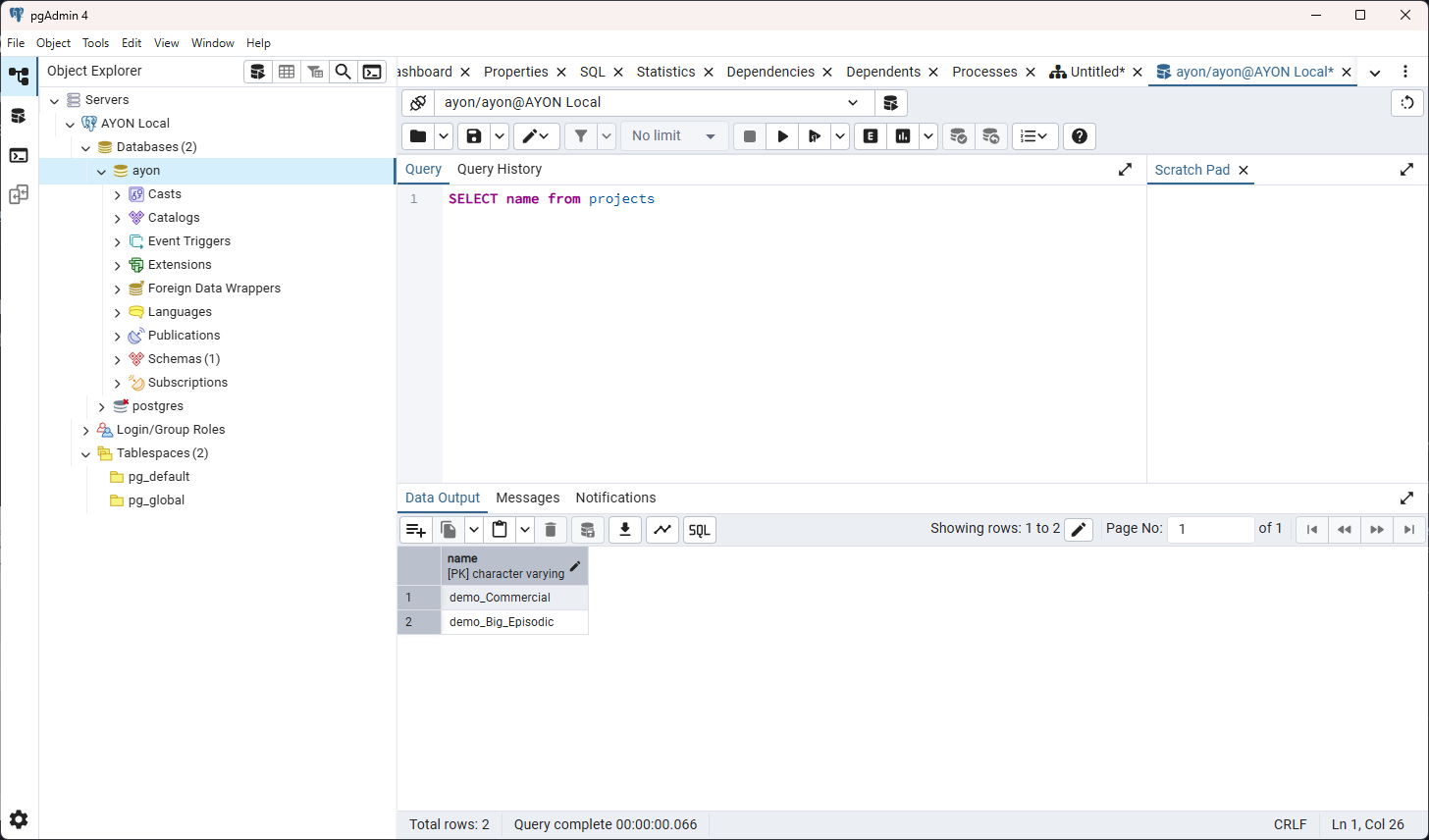
How to view AYON Server Logs?
You can view the server logs on the web UI's Event Viewer page by using the v+v shortcut.
Alternatively, you can view the full logs from the terminal using the docker compose logs command.
cd <path to your ayon docker>
docker compose logs -t -n 1000 server
How to Back Up and Restore Projects?
You can back up and restore AYON projects using the command-line interface (CLI) from your AYON Docker directory. This process allows you to back up a project along with its settings overrides and server-side files, such as thumbnails.
This is accomplished by dumping and restoring the project's data and its associated server storage.
Backing Up a Project
Dump the project database. The resulting
dump.<project_name>.sqlfile should be stored in your backup location.Examplecd <path to your ayon docker> ./manage.ps1 dump projectname=<project_name>Back up the project's server storage by copying the contents of
storage/server/projects/YourProjectNameto your backup location.
Restoring a Project
Restore the project database using the backed-up SQL file.
Examplecd <path to your ayon docker> ./manage.ps1 restore projectname=<project_name> <project_db_sql_file>Restore the project's server storage by copying the contents of
storage/server/projects/YourProjectNamefrom your backup location.
How to perform full AYON Server backups?
To perform a full AYON server backup, you'll use the PostgreSQL command-line interface (CLI) within your AYON Docker environment. The process involves both backing up the database and copying the server's storage files.
Ful Back up
Dump the Database: Navigate to your AYON Docker directory and use the following command to dump the entire database into an SQL file. Replace
<backup_file_name>with your desired backup file name.cd <path to your ayon docker> docker compose exec postgres pg_dump -U ayon > <backup_file_name>.sqlBackup Server Storage: Copy the contents of the
storage/andaddons/directories to your chosen backup location.
Full restore
Restore Server Storage: Copy the contents of the
storage/andaddons/directories from your backup location back to their original place.Restore the Database: Use the backed-up SQL file to restore the database, then rebuild your AYON Docker containers to complete the process.
cd <path to your ayon docker>
docker compose exec -T postgres psql -U ayon ayon < <backup_file_name>.sql
docker compose up -d --build
How to only backup and restore AYON Settings?
Right now, there isn't a dedicated tool for backing up and restoring just AYON settings. The only way to do this is by retrieving the settings via the AYON API and writing a custom script to save and version them as you see fit.
You can get the settings using the AYON REST API:
Studio Settings: Use the get all settings operation to get a list of addons and their versions that you want to back up.
Add-on Studio Overrides: For each addon, use get_raw_addon_studio_overrides to retrieve the studio-level overrides to the default settings.
Add-on Project Overrides: For each add-on and project, use Get Raw Addon Project Overrides to get the project-specific overrides to the studio settings.
Alternatively, you can find the equivalent functions in the AYON Python API and use them instead.
How to Migrate Projects Between AYON Servers?
You can migrate projects between AYON servers by exporting a project backup or a full server backup from one server and then restoring that backup on another server.
For more information about the backup and restoration process, see:
For AYON servers hosted on Ynput Cloud, please contact AYON support for assistance with project migration.
How to Monitor Resources Used by AYON Server
Monitoring resources helps you understand the server's usage so that you can adjust machine specifications as needed (especially if you are using a VM).
The docker stats command shows runtime metrics for the resources used by your Docker containers, allowing you to monitor the resources consumed by your AYON Docker containers.
CONTAINER ID   NAME                     CPU %     MEM USAGE / LIMIT     MEM %     NET I/O           BLOCK I/O        PIDS
d8459f570541   ayon-docker-server-1     0.15%     193.1MiB / 3.826GiB   4.93%     5.32MB / 261kB    71MB / 4.1kB     9
d31e2ed6e002   ayon-docker-postgres-1   0.00%     67.7MiB / 3.826GiB    1.73%     254kB / 5.31MB    61.9MB / 741kB   7
547ca9374432   ayon-docker-redis-1      0.29%     7.766MiB / 3.826GiB   0.20%     8.11kB / 5.03kB   21.6MB / 0B      7
How to display AYON Server Release Info
To display the AYON Server's release information, you can view the contents of the RELEASE file located inside the server image.
cd <path to your ayon docker>
docker compose exec server cat RELEASE