AYON Blender OpenUSD Workflow
Last updated 7 months ago
Recommended Blender Version 4.2 LTS and above.
Minimum Blender Addon Version 0.2.12
In the meantime, Blender has limited USD support, as it only converts USD to Blender objects upon import and vice versa upon export. This means it lacks the ability to work directly with USD layers. As a result, extending the AYON contribution workflow within Blender to allow publishing USD layers is not possible. Therefore, publishing USD models from Blender remains the only functionality that works.
The AYON USD Workflow should maintain consistency across various DCC integrations. However, we may enhance its features in specific DCC integrations based on client and community feedback.
We encourage you to join USD discussions on forums or share your feedback with us through our Feedback Portal.
Publishing USD Products
Publishing follows the same process outlined in About AYON Pipeline and Working with Blender in AYON. Artists use the Creator / Publisher tool to create publish instances in the scene, add their work, and click the publish button.
Supported Product Types

Generic USD Product Type
These are general purpose creators in Maya. The resulting products have the USD product type.
USD: This creator is used to publish Blender objects as USD, primarily for publishing meshes to your target USD product.
Dedicated USD Product Types
In the future, additional creators with more defined product types (e.g., model, look, groom, and assembly) may be introduced, aligning with the AYON Houdini OpenUSD Workflow.
Useful Blender Objects
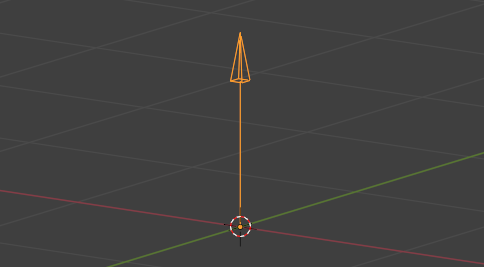
Single Arrow: It’s used to create object hierarcies.
Things to Consider
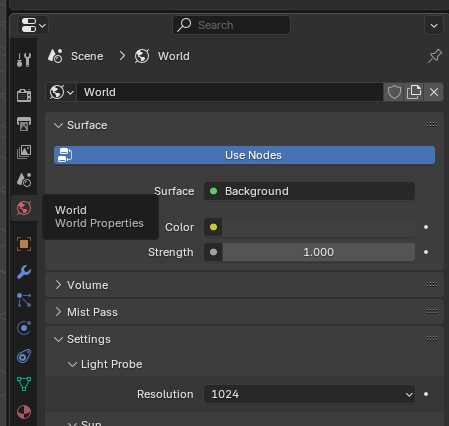
Disable World Environment Light
Exporting USD, exports also existing world environment light, which can be confusing to find when loading your USD products back.
Under World Properties
Left click the Surface > Background,
Link > Remove
Publishing Tutorials
Publish a Model
The USD Creator publishes Blender objects as USD, making it an easy option for publishing model department layer contributions.
No preparation is required, simply select your objects and create a publish instance.
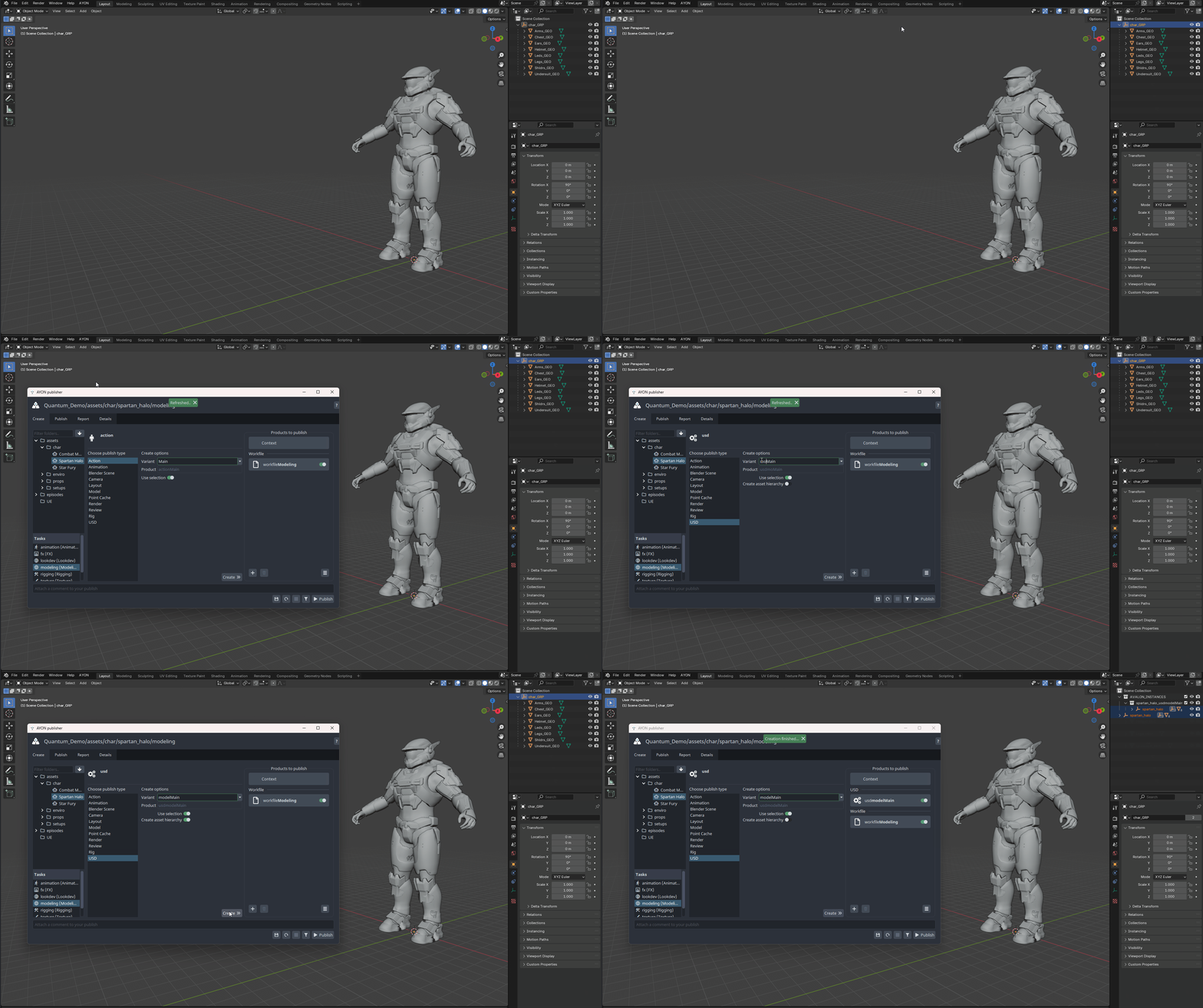
When creating an instance using USD, you may notice the Create Asset Hierarchy toggle. This option organizes your geometry into the proper structure for publishing USD model contributions.
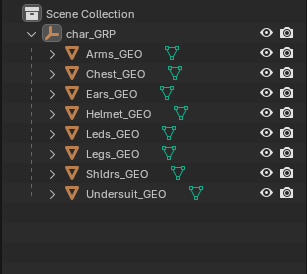
My geo
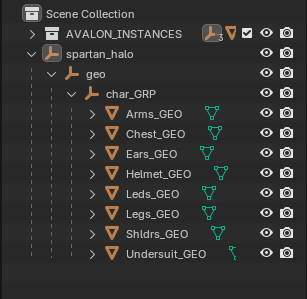
My geo after creating asset hierarchy
Don’t forget to set the USD publish options before proceeding.
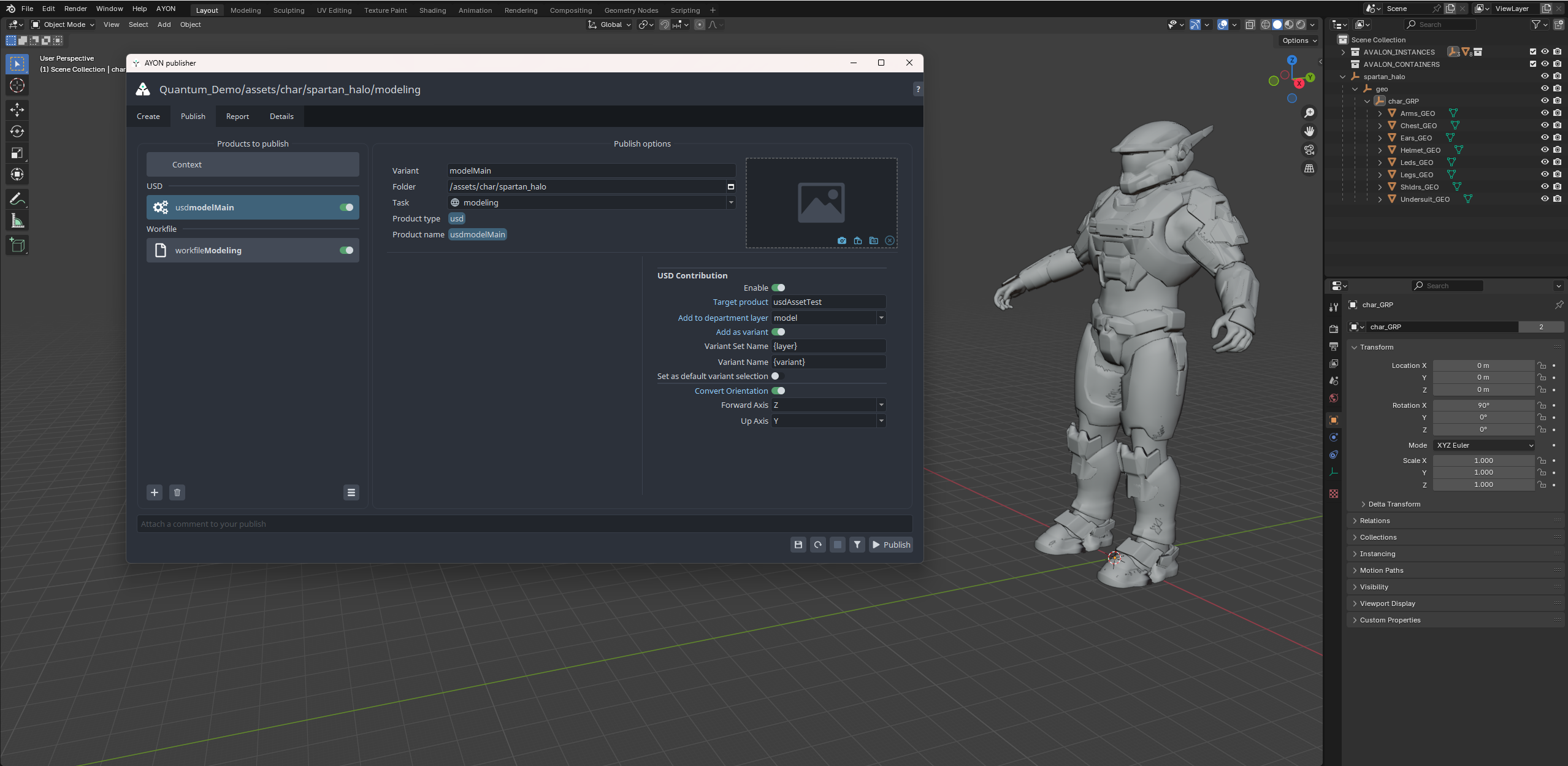
The USD creator in Blender provides settings for converting orientation axes to match the conventions of other applications.
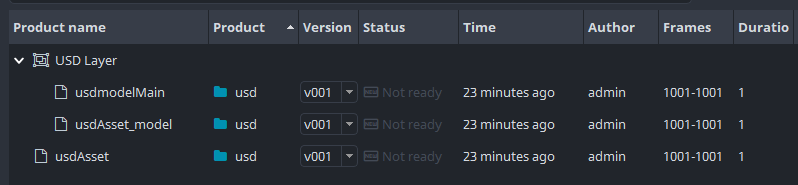
Finally, click publish. The output includes one layer for the model variant, a model department layer, and the target USD product usdAsset.
Loading USD Products
Loading follows the regular process for publishing where artists use Loader tool and select relevant USD loader.
Available Loaders
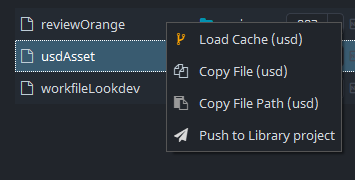
Load Cache (usd): Import USD stage into the current scene as regular Blender objects.
This is a very basic loader. It doesn’t provide any
variantchoice options.