Slate Editor
Last updated 9 months ago
Overview
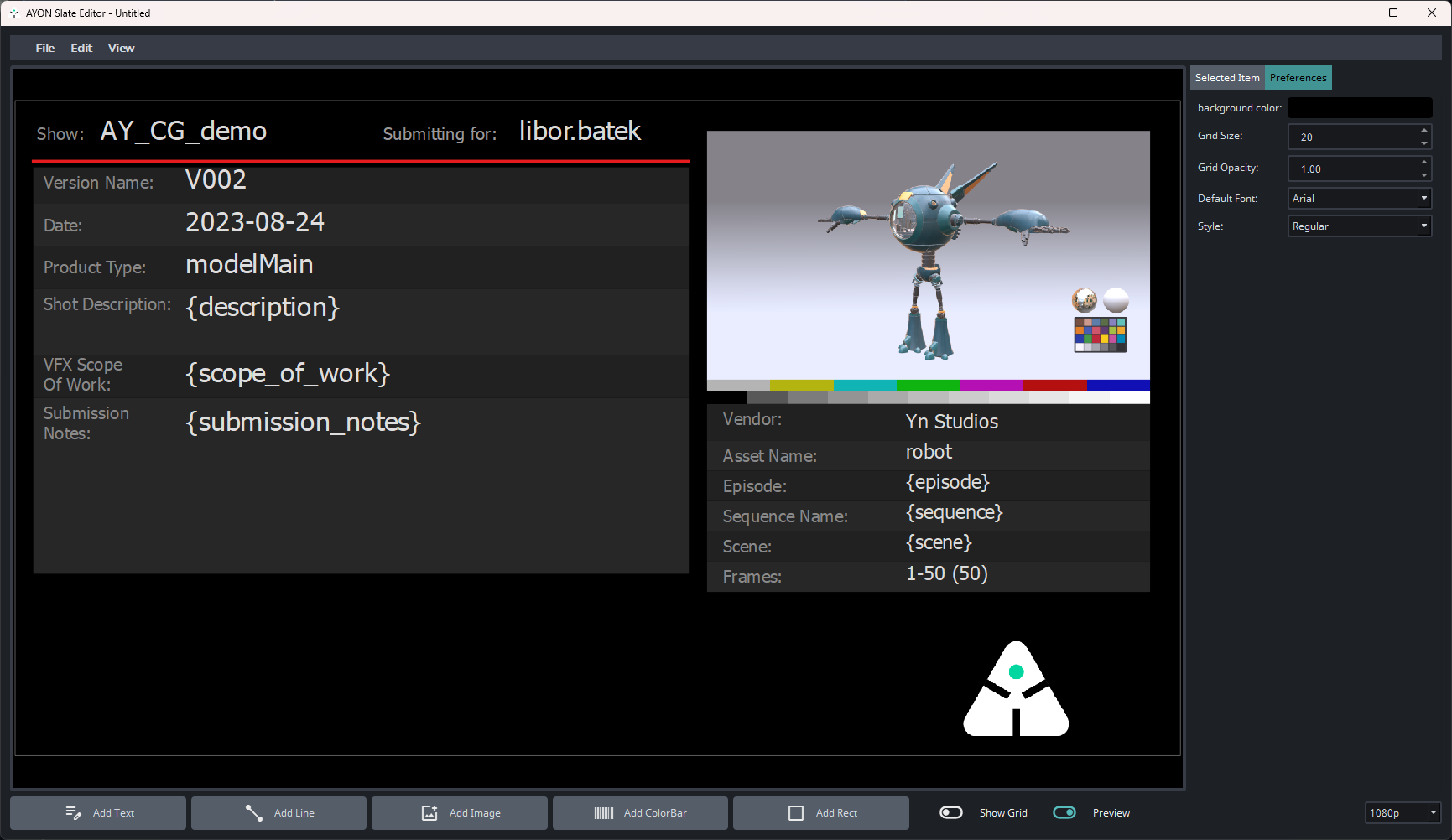
The Slate Editor is a flexible application designed for creating and managing customizable slate layouts. It supports the use of various elements such as text, images, and shapes, making it suitable for a wide range of layout needs.
Users can create, edit, and organize templates to streamline the slate generation process. Once a slate layout is created, you can upload it to the server to be used as a slate template by the publishing pipeline.
Quick Start
Launch Slate Editor
It can be launched as a web action from a Project, Folder or Task.
How to use it?
Launch the Editor: Open the Slate Editor as a web action from a Project, Folder, or Task, or run it from the AYON Launcher.
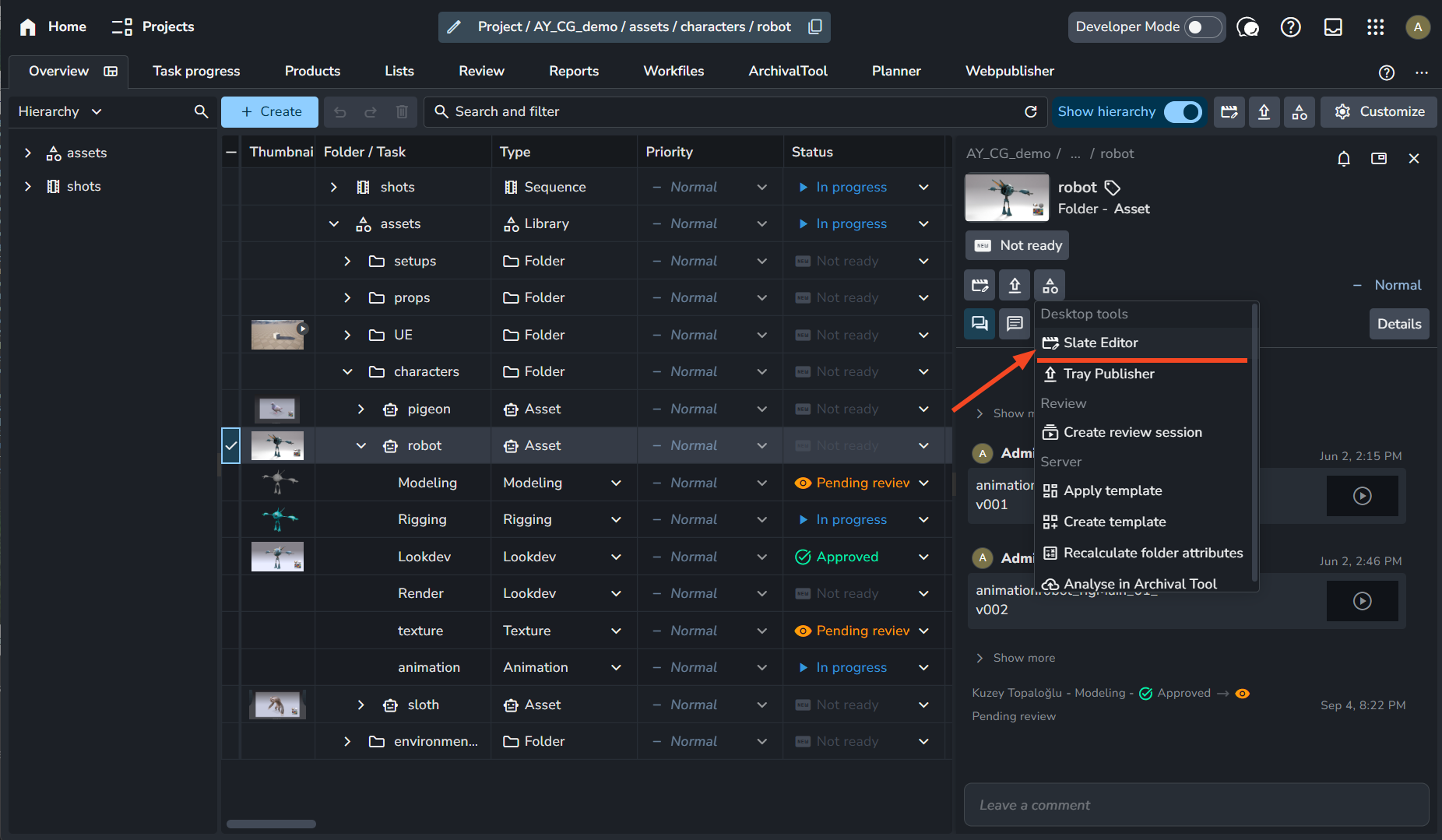
Access Slate Editor from AYON Server 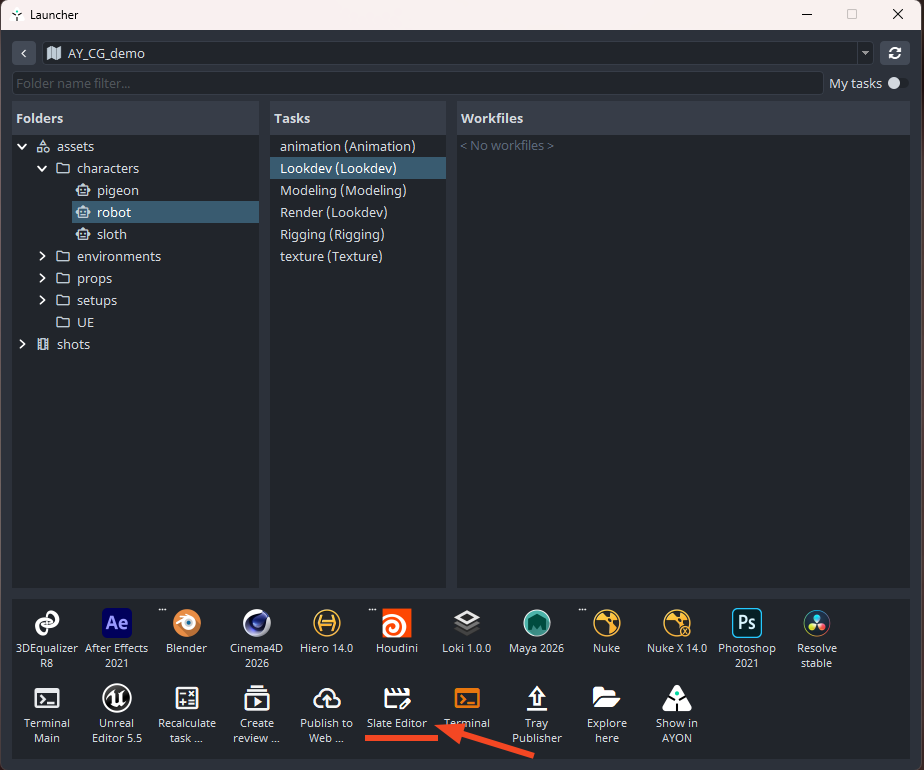
Access Slate Editor from AYON Launcher Create or Load a Template:
Create New:
Start with a blank slate and design your layout.
Download Existing:
Go to
File > Download Layout, select a layout from the server, and download it.
Load Existing:
Use
File > Load Layoutto paste a JSON template or load it from a file.
Add Items to the Layout:
Use the toolbar to add items like:
Text: Add text fields.
Line: Add lines for visual separation.
Image: Add images with optional colorspace correction.
Color Bar: Add color bars for visual guides.
Rectangle: Add rectangular shapes.
Customize Items:
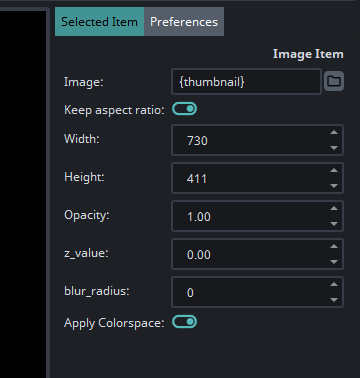
Select an item to edit its properties in the Properties Panel.
Adjust properties like:
Text: Content, font, size, and alignment.
Image: File path, scaling, and colorspace correction.
Position and Rotation: Move, resize, and rotate items.
Z-Value: Adjust the stacking order of items.
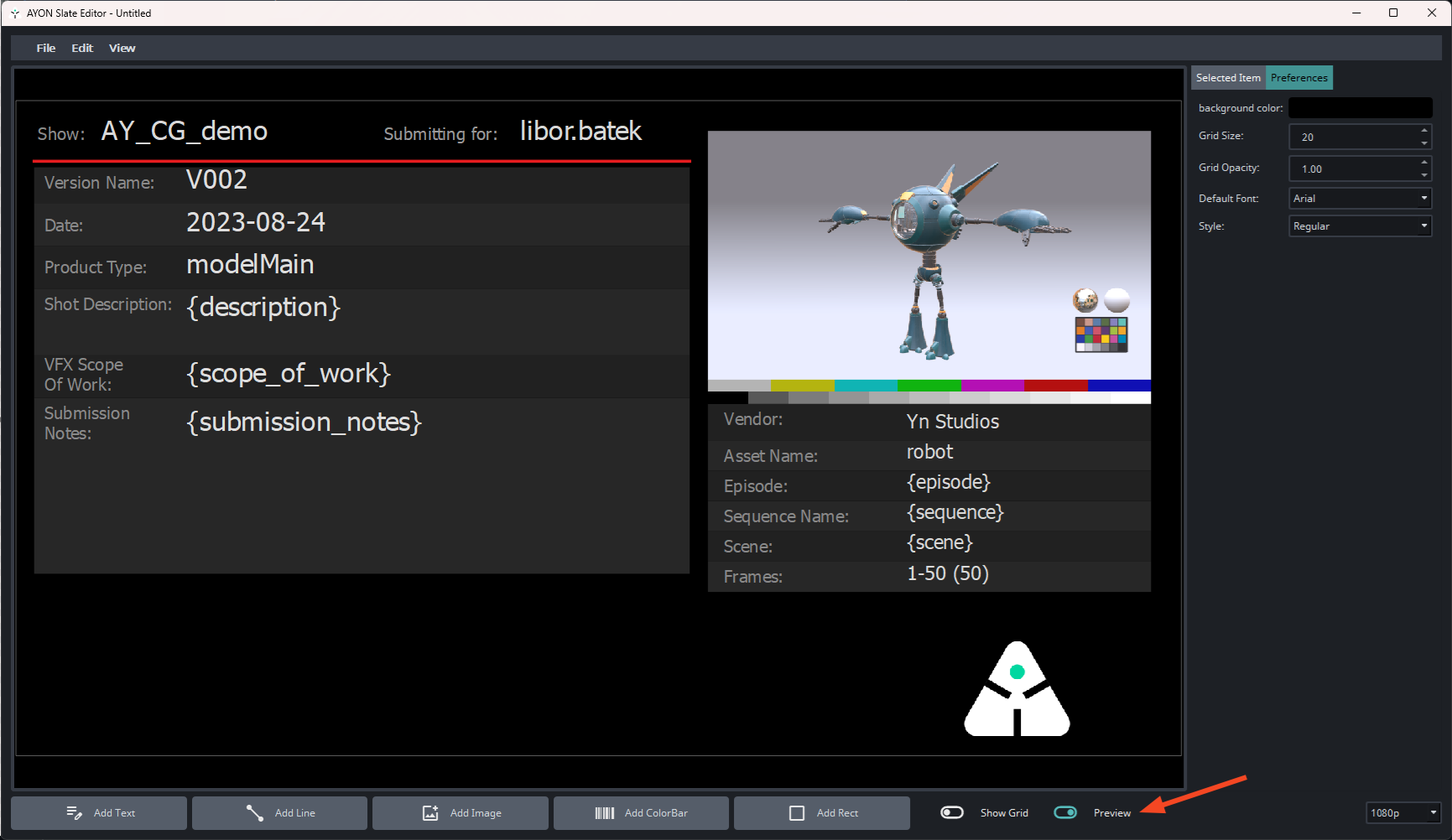
Enable the Preview option to see how the layout will look with real data.
The preview fills values based on the context where the editor was launched.
Save Your Work:
Save Layout:
Save the template as a JSON file to your local storage (
File > Save Layout).
Save Slate:
Generate and save the final slate image (
File > Save Slate).
Upload or Delete Templates:
Upload:
Use
File > Upload Layoutto save your template to the server. This is necessary to be able to select the template in settings.
Delete:
Use
File > Delete Layoutto remove a template from the server.
Use of Template Keys to Be Filled
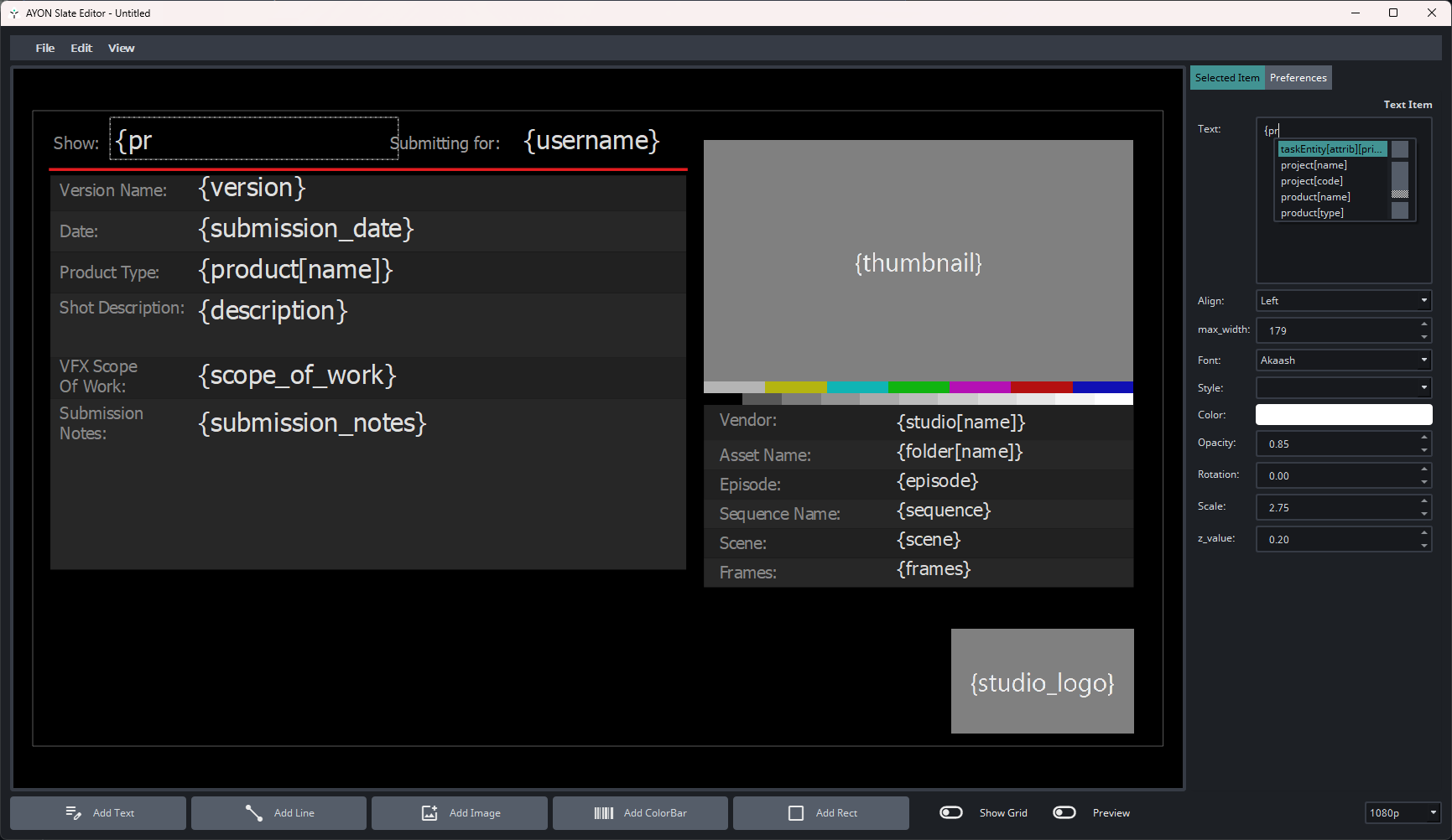
Template keys are placeholders that can be dynamically replaced with actual data when generating slates. These tokens can be replaced by text or image value.
By using template keys in your slate layout, you can create informative slate layouts for the product your publishing.
Insert Template Keys in a Slate layout
Add template keys to text fields or other supported elements in your layout.
They must be enclosed by curly braces, e.g., {project[name]}, {task[name]}, or {fps}.
Supported Template Keys in a Slate layout
The Slate Editor supports a variety of predefined template keys outlined in Available Template Keys, such as:
{project[name]}: Replaced with the name of the project.{task[name]}: Replaced with the name of the task.{fps}: Replaced with the frames-per-second value.{user}: Replaced with the name of the user generating the slate.
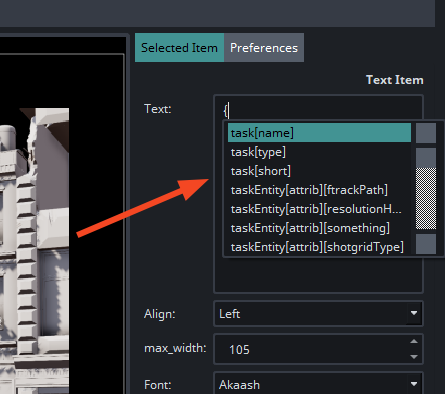
Also, for convenience, the slate editor provides auto-fill functionality which shows a list of supported template keys while typing inside a text field.
Slate Layout Preview
Use the Preview option to see how template keys will be replaced with actual data.
The preview is based on the context in which the editor was launched and if the editor fails to get the value of key, it’ll keep them as they are.
Custom Template Keys
If your workflow requires additional tokens, you can use the
{custom[...]}token, provided you know the structure of your data.
By leveraging tokens, you can streamline the process of creating dynamic and context-aware slates.
By leveraging tokens, you can streamline the process of creating slates that are tailored to specific projects, tasks, or users.
Slate Editor Shortcuts
Colorspace
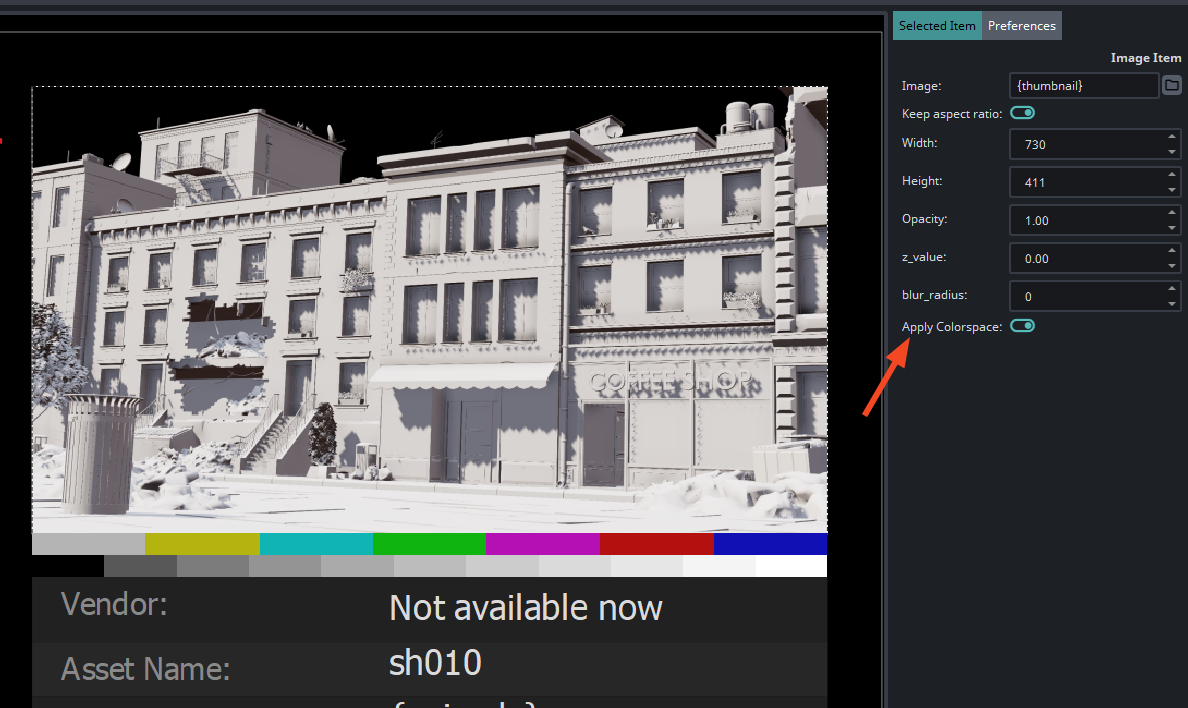
Slate Editor allows specifying if the Image item should get colorspace conversion via Apply Colorspace toggle. when enabled, the image will be converted to the correct colorspace in the final slate image to match the colorspace associated with the product.
Apply Colorspace toggle also affects color management during publishing. The slate image is automatically converted to the correct colorspace based on the associated sequence settings.
Disabling this option is useful when the image, such as a thumbnail, is already in the correct colorspace and does not require further adjustments.