Batch Delivery User Guide
This guide walks you through the lifecycle of a delivery, from initial triggers to verifying the final output.
Last updated 8 months ago
Exploring Batch Delivery Actions
Before you begin, it is important to understand the two primary functionalities available. Both processes are offloaded to the render farm (Deadline), allowing you to continue working while the processing happens in the background.

Submit Batch Delivery: A complete process that transcodes media AND publishes the result as a new version to a specific destination (Folder/Task) based on configured delivery presets.
Use Case: Ideal for formal client hand-offs or vendor deliveries where data needs to be moved and renamed.

Submit Batch Transcode: A focused process that only converts media to a new format and publishes the result as a new representation directly under the original source version.
Use Case: Ideal for testing transcoding presets or as a pipeline tool to perform conversions on-demand rather than relying on standard publish plugins.
The Delivery Round Trip
1. Trigger Actions
From AYON Server
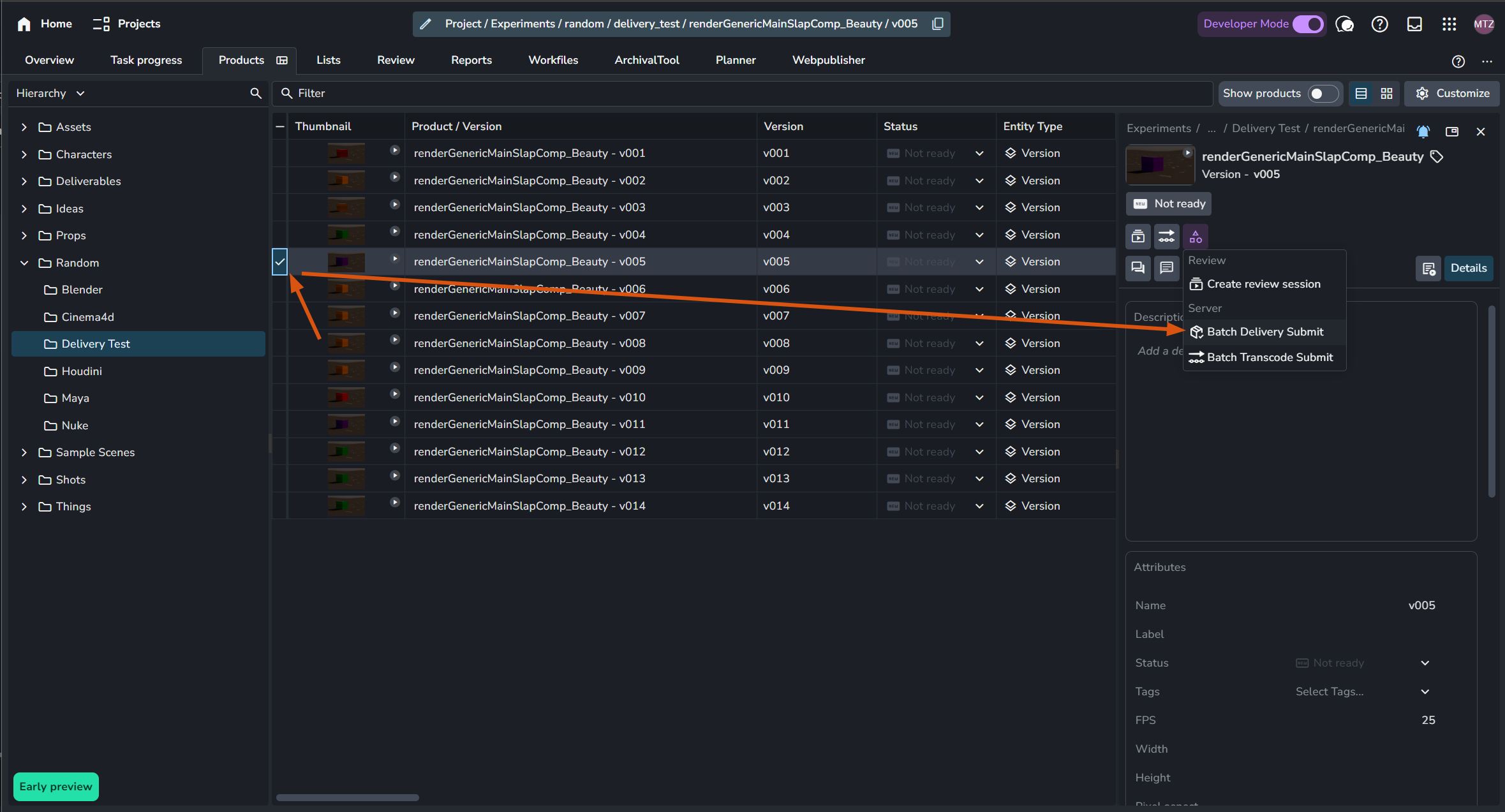
On the AYON server, the Submit Batch Delivery and Submit Batch Transcode actions are located in the Version Details panel. These are accessible wherever versions are listed, including the Products page, Lists, or the Review page.
To trigger these actions:
Navigate to the Products or Lists page.
Select the version(s) you wish to process.
In the Version Details panel (right-hand side), click the desired action button.
Submit Batch Deliver
When triggered, a dialog prompts you to select the specific Delivery Preset you wish to apply. The system will then use that preset to determine the destination and transcoding requirements and submit a deadline job for each delivery job for each selected version. Upon submission, it creates a separate Deadline job for every delivery job defined in the preset, for each selected version.
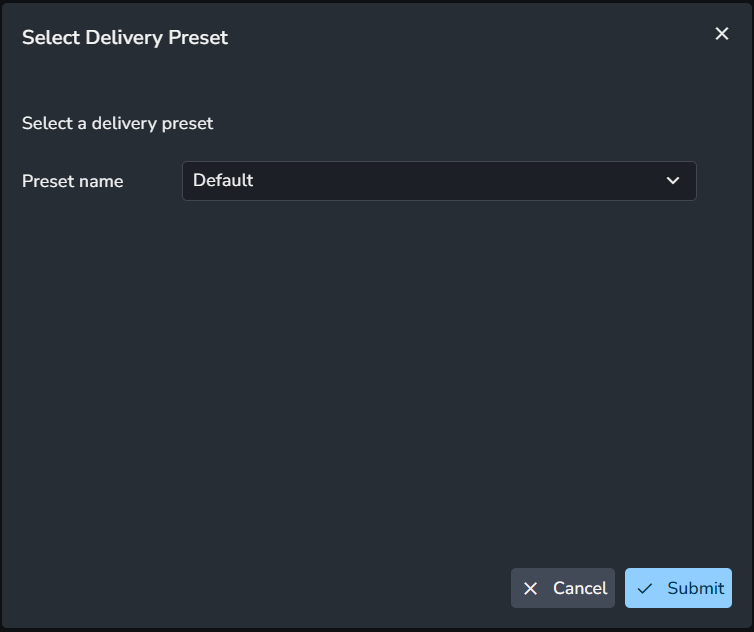
Select Delivery Preset
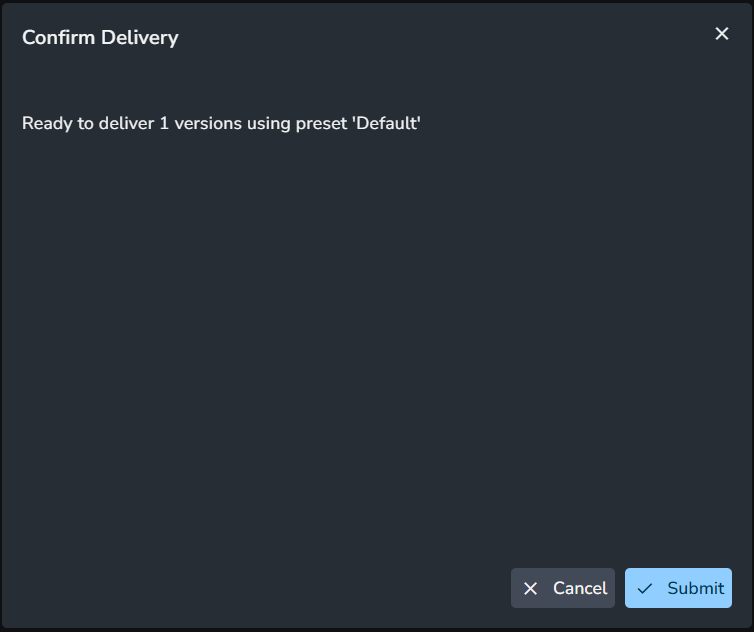
Confirm Delivery
Submit Batch Transcode
When triggered, you will be prompted to:
Select the Transcoding Preset to define the output format.
Select the specific Representation (source file) from the version that you wish to transcode.
The system then submits one or more Deadline jobs for each selected version, based on the Job Definitions configured within that transcoding preset.
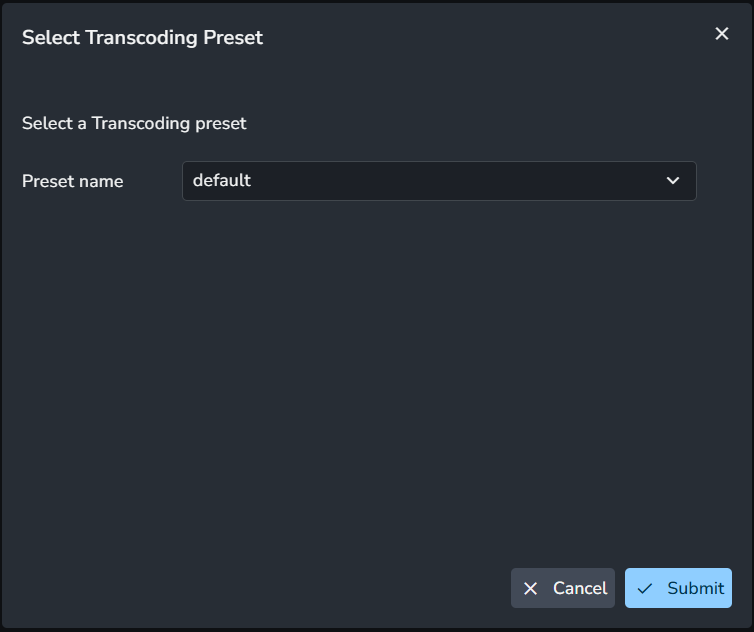
Select Transcoding Preset
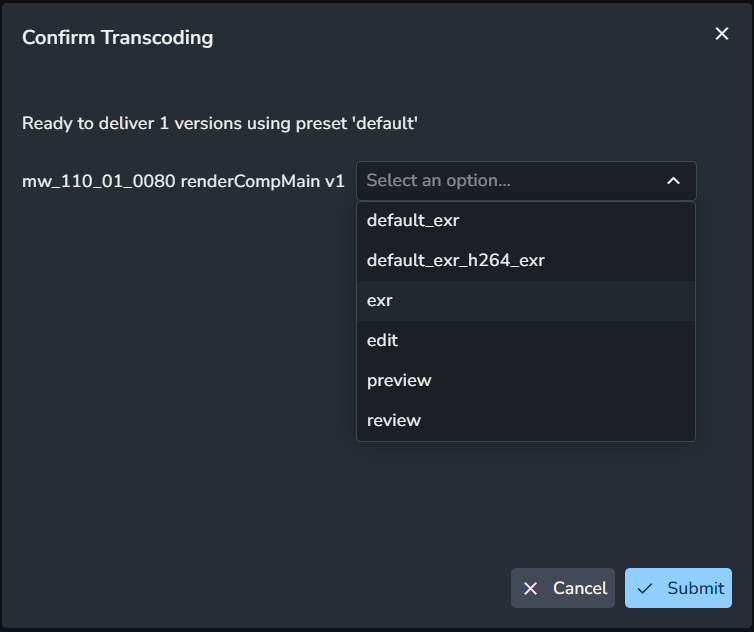
Select Representation and Confirm
From AYON Publisher
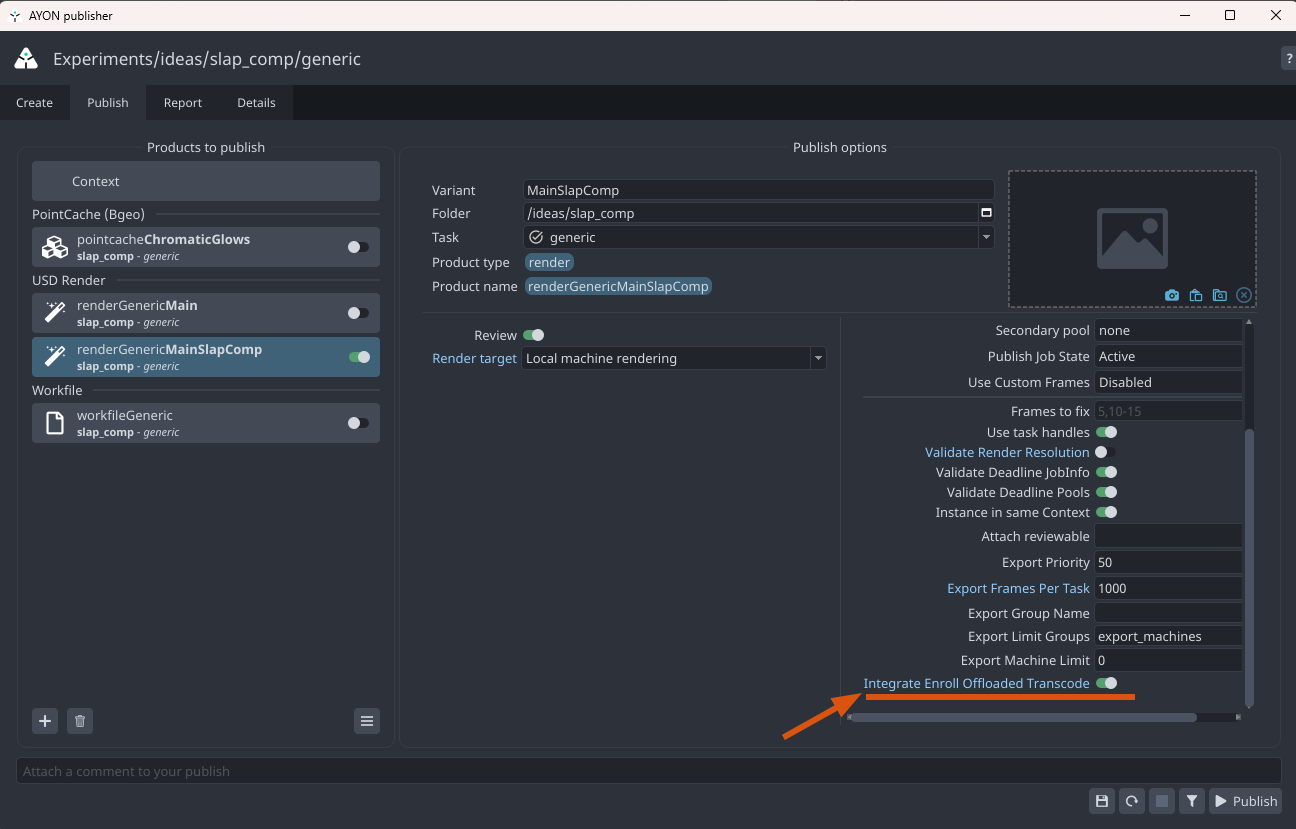
You can automate transcoding during publishing from your DCC. This behaves exactly like triggering a manual Submit Batch Transcode immediately after your publish is finished.
Depending on your studio's configuration, you may see the Integrate Enroll Offloaded Transcode plugin in the Publisher.
When this plugin is enabled, AYON automatically submits a Batch Transcode job for that product the moment the publish is finalized.
From ftrack
The Submit Batch Delivery action can be triggered directly from ftrack version lists.
The action scans the notes (comments) on every version in your selection.
A version is only processed if it contains a comment with the specific label required by your pipeline (e.g.,
TO Client).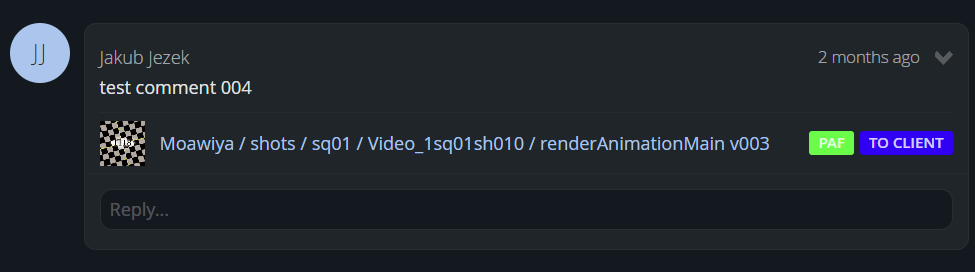
Consult your Admin or Pipeline TD to confirm which ftrack label is configured for your project.
2. Tracking Progress
Since the Batch Delivery addon offloads tasks to the farm, you have two ways to monitor the progress of your jobs:
A. From Deadline Monitor

Because every submission creates standard Deadline jobs, you can track the progress directly in the Deadline Monitor. This is the best place to check for specific render logs, worker assignments, or to manually restart a failed task.
B. From AYON Event Viewer
This is available to users with Admin or Manager roles who have access to the server's Event Viewer.
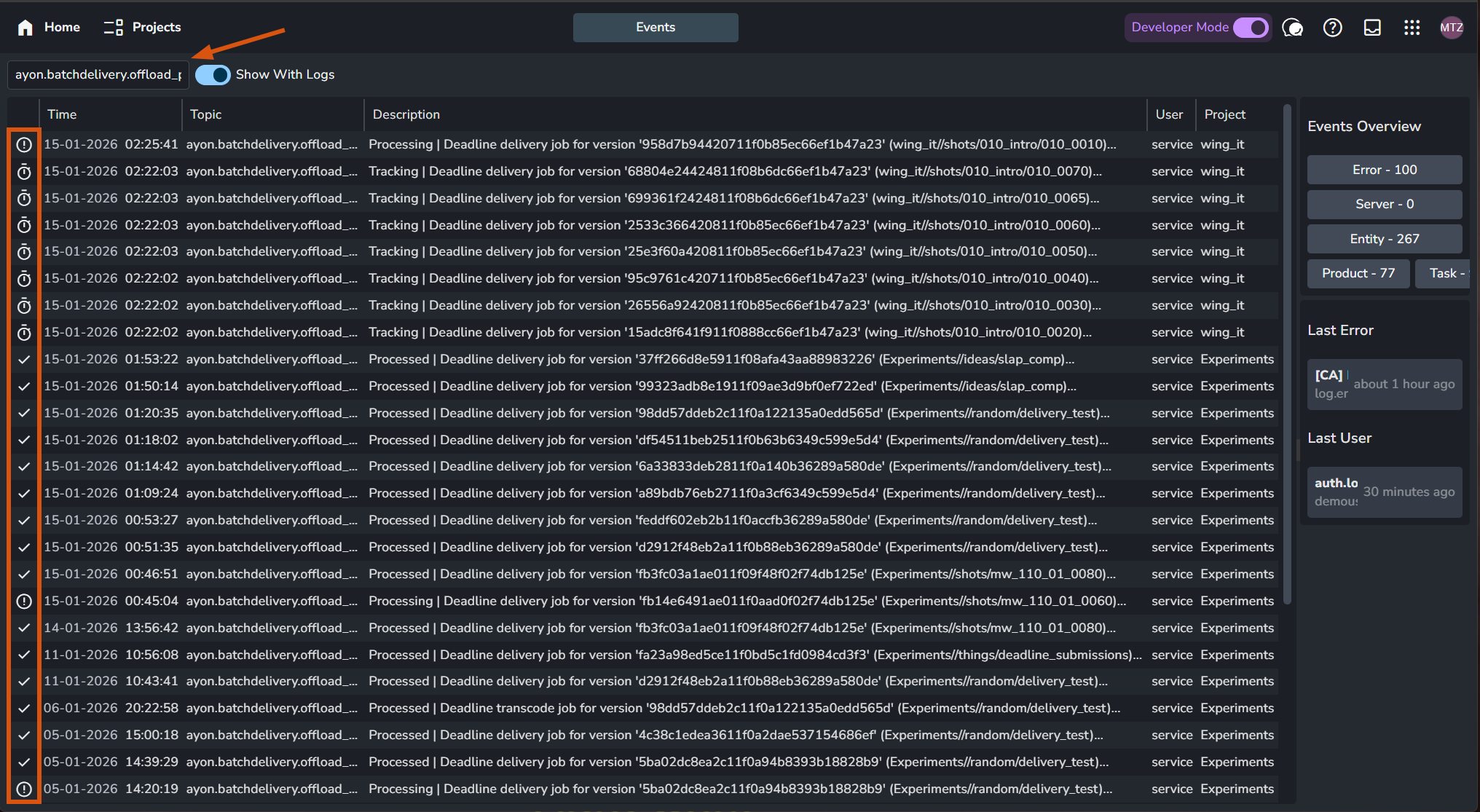
You can monitor progress without leaving the AYON interface by navigating to the Event Viewer and searching for the following topic:
ayon.batchdelivery.offload_process.jobThe status of the farm job is reflected by the event icons:
Icon | Status | Description |
 | pending | The Deadline job is waiting in the queue. An event may appear "stuck" here if the Deadline Submitter service is unreachable or if a job was suspended or deleted before it could start. |
 | In progress | The Deadline job is currently running. If a job is suspended or deleted in the middle of processing, it will often remain in this state. |
 | Finished | The Deadline job has completed successfully. |
 | Error | The Deadline job failed to process. |
The Event Viewer is a powerful tool because it maintains a persistent log. Even if a job is deleted from Deadline, the record of its attempt and result remains in AYON for your review.
3. Verifying Results
Once the tracking status shows "Finished," you can verify the output:
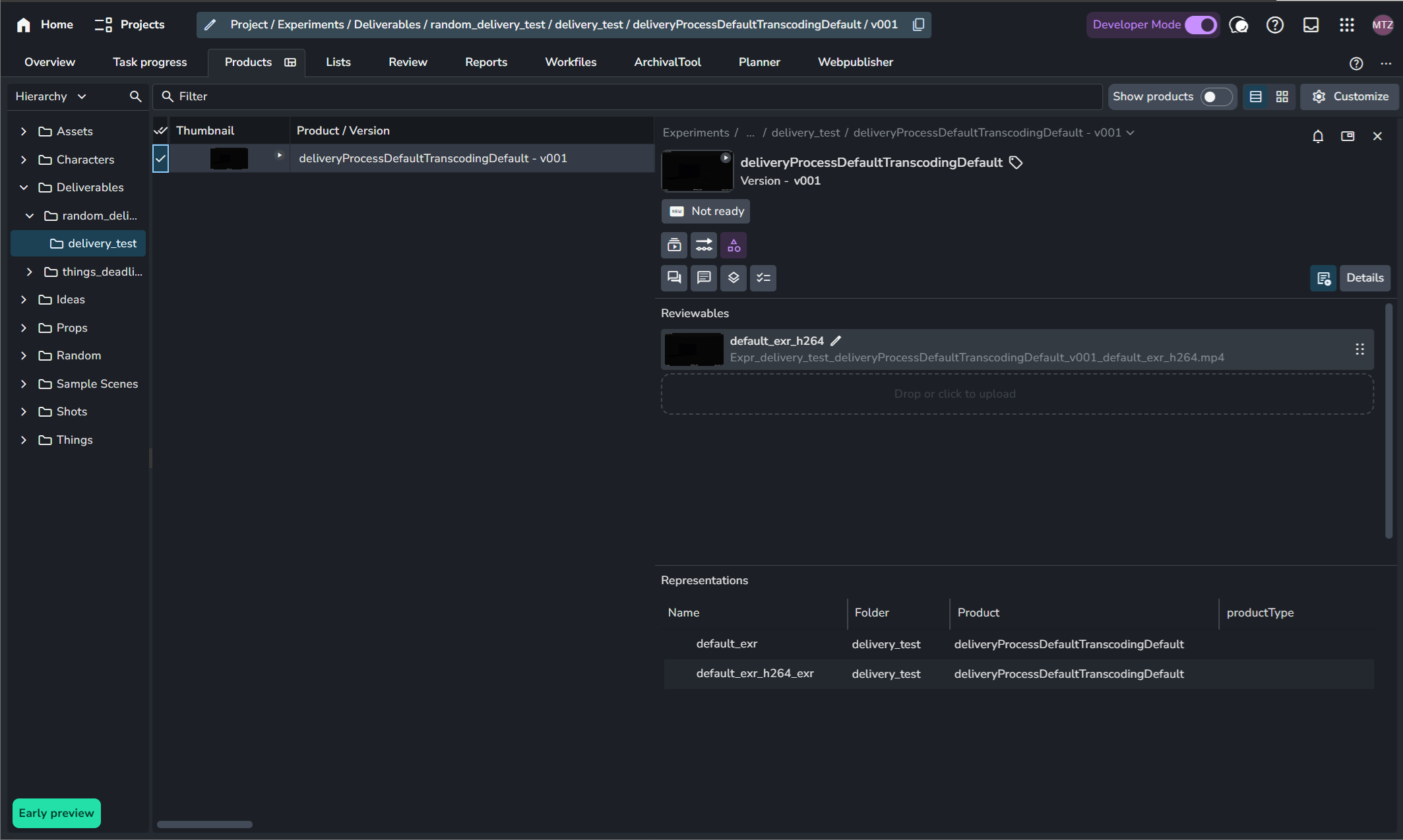
For Batch Delivery: A new version now exists at the destination Folder and Task defined in your preset.
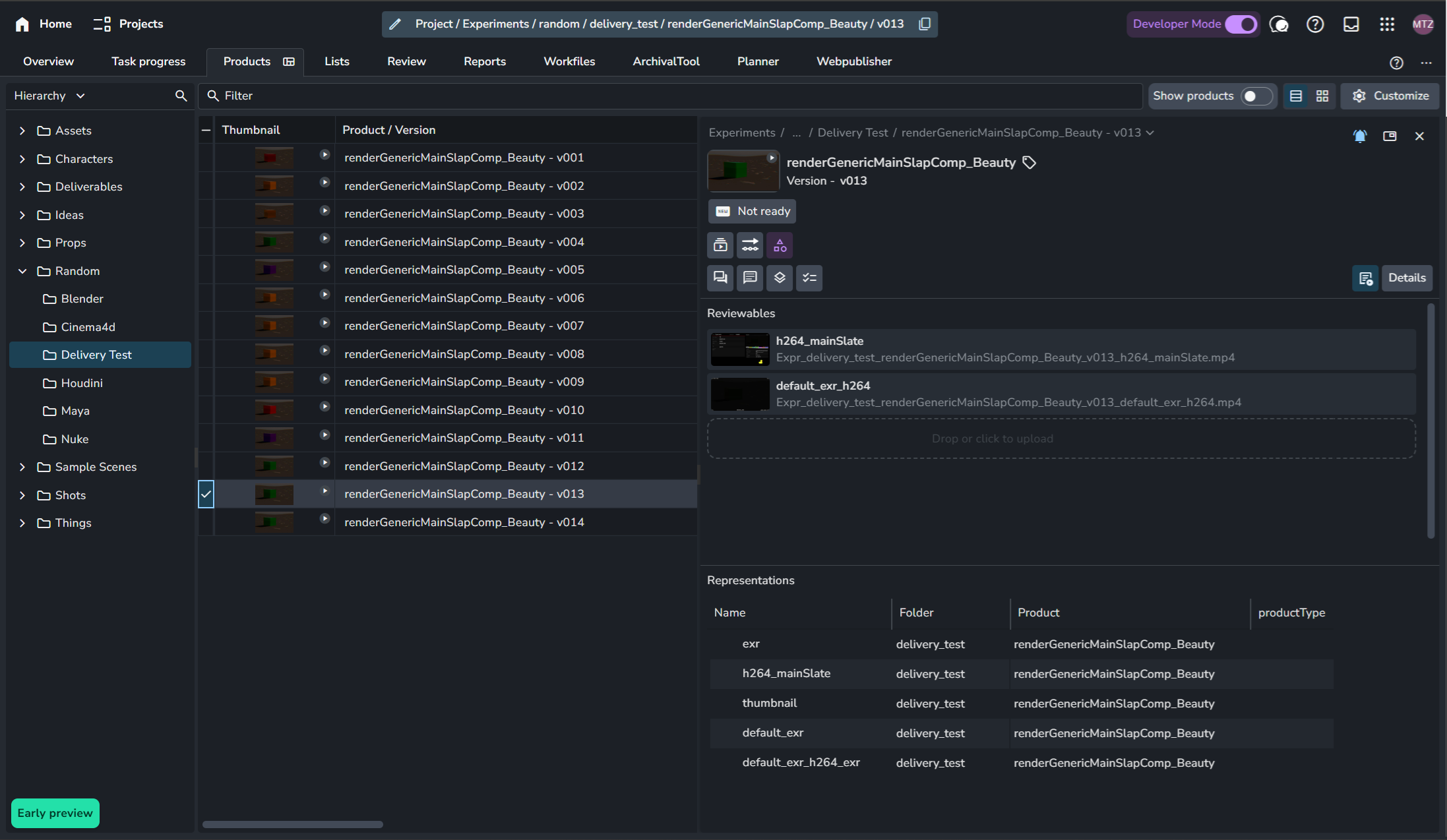
For Batch Transcode: New representations (file formats) have been added directly to your original source version.
Media Verification
While AYON ensures the files are in the right place, verifying the content (e.g., checking if color transforms, burn-ins, or frame ranges are correct) is part of your studio's QC process. If the media does not appear as expected, consult your Admin or Pipeline TD to review the Transcoding Preset configuration.
Further Information
To explore diverse workflow strategies and learn how to get the most out of the Batch Delivery Addon, please refer to the Batch Delivery Hand Book.