User Management
All you need to know to manage your admins, managers, artists and guests
Last updated 16 days ago
Admins can manage users through the Users tab (shortcut: U+U), where they can view license information, user statistics, create users, and manage access levels.
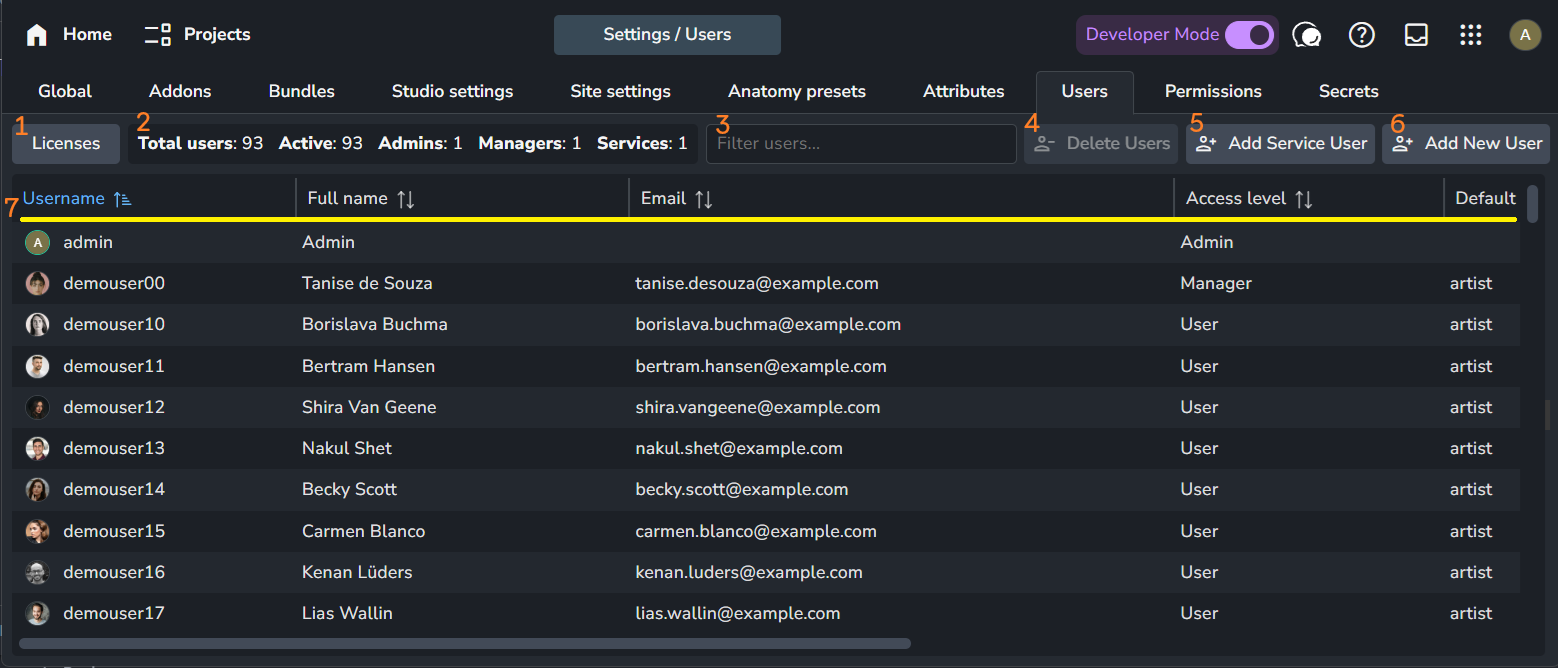
Licenses: Clicking this button opens a pop-up window that shows your current license status. It includes your AYON instance ID and name, organization ID and name, and add-on licenses. For more information, refer to AYON Licenses.
User Stats: Shows the total number of users and a count for each user type.
Filter: A simple filter that allows you to filter the user table by user name.
Delete Users: Deletes the selected users.
Add Service User: Adds a service user.
Add New User: Adds a new user.
User Table Controls: Allows you to sort by column and drag columns to change their order.
Manage Users
Add New User
The Add New User button is used to add new users to AYON. Clicking this button opens a pop-up window where you can fill in user data and set their access type.
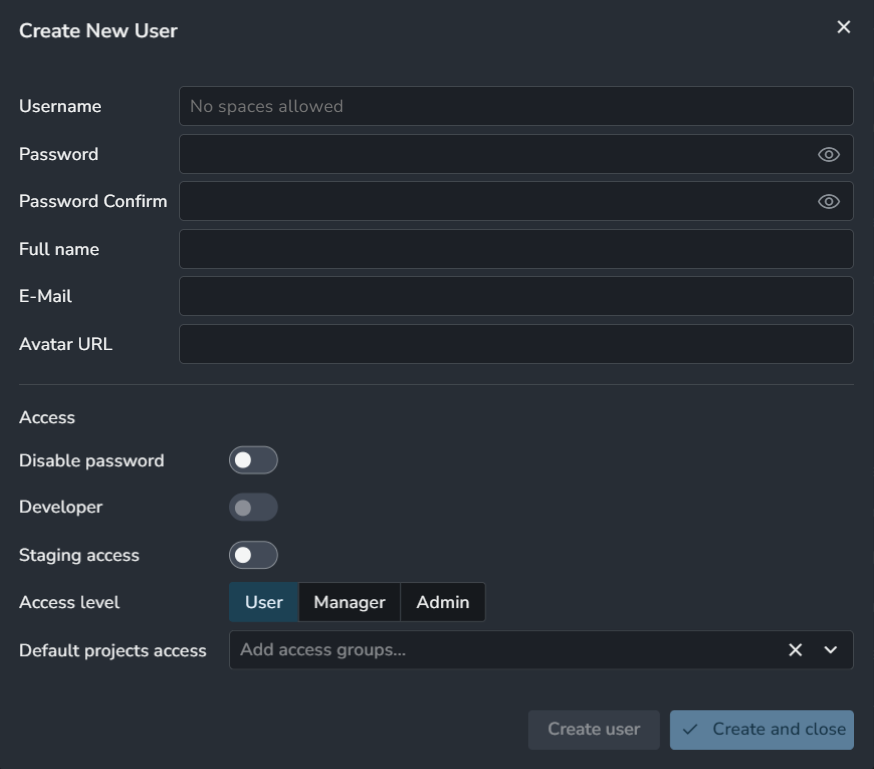
User data includes:
Username
Password
Full name
Email
Avatar URL
Access settings:
Disable Password: When enabled, users can't log in with their password and must use other login options (e.g., a Ynput cloud account). Additional options can be provided by a single sign-on addon.
Developer: Enables developer mode for the user. This option is only available for users with an admin access level.
Staging Access: Allows the user to switch between bundle modes on the server. Only available to users with the
adminormanageraccess level.Access level: This defines the user's role as either
admin,manager, or a basicuser.Default Projects access: The access group(s) a basic user is automatically added to whenever a new project is created.
Add Service User
Create a service user whenever you need an AYON_API_KEY. A new key is generated whenever a new service user is created.
Important: The API key is shown only once when the service user is created. It cannot be retrieved or viewed again later. if you lose it, you will need to create a new service user to generate a replacement key.
AYON uses the AYON_API_KEY environment variable for authentication in the Python API and CLI tools as show in this python example and AYON Service Host (ASH).
Create and save an AYON_API_KEY:
Create a New Service User: Click the Add Service User button to create a new service user.
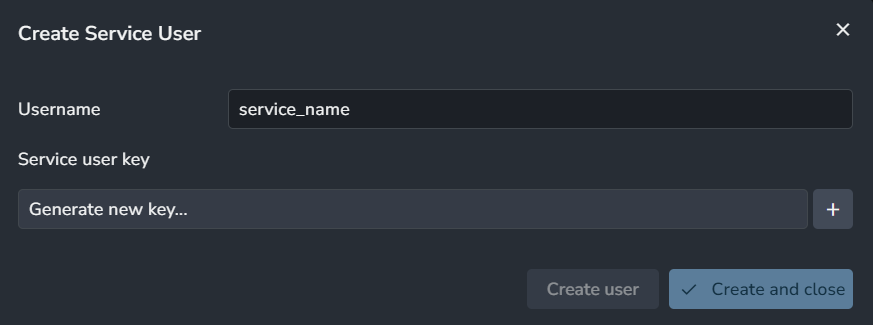
Generate a Key: Click Generate new key... to create a key. Be sure to copy the key before closing the window, as it will not be displayed again.
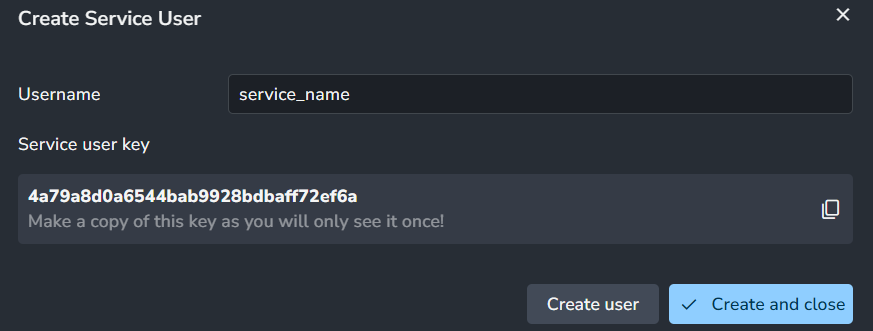
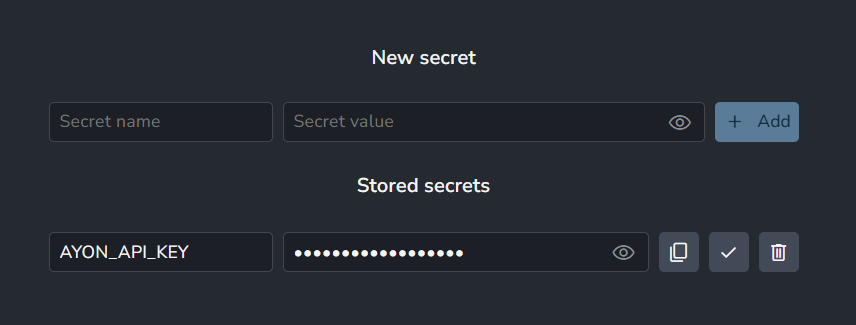
Save the Key: You can store the key within the AYON ecosystem using the AYON Server Secrets page. You can always visit this page to copy the key again when needed.
Modify Users
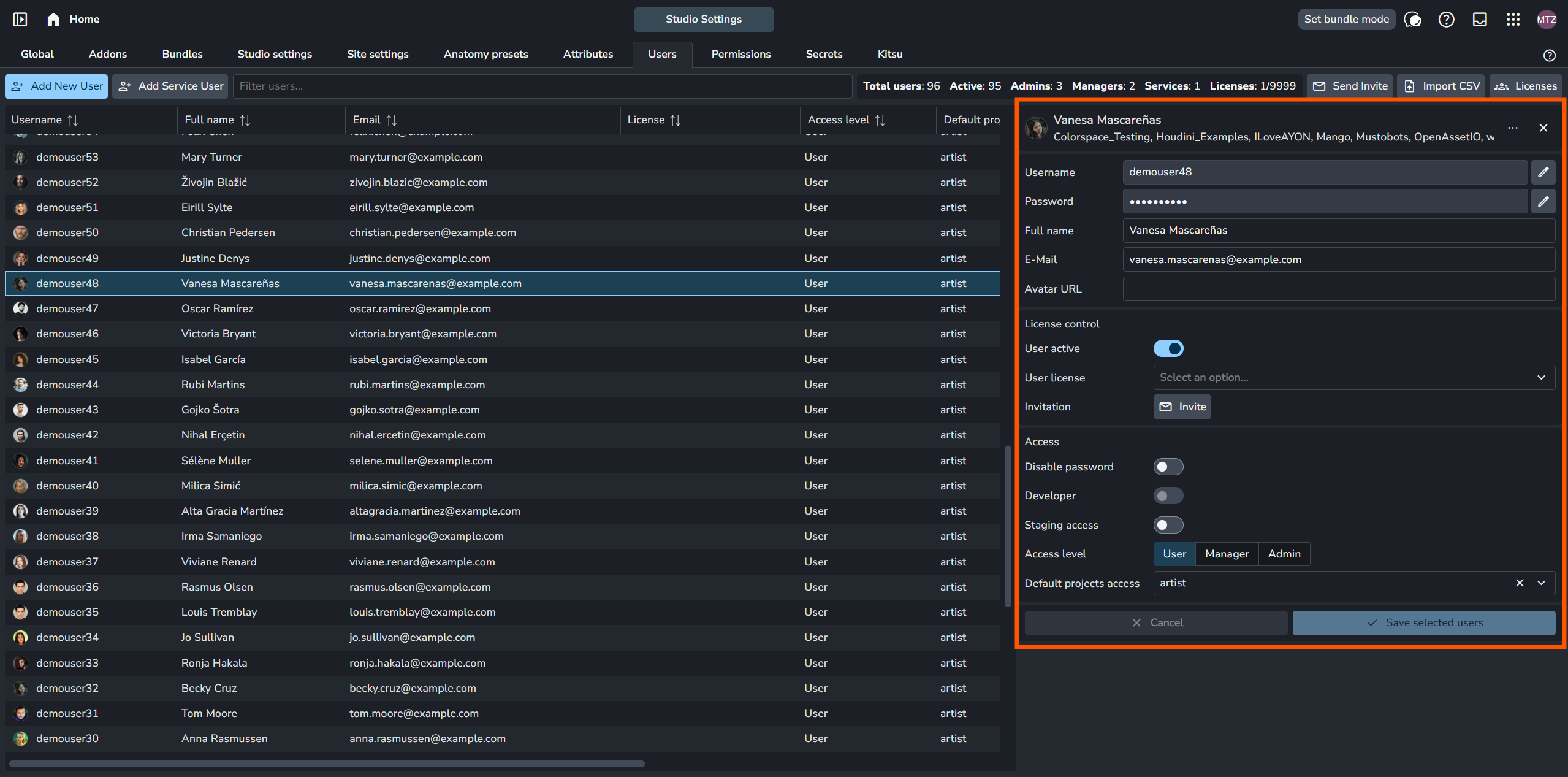
In Users Page, you can modify users information like name, password and email.
Steps:
Select the user you’d like to modify.
A panel opens on the right
You can access the user's information there and modify it, which includes User Data, License Control, and Access.
Alternatively, you can right-click a user to open a menu where you can set their username and password.
Changing user names is not recommended.
Renaming users can have unintended consequences. Use with extreme caution.
Delete Users
You can delete users by selecting them and clicking the Delete Users button at the top of the page, or by right-clicking the user and selecting Delete Selected.
Account Profiles
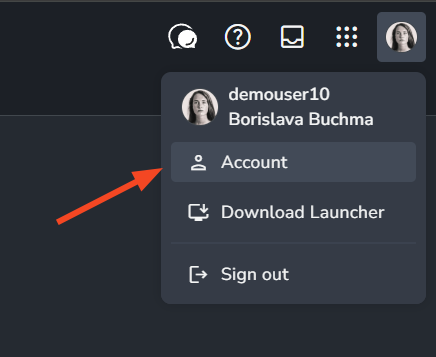
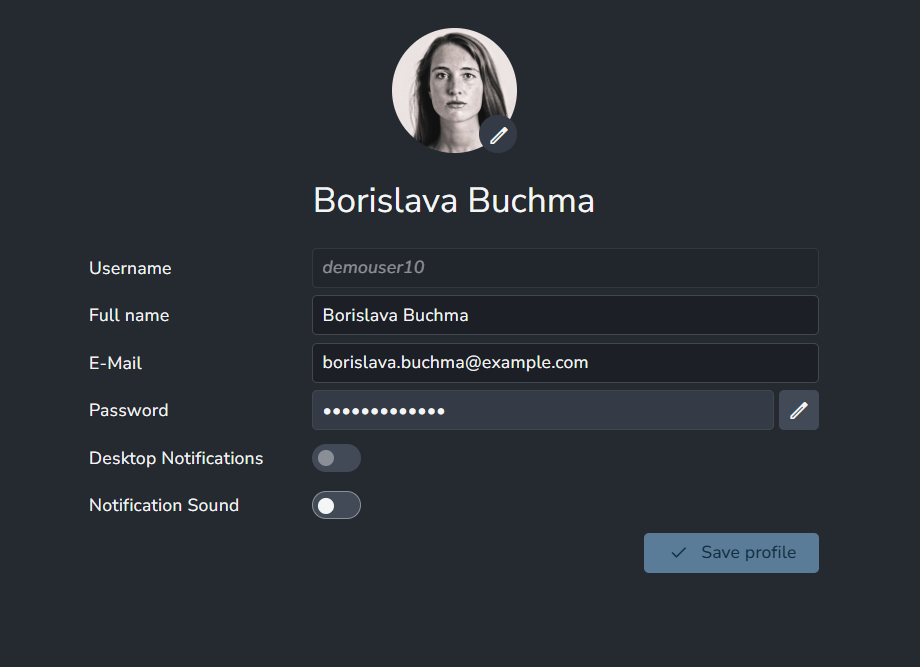
Each user can modify their profile attributes through the Account settings.
 |  |
FAQ
What is an active user?
An active user is a user with the User Active setting enabled, they can log in and are assigned a license seat. This is what your subscription measures when calculating cost, since AYON Pro and AYON Studio are billed per active user, see Pricing.
Does a user need a license to log in?
Yes. If you have a subscription connected to your AYON server, users need an assigned license seat to log in. If a user doesn't have one assigned, and seats are available on your server, one will be assigned to them automatically.
Can I add users without needing a license for them?
Yes — you can create as many inactive users as you like. This lets you build up a database of freelancers, pre-assign them to projects, and plan out their work without needing a license for them.
To do this, create the user as normal, then disable the User Active toggle under License Control. This deactivates the user and clears their license seat.
Where to find the AYON API Key?
The AYON API key doesn't sit somewhere in your settings — rather, it's generated by creating a service user and saving the key it generates. You can save it in your vault, or rely on the AYON secrets page.
If you already have an AYON API key and lost it, you'd need to create a new one and save it.
For detailed steps, see the Add Service User section.
Batch Create Users
Yes, you can create users in bulk by importing a CSV file, as shown in this example.
If you're self-hosting AYON, users can also be created in bulk via the setup command and settings/template.json file, as outlined here.
Additionally, users can also be created programmatically using the AYON Python API, as shown in this example.
Sync Users from Third-Party Production trackers
AYON addons for third-party production trackers can sync users between AYON and the respective tracker. This is typically handled through specific actions or settings within each addon.
The Flow (ShotGrid) add-on can sync active users from Flow to AYON as outlined here.
The ftrack add-on provides a dedicated Sync Users to AYON action.
For Kitsu, users are synced to AYON when a Sync Projects action is triggered, provided the sync users setting is enabled.
Creating Users via SSO
The SSO addon provides a New users setting that allows for the automatic creation of users if they do not already exist in AYON. For more information, please see Single Sign-On addon.
How can I change my username?
It is not possible to change your username directly in Account Settings. To change your username, please contact your AYON Server Admin, as usernames can only be modified via the Users page in the server dashboard.
Was this helpful?
Still need help? Ask the team