Working with AYON Tray Publisher
Last updated 2 months ago
Introduction
Tray Publisher is a standalone Creator / Publisher tool that allows you to publish any files to AYON. It's also capable of creating assets and shots in your projects. The Tray Publisher is minimal and doesn't have many validators, offering greater flexibility.
It features various creation plugins and provides dynamic creator definitions that you can extend for studio or project-specific needs.
Creator plugins are used to create products. For example, to publish a pointcache product, you'd need a pointcache product type creator, or simply, a pointcache creator.
You can extend Tray Publisher product type creators via the Simple Create Plugins setting.
Quick Start
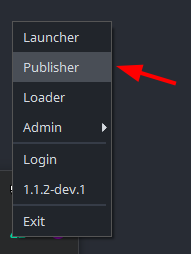
Launch Tray Publisher
It can be launched via Tray menu.
How to use it?
Just Drag and Drop—that's all there is to it.
Tray Publisher works just like the regular Creator / Publisher tool. However, instead of just collecting exported files from your work scene, it offers additional fields for dragging and dropping the files you want to publish.
Supported Product Types
Tray Publisher supports publishing almost any type of data across the pipeline. It also includes special creators for advanced publishing workflows.
Simple Create Plugins
Simple Create Plugins are defined in the Simple Create Plugins addon settings. Admins can change, remove, add, or modify them as needed.
Every simple creator follows the same usage steps.
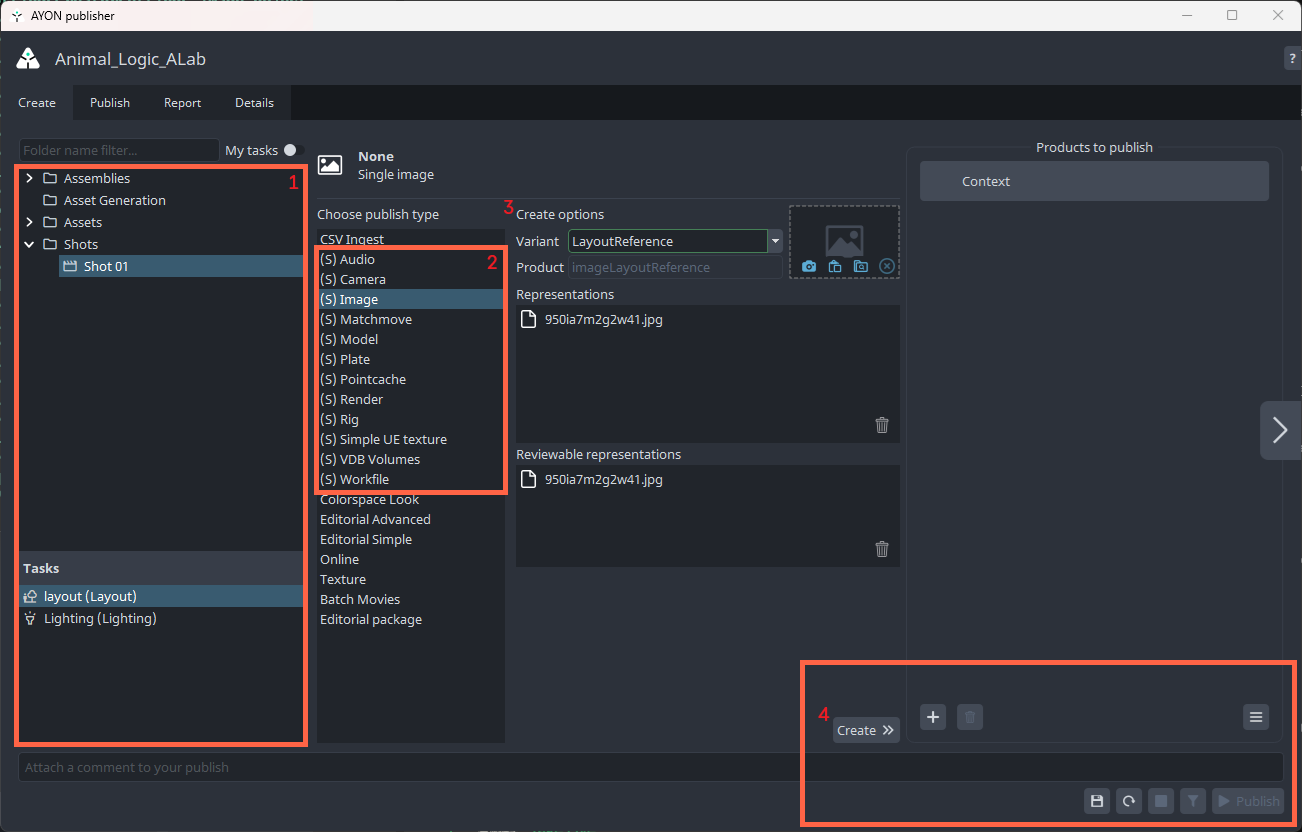
In the example above, I've prefixed the labels of simple creators with (S) in Simple Create Plugin Presets for visual clarity in the publisher UI.
Steps:
Context Selection: Choose the target Folder and Task from the hierarchy.
Product Type: Select product type from the products list.
Create Options:
Set the Variant Name.
Set Thumbnail.
Add Files: Select your representation and reviewable files (supports single files or multiple ).
Finalize: Click Create and then Publish.
Default Simple Creators
workfiles: Workfiles are full scenes from any application that are directly edited by artists. They represent a state of work on a task at a given point and are usually not directly referenced into other scenes.model: Models should only contain geometry data, without any extras like cameras, locators or bones. Keep in mind that models published from tray publisher are not validated for correctness.pointcache: Alembic or bgeo cache of animated dataplate: Any type of image sequence coming from outside of the studio. Usually camera footage, but could also be animatics used for reference.render: Sequence or single file renders.camera: Ideally this should be only camera itself with baked animation, however, it can technically also include helper geometry.image: Any image data can be published as image product type. References, textures, concept art, matte paints. This is a fallback 2d product type for everything that doesn't fit more specific product type.vdb: Hierarchical data structure for the efficient storage and manipulation of sparse volumetric data discretized on three-dimensional grids.matchmove: Script exported from matchmoving application to be later processed into a tracked camera with additional data.rig: CG rigged character or prop. Rig should be clean of any extra data and directly loadable into its respective application.simpleUnrealTexture: Texture files with Unreal Engine naming conventions.audio: Audio files for review or final delivery.
Editorial Simple
The Tray Publisher Editorial workflow allows for the mass setup of shots from reference videos and EDLs (Edit Decision Lists) This creator dissects the input video file(s) into clip chunks based on the provided edit list file and then converts each chunk to a format specified in the settings for each product preset.
Additionally, it creates any missing folders and shots during publishing.
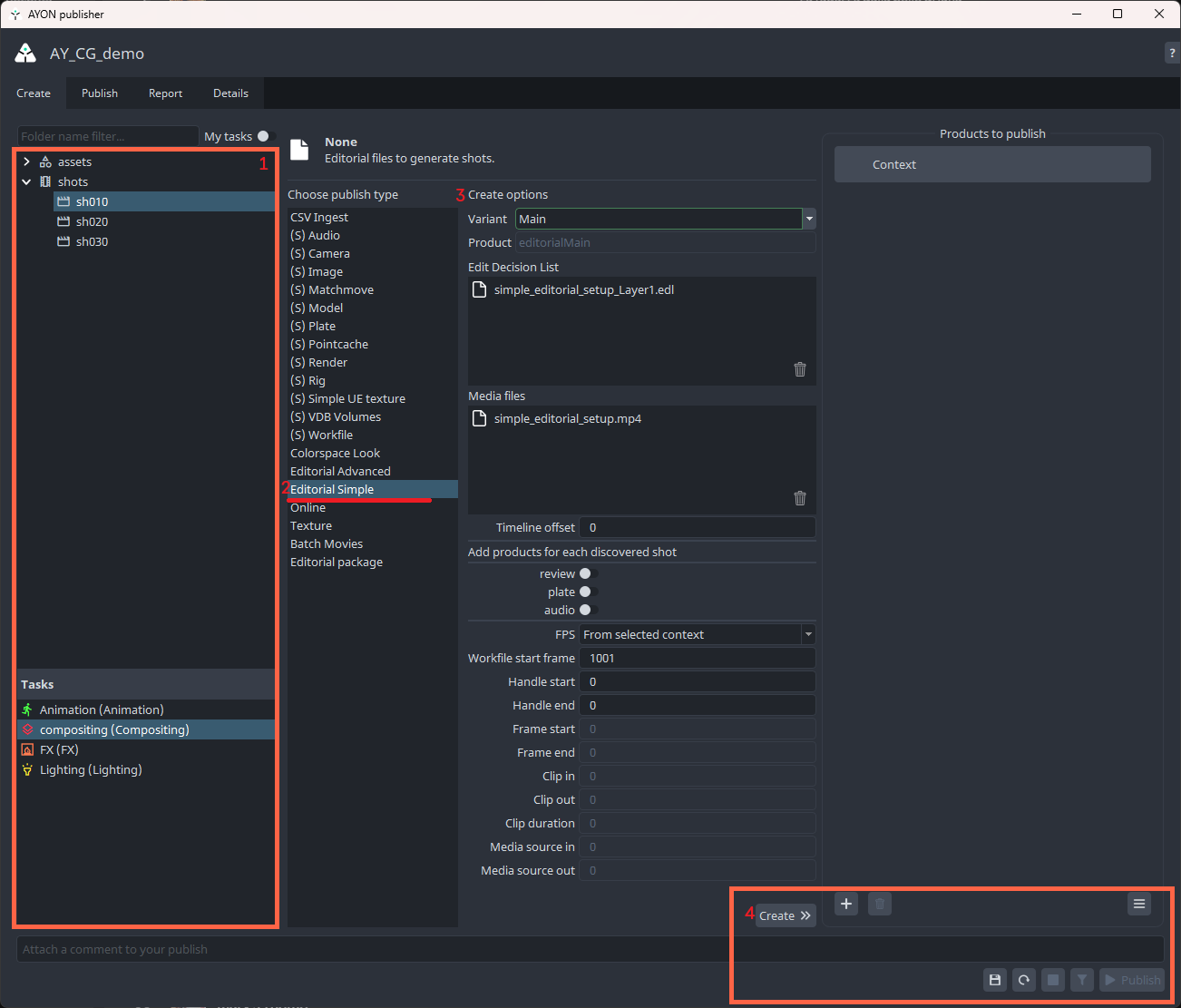
Steps:
Context Selection: Select a folder and task from the left-hand side.
This folder will be used for publishing theedl fileitself.Also, If Shot Hierarchy is disabled in the addon settings, this folder will be the parent folder for the created shots.
Product Type: Select Editorial Simple from the products list.
Creation Options:
Set the Variant Name
Add Files: Drag and drop your EDL (Edit Decision List) file and Media files.
Set Timeline Offset
Enable products to create for each discovered shot. This list is generated from Product Type Presets in settings.
Set FPS and frame data like frame range and frame handles.
Finalize: Click Create, adjust any optional publish settings if necessary, and click Publish.
An instance will be created for each discovered product.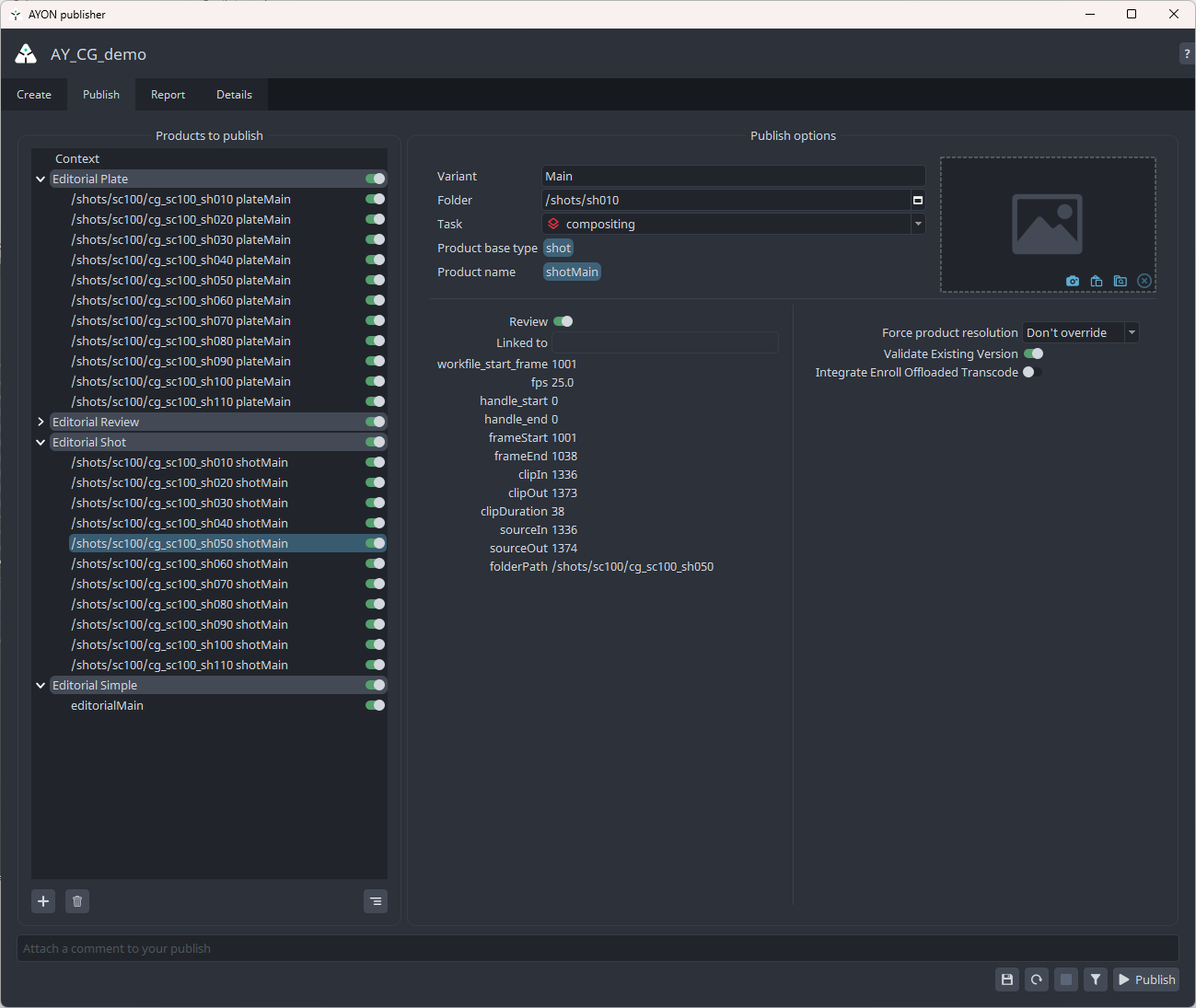
Editorial Simple publish instances are used to publish the Decision List file. Do not disable them, as this may break the publishing process.
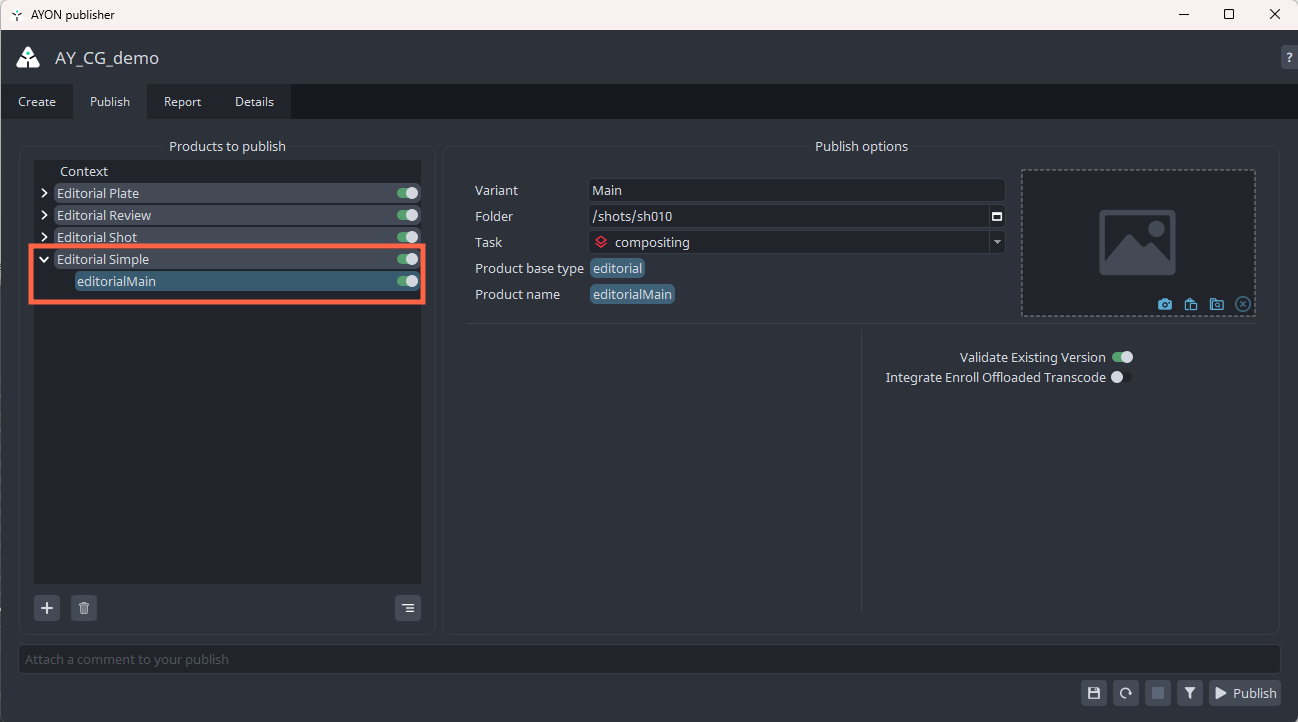
The following videos were created for Openpype (AYON's predecessor). The workflow remains the same but the settings have been moved to AYON Server instead.
Tray Publisher Editorial Workflow
Introduction to Tray Publisher for editorial workflows
Editorial Advanced
The Editorial Advanced workflow extends Editorial Simple, allowing for more flexible content discovery in clip folders, better version handling, and improved control over how different media types are processed and published. This makes it especially useful for studios with complex editorial pipelines involving various media types and folder structures.
Key Enhancements
Advanced Folder Scanning: Deep-scans directory structures to automatically identify and categorize media.
Intelligent Versioning: Extracts version numbers directly from filenames or allows for locked/incremental versioning based on studio needs.
Broad Media Support: Robust handling for image sequences (e.g., EXR/DPX), video files, and standalone audio tracks.
Enhanced Filtering: A comprehensive representation filtering system that ensures the right files are mapped to the right product types.
Automated Reviewables: Thumbnails and reviewable proxies are automatically detected and attached to the published versions.
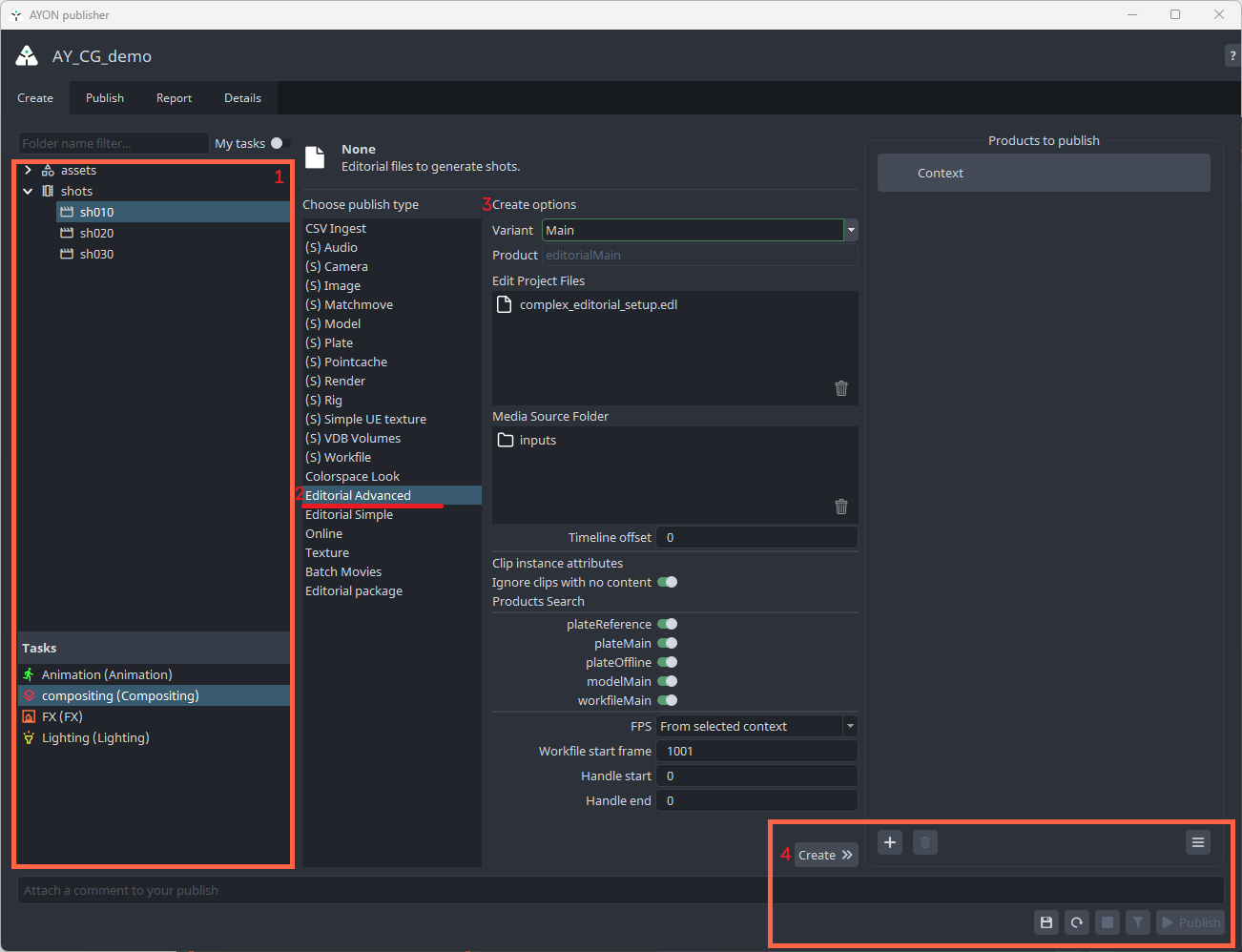
Steps:
Context Selection: Select a folder and task from the left-hand side.
This folder will be used for publishing theedl fileitself.Product Type: Select Editorial Advanced from the products list.
Creation Options:
Set the Variant Name
Add Files: Drag and drop your EDL (Edit Decision List) file and Media Source Folder.
Please refer to your admin to know about the expected file structure of the Media Source Folder.
Set Timeline Offset
Enable products below Products Search Section. This list is generated from Product Type Presets in Editorial advanced settings.
Set FPS and frame data workfile start frame and frame handles.
Finalize: Click Create, adjust any optional publish settings if necessary, and click Publish.
An instance will be created for each discovered product.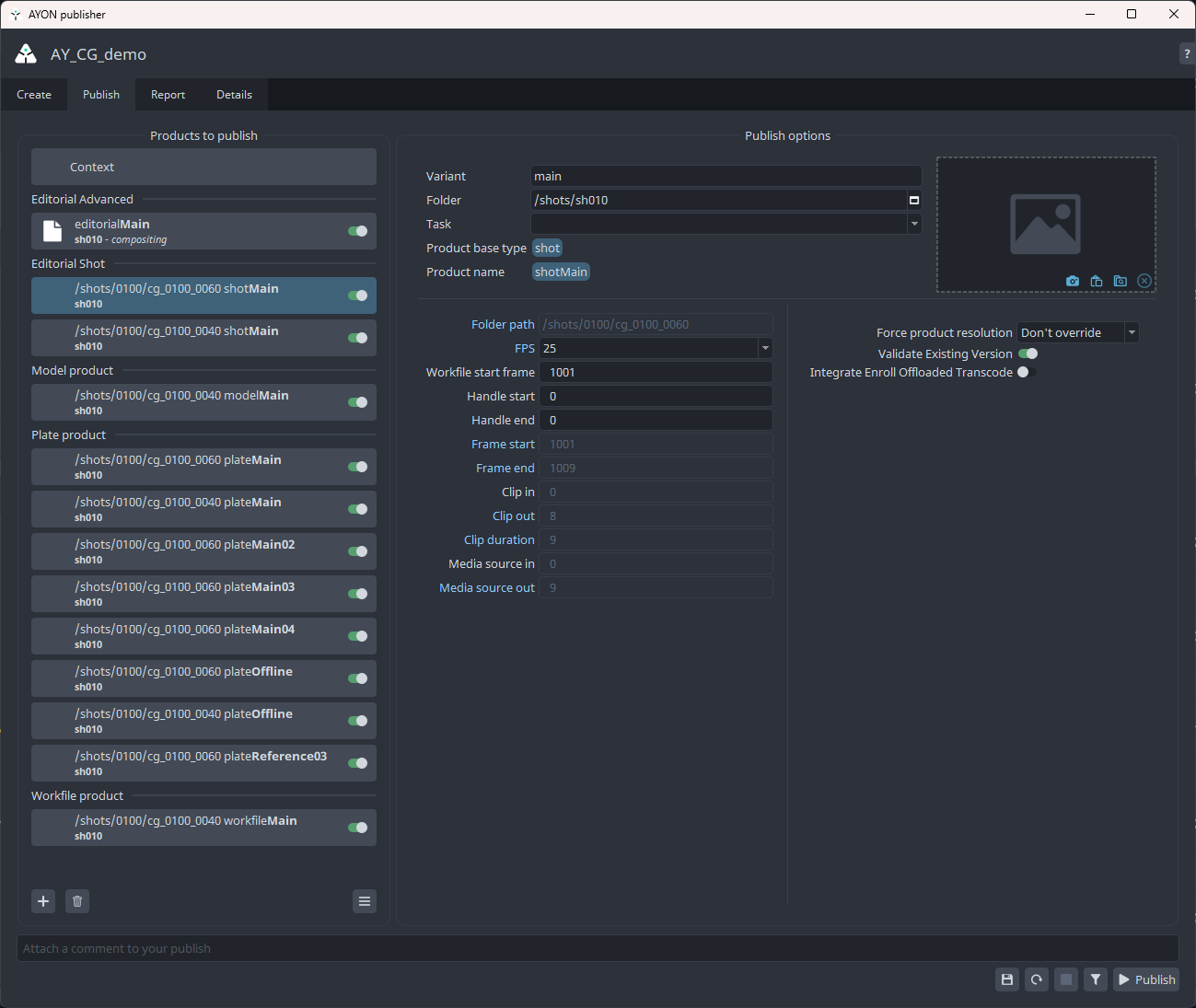
Batch Movies
It's capable of publishing individual mov files to specific shots based on file name.
Currently, this creator doesn't work as expected.
CSV Ingest
This feature allows for mass publishing of arbitrary files using a CSV file. Simply provide a CSV file and drag and drop it into the Tray Publisher.
CSV Ingest also supports creating missing hierarchy folders if they are not present.
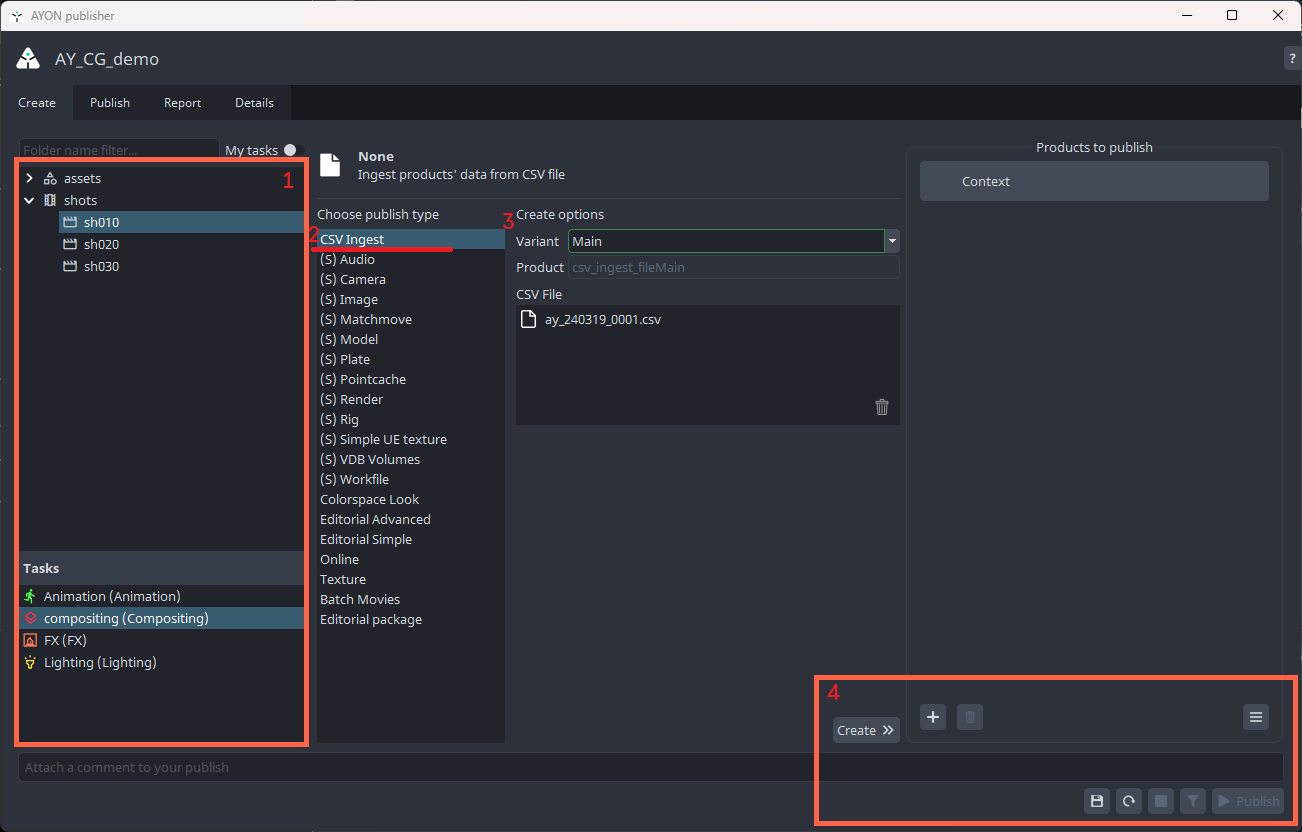
Steps:
Context Selection: Select a folder and task from the left-hand side.
This folder will be used for publishing theCSV fileitself.Product Type: Select CSV Ingest from the products list.
Creation Options:
Set the Variant Name
Add Files: Drag and drop your CSV file.
Ensure it’s prepared as outlined in Prepare your CSV File.
Finalize: Click Create, adjust any optional publish settings if necessary, and click Publish.
An instance will be created for each discovered product.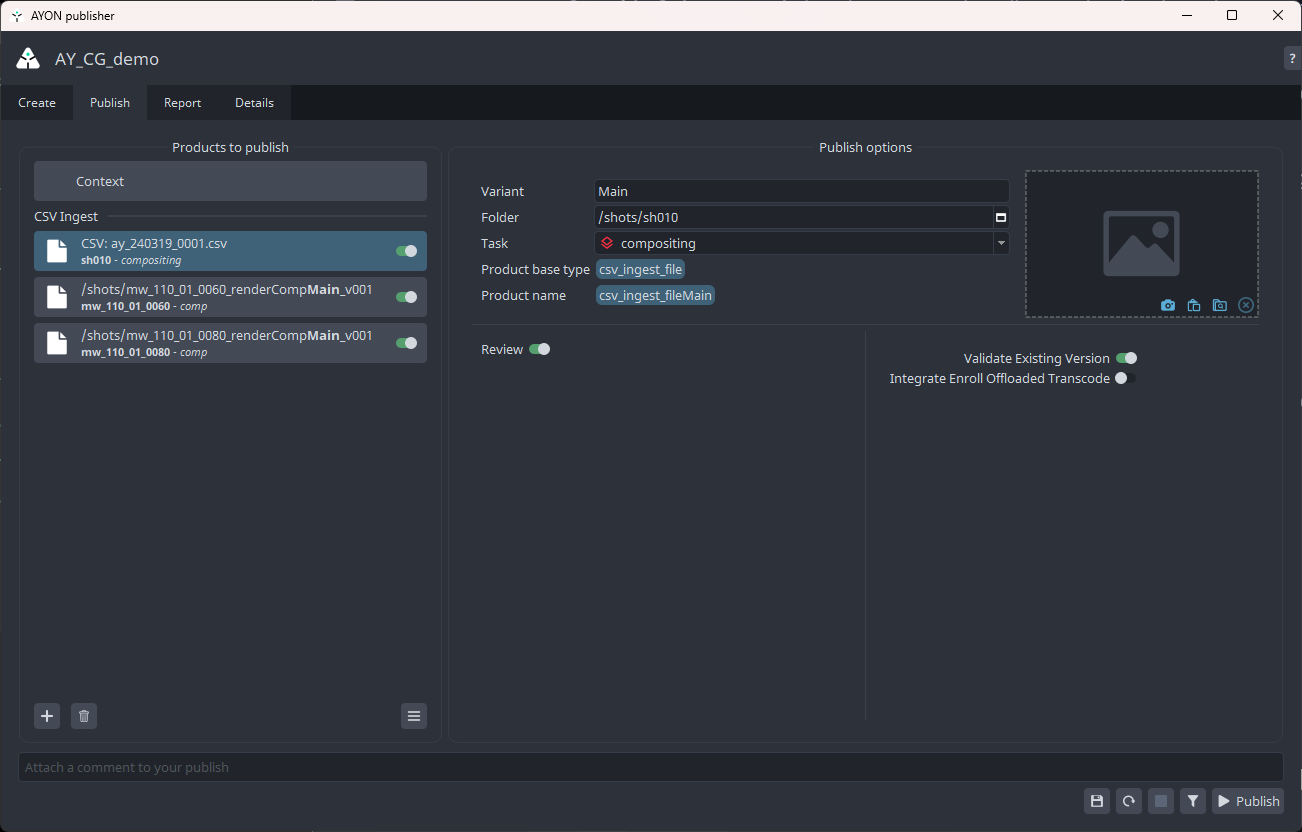
Prepare your CSV File
The CSV columns should match those specified in your AYON tray publisher CSV Ingest settings.
Find an example CSV file here: ay_240319_0001.zip.
Here's a list of the default columns. Items with * are required (must exist in the CSV file).
File Path *: File path of the product, it can be relative to the CSV file location.
Folder Path *: Relative folder path to the selected folder in he publisher UI. if left blank, it'll use the default folder type in Folder creation config.
Task Name *: if left blank, it'll use the default task type in Folder creation config.
Product Type: Product type to publish e.g.
renderormodel.Variant: Variant name to use.
Version: Leave blank to set the version to the next version.
Version Comment: Comment to use for the published version of the product.
Version thumbnail: Thumbnail to use for the published version of the product. Check supported
Frame Start *: Start frame of the product/task.
Frame End *: End frame of the product/task.
Handle Start *: Start Handle of the of the product/task.
Handle End *: End Handle of the of the product/task.
FPS *: FPS of the of the product/task.
Slate Exists: Indicates if the provided sequence includes a slate. Use Boolean values (literal
TrueorFalse).Representation: The provided representation must exist in representation config.
Representation ColorSpace: Color space name to associate to the provided sequence.
Representation Tags: Tags to add to the provided representation. Find a list of available tags here
Multiple Representation per Product
When using the same File Path, Folder Path, Task Name, Product Type, Variant and Version in multiple rows with different representations, the CSV Ingest will add these representations to the same version of the published product.
Colorspace Look
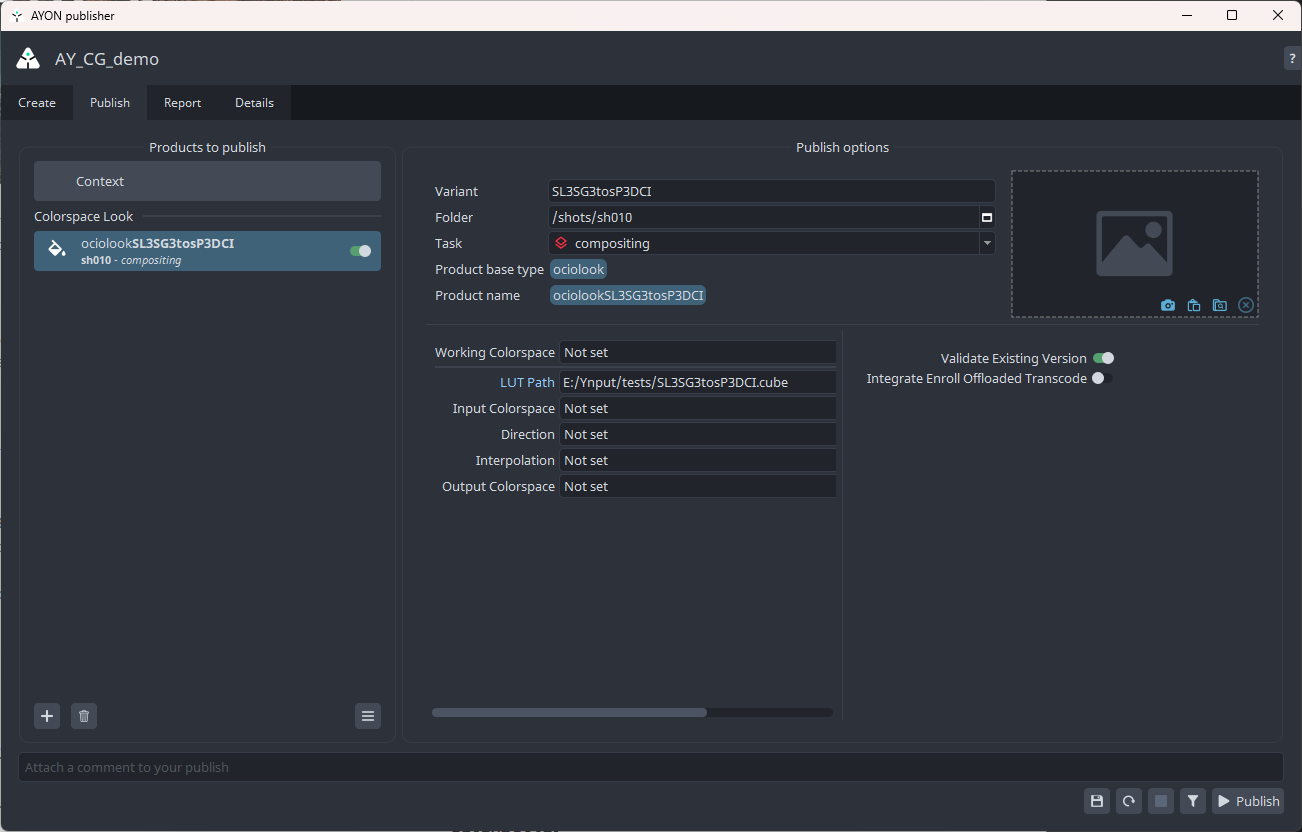
This creator is used to publish colorspace look files (ociolook), which are any LUT files. This product is available for loading in the Nuke host.
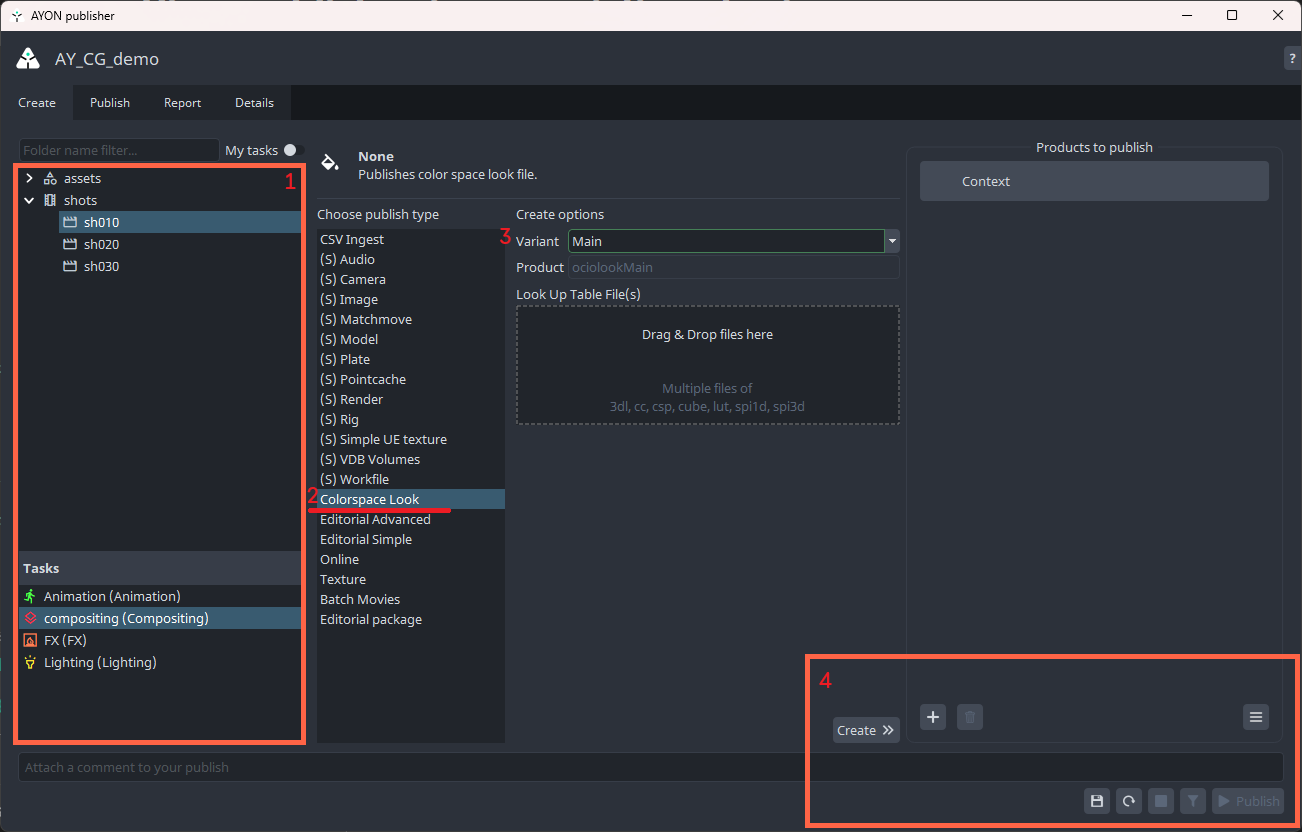
Steps:
Context Selection: Select a folder and task from the left-hand side.
Product Type: Select Colorspace Look from the products list.
Create Options:
Set the Variant Name.
Add Files: Drag and drop the LUT file.
Finalize: Click Create, adjust any optional publish settings if necessary, and click Publish.
Supported Extensions
These are the default allowed extensions for colorspace look product.
.3dl.csp.cc.cube.lut.spi1d.spi3d
Online
The Online creator allows you to publish files while retaining their original filenames as the product name. To maintain data integrity, the creator automatically checks for existing products in AYON with the same name to prevent naming conflicts.
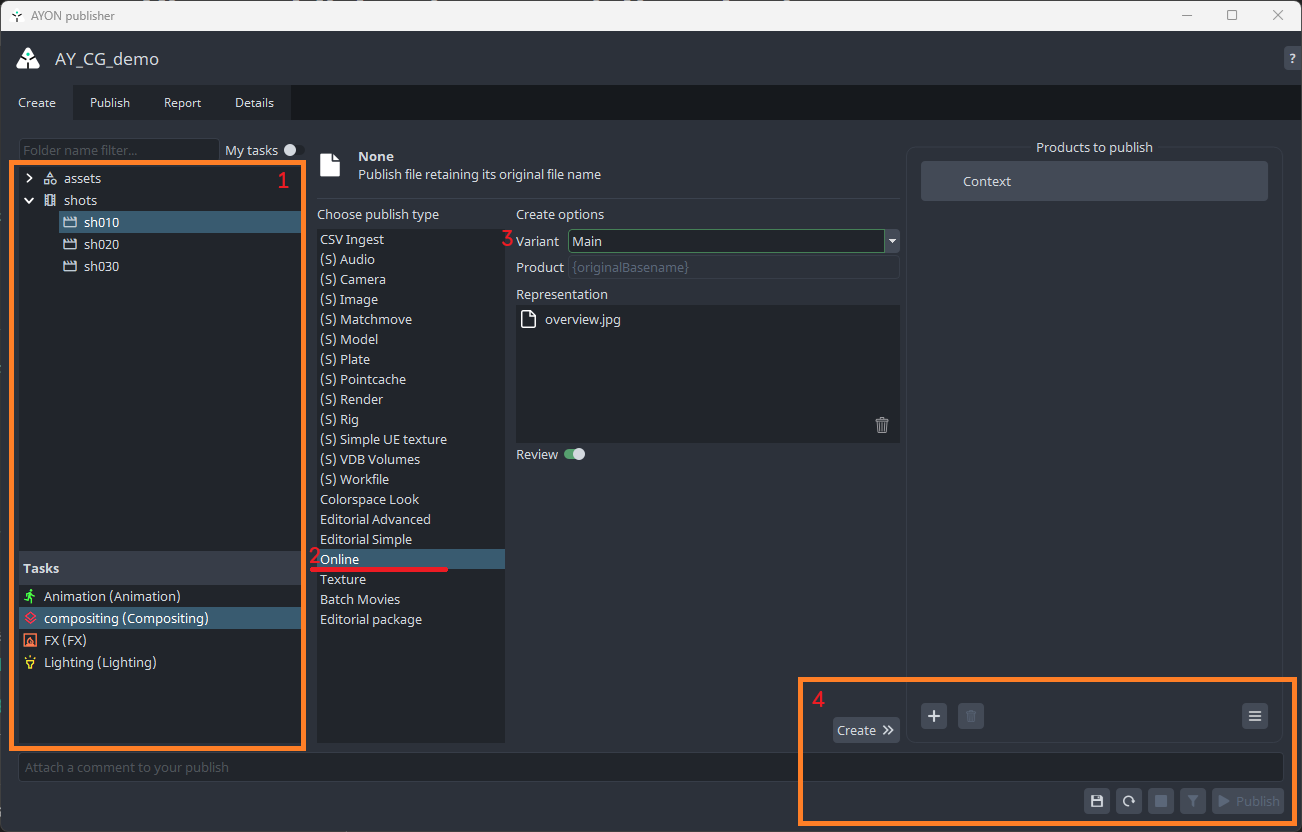
Steps:
Context Selection: Select a folder and task from the left-hand side.
Product Type: Select Online from the products list.
Creation Options:
Set the Variant Name
Add Files: Drag and drop a single file or a file sequence.
Enable Review: Generate a reviewable representation of the textures automatically.
Finalize: Click Create and then Publish.
Supported Extensions
These are the default allowed extensions for Online product type.
.dpx.exr.jpg.m4v.mov.mp4.mpg.mxf.png.tif
Editorial Package
The Editorial Package creator is designed to publish entire directories containing .otio timelines and associated .mov media.
This process results in a single editorial_pkg product. During publishing, .mov files may be transcoded into required formats.
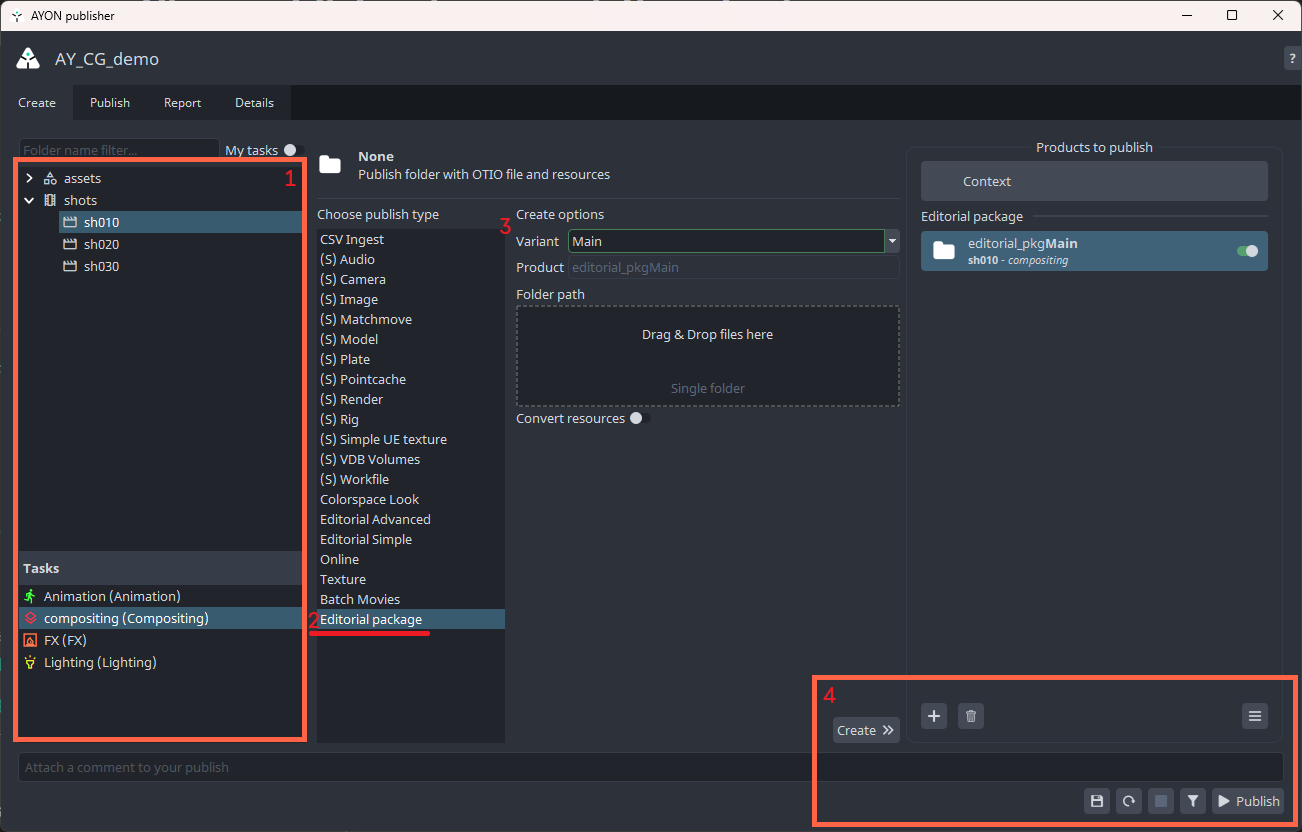
Steps:
Context Selection: Select a folder and task from the left-hand side.
Product Type: Select Editorial Package from the products list.
Create Options:
Set the Variant Name.
Add Files: Drag and drop the folder containing your OTIO and movie files.
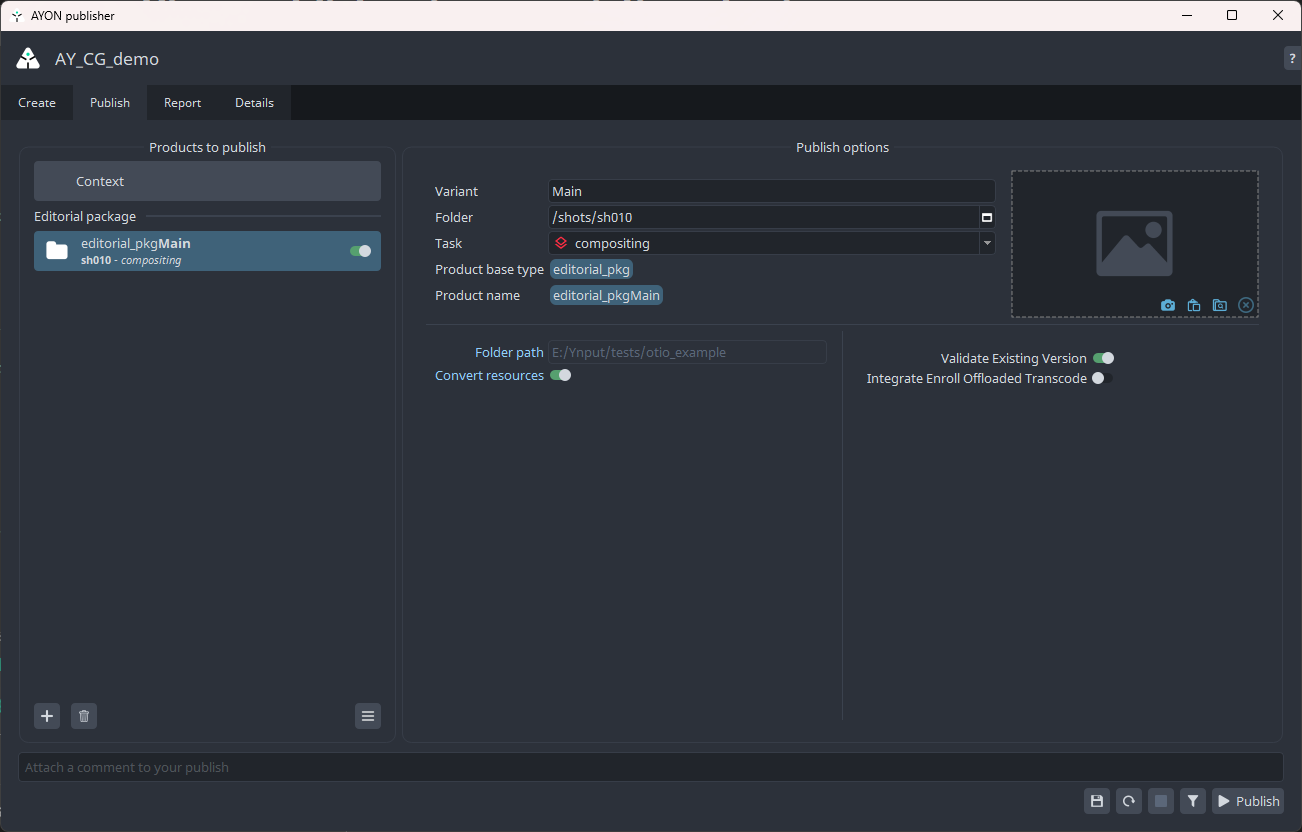
Convert Resources: Check to organize files into a
resourcessubfolder within the publish location.
Finalize: Click Create, adjust any optional publish settings if necessary, and click Publish.
Texture
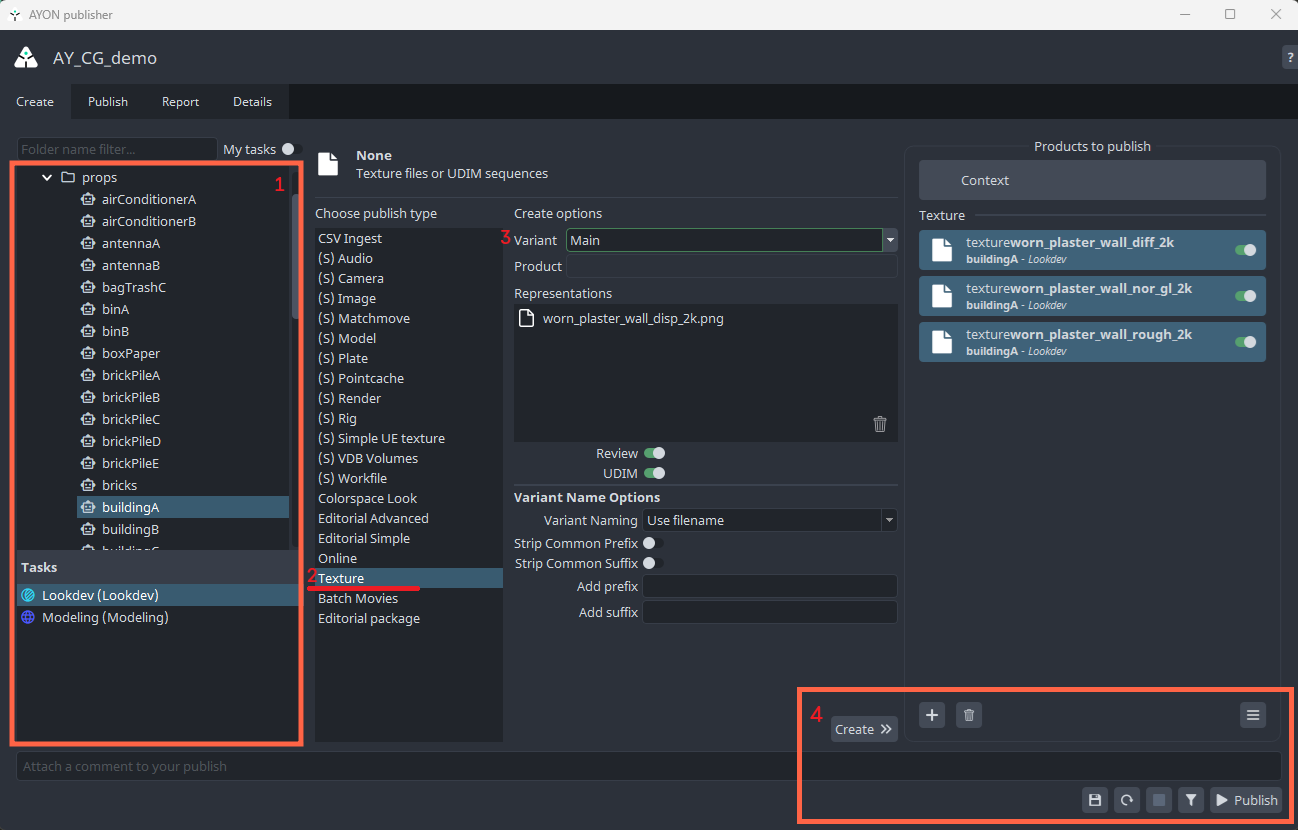
Publish textures, including single files or UDIM sequences, directly through the Tray Publisher.
Steps:
Context Selection: Choose the target Folder and Task from the hierarchy.
Product Type: Select Texture from the products list.
Create Options:
Set the Variant Name (skip if setting Variant Name Options to
Use filename).Add Files: Select your texture files (supports single files or multiple textures).
Enable Review: Generate a reviewable representation of the textures automatically.
Enable UDIM: Check this if your files represent a UDIM sequence.
Variant Name Options: Choose whether to use the specified variant name or use the file name as variant name.
Finalize: Click Create and then Publish.
Default Publish Options
Optional Plugins
Override Colorspace: A dropdown menu that allows selecting the colorspace for your render.
Collect Original Sequence Frame Data: Disable to enforce the frame range from AYON folder or task entities, including start and end handles.
Validate Existing Version: Checks if the specified version of the product being published doesn't exist in AYON. Disable to override the specified version.
Validate Existing Online Files: Ensures that the product doesn't already exist.
Validate Frame Range: Validates the frame range of rendered files against the state in AYON.
Validate Representation Colorspaces: Validates colorspace look attributes and representation colorspaces.
Integrate Hero Version
Was this helpful?
Still need help? Ask the team