Resolve Addon Settings
Last updated Over 1 year ago
Launch AYON menu
Setting Location:
ayon+settings://resolve/launch_ayon_menu_on_start

Launch AYON menu on start of Resolve
Set FPS and Resolution from current task
Setting Location:
ayon+settings://resolve/report_fps_resolution

Set FPS and Resolution from current task: When enabled, It sets the Resolve project FPS and Resolution settings from the current task.
Note that AYON can only handle this for workfiles opened through the Workfiles or at Startup.
Unfortunately, Resolve has some limitations that can prevent those settings from being properly reported:
If one or multiple timeline(s) already exist within the Project, the project FPS settings might become non-editable.
Resolve only supports a subset of common industry-standard FPS (see Resolve help for more information)
Resolve only supports a subset of common industry-standard Pixel Aspect Ratio
Vertical Resolution cannot be set automatically, this has to be done through the project settings
Color Management (ImageIO)
Setting Location:
ayon+settings://resolve/imageio
Color configuration for Nuke scripts and nodes and also override the global color management settings, check Host specific overrides.
Enable Color Management

This toggle enables AYON's global color management. This toggle is a master switch that enables and disables the whole section.
Remapping colorspace names

Rules
+ : Add a rule.
Each rule includes:

Application native colorspace name
OCIO colorspace name
File Rules
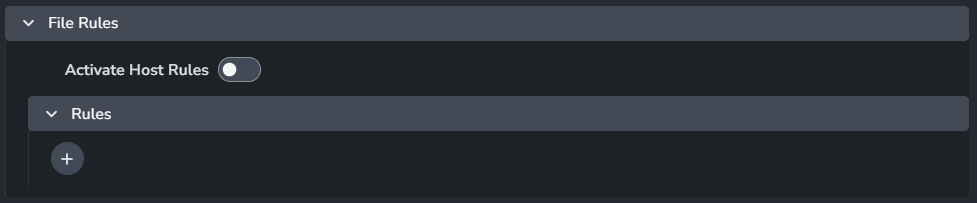
Activate Host Rules
Rules
+ : Add more rules
Each rule consists of
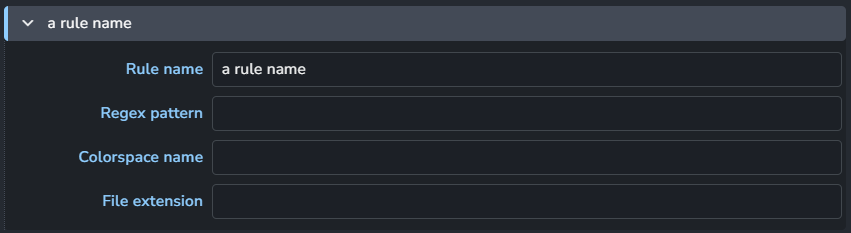
Rule name
Regex pattern
Colorspace name
File extension
Creator Plugins
Create Shot Clip
Setting Location:
ayon+settings://resolve/create/CreateShotClip
Set default values for all Creator attributes in the Creator UI from this settings category. This helps predefine the values for Creator attributes. Let's break it into smaller sections:
Shot hierarchy and rename settings
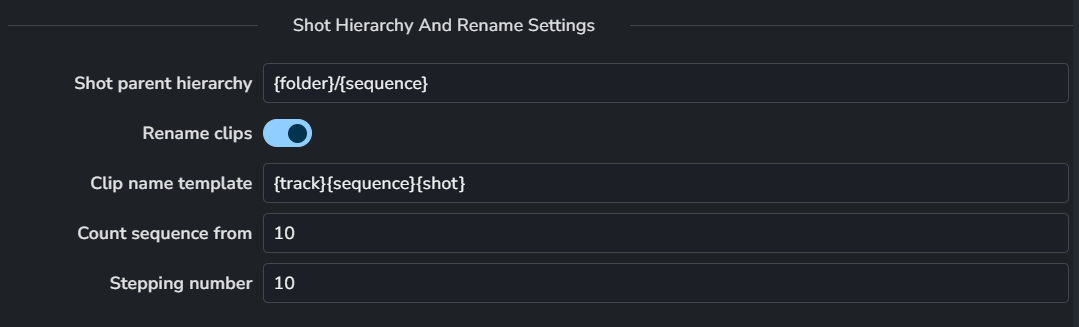
Shot parent hierarchy - template for defining the parent hierarchy of the Shot folder.
Rename clips - if enabled, the plugin will use renaming rules to rename the clips sequentially.
Clip name template - template for defining the shot clip name.
Count sequence from - numeric value for defining the starting number for the shot name.
Stepping number - numeric value for defining the incrementing number for the shot name.
Shot template keywords
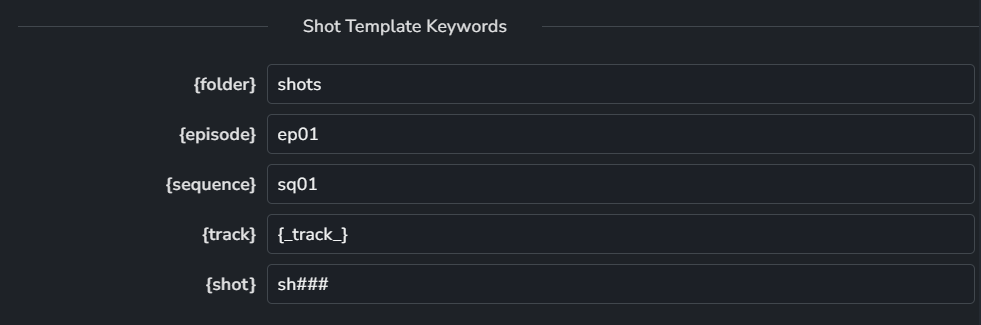
Following is a list of available keywords that can be used in Shot parent hierarchy or Clip name template of the Shot hierarchy and rename settings section above:
{folder} - Literal value for the Folder token. Text and numbers can be used.
{episode} - Literal value for the Episode token. Text and numbers can be used.
{sequence} - Literal value for the Sequence token. Text and numbers can be used.
{track} - Literal value for the Track token. Text and numbers can be used. Hiero’s original track name could be accessed via the {_track_} token.
{shot} - Literal value for the Shot token. Text and numbers can be used. Hashes are used to define the number of digits in the sequence number. Original hiero segment name could be accessed via the {_shot_} token.
Vertical synchronization of attributes

Enable vertical sync - If enabled, clips on the timeline in multiple tracks will be synchronized vertically with the same attributes. Shot names will also be synchronized. The workflow assumes that the clips above the main hero track are vertically aligned without overlaps. Clips can be shorter than the main hero track clip, but not longer. The plugin will use the main hero track clip as a reference for vertical synchronization.
Shot attributes
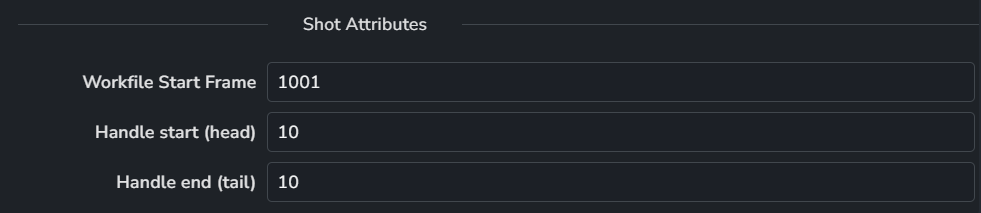
Workfile start frame - Numeric value for defining the starting frame of the workfile. This value is set to Shot folder attributes as Frame start value.
Handle start (head) - Numeric value for defining the maximum trimming value to be applied to the head of the clip. If the available media is shorter than the handle value, the clip will be trimmed to the available media length. The resulting value is then set to the Shot folder attributes as Handle start value.
Handle end (tail) - Numeric value for defining the maximum trimming value to be applied to the tail of the clip. If the available media is shorter than the handle value, the clip will be trimmed to the available media length. The resulting value is then set to the Shot folder attributes as Handle end value.
Loader Plugins
Load Media
Setting Location:
ayon+settings://resolve/load/LoadMedia
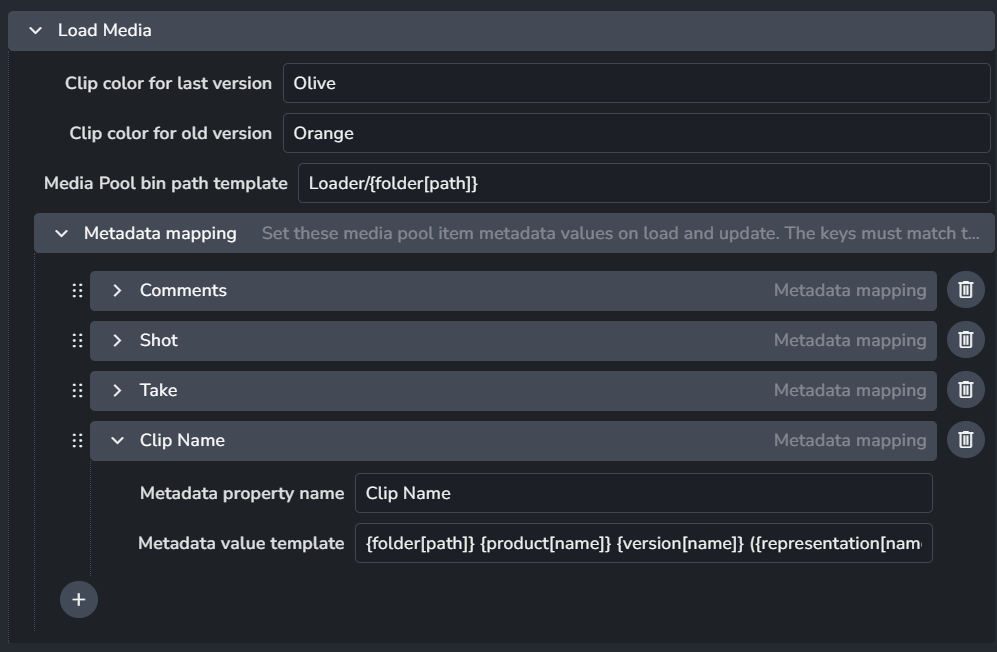
Clip color for last version
Clip color for old version
Media Pool bin path template
Metadata mapping:
Set these media pool item metadata values on load and update. The keys must match the exact Resolve metadata names likeClip NameorShot.+ : Add a metadata mapping.
Each metadata mapping item include:
Metadata property name
Metadata value template
Was this helpful?
Still need help? Ask the team