Workfiles
The tool replaces the traditional 'File Open' and 'File Save' functions within your host application.
Last updated 11 months ago
Overview
Instead of navigating to the “File Open / Save as..” native host app actions, you simply open the Workfiles tool instead and view all existing workfiles in the current folder context you're working in. The tool takes care of all the naming and proper location of your workfiles when triggering the Save action for you.
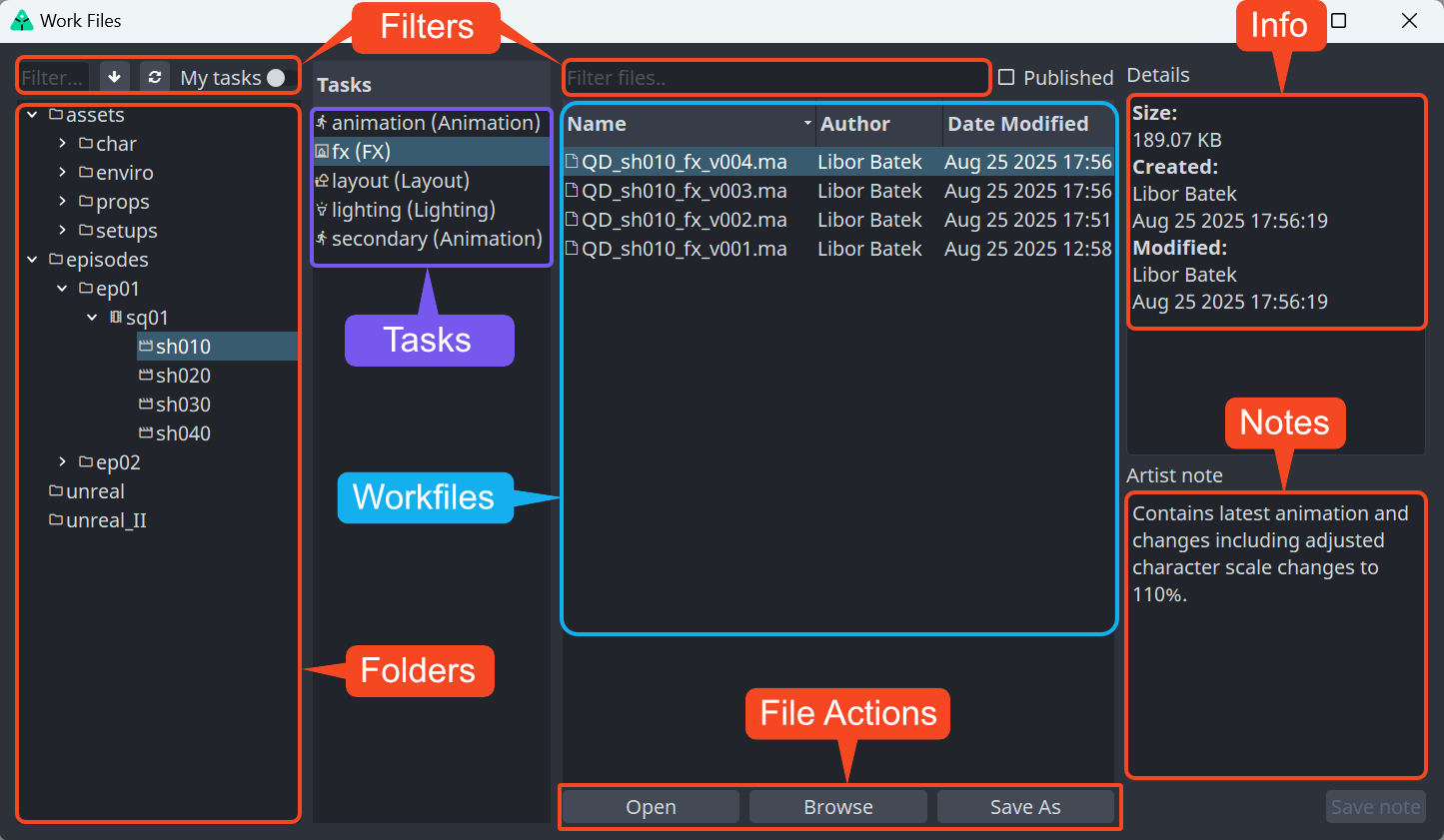
Workfiles tool window contains ‘File browser’ like view with Folders on the right, Tasks window next to it and actual Workfiles window listing all available scene files. There are also other windows with Filters, Info details about selected file and notes if existing. At the very bottom are File Actions for performing file operations for opening and saving your scene. You are free to use double clicking action for opening workfile too. Also feel free to perform classic Ctrl+s quick saving key combo anytime as it will save your progress as usually.
Usage
Opening existing workfiles
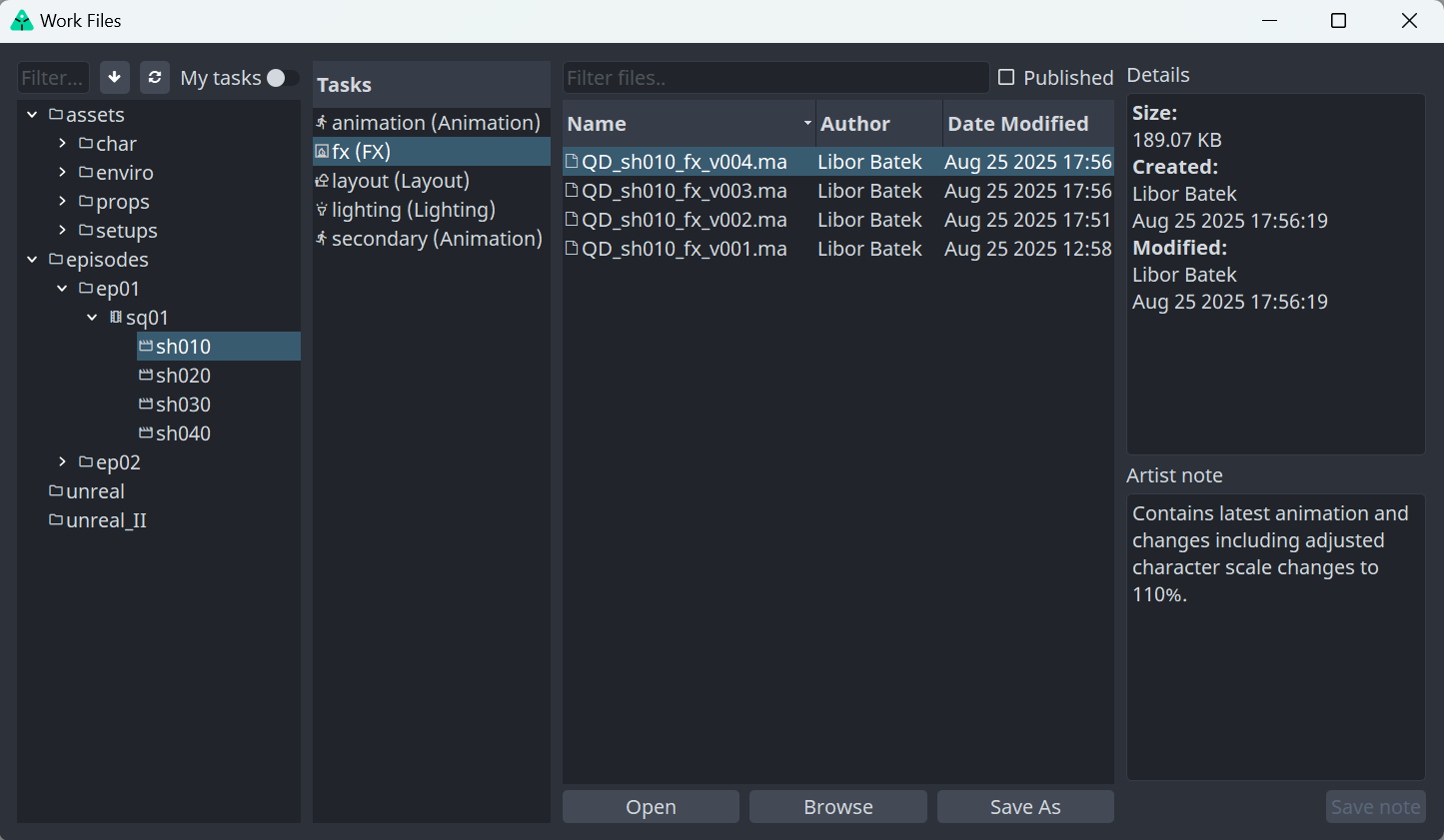
Navigate to AYON > Workfiles menu inside your host app.
Select desired workfile from the list - the latest version is the highest (descendent ordering).
Press
Openbutton or alternatively just double click the workfile instead.
Saving workfiles
Navigate to AYON > Workfiles menu inside the host app.
Press
Save Asbutton.Add optional Subversion to the filename to be appended or simply leave it empty.
Press
OK.
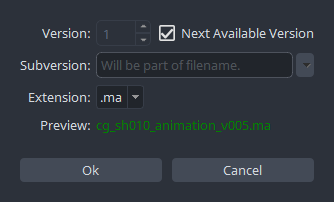
You can manually override the workfile version by unticking next available version and using the version menu to choose your own.
When saving your workfile, you can optionally add a Subversion, which acts as a comment appended to the filename. How you use it is entirely up to you, and it can be left blank if you prefer. We suggest using it for sub-versions of your current workfile or as a way to include comments for better organization.
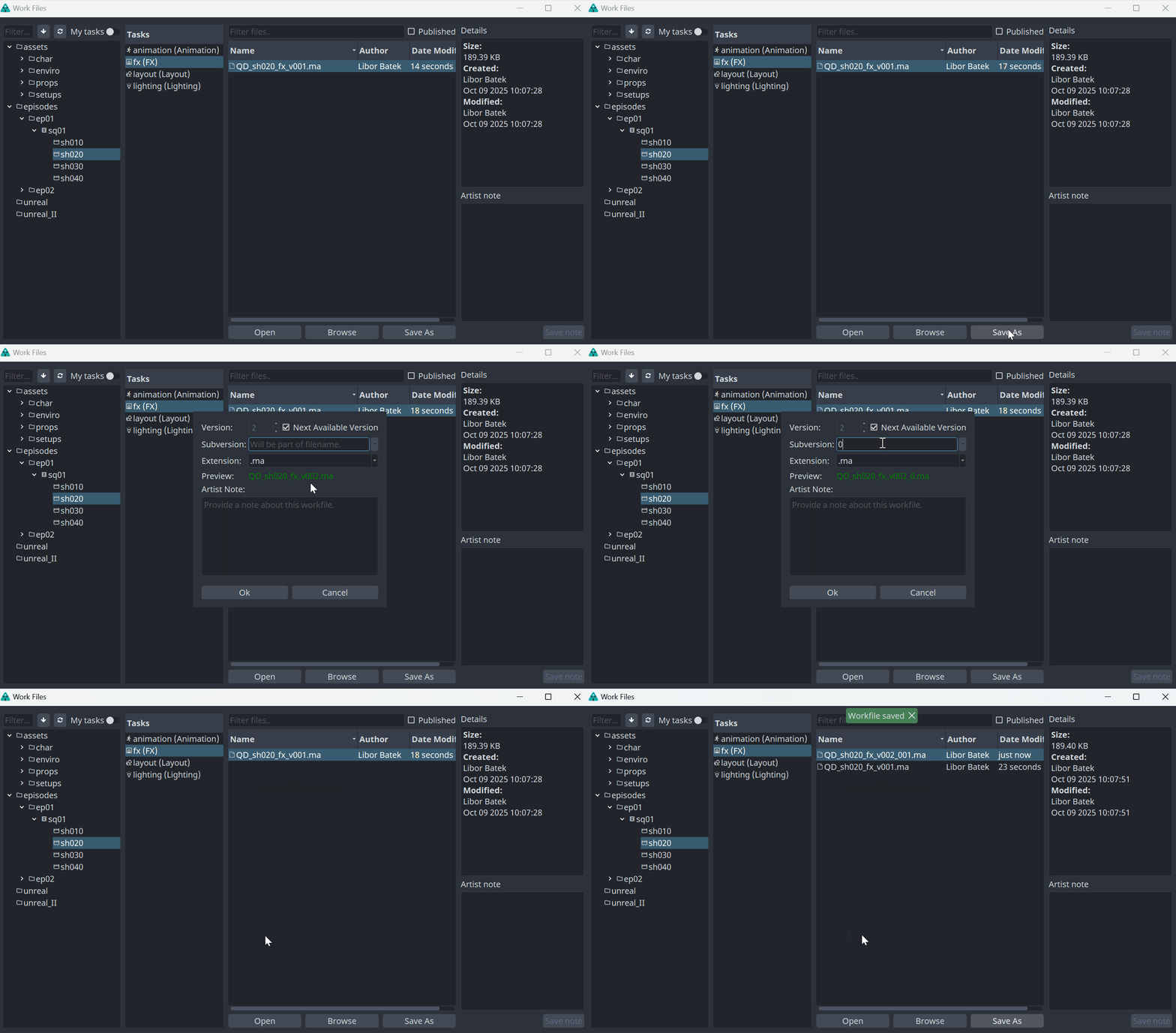
Example:
Let's say you're working on the file prj_sh010_compositing_v004.nk. If you want to keep snapshots of your work but not iterate on the main version, you can use the comment field for this purpose. You would save the file under names like:
prj_sh010_compositing_v004_001.nkprj_sh010_compositing_v004_002.nkprj_sh010_compositing_v004_mattepainting.nkprj_sh010_compositing_v004_colorcorrection.nk
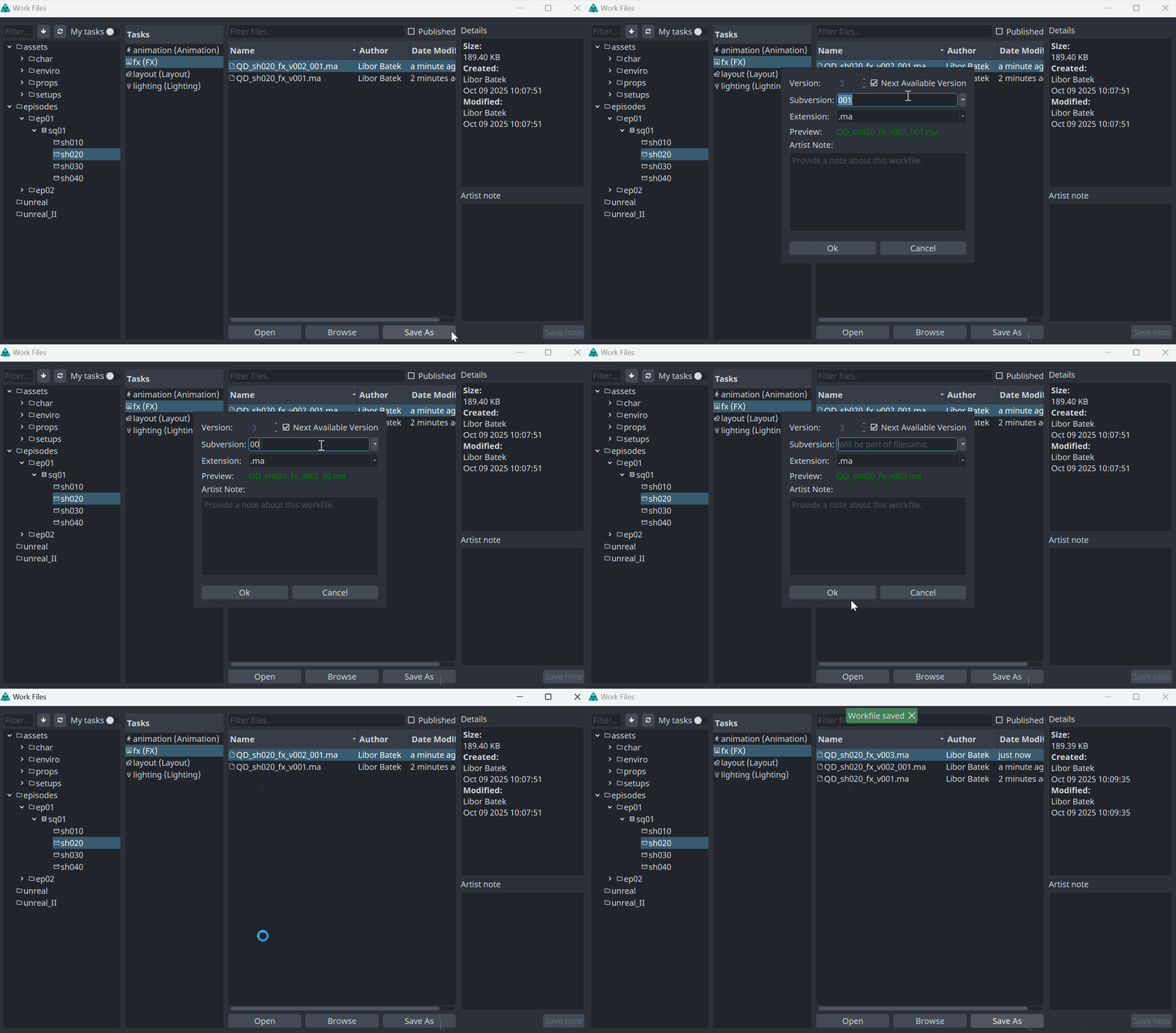
You can lose the subversion suffix in the filename anytime. The workfile will then continue creating new versions as usual, without any appended subversion. For instance, the next workfile version will be prj_sh010_compositing_v005.nk, even if multiple subversions exist.
Publishing may trigger a version bump for your workfile, which increments the main version of your workfile regardless of any subversion you may have used.
Feel free to use Artist’s Note anytime while saving the scene.
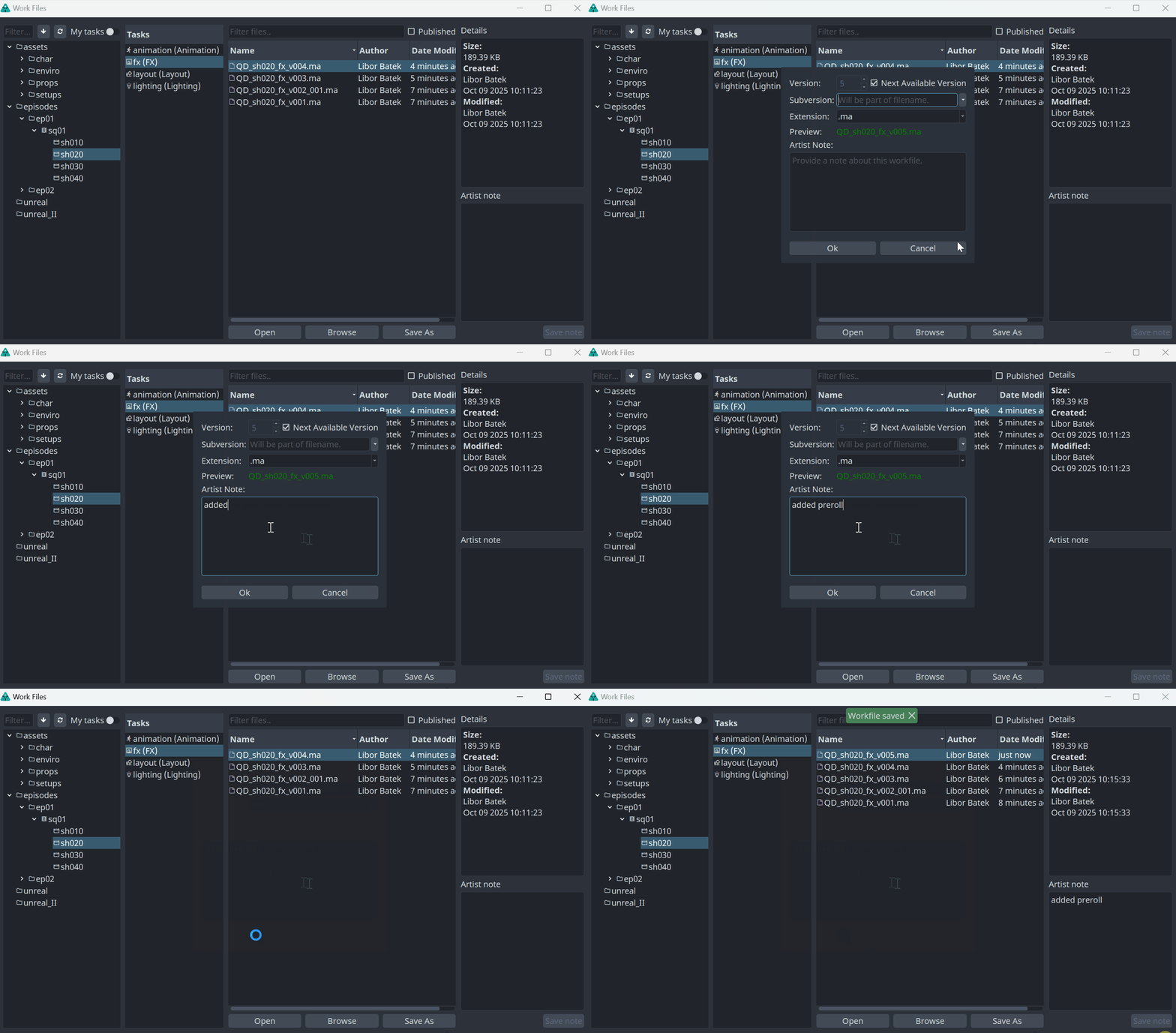
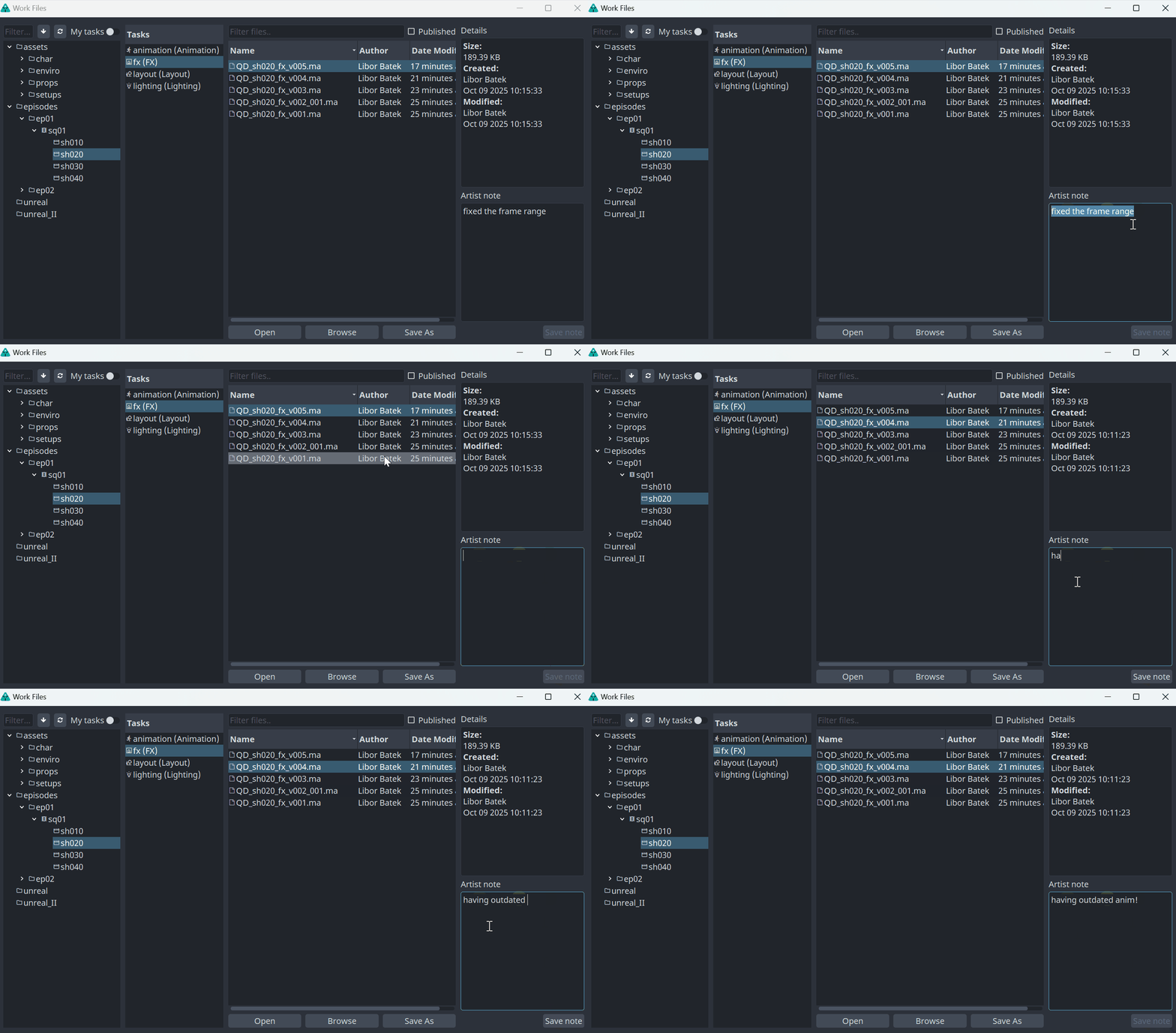
You are able to remove or add the Artist’s Note anytime on existing workfiles using Artist’s note window too.