Batch Delivery Hand Book
This page provides practical configurations for common production requirements.
Last updated 8 months ago
Integrate Transcoding into your Pipeline
The standard workflow for transcoding presets is to be used for examining the output before using them for deliveries.
But, there’s also another useful and powerful usage. to use transcoding presets as part of your pipeline and always rely on to publish additional representations in your products.
to make it always work, you need to configure “Integrate Enroll Offloaded Transcoding” plugin where you enable the plugin, enable active toggle. and feel free to make it optional for your artists so that they can disable it on demand.
You may also continue with the “Integrate Enroll Offloaded Transcoding” plugin configuration to ensure it works with expected tasks, DCCs, products and representations.
Standard Delivery Workflow
Use Case: The common method for generating and publishing deliverables from existing product versions.
For a step-by-step breakdown of the interface and button locations, please refer to the Batch Delivery User Guide.
In a standard workflow, the Submit Batch Delivery and Submit Batch Transcode actions are triggered from the Version Details panel after selecting one or more version entities.
Where to trigger actions:
AYON Web Server: You can select versions within the Products page or from the Lists page.
During Publish: The Submit Batch Transcode action can be automated during the publishing process by enabling the
Integrate Enroll Offloaded Transcodeplugin in the AYON Publisher for the desired publish instance.ftrack: The Submit Batch Delivery action can be triggered directly from any ftrack version list.
Delivering Dailies Lists
Use Case: Sending a curated set of shots for review (e.g., "Director's Selects" or "Monday Dailies") without manually hunting for each version across multiple products.
By using the Lists, you can create a centralized location for your daily deliveries. This allows you to constantly add new versions to a list and trigger a batch delivery for the entire set at once.
Workflow Steps:
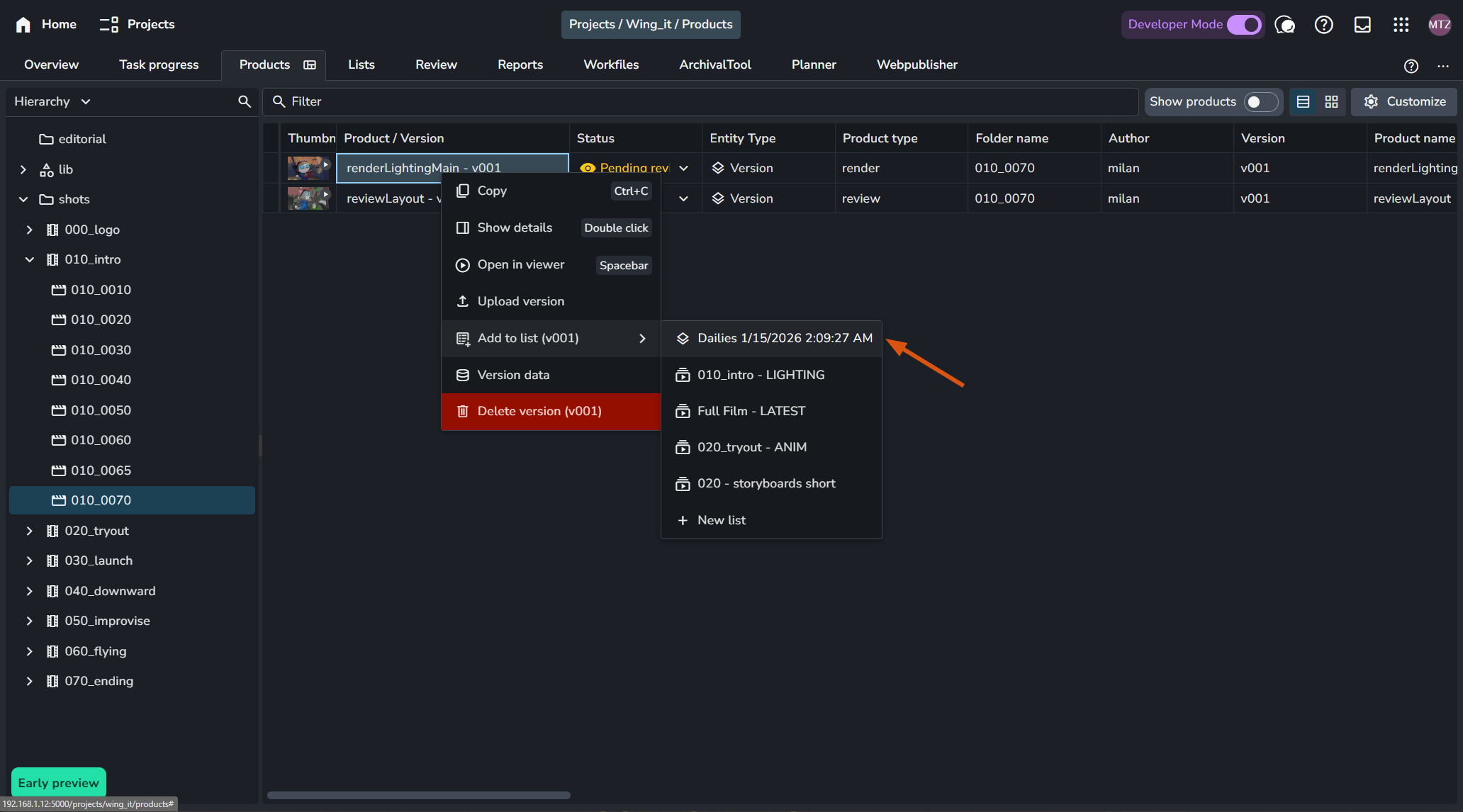
Add to List: On the Products page, select your versions and add them to an existing "Dailies" list, or create a new one.
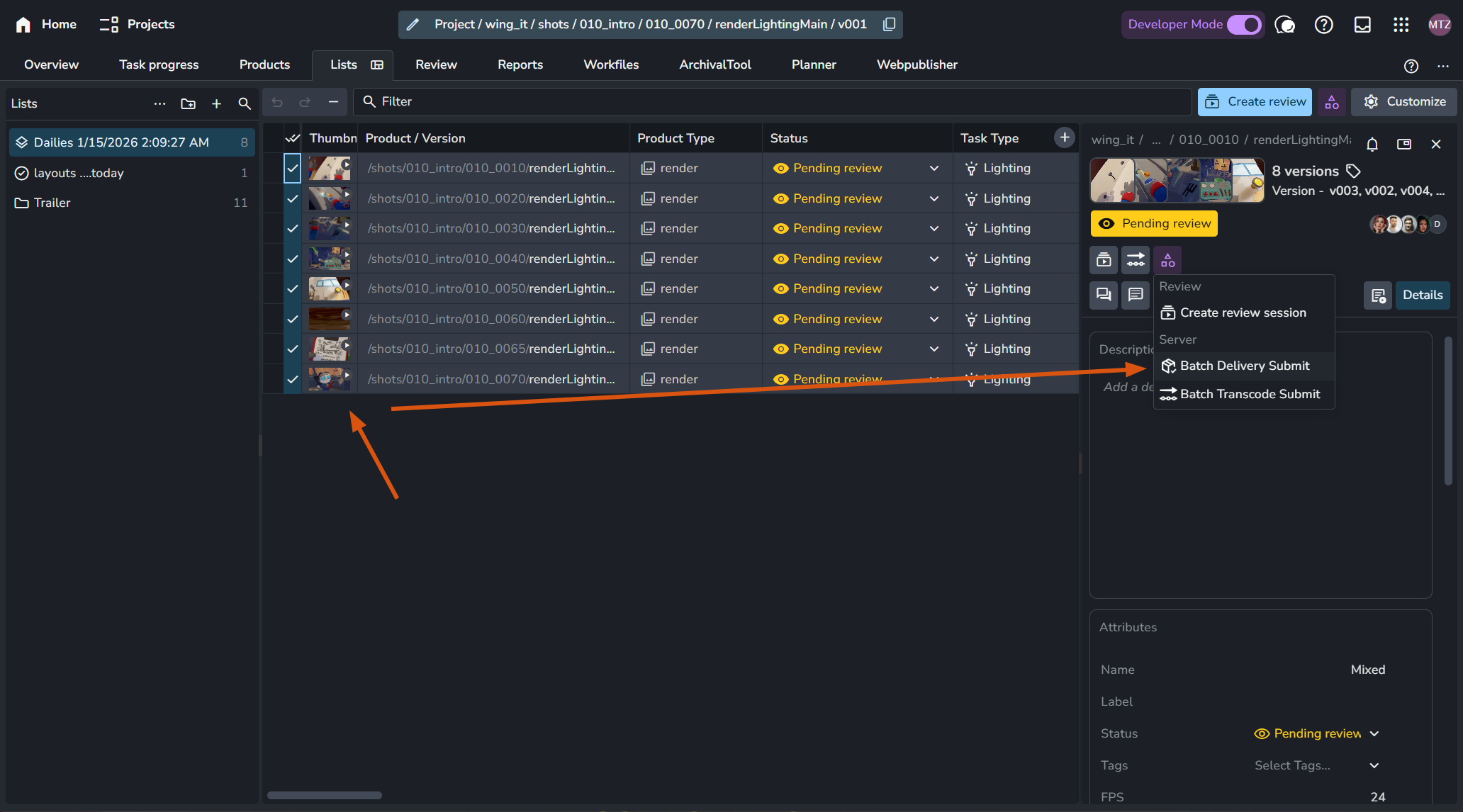
Execute Delivery: On the Lists page, select the desired versions from your list. In the Details Panel, trigger the Batch Delivery Submit action.
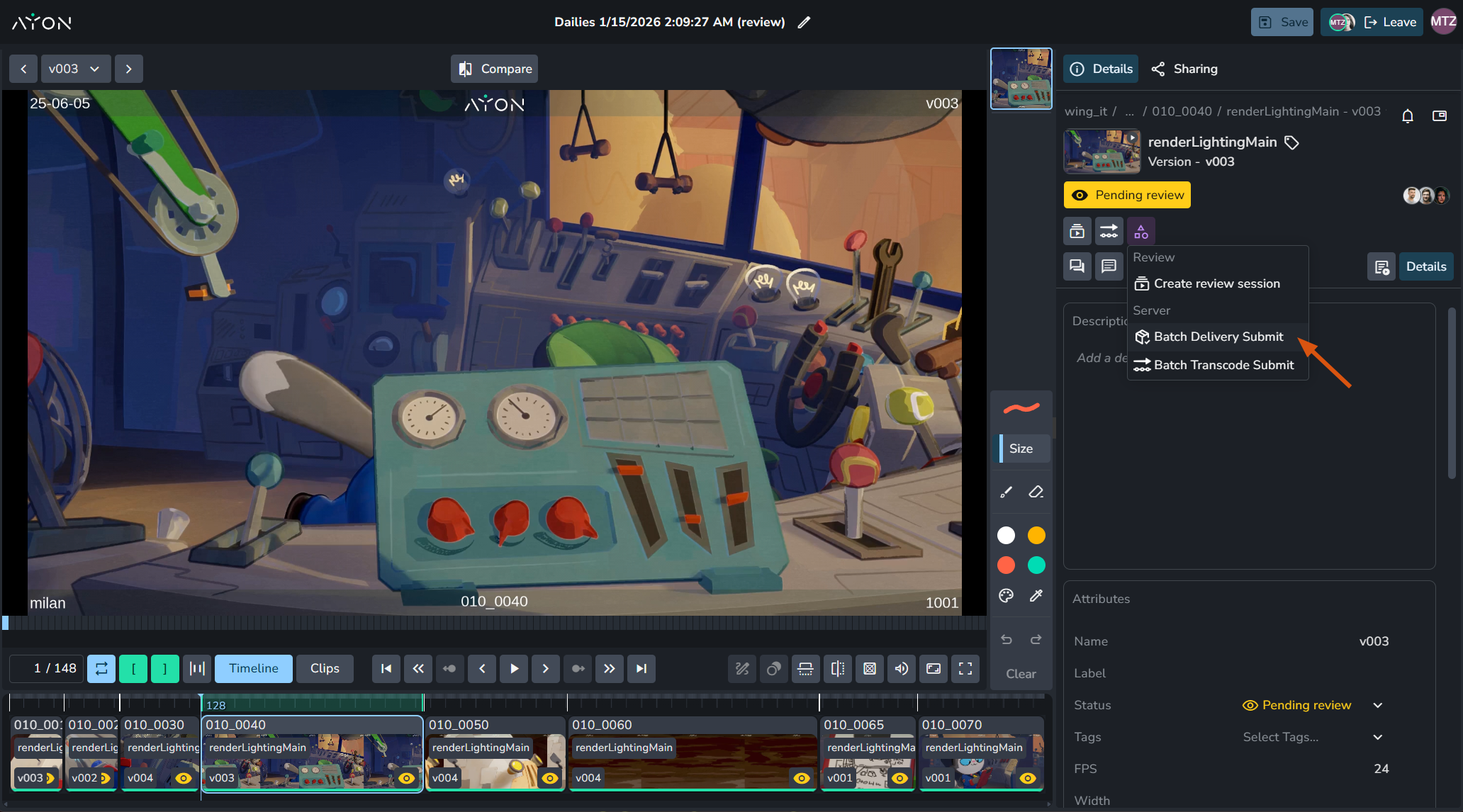
Integration with Review Sessions If you are using the Review Session addon, you can trigger deliveries in real-time. If a client approves a version during a live review, you can click the delivery icon directly in the details panel within the session to initiate the hand-off immediately.
Delivering Zero Versions Roundtrip
Use Case: Processing and delivering plates or initial assets that require a "v000" starting point rather than the standard "v001" to meet specific client or vendor requirements.
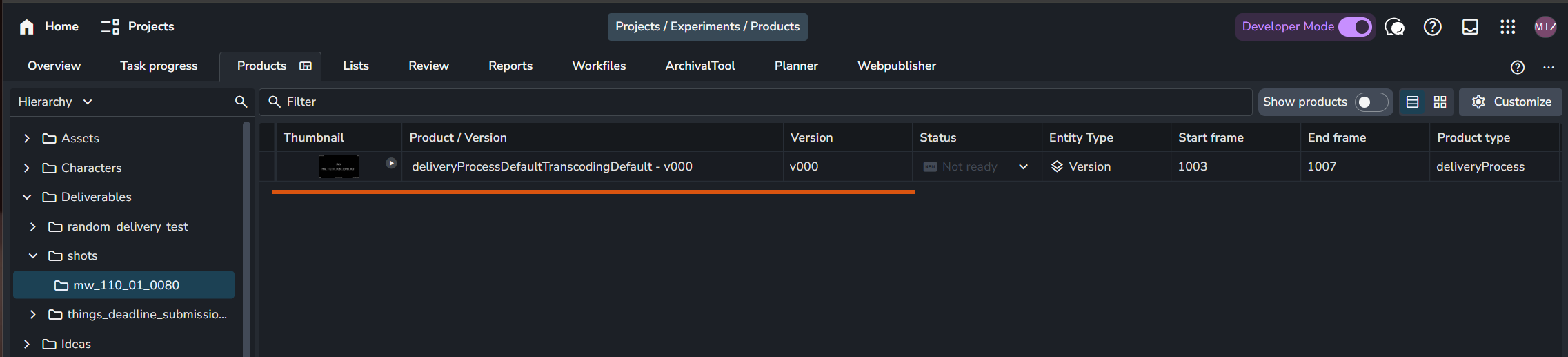
While the Batch Delivery addon handles the processing, the versioning logic is controlled by the AYON Core settings. To enable zero-versioning for your deliveries, you must adjust the project or studio settings to recognize batchdelivery as a zero-start host.
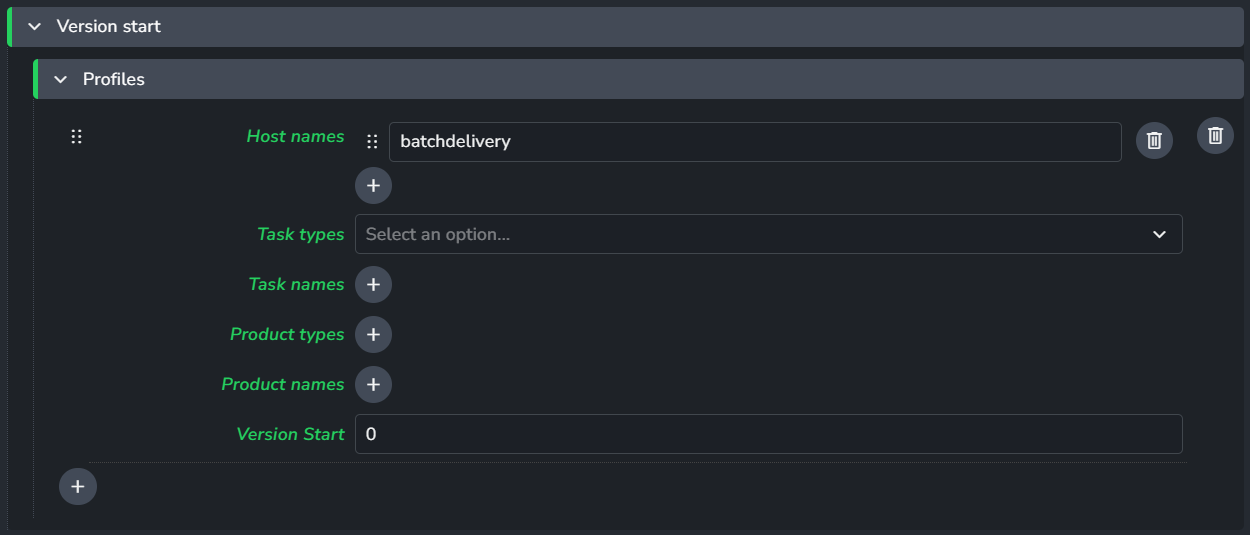
Setup Steps:
Navigate to the Version Start settings:
ayon+settings://core/version_start_categoryAdd Host Filter: Add
batchdeliveryto the Host names filter.
you can also configure other filter criteria as task & product types, names.Refine Criteria: (Optional) You can further restrict this logic by filtering for specific Task types, Product types, or Names.
Set Version Start: Set the Version Start value to
0.
Once configured, any deliverable generated via the Batch Delivery addon that matches your filters will automatically begin its versioning history at v000
Organizing Deliverables Within Your Projects
Use Case: Isolating deliverables from internal work-in-progress to maintain a clean, professional project structure. By publishing to dedicated locations, you ensure that "messy" internal iterations never clutter the client-facing areas of your project.
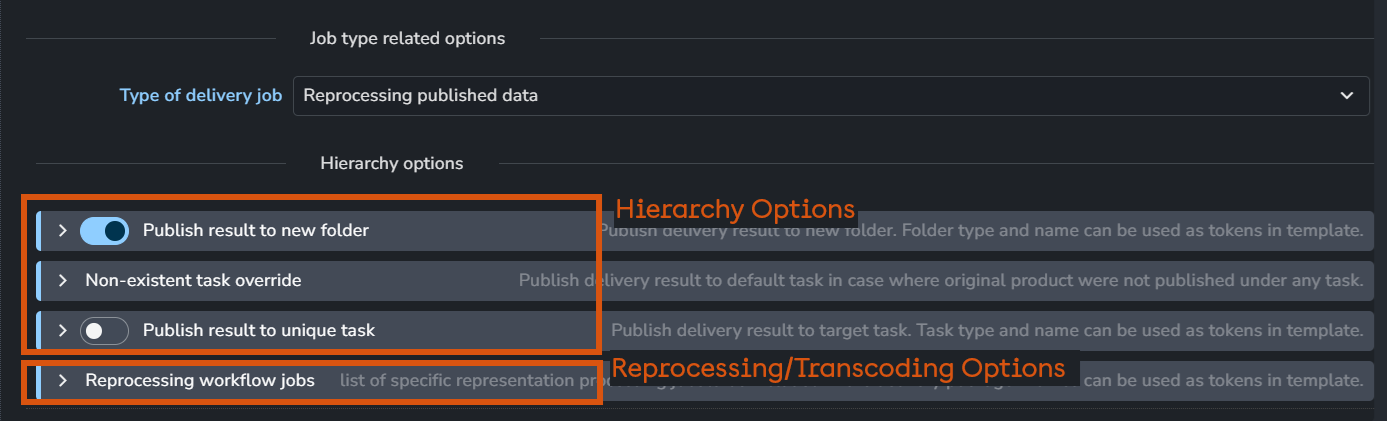
This logic is configured in Hierarchy Options within your Delivery Presets under the "Reprocessing published data" type. It allows you to precisely control where new versions are generated in both the file system and the AYON server hierarchy.
Destination Folder Path
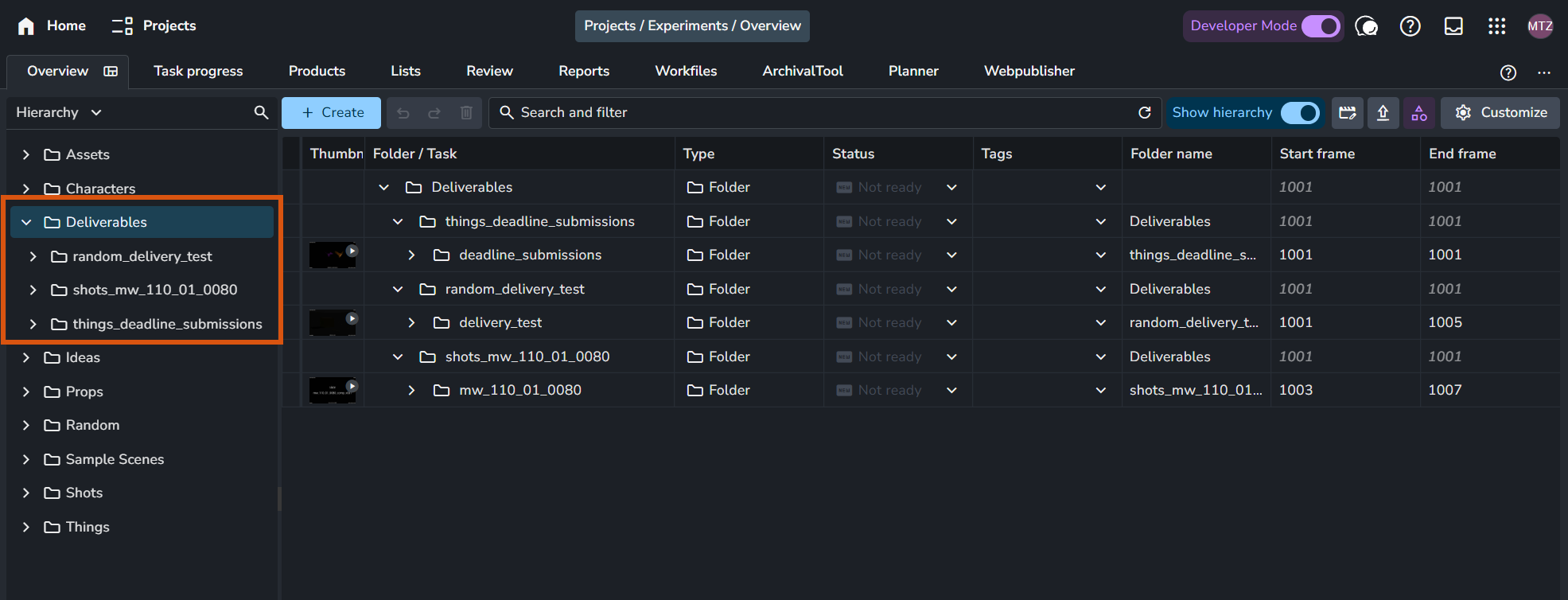
The "Publish result to new folder" setting determines the folder name for your deliverables. You have two main strategies for organization:
Flat Hierarchy (
sourceFolderPath): Combines the full path into a single folder name (e.g.,ideas_slap_comp).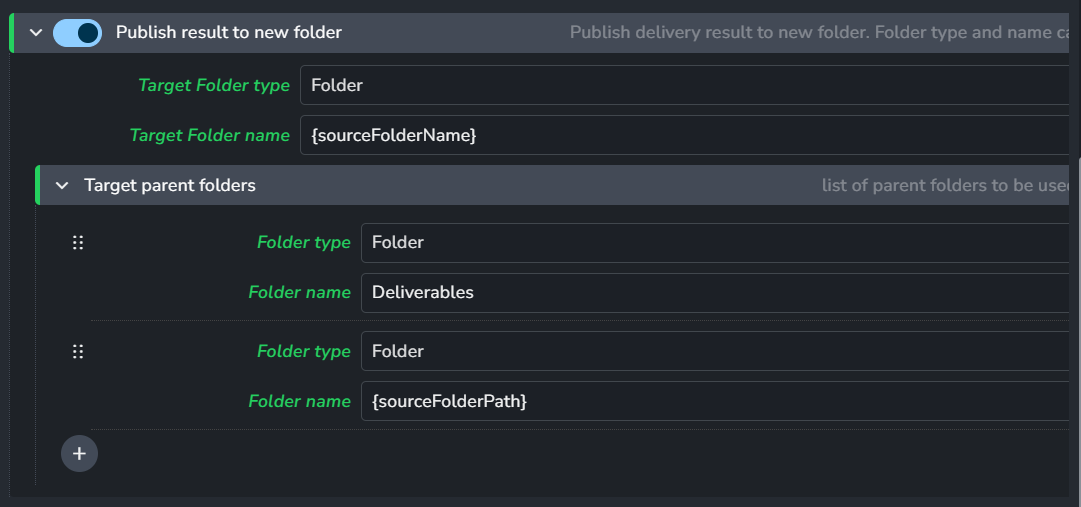
Mirrored Hierarchy (
sourceParentFolderName): Uses the name of a specific level in your project tree.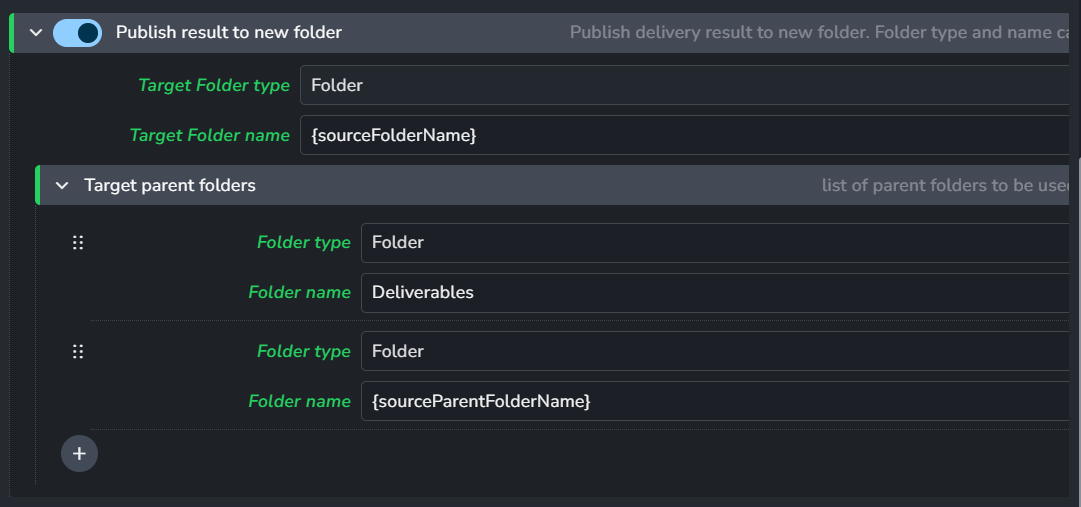
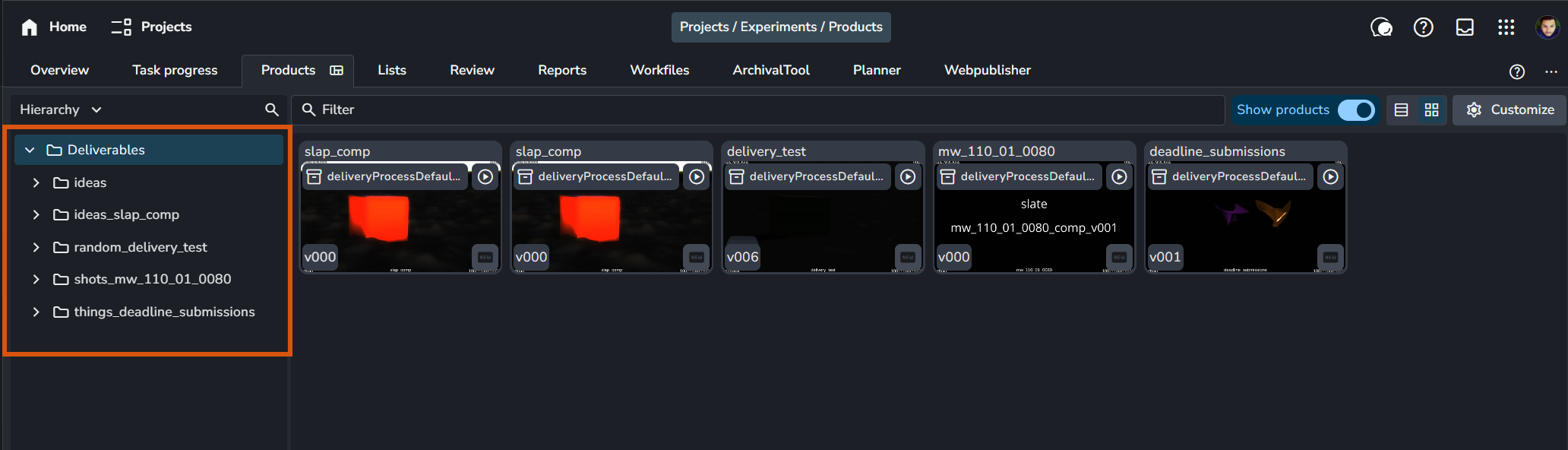
Currently, mirroring is optimized for structures up to two levels deep (Folder & Parent). This prevents redundant naming. For example, if your project has a root folder ideas and a shot folder slap_comp, using the mirrored setting results in a clean nested structure:

Clean Mirror:
- Deliverables
  - idea
    - slap_comp
Instead of a redundant flat name:
- Deliverables
  - idea_slap_comp
    - slap_comp
Support for deeper nesting is planned for future updates.
Destination Task
Once the folder is established, you can determine which Task will host the deliverable version. This is controlled via the "Publish result to new unique" setting:

If you want to keep your internal work separate from what goes to the client, and have a dedicated task name.
If disabled, the original source task is used.
If the original product was published without a task, “Non-existent Task Override” setting is used to set a "fallback" task name to ensure the publish doesn't fail.
This commonly occurs with plate products published from editorial tools (Hiero, Resolve, Flame, Tray Publisher).

Deliverables & External Client Access
Use Case: Granting external clients or vendors access to your AYON server to view, review, and comment on finished work. By isolating them to a specific branch of the project tree, you ensure they can collaborate effectively without seeing your internal production tasks or "work-in-progress" iterations.
This configuration affects the AYON Server hierarchy only. It controls what a user sees when they log into the web interface or browser tool, regardless of the underlying file system.
This workflow relies on the organization logic established in the Organizing Deliverables section. By publishing your final assets to a specific /Deliverables folder, you can create a secure "sandbox" for your client.
Setup Steps:
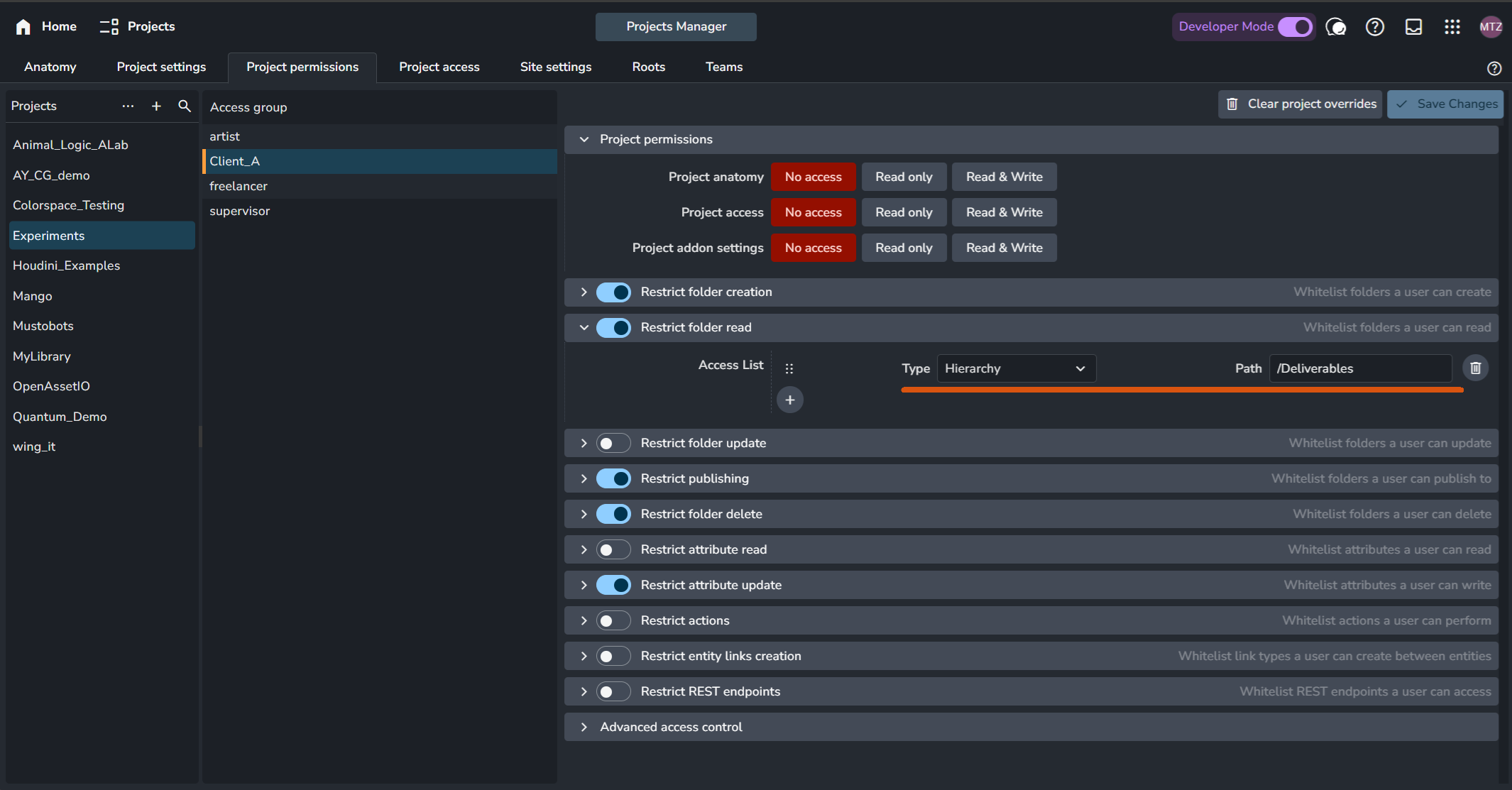
Create an Access Group: In Studio Settings > Permissions, create a new group specifically for your client (e.g.,
Client_A).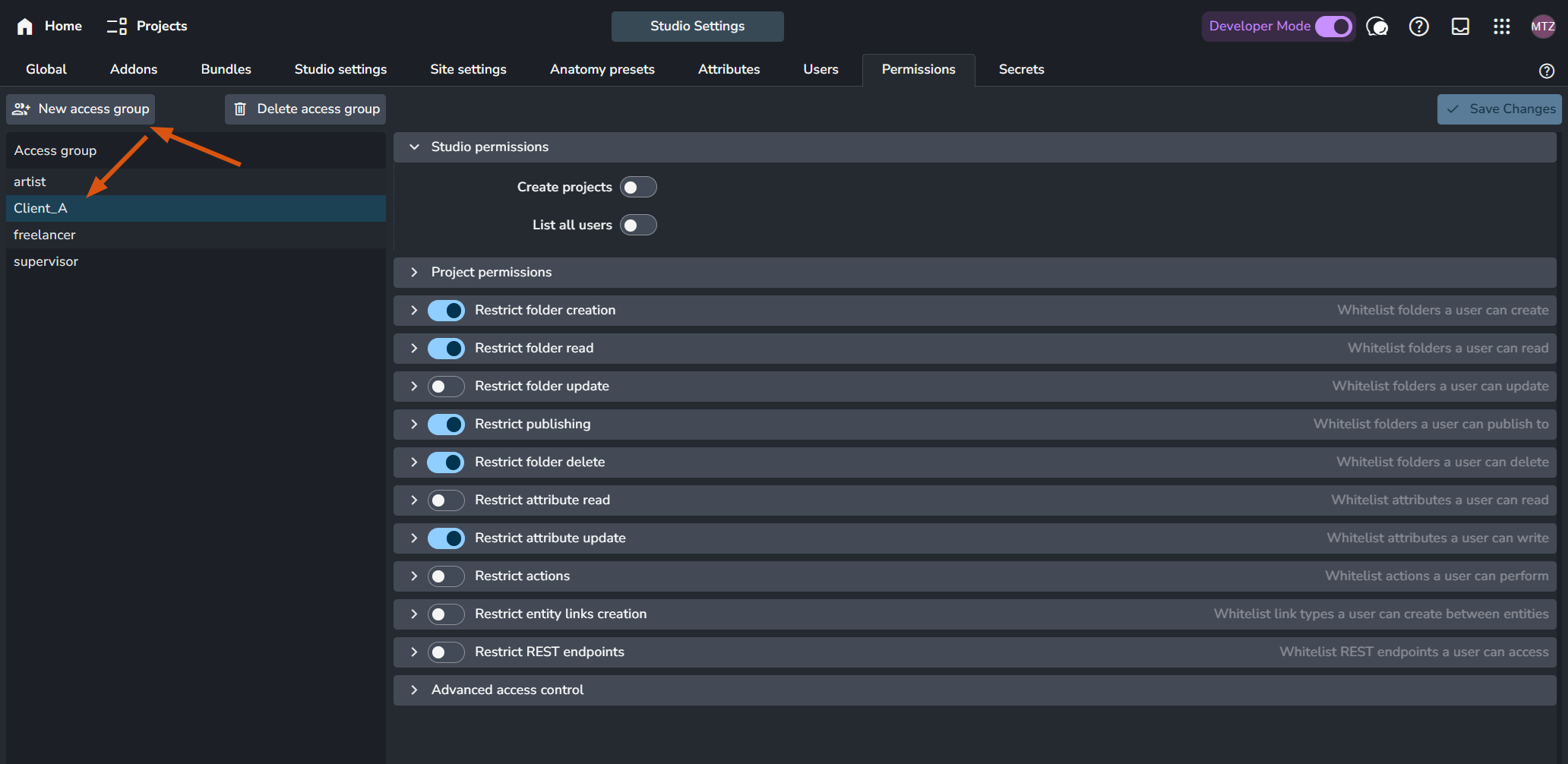
Create the Client User: Create a new User account for your client and assign them the
Client_Aas their default access.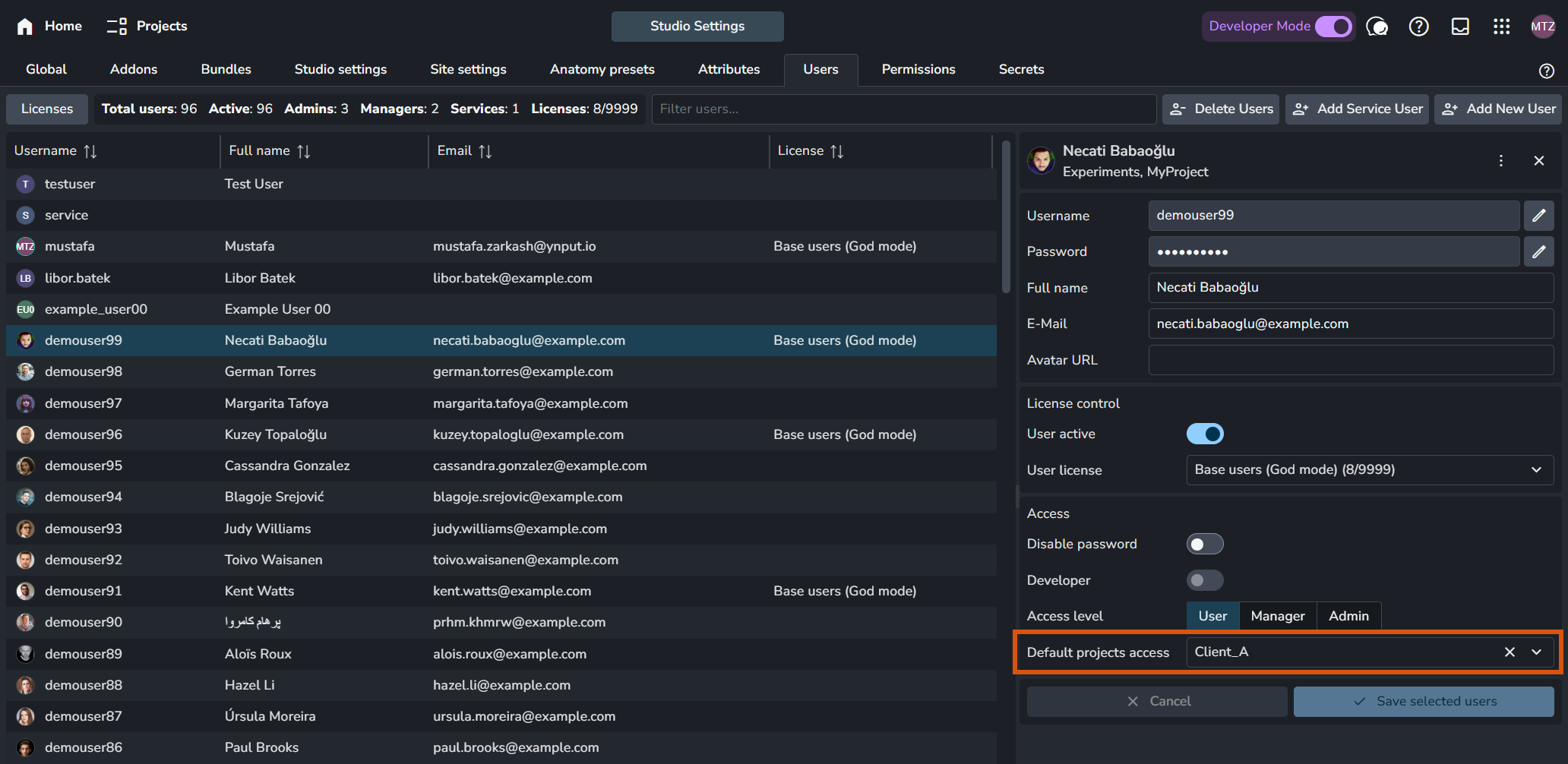
Set Project Permissions: Navigate to Project Settings (P+P) > Project Permissions and select your client group. To create a secure "Read-Only" environment for the client:
Enable the following restrictions: Restrict folder creation, Restrict folder read, Restrict folder publishing, and Restrict attribute update.
Disable all other permissions to prevent accidental changes.
Set the Root Path: Under the Restrict Folder Read (and creation) settings, set the path to your deliverable root (e.g.,
/Deliverables).
Define Project Access: In the Project Access tab, add the client user to the specific project.
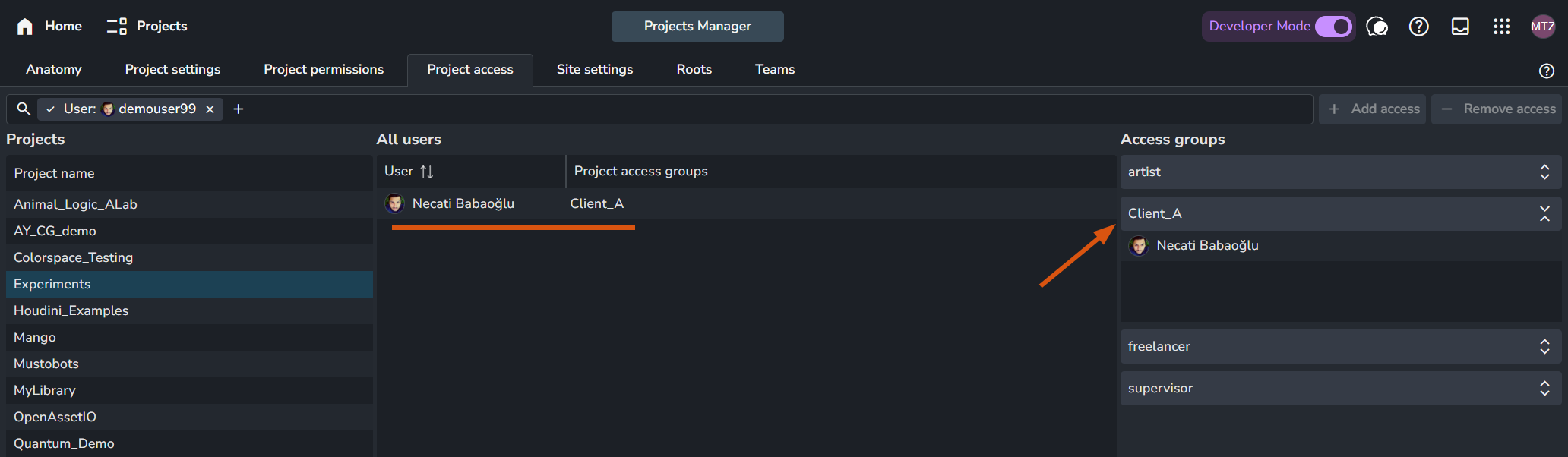
Once done, When the client logs in, their project tree will be restricted to the
/Deliverablesfolder. They will be able to view versions, watch previews, and leave comments, while the rest of your production hierarchy remains completely invisible to them.