Working with Deadline in AYON
Last updated 10 months ago
Overview
AYON provides a streamlined workflow for rendering with Deadline. It uses a web service for job submissions, functioning independently of workflows within specific DCCs. This ensures consistency and reliability across the pipeline.
General Workflow
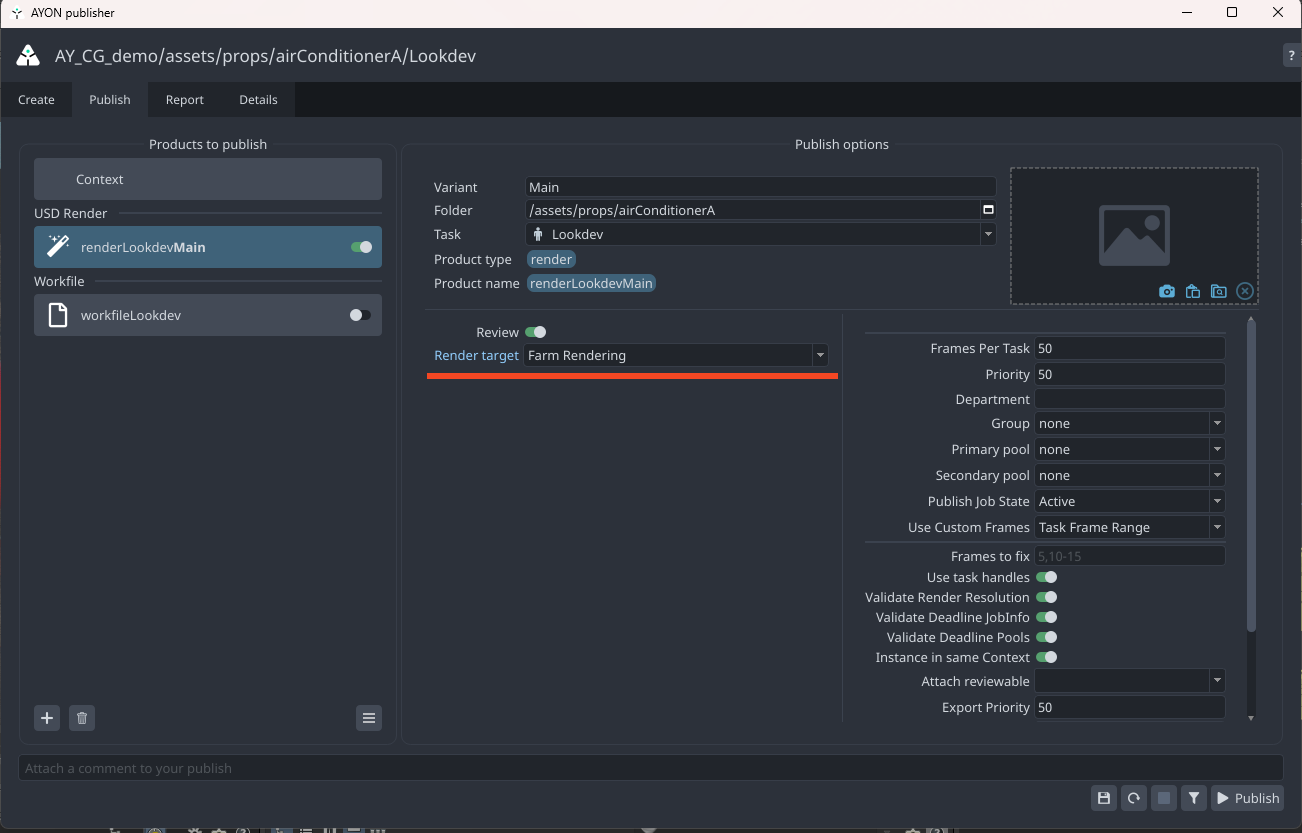
By default, when setting a render target that specifies farm rendering, AYON sends two jobs to Deadline:
Render Job: Handles the actual rendering process.
AYON Publish Job: Processes and publishes the rendered output to AYON.

As part of the submission, AYON creates a JSON file detailing the expected files to be published.

Setting Job Parameters
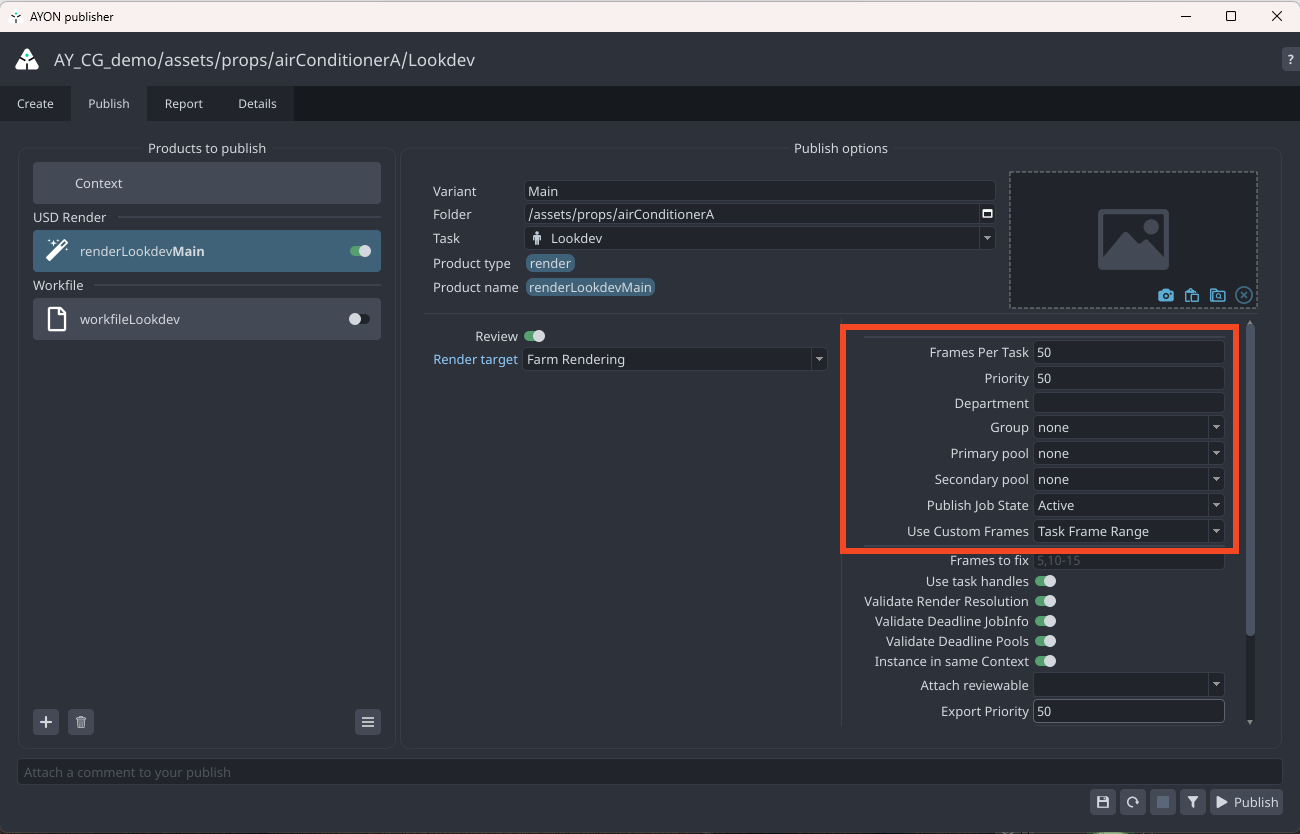
You can configure job publishing parameters in the Publisher UI. This lets you customize settings such as Priority, Group, and Pools, among others.
Admins can set default values and decide which settings to expose in the Publisher through Render Job Settings.
Only admins can modify Publish Job parameters in the Publish Job Settings.
Exposed Render Settings
Admins can expose various render job settings to the publisher tool for artists. These include options like groups, pools, and priority. To enable this, admins need to configure Exposed Overrides setting under Render Job Settings Profiles.
When exposing groups and pools, the publisher queries Deadline to retrieve a list of available options.
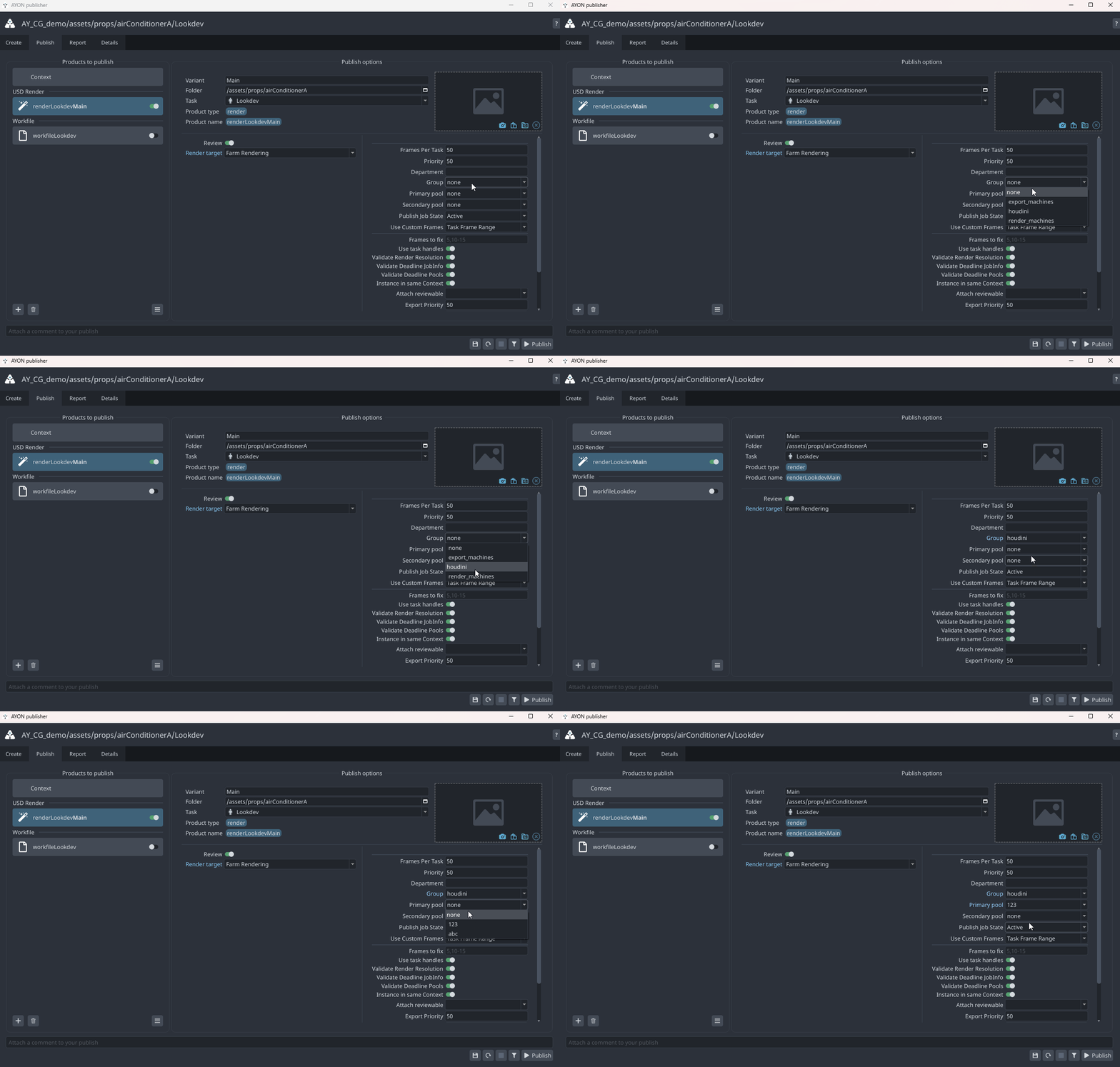
Render Custom Frames
The Use Custom Frames option allows you to specify custom frame numbers or ranges to render on Deadline.
Here are the available modes:
Task Frame Range: Uses the standard frame range defined in your current scene file which is usually the same as the frame range of your task.

Custom Frames Only: Overrides the scene's standard frame range. It will only render the specific frame numbers or ranges you have manually entered in the
Custom Framesfield.
Reuse from Last Version: This mode instructs AYON to first include the full frame range that was successfully published in the previous version. It then overwrites any existing frames within that range with the specific frame numbers or ranges you have manually entered in the
Custom Framesfield. This makes it ideal for quickly fixing a handful of broken frames without needing to re-render the entire sequence.
This
Reuse from Last Versionoption is bounded to the frame range of the last version; therefore, you cannot use this option to extend the frame range beyond what the last version covered.
Custom Frames field supports the Deadline frame range format, such as:
1001, 1004, 10051002-10061001-1100x5(every fifth frame)
The Use Custom Frames option is available only for farm rendering on Deadline.
For local rendering, the Reuse from Last Version mode is replaced with frames to fix option.

If your custom frame range has gaps, AYON will follow the Handle Missing Frames setting within Extract Review to fill those gaps. This setting is managed by your admin. Depending on the configuration, you can expect one of the following outcomes:
Use closest existing: Copies the nearest existing rendered frame repeatedly.
Generate blank frame: Creates a black frame for the missing ones.
Use previous version: Searches for the last published version and uses frames from it.
Use only rendered: Creates the review using only the rendered frames.
For Nuke, there is a separate configuration under Extract Review Intermediates. This is because generating review intermediates is a unique feature in Nuke.
Deadline Jobs Dependencies
In AYON, submitted jobs follow a specific dependency structure. The publish job always depends on the render job. This ensures that the publish process only begins once the rendering is complete.
In some DCCs like Houdini, the native Deadline workflow allows for more complex dependencies. For example, you can submit multiple render and cache jobs that depend on each other—such as a render job waiting for a cache job to finish before starting.
However, this type of multi-level job dependency is not currently supported when publishing from AYON, as each publish instance operates independently and does not specify a dependency on other publish instances.
In these cases, you can manually set dependencies in Deadline or manage the execution order by assigning a higher priority to the job you want to run first.
Special Cases
Houdini Split Export and Render Jobs
Houdini Deadline offers an extra feature that allows it to split the rendering process into two separate tasks: exporting intermediate render files (export job) and rendering those files (render job). This approach helps optimize Houdini license usage by limiting Houdini's role to file generation.
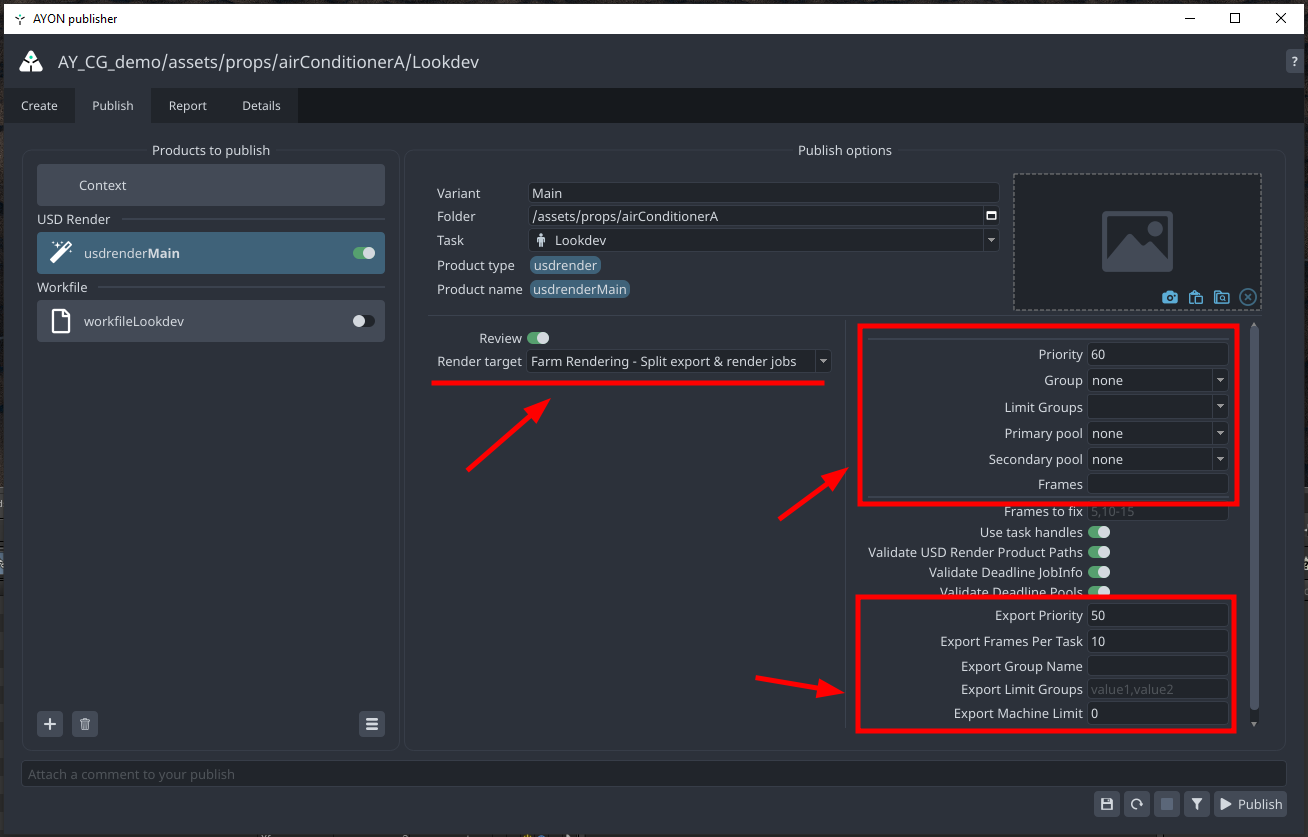
To support this, we’ve added a dedicated render target in Houdini: Farm Rendering - Split Export & Render Jobs. You can configure the render settings and export job settings directly in the Publisher UI.
When submitting using this render target from Ayon, three Deadline jobs are created in the following order:

Export Job: Handles exporting caches or intermediate render files, like
.assor.ifdusing Houdini.Render Job: Handles the actual rendering process. It uses a separate Deadline plugin from Houdini to process these intermediate files, such as
Arnoldfor.assorMantrafor.ifd.AYON Publish Job: Processes and publishes the rendered output to AYON.
The dependency between these jobs follows the same sequence.
Again, when publishing from AYON, each publish instance is independent and does not specify a dependency on other publish instances. The dependency outlined earlier applies solely to the three submitted jobs: Export, Render, and AYON Publish.