About AYON Pipeline
Last updated 10 months ago
What is Publishing?
Publishing is how you push your work to AYON so it can be shared with the rest of the team.
Think of publishing as a checkpoint between you and the next person in the pipeline. It helps catching issues early, before they move downstream, saving time and avoiding the need to repeat work later.
You should publish anytime you want to share part of your work, whether it’s a camera, model, texture, animation, or something else. This lets your teammates know what’s ready to use, and what’s still in progress. Most of the process is handled automatically by AYON, but occasionally you may need to step in and handle a few things manually.
On publishing, the system follows these core rules:
Clear naming, based on internal naming conventions.
Versioned, so changes can be tracked. Some types may also have a “Hero” (master) version.
Immediately usable, with no dependencies on unpublished files or local work directories.
Immutable, meaning once an asset is published, it shouldn’t be modified. If updates are needed, publish a new version instead.
All published files are saved in a specific folder based on the asset, shot, or sequence they belong to. This structure is defined by your admin through the Project Anatomy.
Publishing might take a little extra time upfront, but it saves far more time in the long run. For example, Your teammates won’t have to dig through your work files trying to figure out what’s what or hunt down that model you saved by hand.
How Does Publishing Work?
AYON’s publishing system is built on top of Pyblish, which follows a plugin-based approach. Each plugin runs in a specific order, handling a different part of the publishing process. Together, these plugins form AYON’s publishing workflow.
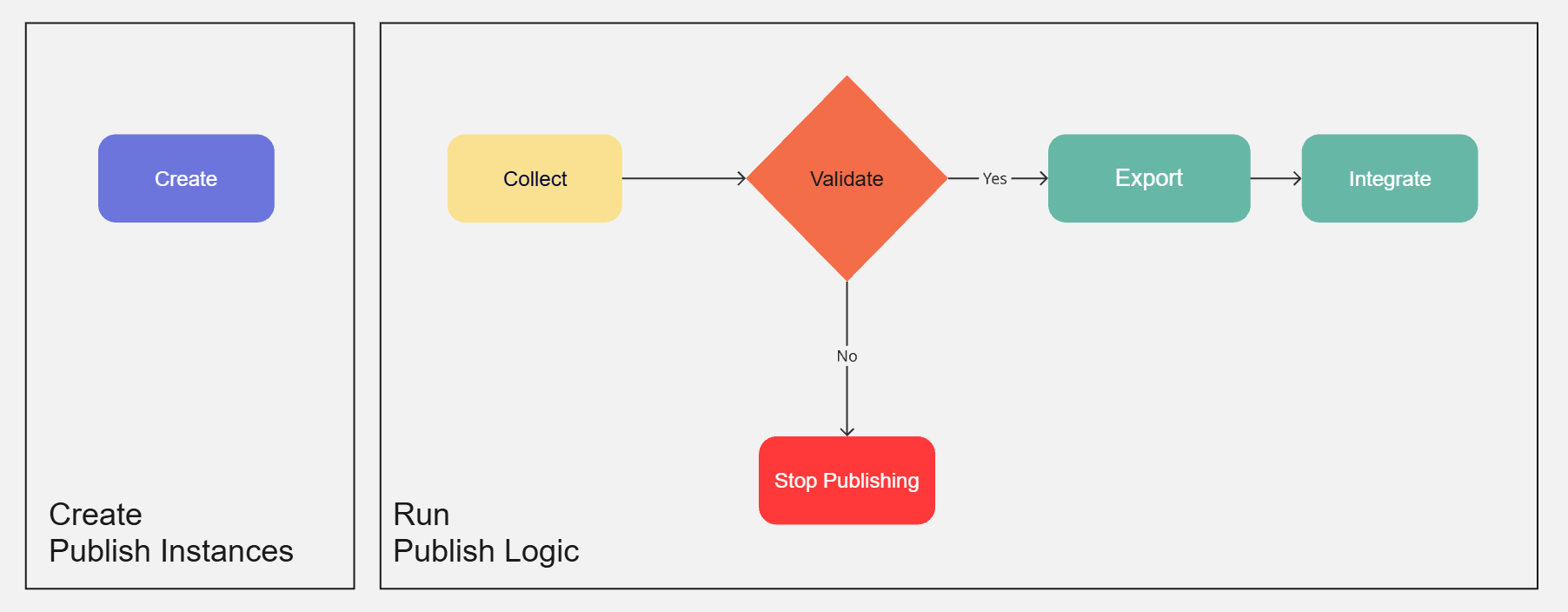
Publishing happens in two main phases: Create and Publish.
1. Create
This is where you define what you want to publish. AYON will then create a publish instance in your scene file. Typically, you will:
Select the objects in your scene that you want to publish
Choose the desired product type using the Creator / Publisher.
Click Create to set up the publish instance.
AYON will then add metadata to the selected objects or insert a scene object to represent the instance. This behavior depends on how the DCC integration implements the system.
For example:
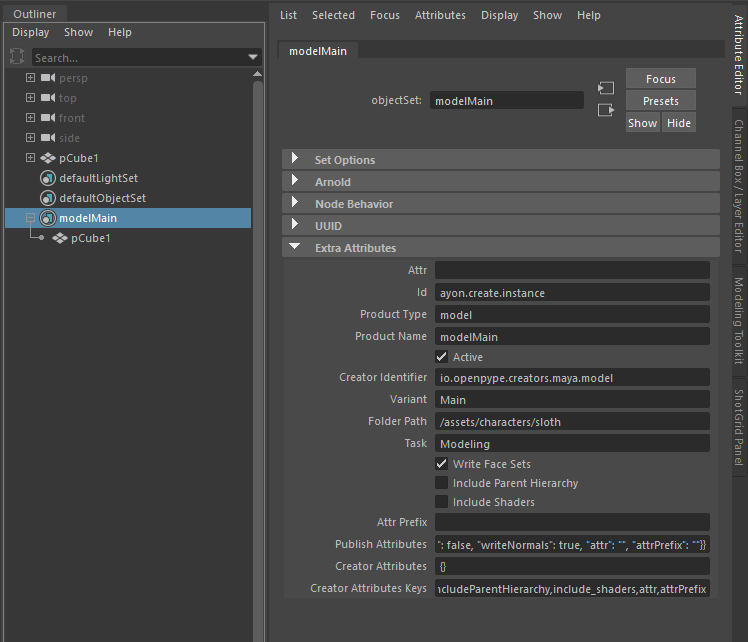
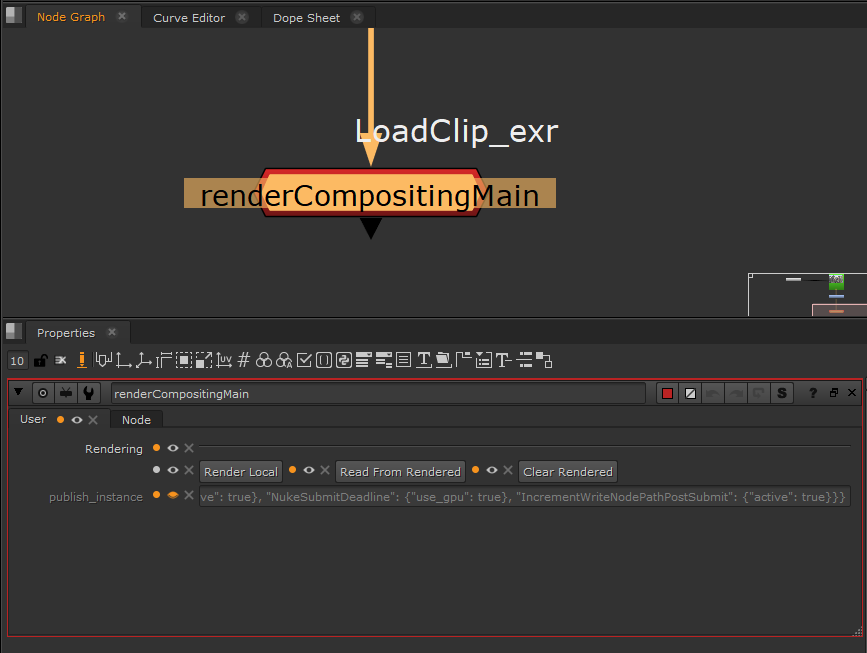
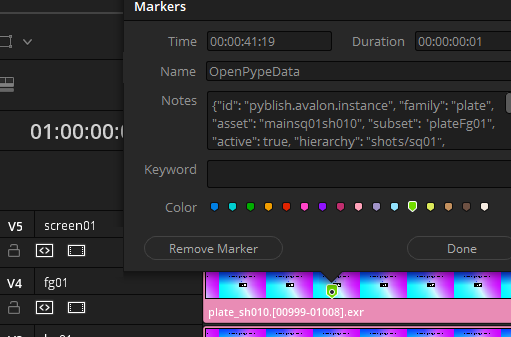
In Maya, AYON creates a set containing your selected mesh and adds AYON metadata as custom attributes on that set. | In Nuke, it creates a write node with your selection connected as input, and stores AYON metadata in a hidden knob on the node. | In DaVinci Resolve, it adds a marker to the selected clip in the timeline, with AYON metadata stored as notes on the marker. |
 |  |  |
AYON will not modify your scene structure or content without your input. It’s designed to keep you in control.
2. Publish
Once your publish instance is ready, click the Publish button in the Creator / Publisher.
AYON will then run through the following steps:
Collect: Gathers all relevant data from your publish instances. This step prepares everything needed for validation.
Validate: Runs quality checks to ensure your work meets the required standards. If any issues are found, the process will stop, and the validator logs will help you identify and fix them.
Extract: Exports your work to a dedicated location on disk, known as the staging directory.
Depending on your DCC integration, this could be: a path relative to your current workfile or a temporary export folder or a custom location set using Custom Staging Dir profiles in the Core Addon Settings .Integrate: Finalizes the process by copying the exported files from the staging directory into the official publish directory. It also registers the published product on the AYON server and uploads any available reviewable media.
The publish path and file naming follow Template name profiles in the Core Addon Settings.
Product Types
Published products are categorized into ‘product types’ based on what is their purpose in the production. Knowing a product type should always tell you what to expect from the given publish. For example if something is marked as a model you know it passed through certain studio validations and you can expect it to be up to the studio standard, however, mayaScene doesn't provide the same confidence (because it's less strict during publishing), even though they might both actually contain the same model.
Following product type definitions and requirements are the AYON defaults and what we consider good industry practice, but most of the requirements can be altered to suit the studio or project needs. Here's a list of supported product types
Model
Clean geometry without any material assignments. Published model can be as small as a single mesh, or as complex as a full building. That is purely up to the artist or the supervisor. Models can contain hierarchy defined by groups or nulls for better organisation.
Example products: modelMain, modelProxy, modelSculpt, modelBroken
Example representations: .ABC, .MA, .MB, .BLEND, .OBJ, .FBX
Look
A package of materials, shaders, assignments, textures and attributes that collectively define a look of a model for rendering or preview purposes. This can usually be applied only to the model is was authored for, or its corresponding cache, however, material sharing across multiple models is also possible. A look should be fully self-contained and ready for rendering.
Example products: lookMain, lookProxy, lookWet, lookDirty, lookBlue, lookRed
Example Representations: .MA + .JSON, .MTLX (yet unsupported), .BLEND
Please note that a look is almost never a single representation, but a combination of multiple. For example in Maya a look consists of .ma file with the shaders, .json file which contains the attributes and assignments and /resources folder with all the required textures.
Rig
Characters or props with animation controls or other parameters, ready to be referenced into a scene and animated. Animation Rigs tend to be very software specific, but in general they tend to consist of Geometry, Bones or Joints, Controllers and Deformers. AYON in maya supports both, self-contained rigs, that include everything in one file, but also rigs that use nested references to bring in geometry, or even skeleton. By default we bake rigs into a single file during publishing, but that behaviour can be turned off to keep the nested references live in the animation scenes.
Example products: rigMain, rigMocap, rigSim, rigCamera, rigMuscle
Example Representations: .MA, .MB, .BLEND, .HDA
Assembly
A product created by combining two or more smaller products into a composed bigger asset. A good example would be a restaurant table asset with the cutlery and chairs included, that will eventually be loaded into a restaurant Set. Instead of loading each individual fork and knife for each table in the restaurant, we can first prepare assemblyRestaurantTable product which will contain the table itself, with cutlery, flowers, plates and chairs nicely arranged.
This table can then be loaded multiple times into the restaurant for easier scene management and updates.
Extracted assembly doesn't contain any geometry directly, but rather information about all the individual products that are inside the assembly, their version and transformations. On top of that and alembic is exported which only holds any extra transforms and groups that are needed to fully re-create the original assembled scene.
Assembly can also be used as a sort of collection of elements that are often used together in the shots. For example if we're set dressing lot's of forest shots, it would make sense to make and assembly of all the forest elements for scattering so we don't have to load them individually into each shot.
This is typically done by exporting usd. For info refer to AYON OpenUSD Workflow Get Started
Example products: assemblyTable, assemblyForestElements, assemblyRoof
Example Representations: .usd
Setdress
Fully prepared environment scene assembled from other previously published assets. Setdress should be ready for rendering as is, including any instancing, material assignments and other complex setups the environment requires. Due to this complexity, setdress is currently only publishable in the native file format of the host where it was created. In maya that would be .ma or .mb file.
Camera
Clean virtual camera without any proprietary rigging, or host specific information. Considering how widely across the hosts published cameras are used in production, published camera should ideally be as simple and clean as possible to ensure consistency when loaded into various hosts.
Example Representations: .MA, .ABC
Pointcache
Geometry with baked animation. Cache is usually exported as alembic, but can be potentially any other representation that makes sense in the given scenario. Cache is defined by the artist directly in the fx or animation scene.
Example products: assemblyTable, assemblyForestElements, assemblyRoof
Example Representations: .ABC, .BGEO
Animation
Published result of an animation created with a rig. Animation can be extracted as animation curves, cached out geometry or even fully animated rig with all the controllers.
Animation cache is usually defined by a rigger in the rig file of a character or by FX TD in the effects rig, to ensure consistency of outputs.
Example products: animationBob_01, animationJack_02, animationVehicleA
Example Representations: .MA, .ABC, .JSON
Yeti Cache
Cached out yeti fur simulation that originates from a yeti rig applied in the shot context.
Yeti Rig
Yeti groom setup ready to be applied to a cached out character in the shot context.
FAQ
How to Add Custom Product Types
Adding custom or additional product types requires implementing new pipeline plugins, specifically Creator and Extractor plugins, within the corresponding AYON Digital Content Creation (DCC) integration addon.
This process must be done separately for each addon (e.g., the Maya Addon, Houdini Addon, etc.) where you want the new product type to be supported.
For additional information and a deeper dive into the technical details, please check out the Publish | Developer Docs.