Configure Blender Addon
Last updated 4 months ago
PySide Installation on User Machines
The AYON Blender integration requires the PySide module to be available within Blender. This module varies depending on the Blender version and platform, so it cannot be bundled directly with AYON.
Automatic PySide Installation
By default, the AYON Blender Addon attempts to install a compatible PySide module automatically if it is not already present when launching the Blender application via the Launcher.
Manual PySide Installation
In case the automatic installation fails, you can find manual installation steps specific to each operating system below.
With Blender versions 4.x, the required module will be PySide6.
Windows
Find python executable inside your Blender installation folder. It is usually located in the following path. This may differ in future blender version.
C:\Program Files\Blender Foundation\Blender {version}\{version}\python\bin\python.exeOpen Powershell or Command Prompt as Administrator and run commands below.
Replace
C:\Program Files\Blender Foundation\Blender 4.5\4.5\python\binwith your path.# Change directory to python executable directory. > cd C:\Program Files\Blender Foundation\Blender 4.5\4.5\python\bin # Run pip install command and explicitly target the site packages folder of blender. > python -m pip install PySide6 --target "C:\Program Files\Blender Foundation\Blender 4.5\4.5\python\lib\site-packages"
Linux
Procedure may differ based on Linux distribution and blender distribution. Some Blender distributions are using system Python in that case it is required to install PySide6 using pip to system python (Not tested).
These instructions are for Blender using bundled python.
Find python executable inside your blender application:
You can launch Blender and in "Scripting" section enter commands to console.>>> import bpy >>> print(bpy.app.binary_path_python) '/path/to/python/executable'Open terminal and run pip install command below.
Replace
/usr/bin/blender/4.5/python/bin/python3.11mwith your path.> /usr/bin/blender/4.5/python/bin/python3.11m -m pip install PySide6
If you get error No module named pip you'll have to do few steps first.
Open new terminal and run the python executable from Blender (entering full path).
# Run Python executable
> /usr/bin/blender/4.5/python/bin/python3.11m

# Python process should start
>>> import ensurepip
>>> ensurepip.bootstrap()
You can close new terminal and Run pip install command above again.
Now should work as expected.
Blender Addon Settings
Set Unit Scale
Setting Location:
ayon+settings://blender/unit_scale_settings

Enable it to define a default unit scale.
Apply on Opening Existing Files: enable it to set the unit scale defined below to apply it on exiting files you open.
Base File Unit Scale: define here the default unit scale.
Set Attributes on Startup
Settings Locaitons:
ayon+settings://blender/set_resolution_startup
ayon+settings://blender/set_frames_startup

Set Resolutions on Startup: When enabled, AYON will automatically set the width and height in the Blender scene at startup based on the attributes of the current AYON task.
Set Start/End Frames and FPS on Startup: When enabled, AYON will configure the start and end frames, as well as the FPS, in the Blender scene at startup according to the attributes of the current AYON task. Handles are included based on the configuration specified here.
Include/Exclude Handles in default playback & render range
Setting Location:
ayon+settings://blender/include_handles
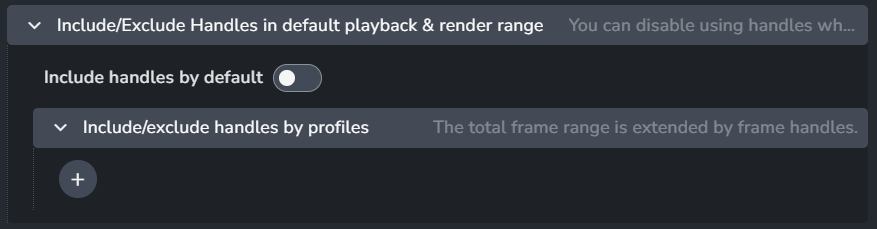
Color Management (OCIO managed)
Setting Locaion:
ayon+settings://blender/imageio
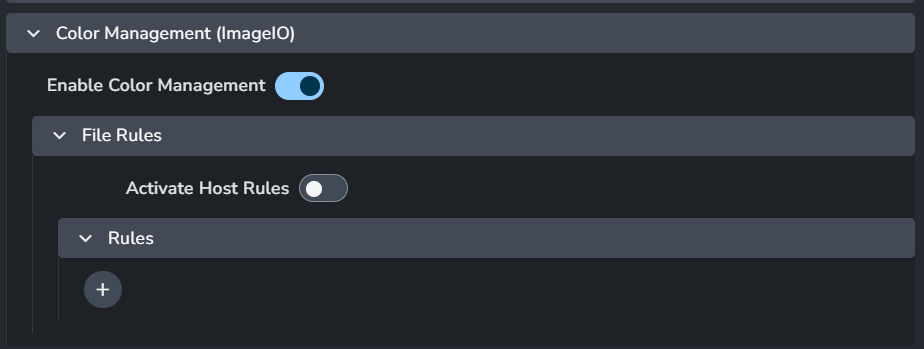
Enable Color Management: This toggle enables AYON's global color management. This toggle is a master switch that enables and disables the whole section.
File Rules
Activate Host Rules
Rules
+: Add more rules
Each rule consists of
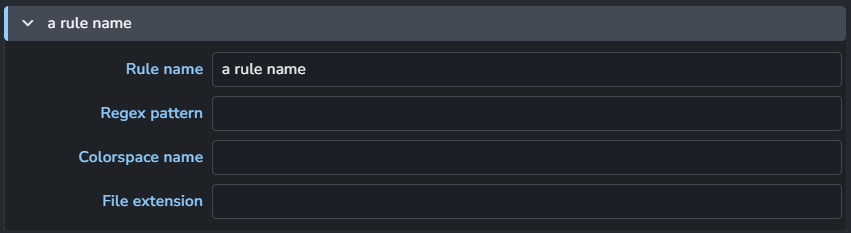
Rule name
Regex pattern
Colorspace name
File extension
Render Settings
Setting Location:
ayon+settings://blender/RenderSettings
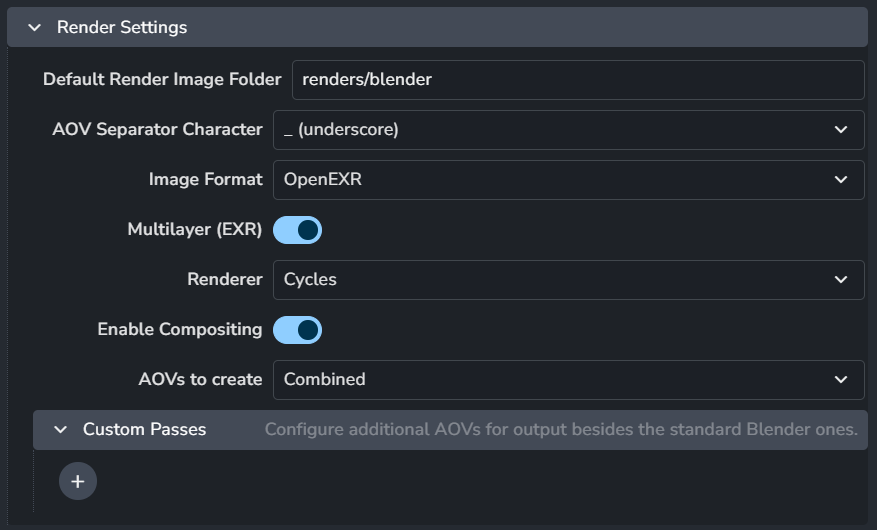
Default Render Image Folder: Configure staging / work folder for rendered images. Not for final published images.
AOV Separator Character
Image Format: Configure image output format when creating Render publish instance.
Multilayer (EXR): Does have effect only when EXR format selected.
Renderer: Configure render engine used for render farm submission.
Enable Compositing: When enabled AYON will output composite AOV beside regular rgba beauty output.
AOVs to create: Choose from available Blender AOVs for automatic creation when rendering.
Custom Passes: Configure additional AOVs for output besides the standard Blender ones.
+ : Add a custom pass.
Each item consists of:

Attibute name
Type
Workfile Builder
Setting Location:
ayon+settings://blender/workfile_builder
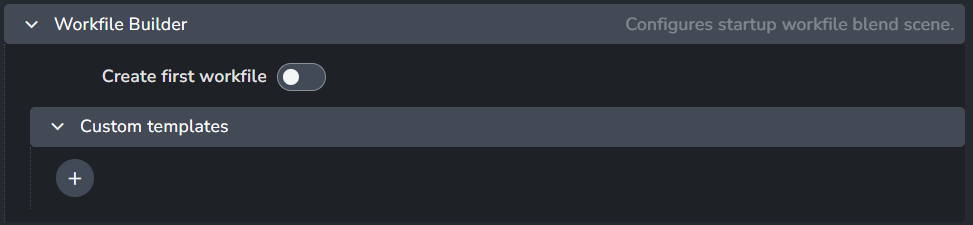
Simple workfile template based on Task type.
First matched profile will be used as a workfile template.
Create first workfile
Custom templates
each template profile consists of:
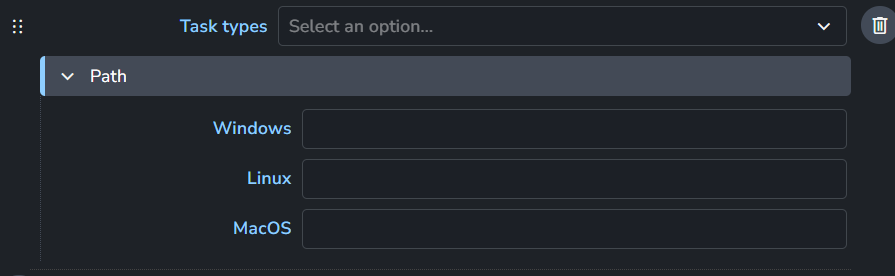
Task Types
Path (Per OS)
+ button: Add more templates.
Publish Plugins
Configure various validator and extractor types for publishing.
Validate Absolute Data Block Paths
Setting Location:
ayon+settings://blender/publish/ValidateAbsoluteDataBlockPaths

Checks if external data having absolute file path.
Enable: The default state of the plugin.
Optional: Allows the user to toggle this setting in the publisher UI.
Active: The default value of the toggle in the publisher UI.
Validate Camera Zero Keyframe
Setting Location:
ayon+settings://blender/publish/ValidateCameraZeroKeyframe

Checks if a keyframe is set on frame zero - mostly used when loading in Unreal Engine shifting the first keyframe to zero.
Enable: The default state of the plugin.
Optional: Allows the user to toggle this setting in the publisher UI.
Active: The default value of the toggle in the publisher UI.
Validate File Saved
Setting Location:
ayon+settings://blender/publish/ValidateFileSaved
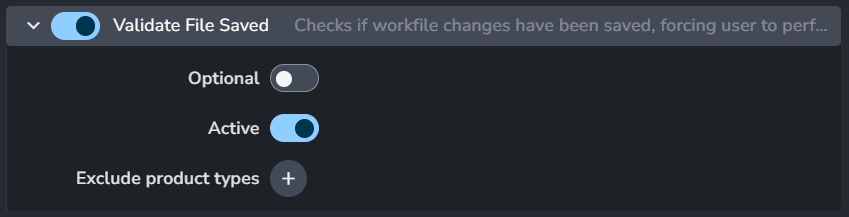
Checks if workfile changes have been saved, forcing user to perform save action if not.
Enable: The default state of the plugin.
Optional: Allows the user to toggle this setting in the publisher UI.
Active: The default value of the toggle in the publisher UI.
Exclude product types: list of product types/families to exclude from validation.
Validate Instance is not Empty
Setting Location:
ayon+settings://blender/publish/ValidateInstanceEmpty

Checks for empty publish instances which could result in no data when published.
Enable: The default state of the plugin.
Optional: Allows the user to toggle this setting in the publisher UI.
Active: The default value of the toggle in the publisher UI.
Validate Mesh Has Uvs
Setting Location:
ayon+settings://blender/publish/ValidateMeshHasUvs

Checks for geometry having UV set defined.
Enable: The default state of the plugin.
Optional: Allows the user to toggle this setting in the publisher UI.
Active: The default value of the toggle in the publisher UI.
Validate Mesh No Negative Scale
Setting Location:
ayon+settings://blender/publish/ValidateMeshNoNegativeScale

Checks for object scaling in negative values which is prohibited then.
Enable: The default state of the plugin.
Optional: Allows the user to toggle this setting in the publisher UI.
Active: The default value of the toggle in the publisher UI.
Validate Model Mesh Has UV map named map1
Setting Location:
ayon+settings://blender/publish/ValidateModelMeshUvMap1

Checks if objects have a UV set named 'map1' meeting Maya standards.
Enable: The default state of the plugin.
Optional: Allows the user to toggle this setting in the publisher UI.
Active: The default value of the toggle in the publisher UI.
Validate Transform Zero
Setting Location:
ayon+settings://blender/publish/ValidateTransformZero

Checks all objects transforms are zero values.
Enable: The default state of the plugin.
Optional: Allows the user to toggle this setting in the publisher UI.
Active: The default value of the toggle in the publisher UI.
Validate No Colons In Name
Setting Location:
ayon+settings://blender/publish/ValidateNoColonsInName

Checks for invalid naming format containing : within name - mostly when exporting to Unreal Engine.
Enable: The default state of the plugin.
Optional: Allows the user to toggle this setting in the publisher UI.
Active: The default value of the toggle in the publisher UI.
Validate Render Camera Is Set
Setting Location:
ayon+settings://blender/publish/ValidateRenderCameraIsSet

Checks for renderable camera when using Render.
Enable: The default state of the plugin.
Optional: Allows the user to toggle this setting in the publisher UI.
Active: The default value of the toggle in the publisher UI.
Validate Render Output for Deadline
Setting Location:
ayon+settings://blender/publish/ValidateDeadlinePublish
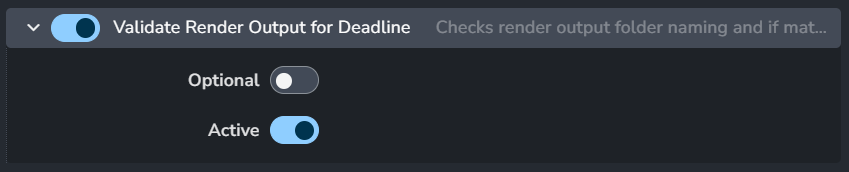
Checks render output folder naming and if matching workfile and version.
Enable: The default state of the plugin.
Optional: Allows the user to toggle this setting in the publisher UI.
Active: The default value of the toggle in the publisher UI.
Validate Frame Range
Setting Location:
ayon+settings://blender/publish/ValidateFrameRange
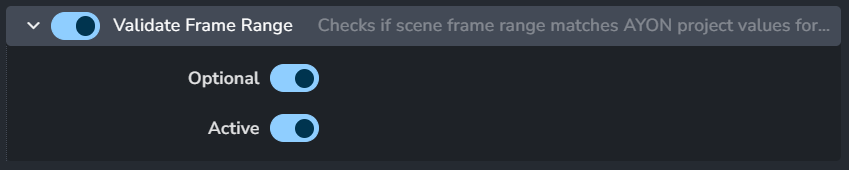
Checks if scene frame range matches AYON project values for the context.
Enable: The default state of the plugin.
Optional: Allows the user to toggle this setting in the publisher UI.
Active: The default value of the toggle in the publisher UI.
Extract Blend
Setting Location:
ayon+settings://blender/publish/ExtractBlend
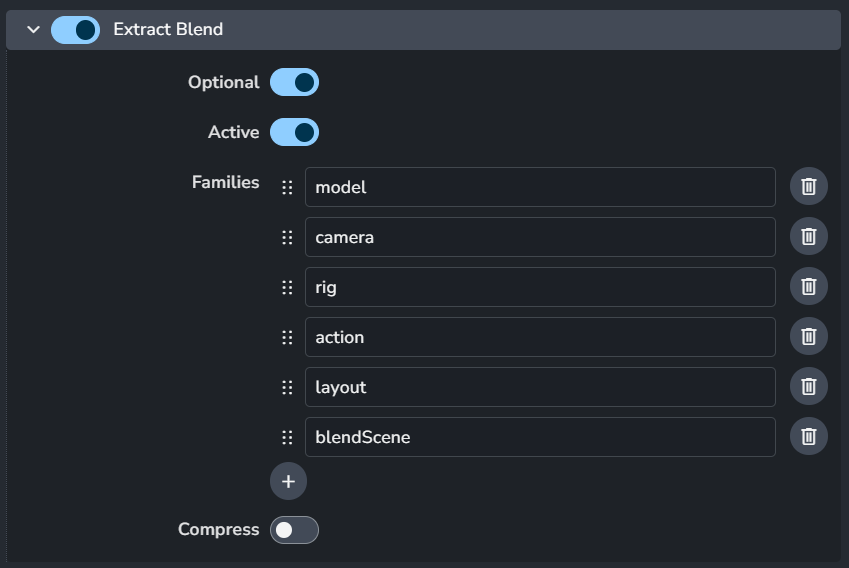
Enable: The default state of the plugin.
Optional: Allows the user to toggle this setting in the publisher UI.
Active: The default value of the toggle in the publisher UI.
Families (Product Types)
Compress
Extract FBX
Setting Location:
ayon+settings://blender/publish/ExtractFBX

Enable: The default state of the plugin.
Optional: Allows the user to toggle this setting in the publisher UI.
Active: The default value of the toggle in the publisher UI.
Extract ABC
Setting Location:
ayon+settings://blender/publish/ExtractModelABC

Enable: The default state of the plugin.
Optional: Allows the user to toggle this setting in the publisher UI.
Active: The default value of the toggle in the publisher UI.
Extract Blend Animation
Setting Location:
ayon+settings://blender/publish/ExtractBlendAnimation
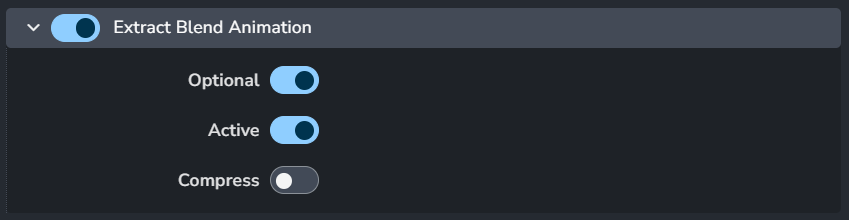
Enable: The default state of the plugin.
Optional: Allows the user to toggle this setting in the publisher UI.
Active: The default value of the toggle in the publisher UI.
Compress
Extract Animation FBX
Setting Location:
ayon+settings://blender/publish/ExtractAnimationFBX

Enable: The default state of the plugin.
Optional: Allows the user to toggle this setting in the publisher UI.
Active: The default value of the toggle in the publisher UI.
Extract Camera
Setting Location:
ayon+settings://blender/publish/ExtractCamera

Enable: The default state of the plugin.
Optional: Allows the user to toggle this setting in the publisher UI.
Active: The default value of the toggle in the publisher UI.
Extract Camera as ABC
Setting Location:
ayon+settings://blender/publish/ExtractCameraABC

Enable: The default state of the plugin.
Optional: Allows the user to toggle this setting in the publisher UI.
Active: The default value of the toggle in the publisher UI.
Extract Layout (JSON)
Setting Location:
ayon+settings://blender/publish/ExtractLayout

Enable: The default state of the plugin.
Optional: Allows the user to toggle this setting in the publisher UI.
Active: The default value of the toggle in the publisher UI.
Extract Thumbnail
Setting Location:
ayon+settings://blender/publish/ExtractThumbnail
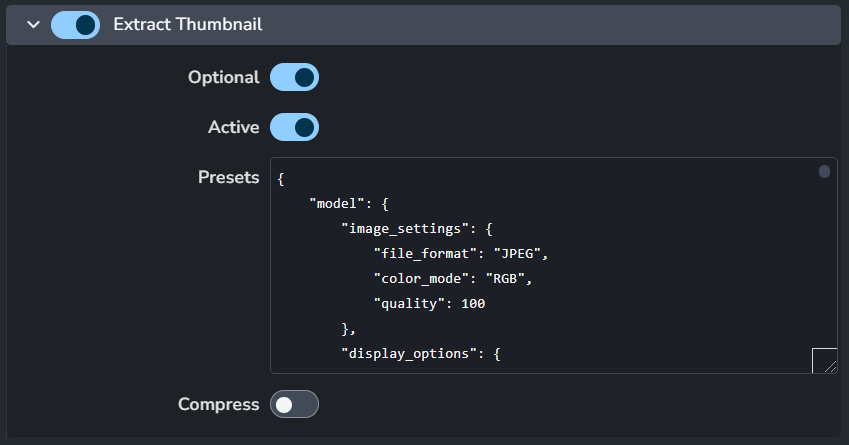
Takes review camera and creates a thumbnail based on viewport capture.
Enable: The default state of the plugin.
Optional: Allows the user to toggle this setting in the publisher UI.
Active: The default value of the toggle in the publisher UI.
Presets: plugin selects preset based on the product type. e.g.
modelpreset will be used withmodelproduct type. each preset reflects the arguments of addon built in function capture.Compress
Extract Playblast
Setting Location:
ayon+settings://blender/publish/ExtractPlayblast
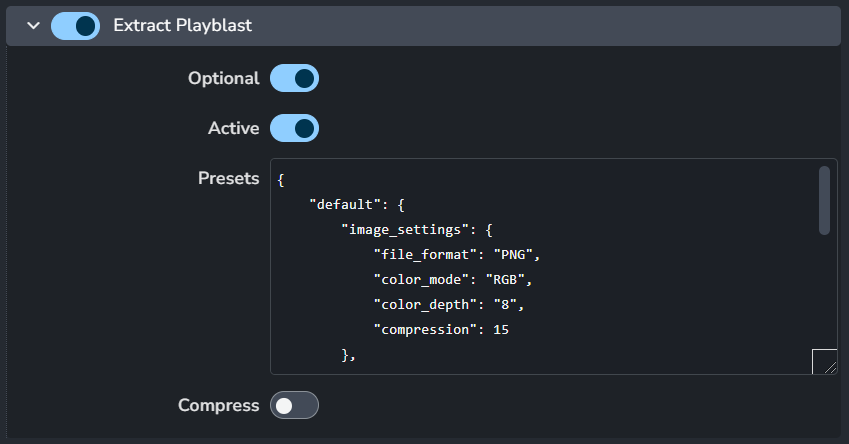
Takes review camera and creates review Quicktime video based on viewport capture.
Enable: The default state of the plugin.
Optional: Allows the user to toggle this setting in the publisher UI.
Active: The default value of the toggle in the publisher UI.
Presets: plugin only expects
defaultpreset.
A preset reflects the arguments of addon built in function capture.Compress
Extract Model USD
Setting Location:
ayon+settings://blender/publish/ExtractModelUSD
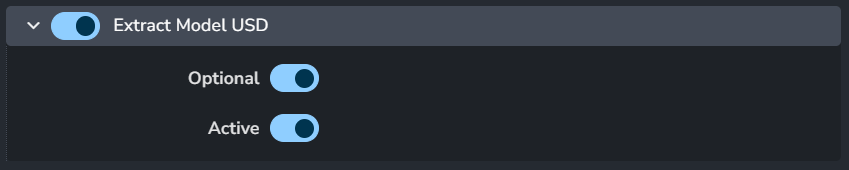
Enable: The default state of the plugin.
Optional: Allows the user to toggle this setting in the publisher UI.
Active: The default value of the toggle in the publisher UI.