AYON Houdini OpenUSD Workflow
Last updated 6 months ago
Recommended Houdini Version 19.5 and above.
The AYON USD Workflow should maintain consistency across various DCC integrations. However, we may enhance its features in specific DCC integrations based on client and community feedback.
We encourage you to join USD discussions on forums or share your feedback with us through our Feedback Portal.
Publishing USD Products
Publishing follows the same process outlined in About AYON Pipeline and Working with Houdini in AYON. Artists use the Creator / Publisher tool to create publish instances in the scene, add their work, and click the publish button.
Supported Product Types
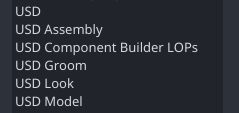
Generic USD Product Type
USD: This creator is used for publishing any USD data. Use this product type if what you are publishing doesn’t align with, or you are unsure which dedicated USD product types to use. The resulting products have theUSDproduct type.
Since these creators are generic, USD publish options are not pre-initialized. Artists need to specify details such as the target usd product, department layer, and whether to add as variant.
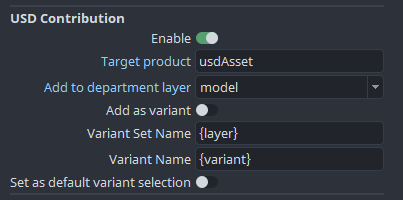
Dedicated USD Product Types
USD Model: Use this for publishing models (clean geometry with UVs).USD Look: Use this for publishing looks (materials with material assignments). It also copies any linked textures along with the look layer.USD Groom: Use this for publishing hair or fur.USD Assembly: Use this for publishing assemblies (nested assets or assets within assets).
Note: At the moment, we don’t have many validators to ensure that the layer being published contains relevant data.
Other
USD Component Builder LOPs: The USD component builder can create a complete USD asset with models, looks, and variants. You may publish it as an AYON USD contribution. However, keep in mind that it may include data irrelevant to the department layer you are selecting. For example, when publishing a Component Builder layer to themodeldepartment layer, it will contain geometry, materials, and material assignments.
Solaris Graph Nodes
When working with the AYON USD Workflow in Houdini, these nodes are commonly used to perform essential functions:
Layer Break
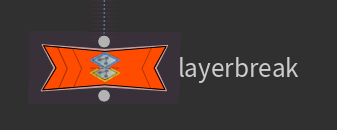
Layer Break node allows you to extend input USD layer(s) without including them when exporting USD files.
AYON Mute Layers
Mute Layers is an AYON Houdini vanilla node that wraps the Configure Stage node. It lets you mute (disable) specific layer(s) in the scene viewer. For example, when working with looks, you’ll likely want to disable any previous look layers to ensure a fresh start and avoids any potential confusion.
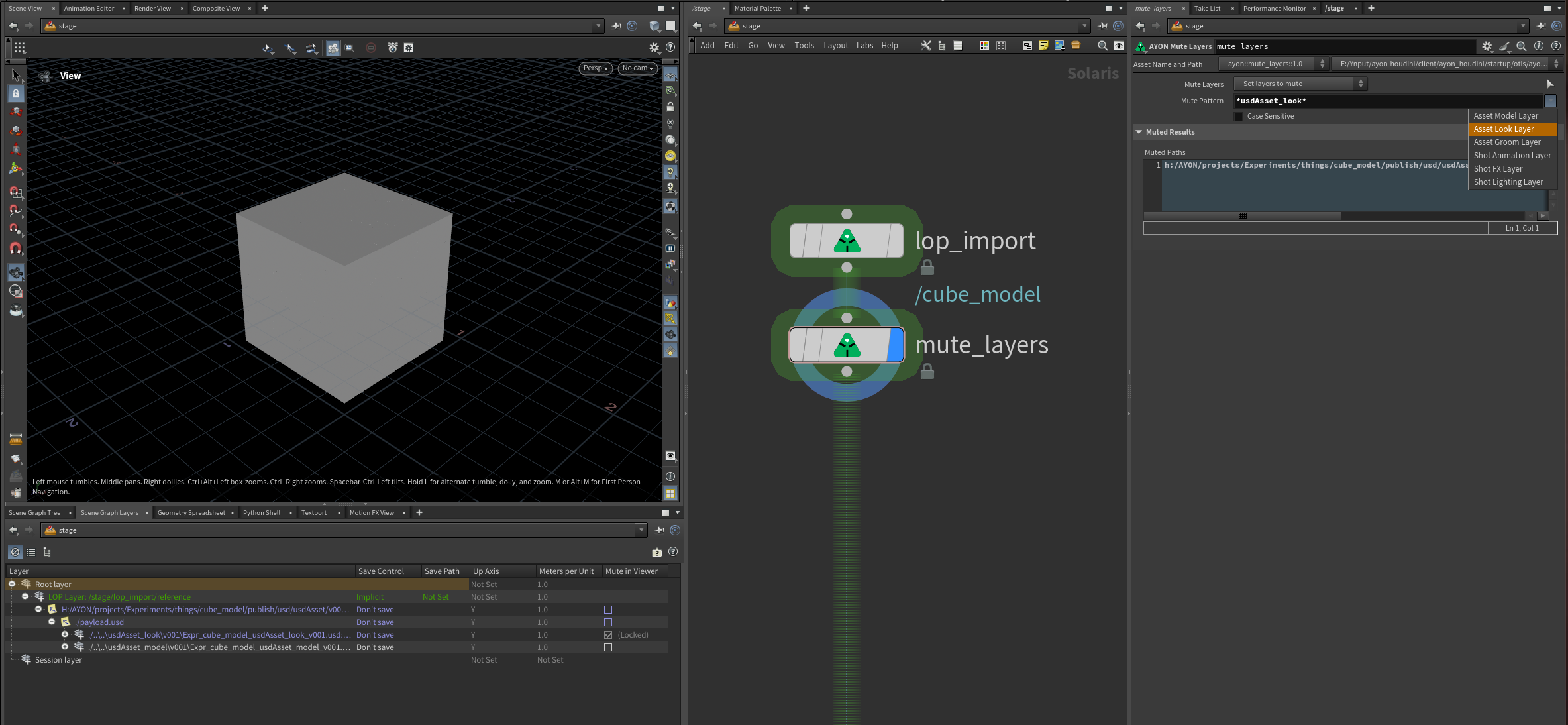
It provides a dropdown menu to easily select department layers to mute. Once a layer is muted, any subsequent layer is also muted. For instance, muting the look department layer will mute all look layers inside it.
Configure Layer
Configure Layer: This node has many features, but most importantly, you can use it to set the default primitive when working with usdAsset(s).
Another useful feature is the ability to specify save path for the active USD layer. This save path determines where the layer file will be saved when the USD is written to disk (e.g., by a USD ROP node), effectively converting implicit layers into explicit layers. For additional information, see Implicit vs. Explicit Layers.
AYON Loader HDAs

Houdini AYON Loader HDAs nodes allow you to load different published products in Houdini.
Implicit vs. Explicit Layers
When working with USD in Houdini, it’s helpful to understand how it handles layers.
This section highlights some essential key concepts explaining the difference between Implicit vs. Explicit Layers.
For further details, refer to How LOPs work | SideFx Docs.
When working in Solaris Houdini, it always generates in-memory anonymous layers, which effectively achieves the dynamism of Solaris Houdini.
You can visually differentiate unique anonymous layers because Houdini assigns a different color to each one.
In the following example, you can see that the first tree on the left consists of two nodes working within one layer, as they share the same color. On the right, however, the nodes work in two different layers, each with a unique color.
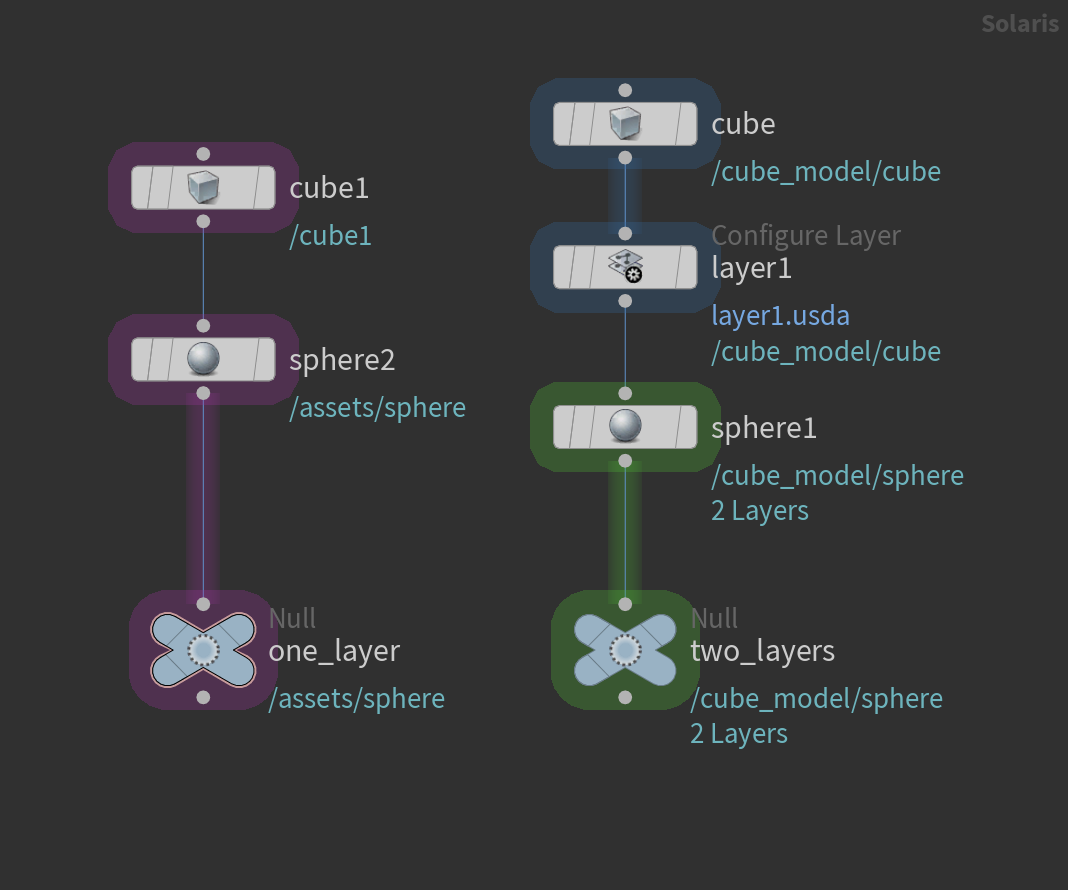
Additionally, the example highlights an important concept: implicit and explicit layers. By default, all anonymous layers are implicit layers until you specify a save path for a particular layer, marking it as an explicit layer. You can achieve this in your graph by inserting a Configure Layer node, setting the Save Path parameter, and toggling Start New Layer.
When exporting your USD file (e.g., via USD ROP), explicit layers will be saved to their specified save paths as separate layers (files). Meanwhile, implicit layers follow the Save Style parameter. By default, this parameter flattens implicit layers, collapsing implicit sublayers while preserving references. The result is the number of explicit layers plus one additional layer containing all the flattened implicit layers.
The AYON Houdini USD publishing logic detects the number of separate layers exported from the USD ROP, dynamically generates publish instances for them, and remaps the USD paths to the published layers.
The single layer containing all the flattened implicit layers will be published as the product you specified in the publisher. In this example, it’s
modelTest.Explicit layers, on the other hand, receive a runtime publish instance, with the
Save Path's filename acting as a suffix for the product name. This generates additional products in the format:{product_name}_{explicit_save_filename}. In this example, it’smodelTest -> usdTest_layer1.
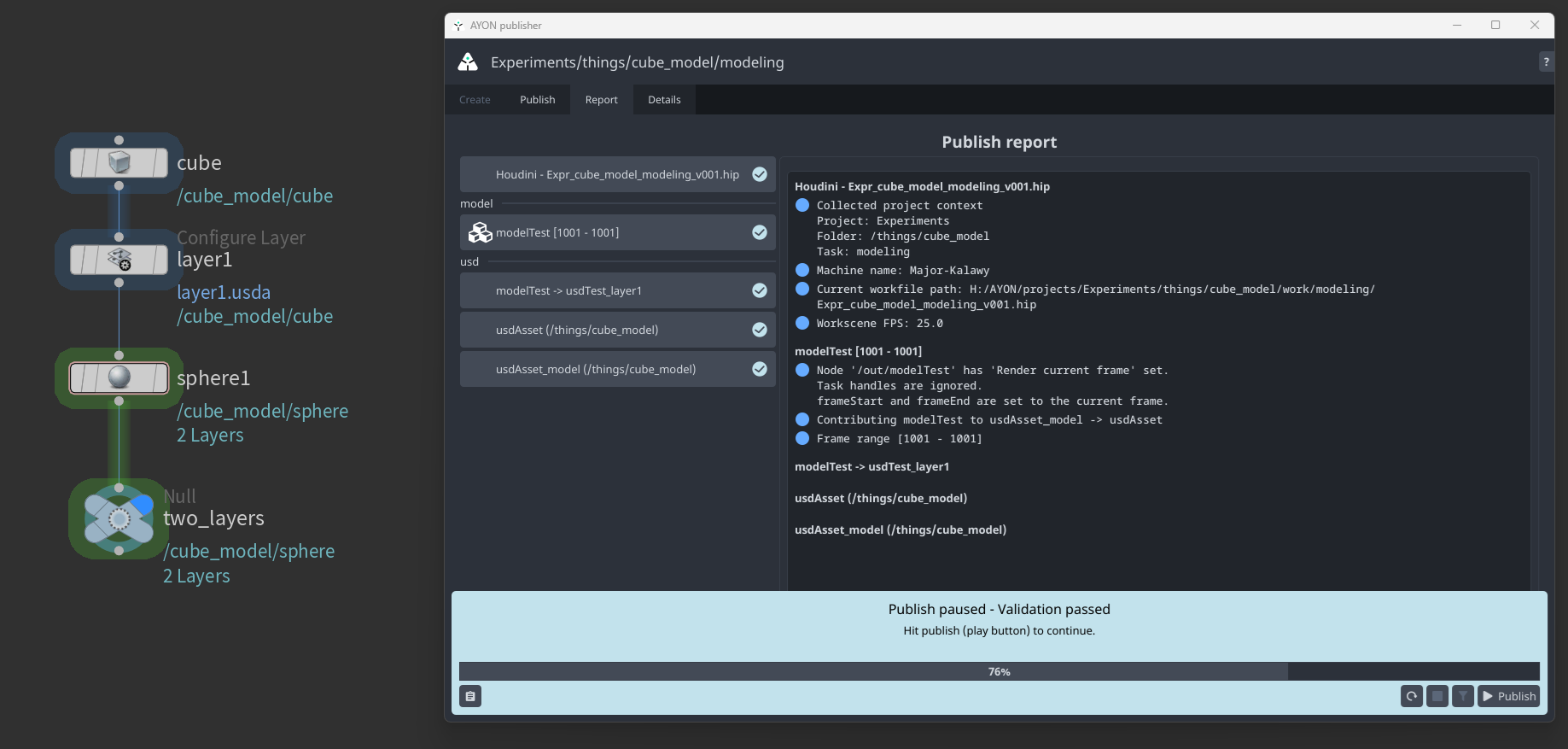
The example above results in:
usdAsset                         (Target Product)
  └── usdAsset_model             (Department layer)
        └── modelTest            (model layer)
              └── usdTest_layer1 (explicit layer)
Publishing Tutorials
Publish a Model
The AYON OpenUSD workflow lets you work on each variant independently, allowing you to set up a node network, one for each model variant.
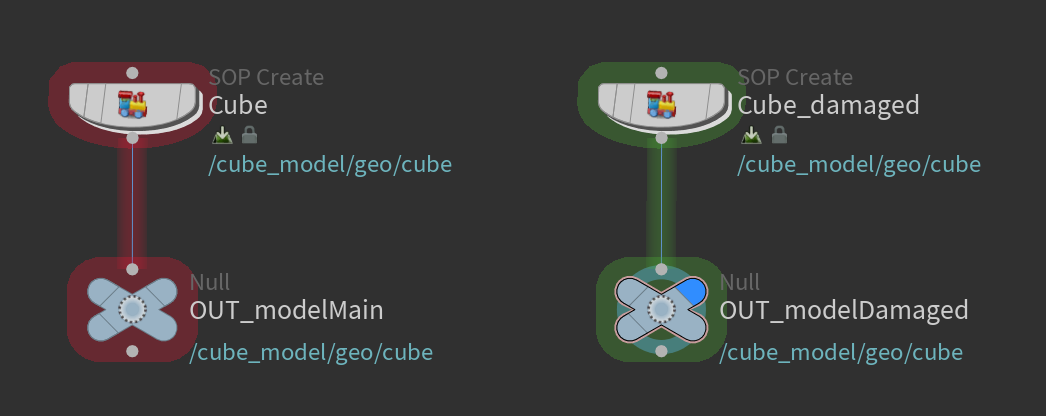
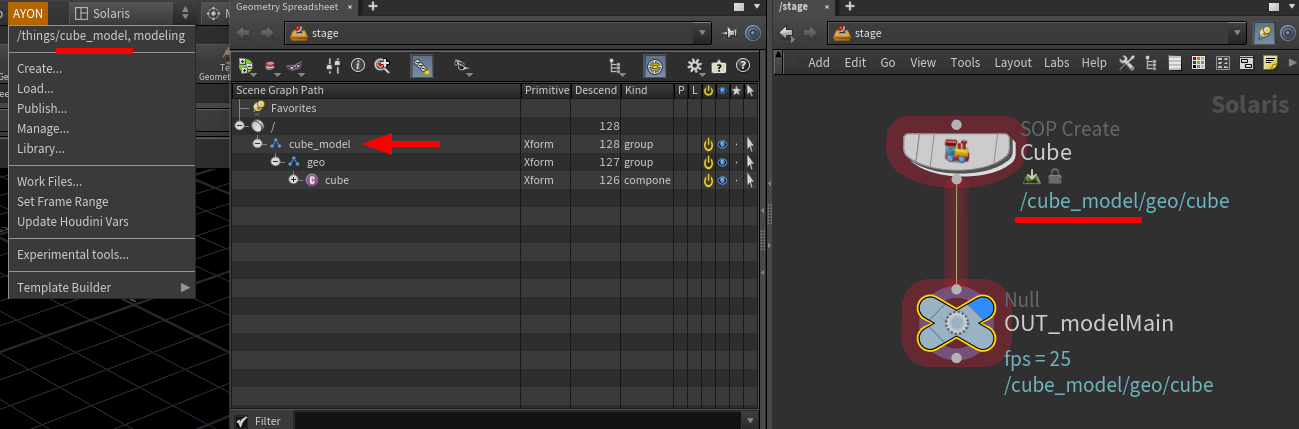
Each model should begin with the root prim, as outlined in the Assets section.
Once your models are ready, you can create a publish instance for each one, enabling the Add as Variant option. Additional information about USD publish options can be found here.
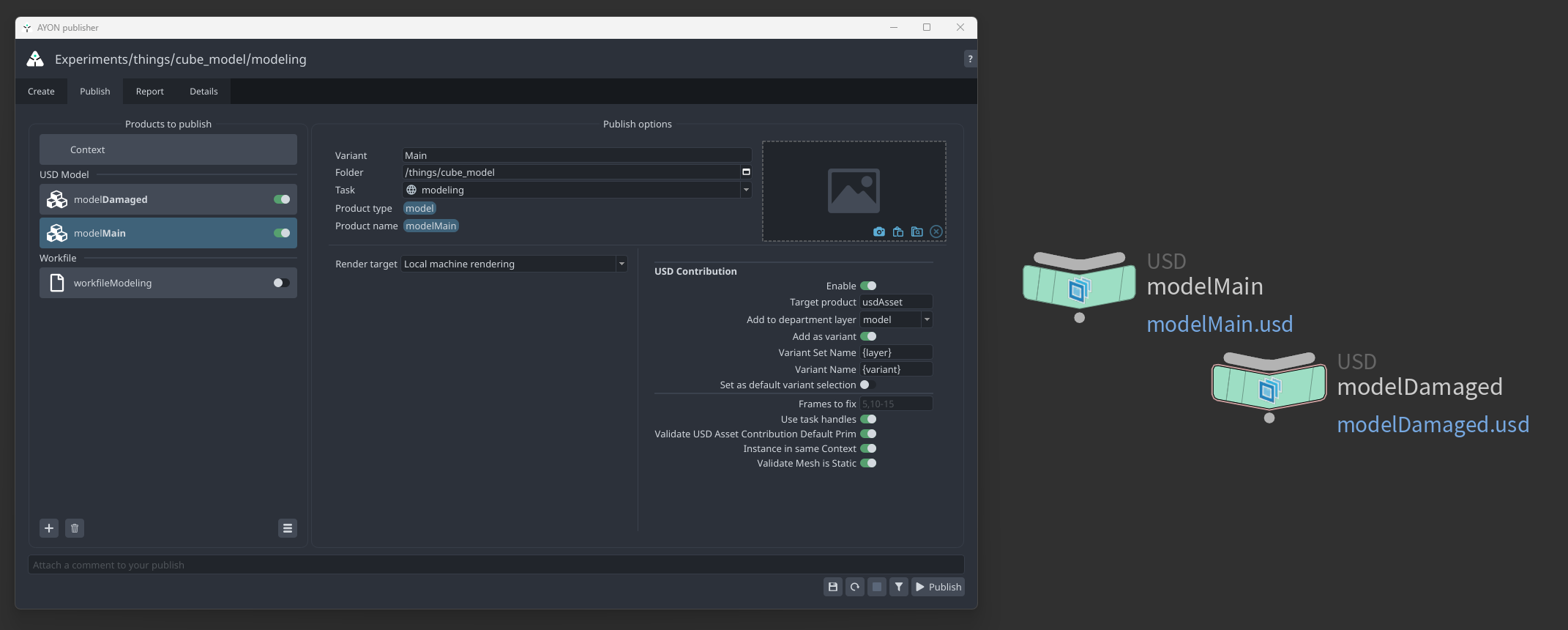
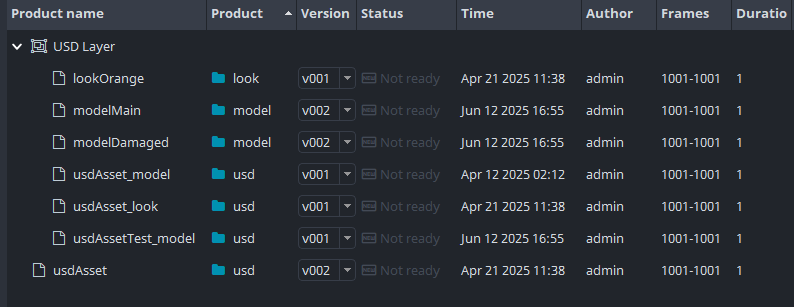
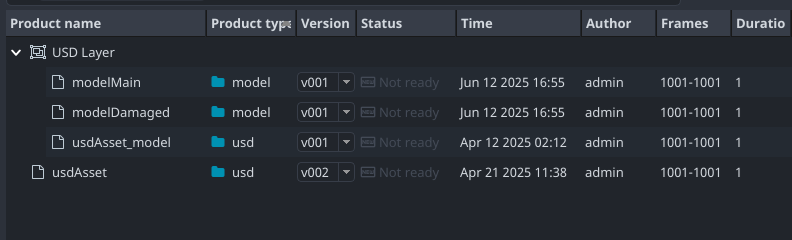
After publishing, you'll find a model layer for each variant, a model department layer, and the USD asset.
Publish a Look
Look products involve adding materials and material assignments to your models. Additionally, you can work on each look variant independently.
To start working on looks, load the usdAsset (with prim root set as folder name, see Loading Assets), add a mute layer (optional), add a layer break, and apply your materials and material assignments.
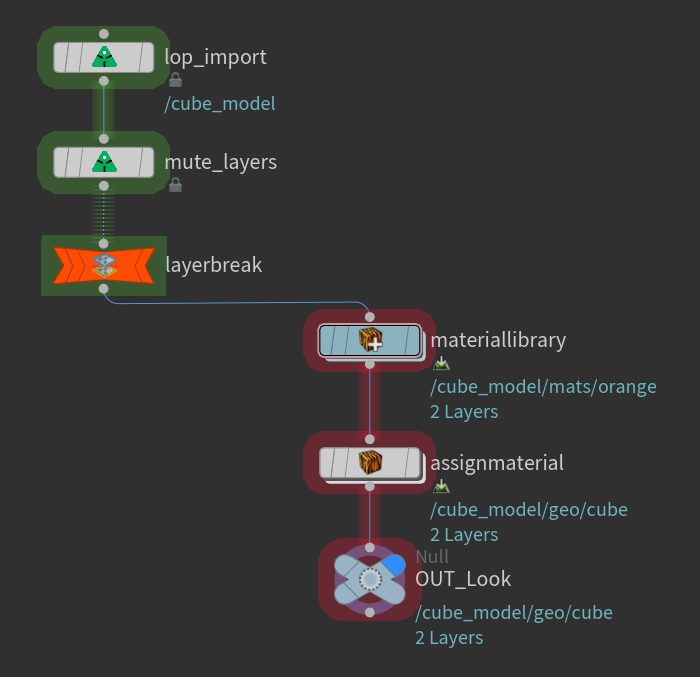
Muting a layer only disables its visibility in the scene view. You can use this to disable a look layer, which can help you work with a fresh eye. The action does not affect the input or the published USD product.
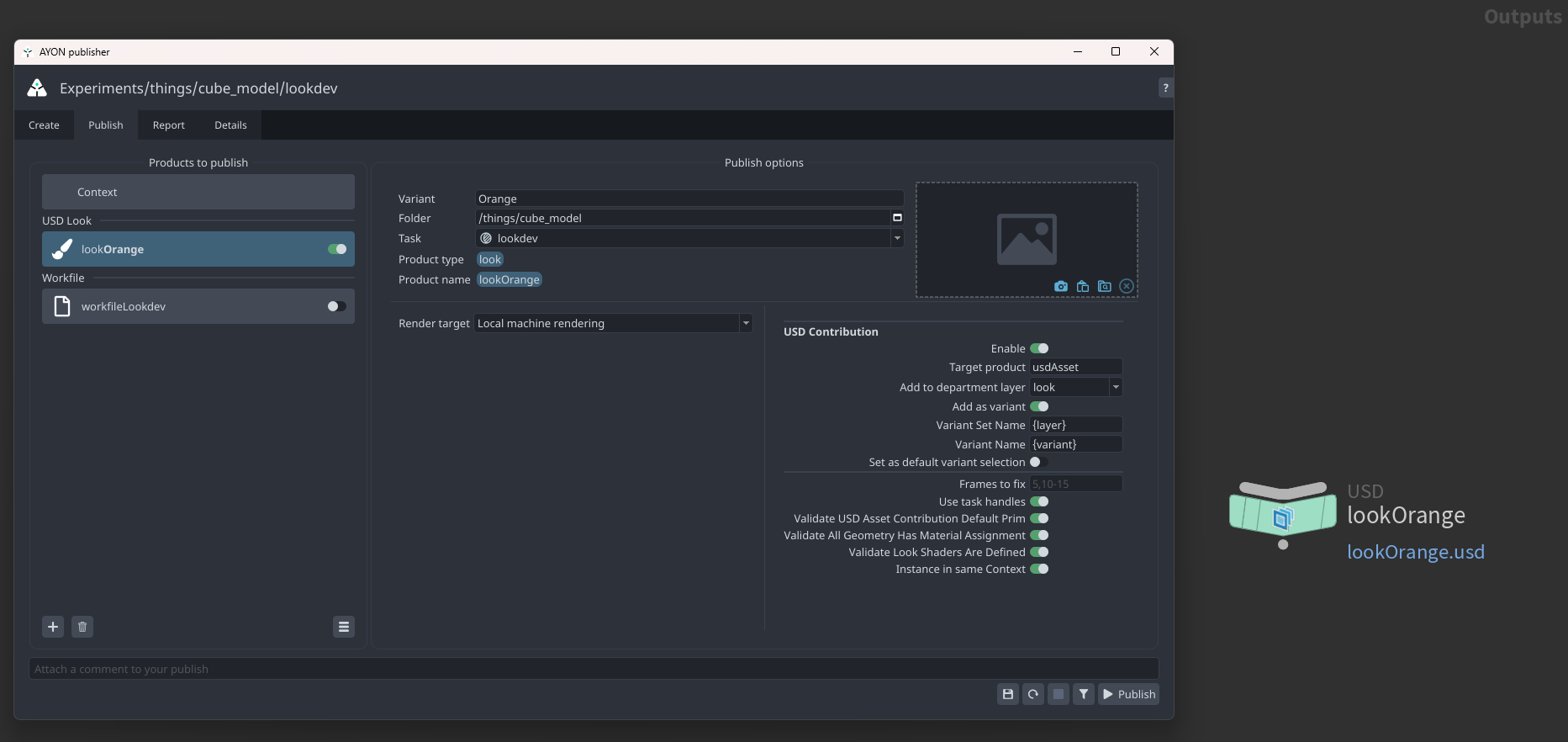
Next, create a publish instance for the look, enable the Add as Variant option if needed, and publish.
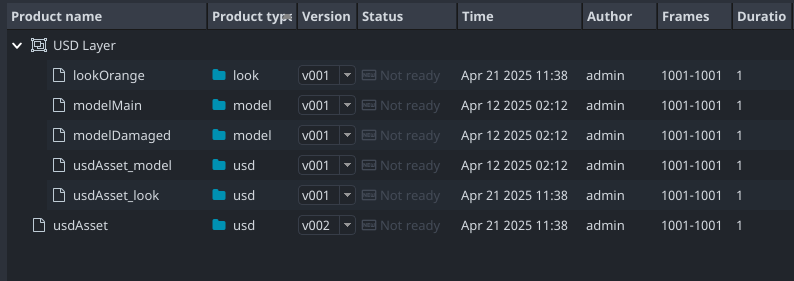
The result will include a look layer for each variant, a look department layer, and a new version of the usdAsset layer.
Publish an Assembly
An assembly is an asset that essentially combines other assets. It still requires one root prim (set as the default primitive) to contain child references of the other assets.
When building assemblies, the Primitive Root must align with the current AYON folder name. Therefore, you may adjust the Primitive Root. For detailed information about the expected prim root value during asset building, refer to Assets.
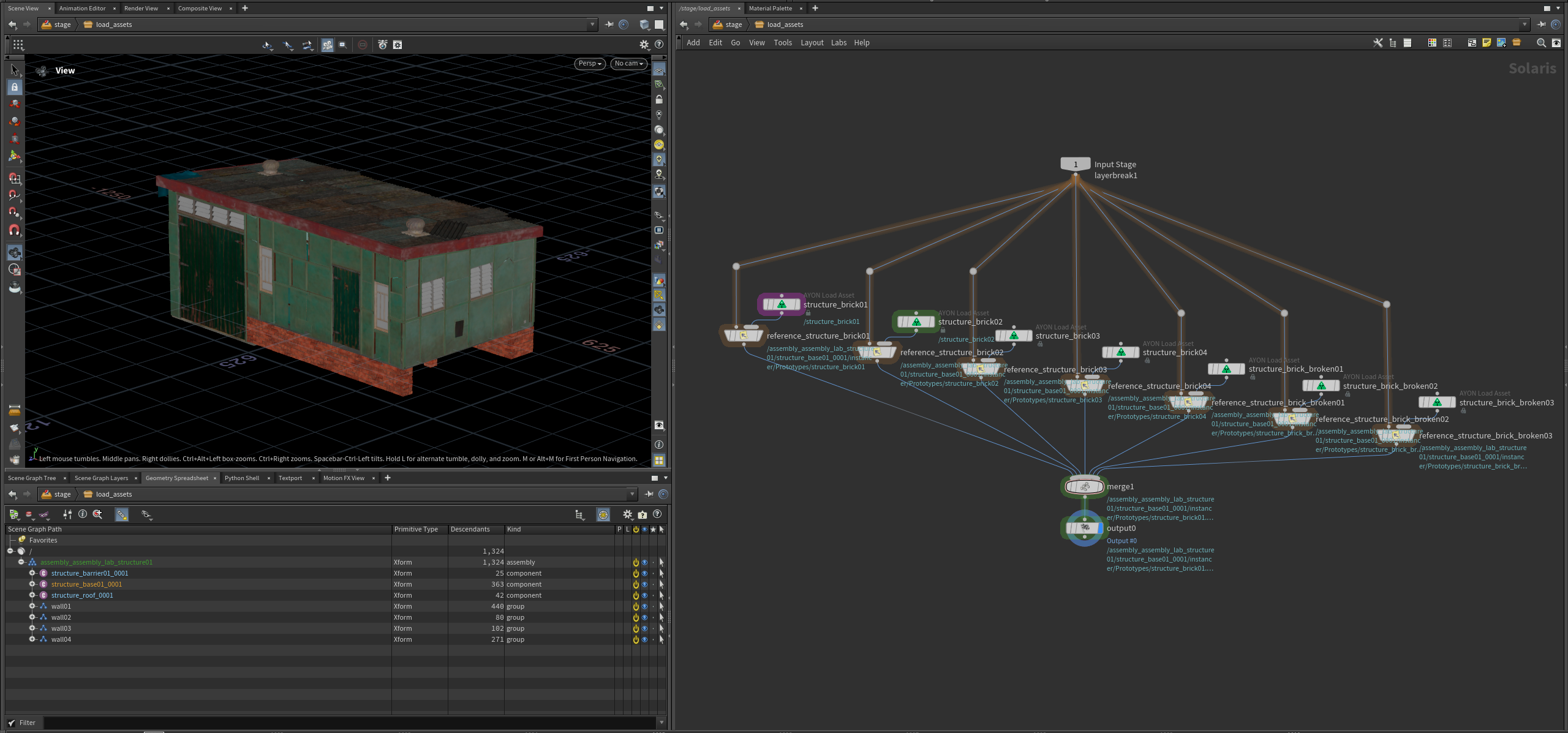
For the above assembly example, the list of loaded assets in the Scene Inventory is small, as it only includes a few assets. However, keep in mind that the list of loaded assets in assembly generation workfiles can grow significantly larger depending on the size of your assembly.
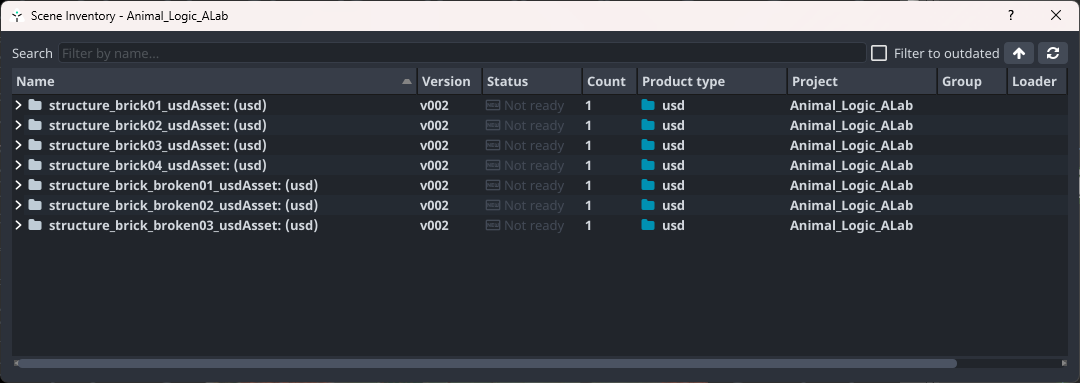
Note that the version of the loaded assets will be hardcoded into the new version of the usdAsset.
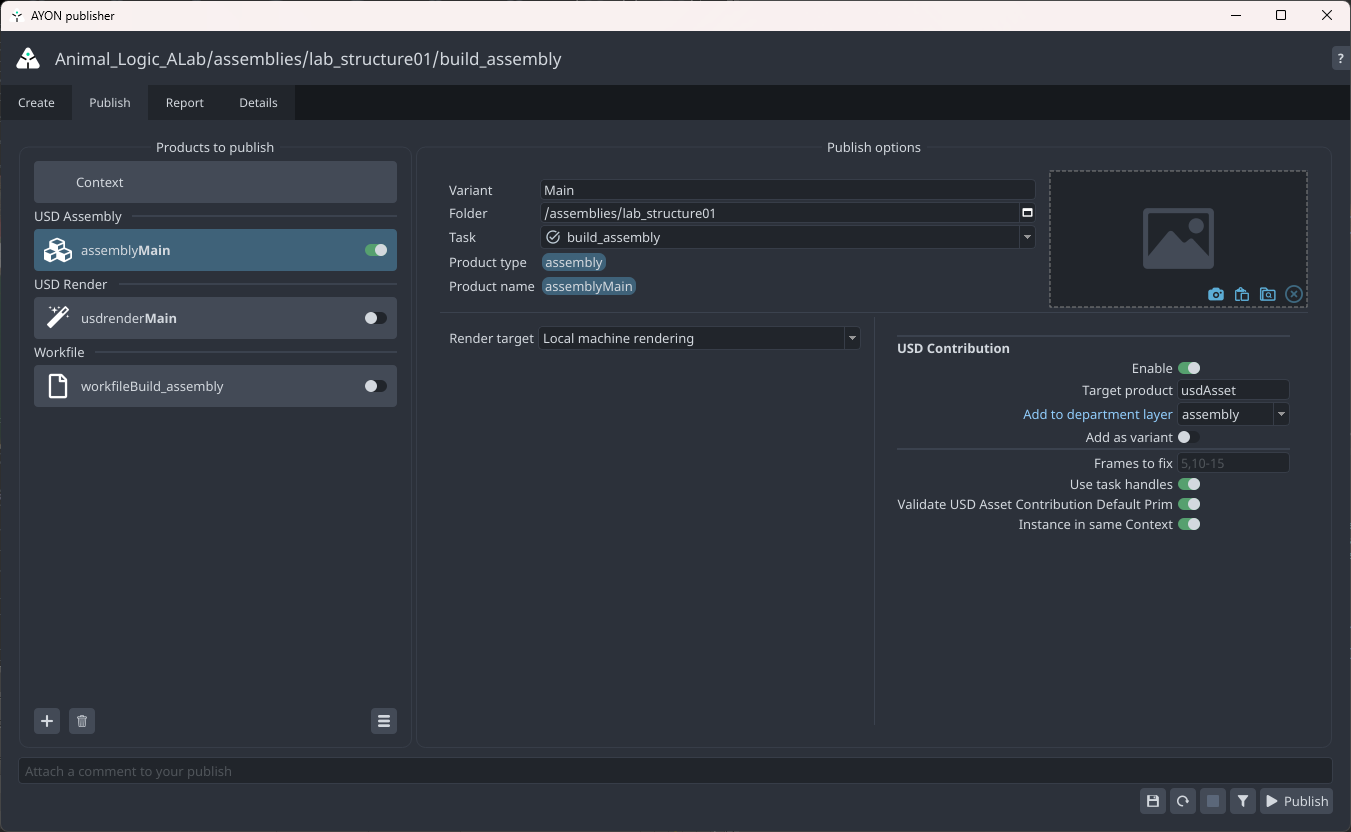
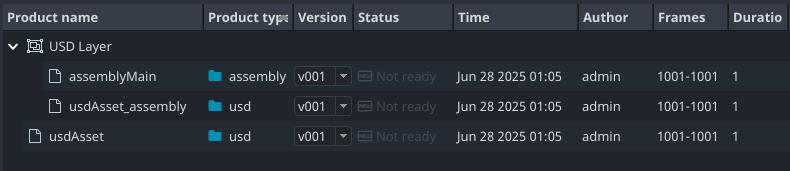
The result will include the assembly layer, an assembly department layer, and a new version of the usdAsset layer.
Publish a New Shot
Working with shots is simpler and less restrictive than assets, as a default prim is not required.
When starting a new shot, you can directly build your node network.
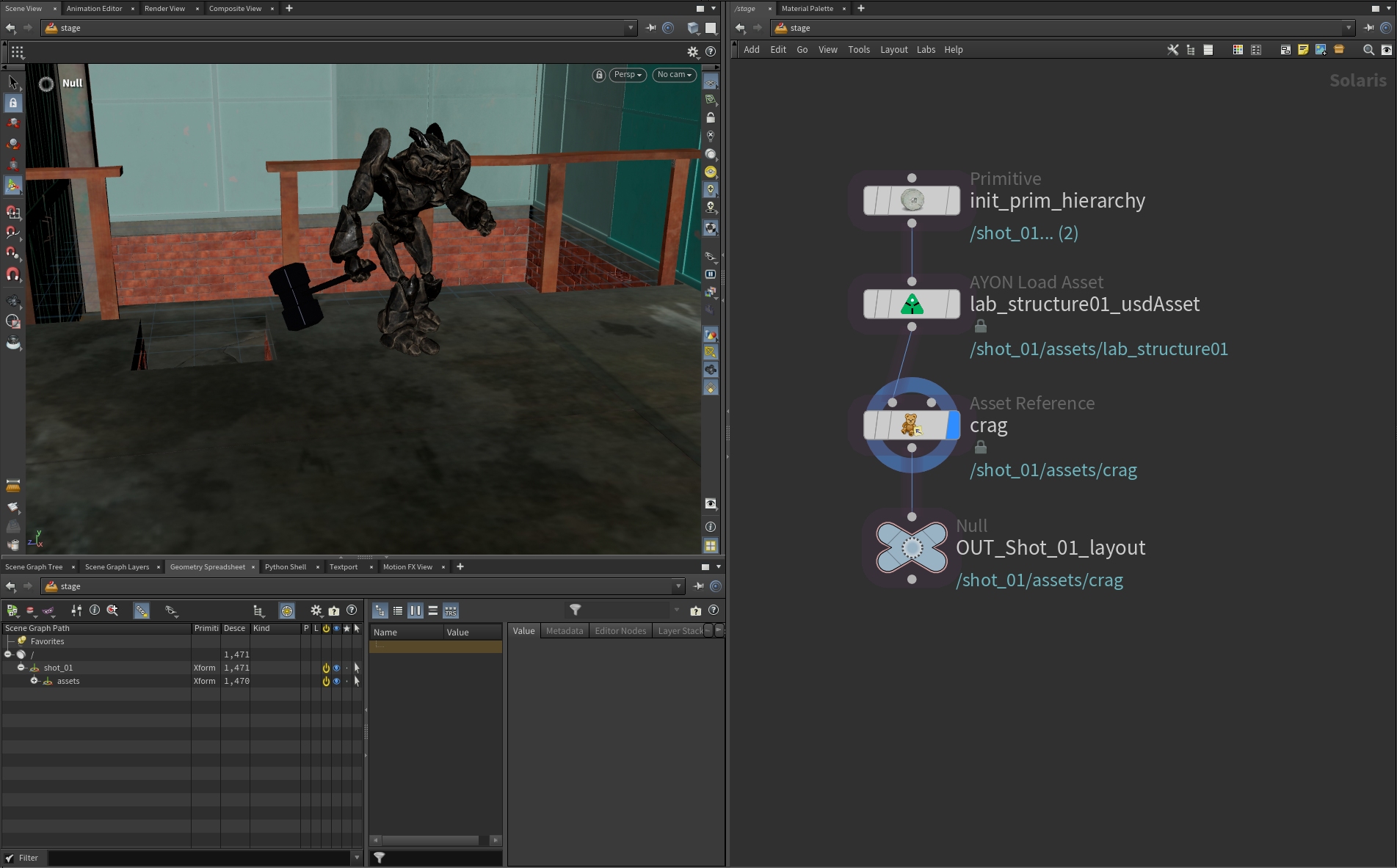
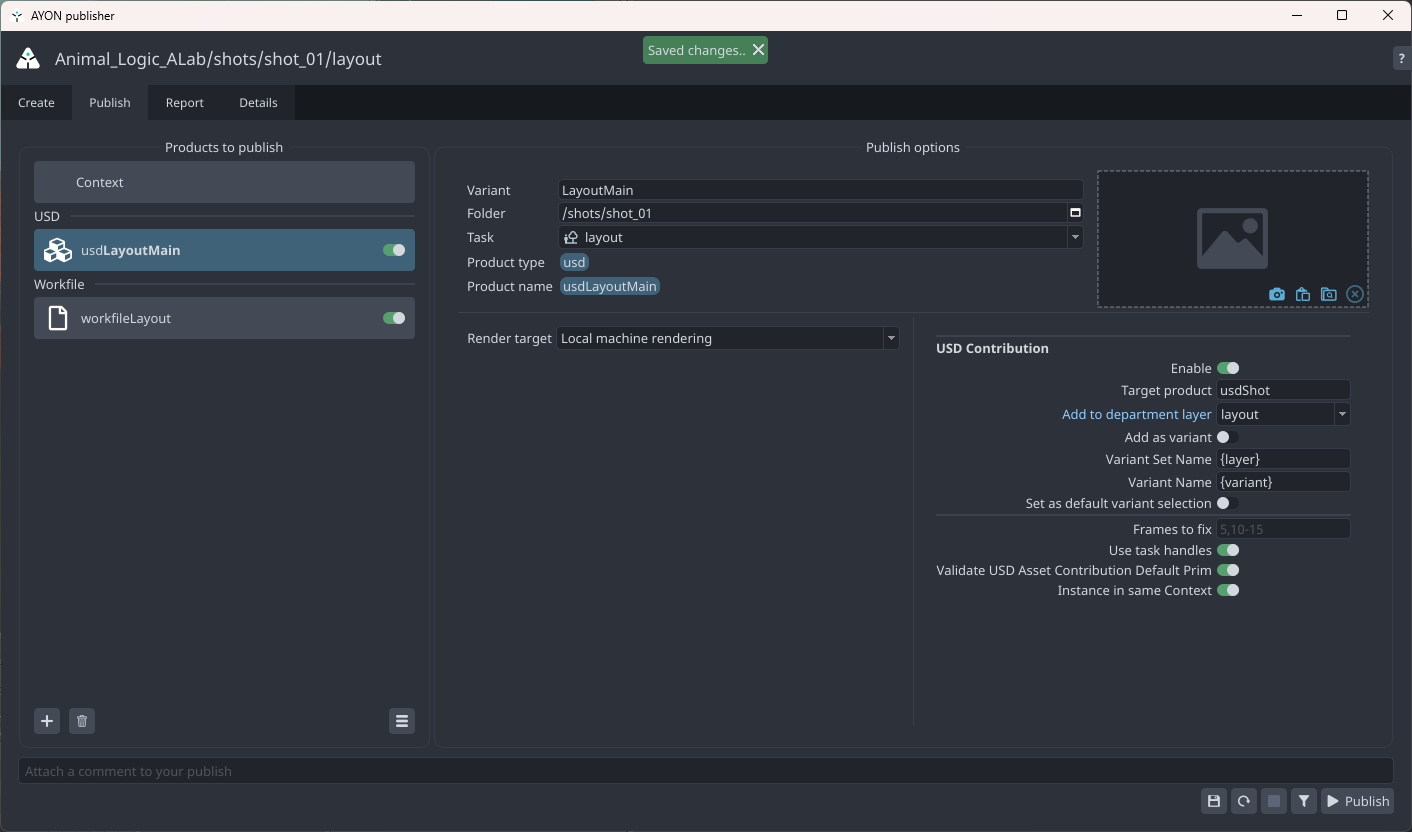
Then, create a publish instance using the generic USD creator and set the department layer as needed.
In most cases, you won’t need to enable the Add as Variant option when working with shots.
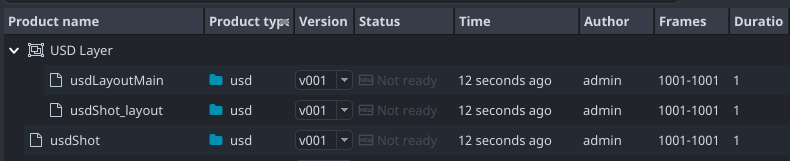
Publishing will result in your USD layer, a department layer, and a usdShot layer.
Publish to a Published Shot
When extending a published shot, follow the same workflow outlined in the Publish a Look section. Load the usdShot, add a mute layer (optional), insert a layer break, and begin working on your new layer.
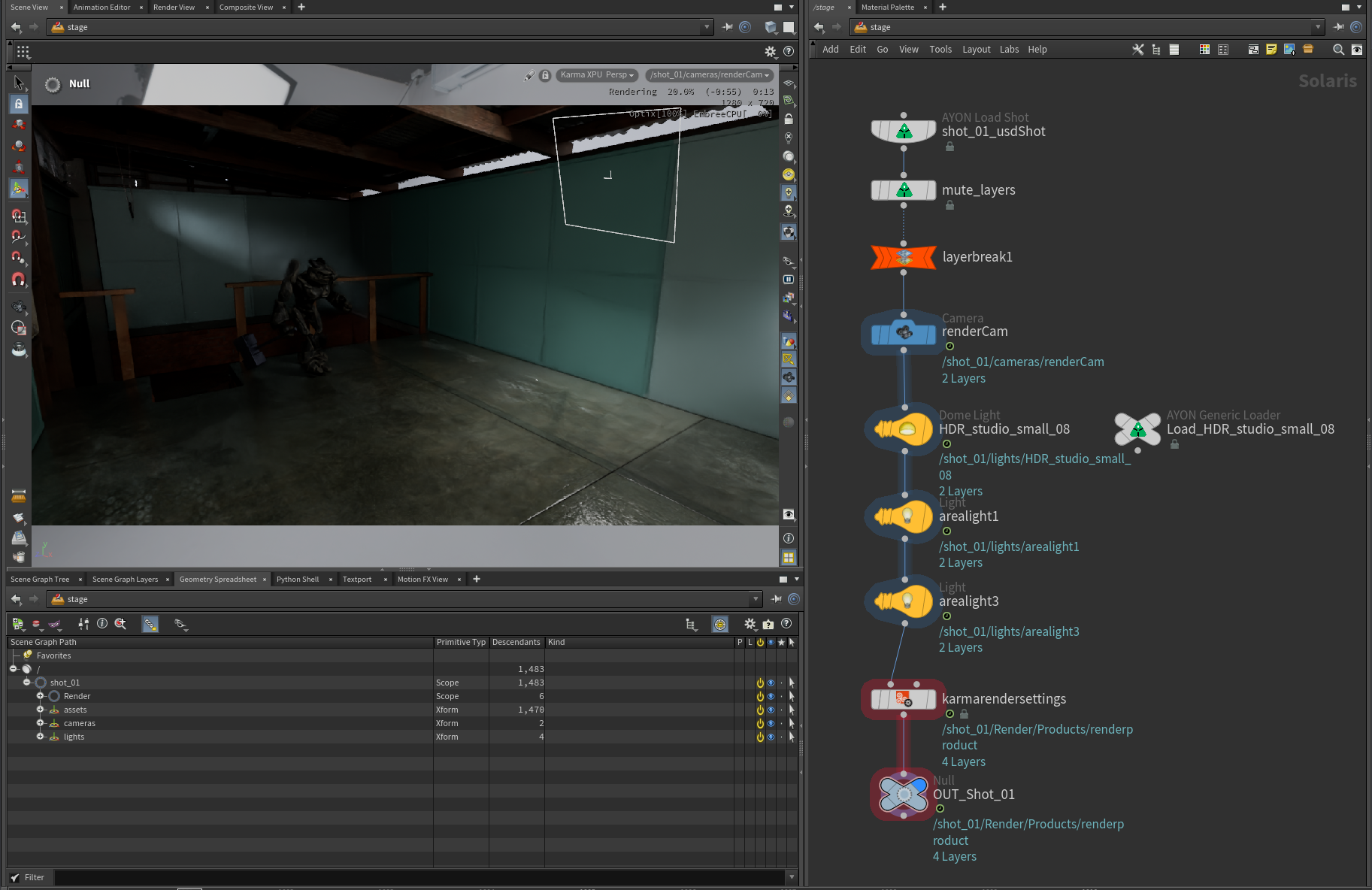
Next, create a publish instance using the generic USD creator and set the department layer as needed.
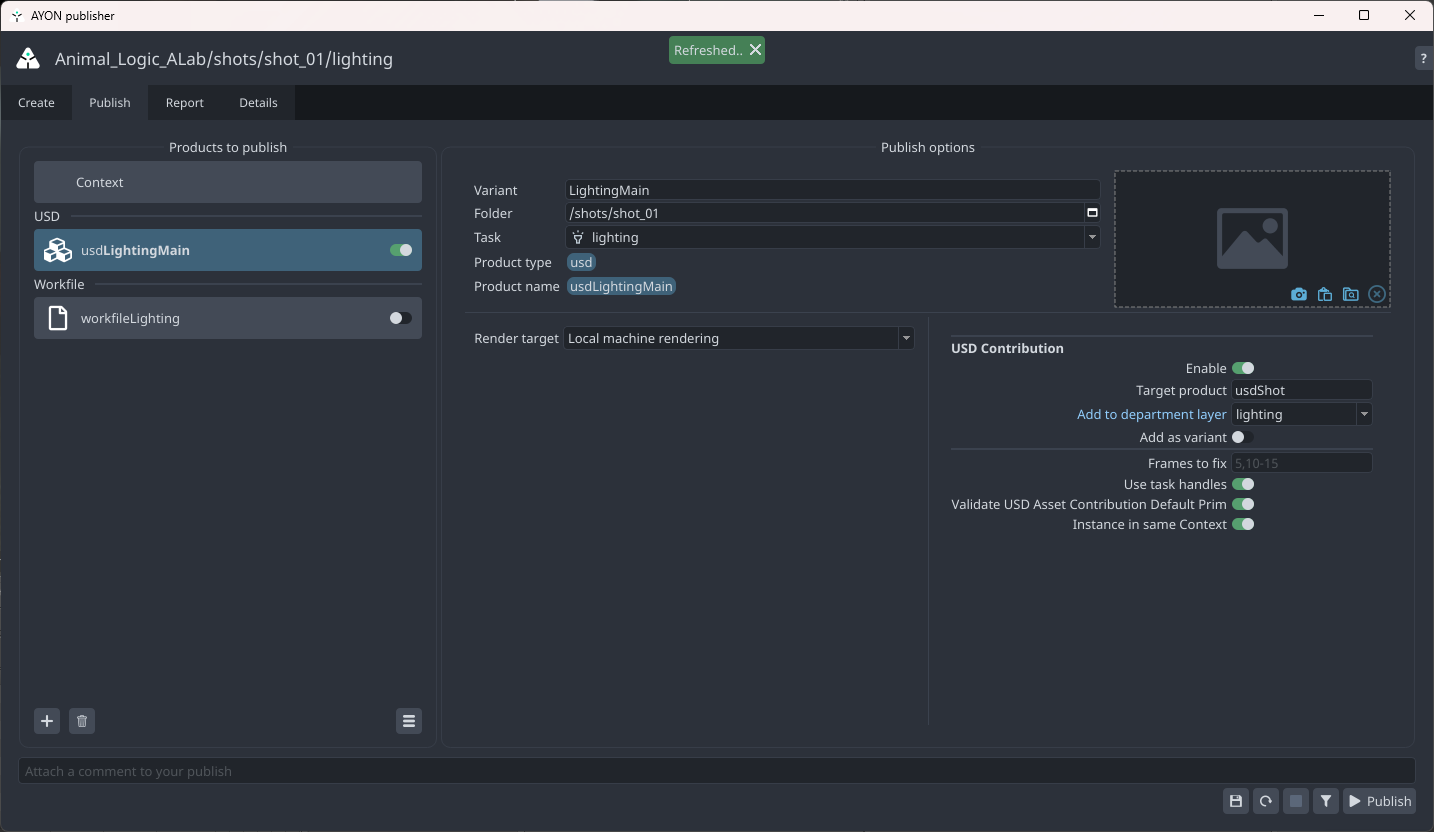
Publishing will produce your USD layer, a department layer, and a new version of the usdShot layer.
Loading USD Products
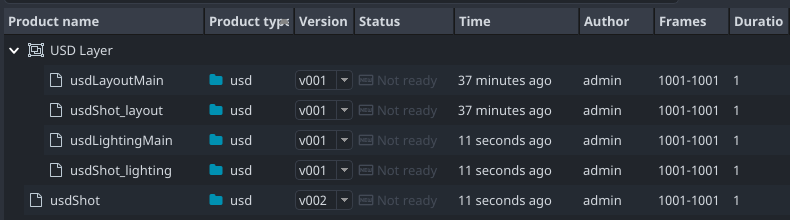
Loading follows the regular process for publishing where artists use Loader tool and select relevant USD loader.
Available Loaders
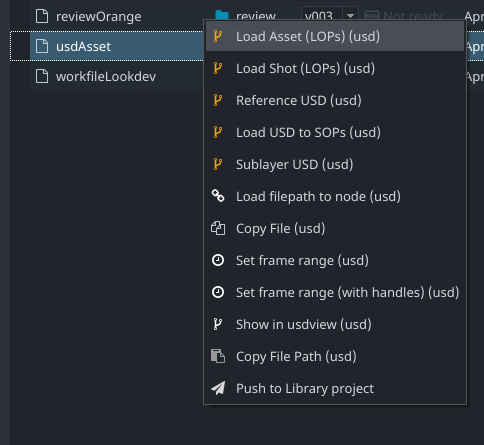
The Houdini Addon offers the following loaders for USD:
Load Asset (LOPs) (USD): Load using the AYON Lop Import node, which combines a generic loader and a reference node.
Load Shot (LOPs) (USD): Load using the AYON Load Shot node, which combines a generic loader and a sublayer node.
Reference USD (USD): Load using a Reference node.
Sublayer USD (USD): Load using a Sublayer node.
Load USD to SOPs: Load to SOPs using the USD Import node.
Load Filepath to Node (USD): Load using an AYON Generic Loader node, which provides an AYON-managed file path parameter that you can copy and reference anywhere in your graphs.
Show in usdview (USD): Quickly inspect and view the product using the usdview tool.
Loading Assets
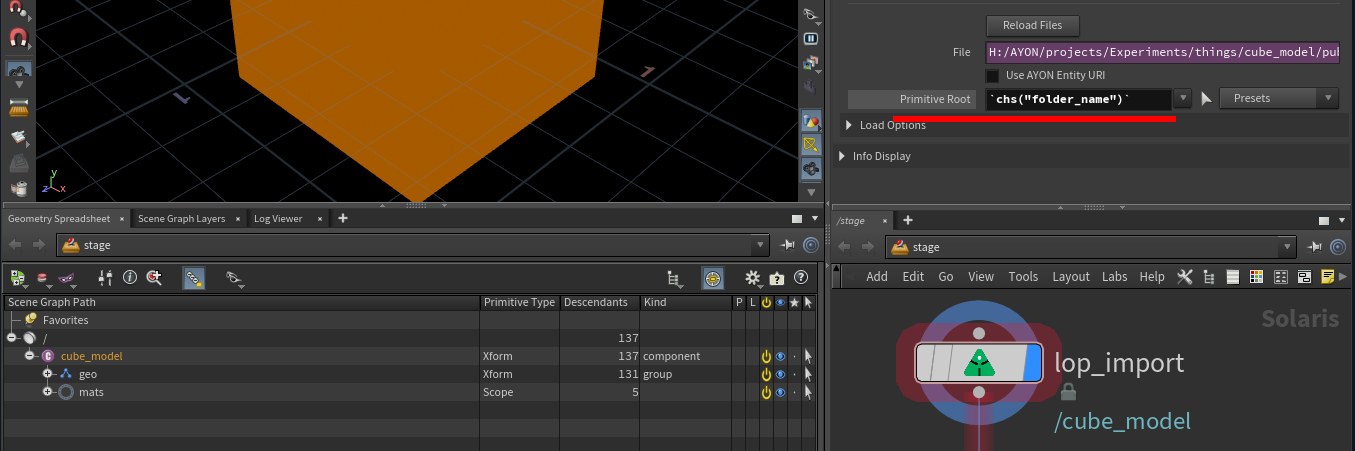
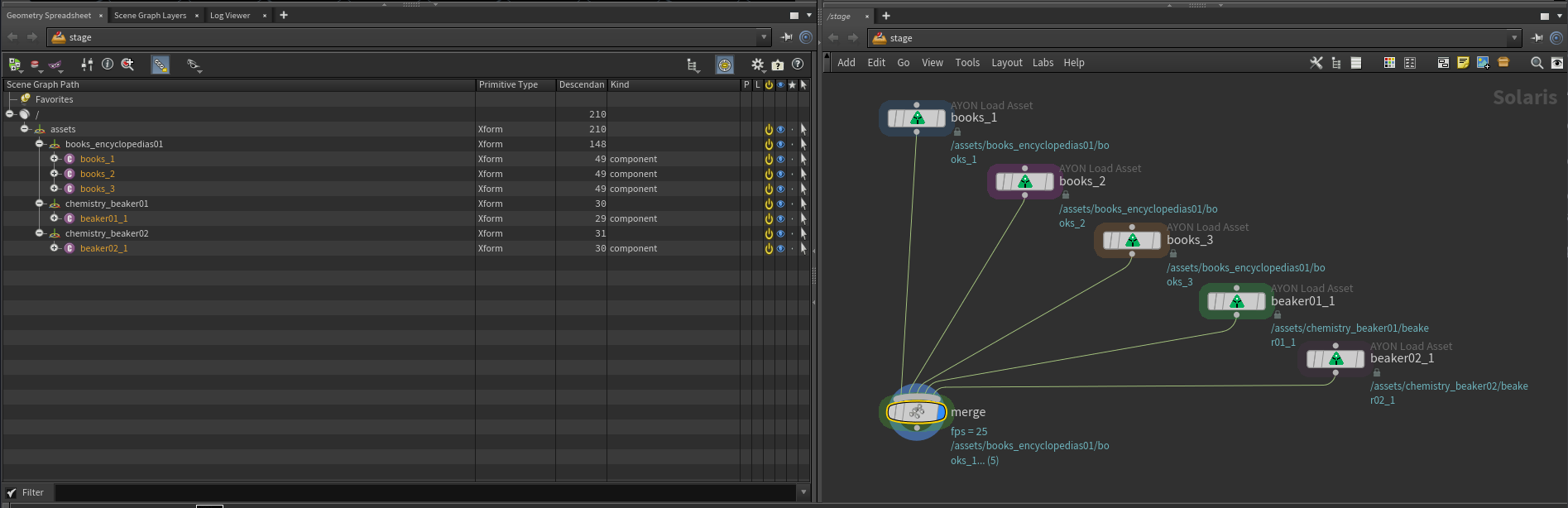
The Load Asset LOP provides some quick access to primitive root presets directly in the parameter view.
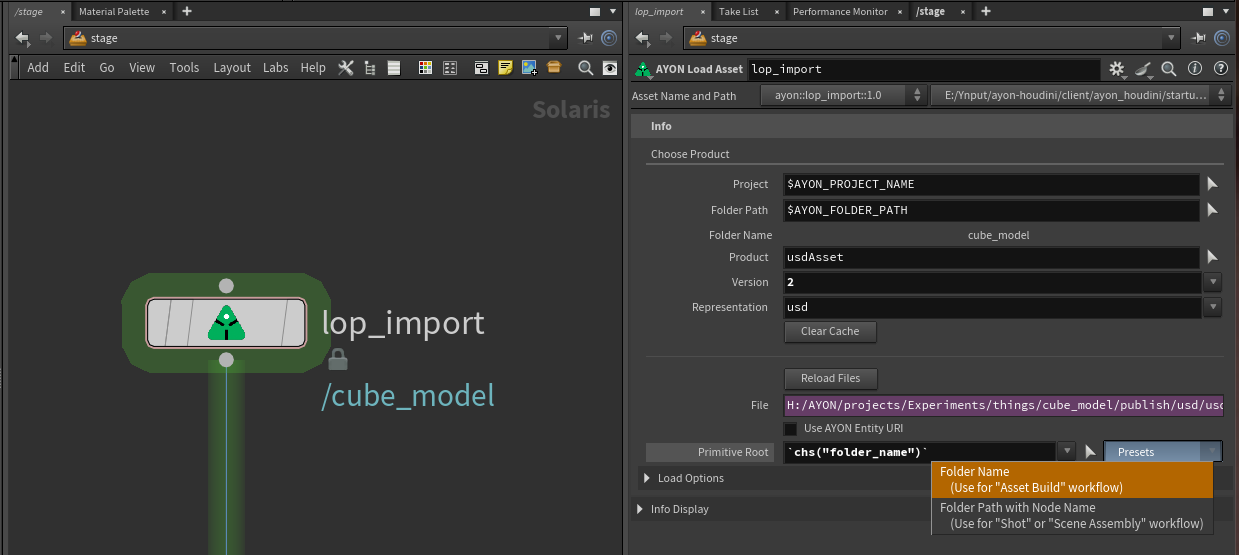
Primitive Root offers two presets:
Folder Name: Used for asset building, where the root prim is named after the folder name, allowing you to continue working on your asset. For example, in the Publish a Look example, there was no need to manually create the root prim.
Folder Path with Node Name: Used for building shots or assemblies, resulting in a clean prim hierarchy. This makes it easier to populate your layer while easily distinguishing which prim is related to which node in your hierarchy.
Loading Shots
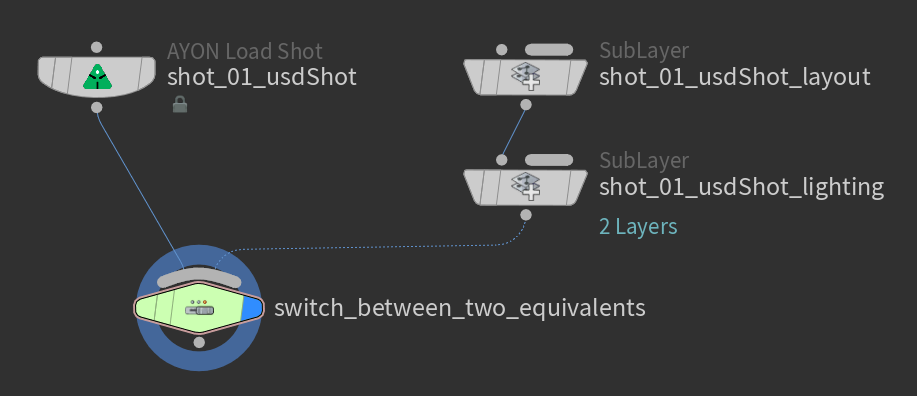
When loading the published USD shot back into your scene, you can use the Load USD Shot option. Since the usdShot only sublayers department layers, you can manually sublayer each individual department layer.
There’s no single recommended approach, just different possibilities. Choose the method that works best for you.
Loading Assemblies and Layouts
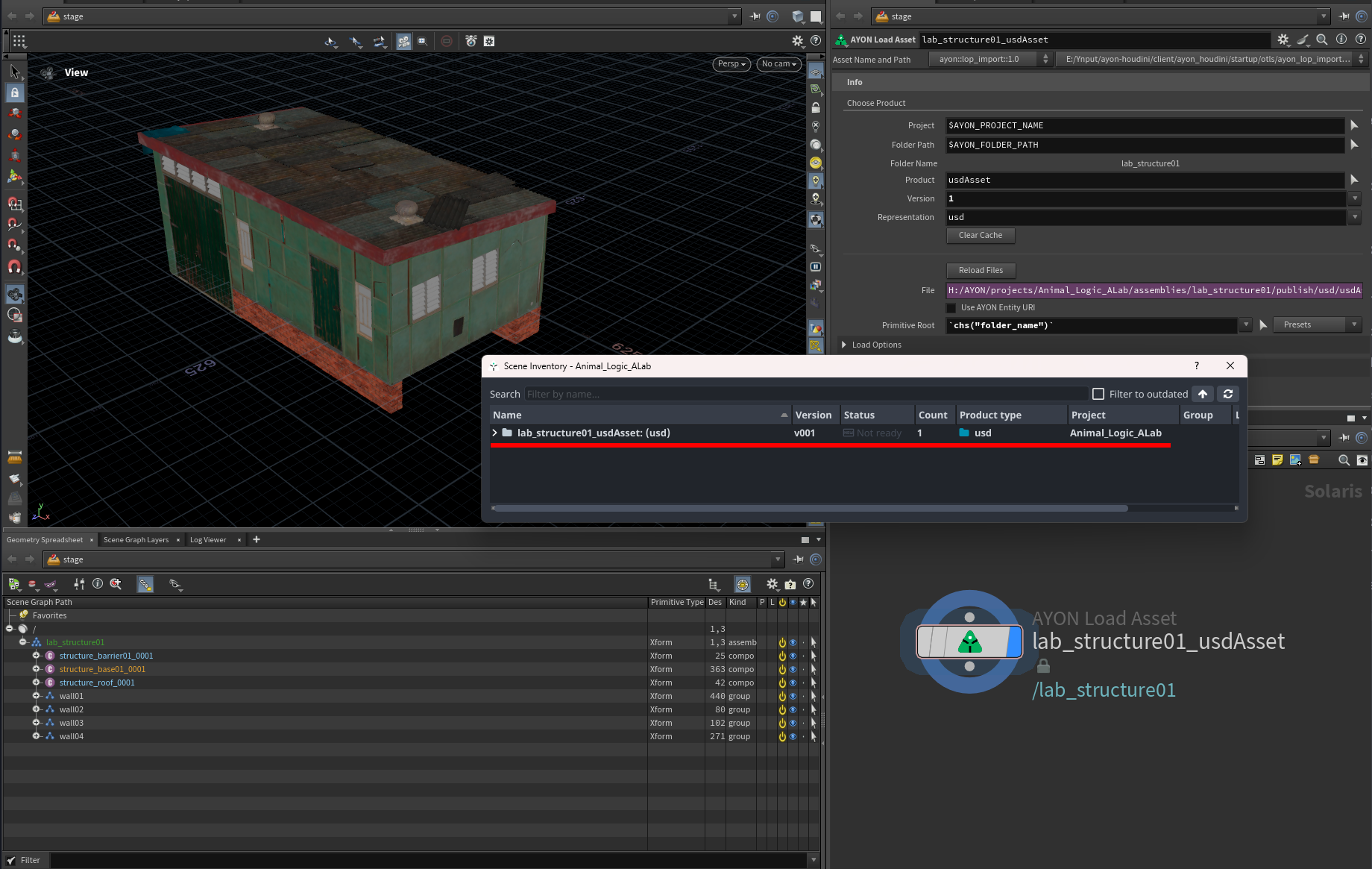
When loading assemblies, layouts, or any USD products that reference other AYON-published USD products, whether assets or shots:
After loading these products into your scene, only the loaded products will appear in the Scene Inventory. It will not display a list of the referenced assets within any loaded product. This occurs because the referenced assets are no longer loaded through separate Houdini AYON Loader HDAs nodes and are therefore not discoverable by the Scene Inventory.
FAQ
I do not see my model when loading my usdAsset and I get Unresolved reference path warning
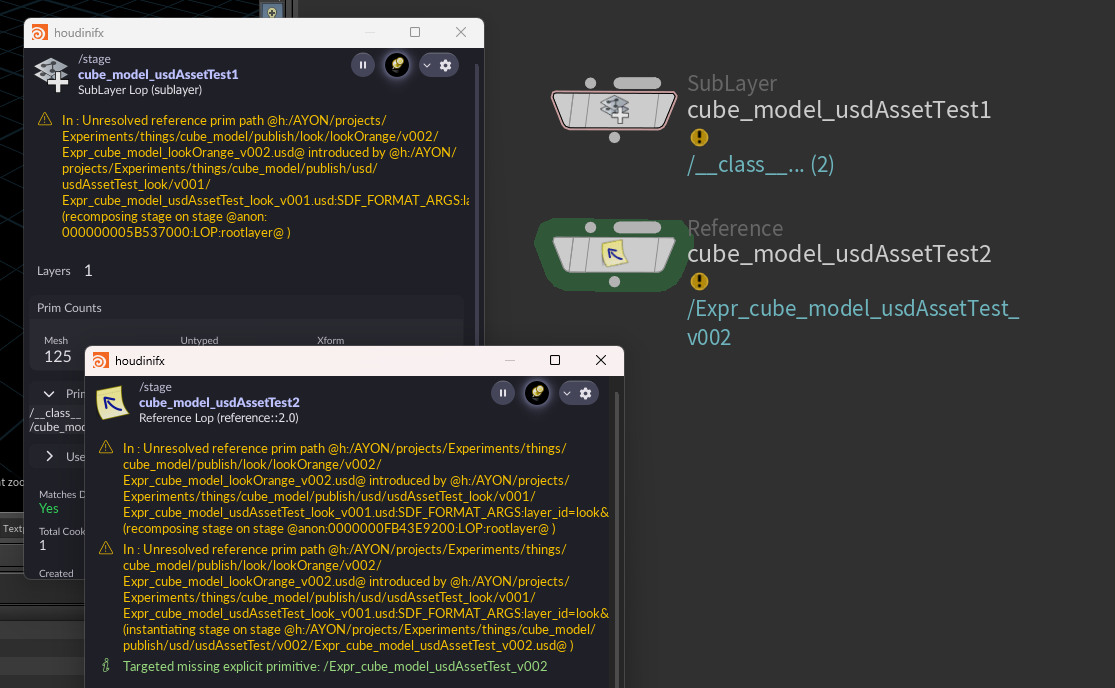
Unresolved reference path warning happens when you publish a usdAsset that lacks the root prim or if the root prim is not set as default prim.
To fix it, you need to go back to the workfile where you published this usdAsset and tweak the usdAsset prim hierarchy as outlined in Assets. and ensure you have the root prim and set as the default prim either in the USD ROP or in a configure layer node.
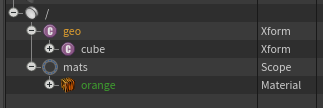 Example of wrong asset structure | 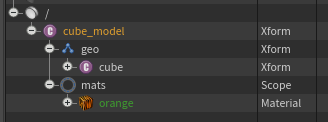 Instead my asset prim structure should be as above. |
Publishing USD fails and I get Layer saved to a location generated from a node path error
Solution to flatten any SOP layers or other generator layers inside Houdini so they do not get written into a separate USD file by houdini.
This can be done in the USD ROP via:
Set “Save Style“ to “Flatten Implicit Layers”.
Under “Extra Files” enable the “Flatten SOP layers” checkbox.
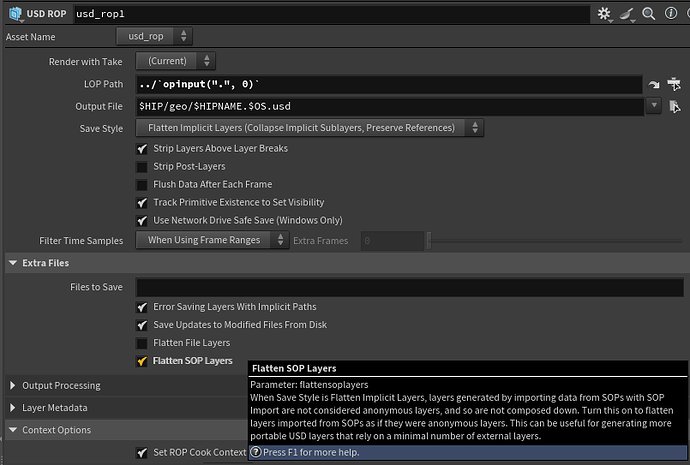
For additional info, see ”Save Style” parameter for the USD ROPs.