Marvelous Designer User Guide
User Guide for marvelous designer addon.
Last updated 8 months ago
To begin, ensure that Marvelous Designer (or CLO) is installed on your workstation along with the AYON Desktop Launcher.
Always launch the application via the AYON Launcher to ensure the correct project environment is initialized. You must also setup the ayon_plugins script within the application. For a step-by-step guide see Installing the AYON Menu section.
1. Get Started
Launching the Application
Open the AYON Launcher.
Select your Project, Folder (Asset/Shot), and Task (e.g., Modeling or CharacterFX).
Click the Marvelous Designer/CLO icon. AYON will automatically create a work folder for your task if one does not already exist.
Installing the AYON Menu
Once the application is open, you need to register the AYON tools:
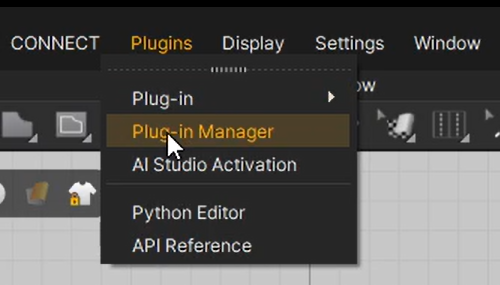
Go to the top menu: Plugins > Plug-in Manager.
Click the + (Add) icon.
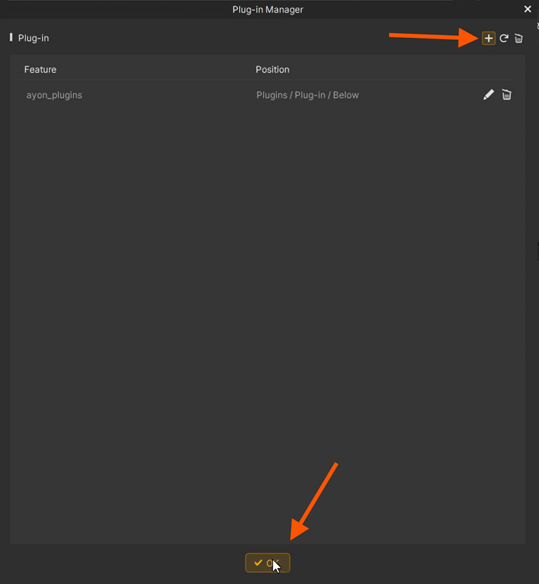
Browse to the
ayon_pluginsscript location. This is located within your local AYON addon files. Depending on your Operating System, the default path is:Windows:
C:\Users\<USERNAME>\AppData\Local\Ynput\AYON\addons\marvelousdesigner_X.X.X\ayon_marvelousdesigner\deployLinux:
~/.local/share/Ynput/AYON/addons/marvelousdesigner_X.X.X/ayon_marvelousdesigner/deploymacOS:
~/Library/Application Support/Ynput/AYON/addons/marvelousdesigner_X.X.X/ayon_marvelousdesigner/deploy
Replace
X.X.Xwith the version of the addon currently enabled in your production bundle. If your studio uses a centralized or custom installation path for AYON addons, please refer to your Pipeline TD or Admin for assistance.Click OK.
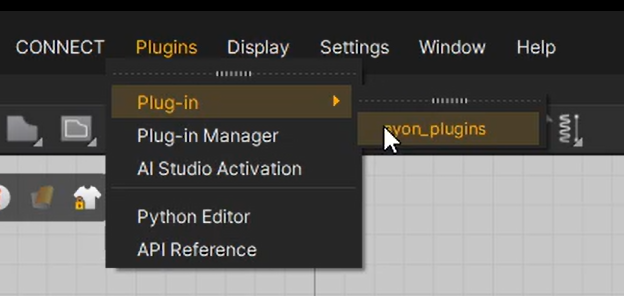
You will now see ayon_plugins listed under the Plug-in menu. All AYON pipeline tools are accessed from here.
2. Exploring AYON Pipeline Tools
You can access the AYON pipeline tools via Plugins > Plug-in > ayon_plugins.
Once selected, a dedicated window will open, giving you access to the standard AYON toolset:
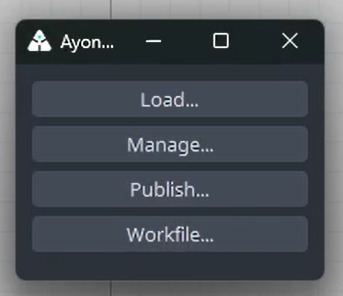
Workfiles Tool
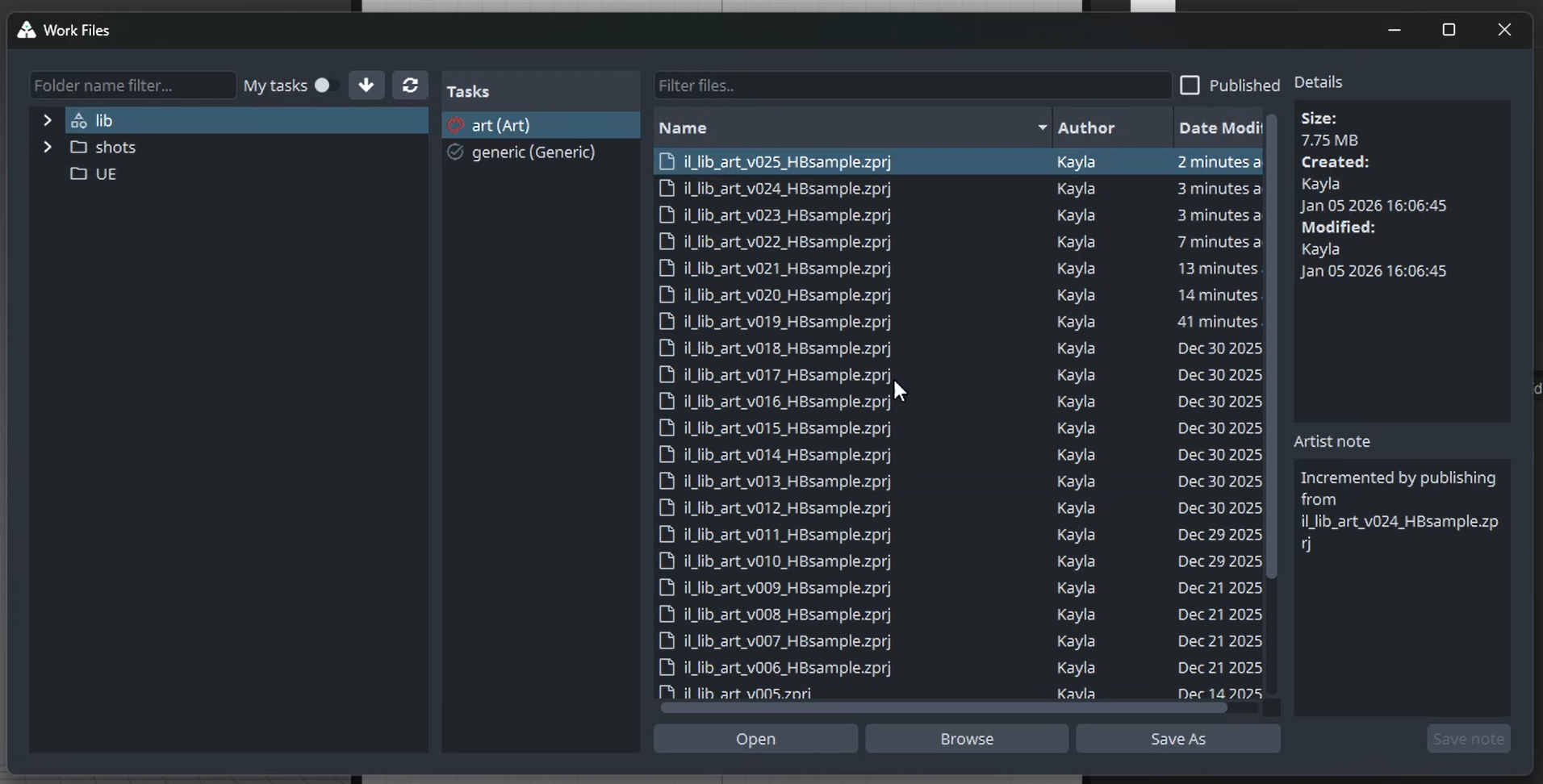
Use this for all saving and opening operations.
Save/Open: Managed scenes are saved in the correct project directory with automated naming.
Context Switching: If you change the Task or Asset within the Workfiles tool, the AYON session context updates automatically.
For further information, see Workfiles.
Loader Tool
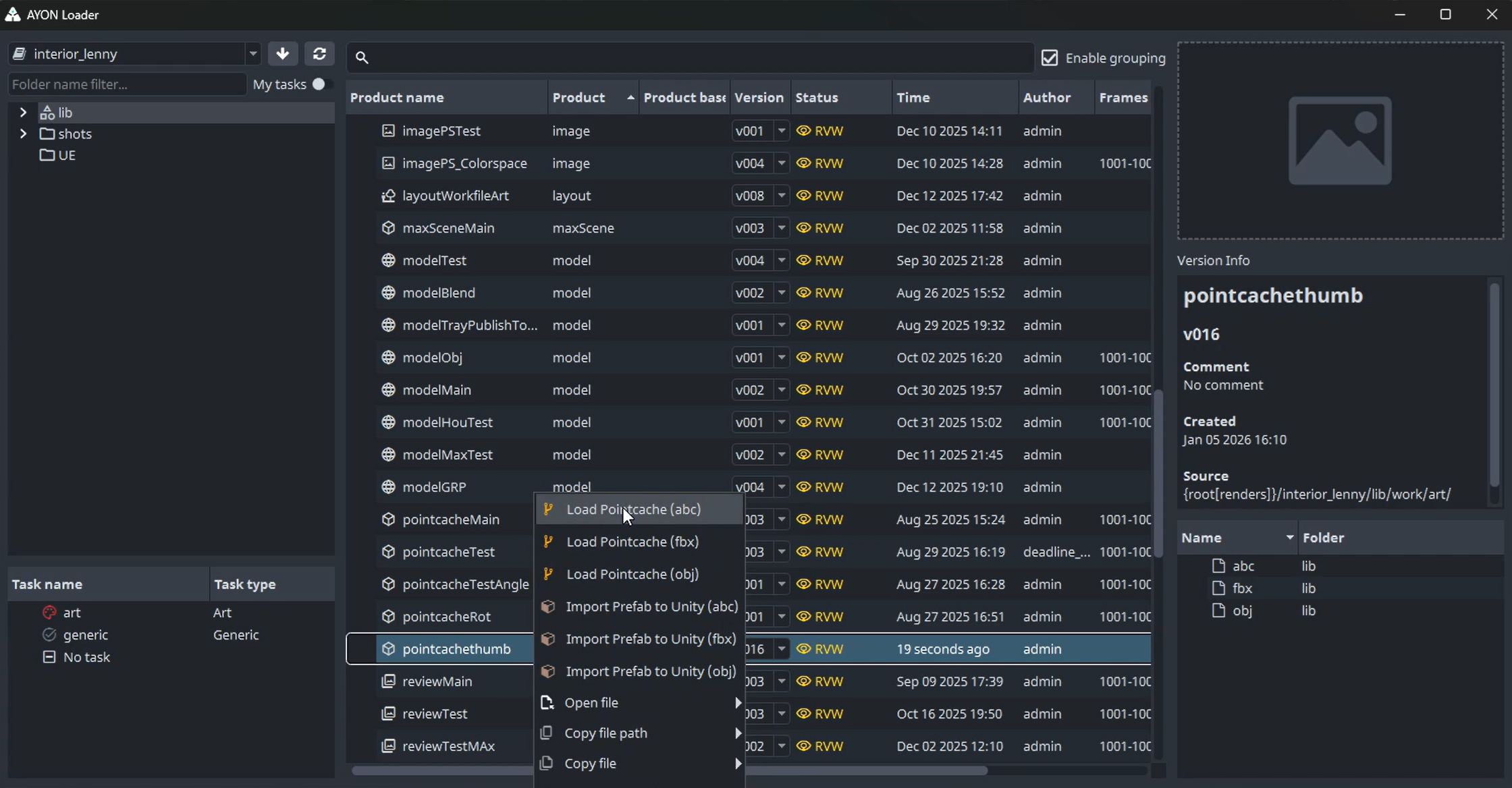
Bring published assets into your scene. Currently supported:
Avatars: Load any product with Alembic (.abc), FBX, or OBJ representations as an avatar.
Fabrics: Load .zfab products (exclusive to Marvelous/CLO) directly into your scene.
For further information, see Loader.
Manage (Scene Inventory)
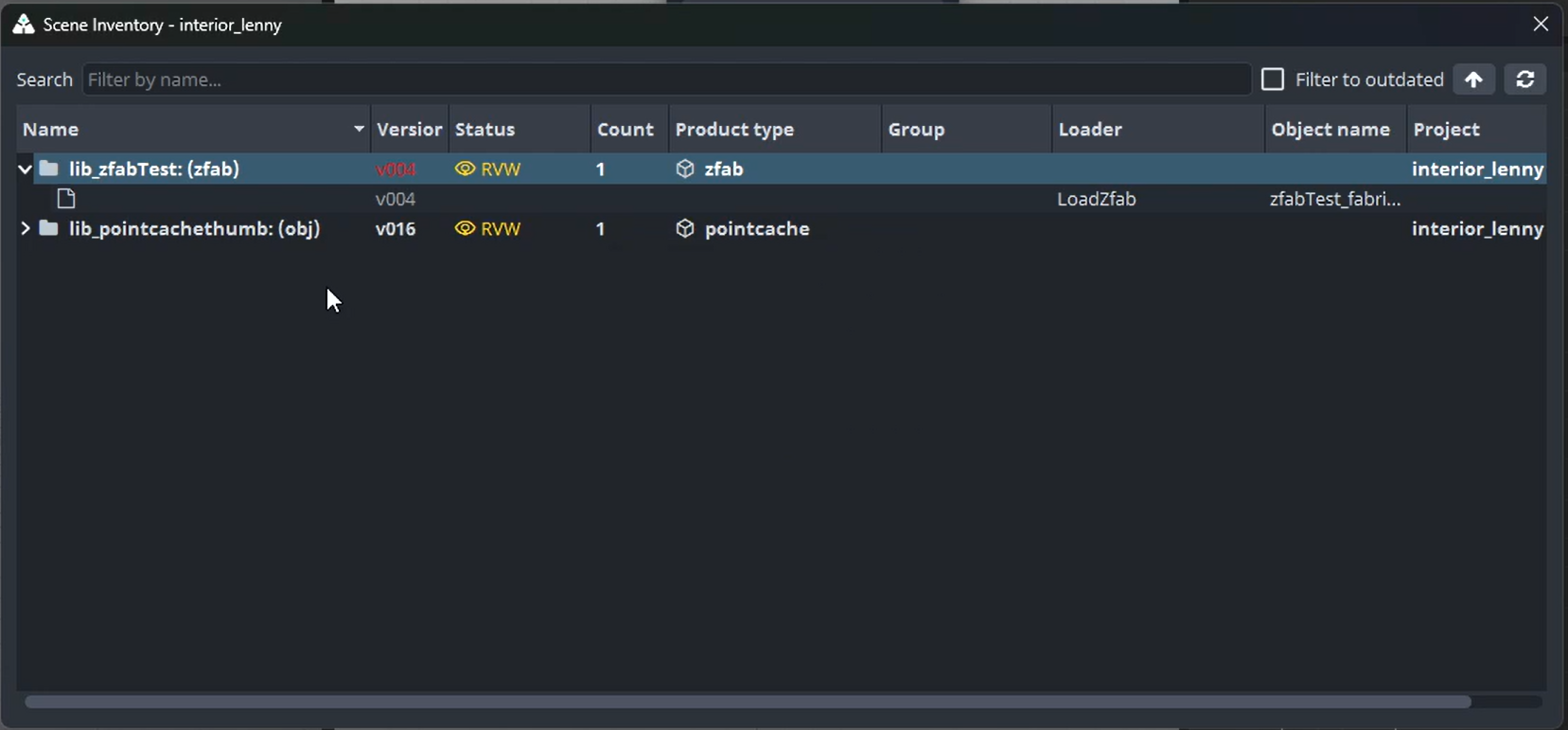
Use this to track what is currently in your scene. If a character's animation (PointCache) is updated by another department, you can use this tool to update your avatar to the latest version.
For further information, see Scene Inventory.
Publisher
The bridge between your creations and the rest of the studio. Use this to publish your creations to AYON.
For further information, see next section Publishing and Creator / Publisher.
3. Publishing
Publishing Your First Garment
A garment is the final cloth item, patterned, sewn, and simulated on an avatar.
Prepare: Create your patterns and fit them to the avatar. Ensure your UVs are laid out as required in the UV Editor.
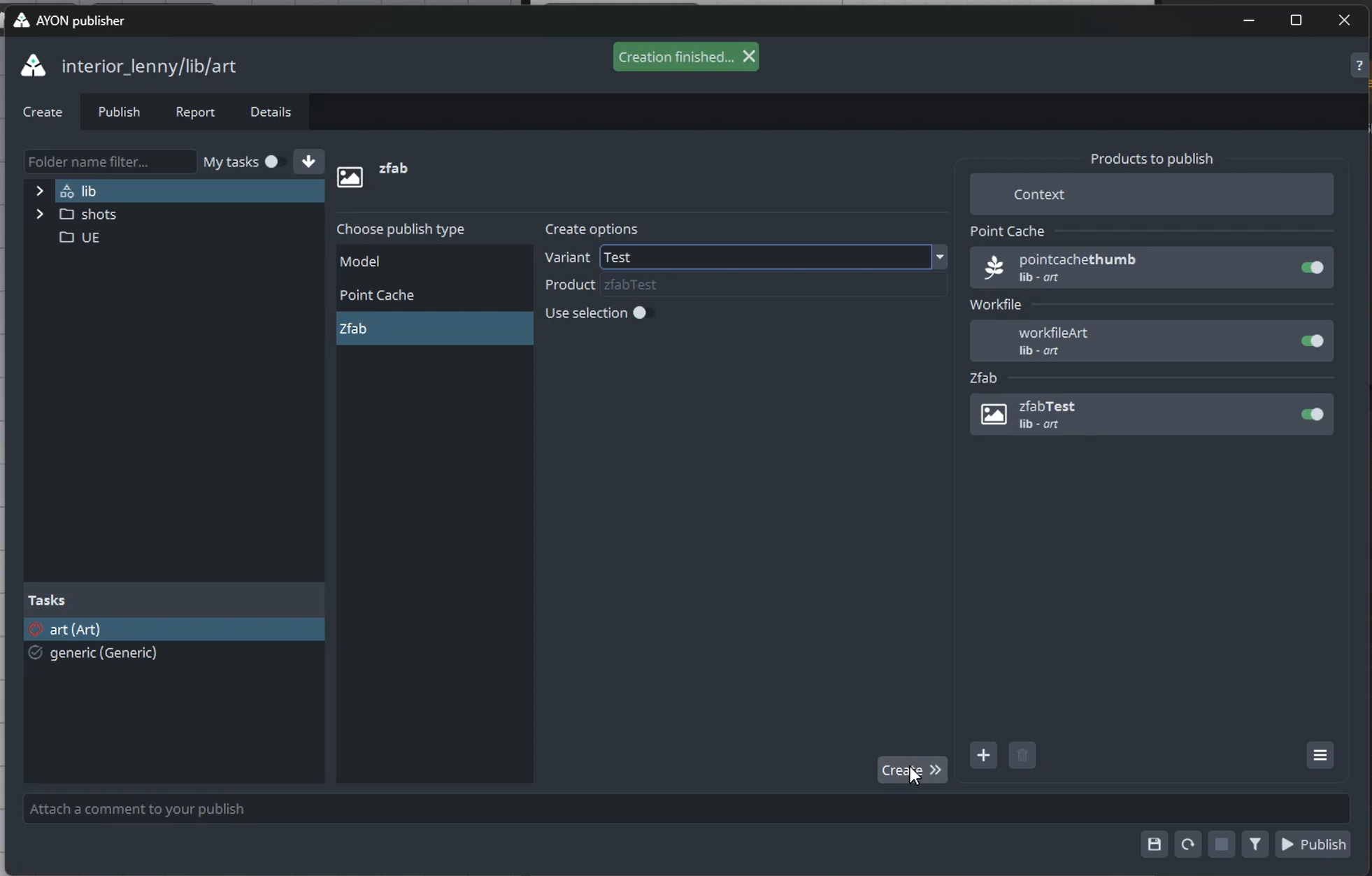
Create: Open the Publisher and go to the Create tab.
Instance: Select either the Model (for static) or PointCache (for animated) product type. Enter a variant name (e.g.,
Main) and click Create.Once a product is created, it remains in your scene as a "Publish Instance." You do not need to recreate it for future versions; simply apply your modifications and click Publish again in the Publish tab.
Publish: In the Publish tab, you can configure additional options, such as including the avatar in your export. Click the Publish button to begin.
Technical Detail: When publishing a garment, the entire 2D Pattern group (all patterns) is exported. If the avatar export option is enabled, the entire Avatar group is included in the resulting file.
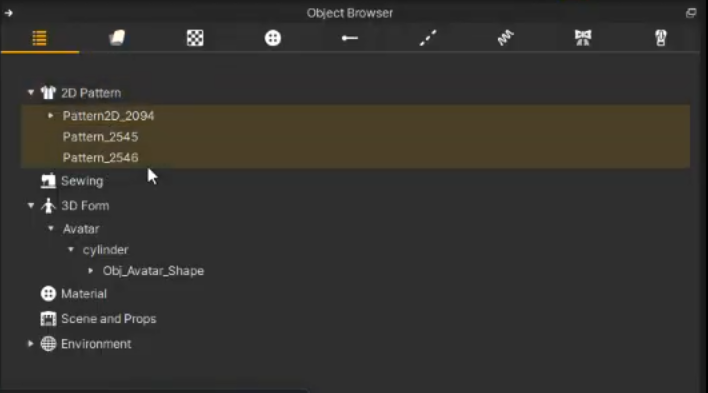
Result: Once finished, your garment is now available in the Loader for other departments to use.
Handling Multiple Garments
The Marvelous Designer API does not currently support "Export Selected." This means if you have multiple distinct garments in one scene (e.g., a shirt, jacket, and trousers), they will be merged into a single published object.
To publish these as separate AYON products, you must use a dedicated scenefile for each garment. A recommended workflow for managing multiple garments within the same task is to utilize Workfile Subversions/Comments:
char_outfit_v001.zprj(Master scene with all items)char_outfit_v002_shirt.zprj(Shirt only - ready to publish)char_outfit_v003_jacket.zprj(Jacket only - ready to publish)char_outfit_v004_trousers.zprj(Trousers only - ready to publish)
Publishing a Fabric (.zfab)
The Zfab product type is used to publish fabric presets, which include the fabric’s physical properties and embedded textures. This creates an AYON product containing a single representation with the same name: zfab.
Create: Open the Publisher, go to the Create tab, and select the Zfab product type.
Instance: Provide a variant name (e.g.,
Silk,Denim, orLeather) and click Create.Select: In the Fabric List, select the specific fabric you wish to publish, then enable the "Selection" toggle in the Publisher.
Always check your selection in the fabric list before clicking Publish. If the "Selection" toggle is disabled, the Publisher will default to the first fabric in the list, which may not be the one you intended to publish.
Publish: In the Publish tab, ensure your instance is active and click Publish.
The fabric instance remains persistent in your scene. You do not need to recreate it for future versions; simply modify the physical properties or textures in Marvelous and click Publish again to version-up.
FAQ
How do I publish texture maps for garments?
You may need to publish textures separately to:
Perform lookdev in Marvelous and load those maps to other DCCs.
Export Normal maps to preserve garment seams and fine details in your primary renderer.
The current version of the addon does not automatically bake or extract PBR textures (Base Color, Normal, Displacement, Roughness, Metalness, or Opacity) during the standard garment publish.
To publish these maps manually:
Prepare: Ensure your UVs are finalized and the material settings on your fabric are adjusted as desired.
Export Maps: Save the textures or baked maps manually from Marvelous Designer to your local drive.
See 3D Garment Surface Textures - Save | Marvelous Help Center for instructions on saving garment surface textures.
Tray Publish: Open the AYON Tray Publisher and select the Texture or Image product type.
Publish: Drag your exported textures into the "Representations" field, adjust your metadata (variant, version), and click Create then Publish.
For more information on this process, see Working with AYON Tray Publisher.
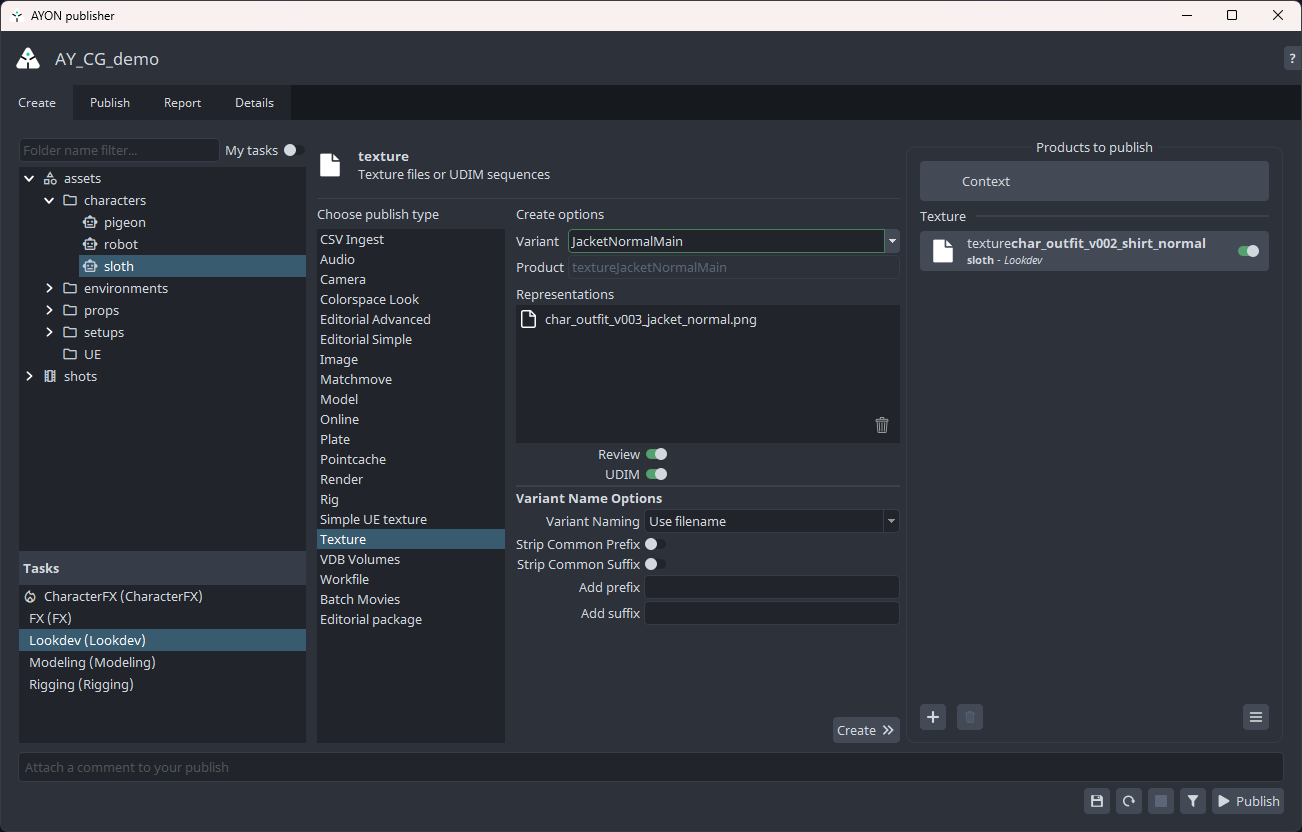
AYON Tray Publisher with "texture" product type selected, texture file is added to the "Representations" field, and the variant name mentions the garment name and texture map type.
How do I publish real-life fabric data as a .zfab?
Creating fabrics from physical measurement data requires the Emulator mode, which is exclusive to CLO. However, since both applications share the same format, you can manually save a .zfab from CLO, load it into Marvelous Designer, and publish it through AYON from there.
If you are using measurement hardware like the CLO Fabric Kit 2.0, you can ingest that data into the AYON pipeline as a reusable fabric preset:
Emulate: In CLO, switch the mode to Emulator. Input your real-life fabric measurements to generate the digital twin fabric.
Setup: Switch back to Simulation mode and ensure your newly created fabric is added to the Fabric List in your scene.
Instance: Open the AYON Publisher, select the Zfab product type, and click Create.
Publish: Ensure the "Selection" toggle is on, select your emulated fabric in the list, and click Publish.
For more information on the fabric publishing process, see Publishing a Fabric (.zfab).
Was this helpful?
Still need help? Ask the team