Marvelous Designer Configuration
Last updated 8 months ago
Overview
Configuring the Marvelous Designer addon involves three primary areas:
Application Setup: Defining the executable paths and task-based availability.
Qt Binding Configuration: Setting up the Marvelous Python environment required for AYON tools.
Addon Pipeline Settings: Controlling how data is extracted and published.
1. Application Setup
Before configuring the addon-specific settings, you must tell AYON where to find the application and which departments should have access to it.
Executable Paths
Navigate to the Applications Addon settings on your AYON server.
Locate Marvelous Designer in the application list and enable it.
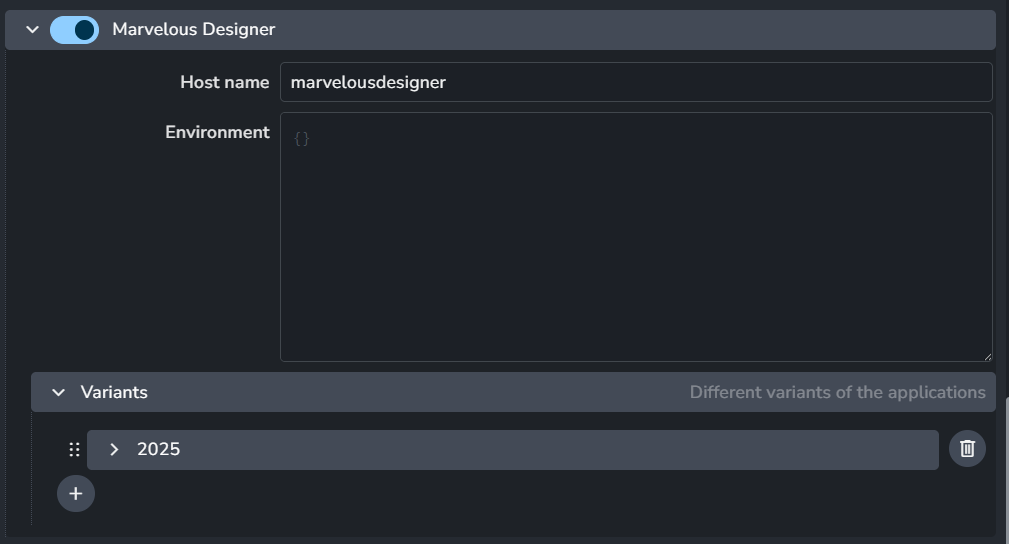
Define your variants (e.g.,
2025.2) and provide the executable paths for your studio's operating systems (Windows/Linux/MacOS).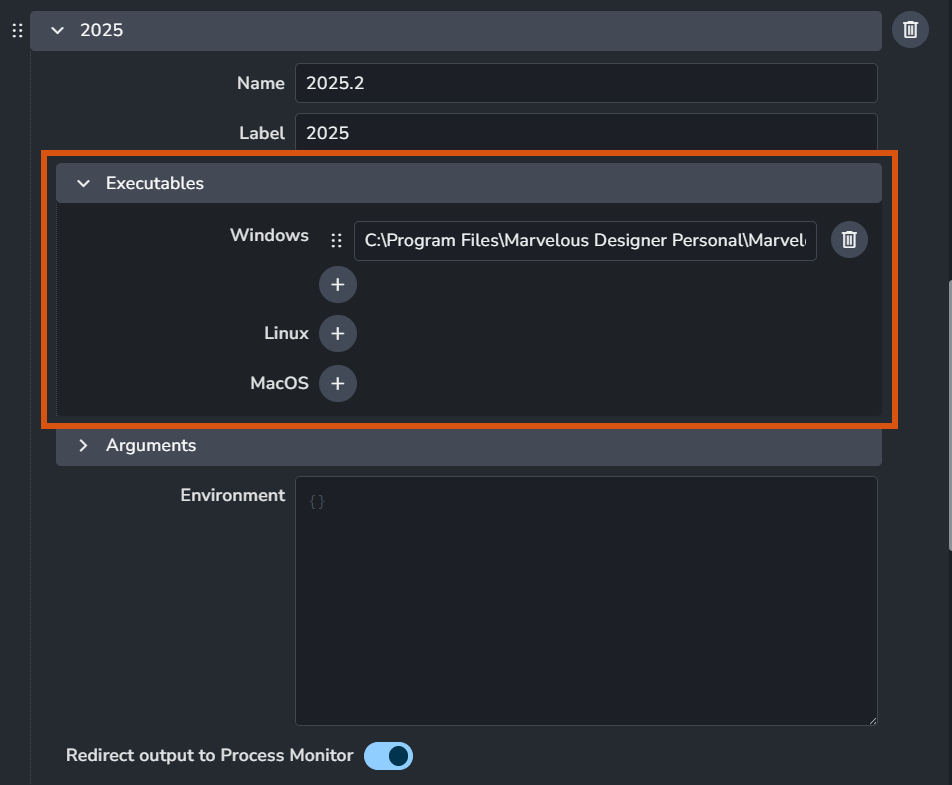
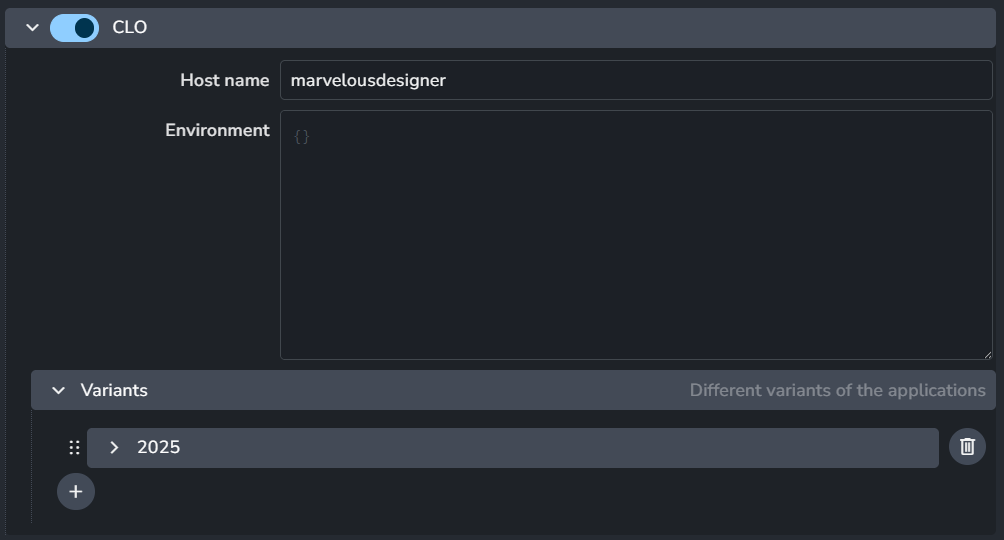
For CLO Users: Repeat this process for the CLO application if you intend to use it alongside or instead of Marvelous
Task Filtering and Visibility
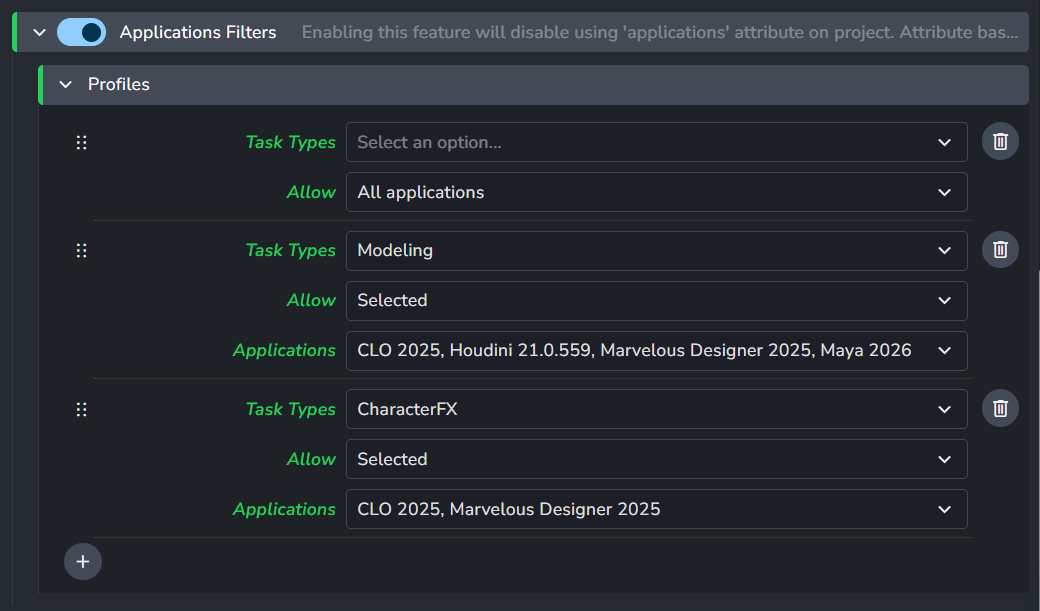
To ensure Marvelous/CLO only appears for relevant departments in AYON either in Launcher or applications web actions in The Details Panel, configure the Applications Filter:
In the Application Addon, go to Applications Filter.
For Modeling:
Create a profile and select the Modeling task type.
Set Allow to "Selected" and pick your Marvelous/CLO variants.
For CharacterFX (CFX):
Create a profile for the CharacterFX task type.
Ensure the same Marvelous/CLO variants are selected.
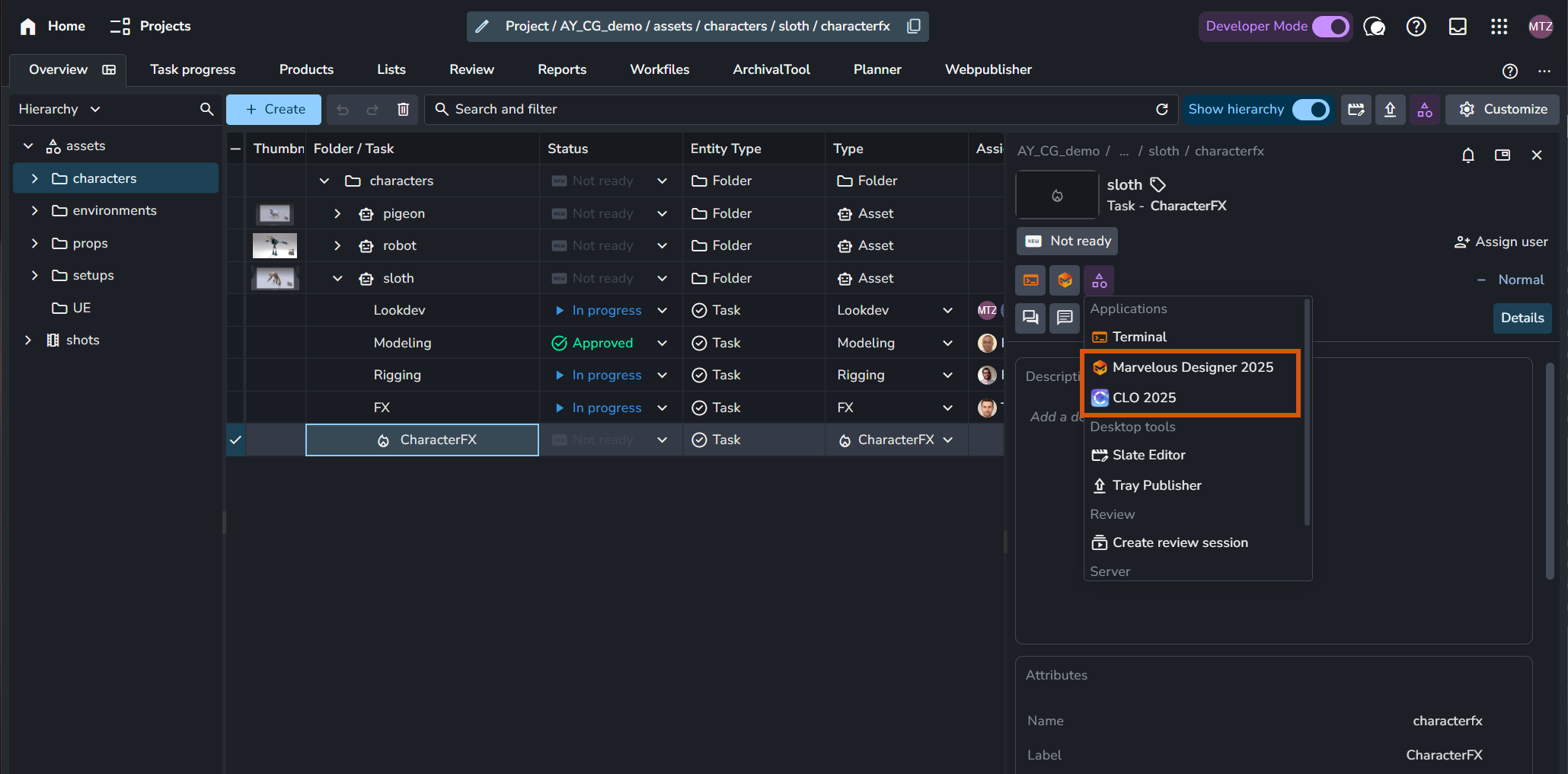
Expected Output of task filtering
Based on the settings mentioned in the steps above, when you select CharacterFX or Modeling task in the Project Overview Page, you should be able to see marvelous and CLO in the Web Actions list in The Details Panel of the selected task.
2. Qt Binding Configuration (Prelaunch)

Marvelous Designer requires specific Python dependencies (PySide/Qt) to run AYON's graphical tools. This setup is automated during the pre-launch phase when an artist starts the app from the Launcher.
To Configure it:
Navigate to the Qt Binding Directory setting within the Marvelous Addon:
ayon+settings://marvelous_designer/prelaunch_settings/qt_binding_dirSpecify the
site-packagespath where these bindings should be deployed.The setting only allows setting the path for one OS.
For windows:
C:\Users\Public\Documents\MarvelousDesigner\Configuration\python311\Lib\site-packagesFor Linux:
/{your_machine}/pipeline/plugins/marvelousdesigner/python-dependencies/py311
3. Pipeline Settings
These settings control the Publisher UI and determine which file formats are generated during a publish.
Model & Pointcache Publishing
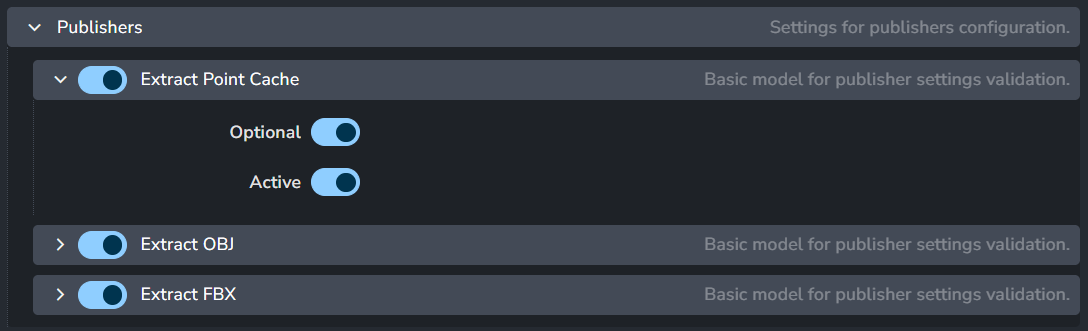
The addon handles multiple representations (Alembic, OBJ, FBX) through individual extractors. You can control the default behavior for each:
Extract Point Cache (Alembic)
Extract OBJ
Extract FBX
Plugin State Options
For each extractor, you can define the following:
Enabled: Toggles the plugin's existence in the pipeline.
Optional: If enabled, the artist sees a toggle in the Publisher and can choose to skip it.
Active: Sets the default state (enabled vs. disabled) when the Publisher opens.
By default, the extractors are set to Enabled and Active, but marked as Optional. This ensures artists are encouraged to publish standard formats but can opt-out for specialized tasks.
FAQ
How do I add a new version of Marvelous?
Simply add a new variant in the Applications Addon. Remember to update your Application Filters if you want the new version to show up for specific tasks immediately.
My AYON menu isn't appearing in Marvelous.
Verify the Qt Binding Directory path. If the application cannot find the PySide libraries at launch, the AYON tools initialization will fail. Ensure the user’s machine has the proper read/write permissions for that directory.
Was this helpful?
Still need help? Ask the team