Working with Wrap in AYON
Last updated Over 1 year ago
Integration Overview
As Wrap has no Python API, its integration is a bit limited. It can now open predefined template workfiles based on profiles. These template workfiles could contain placeholders which will be textually replaced before starting and opening a workfile with Wrap.
Templates are configured by Admins in Wrap Addon Settings on AYON Server.
Quick Start
Launching Wrap
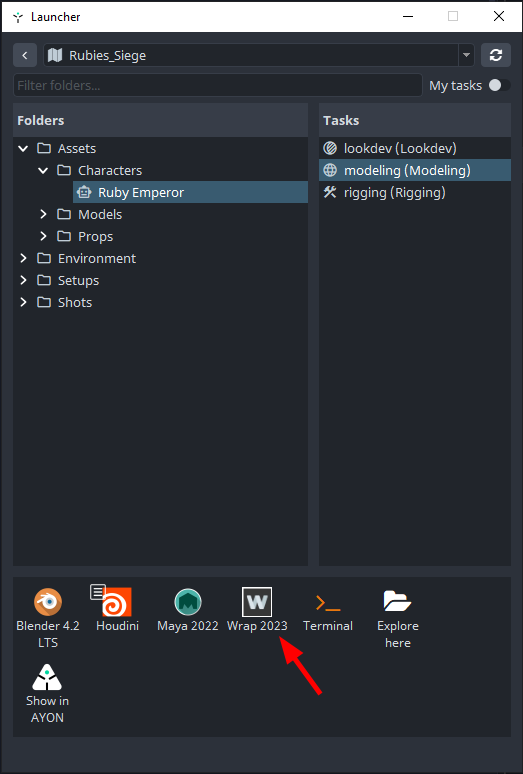
Locate AYON Icon in the OS tray (if hidden dive in the tray toolbar) and Select Launcher to open the Launcher window.
If you cannot locate the AYON icon, then AYON launcher maybe not probably running so check Getting Started with AYON Pipeline.
When Launcher opens, you can choose the project to work in from the list.
Then choose the particular asset and task you want to work on then finally run wrap by its icon in the tools.
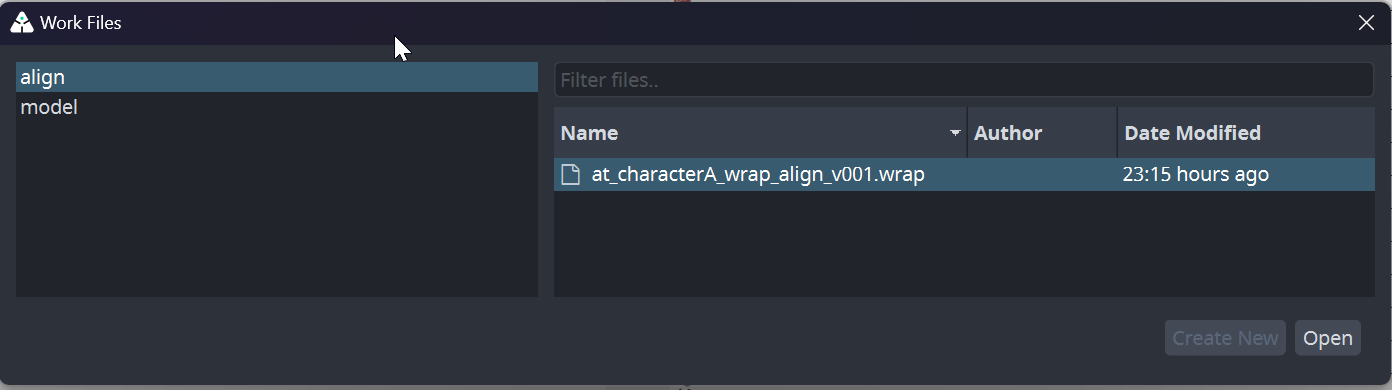
Select a Template
Admins can assign multiple templates for a single task, if that is the case you’ll be introduced by a dialog to select the template to work with.
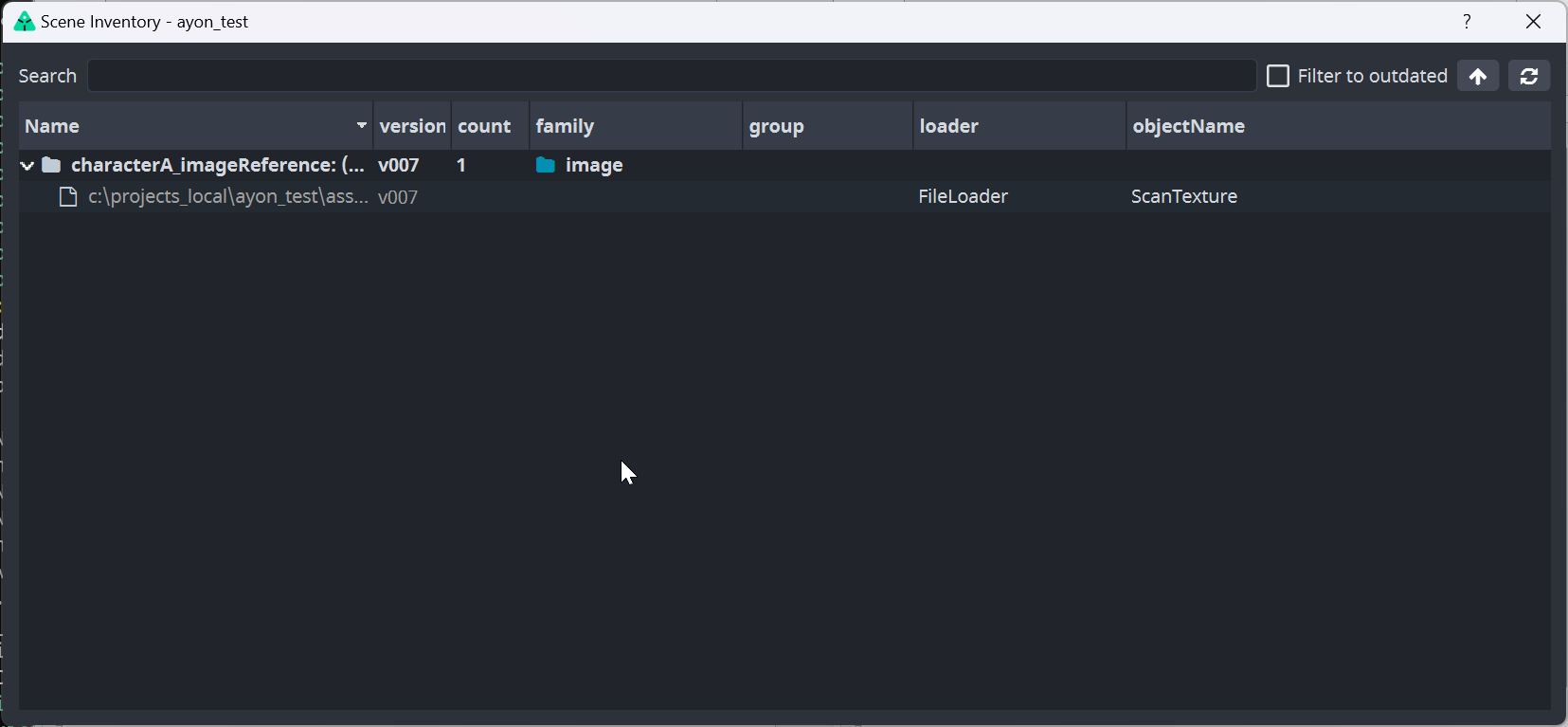
Afterwards, the template will be updated and scene inventory tool will pop up and show the loaded products based on the template configuration.
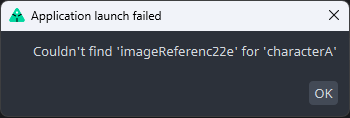
In case of error, it could be a missing representation of specified product, similar error dialog will be shown. Artist can change version of loaded item via dialog after Right Mouse Click is pressed above the item.
This dialog MUST be closed for Wrap to be opened!
AYON-Managed Wrap Workfiles
You can recognize ayon managed wrap workfiles when seeing AYON in the node names and output paths.
❗❗❗ Please do not remove the AYON_NODE_METADATA node as it contains essential info for AYON integration.
Publishing Overview
As there is no Python API to run code of Ayon directly in Wrap application, publish process is semi-manual. Artists must prepare workfile, save it and then publish it via Creator / Publisher
Parses Wrap workfile, looks for all writer nodes names starting AYON_ Expected format of write node name: AYON_productName_extension
AYON_modelMain_abc
There might be multiple write nodes inside of the workfile, but not all of them must be published via Ayon. Publishable nodes must contain AYON_ prefix in their names. Whole name has then format AYON_PUBLISHED_PRODUCT_NAME (eg.AYON_wrapRenderMain - this will publish wrapRenderMain product of wrap family.
Artist should open Publisher, select published context in left column, drag&drop prepared workfile in the middle column and hit Create. There should appear new instance in the right column, next step would be to hit Publish to start publishing process.
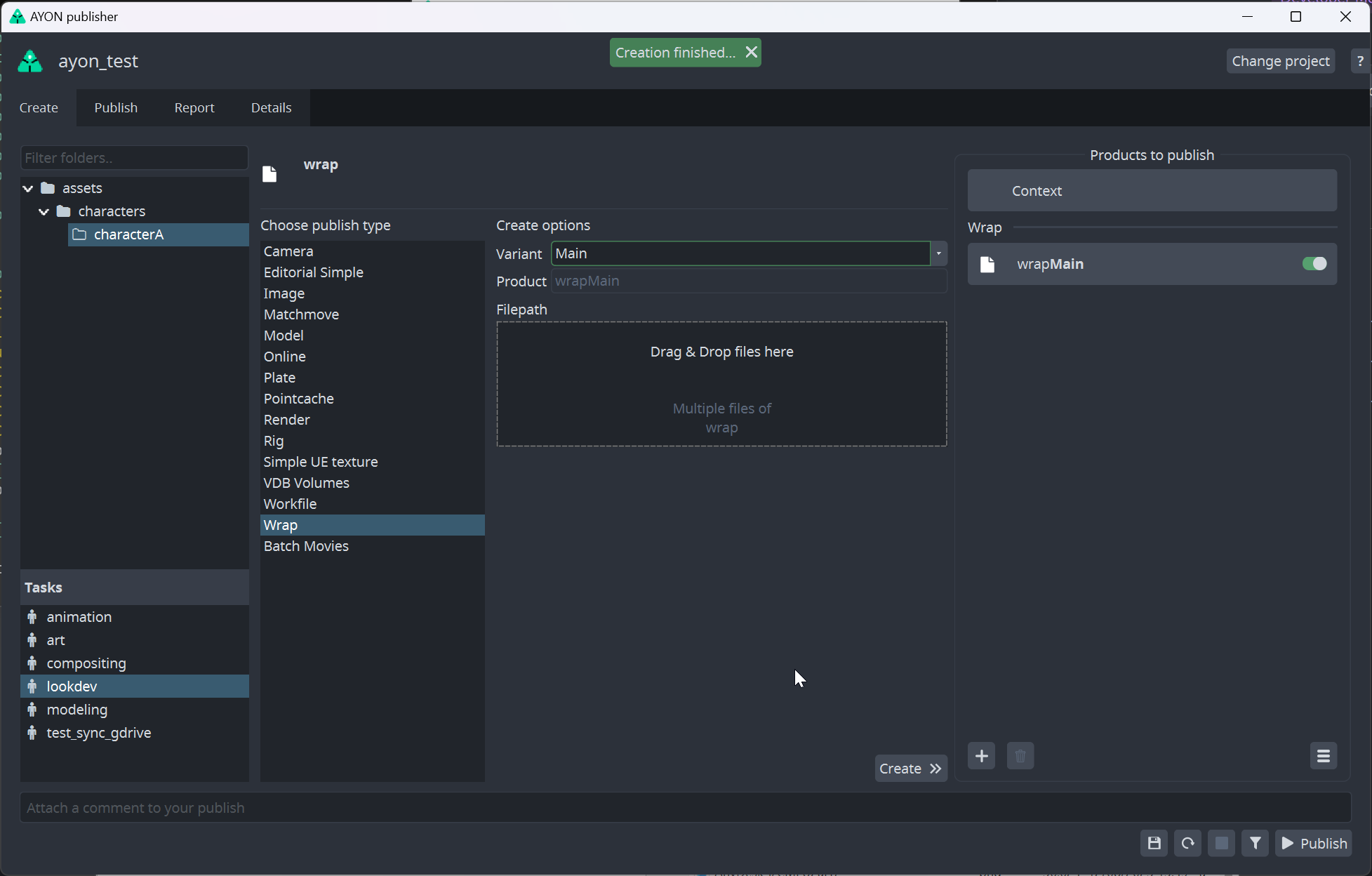
Versioned intermediate output
Anytime workfile is being published, all write nodes get computed (currently there is no way to tell Wrap to only compute specific node). To limit unwanted overwrites artist could use {version} placeholder in File Name of write node.
Example:
$PROJECT_DIR/{version}/Frame######.obj
Supported Product Types for Publishing
model
dataTransform
dataPD
render
image
workfile
Loading Overview
Loading is done via the Loader tool, which lets you load products published from other DCCs within the AYON Pipeline.
You can access the loader tools through AYON -> Load. Then, select the product, set the version using the drop-down menu, and choose the loader action you’d like to use.
Supported Product Types for Loading
image
plate
render
prerender
review
model
Preparing a Template
Templates must be prepared manually in Wrap host. Selected artist can build .wrap workfile as expected and mark read nodes controllable by Ayon by providing text placeholder value in the node's File Name path.
Once template is made, admins can add its path in Wrap Addon Settings on AYON Server.
Read Placeholder Nodes
Placeholder value points Ayon to specific representation of specific version for specific asset.
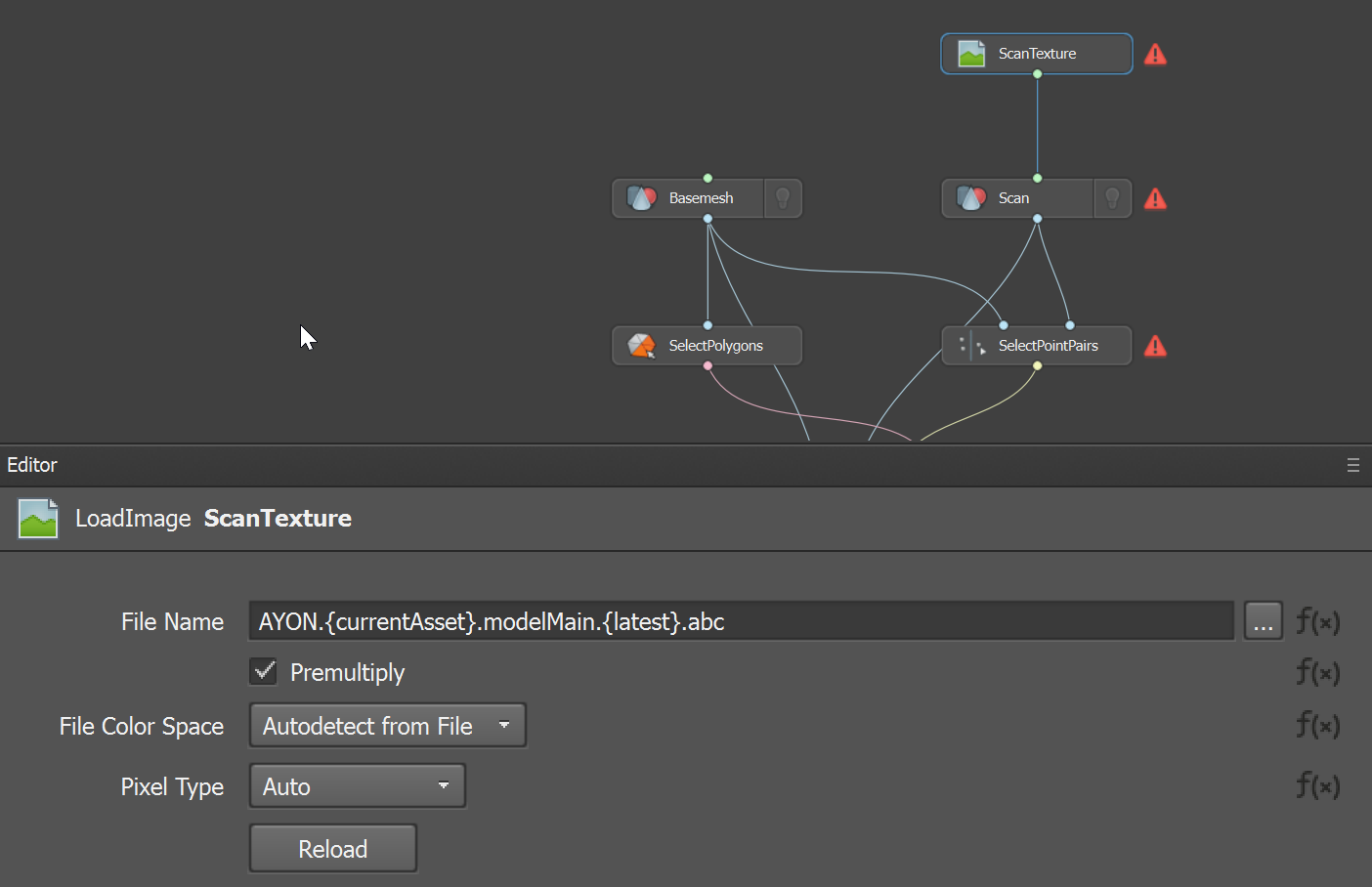
Format of placeholder is: AYON.ASSET_NAME.PRODUCT_NAME.VERSION.EXTENSION
Description:
AYON- hardcoded prefix denoting this is Ayon placeholder{ASSET_NAME}- points to assetcould be encased with {} to denote it is dynamic value
{currentAsset}- asset from contextor any actual name of asset (
characterA)
PRODUCT_NAME- value of product from asset (modelMain)VERSION- value to select versionencased in {} (
{latest},{hero}) points to version of current contextany integer number points to specific version (
4)
EXTENSION- extension of loaded representation (png)
Example: AYON.{currentAsset}.modelMain.{latest}.abc - will load latest version of abc representation of modelMain product of currently opened asset from context
Any number of input nodes could be marked as Ayon placeholders. Each value will be resolved when opening workfile for a first time or updated if opening for next times.