Configure Kitsu Addon
Last updated Over 1 year ago
Introduction
Kitsu is a great open source production tracker and can be used for project management. This documentation assumes that you are familiar with Kitsu and its basic principles. If you're new to Kitsu, we recommend having a thorough look at Kitsu Official Documentation.
Prerequisites:
Having Kitsu set up and running.
For more info refer to official installation guide or community kitsu dockerHaving
AYON Server Host (ASH)set up and running.
For more info refer to AYON Services and ASH.
Kitsu Addon Installation
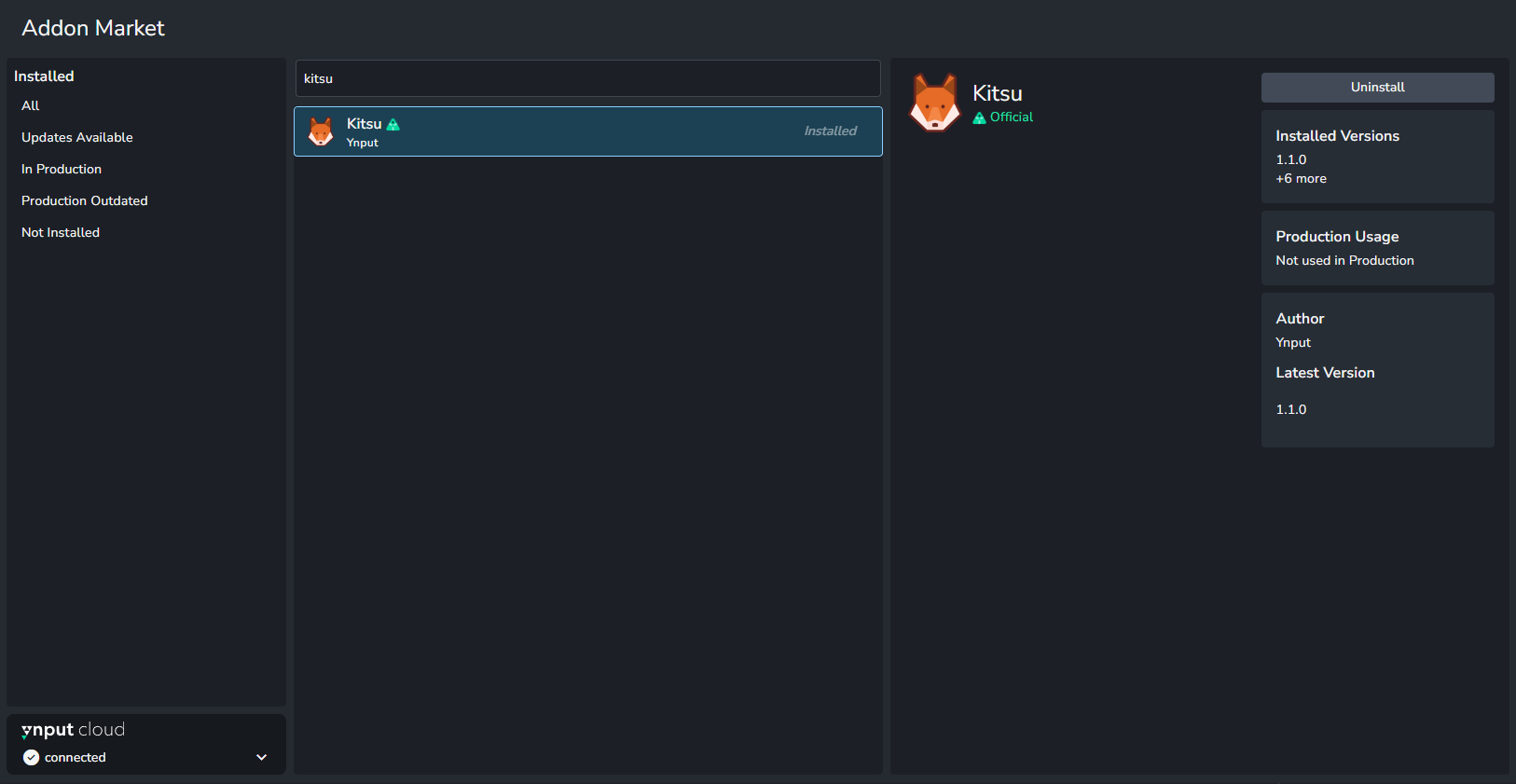
If you have already connected your ayon instance to Ynput cloud, you would be able to get the addon from Addon Market.
Preparation for Kitsu Addon
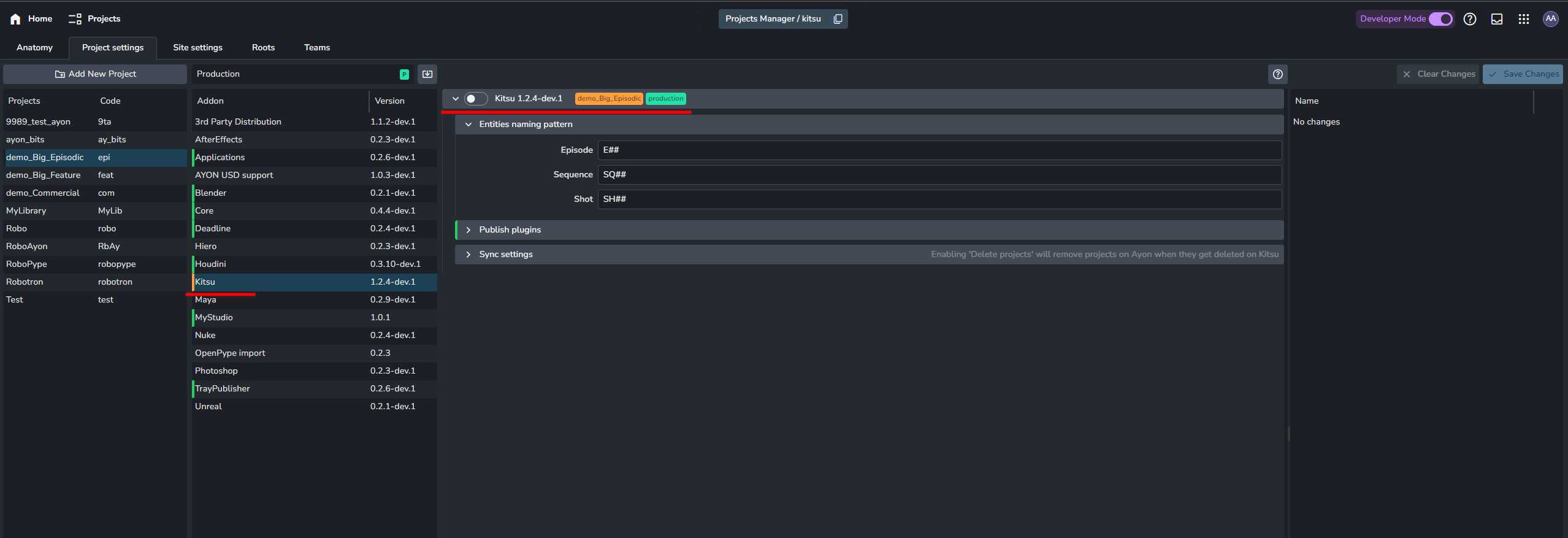
Ensure you have kitsu addon in your production bundle.
Configure Kitsu addon settings
Spawn Kitsu service.
Ensure kitsu addon in your production bundle
You may create a new bundle that includes Kitsu Addon and set it to production if you don’t have that already.
The Kitsu tab will only become visible once you set the bundle that includes the Kitsu addon to production mode.
Once you restart your server, the Kitsu tab will appear, but it will be empty initially.
Configure Kitsu addon settings
These settings should be set to get started:
Kitsu Server: Set in Kitsu server setting.
Kitsu user email: Add it to AYON Server Secrets and select it in Kitsu user email setting.
Kitsu user password: Add it to AYON Server Secrets and select it in Kitsu user password setting.
When hosting a Kitsu server locally, avoid using localhost or 127.0.0.1 as the Kitsu server URL. This can cause ASH to fail to connect. Instead, use the same IP address you use to access the Kitsu server from other devices.
For further information, check this community post:
Spawn Kitsu Service
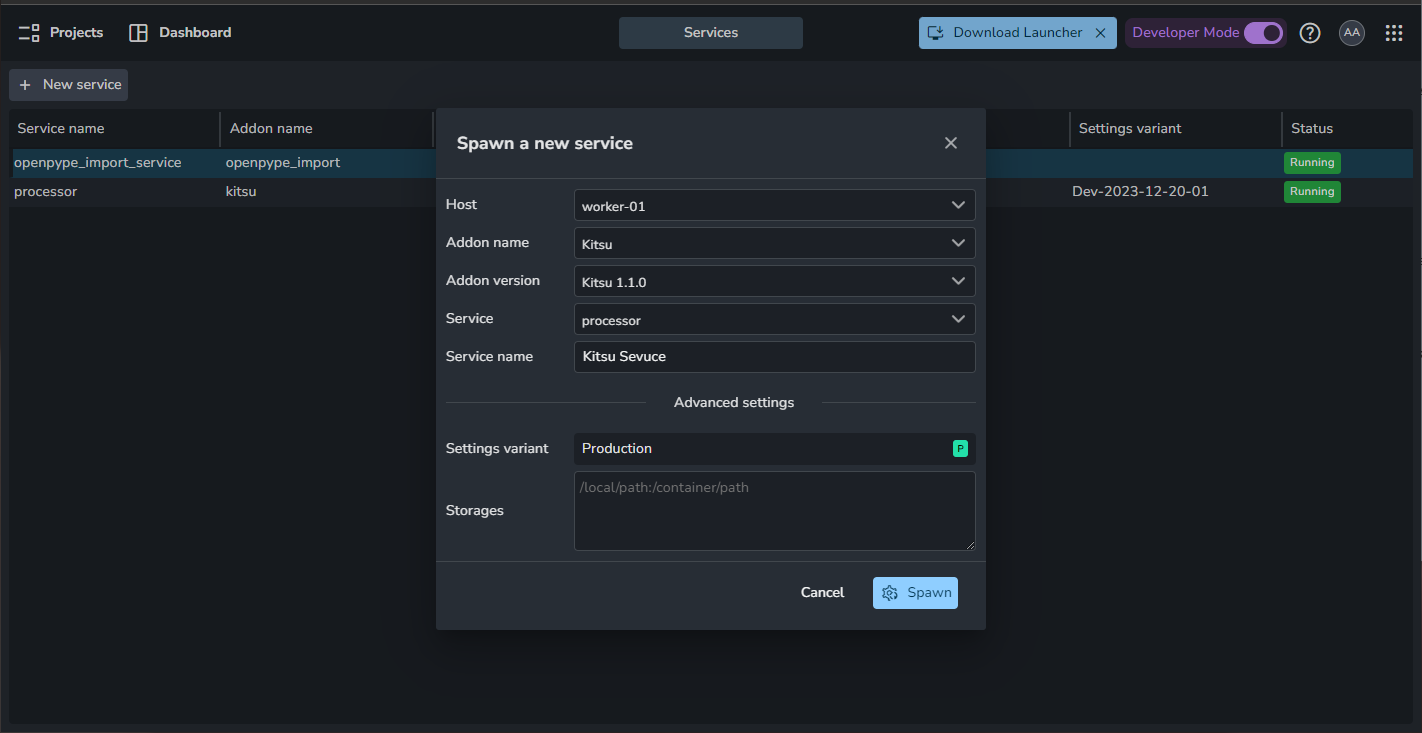
At this moment Kitsu addon include 1 service Processor. It’s a prepared docker image. We do recommend to use AYON Service Host (ASH) to be able to control it from AYON server web. In that case make sure you have a running ASH and create services in Services on server.
For more info, please refer to AYON Services and ASH.
Kitsu service should be the same version as your Kitsu addon version. If you already have a running Kitsu service, you can simply Right-click, delete it and create new one.
Synchronize
Synchronization is two step process. From Kitsu Tab:
Click
Pair projectClick
Sync now
Currently, Synchronization is one-way only Kitsu ➜ AYON.
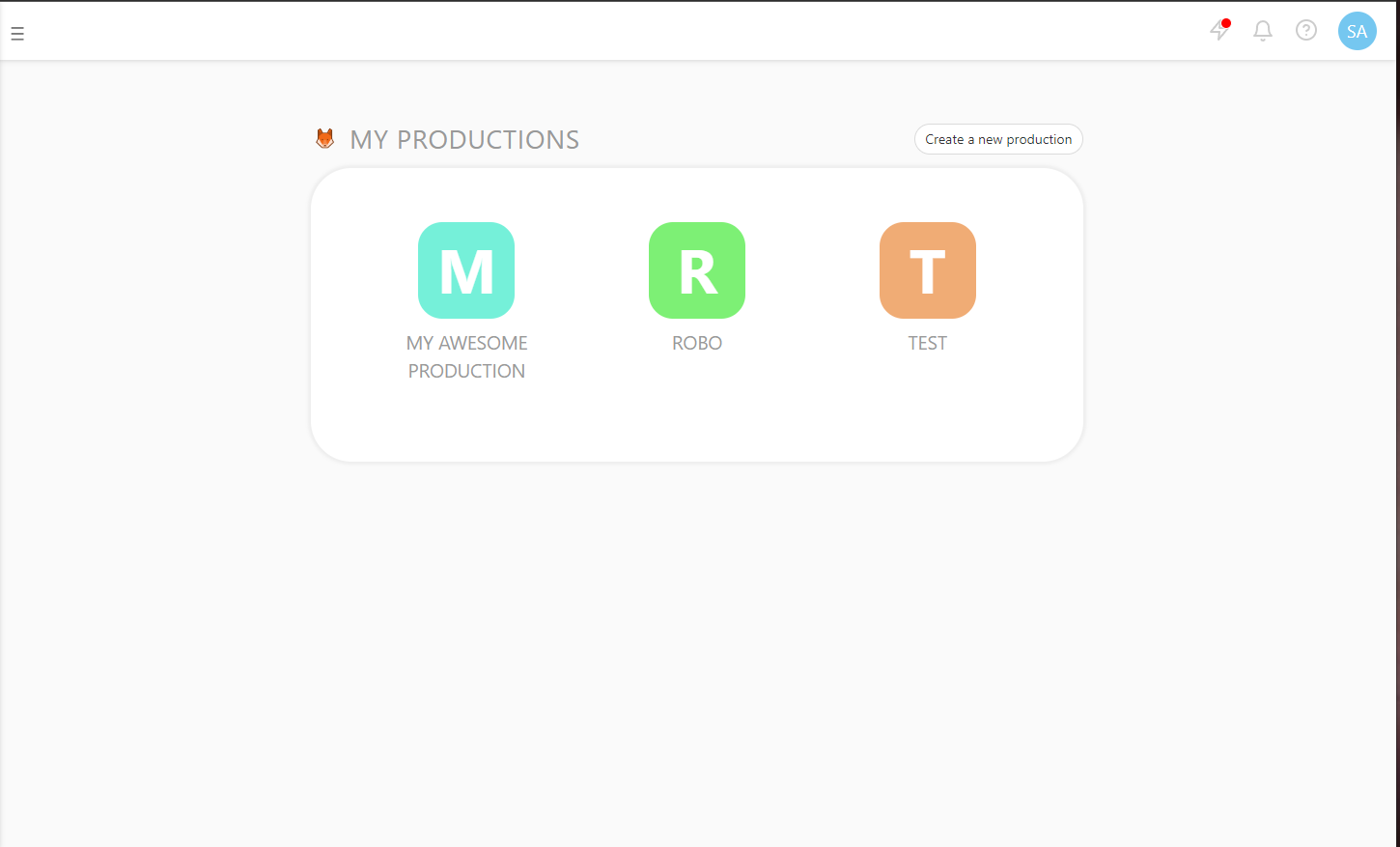
Kitsu Productions | Kitsu Tab |
 | 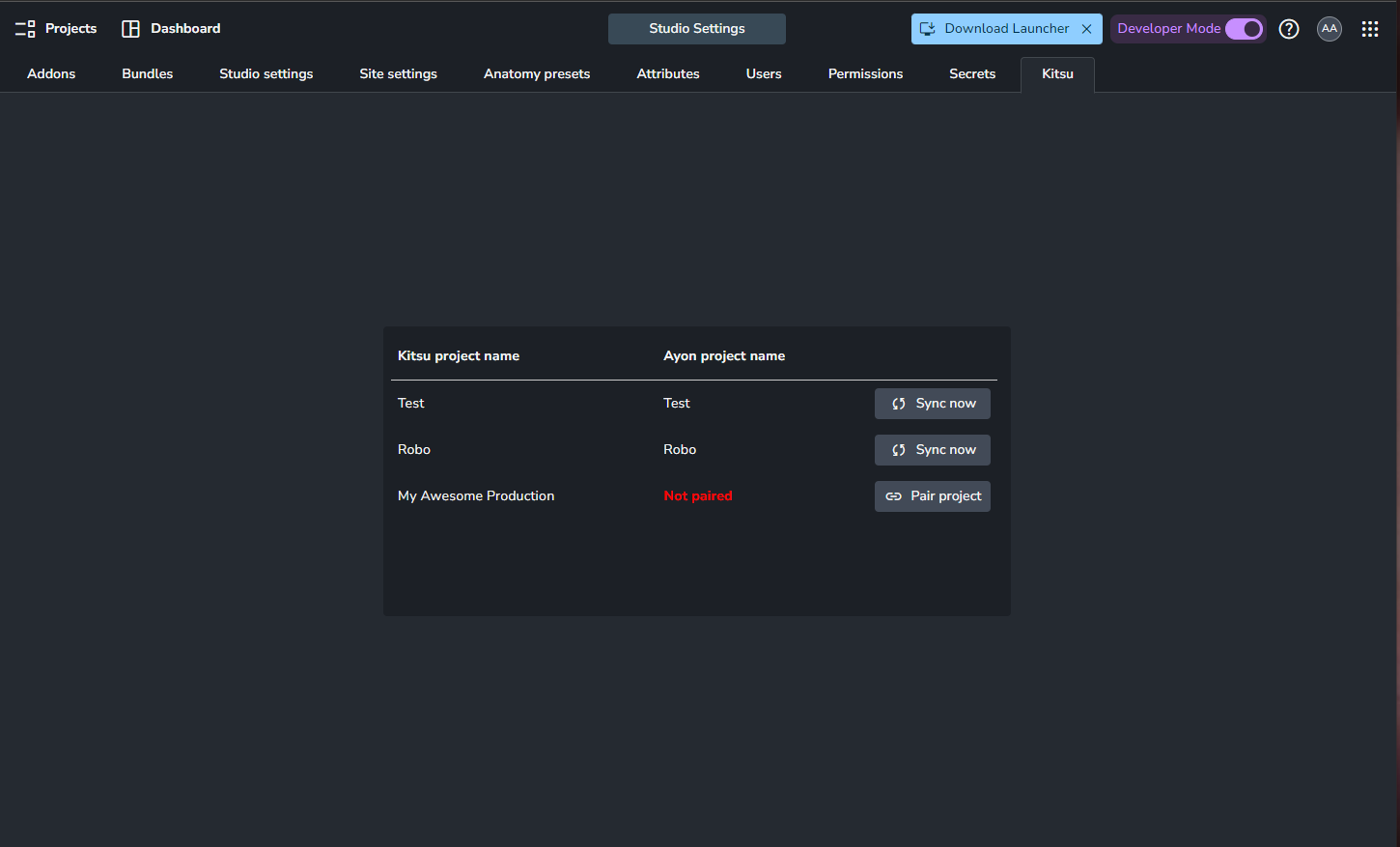 |
Q&A
Is it safe to rename an entity from Kitsu?
While changing the names of entities is allowed, Be aware it doesn't change the existent file names or publishes.
Absolutely! Entities are linked by their unique IDs between the two databases.
If you rename an entity in the AYON project editor, this change won't show up in Kitsu. Instead, it will be replaced with the original name when the next sync happens.
When you rename an entity directly in Kitsu, the new name will be updated in AYON during the upcoming synchronization.
Managing Multiple Production Tracker for Various Projects
To effectively manage multiple projects with different production tracker addons such as ShotGrid and Kitsu, you'll need to include both addons in your production bundle. It will allow their respective tabs to appear within the Ayon server interface.
Then, you should activate or deactivate each addon based on the specific needs of the project at hand. You can usually do this within the project settings.