Maya General Settings
Last updated About 1 year ago
Use cbId workflow
Setting Location:
ayon+settings://maya/use_cbid_workflow

When enabled, a per node cbId identifier will be created and validated for many product types. This is then used for look publishing and many others. By disabling this, the cbId attribute will still be created on scene save but it will not be validated.
The AYON cbId workflow works alongside the Look Assigner tool, acting as a unique identifier to link looks to models in a traditional workflow.
Alternatively, With OpenUSD, a more advanced workflow is available, as it natively supports look assignments, making the cbId workflow obsolete.
For more info, see AYON OpenUSD Workflow Get Started.
Open Workfile Post Initialization
Setting Location:
ayon+settings://maya/open_workfile_post_initialization

Maya MEL Workspace
Setting Location:
ayon+settings://maya/mel_workspace
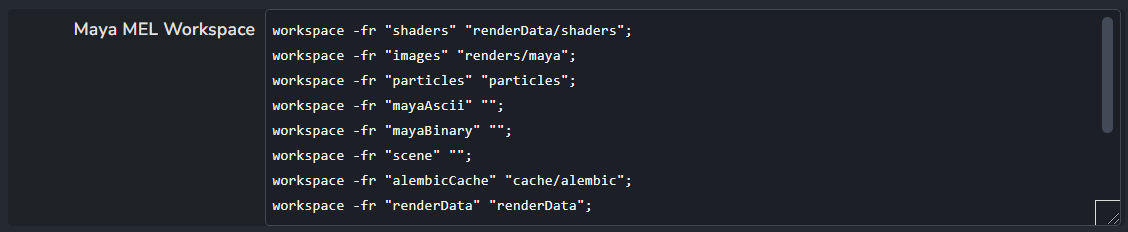
Specifies the content of workspace.mel to be used.
Maya dirmap Settings
Setting Location:
ayon+settings://maya/dirmap

Maya Directory Mapping settings, when enabled, it processes all source paths and maps them to the corresponding destination paths in the same order using dirmap on launching Maya.
Use env var placeholder in referenced paths: When enabled, while loading products via the Ayon Loader , it replaces the root of the path with the corresponding environment key, complying with
${AYON_PROJECT_ROOT_WORK}.
Explicit Plugins Loading
Setting Location:
ayon+settings://maya/explicit_plugins_loading
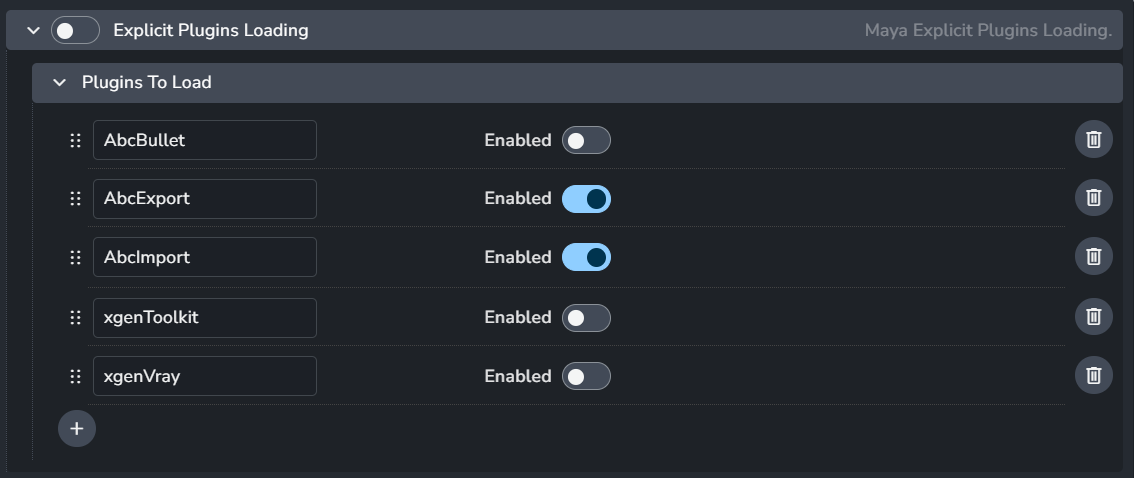
Defines a list of plugins to load using loadPlugin on launching Maya.
You can extend the list via (+) button.
Color Management (ImageIO)
Setting Location:
ayon+settings://maya/imageio

Allows admins to override the global color management settings, check Host specific overrides.
Enable Color Management: This toggle enables AYON's global color management. This toggle is a master switch that enables and disables the whole section.
File Rules
Activate Host Rules
Rules
+: Add more rules
Each rule consists of
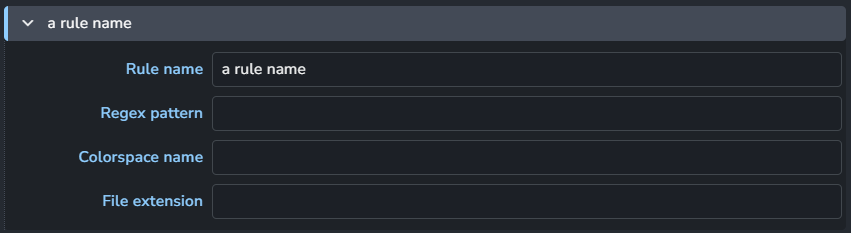
Rule name
Regex pattern
Colorspace name
File extension
Workfile

Workfile color management settings: When enabled, it sets the default Color Transform Preferences in Maya preferences. The settings below are applied on a 1:1 basis with those in Maya.
Rendering Space
Display
View
Include/Exclude Handles in default playback & render range
Setting Location:
ayon+settings://maya/include_handles
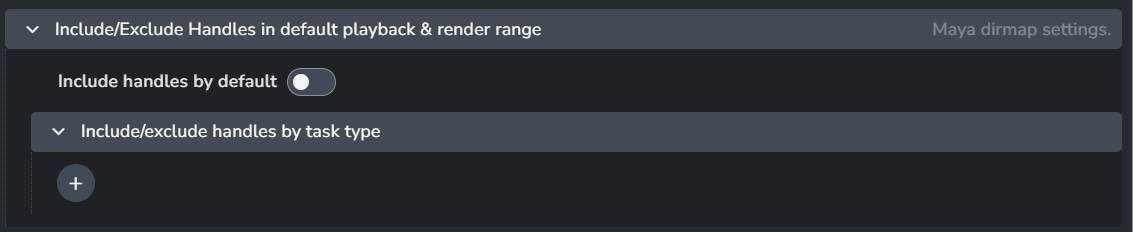
Include handles by default: When enabled, it’ll include handles when users trgger
Set Frame RangeandSet Render Settingsactions in AYON Menu.Include/exclude handles by task type: Specify value per task types. It overrides the default value above.
+ : add a entry
each entry consists of:

Task Types: drop down menu for selecting task types.
Include handles: When enabled, it’ll include handles for the specified task types.
Extension Mapping
Setting Location:
ayon+settings://maya/ext_mapping
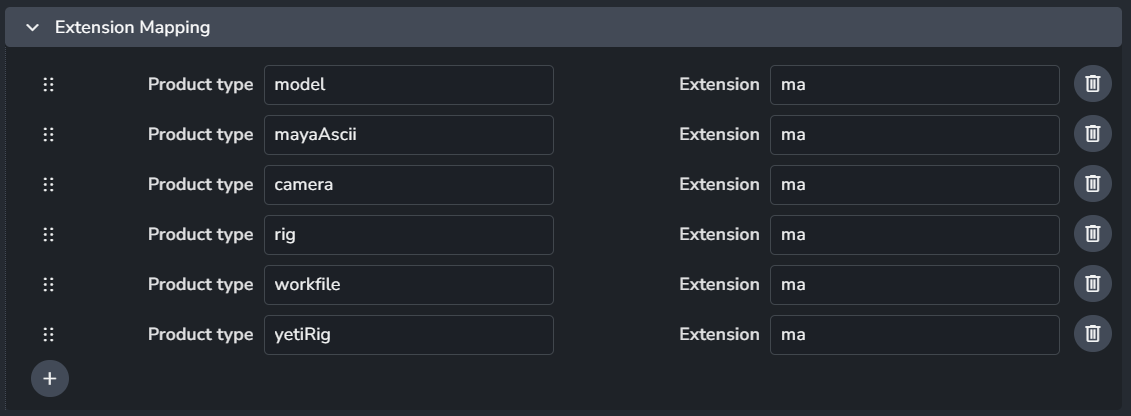
Specify maya file type that will be used on exporting the specified product types.
+ : Add an entry.
Each entry consists of:
Product Type
Extension: It's either
maormb.
Custom Tools
Setting Location:
ayon+settings://maya/scriptsmenu
Add custom tool menus to Maya.
Menu Name: The name of the menu.
Define menu using: It has two modes:
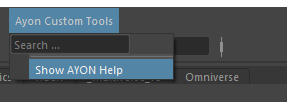
Example Tool Menu defined in AYON setting Custom Tools.
Menu Builder
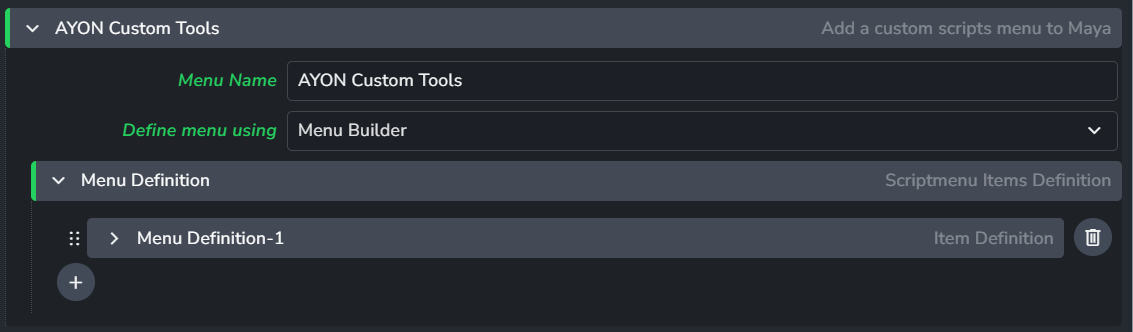
Menu Definition
+ : Add a menu definition
each menu item consists of:
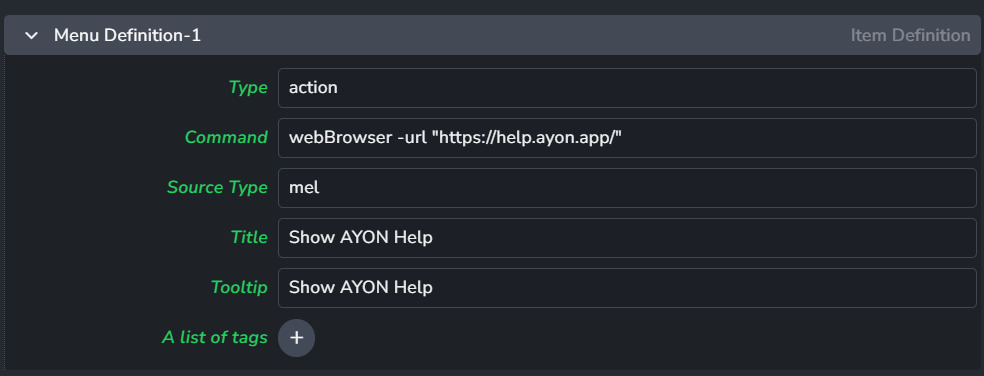
Type
Command
Source Type: It’s either
pythonormel.Title
Tooltip
A list of tags
RAW JSON (advanced)
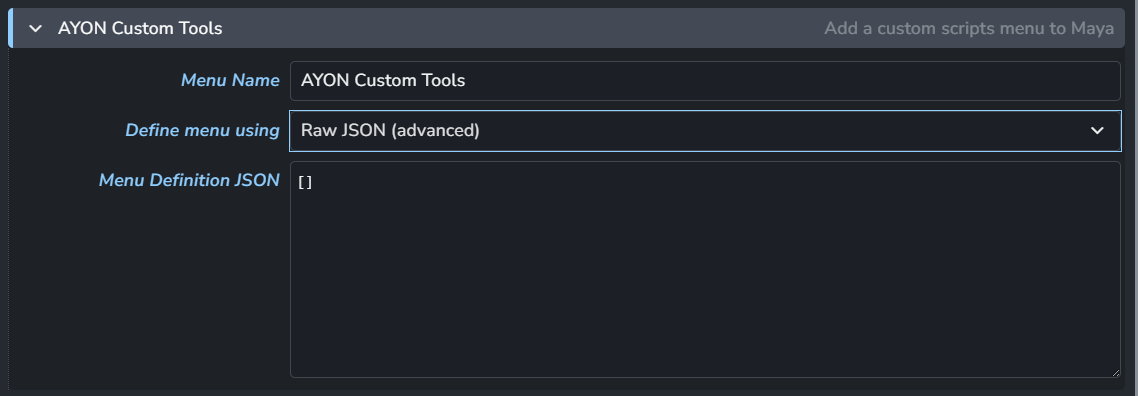
Define the custom tools menu using a JSON list.
For more details on the JSON format, see here.
Render Settings
Setting Location:
ayon+settings://maya/render_settings
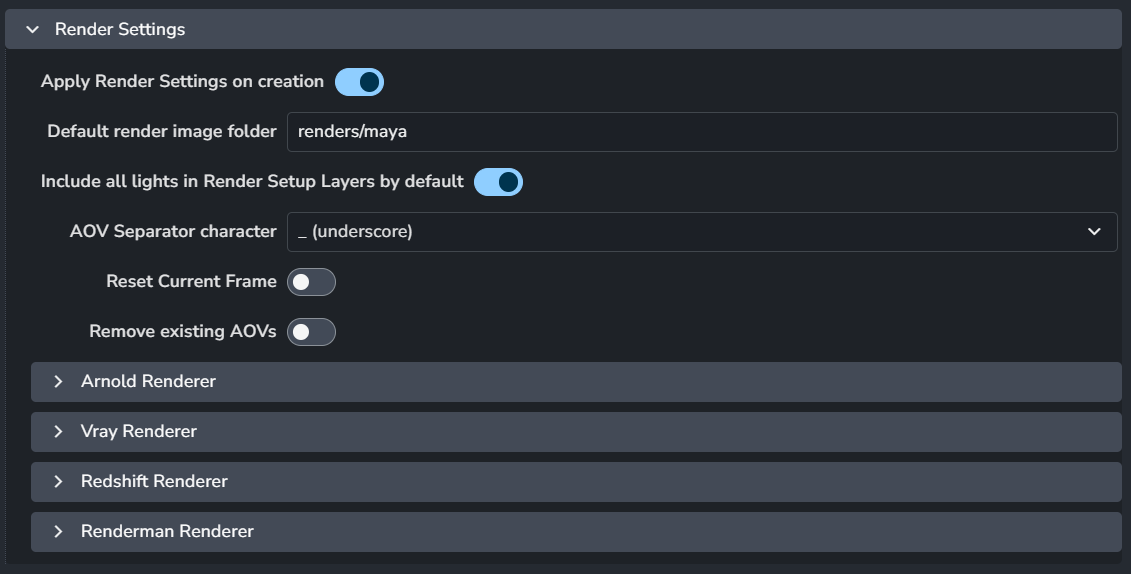
This setting is used to manage render settings when users create render instances.
Apply Render Settings on creation: When enabled, it applies render settings on instance creation.
Default render image folder: Default render output directory, (set in
workspace.mel).Include all lights in Render Setup Layers by default
AOV Separator character
Reset Current Frame
Remove exisitng AOVs
Arnold Render
Vray Renderer
Redshift Renderer
Renderman Renderer
Arnold Render
Setting Location:
ayon+settings://maya/render_settings/arnold_renderer
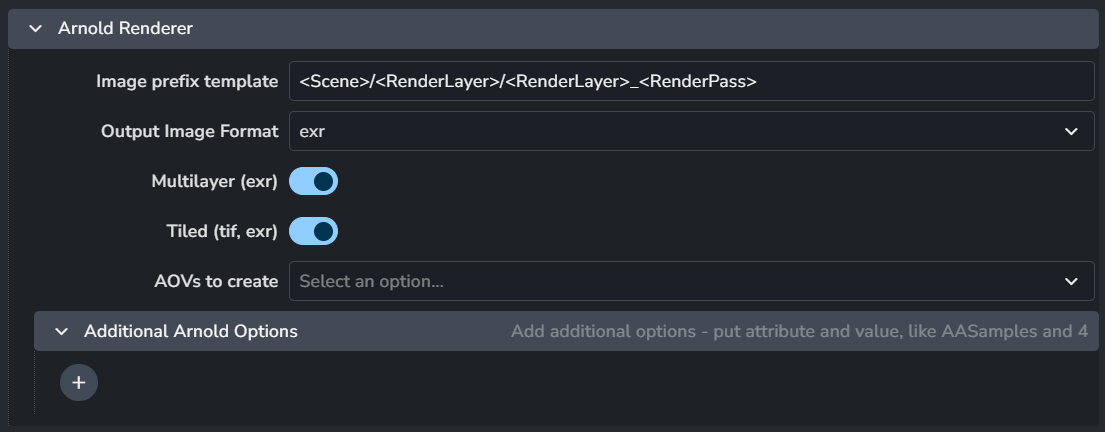
Image prefix template
Output Image Format: Select output from a drop down menu.
Multilayer (exr)
Tiled (tif, exr)
AOVs to create: Select AOVs to create from a drop down menu.
Additional Arnold Options: Add additional options - put attribute and value, like attribute
AASampleswith value4.+ : Add an option.
Each option consists of:

Attribute name
Value
Vray Renderer
Setting Location:
ayon+settings://maya/render_settings/vray_renderer
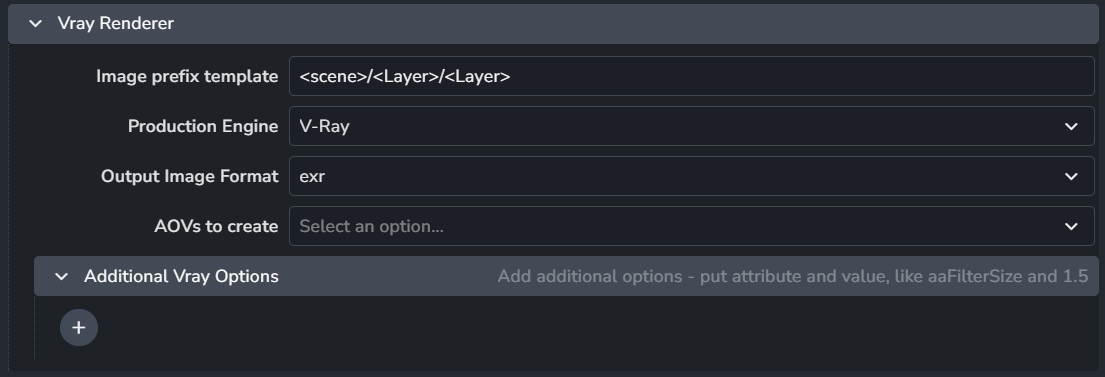
Image prefix template
Production Engine
Output Image Format: Select output from a drop down menu.
AOVs to create: Select AOVs to create from a drop down menu.
Additional Vray Options: Add additional options - put attribute and value, like attribute
aaFilterSizeand1.5.+ : Add an option.
Each option consists of:
Attribute name
Value
Redshift Renderer
Setting Location:
ayon+settings://maya/render_settings/redshift_renderer
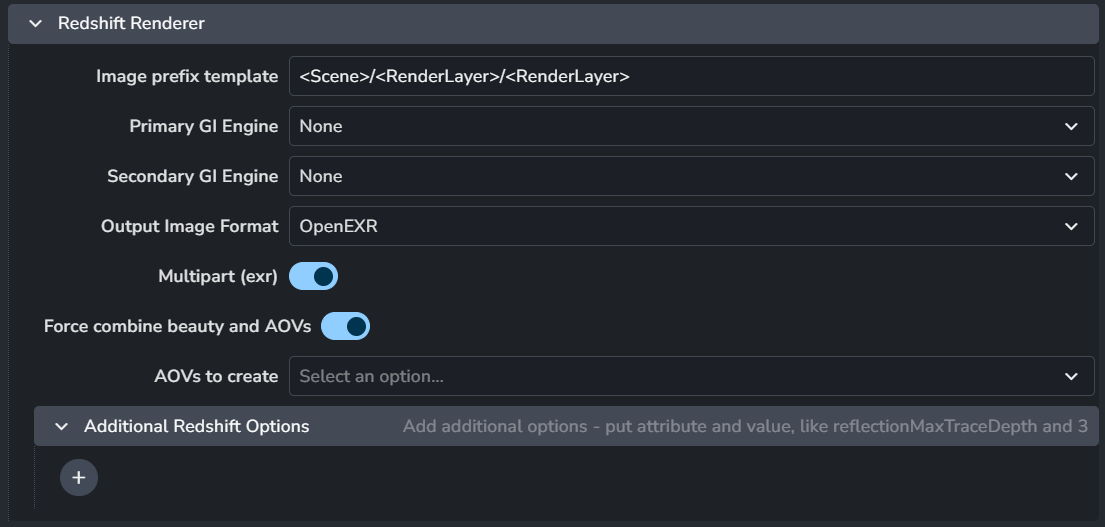
Image prefix template:
Primary GI Engine
Secondary GI Engine
Output Image Format: Select output from a drop down menu.
Multipart (exr)
Force combine beauty and AOVs
AOVs to create: Select AOVs to create from a drop down menu.
Additional Redshift Options: Add additional options - put attribute and value, like attribute
reflectionMaxTraceDepthwith value3.+ : Add an option.
Each option consists of:
Attribute name
Value
Renderman Renderer
Setting Location:
ayon+settings://maya/render_settings/renderman_renderer
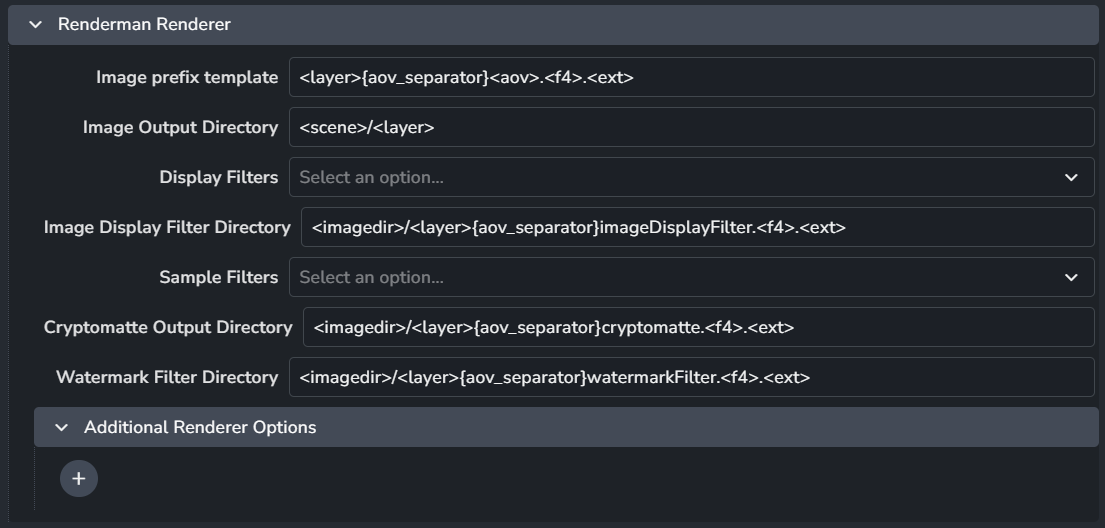
Image prefix template
Image Output Directory
Display Filters
Image Display Filter Directory
Sample Filters
Cryptomatte Output Directory
Watermark Filter Directory
Additional Rebderer Options
+ : Add an option.
Each option consists of:
Attribute name
Value
Workfile Build Settings
Setting Location:
ayon+settings://maya/workfile_build
Users can trigger building the workfile using this setting via Build First workfile action in AYON menu in Maya.
The Workfile Build setting allows you to create workfiles using build presets. It builds from the current folder and linked folders, enabling you to specify tasks, select products, choose preferred representations, and define the loader to use. By default, it loads the latest available version. This feature becomes especially powerful when paired with the Node Graph addon, which offers a user-friendly interface for linking folders within a project. Without this addon, folder linking must be done programmatically via the AYON API.

+ : Add a profile.
Each profile includes the following filters:
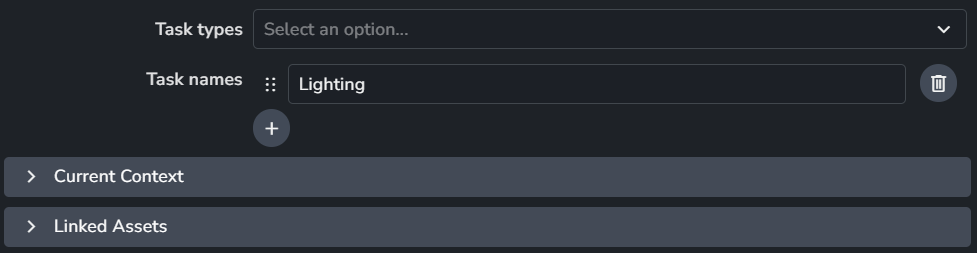
Workfile Build only works with the tasks that match the following task types and names.
Task types: Filter tasks by their type.
Task names: Filter tasks by their name.
Current Context:
Provides filtering options for loading from the current AYON folder: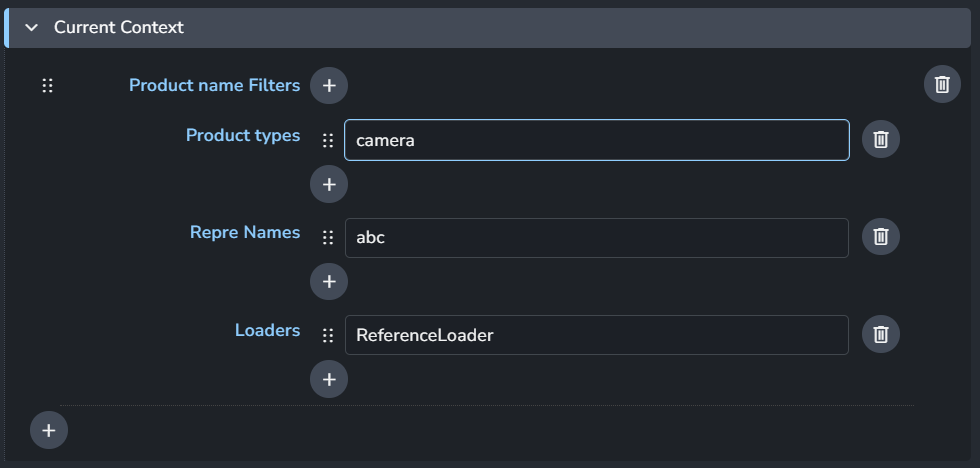
Product name Filters: Filter tasks by their names.
Product types: Filter tasks by their types.
Repre Names: Specify which representations (file formats) of the products to load, e.g.,
abc.Loaders: Specify AYON loaders to use for loading products.
Linked Assets:
Provides the same filtering options as the Current Context, allowing you to apply filters for linked folders or assets.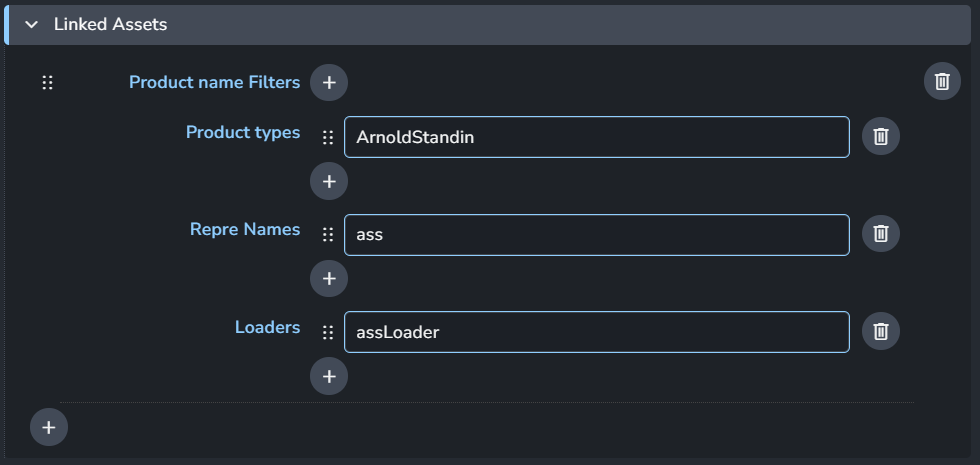
Templated Build Workfile
Setting Location:
ayon+settings://maya/templated_workfile_build
Users can trigger building the workfile using this setting via Template Builder sub-menu in AYON menu in Maya.
The Templated Build Workfile setting creates a workfile using a provided template with placeholders. This method offers a more explicit and user-defined approach, making the process more predictable and tailored to the user's design.

+ : Add a profile.
Each profile includes the following options:

Templated Build Workfile only works with the tasks that match the following task types and names.
Task types: Filter tasks by their types.
Task names: Filter tasks by their names.
Path to template: Path to Maya template workfile.
Create a Workfile Template
Building a workfile using a template designed by users. Helping to assert homogeneous products hierarchy and imports. Template stored as file easy to define, change and customize for production needs.
Make a template
Make your template. Add families and everything needed for your tasks. Here is an example template for the modeling task using a placeholder to import a gauge.
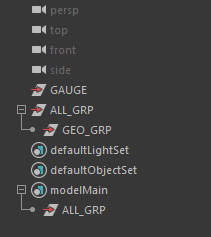
Create Place holders if needed.
You can add placeholders when the template needs to load some assets. AYON > Template Builder > Create Placeholder
Create Place holder
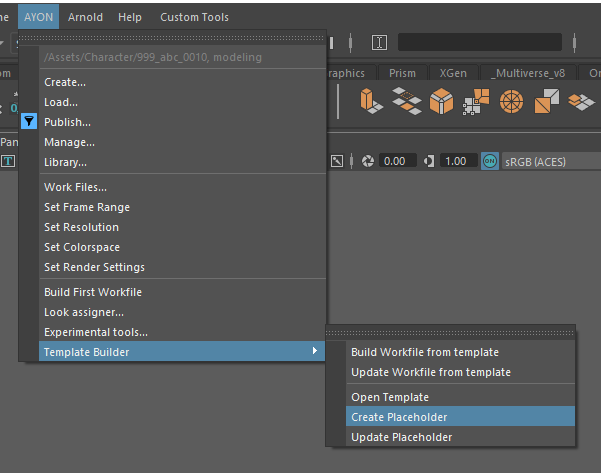
Configure placeholders
Fill in the necessary fields (the optional fields are regex filters)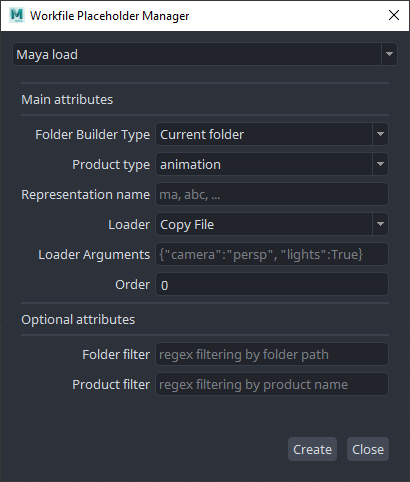
Builder type: Whether the the placeholder should load current asset representations or linked assets representations
Representation: Representation that will be loaded (ex: ma, abc, png, etc...)
Family: Family of the representation to load (main, look, image, etc ...)
Loader: Placeholder loader name that will be used to load corresponding representations
Order: Priority for current placeholder loader (priority is lowest first, highet last)
Save your template
3. Add workfile templates to settings
Go to
ayon+settings://maya/templated_workfile_build/profilesAdd a profile for your task and enter path to your template
4. Build your workfile
Start a new empty scene in Maya via AYON launcher.
Workfile should be build automatically.