Configure Cinema4D Addon
Last updated 11 months ago
Overview
The AYON Cinema4D integration addon allows you to manage your Cinema4D workfiles, load versioned content and manage it all nicely directly within the AYON ecosystem and easily produce predictable caches back out for easy loading into other integrations in the AYON ecosystem.
Requirements
Install Qt library for Cinema4D
A Qt library must be installed for Cinema4D to ensure the AYON tools can run, either make sure a PySide6 or PySide2 library is available on PYTHONPATH matching the Python version of the Cinema4D release.
You can install it on windows manually via:
Download get-pip.py.
Go to your Cinema 4d installation path, it can look like
C:\Program Files\Maxon Cinema 4D 2025You can do this easily and quickly via using Terminal action in the AYON Launcher and select cinema4d from the menu. which opens the installation path in terminal.
Open a new terminal and Run
c4dpy.exe {yourgetpipscriptdirectory}/get-pip.py
c4dpy.exe -m pip install --ignore-installed PySide6
Cinema4D Addon Settings
Color Management (ImageIO)
Setting Location:
ayon+settings://cinema4d/imageio
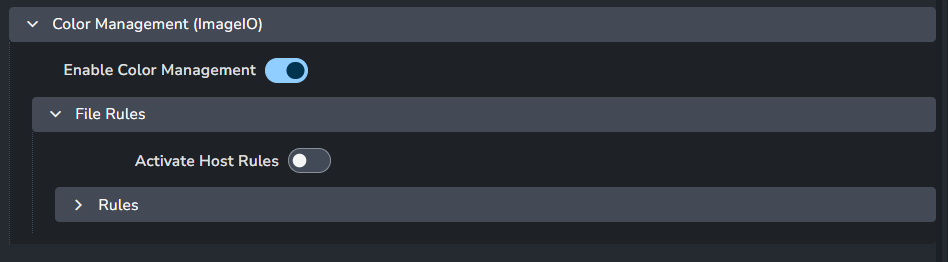
This setting allows admins to override the global color management settings. For more details, please see Host specific overrides.
Enable Color Management: This toggle enables AYON's global color management. This toggle is a master switch that enables and disables the whole section.
File Rules
Activate Host Rules
Rules
+: Add more rules
Each rule consists of
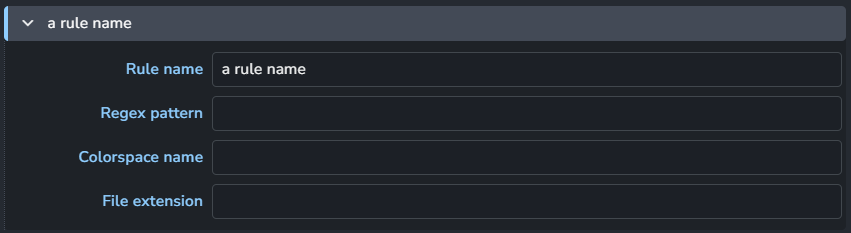
Rule name
Regex pattern
Colorspace name
File extension
Known Issues
High DPI scaling
The Redshift render view may appear oddly scaled on high DPI monitors due to some Qt scaling environment variables that AYON sets by default. To resolve this, launch Cinema4D with the environment variable: QT_AUTO_SCREEN_SCALE_FACTOR=0
This can be easily setup in the Application environment settings:
{
 "QT_AUTO_SCREEN_SCALE_FACTOR": "0"
}