Getting Started with AYON for Flame: Editorial Walkthrough
This guide walks you through a standard, end-to-end editorial workflow using Autodesk Flame integrated with AYON. Rather than covering every possible feature, this walkthrough focuses on a practical, real-world project scenario.
Last updated About 1 month ago
What This Walkthrough Covers
From a master edit with retimes and effects, ingest multiple clips (plate, review, audio) into respective shots in your AYON project
Publishing multiple plates, review, and audio resources from a Sequence timeline following your studio's presets.
Creating new Shot folders dynamically within the AYON project hierarchy.
Review & Verification: Loading published media back into Flame for validation.
AYON Flame Editorial Walkthrough
Launch Flame from AYON
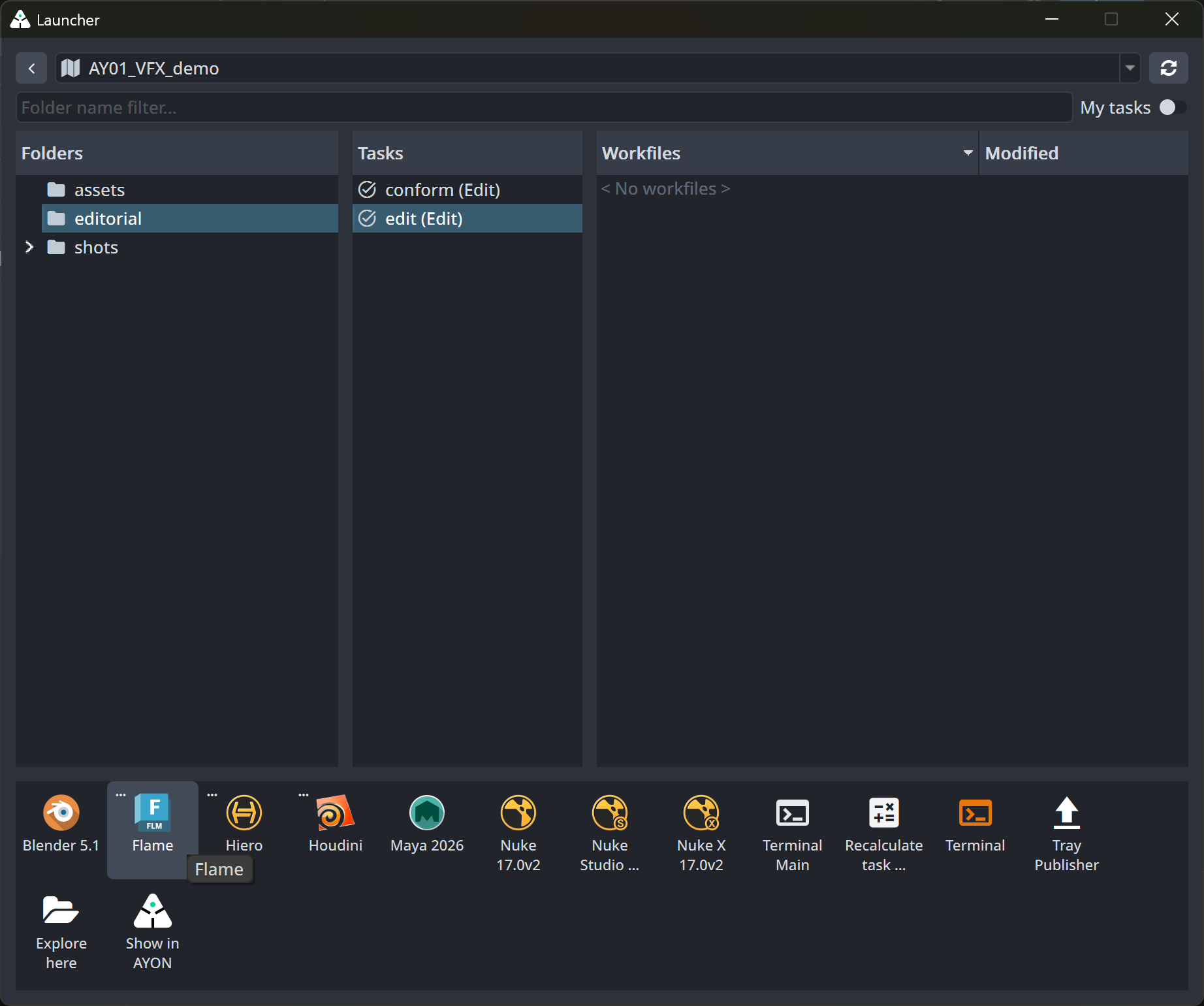
Open the AYON Launcher.
Navigate to your project, select your folder, and choose your Edit task.
In the applications panel, select and launch Flame.
Explore the AYON Integration in Flame
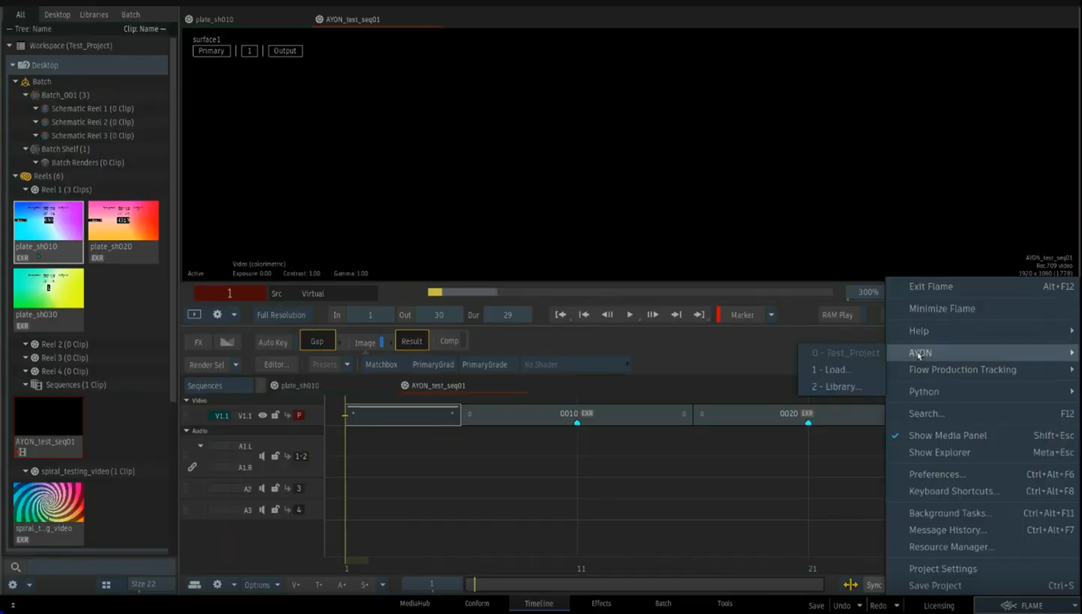
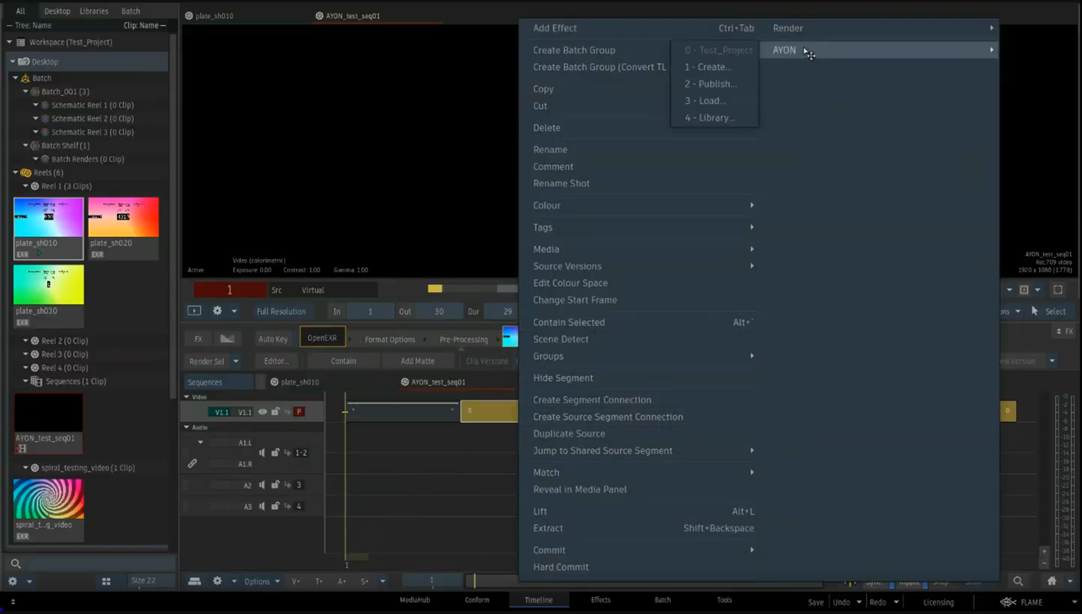
The AYON menu is available in several locations within Flame. Available tools adapt dynamically based on where you open the menu:
Main Flame Menu: Located in the bottom-right corner. Offers the Loader tool, allowing you to bring published products into Flame when you aren't starting from a selected timeline clip or Batch item.
Timeline Context: Right-click selected timeline clips to access the Create Publishable Clip tool.
Media Panel Context: Right-click Reel Clips to access media-specific tools.
Batch Context: Open AYON dedicated toolset for Batchgroup.
Prepare Sequence & Create Publishable Clips
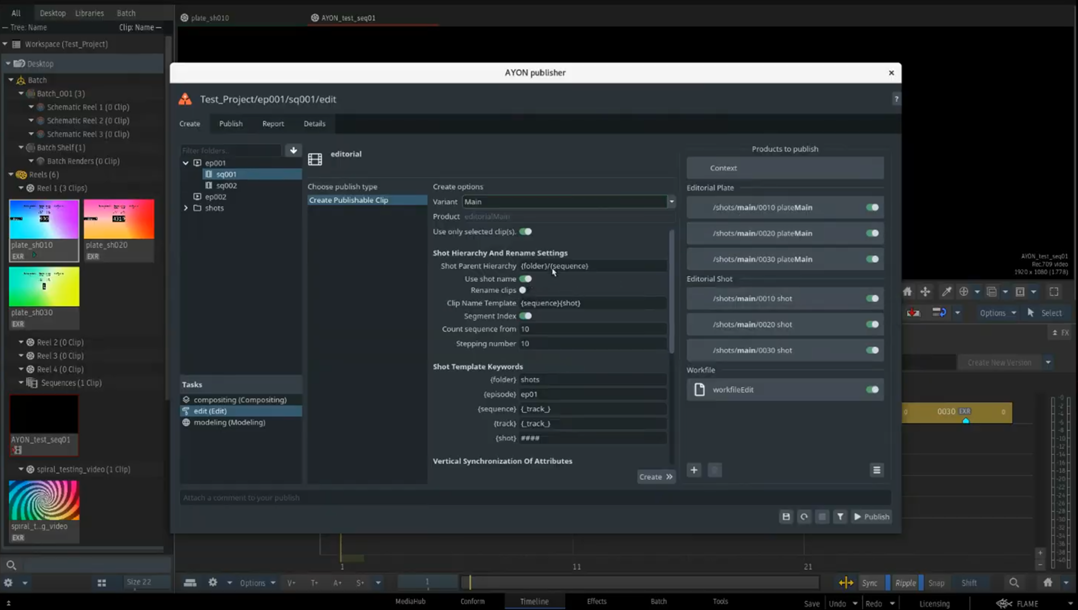
In this example, we are using a sequence with two tracks: a primary plate track and a second track containing supporting media.
Cut & Rename: Slice your main track into individual shot segments.
Assign Shot Names: Rename the timeline clips to match your target shot names (e.g.,
0010,0020,0030). These names will be used as the Shot Names in your AYON project hierarchy.Open Creator: Select all target clips → Right-click → AYON → Create... → Select Create Publishable Clip.
Configure Options:
Start Frame: Define the start frame for all published clips (e.g.,
1001).Handles (Start/End): Set required handle lengths (e.g.,
8frames).Enable Handles: Includes adjacent head/tail frames extending beyond clip cut points.
Vertical Sync: Enable this if you want to include supportive tracks above the main edit. It uses the frame ranges of the primary track as anchor points and aligns all vertical timeline tracks across that range.
Create Instances: Click Create. AYON generates publish items (known as publish instances) and populates them in the Publisher.
Spotting AYON Publish Items in Flame
Inspect your clip comments in Flame. You will see AYON-generated metadata tags, which the Publisher uses to identify valid publish instances.
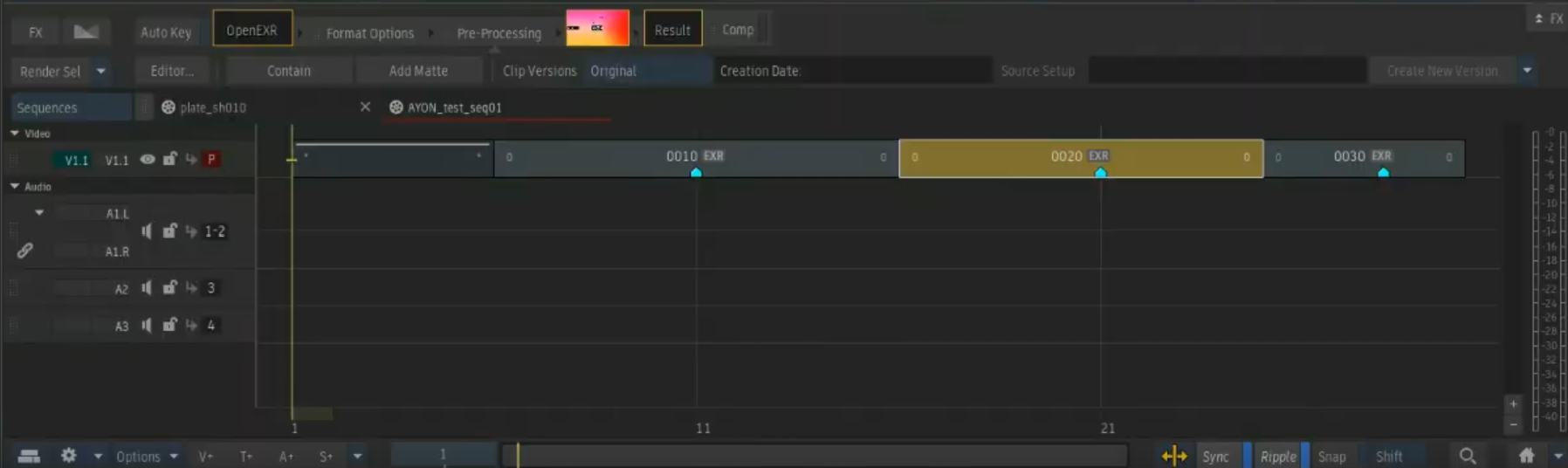
Add Custom Overrides (Optional)

To override specific publish attributes for a clip (such as forcing custom resolution dimensions):
Right-click a clip.
Add a formatted comment, for example:
width=1920;height=1080;AYON will parse these key-value pairs during publish collection.
Check with your pipeline administrator to confirm which attributes are permitted for comment overrides in your studio's presets as it’s configurable in the addon settings as mentioned in Admin Notes.
Publish
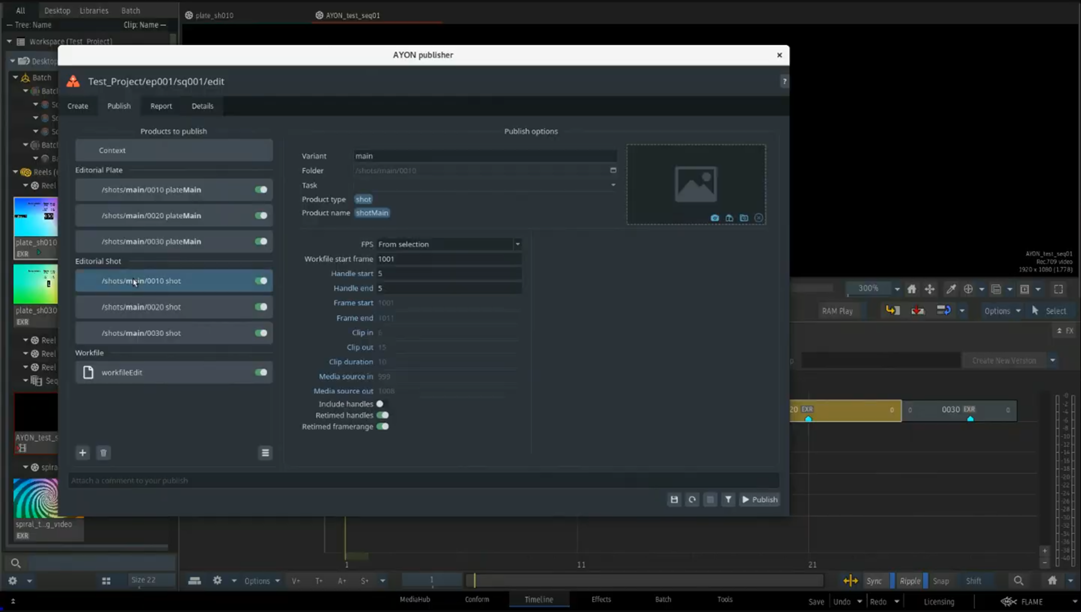
Right-click marked timeline clips and select AYON → Publish....
Review the generated Shot and product instances inside the Publisher UI.
Verify that all expected instances are enabled.
Click Publish.
Depending on your studio's project configuration, publishing will generate:
Shot Folders (created automatically on the server)
Plate Products
Audio Products
Review Products
Workfile Products
AYON validates instances, extracts resources according to your Flame export presets, and registers resulting products and versions on the AYON server.
Verify the Output (Proofing)
You can verify published output through both the AYON web interface and Flame:
Via AYON Web Server:
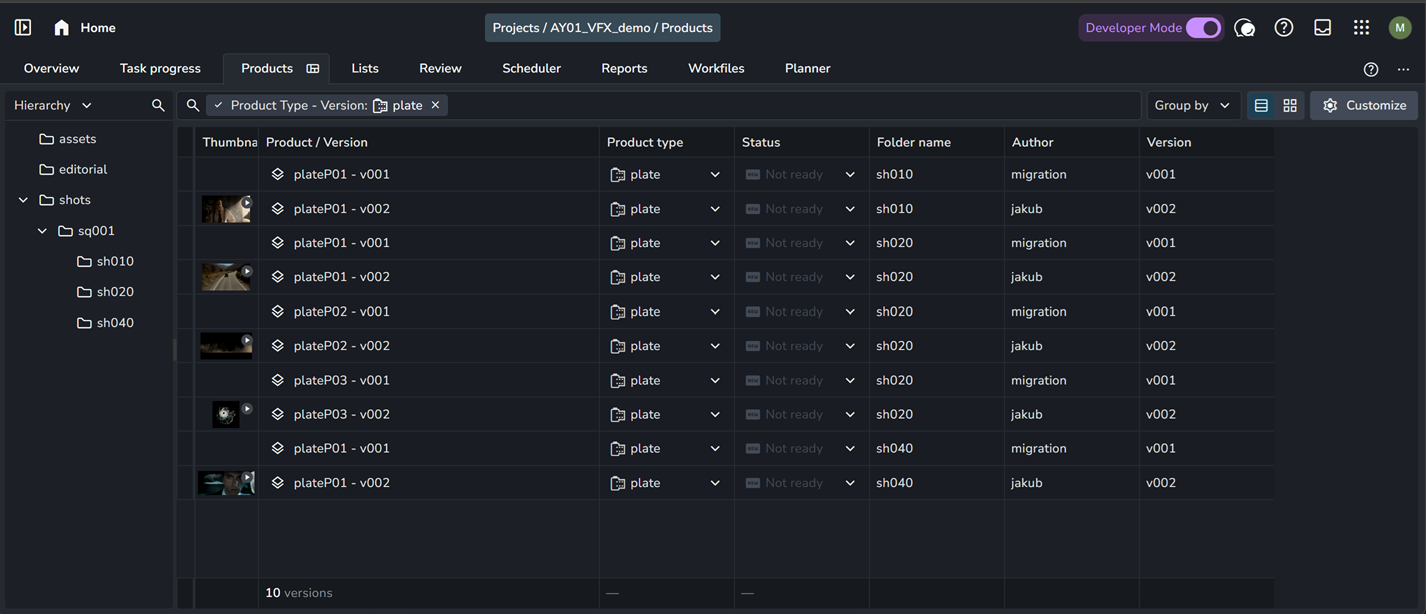
Open the AYON Web UI.
Navigate to the Overview tab to confirm new shot folders and tasks have been created in the project tree.
Navigate to the Products tab to verify generated plates and reviewables.
Inside Flame:
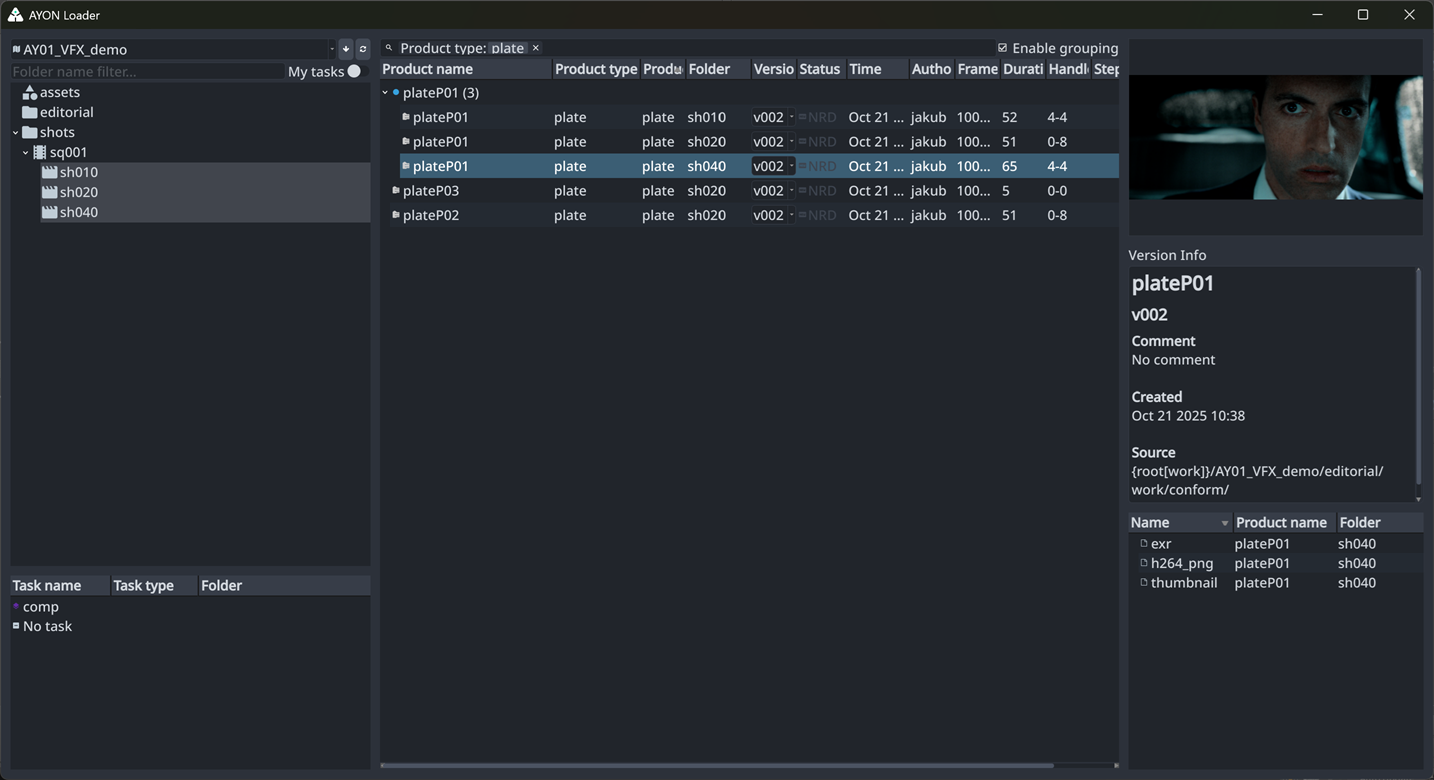
Go to AYON → Load....
Locate and select your newly published shots.
Flame will import the published files directly into a dedicated AYON Reels folder for quick verification.
Admin Notes
The Flame artist workflow works out-of-the-box with default AYON Server configurations. However, you can customize key behaviors in the Flame Addon Settings:
Application Paths (
ayon+settings://applications/applications/flame): Enable/disable Flame versions and configure executable paths.Color Management & Project Policy (
ayon+settings://flame/imageio/project): Enable ImageIO and define project color policies.Profile Mapping (
ayon+settings://flame/imageio/profilesMapping/inputs): Map input profiles to target project color spaces.Comment Attribute Overrides (
ayon+settings://flame/publish/CollectShot/xml_preset_attrs_from_comments): Enable XML preset parsing from clip comments.Add Tasks (
ayon+settings://flame/publish/CollectShot/add_tasks): Automatically attach default tasks when generating shots during editorial publishing.Resource Extraction (
ayon+settings://flame/publish/ExtractProductResources): Define plate export presets.
Wiretap & Storage Configuration:
AYON requires specific environment variables configured under ayon+settings://applications/applications/flame. The default setup assumes a local Wiretap server and default storage volume. If using custom setups, update FLAME_WIRETAP_HOSTNAME and FLAME_WIRETAP_VOLUME accordingly.
Frequently Asked Questions (FAQ)
What is a "Publish Instance"?
A Publish Instance is a publishable item created inside your scene using the Creator tool. Each instance defines a single product (such as a plate, camera, or EXR sequence) queued for validation and publication to AYON.
Do Flame clip names always become AYON Shot names?
Not necessarily. Clip names can drive shot naming, but final names depend on your configured Use Shot Name, clip-renaming rules, and hierarchy template settings. Always review generated instance names in the Creator before publishing.
Will publishing always create new tasks and shot folders?
No. Tasks are created only if configured under Add Tasks in Flame addon settings. Furthermore, editorial publishing skips creating shots or tasks that already exist on the AYON server.
Where does loaded media appear in Flame?
AYON loads media into Flame's Media Panel as Reel or Batch clips using OpenClip conversion. The exact destination group and reel names depend on your studio's loader settings.
Still need help? Ask the team